
01Who this is for
- Founders who need an adaptable front end for lead qualification without hard coded logic.
- Support managers looking to route inquiries dynamically and pull knowledge base answers.
- Marketing teams that want to personalize conversational outreach using real time contact data.
02AI Agent Nodes, explained
The AI Agent Node sits inside a flow based agent and runs when it receives input from a trigger or a previous node. It evaluates a custom prompt, selects a model, operates in either Conversational or Task Based Mode, and may invoke tools such as Knowledge Base search, Router or API Call. Runtime variables let the node capture information like names or intent and pass it forward.
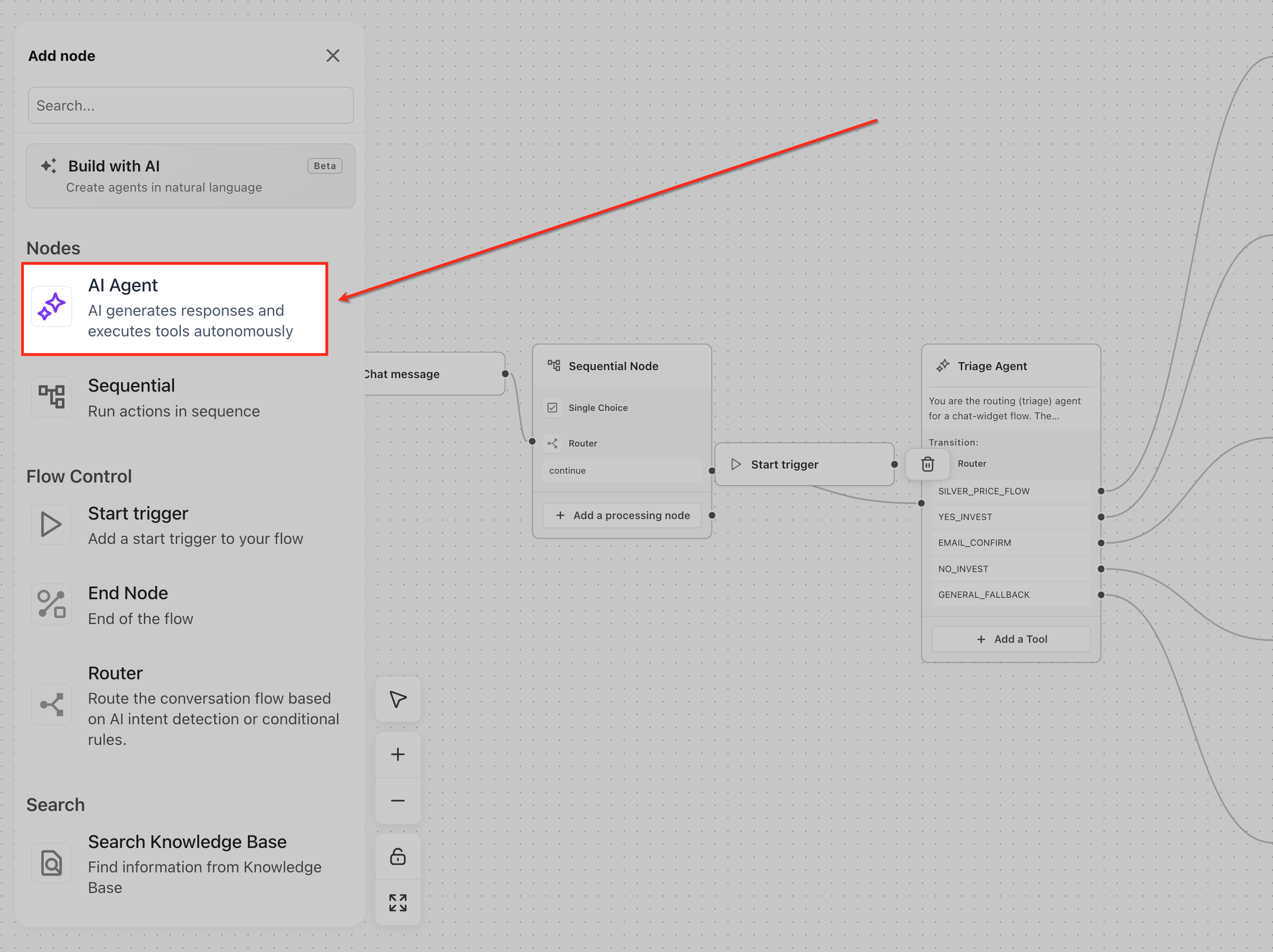
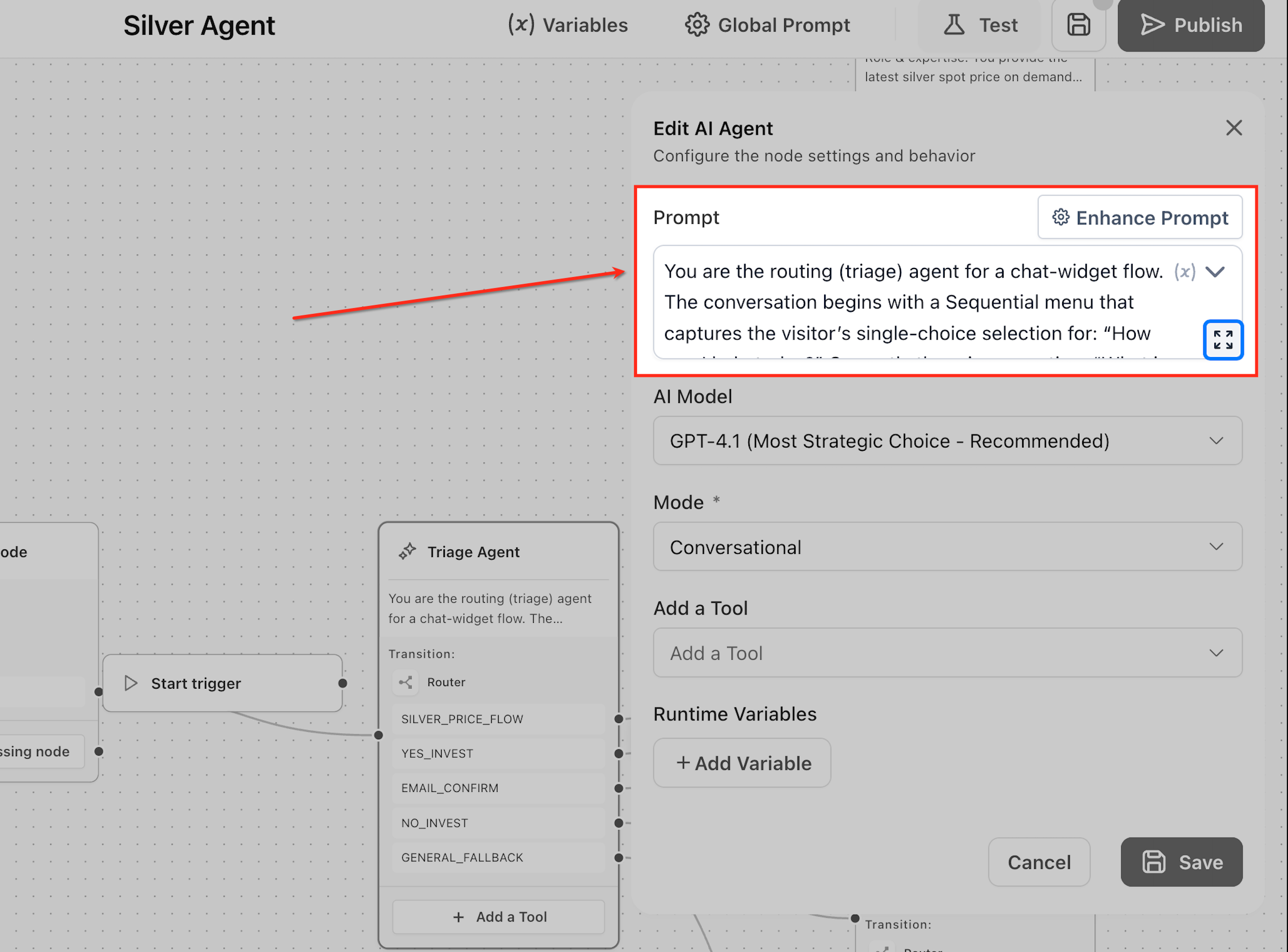
You find the node in the Nodes panel of Agent Studio. After adding it to the canvas you configure its prompt, model, mode, tools and variables in the right hand configuration panel. Once linked to subsequent nodes, the node executes its logic and streams the output downstream for further processing.
03How businesses use AI Agent Node
- SaaS support desk. Create a prompt that defines the agent as a support assistant, enable the Search Knowledge Base tool and capture issue categories as runtime variables. The node will answer common questions and tag tickets without hard coded paths.
- Real estate lead qualification. Set the node to Conversational Mode, add a prompt that asks for property preferences, and attach the Router tool to direct qualified leads to a sales flow. Captured details like budget and location are stored in runtime variables for record updates.
- Ecommerce product FAQ bot. Use the Search Knowledge Base tool and a concise prompt that instructs the agent to answer product queries. Runtime variables can grab customer email for follow up, while the node stays silent in Task Based Mode when only data extraction is needed.
04The numbers and rules that matter
- Prompt must include role, goal, do not do list, tone, tool usage, information to capture, output to pass forward.
- Supported models include GPT 5, GPT 4.1, GPT 4o, Mini and Nano.
- Available tools: Router, Search Knowledge Base, Search the Web, MCP Server, Actions, API Call, Text Generation, Image Generation, Video Generation, Audio Generation.
05How to set up and use AI Agent Node in HighLevel
Configure AI Agent Node
- Open the Nodes panel in Agent Studio and add an AI Agent Node to the canvas, linking it to the Start Trigger or a prior node.
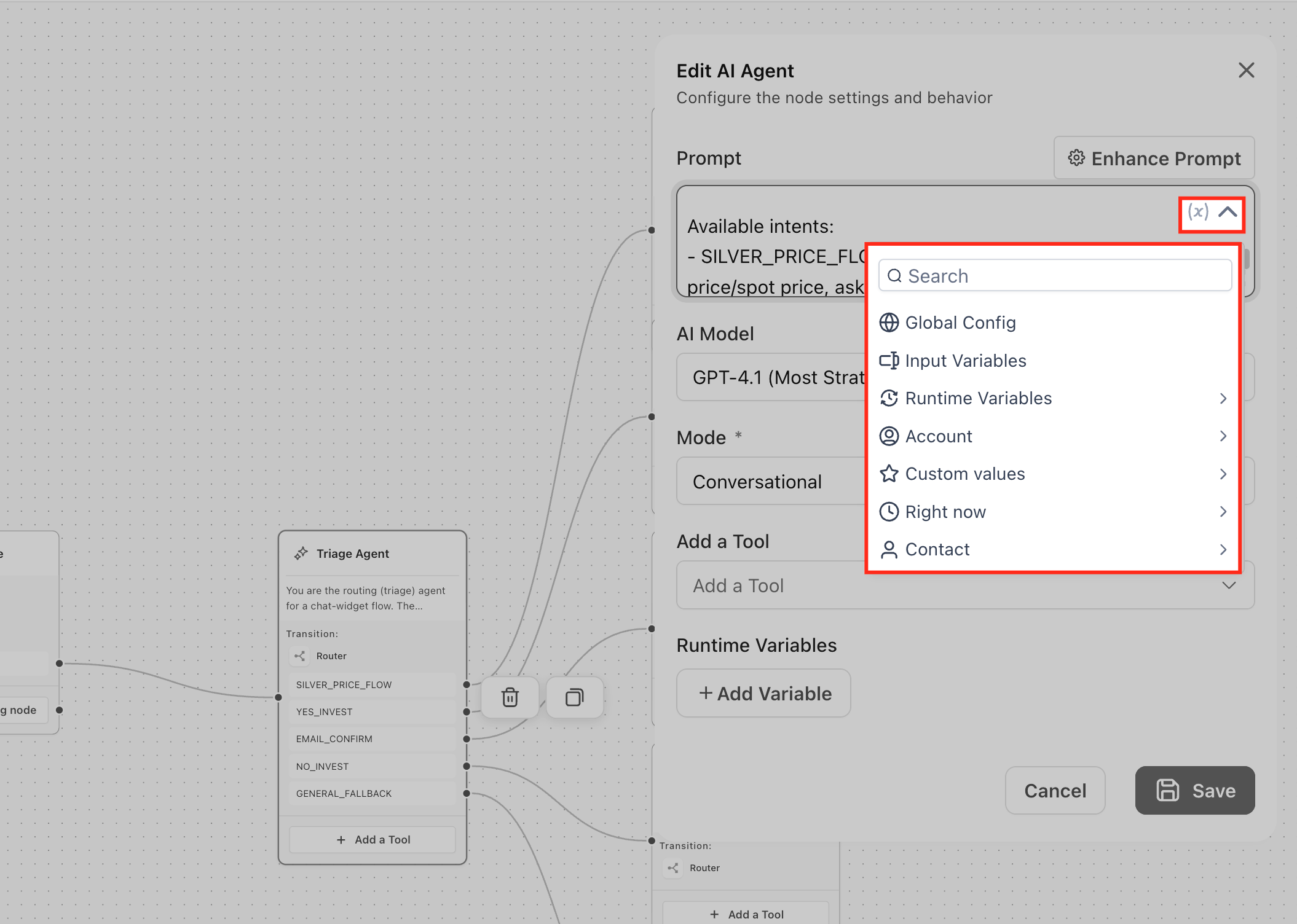
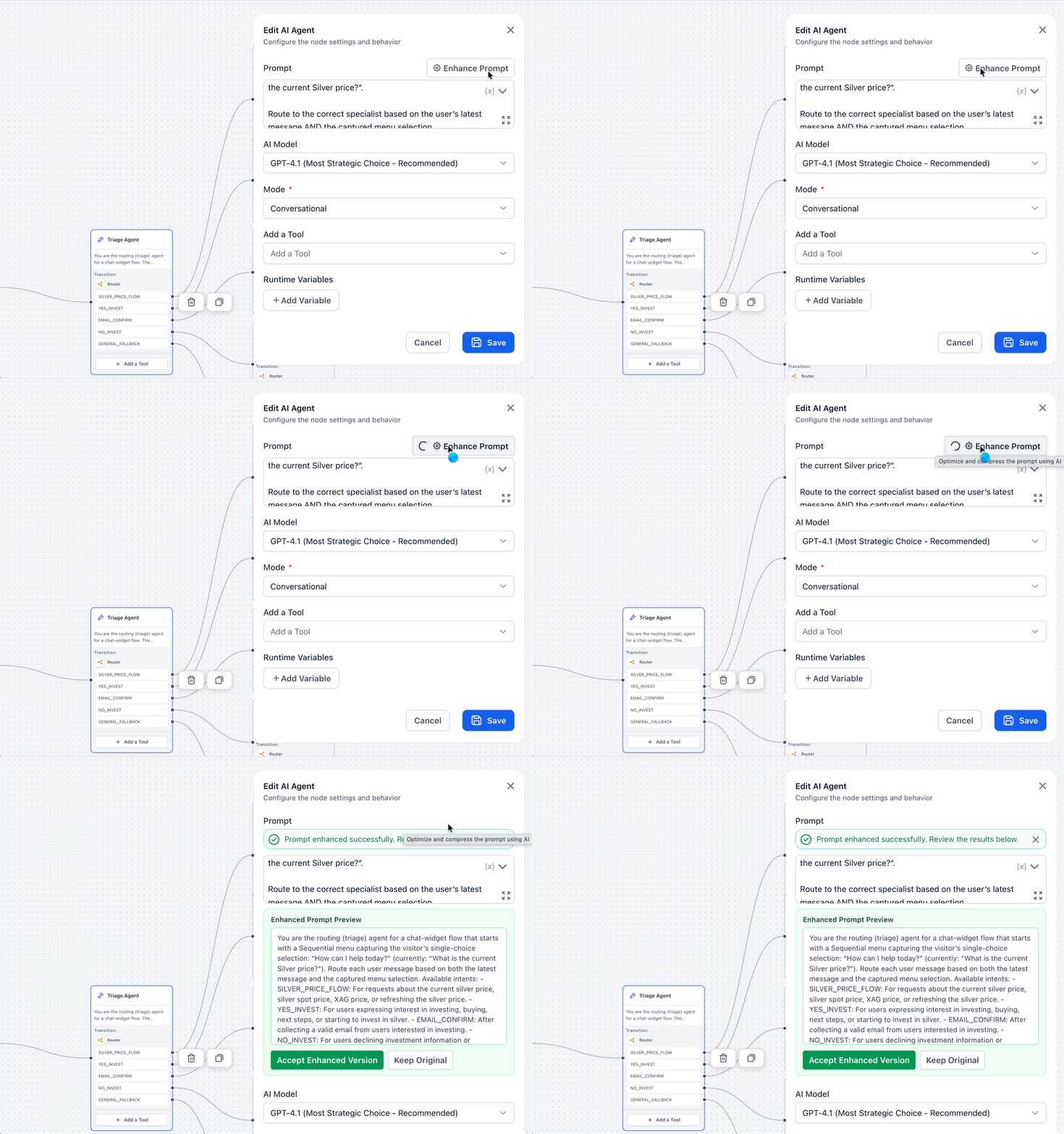
- Enter a clear prompt that defines the agent’s role, tasks, tone, tool usage and information to capture.
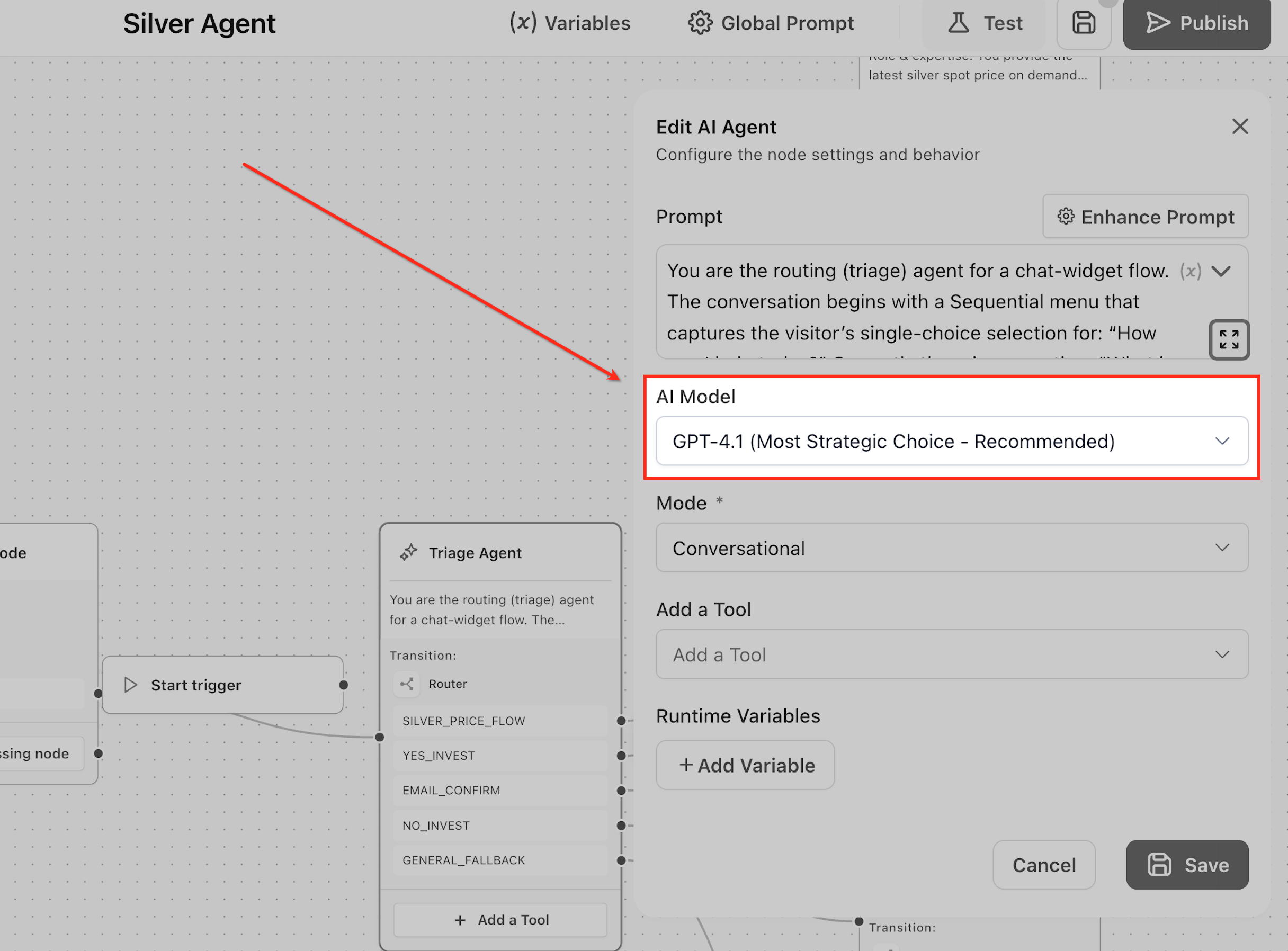
- Select the appropriate model for the node, choosing higher capability models for complex reasoning or lighter models for speed.
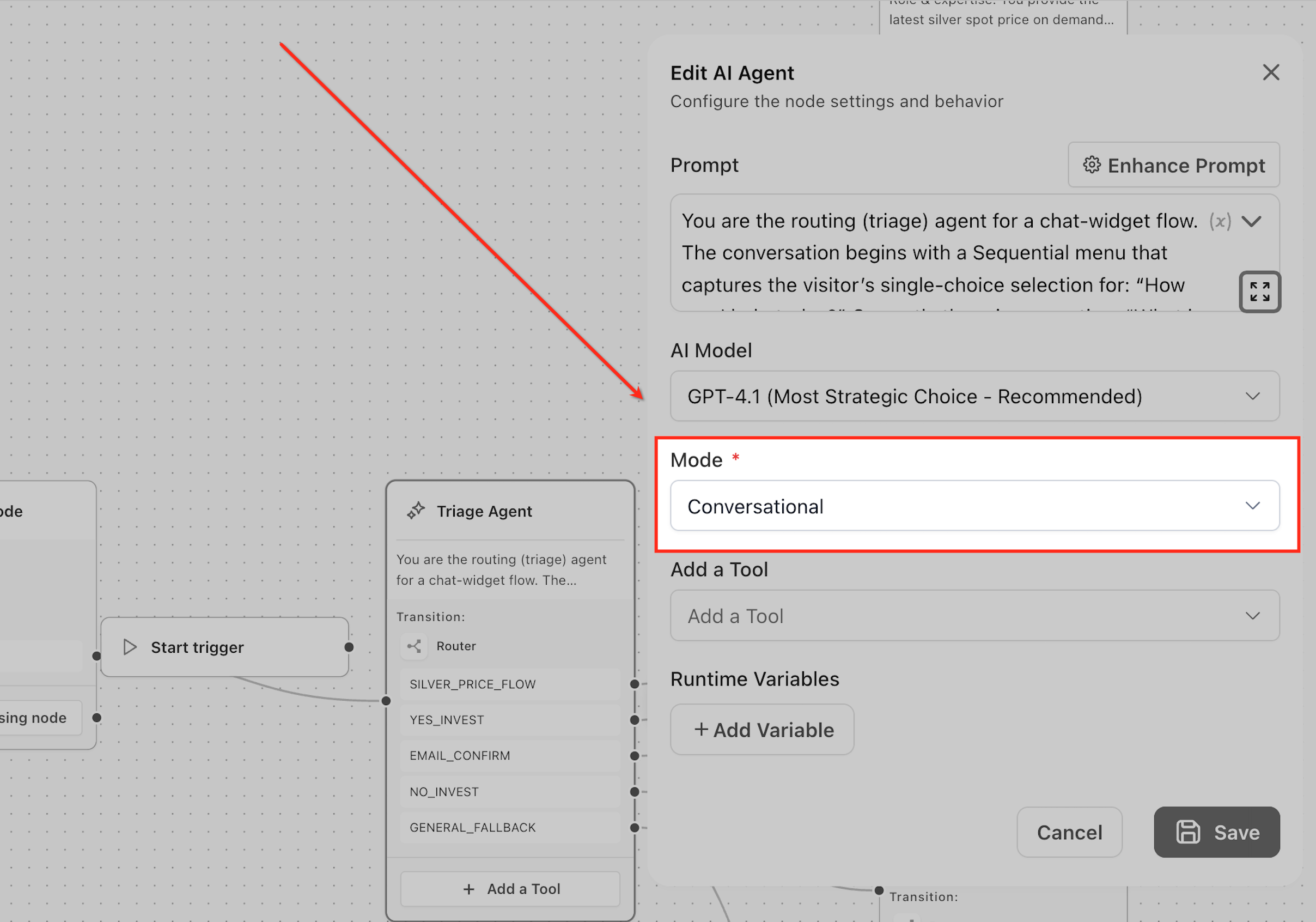
- Choose the execution mode, Conversational Mode for user facing replies or Task Based Mode for silent background actions.
- Attach only the tools needed for the use case, such as Knowledge Base, Router or API Call, to enable external actions.
- Create runtime variables, giving each a name, type and description so the agent can extract and store data during execution.
- Connect the AI Agent Node to the next step in the flow so its output is passed forward for further actions.
06What it looks like in HighLevel
07Settings that matter
- Prompt. Controls the agent’s role, instructions, tone and when to invoke tools.
- Model. Determines the language model that processes input and generates responses.
- Mode. Selects between Conversational Mode for user replies and Task Based Mode for silent tasks.
- Tools. Enables actions such as Knowledge Base search, routing, web search, API calls or content generation.
- Variables. Defines input, runtime and custom values that the node can use or capture during execution.
08Things to know before you rely on it
- The node is intended for maintaining existing flow based agents; new agents should be created using the current recommended HighLevel experience.
- Keep each AI Agent Node focused on a single primary role to maintain testability and clarity.
- Attach only the tools required for the task to avoid unnecessary complexity.
09If something goes wrong
- A runtime variable returns empty. Check that the prompt instructs the agent to capture the value and that the variable description is clear, then test again.
- Unexpected agent behavior after changes. Test the node after updating the prompt, model, mode, tools or variables to confirm correct operation.
10How it connects to the rest of HighLevel
- Learn how to manage existing flow agents in Agent Studio Managing flow agents
- Step by step guide to create, test and publish flow agents Create flow agents
- Set up custom values and variables for use in prompts Custom values & variables
- Tips for testing and debugging AI agents in Agent Studio Testing & debugging
Michael's take

The AI Agent Node is a solid addition for anyone who needs flexible, context aware flows in Agent Studio. Teams that run purely linear, fixed step automations should skip it.