
01Who this is for
- Workflow designers who need a quick way to correct accidental deletions while building automations.
- Team members collaborating on a single workflow who want to revert only their own edits during a session.
- Founders who experiment with AI generated steps and require the ability to backtrack safely.
02Undo, redo & recent changes, explained
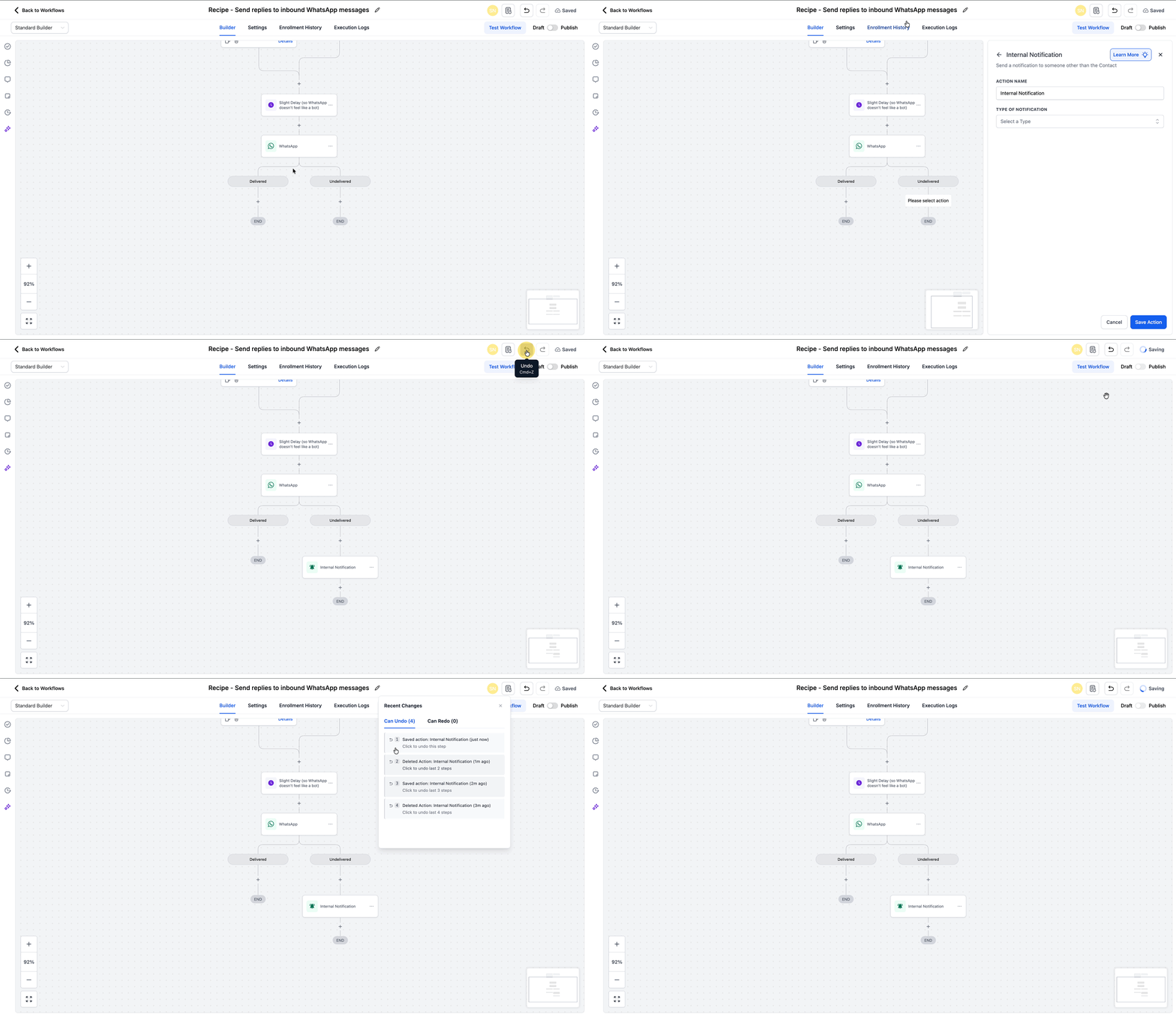
Undo, redo and recent changes track every edit you make on the workflow canvas during the current editing session. Each change is auto saved, and the system records it locally. You can step backward with Undo, step forward with Redo, or open the Recent Changes list to jump to any prior edit.
These controls appear as toolbar buttons on the canvas and have keyboard shortcuts for Windows (Ctrl + Z, Ctrl + Y) and macOS (Cmd + Z, Cmd + Y or Cmd + Shift + Z). The same actions work on changes created by the Workflow AI Builder, such as adding actions or restructuring steps.
The history lives only while you remain in the same browser session. Closing the tab, refreshing the page, or restoring an older version via Version History clears the undo/redo stack and starts a new history from the restored state.
03How businesses use undo, redo & recent changes
- Digital marketing agency. The agency adds a new email action to a client workflow, then realizes the timing is wrong. They press the Undo button to remove the action, adjust the timing, and use Redo to restore the email if needed. The Recent Changes list lets them revert to the version before any AI suggested edits.
- Ecommerce store. While configuring a checkout abandoned cart workflow, the store owner accidentally deletes a tag step. They hit Ctrl + Z to bring the step back, then use the Recent Changes panel to view each edit made during the session and ensure the logic matches the original plan.
- Coaching practice. A coach uses the Workflow AI Builder to generate a series of SMS reminders. After reviewing, they decide the first reminder should be removed. They Undo the AI generated step, test the flow, and if they change their mind, they Redo the step without rebuilding the entire workflow.
04Before you start
- Be logged into HighLevel and have an active workflow editing session open.
05How to set up and use undo, redo & recent changes in HighLevel
Use undo, redo, and recent changes while editing a workflow
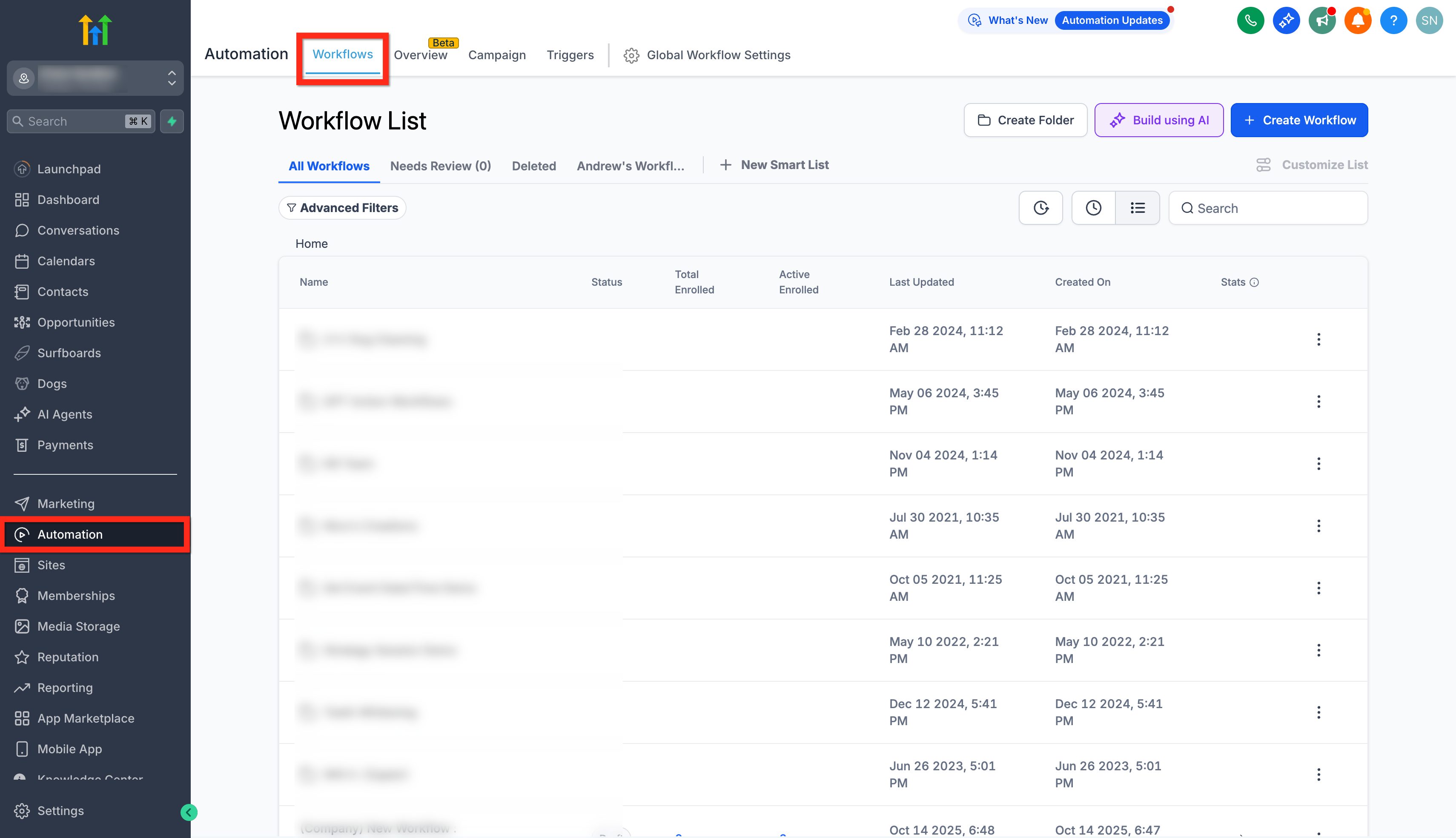
- Open the platform and select Automations > Workflows.
- Create a new workflow or open an existing one to edit on the canvas.
- Add a new step or modify an existing step directly on the canvas.
- Click the Undo or Redo button in the toolbar, or press the keyboard shortcut to reverse or reapply the last change.
- Click the Recent Changes button on the canvas, then choose an entry to jump the workflow to that specific edit.
06What it looks like in HighLevel
07Settings that matter
- Undo/Redo buttons. Toolbar controls that reverse the most recent edit or reapply an undone edit within the current session.
- Keyboard shortcuts. Shortcut keys (Ctrl + Z, Ctrl + Y for Windows; Cmd + Z, Cmd + Y or Cmd + Shift + Z for macOS) that perform undo and redo actions without using the mouse.
- Recent Changes list. A chronological panel that displays each auto saved edit made in the session and allows you to jump to any selected point in time.
08Things to know before you rely on it
- History exists only for the current editing session and is cleared when the browser tab is refreshed or closed.
- Undo/redo tracks only the edits you make; changes from other collaborators do not appear in your session history.
- Restoring a workflow via Version History resets the undo/redo stack, starting a new history from the restored version.
- Undo/redo actions affect only the canvas in the editor; publishing determines when changes impact live workflow executions.
09How it connects to the rest of HighLevel
- Build workflows with triggers, filters, and actions Workflow creation guide
- Control workflow timing and contact enrollment Workflow settings overview
- Learn the basics of automating with HighLevel workflows Workflow automation basics
Michael's take

It lets you experiment with AI generated steps or massive restructures without fearing you’ll lose your work, and the Recent Changes list makes it easy to compare versions in real time.
If your workflow is simple or you already rely on Version History for every change, the extra session based layer adds little value. The feature protects only your own edits, so in a multiuser environment you’ll still need the broader version controls for true safety.