
01Who this is for
- SaaS Founders can automatically welcome new paying users when a trial subscription turns active.
- Membership site owners can trigger reminders or re engagement emails when a subscription is cancelled.
- Digital product sellers can send internal alerts when a subscription status changes to overdue or unpaid.
02Subscription triggers, explained
The Subscription trigger monitors changes in a contact’s subscription lifecycle. It activates a workflow when a new subscription is added, when a trial converts to an active plan, or when a subscription is cancelled.
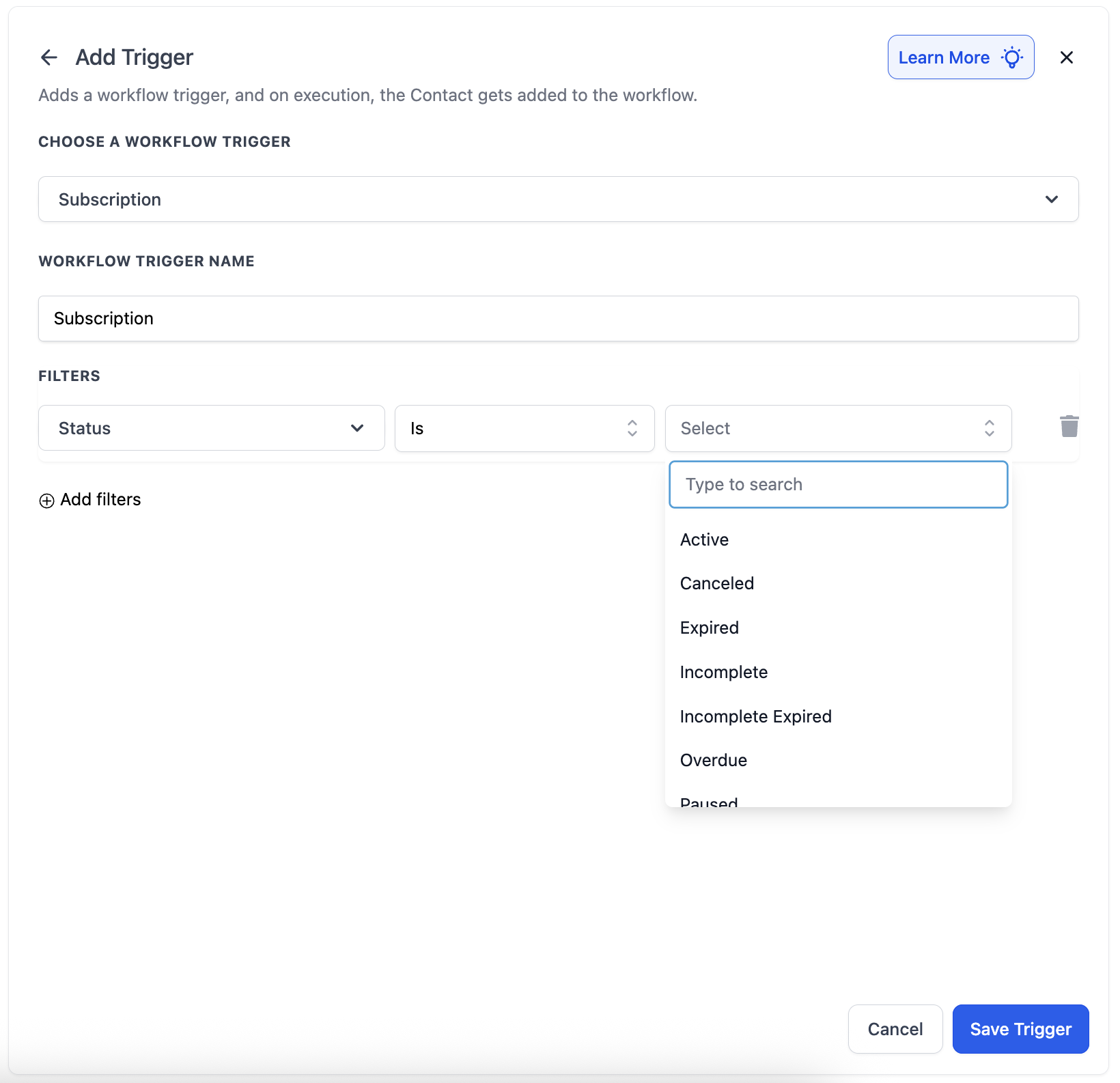
Within the trigger, you can add filters to narrow the conditions. Use the Global Products filter to select specific products, and the Status filter to target particular subscription states such as Active, Canceled, or Overdue. After filtering, you define actions like sending emails, updating records, or notifying team members.
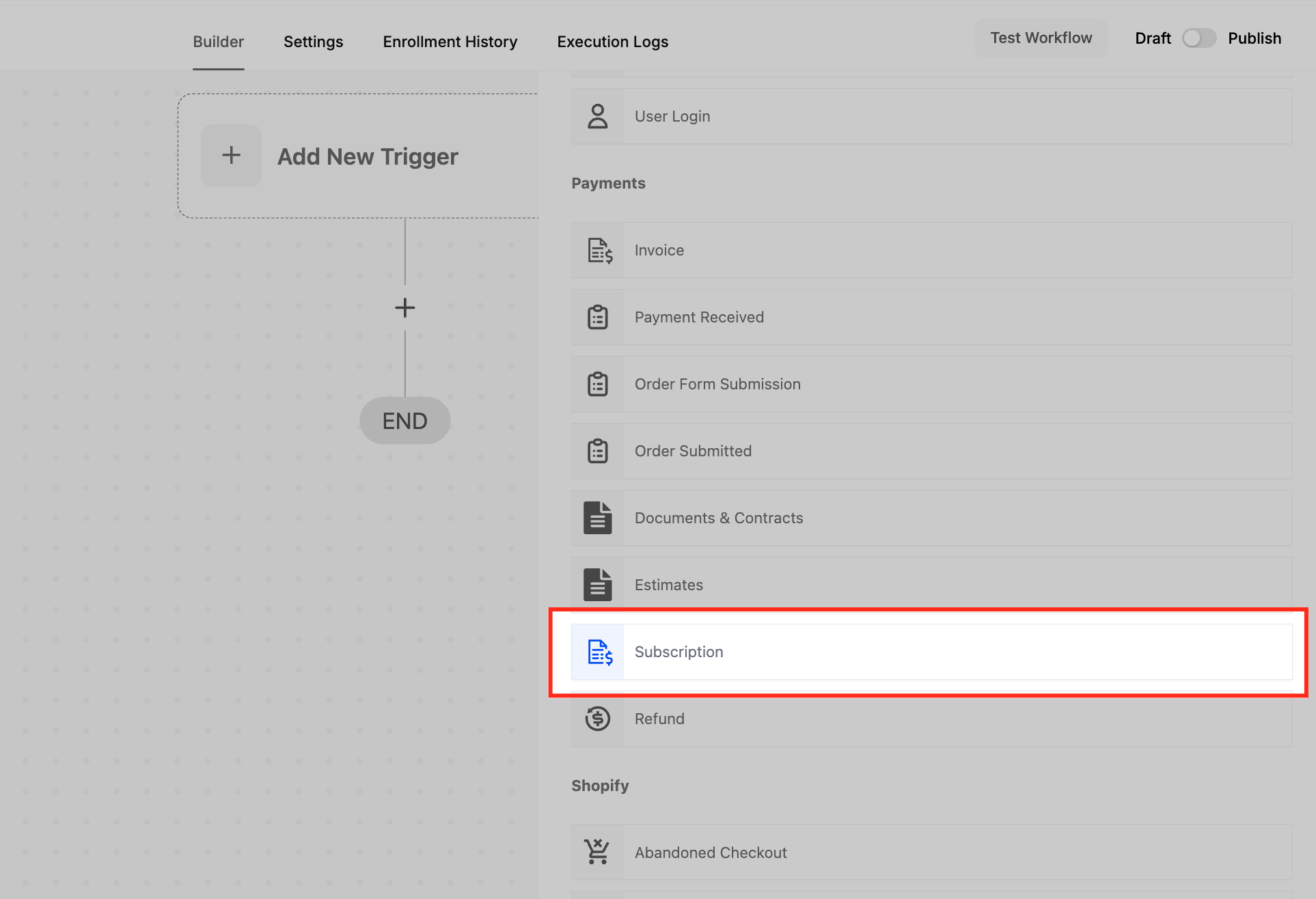
You find the trigger in the Automations area of the HighLevel dashboard. Inside the workflow builder, click Add Trigger, choose the Subscription option under Payments, configure filters and actions, then save and activate the workflow.
03How businesses use the Subscription trigger
- SaaS startup. Add the Subscription trigger, filter for the trial status, and set an action to send a welcome email when the status changes to Active. This automates onboarding for new paying users.
- Online fitness coaching business. Configure the trigger with a Status filter for Overdue, then add an action to notify a coach via SMS or email. This enables timely follow up with members who missed a payment.
- Subscription box retailer. Apply a Global Products filter for the specific box product, set the Status filter to Canceled, and create an action that emails the customer a feedback request. This captures insights after a cancellation.
04Before you start
- Access to the Automations section of the HighLevel dashboard.
05How to set up and use the Subscription trigger in HighLevel
Set up subscription trigger
- Open the Automations area and launch the workflow builder.
- Click Add Trigger to open the trigger list.
- Select the Subscription trigger located under the Payments section.
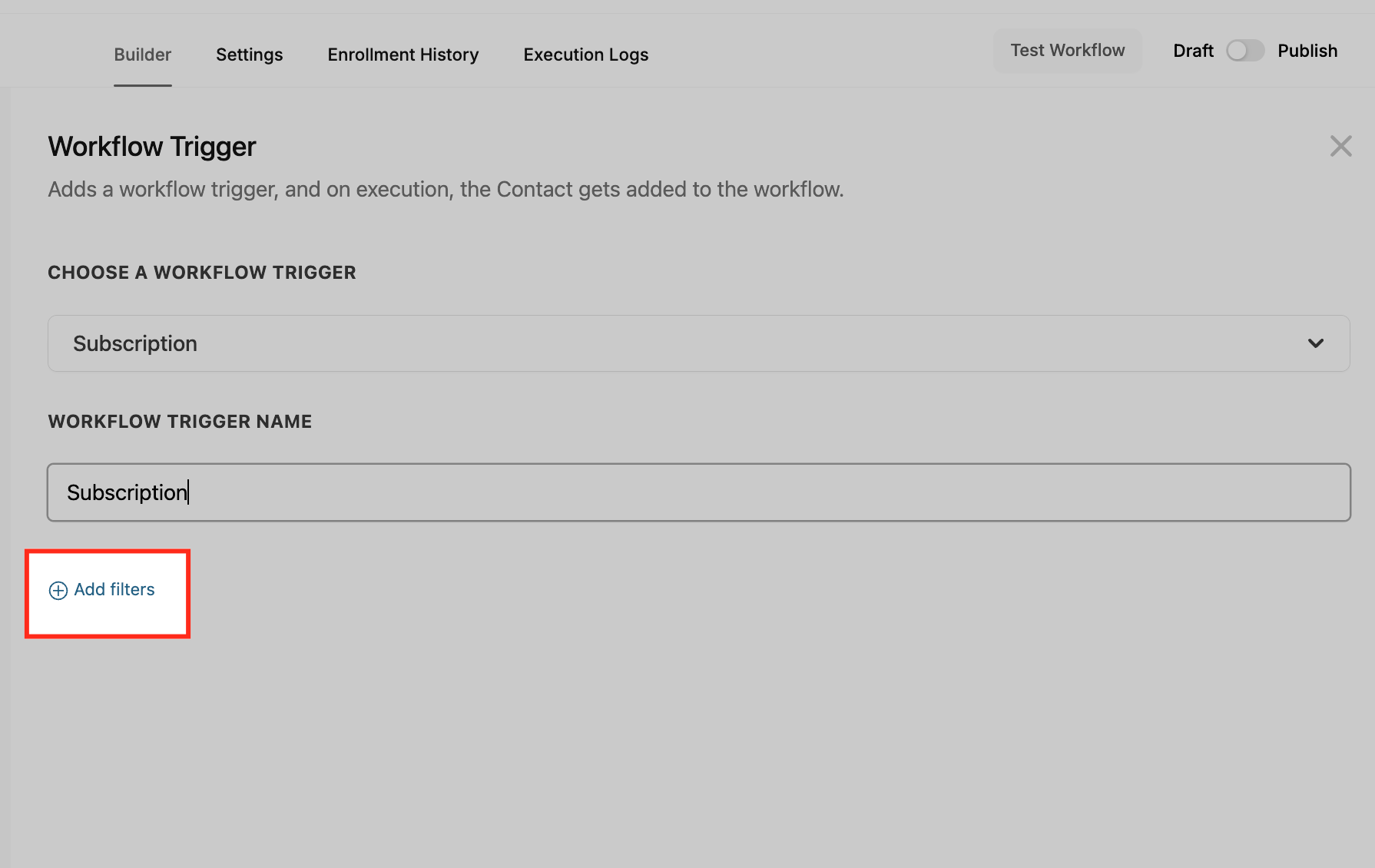
- Choose Add filters to open the filter configuration panel.
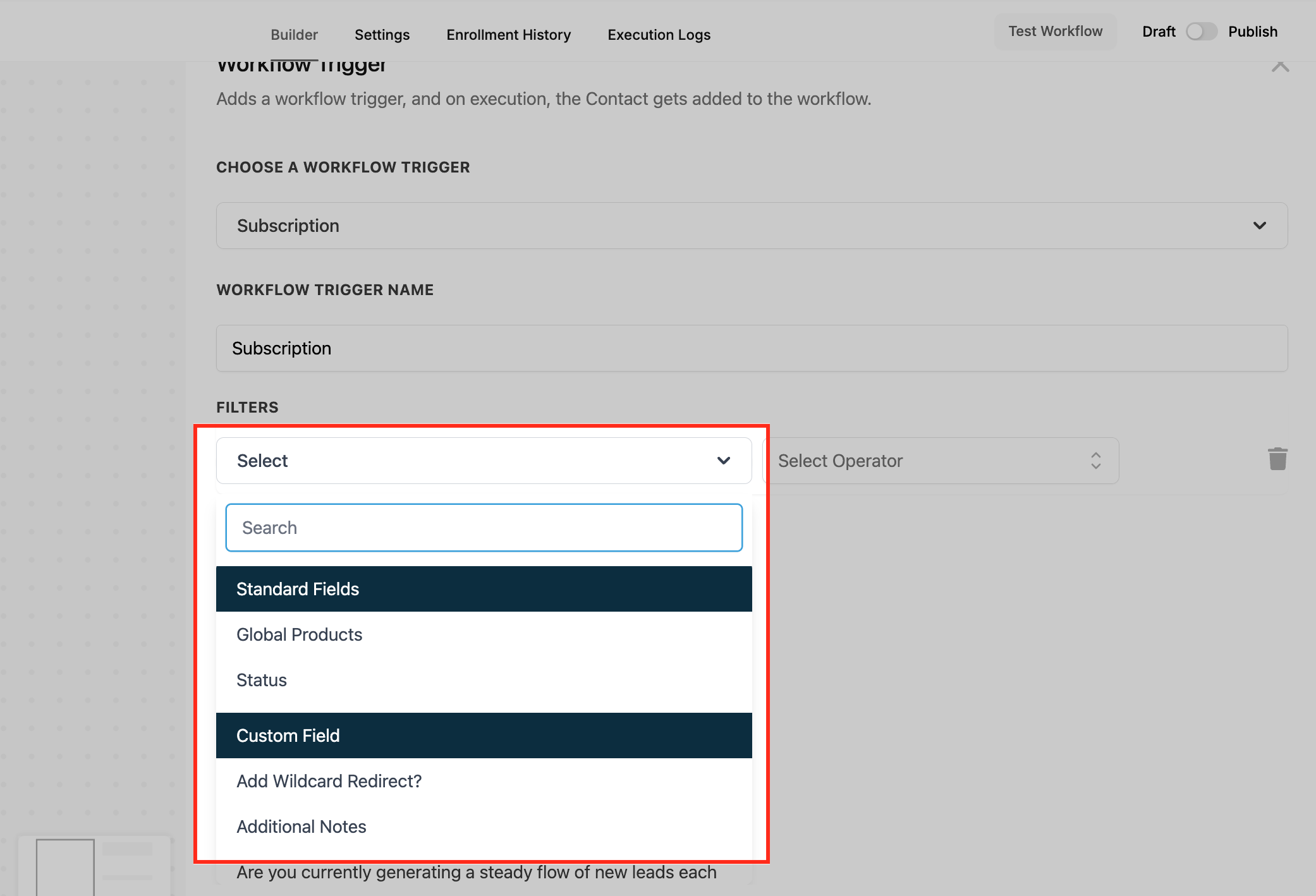
- Select either Standard or Custom fields to define filter criteria.
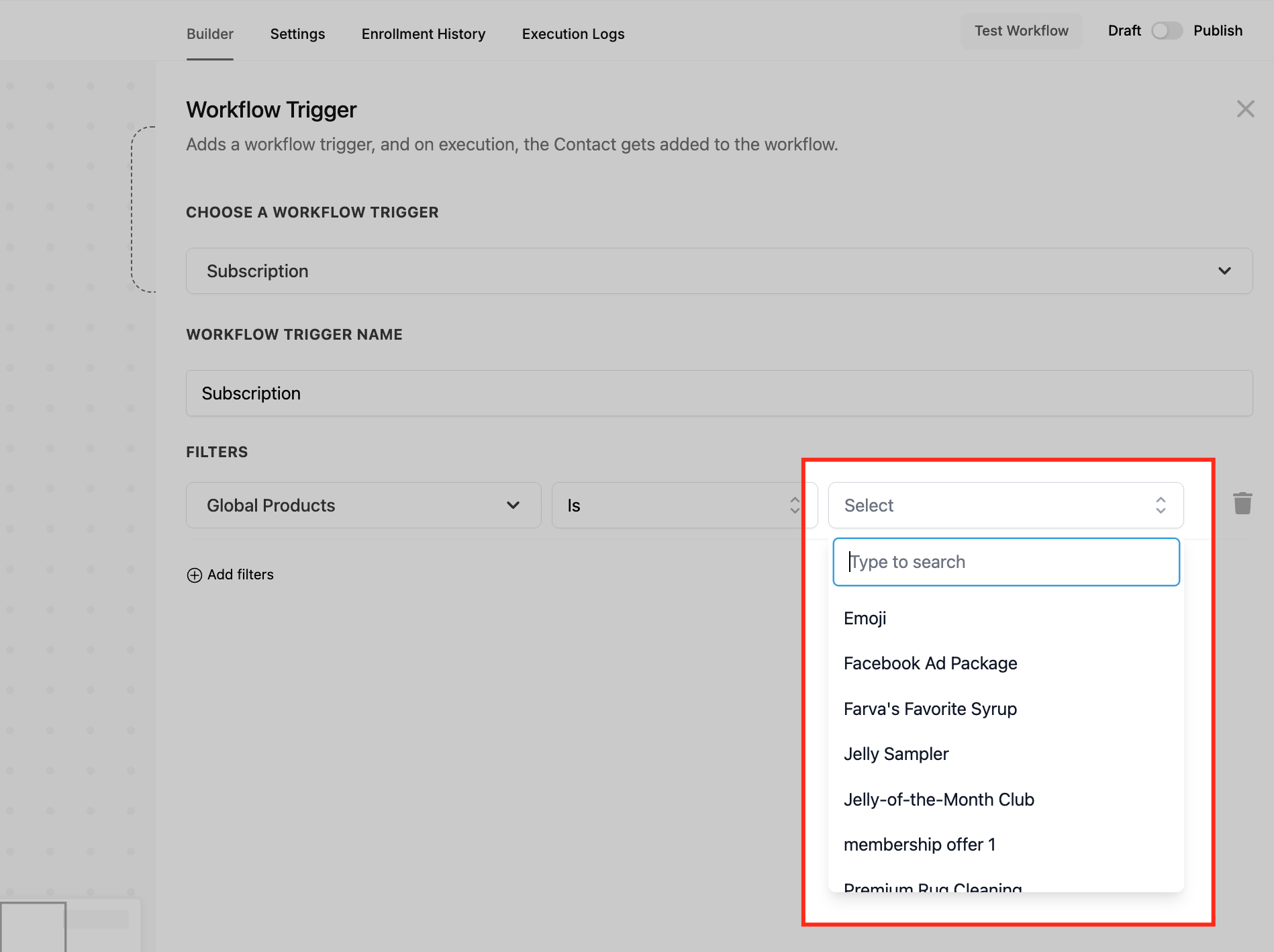
- Configure the Global Products filter to include or exclude specific products.
- Set the Status filter to target the desired subscription lifecycle stages.
- Add desired actions, then save the trigger and activate the workflow.
06What it looks like in HighLevel
07Settings that matter
- Global Products. Determines which product associated with a subscription must match for the trigger to fire.
- Status. Specifies the subscription lifecycle stage that activates the workflow, such as Active, Canceled, or Overdue.
08Things to know before you rely on it
- The Expired status option does not apply to Stripe subscriptions.
- The Incomplete Expired status replaces the former Failed status.
- Filters support options like Is, Is not, Is empty, and Is not empty for both Global Products and Status.
09How it connects to the rest of HighLevel
- Pair with the Payment Received trigger to act on successful payments. Payment received trigger
- Combine with the Order Submitted trigger for end to end order automation. Order submitted trigger
- Review the workflow basics guide for building complete automations. Workflow basics
Michael's take

The Subscription trigger is worth the effort for any small business that relies on recurring payments; it automates the right messages at the right subscription moments without manual work.
Don’t forget to add the appropriate status filter, or you’ll trigger the workflow for every subscription change and overwhelm your contacts.