
01Who this is for
- Finance managers can automate payment confirmations, reducing manual follow up.
- Customer support teams receive instant alerts when invoices are viewed, enabling timely outreach.
- Small business owners can set amount ranges to trigger reminders only for larger invoices, saving time.
02Invoice workflow triggers, explained
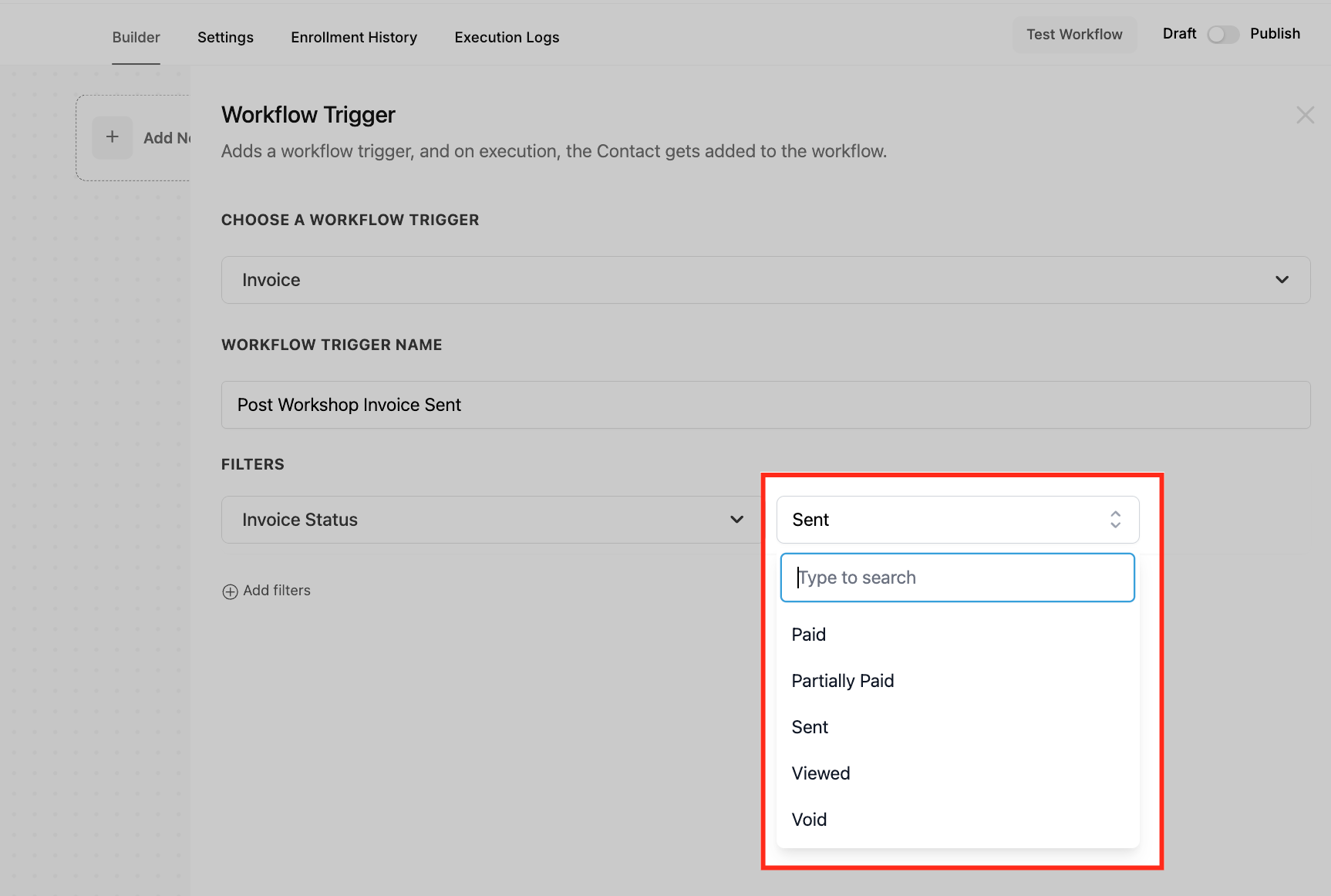
The Invoice workflow trigger monitors changes to an invoice’s status. When a selected status occurs, such as Sent, Viewed, Partially Paid, Paid, or Void, the trigger can launch a series of automated actions you define.
You configure the trigger inside the Automation area under Workflows. After selecting the Invoice trigger, you give it a name, add filters for status, amount ranges, tags or custom fields, and then attach actions like email, SMS, CRM field updates, or task assignments. Once saved and activated, the workflow runs automatically whenever the conditions are met.
03How businesses use invoice workflow trigger
- Freelance graphic designer. Set the trigger to fire when an invoice is sent and the amount is between 10 and 30. Add an email action that reminds the client of the payment due date, removing the need for manual follow up.
- Gym membership manager. Configure a filter for the Paid status and a custom field that indicates membership type. When a payment is recorded, send a thank you SMS and update the member’s status in the platform.
- Online course provider. Use the Viewed status filter combined with a tag for high value courses. When a learner views an invoice, automatically assign a task to a sales rep to offer a consultation.
04The numbers and rules that matter
- System prevents a range where the minimum is greater than the maximum.
05How to set up and use invoice workflow trigger in HighLevel
Set up invoice workflow trigger
- Open the Automation section and create a new workflow or select an existing one.
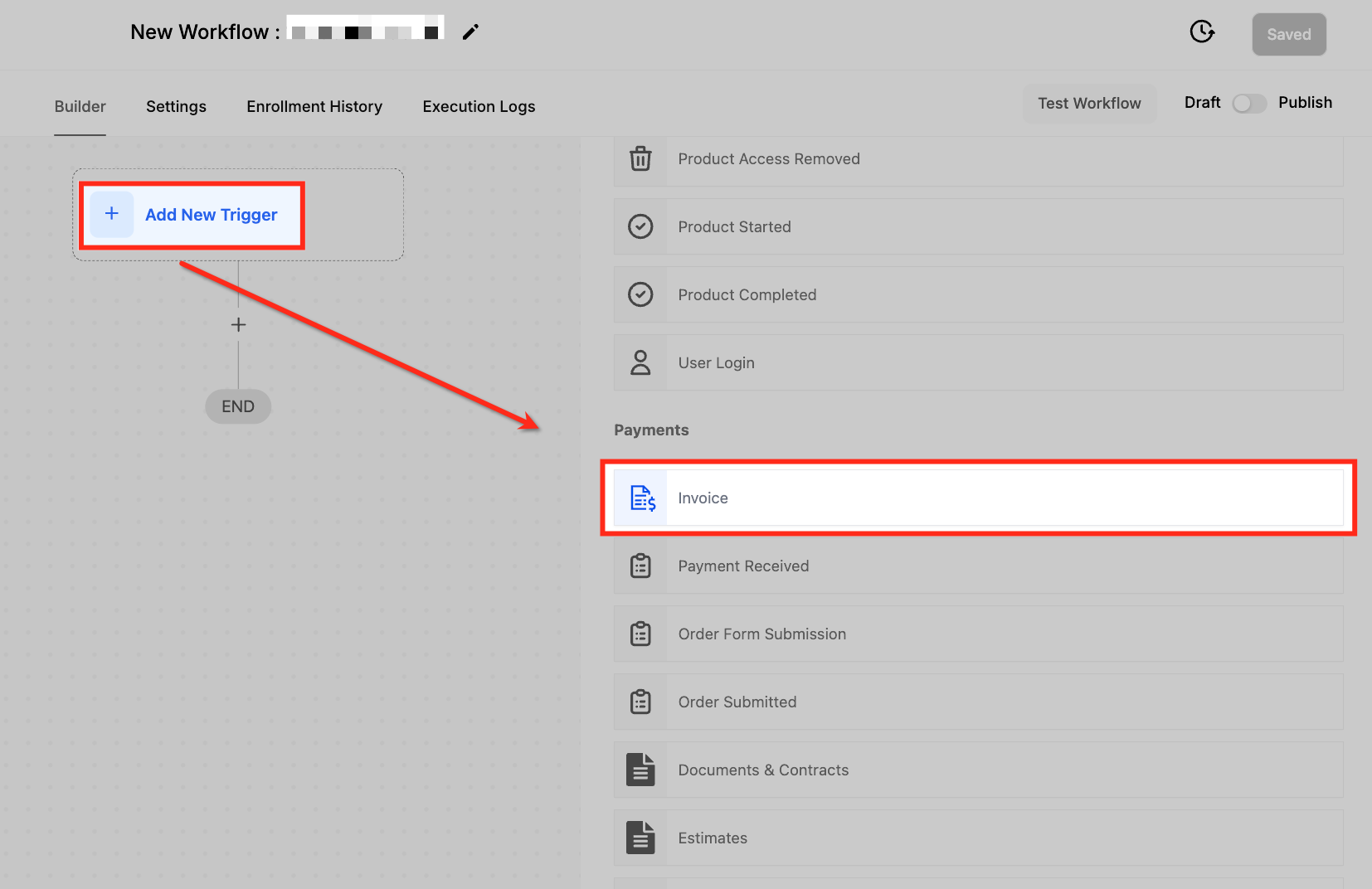
- Click + Add New Trigger and choose the “Invoice” option from the list.
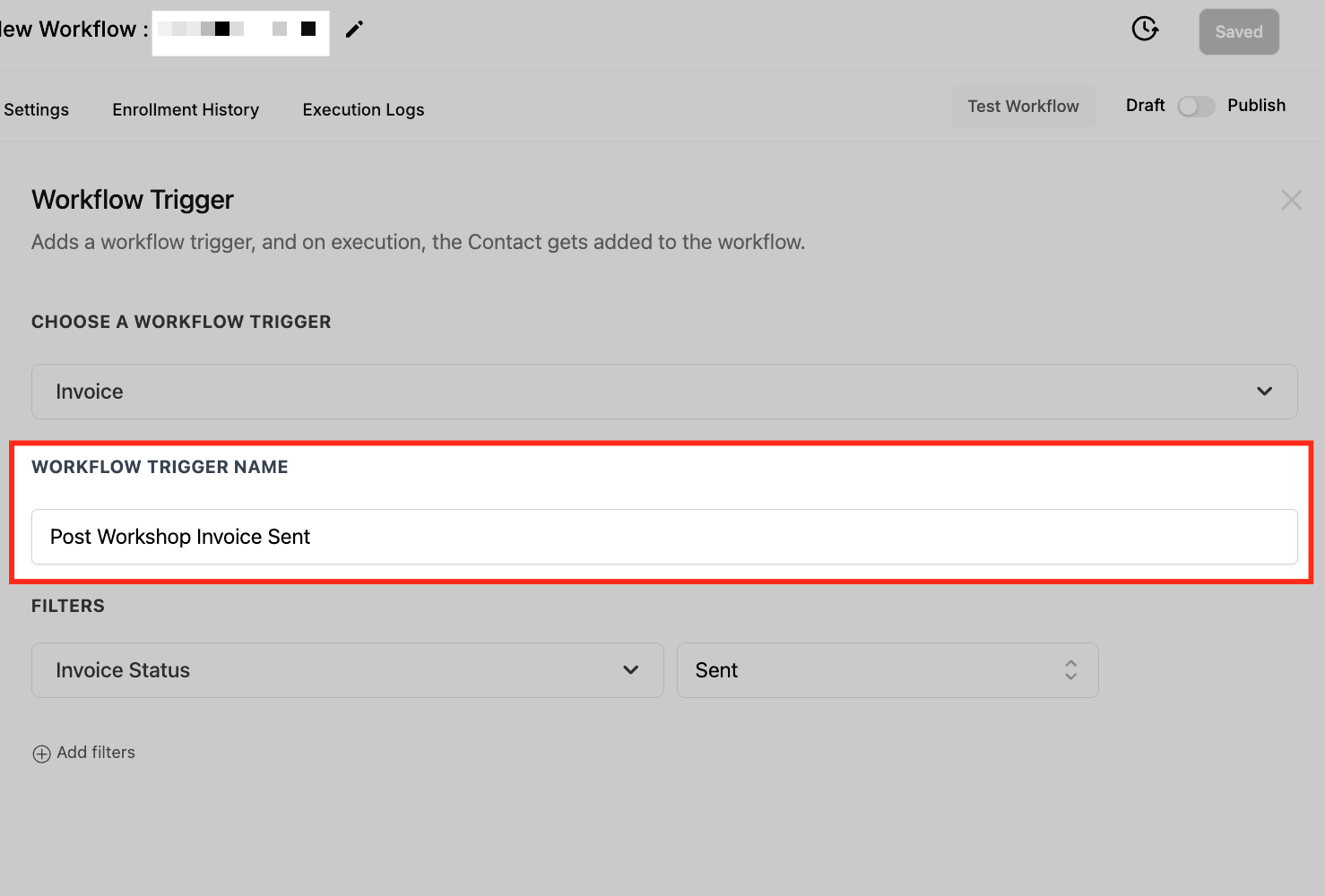
- Enter a descriptive name for the trigger, such as “Invoice Sent for New Leads”.
- Add filters to narrow when the workflow should run.
- Select the desired Invoice Status (Paid, Partially Paid, Sent, Viewed, or Void).
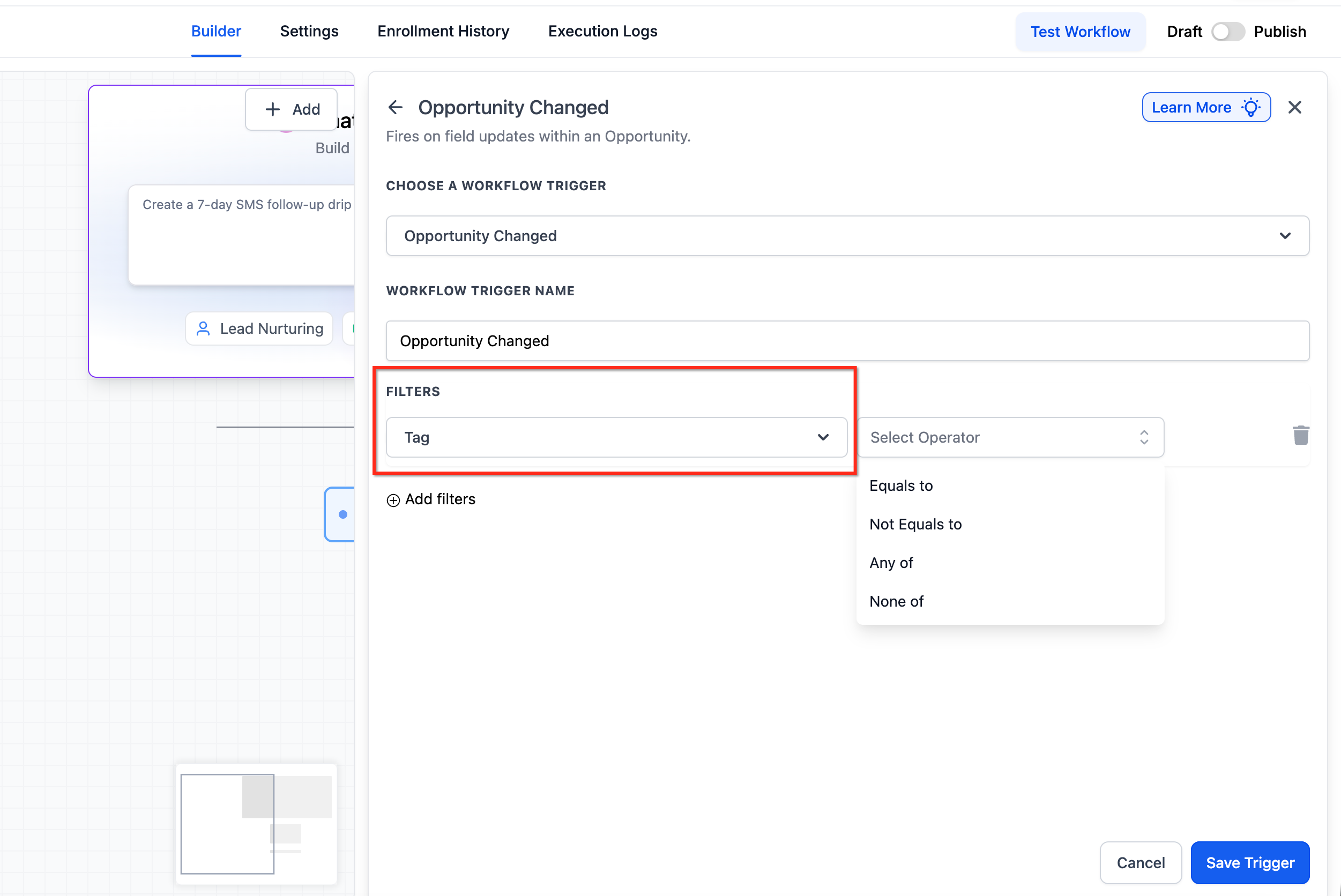
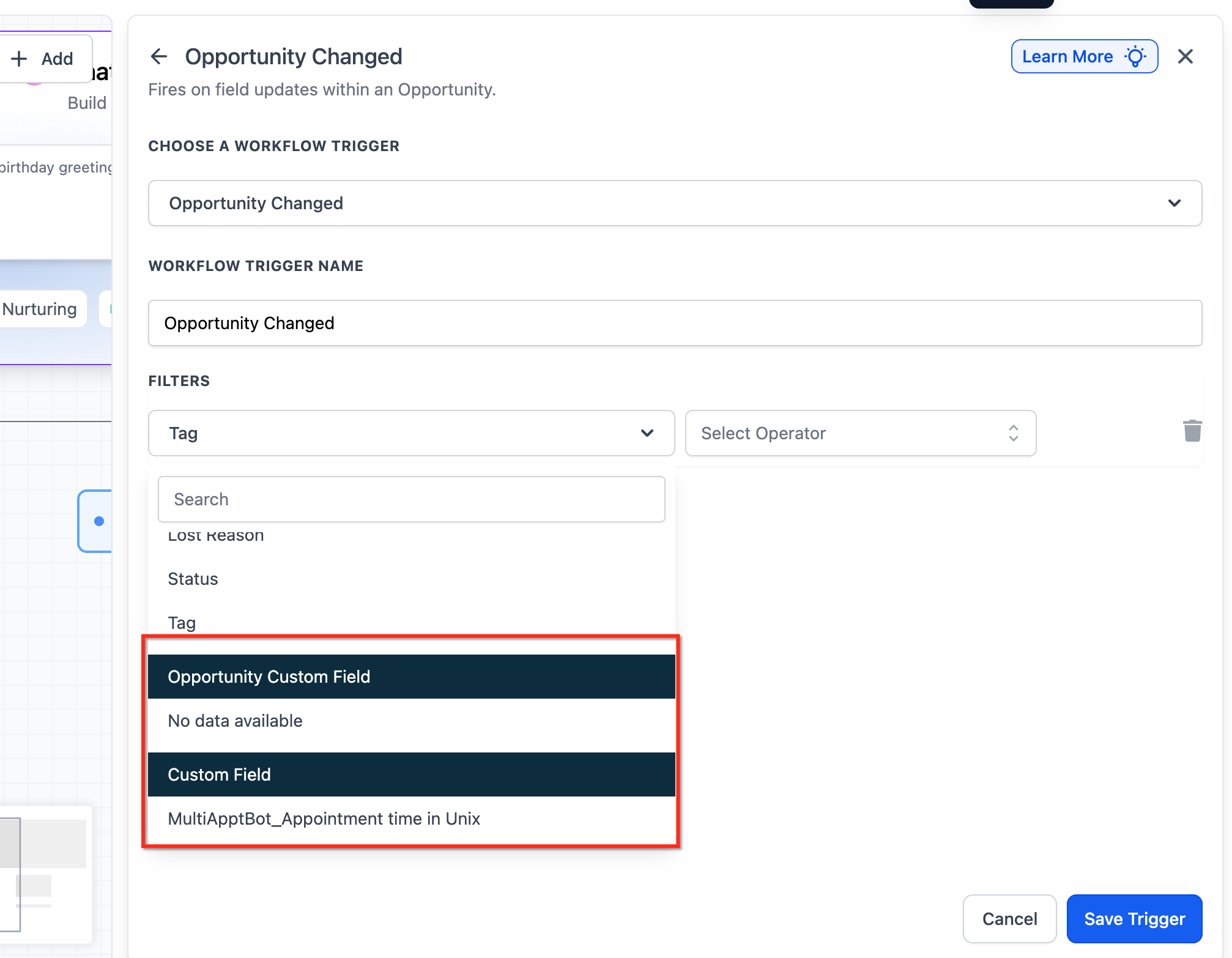
- Add additional filters like Tag or Custom Fields to further refine the trigger.
- Add actions such as sending an email, SMS, updating CRM fields, or creating a task.
- Save the workflow and activate it to start processing invoices automatically.
06What it looks like in HighLevel
07Settings that matter
- Invoice Status. Specifies which change in invoice status, Paid, Partially Paid, Sent, Viewed, or Void, will activate the workflow.
- Invoice Amount. Allows a range filter using the Between operator to trigger only when the amount falls within the defined minimum and maximum values.
- Tag. Filters invoices based on assigned tags, enabling more precise automation.
- Custom Fields. Uses values from custom fields to determine if the workflow should fire.
- Stop on Response. Stops further workflow actions for a contact once a response, such as a payment, is recorded.
08Things to know before you rely on it
- The amount range is inclusive; both the minimum and maximum values are considered.
- The system blocks a range where the minimum value is greater than the maximum.
- Stop on Response removes the contact from the workflow after payment, preventing extra actions.
09If something goes wrong
- Duplicate reminders are sent after an invoice is paid.. Create a secondary workflow triggered by the Paid status that removes the contact from the original reminder workflow.
10How it connects to the rest of HighLevel
- Combine with payment received trigger to send thank you messages after invoices are paid Payment Received trigger
- Use order submitted trigger to start invoicing automatically after a new order is placed Order Submitted trigger
- Link subscription trigger for recurring billing and automatic invoice generation Subscription trigger
Michael's take

The invoice workflow trigger can backfire if you let it run unchecked. Multiple reminders may flood a client’s inbox, or a voided invoice could still trigger actions. Make sure you have a clear exit strategy, like the Stop on Response setting, to keep the automation tidy.
When it works, the payoff is huge. Automating thank you notes, payment reminders and internal alerts frees up time and tightens cash flow. I’d fire it up on the Paid status first to lock in that professional thank you loop.