
01Who this is for
- Sales managers can automatically generate opportunities when estimates are accepted, keeping the sales pipeline up to date.
- Customer support teams receive instant notifications for declined or viewed estimates, allowing timely outreach.
- Finance staff can flag high value estimates for special handling by filtering on estimate value.
02Estimates triggers, explained
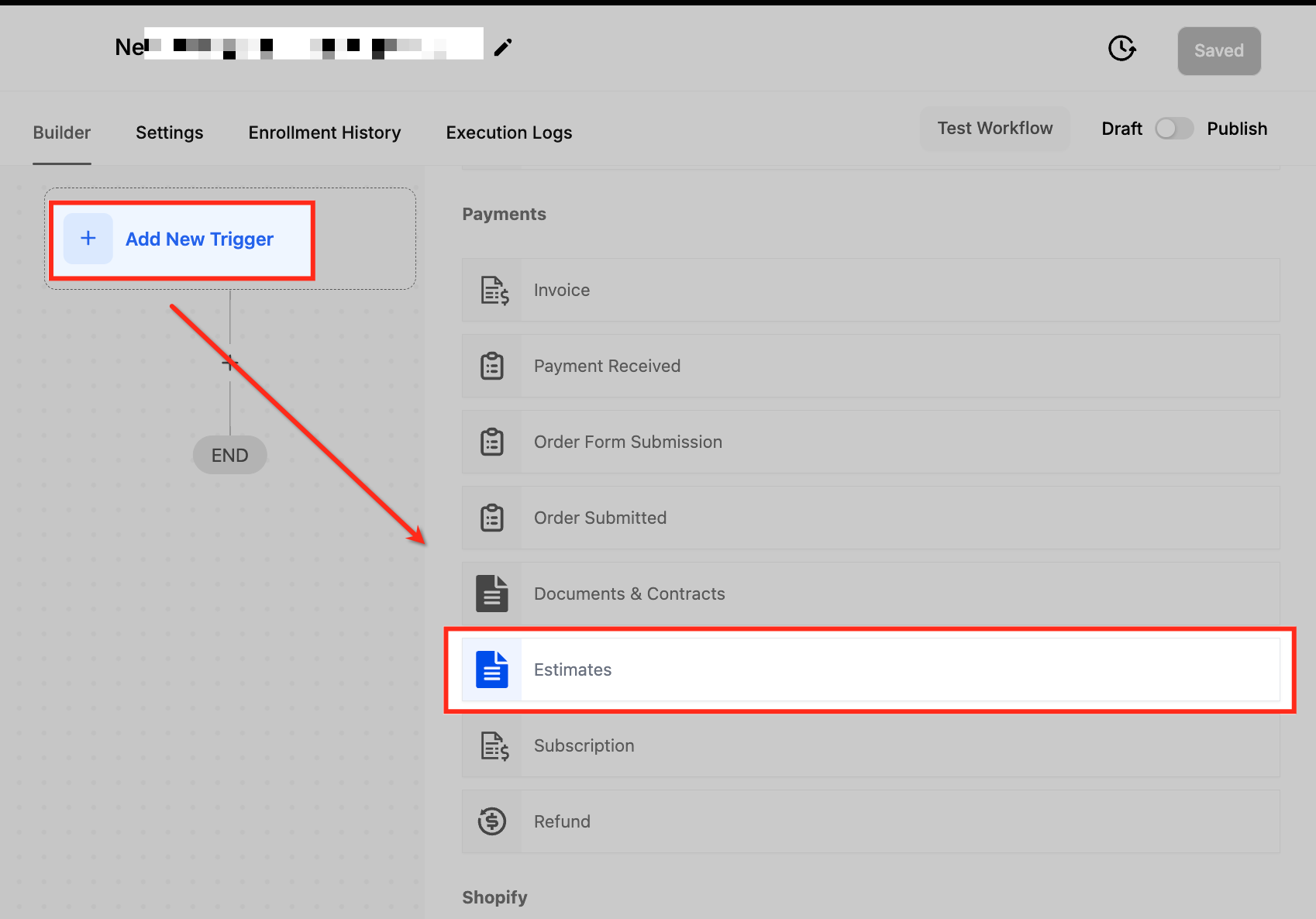
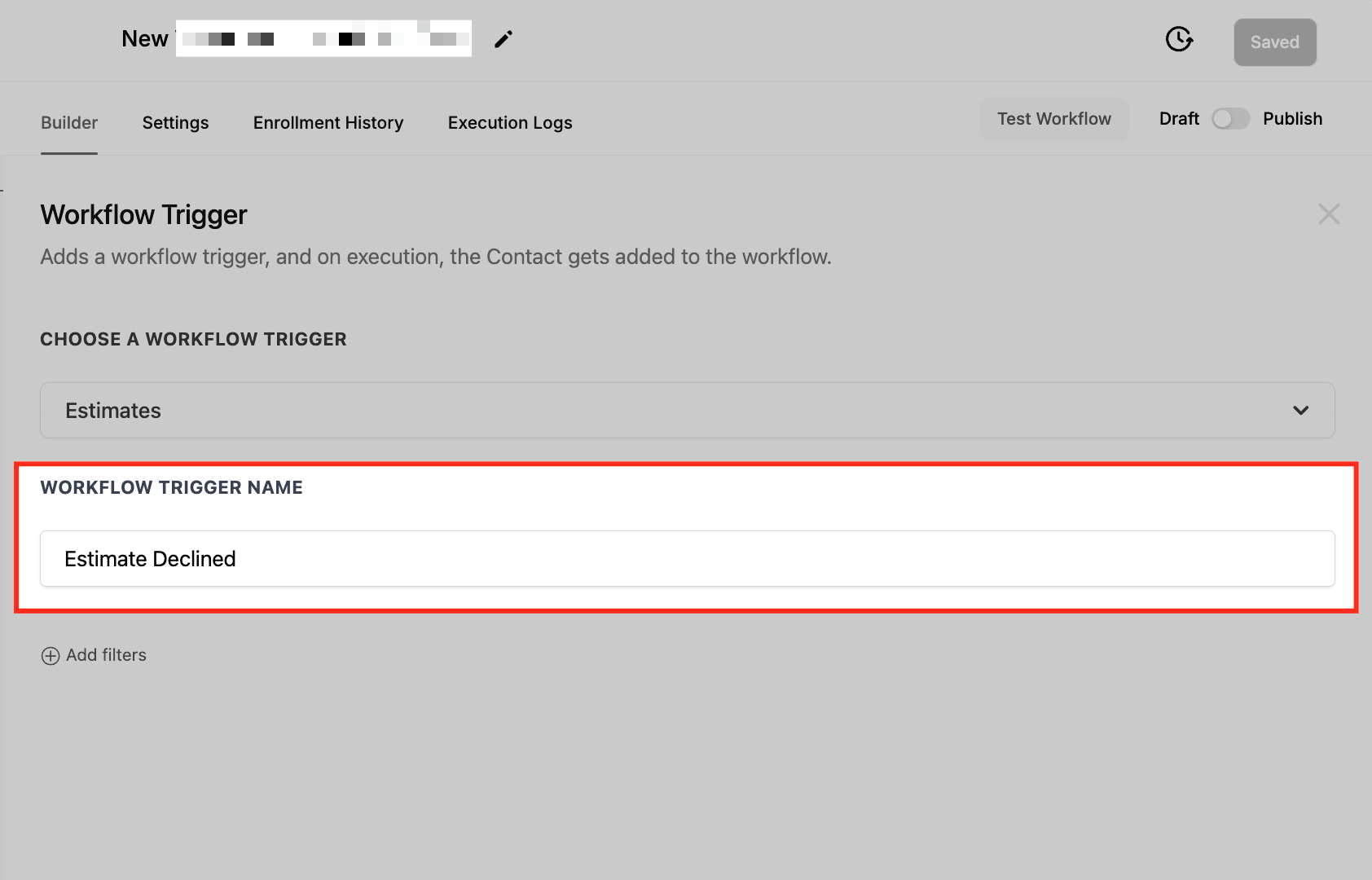
The Estimates trigger lives in the Automation section of HighLevel. When an estimate changes state, sent, viewed, accepted, declined or invoiced, the trigger can start a workflow. You choose the trigger, name it, and then add any combination of filters to limit when it runs.
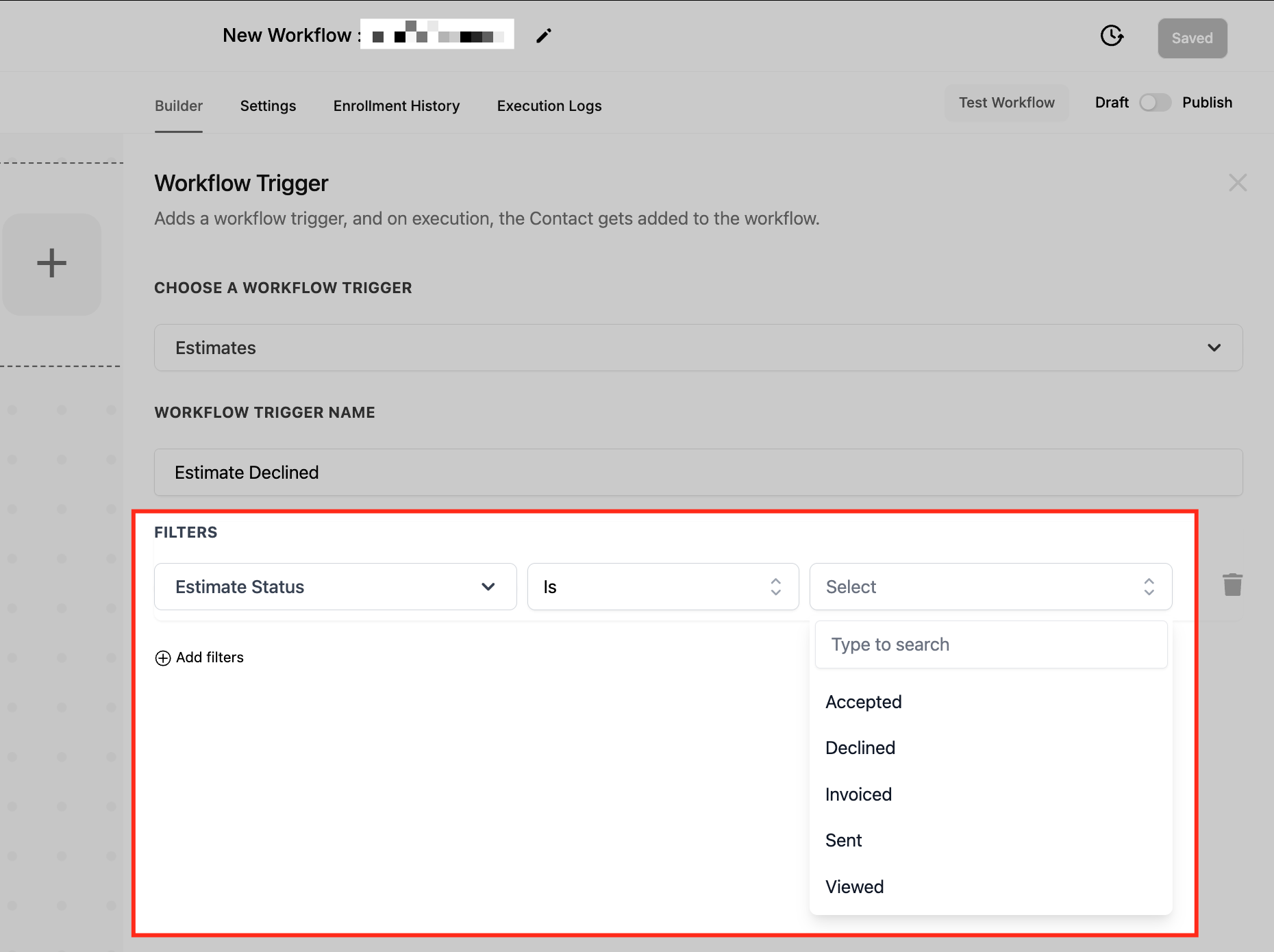
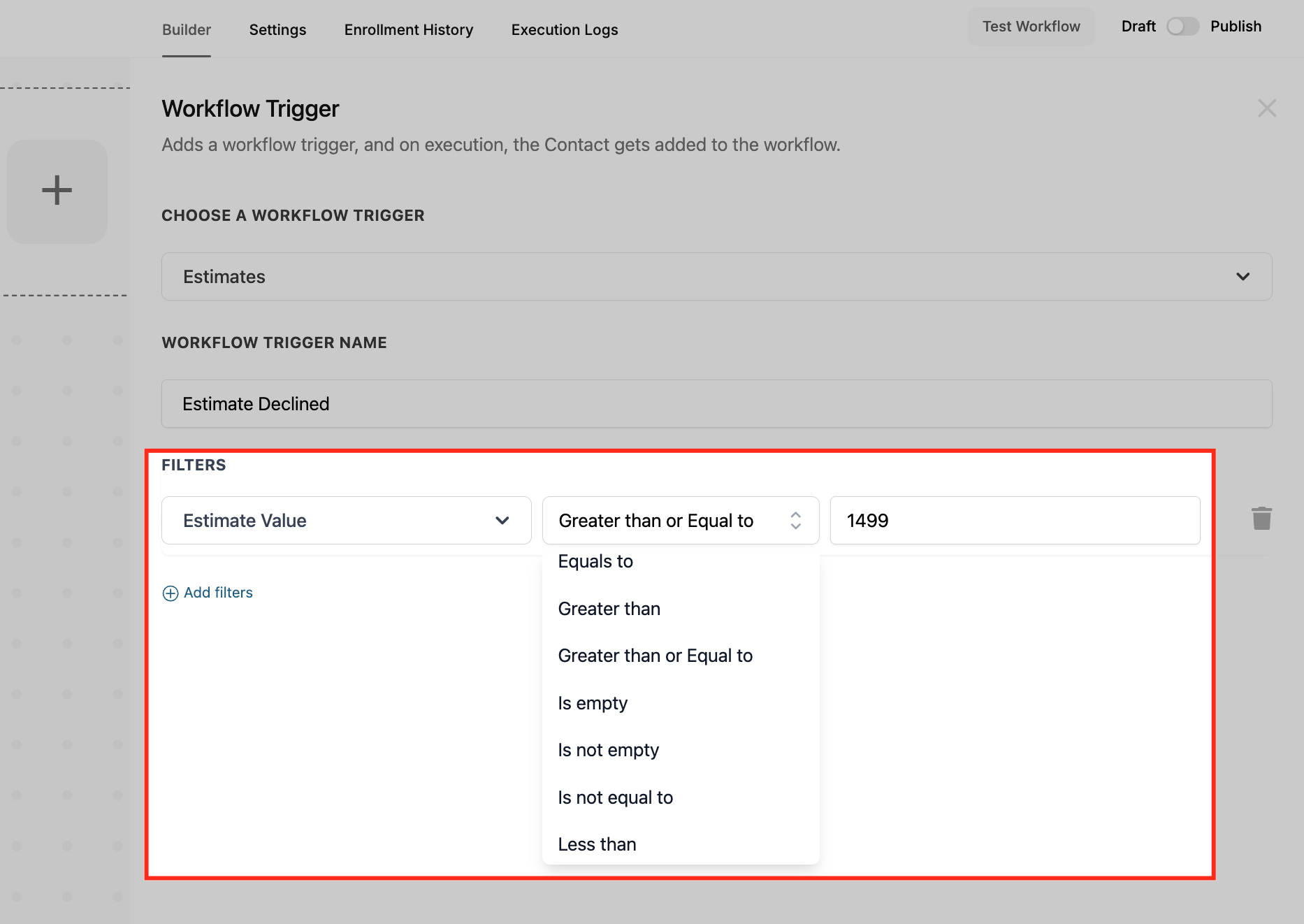
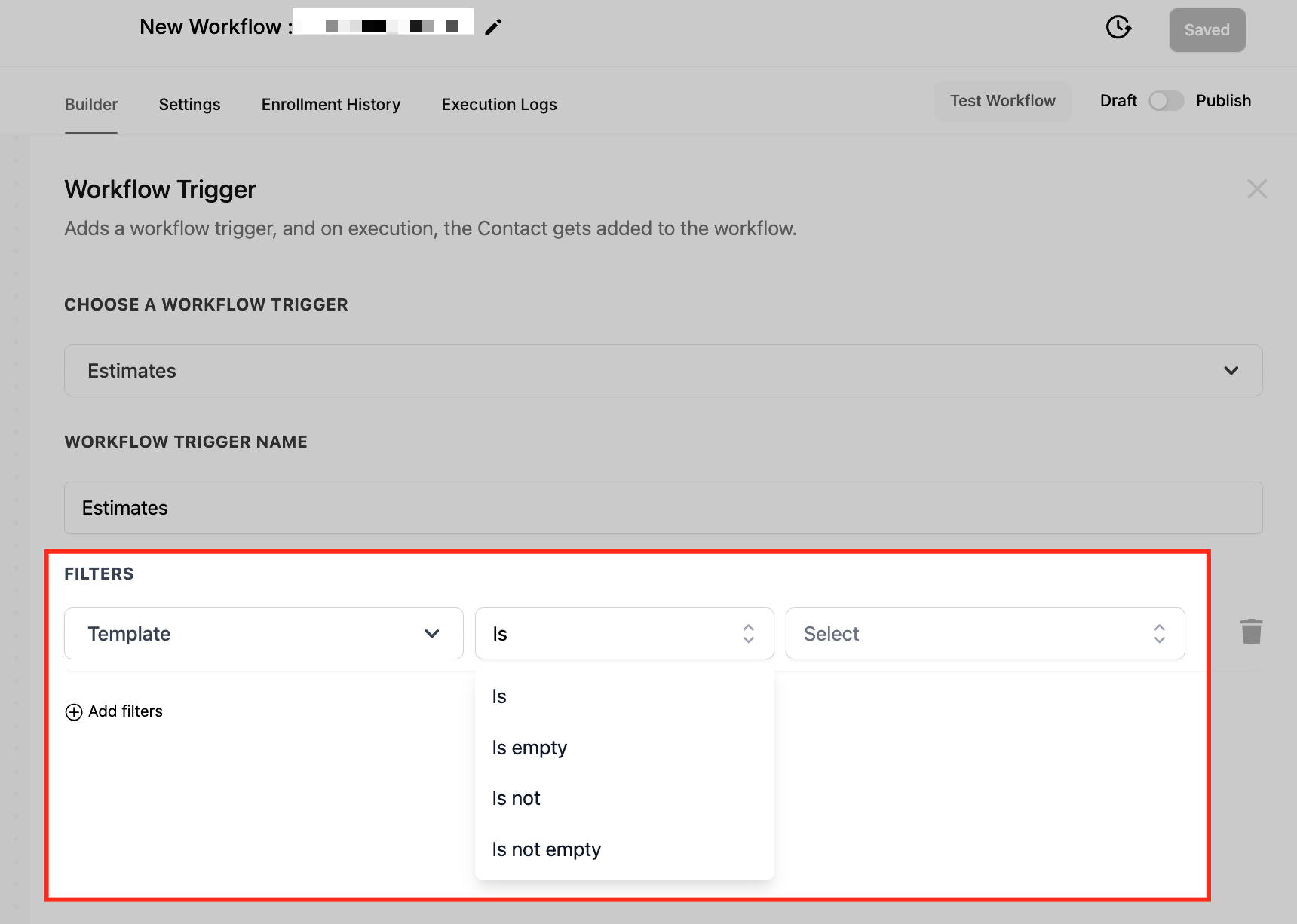
Filters are based on three fields: Estimate Status, Estimate Value and Estimate Template. Each filter uses operators such as Is, Is Not, Greater Than, Is Empty, and others to define the exact condition that must be met. After configuring filters you save the trigger and add the desired workflow actions, like sending an email or creating an opportunity.
The trigger can be part of a new workflow or added to an existing one. Once active, any estimate that meets the filter criteria automatically runs the workflow, removing the need for manual follow up.
03How businesses use the Estimates trigger
- Home renovation contractor. The contractor adds an Estimates trigger with an Estimate Value filter set to Greater Than 1499. When a high value estimate is accepted, the workflow creates an opportunity and notifies the project manager.
- Digital marketing agency. The agency sets an Estimate Status filter to Is Declined and adds an internal notification action. When a client declines an estimate, the sales lead receives a Slack message to follow up.
- Dental practice. The practice uses the Estimate Template filter Is Premium Package to send a thank you email automatically after a patient accepts that specific treatment estimate.
04How to set up and use the Estimates trigger in HighLevel
Set up estimates trigger
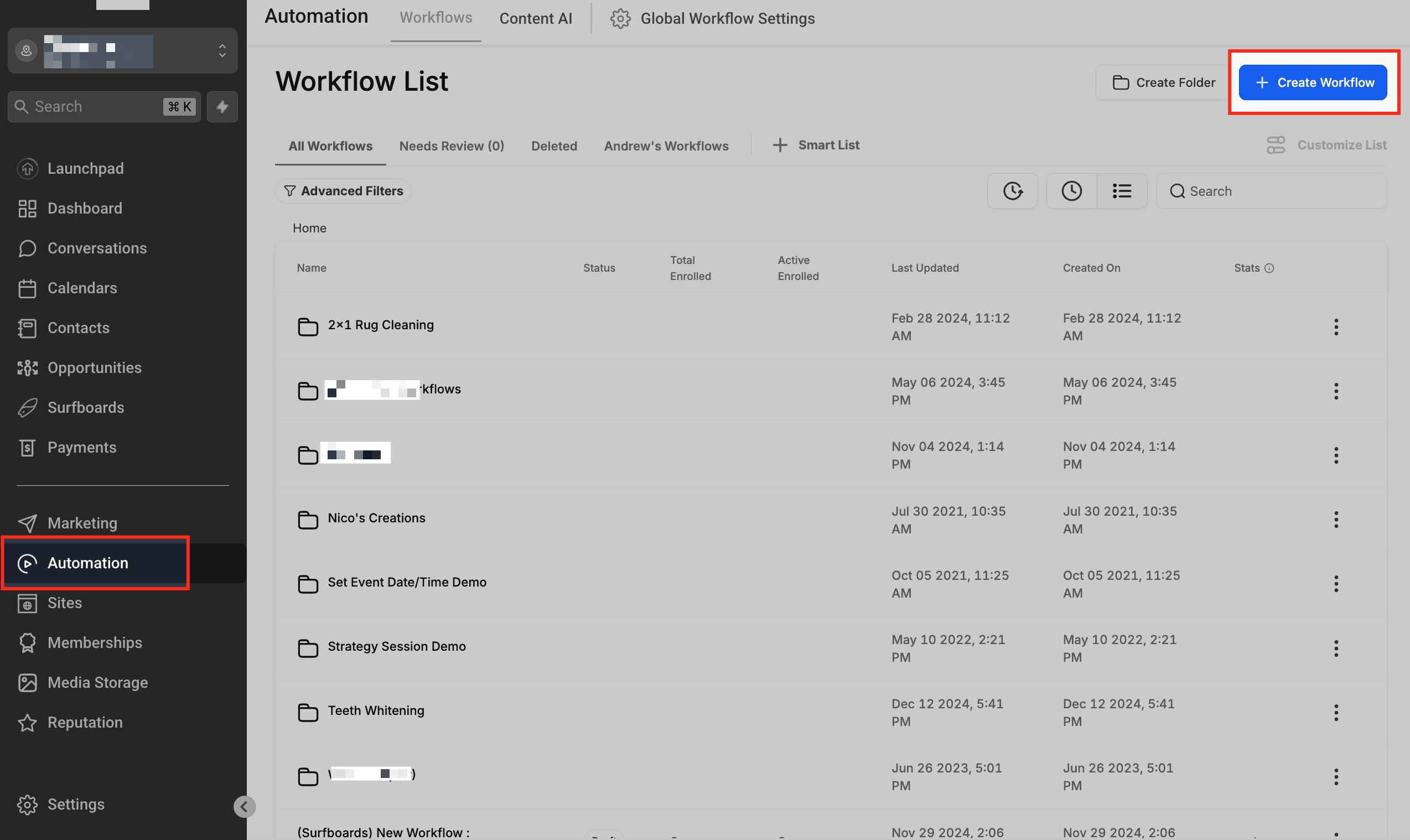
- Open the Automation area and click + Create Workflow or select an existing workflow.
- Add a new trigger and choose Estimates from the trigger list.
- Enter a descriptive name for the trigger, such as Estimate Follow Up.
- Click + Add Filters and pick a standard field to filter on.
- Select the appropriate operator for the chosen field.
- Enter the filter value(s) and click Save to store the trigger.
- Add the required workflow action, for example an email or opportunity creation.
05What it looks like in HighLevel
06Settings that matter
- Estimate Status. Controls which estimate state, such as Sent, Viewed, Accepted, Declined or Invoiced, will activate the trigger.
- Estimate Value. Limits the trigger to estimates whose monetary amount meets conditions like Equals To, Greater Than, or Less Than.
- Estimate Template. Specifies that the trigger runs only for estimates created from a particular template, or for estimates with no template.
07Things to know before you rely on it
- Filters are limited to the three fields: Estimate Status, Estimate Value, and Estimate Template.
- Each filter uses a set of operators (Is, Is Not, Is Empty, Is Not Empty, Greater Than, etc.) as defined in the article.
08How it connects to the rest of HighLevel
- Learn the basics of building workflows in HighLevel. Workflow basics
- Create a payment received trigger to automate invoice follow up. Payment received trigger
- Set up an order submitted trigger for additional automation. Order submitted trigger
Michael's take

The Estimates trigger can turn manual follow ups into automatic, on time actions that keep prospects moving and sales teams aligned.
Don’t forget to test the filter logic before you go live.