
01Who this is for
- Ecommerce owners who need to send separate messages for each product bought, including upsell purchases.
- Membership businesses that want to update member records right after a payment is processed.
- Service providers looking to segment clients based on what they bought and how they paid.
02Order submitted triggers, explained
The Order Submitted trigger activates a workflow whenever a purchase is recorded through a HighLevel order form. Unlike the basic Order Form Submitted trigger, it fires for every product line, primary, bump, and upsell, so each transaction can launch its own automation.
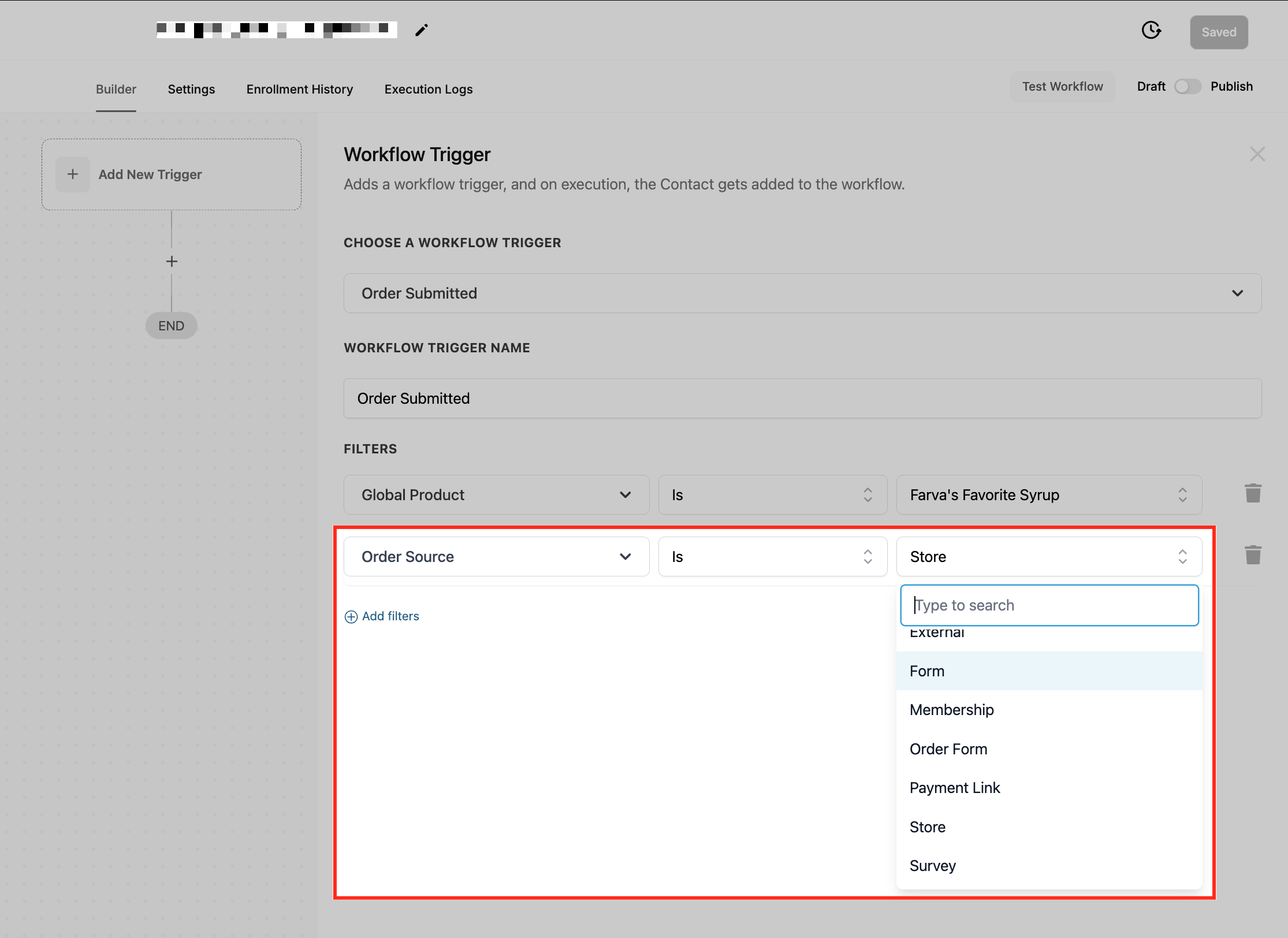
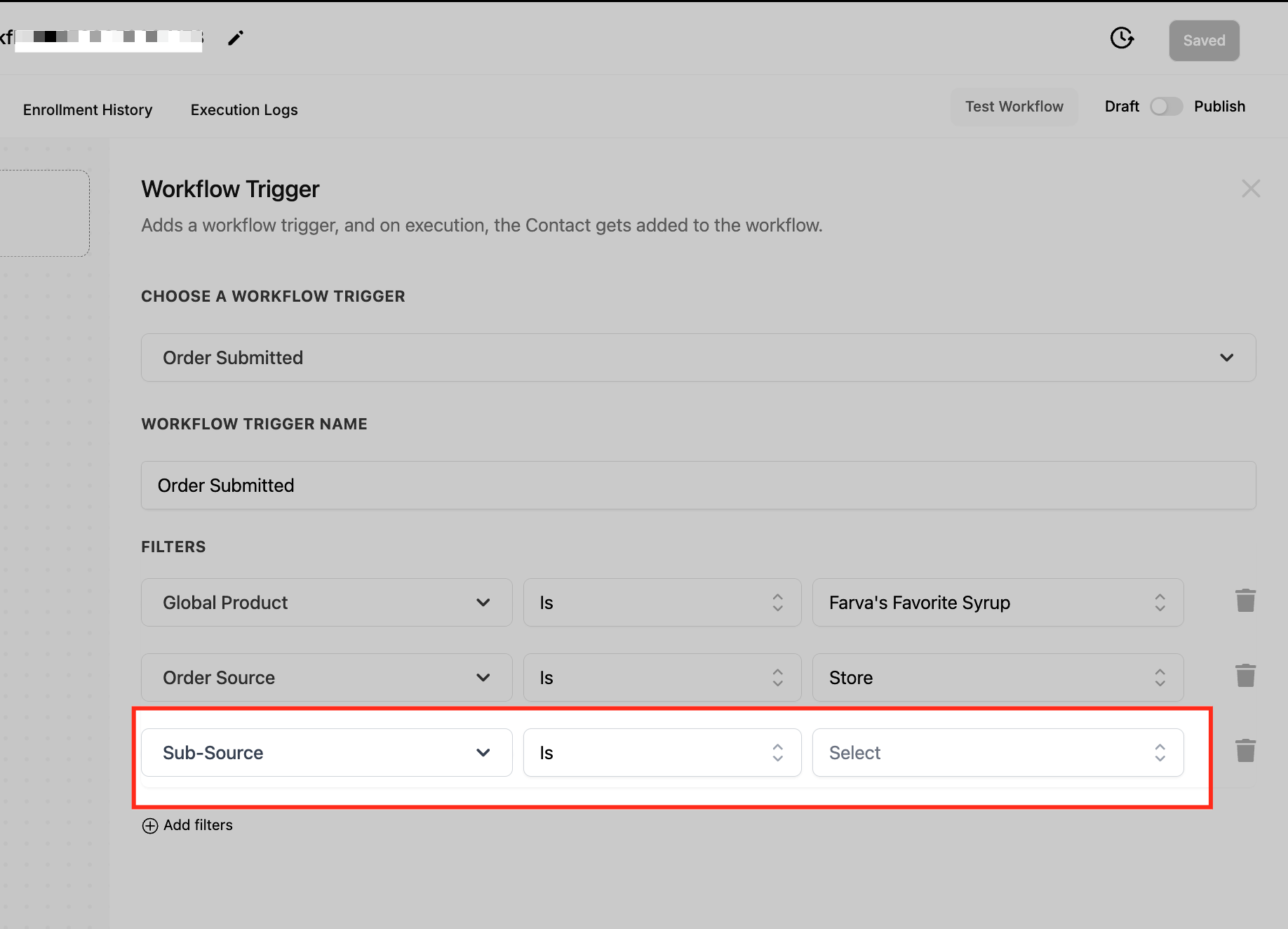
Within the workflow builder you can add filters such as Global Product, Order Source, Sub Source, funnel or page, Submission Type and Product Price. These filters let the workflow run only when the order meets the conditions you set, for example only when a specific product is bought or when the order originates from a particular funnel.
The trigger lives in the Automation > Workflows area. After adding it to a workflow you give it a name, configure filters, turn on the Allow Multiple option, then save and publish the workflow so it runs automatically for every qualifying order.
03How businesses use order submitted trigger
- Online course platform. Create a workflow that sends a welcome email with login details each time a student purchases a course. Apply a Global Product filter for the course name and enable Allow Multiple so a student who buys an additional module later triggers a new email.
- Fitness studio. Set up a workflow that adds a client to a class schedule after a membership purchase. Use the Order Source filter set to "Membership" and the Submission Type filter to "Primary" to ensure only the main membership purchase triggers the automation.
- SaaS provider. Build a workflow that tags customers based on the plan they buy. Apply the Product Price filter for the specific plan price and then add a tag action to update the contact record.
04How to set up and use order submitted trigger in HighLevel
Configure order submitted trigger
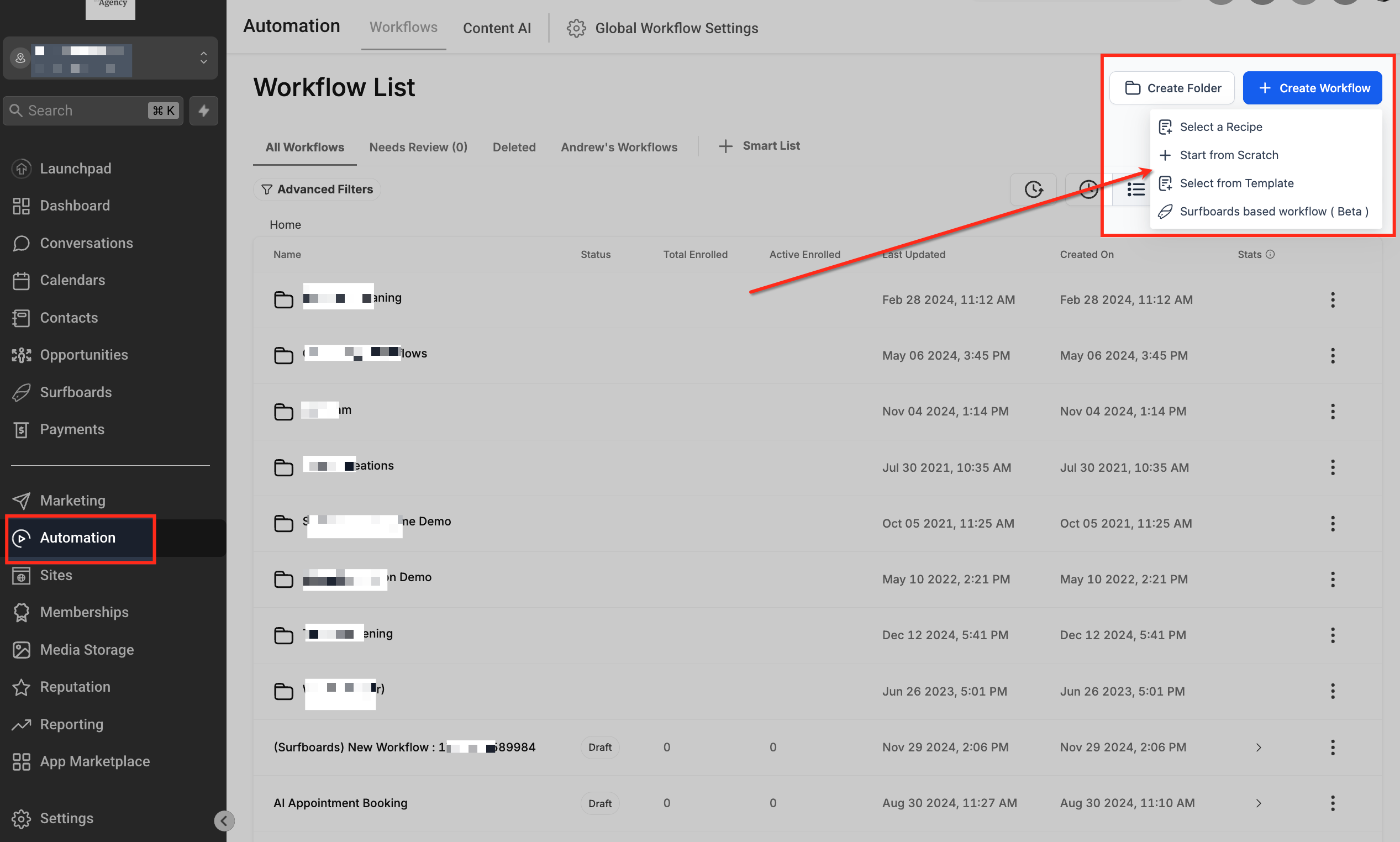
- Open the Automation tab and select Workflows.
- Click + Create Workflow to start a new automation or open an existing workflow for editing.
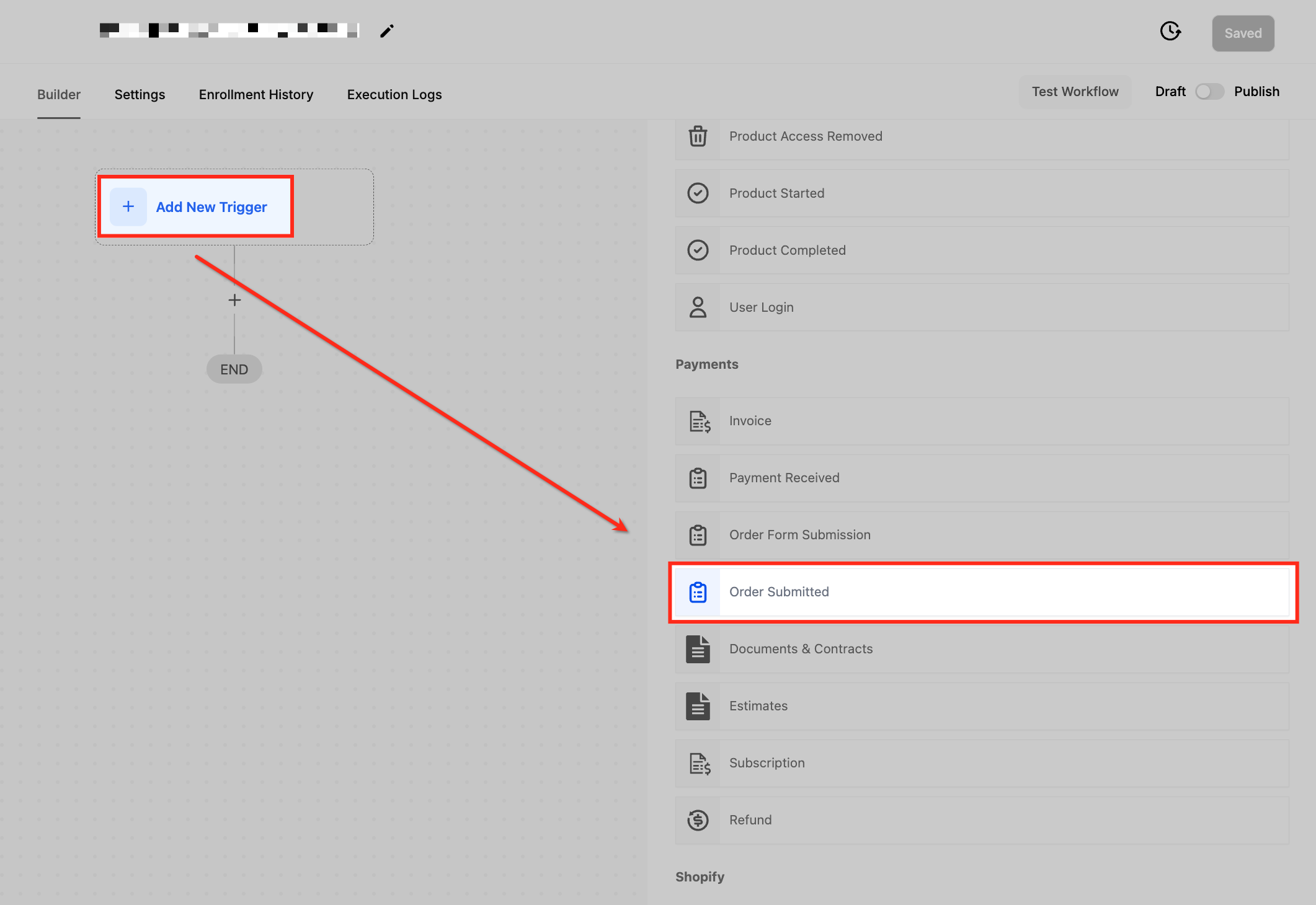
- Choose Add New Trigger, type "Order Submitted" in the search box, and pick the trigger from the list.
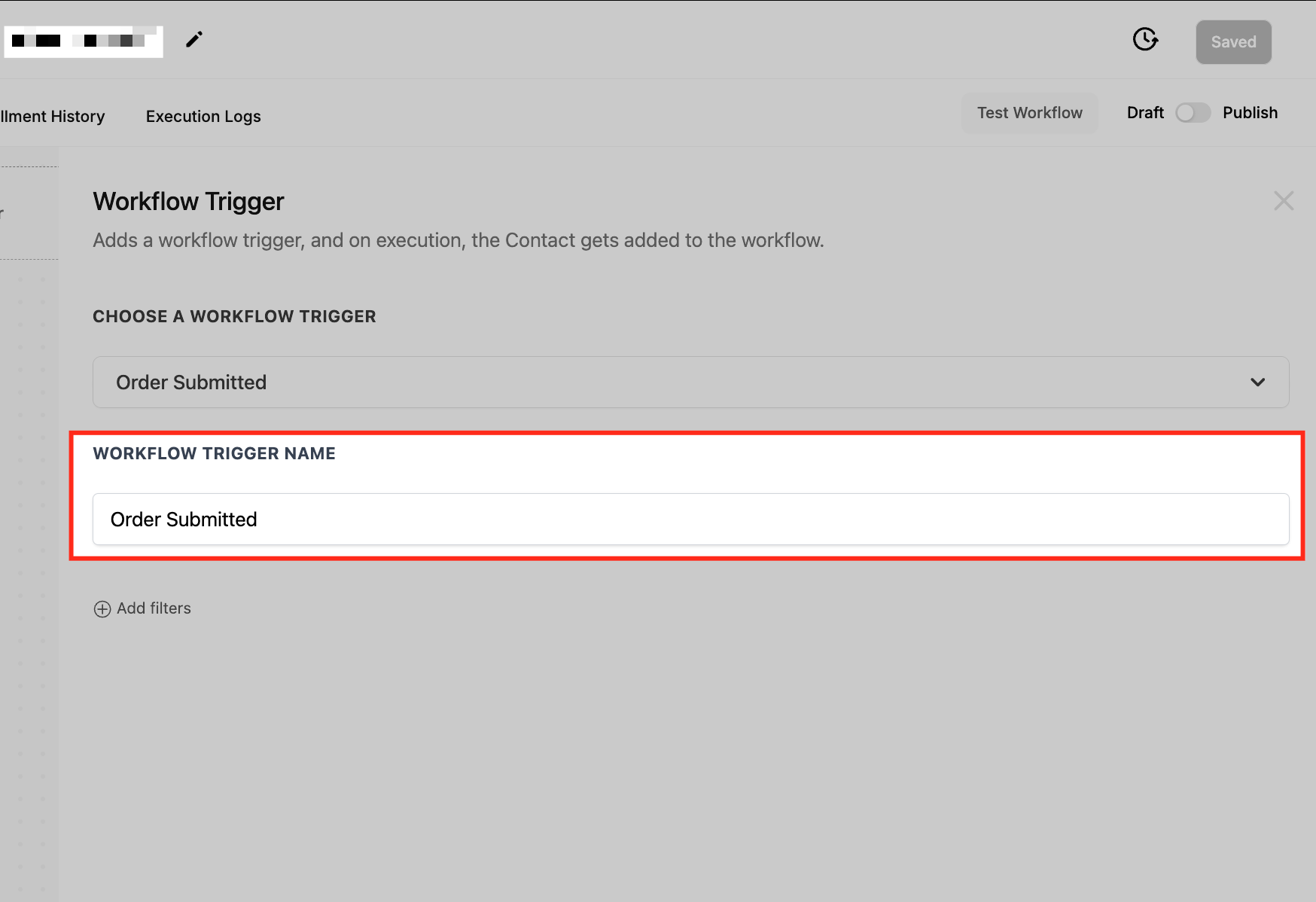
- Enter a descriptive name for the trigger so it is easy to identify later.
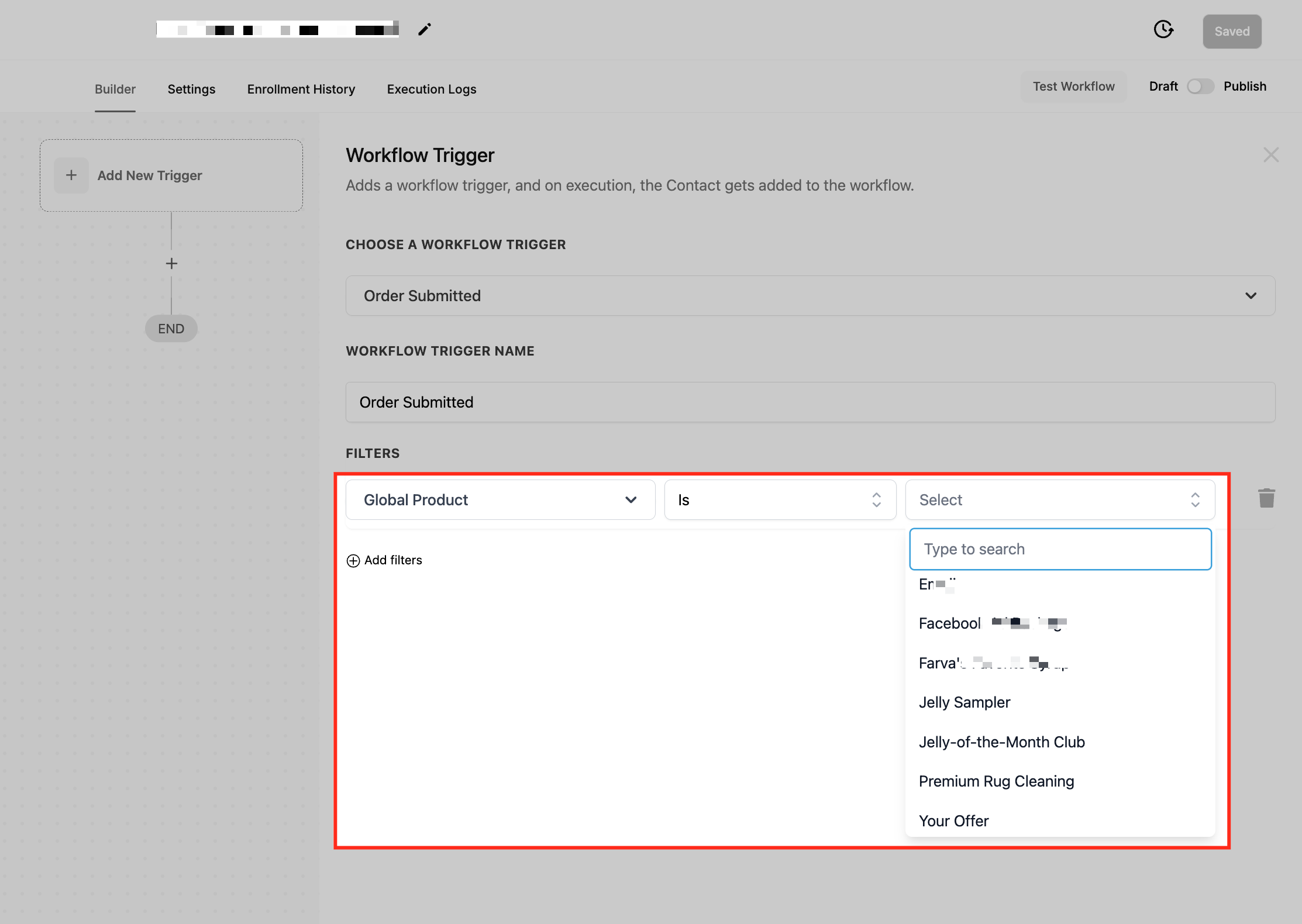
- Add any needed filters such as Global Product, Order Source, Sub Source, funnel, page, Submission Type or Product Price.
- Turn on the Allow Multiple option in the workflow settings to let the workflow run for each purchase event.
- Click Save to store the trigger configuration.
- Click Publish, then submit a test order to verify the trigger appears in the workflow history.
05What it looks like in HighLevel
06Settings that matter
- Allow Multiple. Controls whether the workflow can start again for the same contact when additional purchases like bumps or upsells occur.
- Global Product. Filters the workflow by a specific product or its price, using "Is" to include or "Is Not" to exclude.
- Order Source. Limits the trigger to orders that come from a chosen source such as an order form, store, membership, or external integration.
- Sub, Source. Provides a finer level of filtering within the selected order source, such as a particular funnel or store category.
- In Funnel/Website. Runs the workflow only when the order originates from a specific funnel or website.
- Page Is. Triggers the workflow only when the order is submitted on a particular page inside a funnel or site.
- Submission Type. Filters by the kind of purchase, Primary, Bump, or Upsell, so actions can target each transaction type.
- Product Price. Activates the workflow when a product is bought at a defined price, using "Is" or "Is Not" to match or exclude that price.
07Things to know before you rely on it
- When Allow Multiple is turned off, the workflow will not start for upsell or bump purchases if it is already active from the primary purchase.
- This trigger operates separately from the Order Form Submitted trigger and does not replace it.
- Filtering by product or price is only available with the Order Submitted trigger; the Order Form Submitted trigger does not support those filters.
08If something goes wrong
- Upsell purchases do not start the workflow. Make sure the Allow Multiple setting is turned on in the workflow settings.
- Workflow runs for the wrong product. Check the Global Product filter and ensure the operator (Is or Is Not) matches the desired inclusion or exclusion.
09How it connects to the rest of HighLevel
- Configure payment received trigger for similar filtering Payment received trigger
- Learn about subscription trigger filters Subscription trigger
- Basics of building workflows in HighLevel Workflow basics
Michael's take

Skipping the Order Submitted trigger can leave a lot of postpurchase work on your plate and miss chances to engage buyers at the exact moment they’re most receptive. Without it, you’ll have to rely on manual email sends or generic follow ups that don’t reflect the actual product or upsell they just purchased.
When you turn it on, you gain the ability to fire tailored messages, update records and launch upsell sequences the second a sale happens. The detailed order data you can pull straight into your automations lets you segment and nurture customers with precision.