
01Who this is for
- Founders of SaaS businesses who need instant confirmation emails after subscription renewals, keeping customers informed.
- Small agencies that want to tag contacts and notify team members automatically whenever a client pays for a service.
- Coaches or membership site owners who must grant access and send welcome material right after a payment is captured.
02Payment received triggers, explained
The Payment Received trigger starts a workflow each time HighLevel registers a successful payment. It covers payments from funnels, invoices, calendars, memberships, forms and manual entries. Once the trigger fires, any actions in the workflow, emails, SMS, tag updates, notes or internal alerts, run automatically.
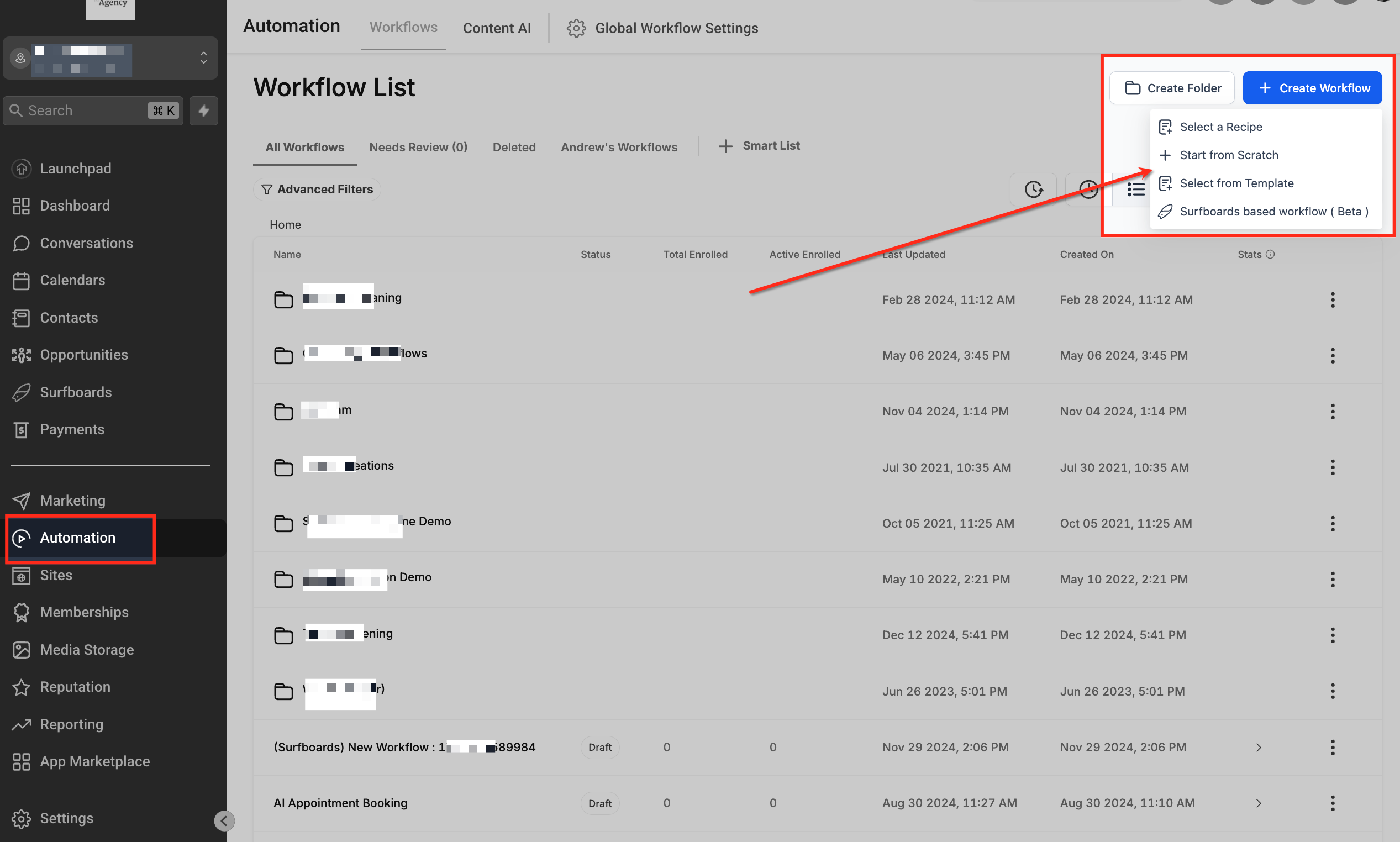
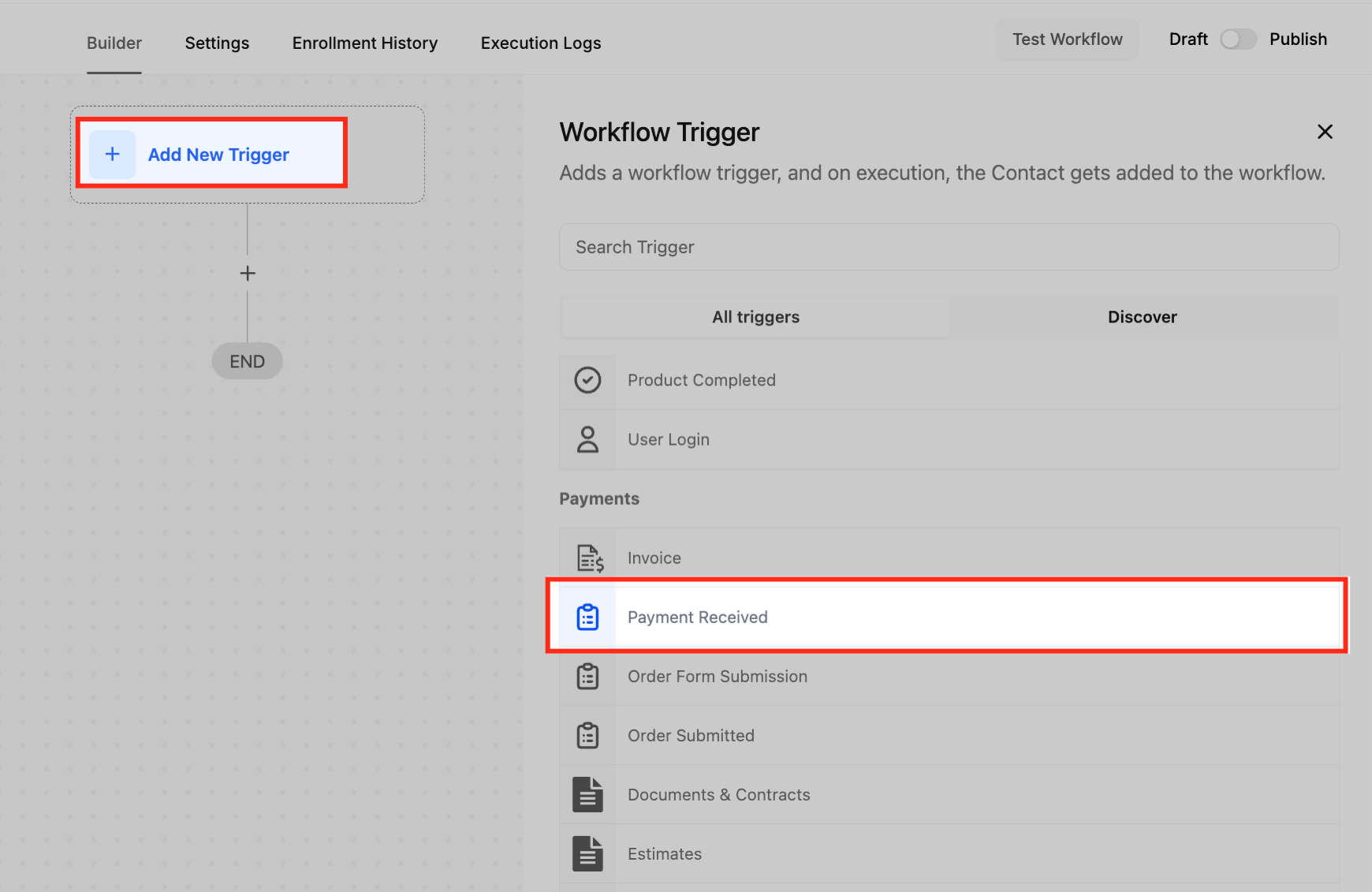
The trigger lives inside the workflow builder under Automation > Workflows. After adding a new workflow, you select + Add New Trigger, scroll to the Payments section and choose Payment Received. From there you can apply filters to narrow the payment events that launch the workflow, such as product, source, status or specific calendar.
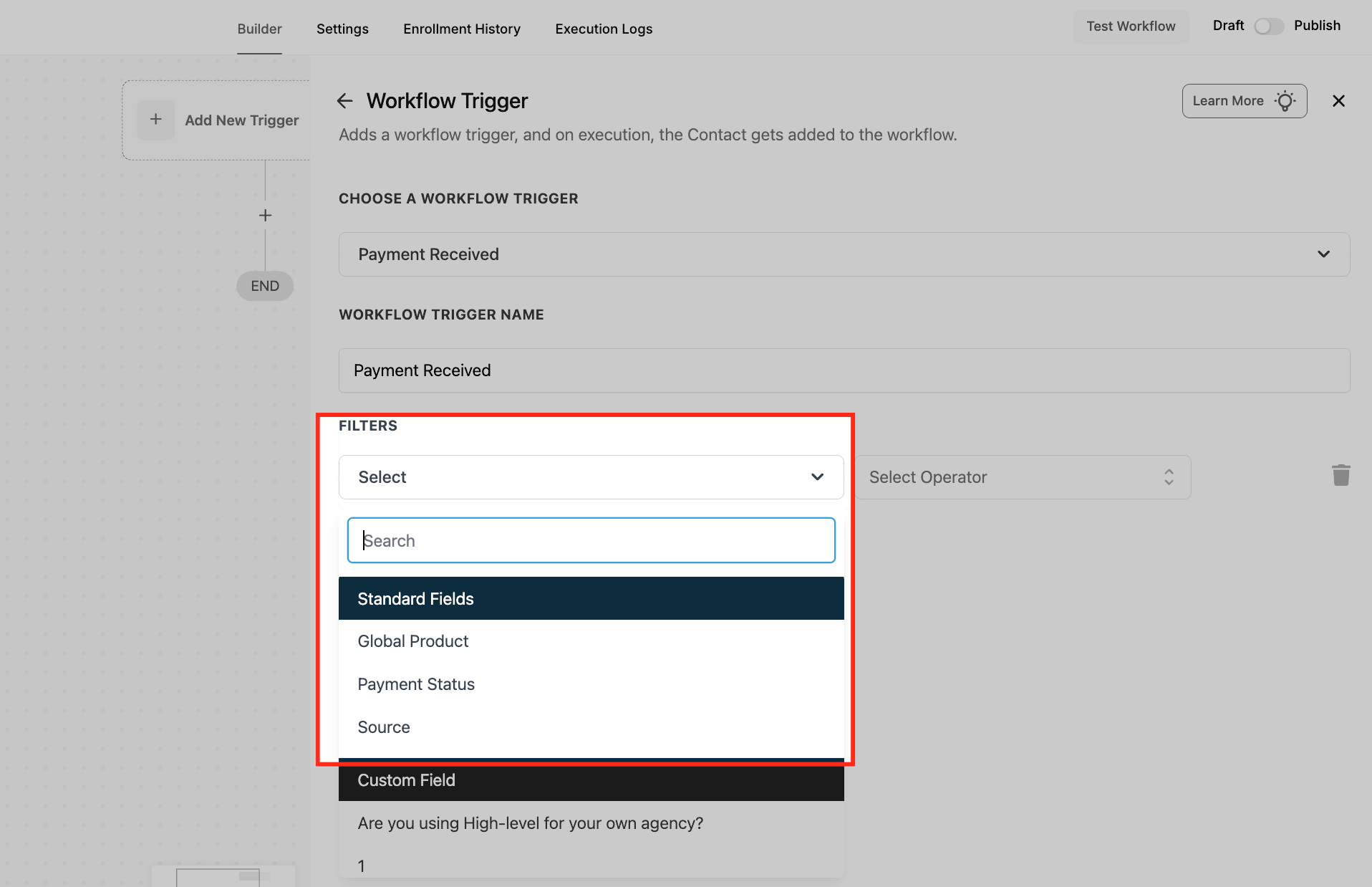
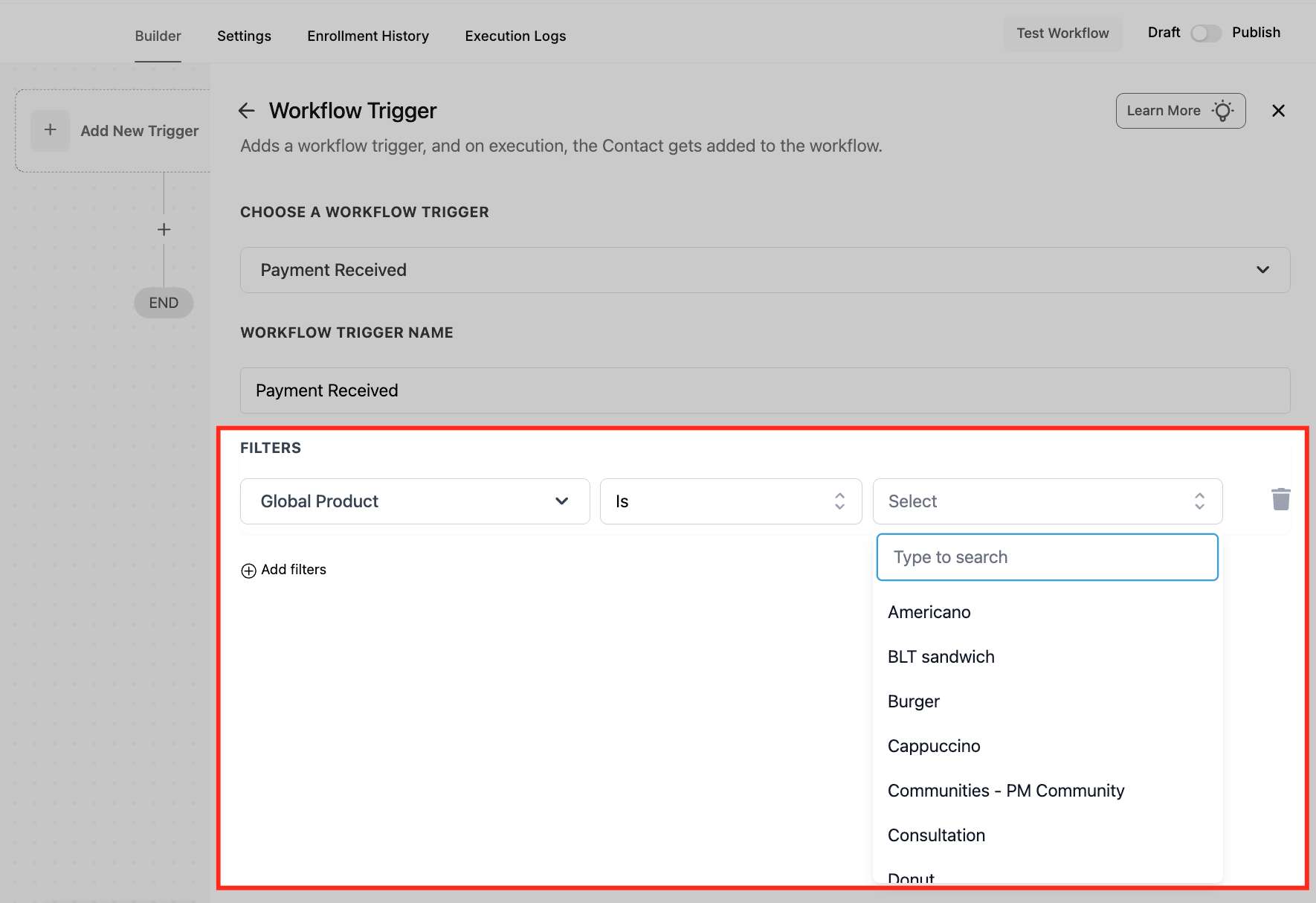
Filters are built from standard fields like Global Product, Payment Status and Source. By combining them you can target a single product, only successful payments, or payments that came from a particular calendar booking. Saving the trigger locks the criteria so the workflow runs only under those exact conditions.
03How businesses use the Payment Received trigger
- Online course provider. Create a workflow that sends a welcome email with login details when a student pays for a course. Add a filter for the specific course product and set Payment Status to Success so the email fires only for completed transactions.
- Local service business. Set up a workflow that tags a contact as "Paid" and notifies the scheduling team after a client pays through a calendar booking. Use the Source filter set to Calendar and select the appropriate booking calendar.
- Ecommerce store. Configure a workflow that updates the order record and alerts fulfillment staff when a payment comes from the website storefront. Apply a Source filter of Website and filter by the sold product to keep inventory actions accurate.
04The numbers and rules that matter
- Standard filter fields include Global Product, Payment Status, Source.
- Order Submitted trigger requires V2 funnels; V1 users should use Payment Received.
05How to set up and use the Payment Received trigger in HighLevel
Configure payment received trigger
- Open Automation > Workflows from the left navigation and click + Create Workflow.
- Choose Start from Scratch from the dropdown to begin a new workflow.
- Select + Add New Trigger and scroll to the Payments section.
- Pick Payment Received as the trigger type.
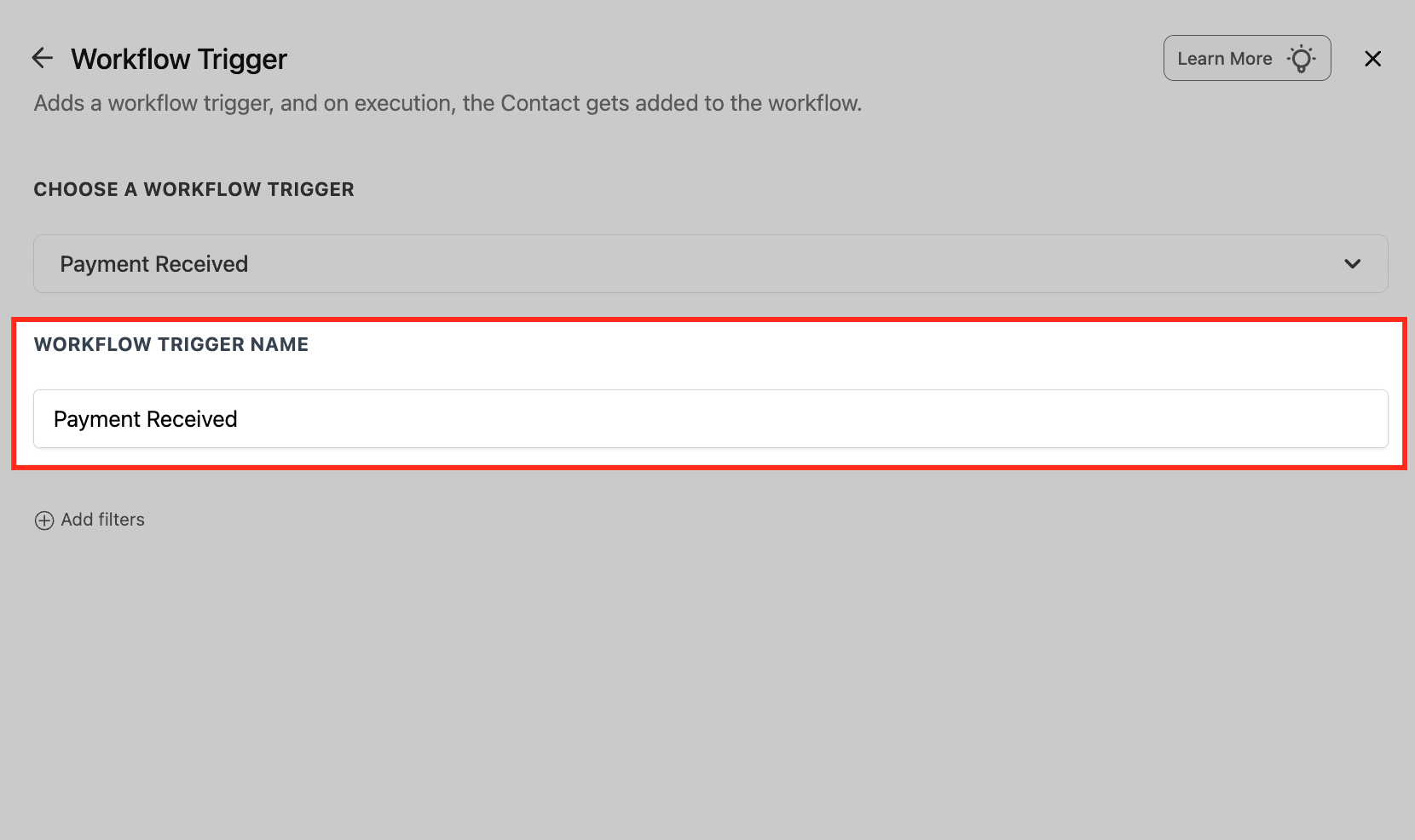
- Enter a descriptive name for the trigger, such as "Payment for Course Access".
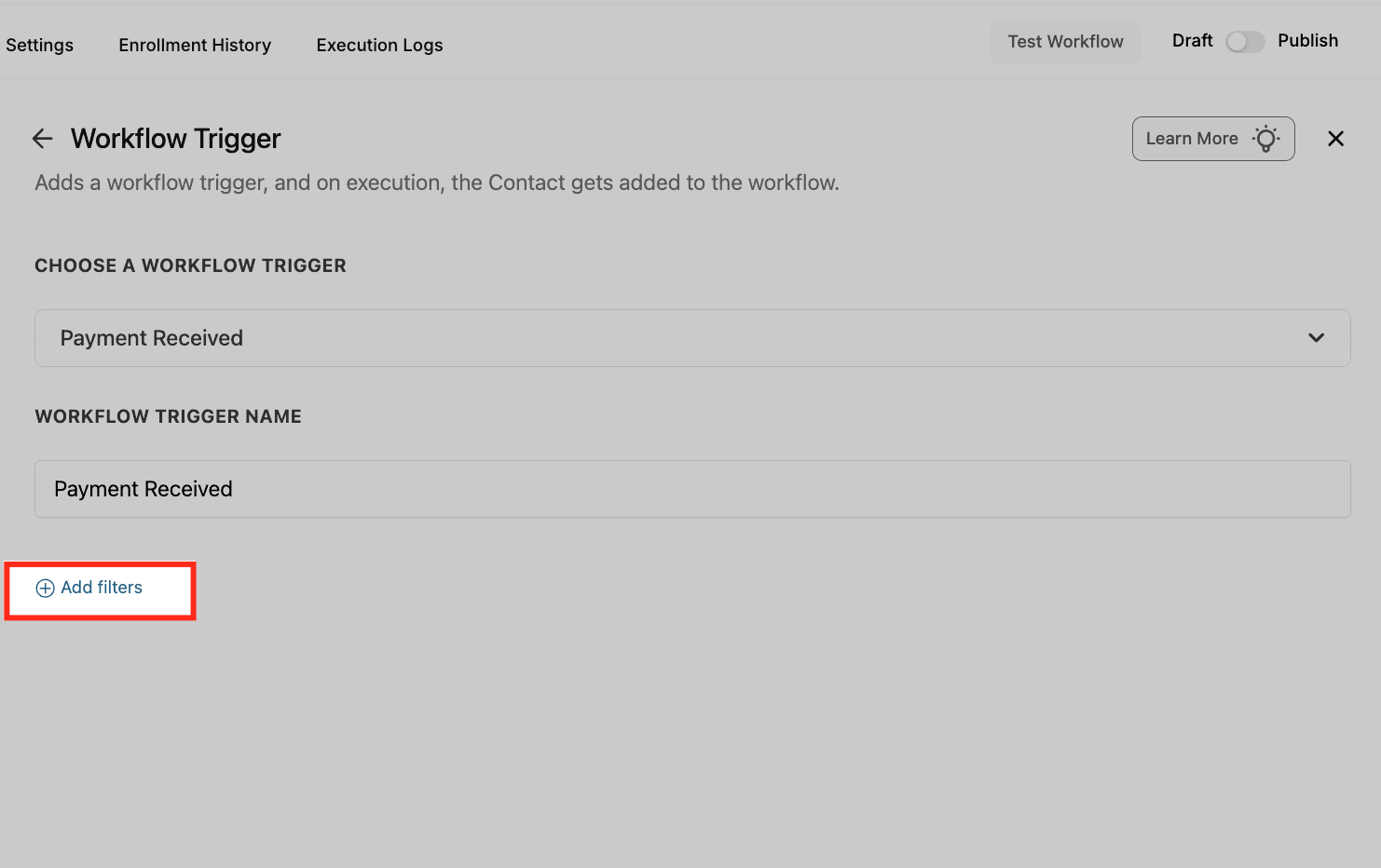
- Click + Add filters to open the filter selection panel.
- Add a Global Product filter and select the product that should start the workflow.
- Add a Payment Status filter and set it to Success to run only on completed payments.
- Add a Source filter, set it to Calendar, and then choose the specific calendar to target.
- Click Save Trigger to store the filter configuration.
06What it looks like in HighLevel
07Settings that matter
- Source. Determines the origin of the payment, such as Calendar, External, Form, Funnel, Invoice, Manual Payment, Memberships or Website.
- Calendar. Specifies the exact booking calendar whose payments should activate the workflow.
- Global Product. Filters the trigger to run only when the payment is for the selected product.
- Payment Status. Sets the required status of the payment, for example Success or Failed, before the workflow can fire.
08Things to know before you rely on it
- There is no dedicated Stripe recurring charge trigger; recurring Stripe charges are captured by the Payment Received, Order Submitted or Subscription triggers.
- Order Submitted trigger requires V2 funnels; V1 funnel users must rely on the Payment Received trigger.
- All three payment triggers work with Stripe, PayPal and any other connected gateway, but they normalize events across gateways.
09How it connects to the rest of HighLevel
- Learn how to use the Order Submitted trigger for post purchase automation. Order Submitted trigger
- Set up Subscription trigger to react to subscription lifecycle changes. Subscription trigger
- Use the Invoice trigger to start workflows when an invoice payment is recorded. Invoice trigger
- Read the basics of workflow creation, including triggers, filters and actions. Workflow basics
Michael's take

Payments are the lifeblood of any small business, but chasing receipts and updating records after every sale can eat up precious time. The first thing I would get right is the filter that locks the trigger to the exact product or service you sell, so you only fire the automation when it matters.
Once that filter is tight, the rest of the workflow runs itself. Sending confirmations, tagging the contact, and pinging your team. It’s a clean way to keep the sales funnel moving without lifting a finger.