
01Who this is for
- Course creators, automate certificates and feedback surveys after learners finish a class.
- Subscription services, send renewal reminders or exclusive offers once a membership period ends.
- Event organizers, deliver digital certificates and thank you messages after attendees complete a virtual event.
02Product completed triggers, explained
The Product Completed trigger tracks the moment a customer completes a defined product. When that event occurs, the workflow starts and can run any actions you have added, such as emailing, tagging, or updating records.
You find the trigger inside the Automation section of the workflow builder. After adding it, you can narrow its activation with filters that specify which product(s) and which logical operator (e.g., “Is any of” or “Is none of”) should cause the workflow to run.
03How businesses use product completed triggers
- Online course platform. Create a workflow that uses the Product Completed trigger for a specific course. Add a filter for that course name, then attach actions to send a congratulatory email, a feedback survey, and a discount code for the next course. The workflow runs automatically each time a learner finishes the course.
- Subscription service. Set up the trigger for the subscription product that just ended. Filter for the exact membership tier, then add actions to email renewal options, loyalty discounts, or exclusive offers. The automation fires when a subscriber’s term completes.
- Event organizer. Use the trigger for a virtual event product. Filter for the event name, then add actions to email a digital certificate and a thank you note. The system sends the acknowledgment as soon as the attendee’s access expires.
04How to set up and use product completed triggers in HighLevel
Configure product completed trigger
- Access Workflow Settings.
- Open the Automation section and create a new workflow or select an existing one.
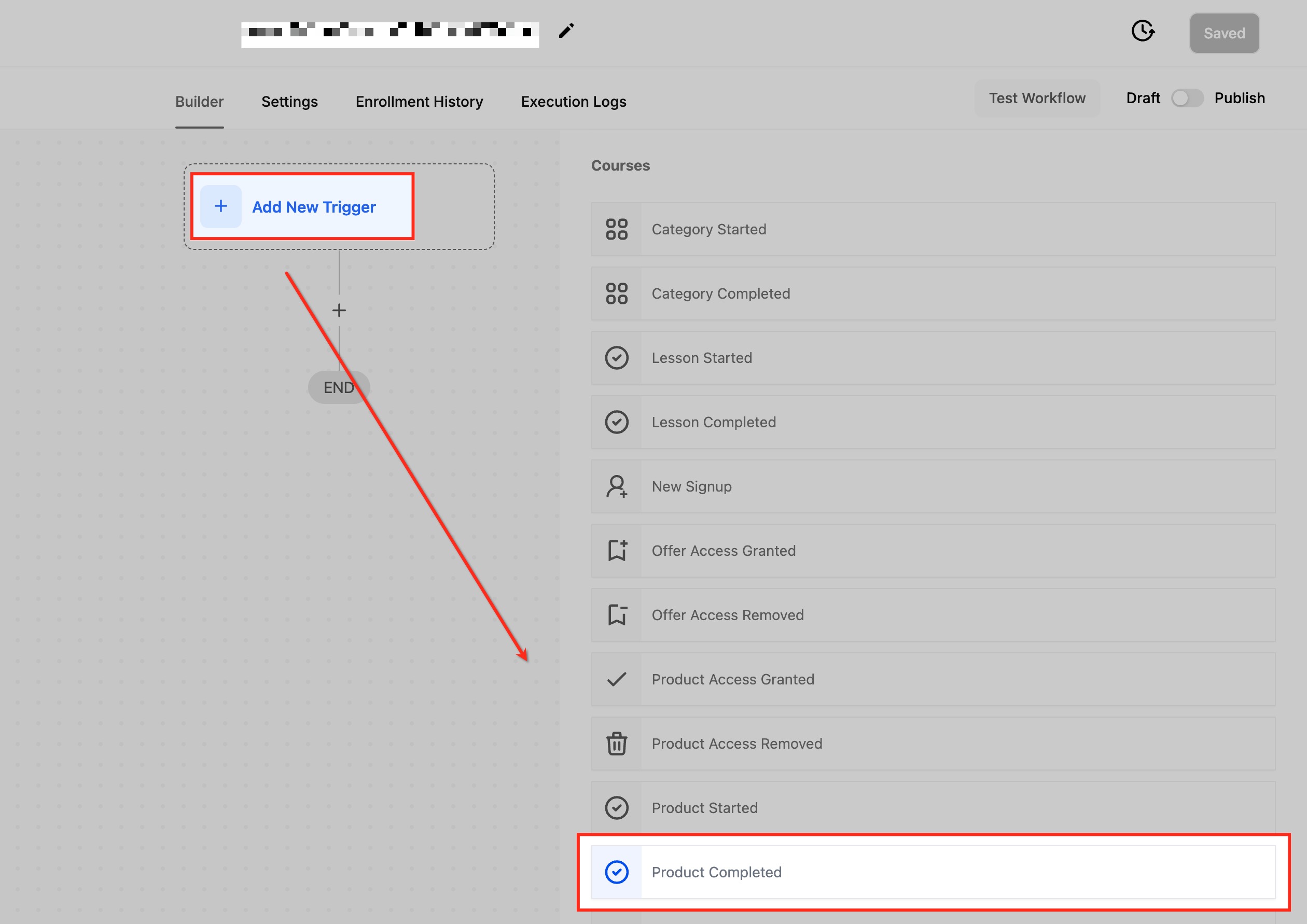
- Click “Add New Trigger” and choose “Product Completed” from the dropdown list.
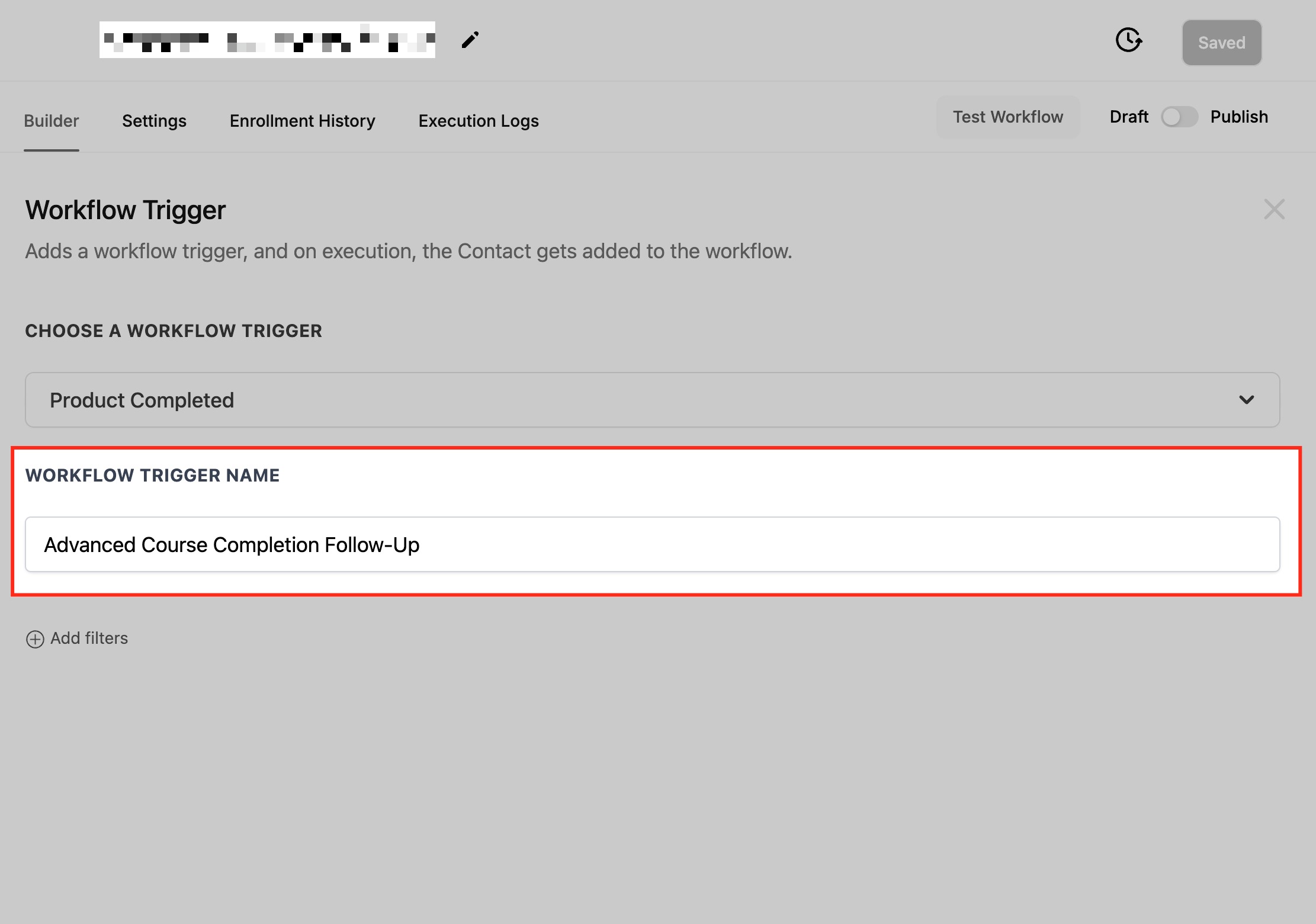
- Enter a descriptive name for the trigger.
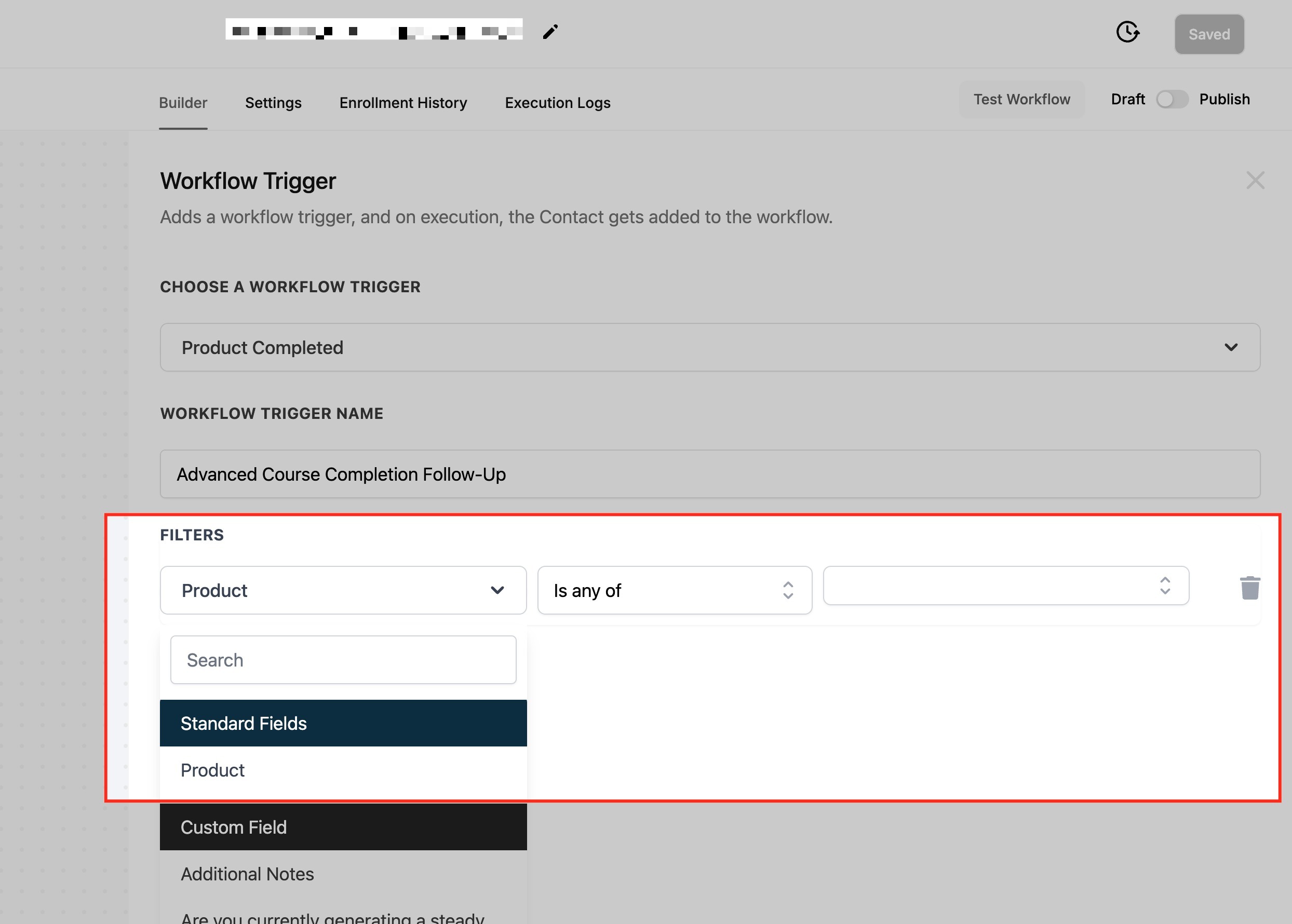
- Open the filter configuration area.
- Select the product or products that should activate the workflow.
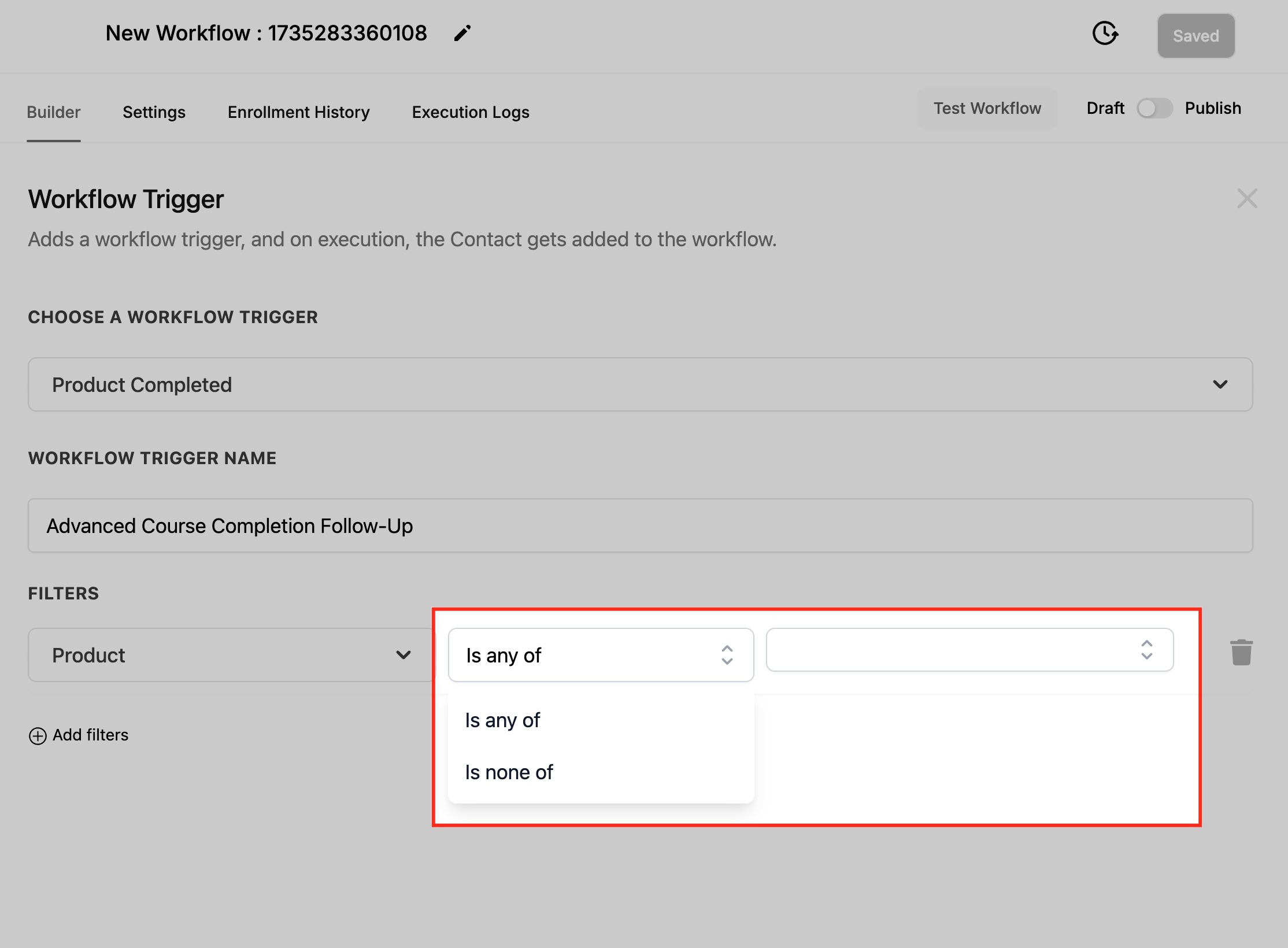
- Choose the operator, such as “Is any of” to include or “Is none of” to exclude products.
- Click the save button to store the trigger settings.
- Validate the workflow using sample data and enable the Publish toggle to activate it.
05What it looks like in HighLevel
06Settings that matter
- Product. Specifies which product(s) must be completed for the trigger to fire.
- Operator. Determines how the product filter evaluates the list, for example including or excluding selected items.
07Things to know before you rely on it
- The trigger fires each time a customer completes a product; multiple activations are possible.
- You can add filters for several products using the “Is any of” operator.
08How it connects to the rest of HighLevel
- Learn the basics of workflow creation and automation. Workflow basics
- Step by step guide for building workflows with triggers, filters, and actions. Workflow creation guide
- Review HighLevel pricing and plan options. Pricing
Michael's take

When a customer finishes a course or a membership, you often lose the momentum to keep them engaged. The Product Completed trigger plugs that gap by automatically launching follow ups, surveys, or upsell offers the moment the product is marked complete. The first setting I would lock in is the product filter. Make sure you select the exact product or set of products that should fire the workflow.
Getting the filter right avoids sending irrelevant messages and keeps your data clean. After that, I test the workflow with a dummy completion to confirm the email, tag or record updates fires as expected before rolling it out to real customers.