
01Who this is for
- Community managers who need to control who sees exclusive discussion channels without manual updates.
- Membership site owners who want new subscribers to receive immediate access to premium channel content.
- Coaches or trainers who run private group sessions and must quickly add or remove participants.
02Grant/revoke private channel access, explained
The feature provides two workflow actions: Grant Private Channel Access and Revoke Private Channel Access. Selecting one of these actions tells the platform to modify a member’s rights for a specific private channel inside a community group. If the member is not already part of the group, the workflow automatically enrolls them before adjusting channel access.
These actions are available inside the Workflow Builder. You start by choosing a trigger such as Private Channel Access Granted or Private Channel Access Revoked, then attach the appropriate action. After the access change, you can chain any additional workflow steps, like sending notifications or updating records.
The workflow runs in real time when the defined trigger occurs. After testing, you save and activate the workflow so that future member changes are handled automatically.
03How businesses use grant/revoke private channel access
- Book club community. Create a workflow that fires when a new member joins the club. Use the Grant Private Channel Access action to add the member to the "Book Upgrades" private channel and keep them in the main group. Follow the steps in the Workflow Builder to set the trigger, select the channel, and test before activation.
- Fitness coaching program. When a client completes a payment, trigger a workflow that grants them entry to a private "Advanced Workouts" channel. The action also ensures the client is listed in the coaching group. Add later steps to send a welcome email or assign a trainer.
- Software support community. If a subscriber’s support tier changes, fire a workflow that revokes access to the "Enterprise Support" private channel while keeping them in the general community. Configure the Revoke Private Channel Access action, test the removal, and activate the workflow.
04How to set up and use grant/revoke private channel access in HighLevel
Configure grant/revoke private channel access workflow
- Open the Workflow Builder in your GoHighLevel account.
- Create a new workflow by clicking the “Create a Workflow” button.
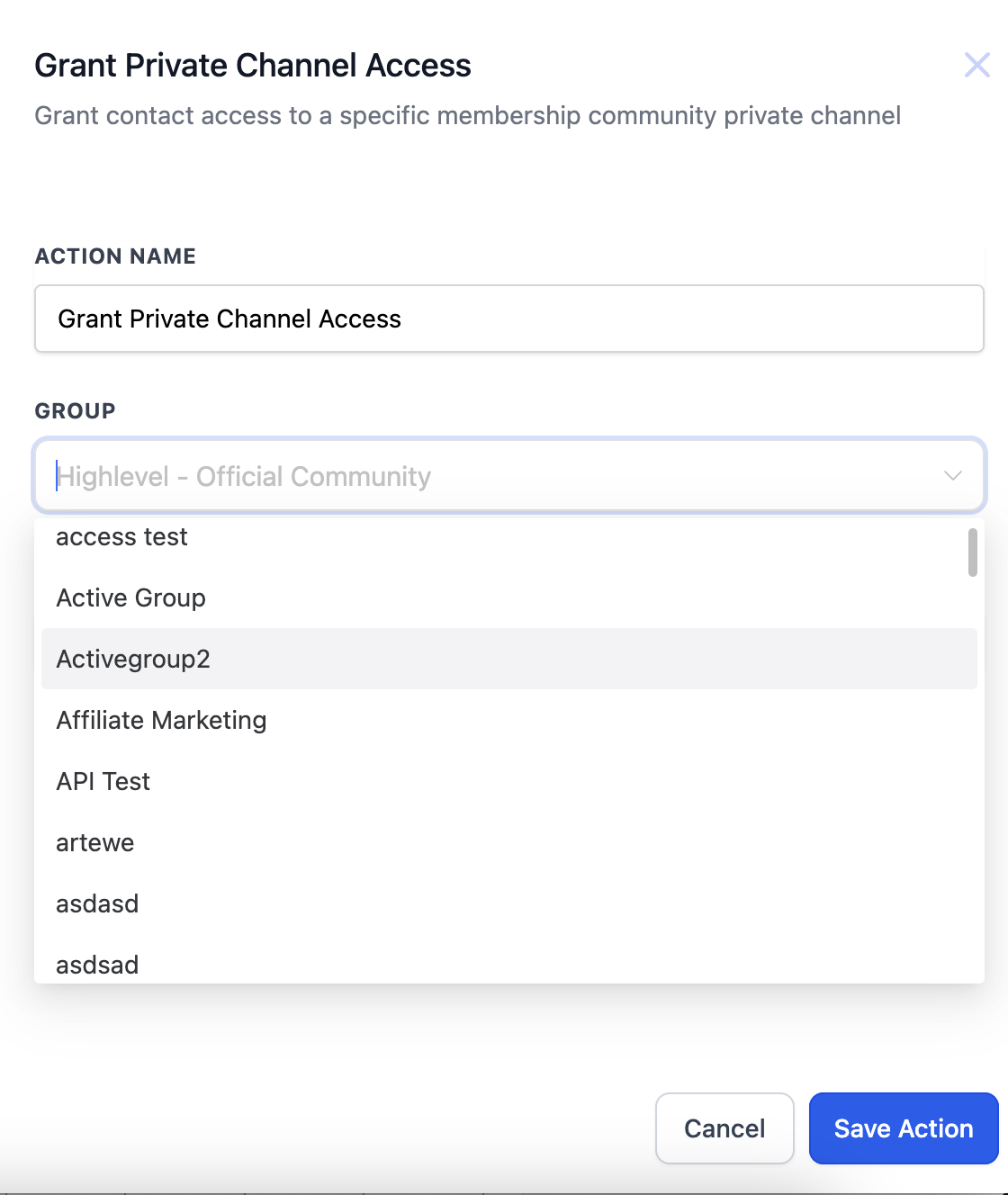
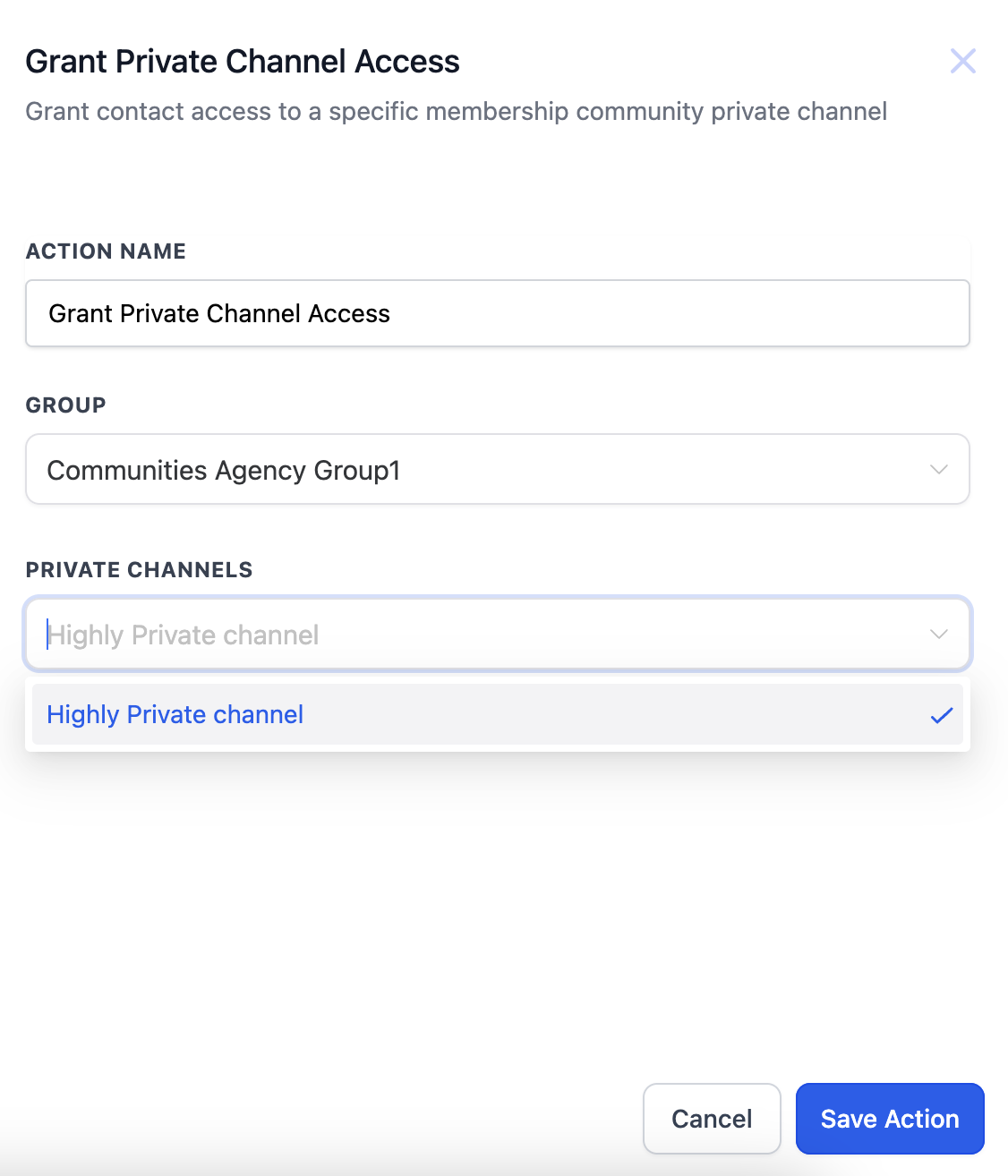
- Choose the action type, either Grant Private Channel Access or Revoke Private Channel Access.
- Set the trigger details by selecting the community group and the private channel you want to manage.
- If the member is not already in the group, the workflow adds them to the group and then to the chosen channel.
- Add any additional actions you want the workflow to perform after the access change.
- Test the workflow in a controlled environment to confirm it works as expected.
- Save the workflow and activate it for ongoing use.
05What it looks like in HighLevel
06Settings that matter
- Private Channel Access Granted. Triggers the workflow when a member is given access to a private channel.
- Private Channel Access Revoked. Triggers the workflow when a member’s access to a private channel is removed.
- Grant Private Channel Access. Action that adds a member to a selected private channel and includes them in the group if they are not already present.
- Revoke Private Channel Access. Action that removes a member’s permission for a selected private channel while keeping them in the group.
07How it connects to the rest of HighLevel
- Learn how to trigger a workflow when a member is added to a group. Group Access Granted trigger
- Set up a workflow that reacts when private channel access is removed. Group Access Revoked trigger
- Get an overview of creating workflows, including triggers, filters, and actions. Workflow creation guide
Michael's take

The workflow checks group membership first, adding the member to the group before assigning the channel.
If I were setting this up, I would build a simple test flow that grants access to a test user, verify they appear in both the group and channel, then duplicate the flow for revoking access. A quick test confirms the automation works before rolling it out to the whole community.