
01Who this is for
- Sales managers who need real time alerts when deals move to critical stages, ensuring timely follow ups.
- Customer success teams that want automatic task creation when an opportunity reaches a post sale stage.
- Business owners overseeing multiple pipelines who require visibility into stage transitions across their sales processes.
02Pipeline stage changed workflow trigger, explained
The Pipeline Stage Changed trigger watches every opportunity in a pipeline. When the opportunity moves from one stage to another, the trigger evaluates any filters you set and, if they match, launches the actions you defined. It works for forward moves, backward moves, and manual stage changes.
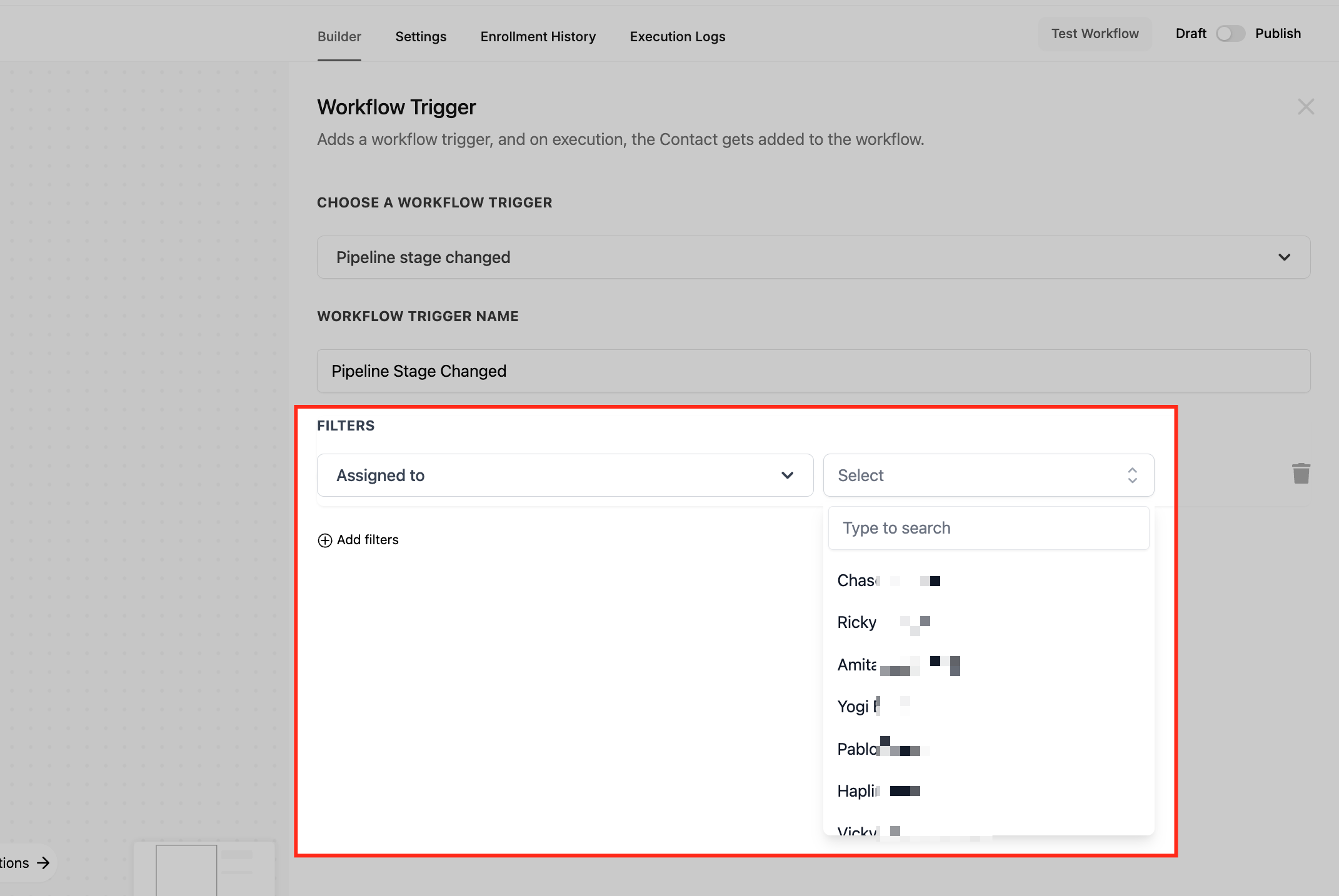
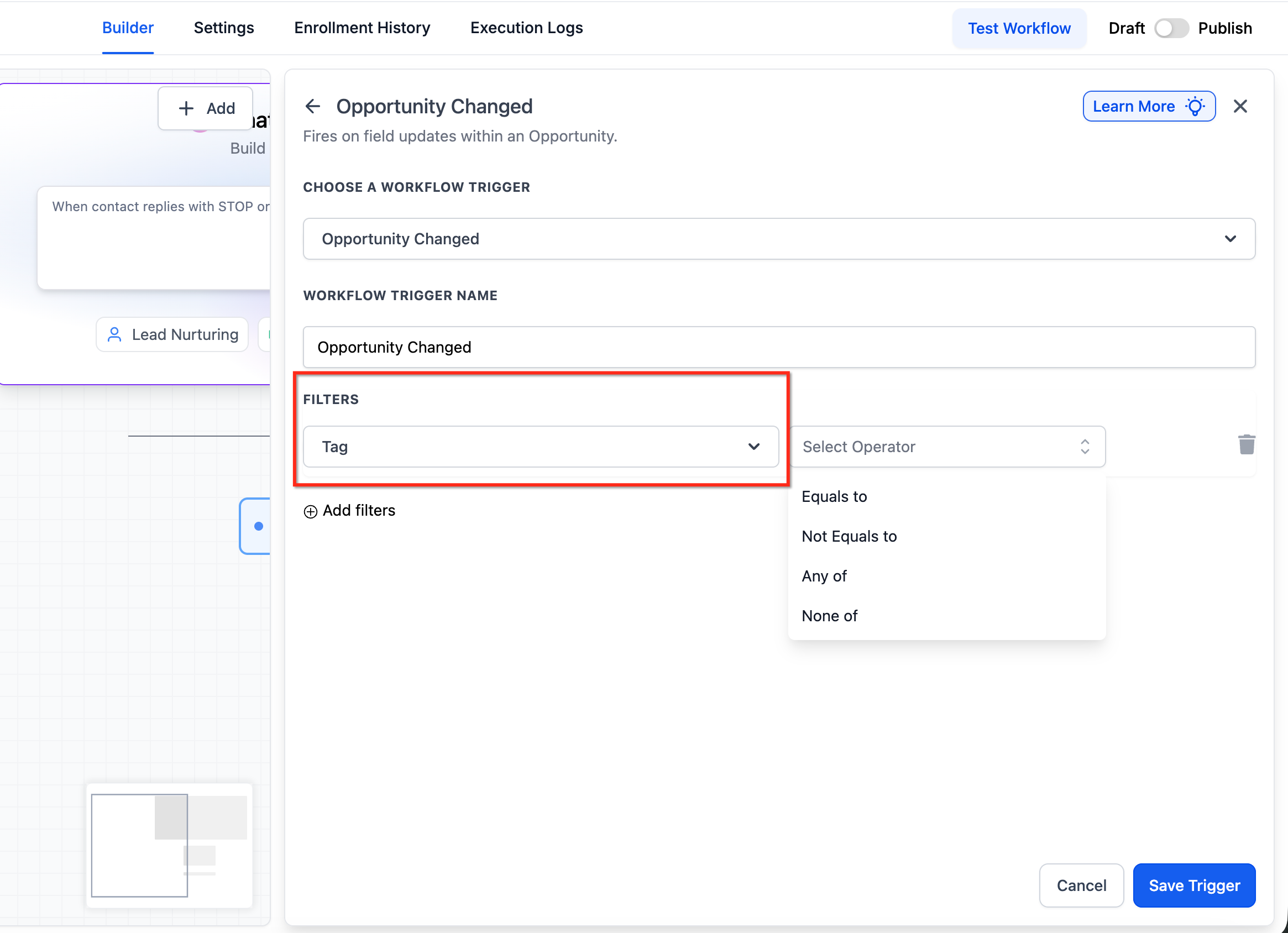
You configure the trigger inside the Workflow Builder, which you reach via Automation > Workflows. After adding the trigger, you can add filters such as Assigned To, Tag, In Pipeline, Lead Value, Lost Reason, Pipeline Stage, and Status to narrow the automation to the exact opportunities you care about. Once saved and published, the workflow runs automatically whenever the defined stage change occurs.
03How businesses use pipeline stage changed workflow trigger
- Real estate brokerage. Create a workflow that triggers when a property deal moves to the "Offer Received" stage. Use the Assigned To filter to notify the specific agent, then generate a follow up task to schedule a contract review.
- SaaS startup. Set a trigger for the "Trial to Paid" stage change. Apply a Lead Value filter to target deals over $10,000, then automatically send a welcome email and an internal Slack notification to the finance team (per HighLevel's help center, checked November 2026).
- Marketing agency. Configure a workflow that fires when a prospect reaches the "Proposal Sent" stage. Use a Tag filter for "High Priority" to create a task for the account manager and update the opportunity status to "Open".
04How to set up and use pipeline stage changed workflow trigger in HighLevel
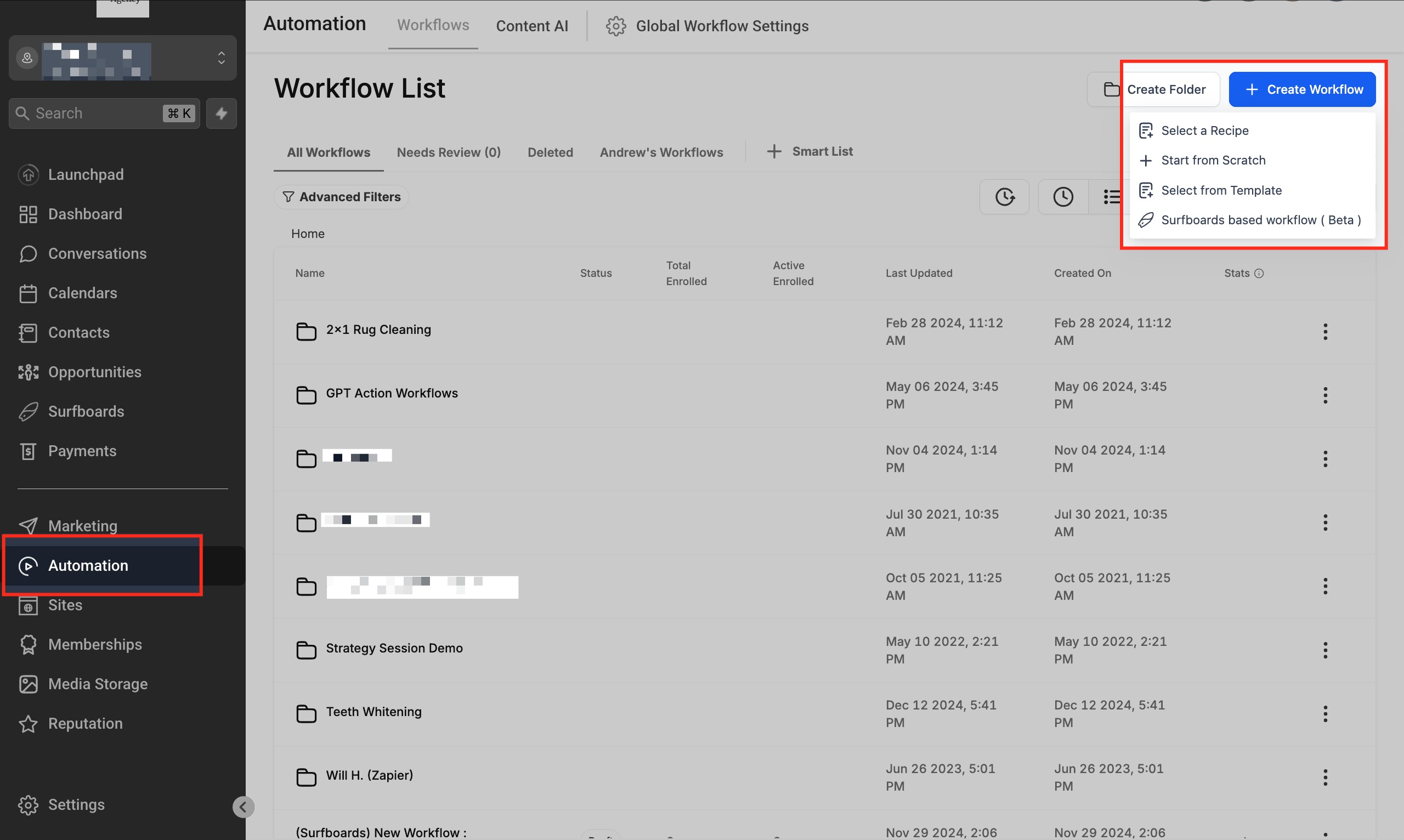
Access Workflow Builder
- Navigate to Automation > Workflows in the dashboard.
- Click Create New Workflow or edit an existing one.
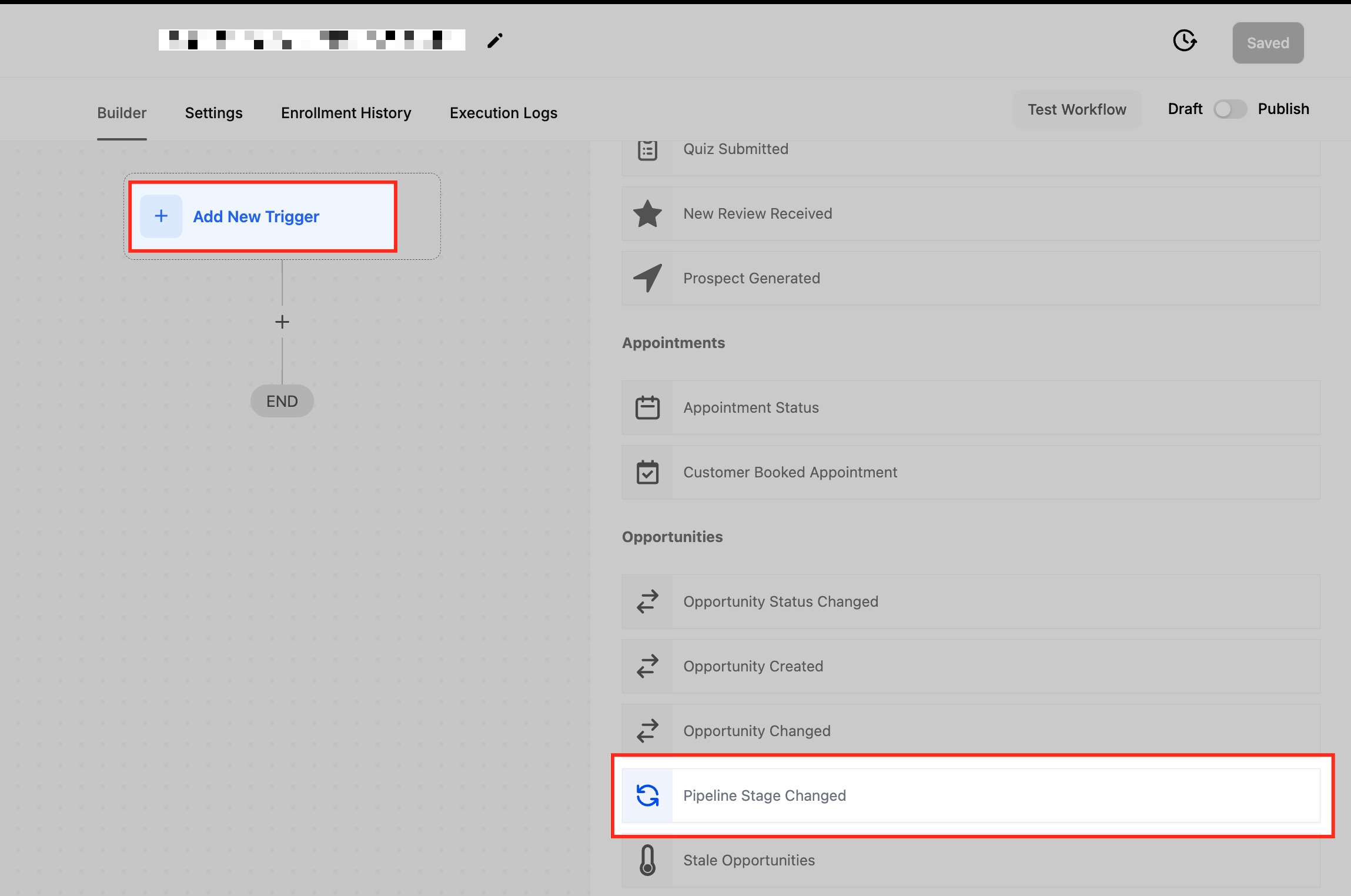
Choose the workflow trigger
- Click the + Add New Trigger button.
- Search for “Pipeline Stage Changed” and select it.
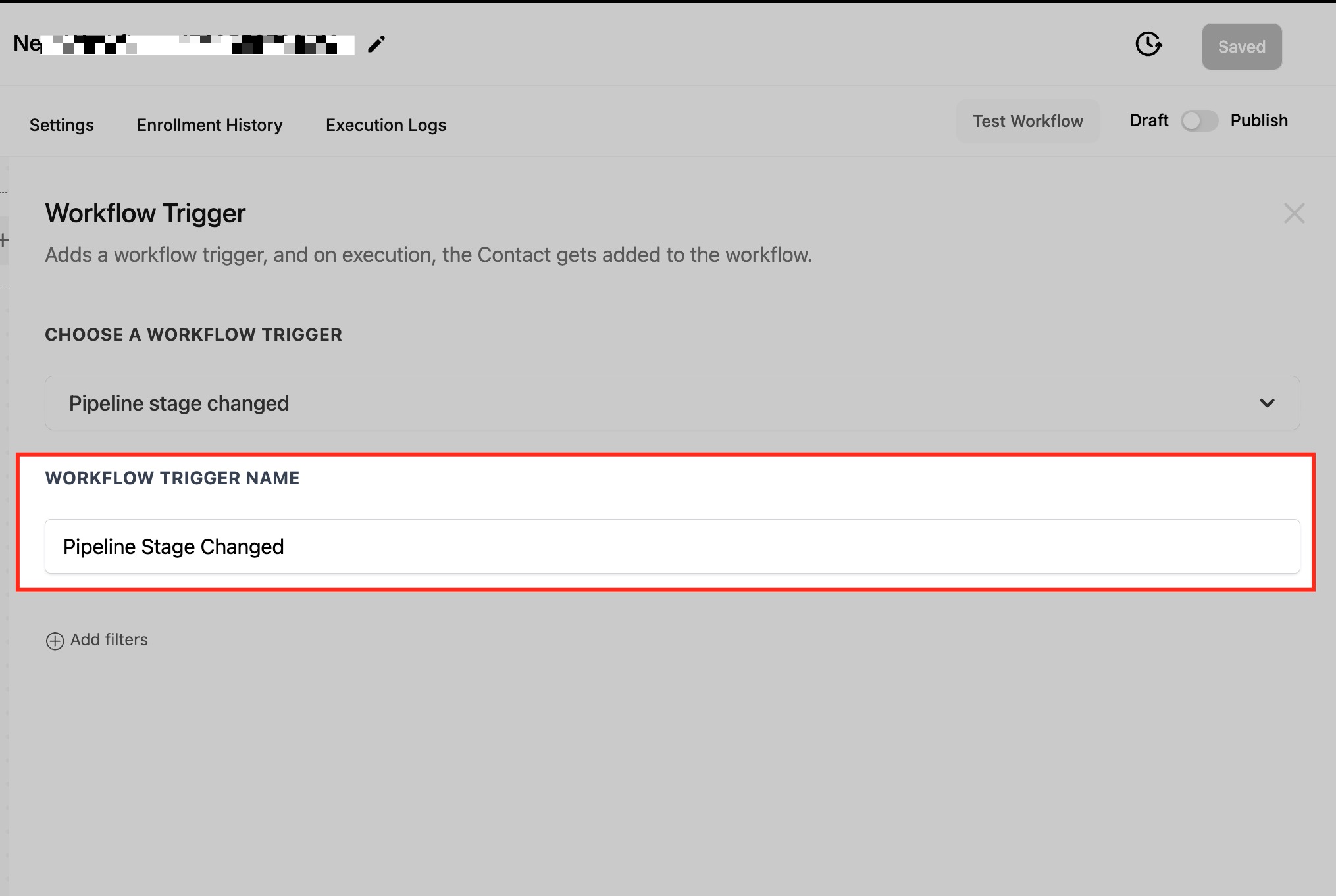
Name your trigger
- Enter a clear, descriptive name that reflects the trigger’s purpose.
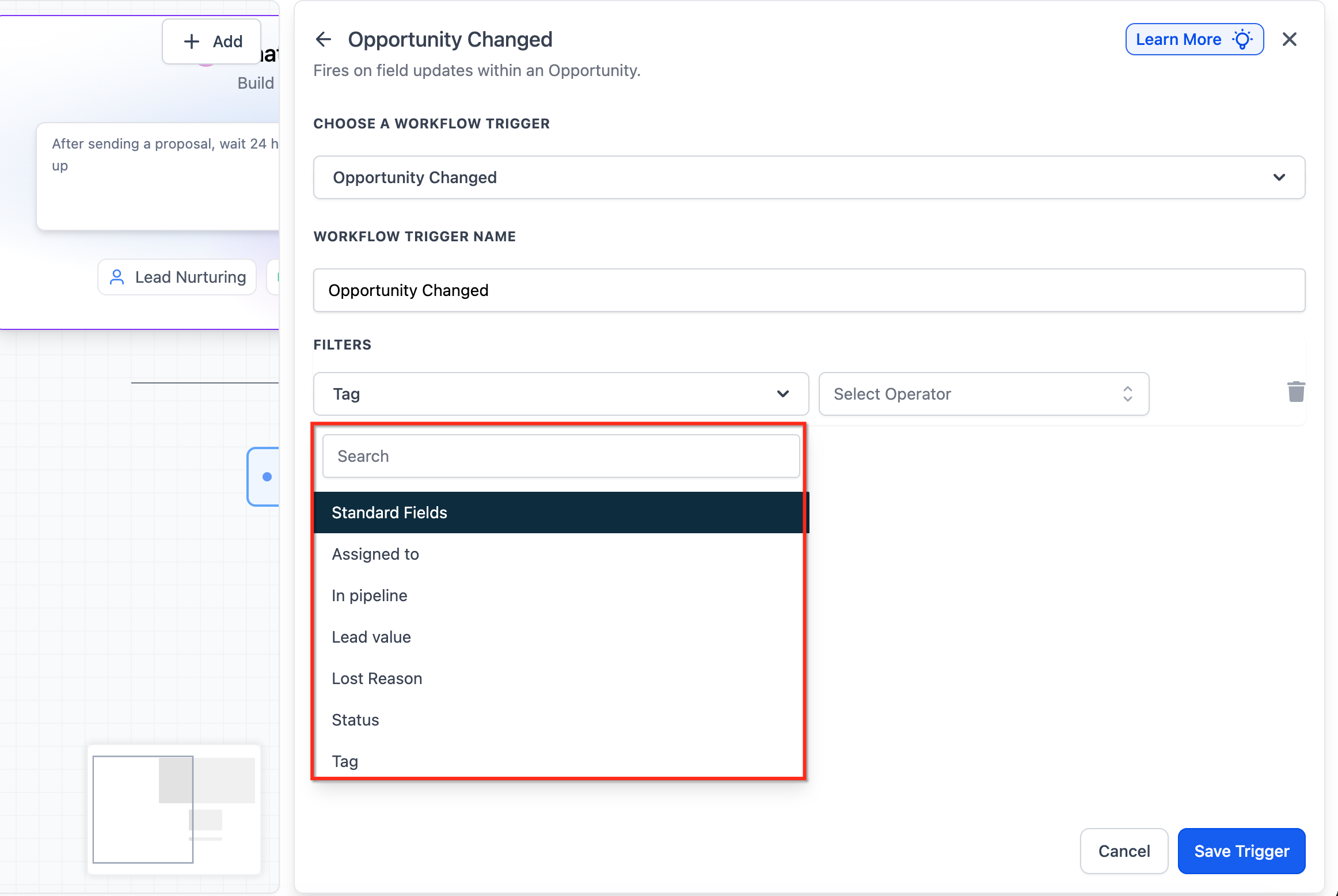
Set up filters
- Add any needed filters such as Assigned To, Tag, In Pipeline, Lead Value, Lost Reason, Pipeline Stage, or Status.
- Configure each filter with the specific conditions required for your automation.
Save and publish the workflow
- Click Save Trigger to store the trigger settings.
- Verify that all workflow actions and filters are configured.
- Click Publish to activate the automation.
- Test the workflow by manually moving an opportunity through stages to confirm expected behavior.
05What it looks like in HighLevel
06Settings that matter
- Assigned To filter. Limits the trigger to opportunities assigned to a specific user, enabling targeted notifications or task assignments.
- Tag filter. Activates the workflow only when an opportunity carries the selected tag(s), allowing segmentation based on labeling.
- In Pipeline filter. Restricts automation to a chosen pipeline, preventing the trigger from firing for opportunities in other pipelines.
- Lead Value filter. Triggers actions based on the monetary value assigned to the opportunity, useful for prioritizing high value deals.
- Lost Reason filter. Fires when an opportunity is marked Lost with a specific reason, enabling follow up or analysis of lost deals.
- Pipeline Stage filter. Specifies the exact stage transition that should activate the workflow, such as moving to "Closed Won".
- Status filter. Triggers based on the opportunity’s status (Open, Won, Lost, Abandoned), allowing actions tied to overall deal outcome.
07How it connects to the rest of HighLevel
- Learn how the Opportunity Status Changed trigger works. Opportunity status trigger
- Set up an Opportunity Created trigger for new deals. Opportunity created trigger
- Explore basic workflow setup steps. Workflow basics
- Compare order submitted and form submission triggers. Order vs form triggers
- Start a 30 day trial to test workflow automation. 30 day trial
Michael's take

Wondering if you really need a trigger for every little stage shift? The Pipeline Stage Changed trigger is a simple way to make sure nothing slips through the cracks. It fires whenever a deal moves, letting you automatically send alerts, create tasks, or update fields without lifting a finger.
If I were setting it up, I’d start by mapping the most critical stage. Maybe when a prospect hits “Negotiation.” I’d attach a notification to the sales rep and a follow up task for the next day. Running a quick test by moving a deal through the stages confirms everything works before you rely on it.