
01Who this is for
- Ecommerce owners who need instant order confirmations and record updates.
- Event organizers who want to notify staff when a high ticket ticket is purchased.
- Coaches or course creators who aim to follow up with prospects that enter contact info but do not finish payment.
02Order form submission triggers, explained
The Order Form Submission trigger activates each time a customer submits an order form linked to a funnel or website. When the trigger fires, the workflow you attached can run any sequence of actions, emails, tag assignments, field updates, or internal notifications.
The trigger lives inside the platform’s Automation (workflow) section. After adding it to a workflow, you may narrow activation with optional filters for the specific funnel or website, the exact page, the product sold, and the type of submission (Bump, Opt In, Sale, Upsell). These filters let you run different automations for distinct checkout scenarios.
During testing, you can place the funnel in test mode and submit dummy details. Once verified, publishing the workflow makes the trigger live for real orders.
03How businesses use order form submission trigger
- Online retailer. Create a workflow with the Sale submission type filter, then add actions to send a purchase confirmation email and update the customer's record in the platform. The trigger runs automatically when the order form records a completed payment.
- Service based business. Set up a workflow using the Opt In submission type filter. Add an email action offering a discount code. When a prospect fills out contact info but does not pay, the trigger sends the reminder email to encourage completion.
- Digital course creator. Build a workflow that applies the Upsell submission type filter. Include an email action with a limited time upsell offer. The trigger fires when a learner accepts the upsell after the initial purchase, delivering the upsell details right away.
04Before you start
- A funnel or website with an order form must already exist.
- You need access to the Automation (workflow) area in the platform.
05How to set up and use order form submission trigger in HighLevel
Set up order form submission trigger
- Open the Automation section and create a new workflow or open an existing one.
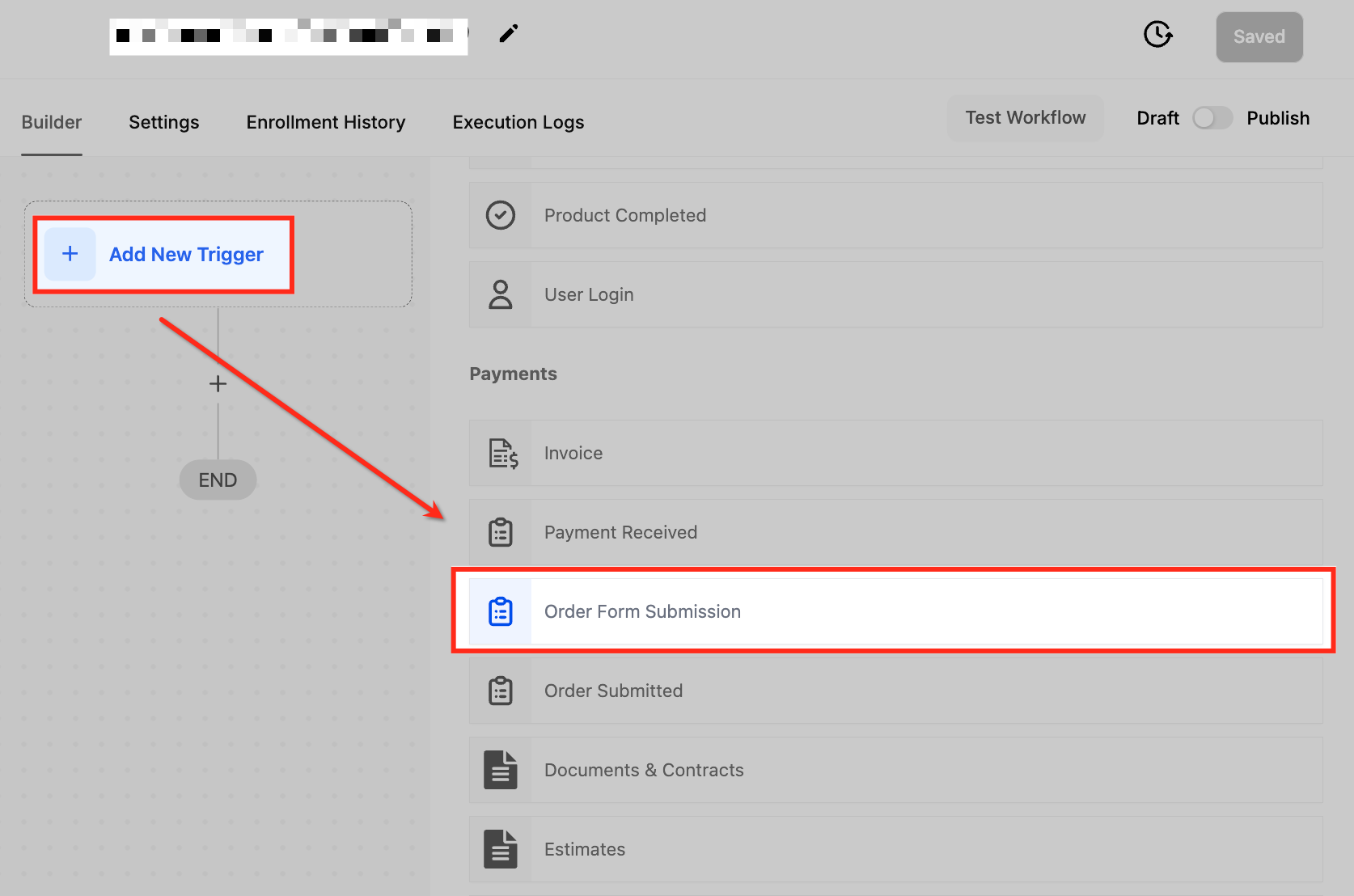
- Click Add New Trigger and choose Order Form Submission from the list.
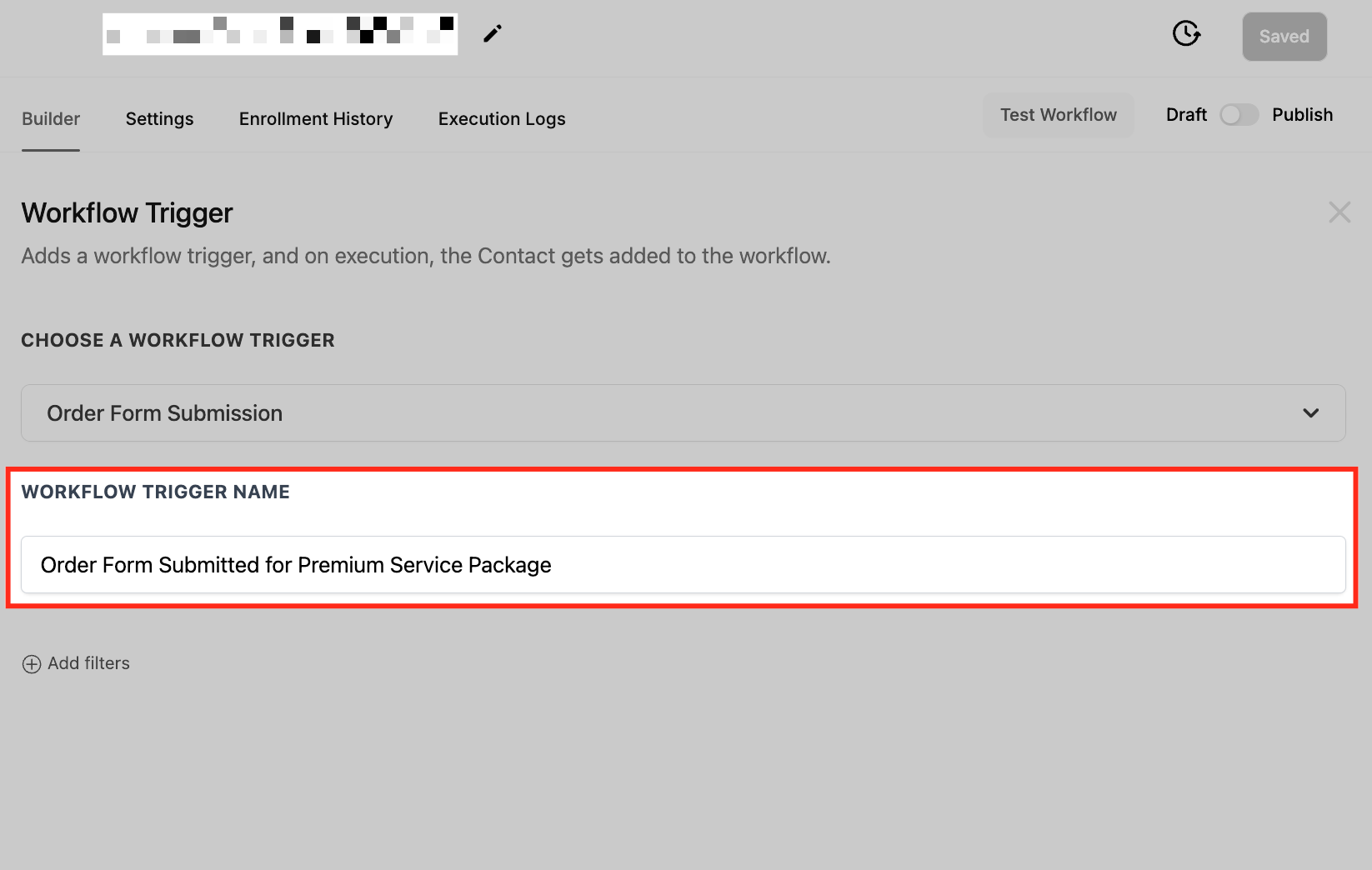
- Enter a clear name for the trigger, such as “Order Form Submitted for Webinar”.
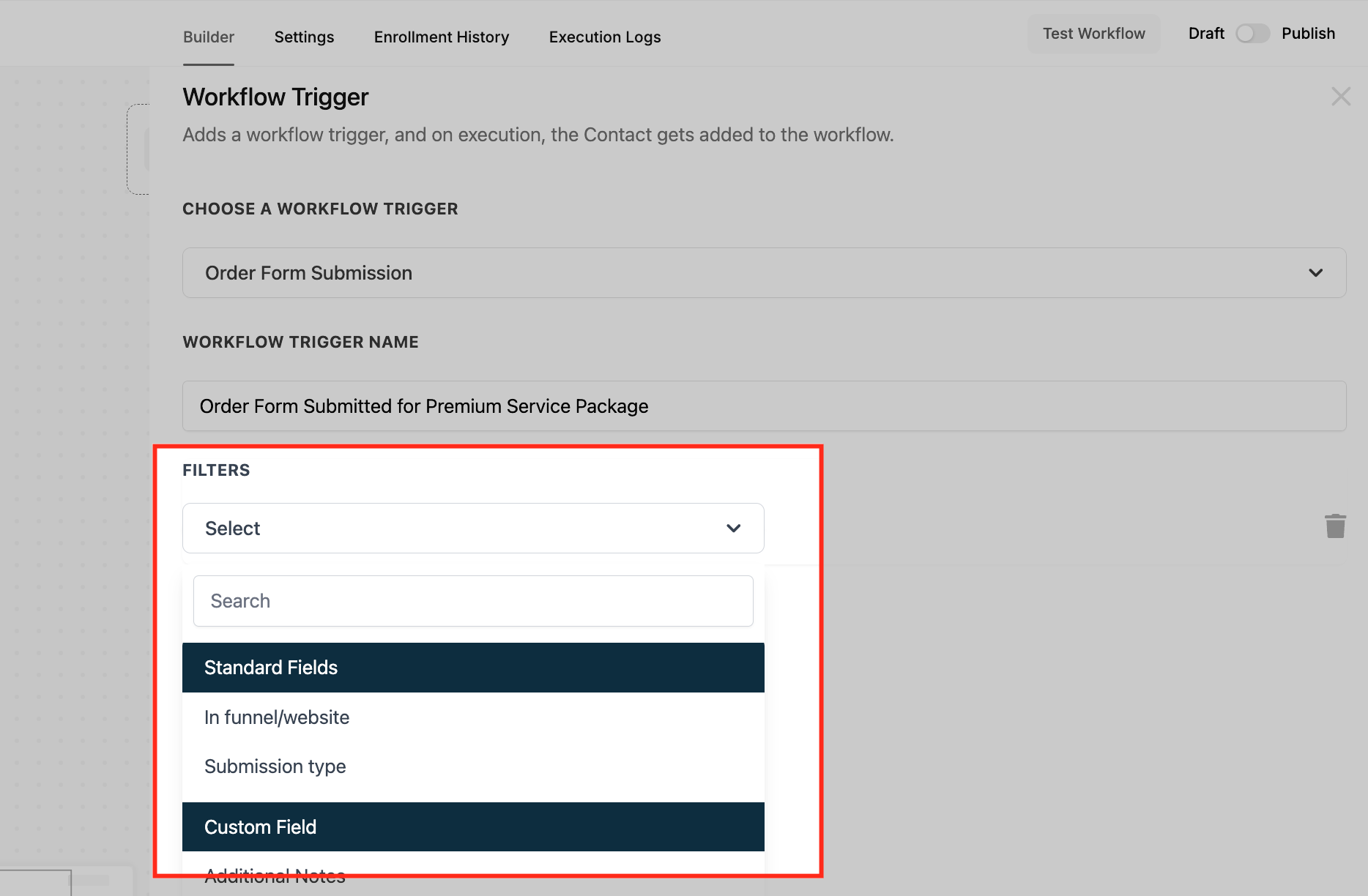
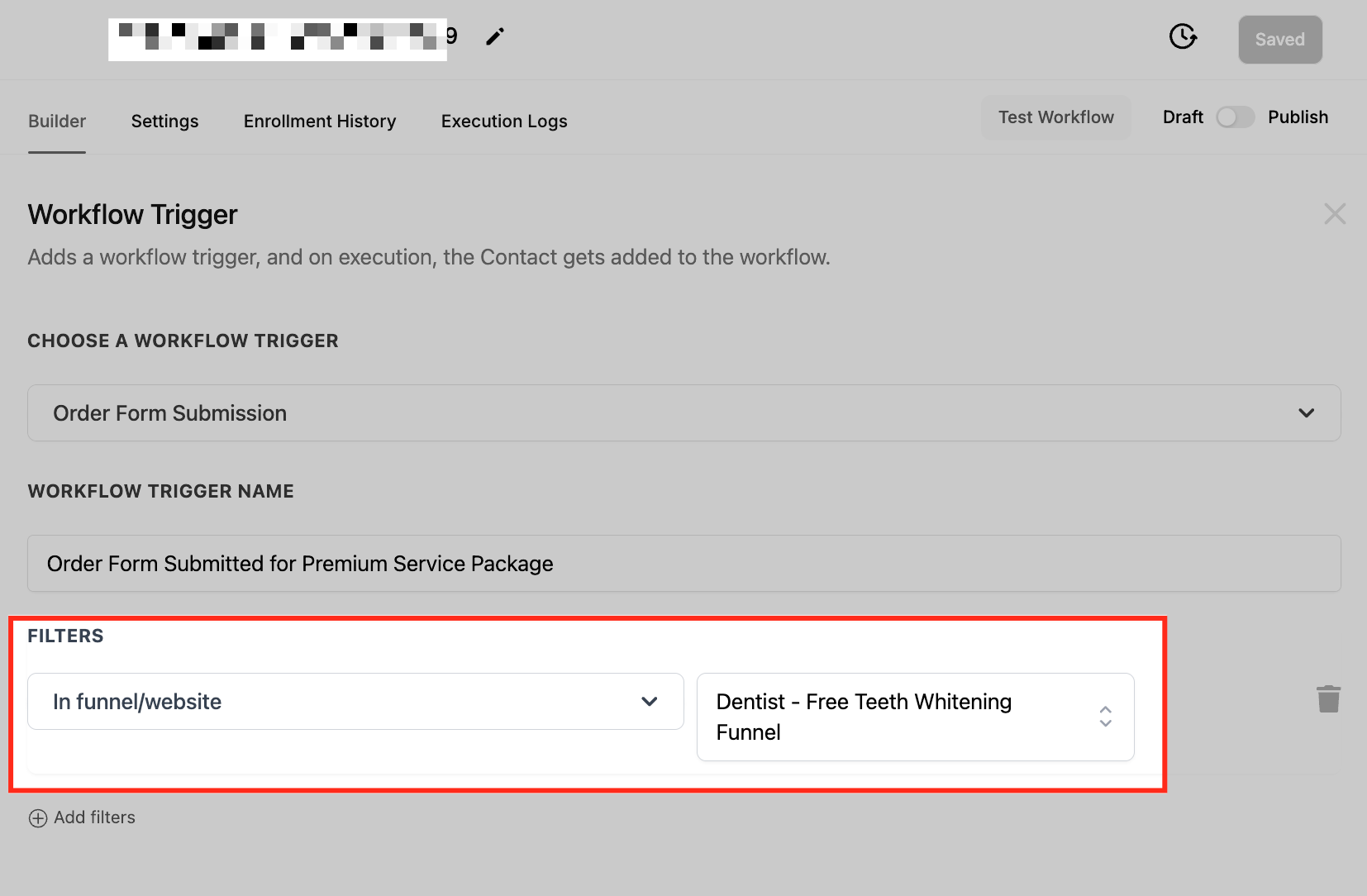
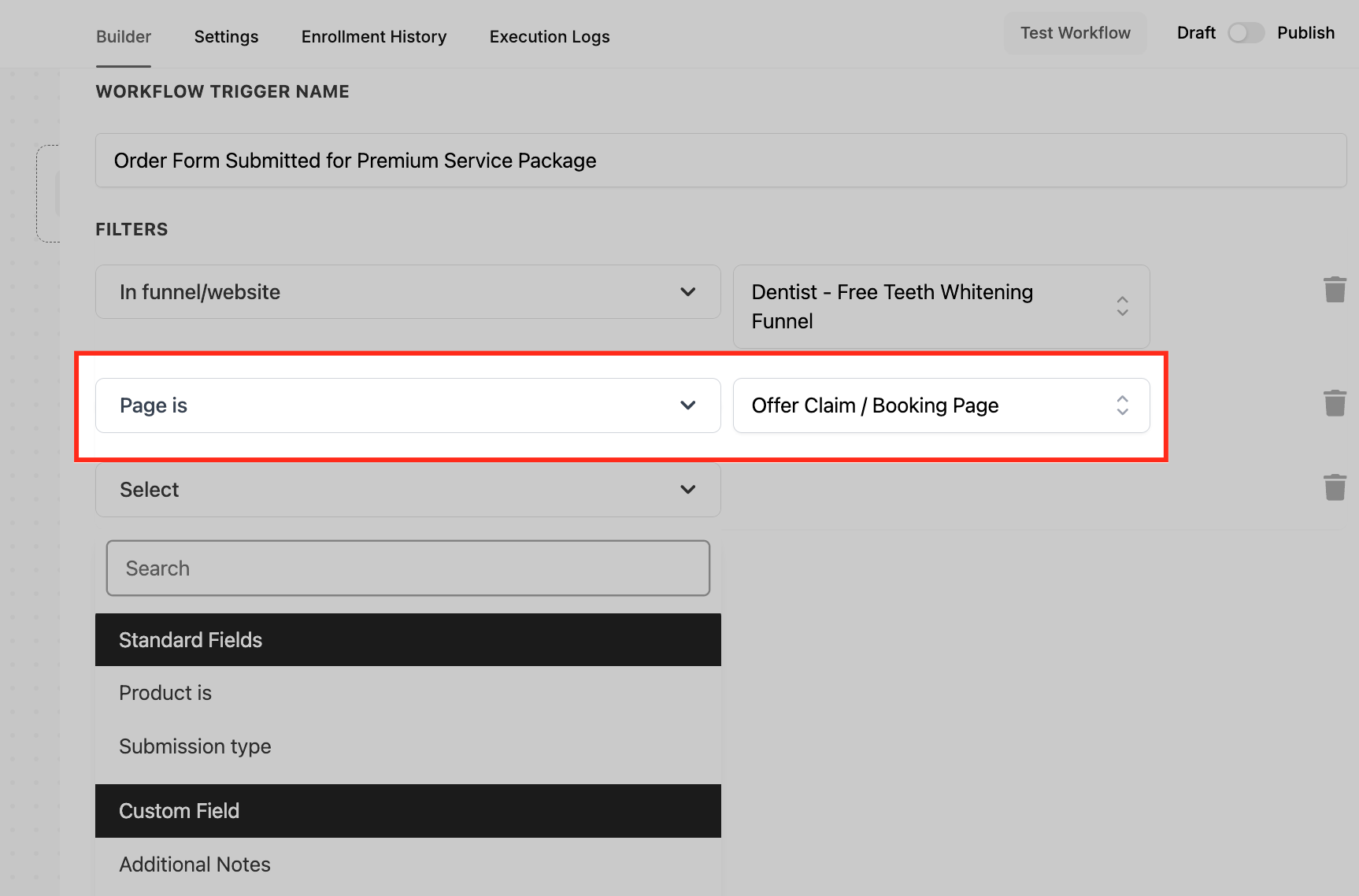
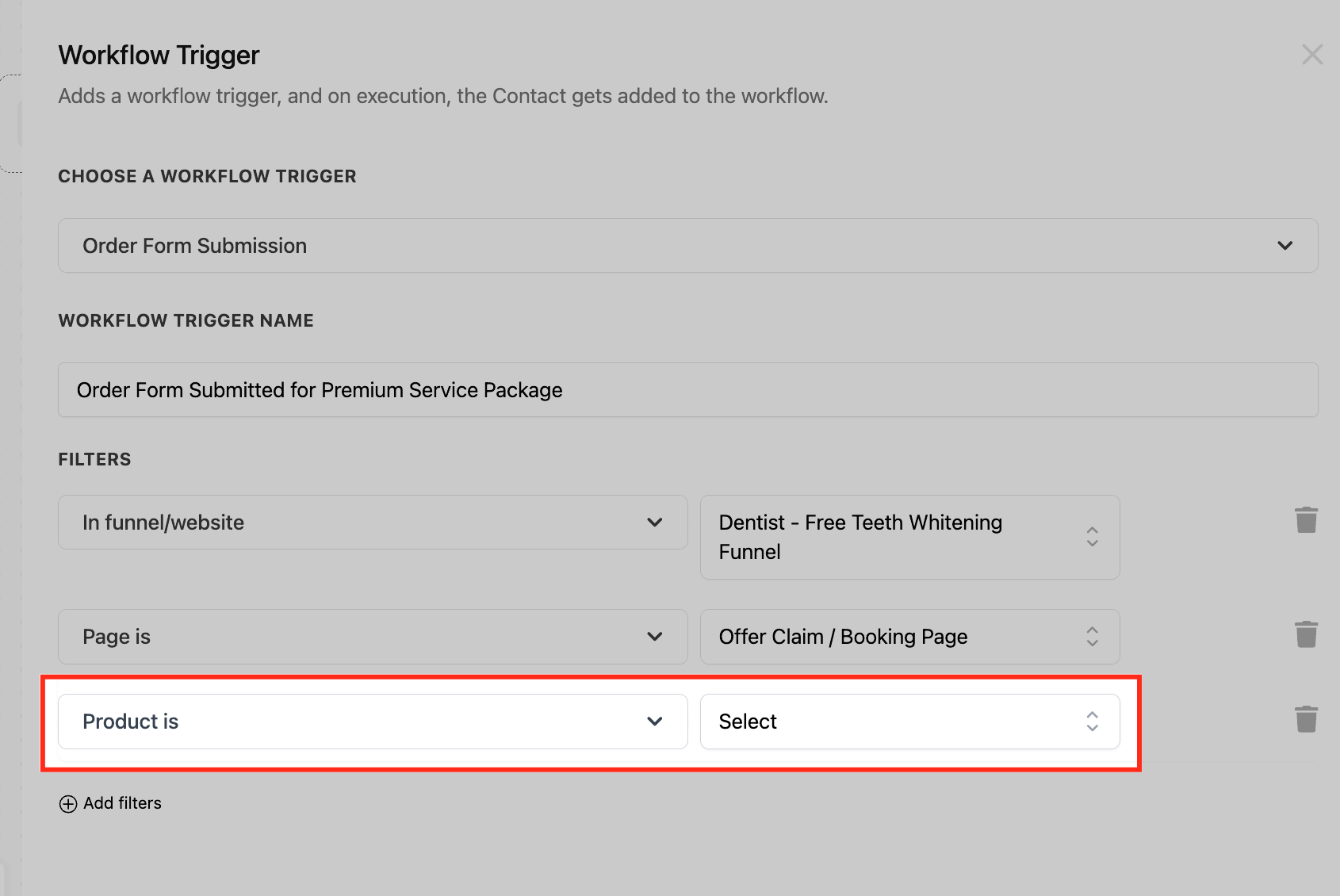
- Optionally add filters: select the funnel or website, specify a page, choose a product, and pick a submission type (Bump, Opt In, Sale, Upsell).
- Save the trigger, test the funnel in test mode with dummy data, then toggle Publish to activate the workflow.
06What it looks like in HighLevel
07Settings that matter
- In Funnel/Website. Limits the trigger to submissions that originate from a chosen funnel or website.
- Page Is. Restricts activation to a specific page within the selected funnel or website.
- Product Is. Filters the trigger so it only runs when the order form includes the defined product.
- Submission Type. Defines which kind of submission, Bump, Opt In, Sale, or Upsell, will cause the workflow to fire.
- Name Your Trigger. Provides a descriptive label for the trigger to identify its purpose within the workflow.
08Things to know before you rely on it
- Only the four submission types listed (Bump, Opt In, Sale, Upsell) are available for filtering.
- Filters are optional; without them the trigger fires for every order form submission in the account.
09How it connects to the rest of HighLevel
- Learn how the Order placed trigger differs from Order Form Submission. Order placed trigger
- Compare Order Submitted and Order Form Submission triggers. Order submitted vs form
- Get an overview of all workflow triggers and actions. All workflow features
Michael's take

Wondering if the order form submission trigger is worth the time? It can help ensure every purchase sends a thank you, updates your HighLevel account and notifies your team about high value sales, reducing manual steps.
If I were setting up a new product launch, I’d hook the Sale submission type to a confirmation email and a CRM tag, then add an Opt In workflow for anyone who drops off. That split lets you nurture both buyers and warm leads right from the start.