
01Who this is for
- Sales managers benefit because the trigger can automatically notify teams when deals are won or lost, keeping everyone aligned.
- Marketing teams can track campaign performance by triggering actions when opportunities tagged with a campaign move to closed won.
- Customer success reps use the trigger to start follow up sequences when a previously lost opportunity is reopened.
02Opportunity status changed triggers, explained
The Opportunity Status Changed workflow trigger watches for any change to the status field of an opportunity in HighLevel. When the status moves, for example from Open to Won, the trigger can launch a series of automated actions such as emails, task assignments, or record updates.
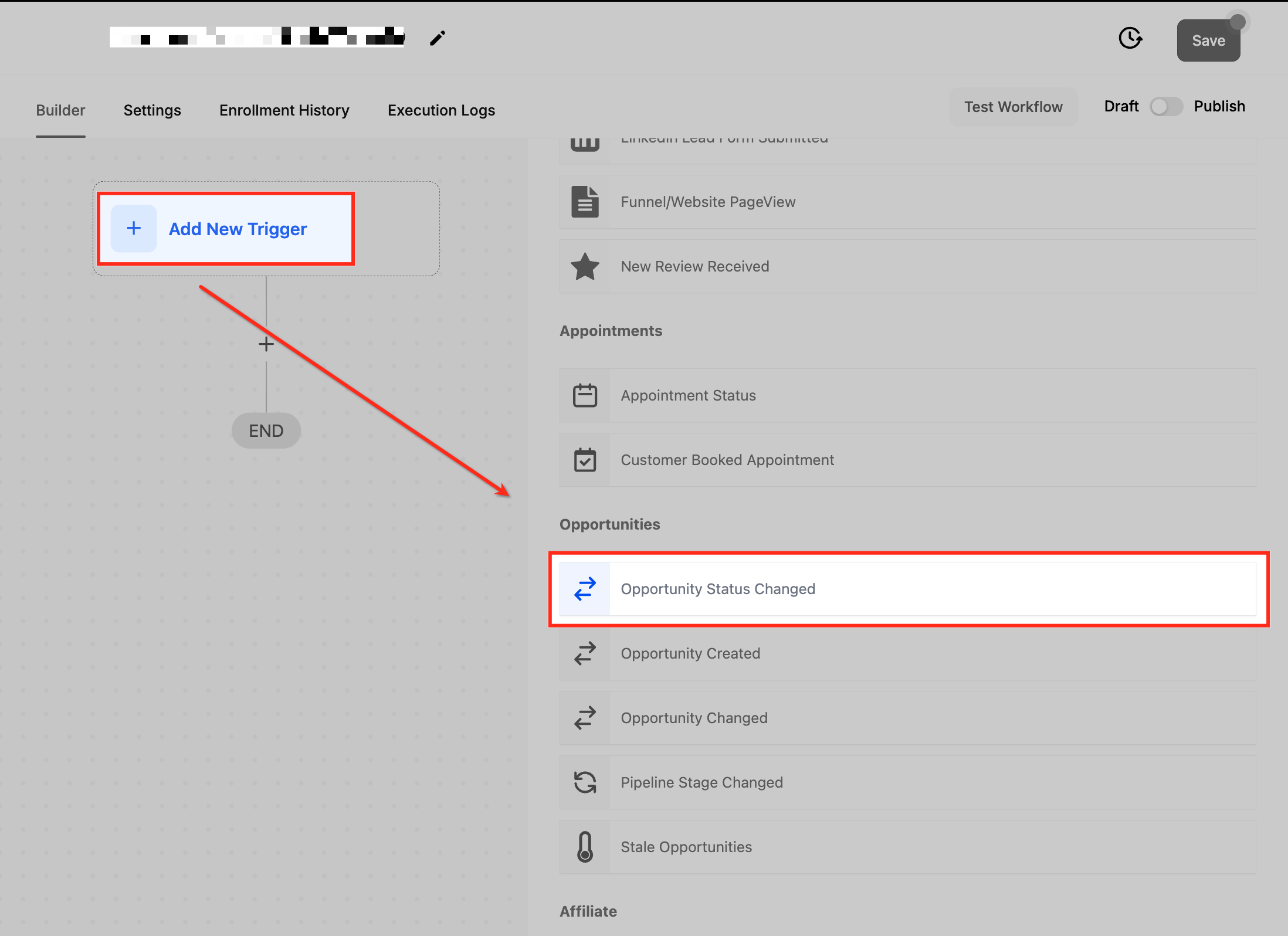
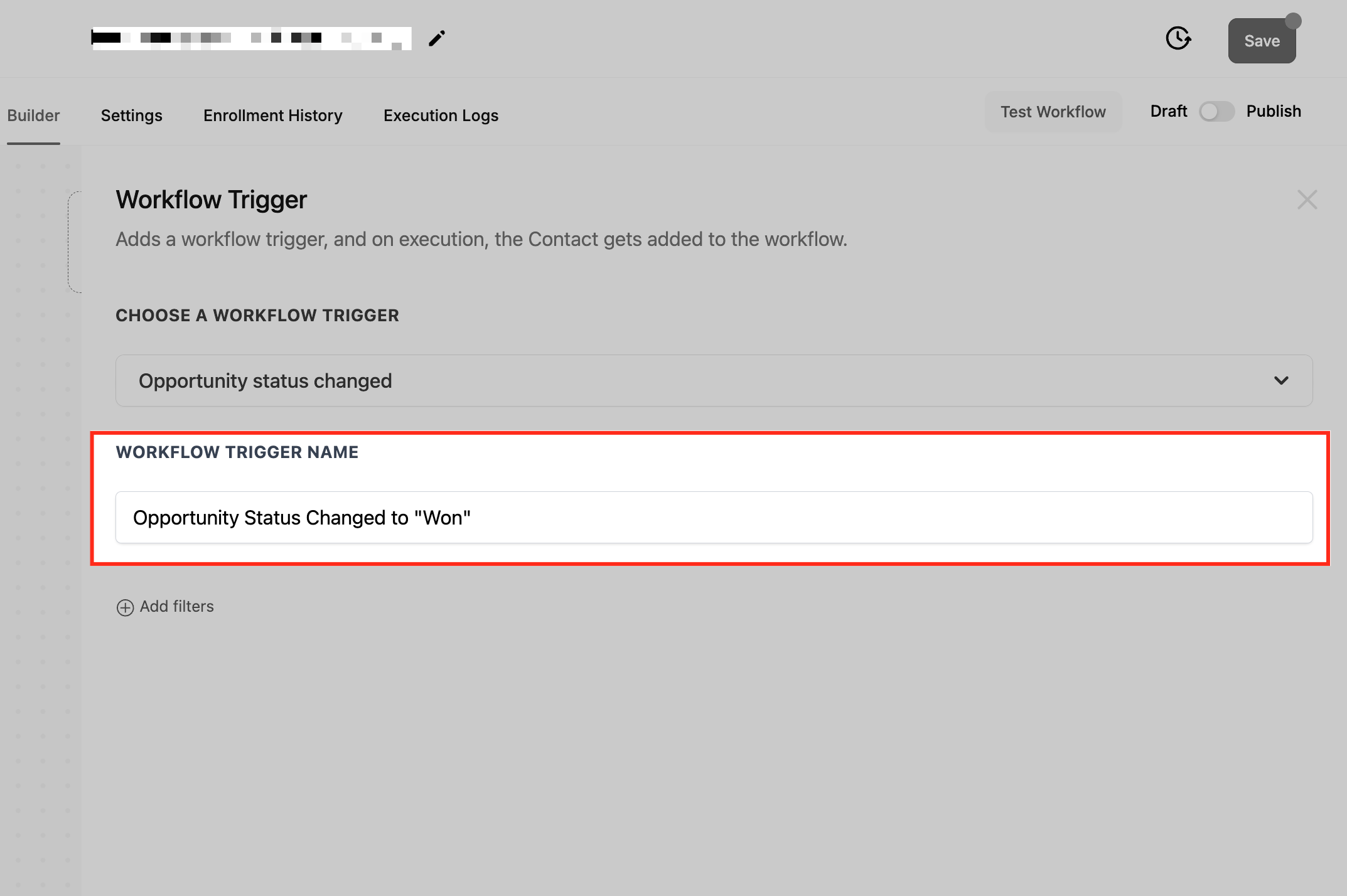
The trigger lives inside the workflow builder under automation settings. After adding the trigger, users give it a name, define filters to narrow when it fires, save the configuration, test with sample data, and then publish the workflow. Once published, the automation runs in real time each time the specified status change occurs.
03How businesses use opportunity status changed trigger
- Real estate brokerage. The brokerage creates a workflow that fires when a property deal changes from Negotiation to Closed Won. Filters select the agent responsible and the specific status transition. The workflow then sends a congratulatory email to the agent and updates the deal record.
- SaaS startup. The startup sets a trigger for opportunities tagged with a marketing campaign that move to Closed Won. Using the Tag and Moved To Status filters, the workflow generates a performance report and notifies the marketing manager.
- Consulting firm. The firm builds a trigger that activates when a lost opportunity is reopened. Filters specify Moved From Status Lost and Moved To Status Reopened. The workflow assigns the lead to a consultant and updates the priority field.
04The numbers and rules that matter
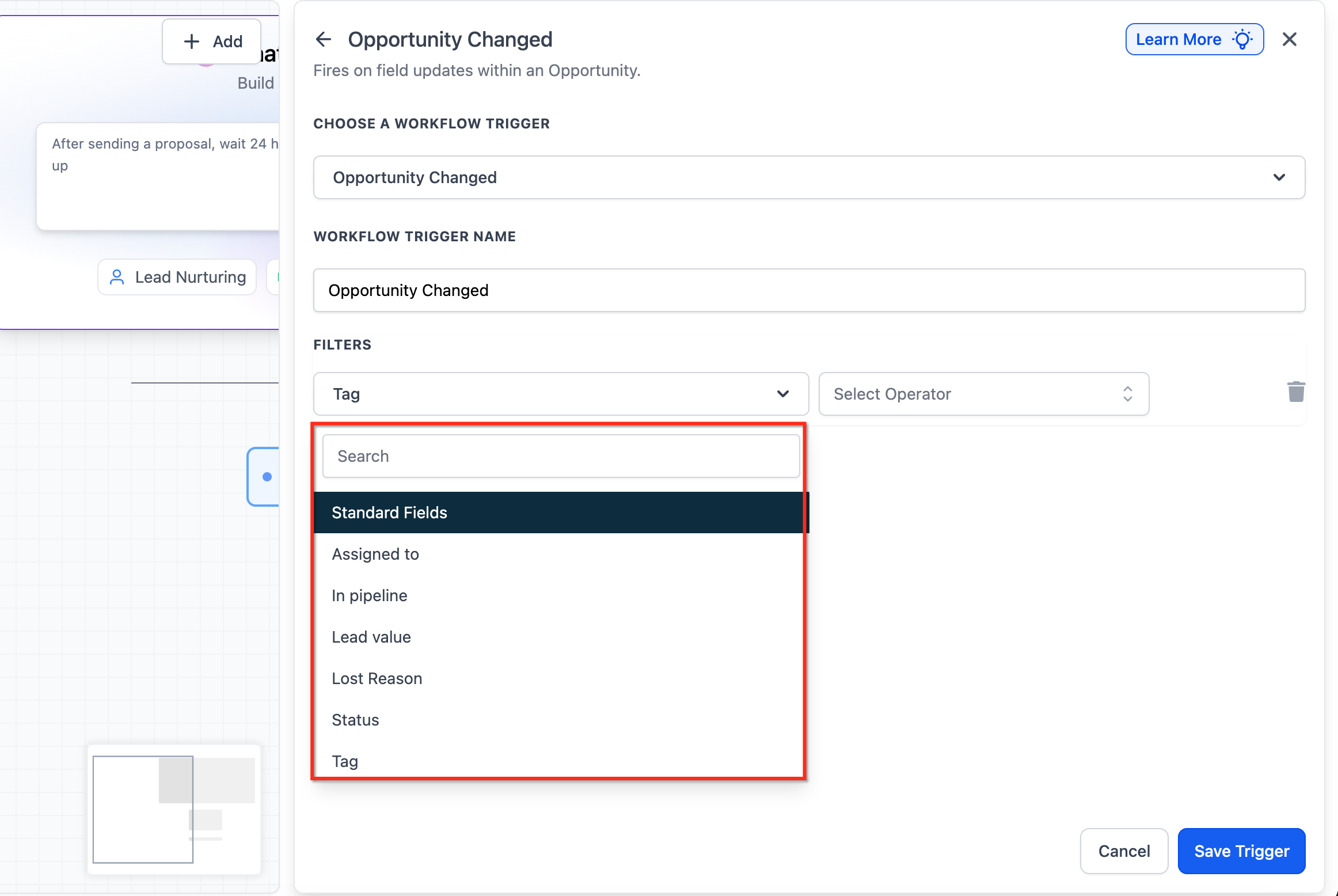
- Filters include Assigned To, Tag, In Pipeline, Lead Value, Moved From Status, Moved To Status, Pipeline Stage.
05How to set up and use opportunity status changed trigger in HighLevel
Configure the Opportunity Status Changed trigger
- Open the automation or workflow settings in HighLevel.
- Create a new workflow or open an existing one where the trigger will be added.
- Click “+ Add New Trigger” and select Opportunity Status Changed from the list.
- Enter a descriptive name for the trigger, such as “Deal Won Notification”.
- Set filter criteria, Assigned To, Tag, In Pipeline, Lead Value, Moved From Status, Moved To Status, Pipeline Stage, as needed.
- Save the workflow and run a test using sample data to verify the trigger works.
- Enable the Publish toggle to activate the workflow.
06What it looks like in HighLevel
07Settings that matter
- Assigned To. Selects which user or team must own the opportunity for the trigger to fire.
- Tag. Filters opportunities based on tag values using operators such as Equals to, Not equals to, Any of, or None of.
- In Pipeline. Limits the trigger to opportunities that belong to a specific sales pipeline.
- Lead Value. Specifies a minimum or maximum monetary value for the opportunity to qualify the trigger.
- Moved From Status. Defines the original status an opportunity must have had before the change.
- Moved To Status. Specifies the new status that an opportunity must reach for the trigger to activate.
- Pipeline Stage. Narrows the trigger to a particular stage within the selected pipeline.
08How it connects to the rest of HighLevel
- See how a pipeline stage change can start a workflow. Pipeline Stage Changed trigger
- Learn about the broader Opportunity Changed trigger that fires on any field update. Opportunity Changed trigger
- Get an overview of building workflows, including adding triggers and actions. Workflow automation basics
Michael's take

In my experience, the Opportunity Status Changed trigger offers a simple way to automate actions based on opportunity status changes.
Remember to add a cooldown or condition if you need to prevent the same status change from firing the same action repeatedly.