
01Opportunity Created triggers, explained
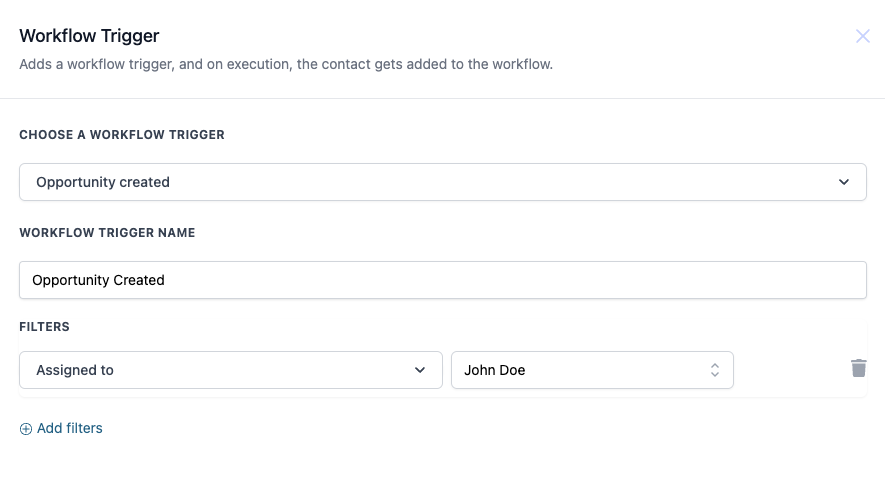
The Opportunity Created trigger is one of the workflow start points in HighLevel. When a new opportunity record is saved, the trigger evaluates any filters you set and then launches the workflow actions you defined. It lives inside the workflow builder alongside other trigger types such as Pipeline Stage Changed or Opportunity Status Changed. You can filter on fields like Assigned To, In Pipeline, Lead Value, Has Tag, Lost Reason, and Status, using operators such as Equals to, Greater than, Contains, and Is Empty.
02How businesses use the Opportunity Created trigger
- Notify a manager. Create a workflow that sends a notification to a manager when a new opportunity is created that meets a value threshold. Use the Lead Value filter with the Greater than operator and add a notification action.
- Assign a staff member. Automatically assign a staff member when an opportunity is created in a specific pipeline. Filter by the In Pipeline field and set the Assigned To filter to the appropriate user, then add a task creation action.
- Send a welcome email. Send an email when an opportunity is created with a particular tag. Use the Has Tag filter with the Equals to operator for the tag and follow with an email action.
03How to set up and use the Opportunity Created trigger in HighLevel
Configure the Opportunity Created trigger
- Open the workflow builder and pick Opportunity Created as the starting trigger.
- Enter a descriptive name for the trigger, for example High Value Lead Opportunity Created.
- Select the Assigned To filter to limit the trigger to opportunities owned by a particular user.
- Choose the Pipeline filter to restrict the trigger to specific pipelines.
- Add a Lead Value filter and set the condition to Greater than the desired amount.
- Apply a Tag filter, pick an operator such as Equals to or Any of, and select the relevant tags.
- If more conditions are needed, click Add filters and configure additional fields and operators.
04What it looks like in HighLevel
05Settings that matter
- Assigned To. Filters opportunities based on the user who is assigned to the record.
- Has Tag. Filters opportunities by the presence or absence of specific tags.
- In Pipeline. Limits the trigger to opportunities that belong to the chosen pipeline.
- Lead Value. Filters opportunities according to their monetary value.
- Lost Reason. Allows filtering by the reason an opportunity was marked as lost.
- Status. Filters based on the current status such as New, Open, etc.
06Things to know before you rely on it
- All filter fields are optional; none are mandatory for the trigger to fire.
- Tag filtering supports multi select operators like Equals to, Not equals to, Any of, and None of.
07If something goes wrong
- The trigger does not fire when a new opportunity is added.. Review each filter condition to ensure they match the opportunity data. Remove or adjust filters that are too restrictive.
08Opportunity created triggers in HighLevel workflows
The opportunity created trigger runs when an opportunity is added. It includes Filters and Custom Values that can be configured.
The opportunity created trigger fires when an opportunity record is created in HighLevel.
Filters and Custom Values can be added to the trigger.
09How it connects to the rest of HighLevel
- Learn how to start a workflow when a pipeline stage changes. Pipeline stage trigger
- Use the Opportunity Changed trigger to react to updates on existing opportunities. Opportunity changed trigger
- Understand pricing tiers for workflow features. Workflow pricing
- Start a 30 day trial to test workflow automations. Start trial
- Review the overview of all workflow capabilities. All workflows
Michael's take

Jumping into automation without thinking through the implications can create a flood of alerts that overwhelm the team. Make sure you only trigger on truly important events, otherwise the signal gets lost in the noise.
When used thoughtfully, the Opportunity Created trigger lets you surface the deals that matter most right when they appear. It’s a clean way to keep the right people in the loop and get tasks moving without manual hand offs.