
01Who this is for
- Marketing managers can automate alerts when discount offers are withdrawn, keeping customers informed.
- Membership site owners can trigger internal notifications to support staff when premium access is removed.
- Event coordinators can update attendee records automatically when event pass access is revoked.
02Offer access removed triggers, explained
The Offer Access Removed trigger activates each time a contact loses access to a chosen offer. It works inside HighLevel workflows and can start any actions you attach, such as email sends, tag updates, or internal alerts.
You find the trigger in the workflow builder under the list of available triggers. After adding it, you specify the offer to watch, name the trigger, and save. When the condition is met, HighLevel runs the workflow in real time.
03How businesses use offer access removed trigger
- Ecommerce retailer. Create a workflow that sends an email to a shopper when a promotional discount is removed. The trigger watches the discount offer and, upon removal, launches the email action with alternative offers.
- Membership site. Set up a workflow that notifies the support team when a member's premium membership is revoked. The trigger detects the membership offer removal and fires an internal notification for follow up.
- Event organizer. Add a workflow that updates the contact’s contact records when a ticket or event pass is taken away. The trigger fires on the specific event offer and applies a tag or field change for reporting.
04How to set up and use offer access removed trigger in HighLevel
Configure the Offer Access Removed trigger
- Open the automation or workflow settings in HighLevel and create a new workflow or select the one you want to modify.
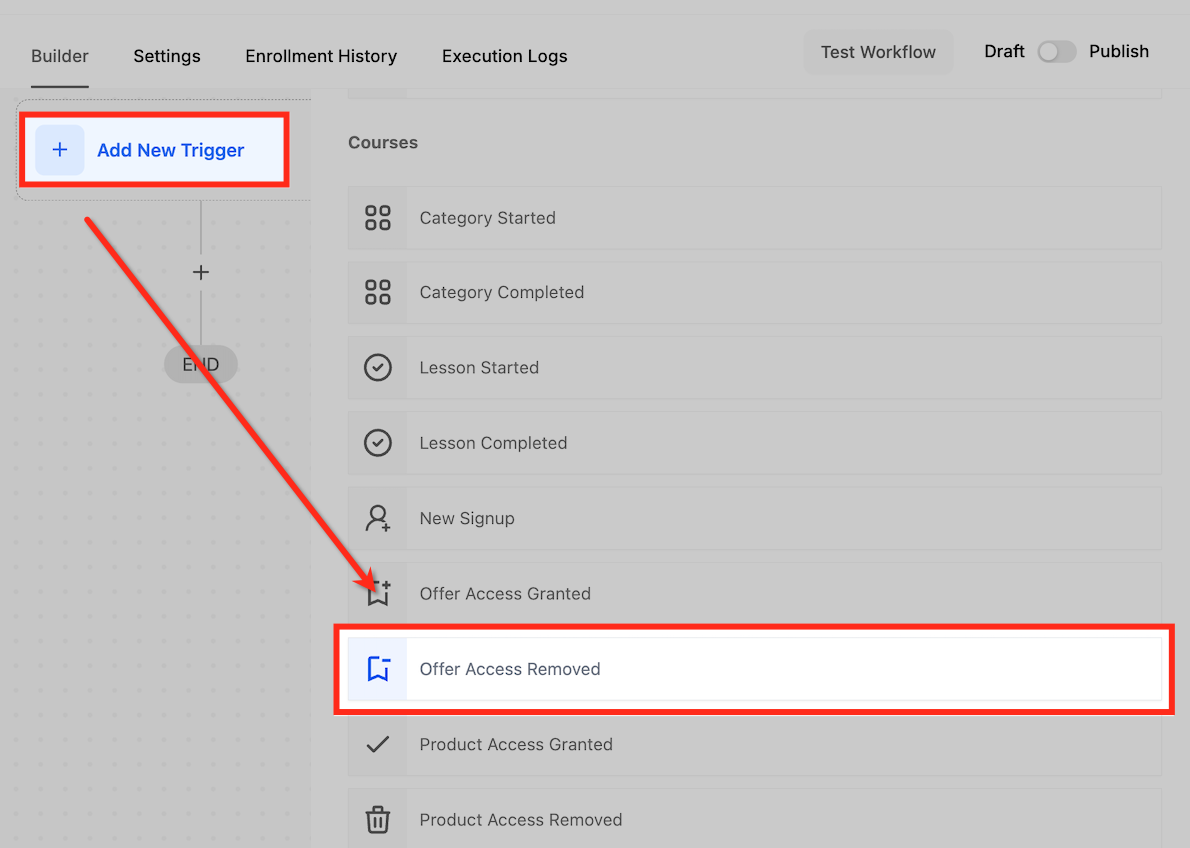
- Click the “+ Add New Trigger” button.
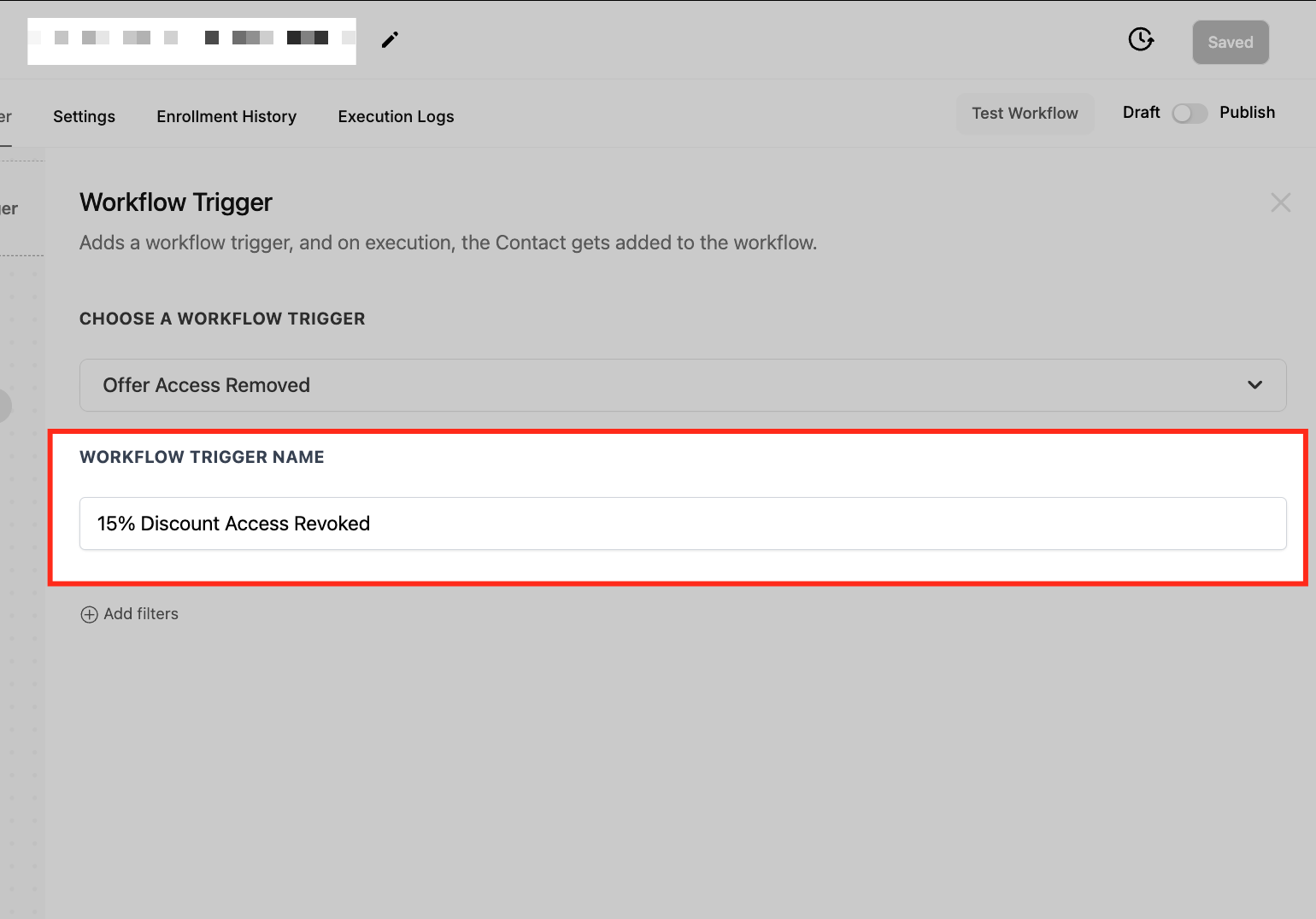
- Select “Offer Access Removed” from the dropdown menu.
- Enter a descriptive name for the trigger, such as “15% Discount Access Revoked”.
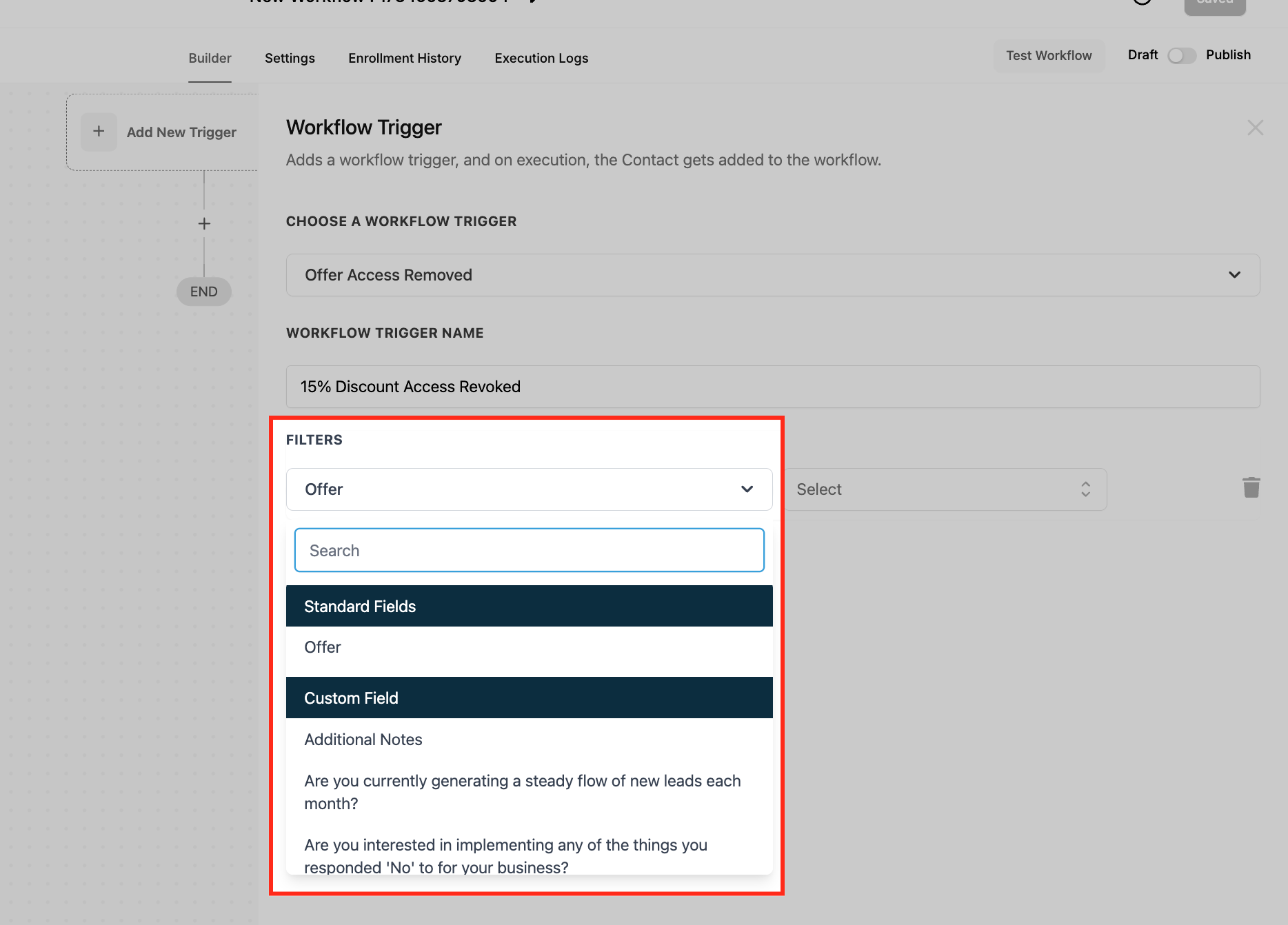
- Add a filter and choose the specific offer that should launch the workflow, for example “Early Bird Discount”.
- Click the save button to store the trigger configuration.
- Run a test with sample data, then turn on the Publish toggle to activate the workflow.
05What it looks like in HighLevel
06Settings that matter
- Offer. Specifies which offer’s access removal will cause the trigger to fire.
- Publish toggle. Enables or disables the workflow after it has been tested and saved.
07Things to know before you rely on it
- You can add filters for multiple offers in the same workflow by configuring additional criteria.
- The trigger activates each time access is removed, so workflows should include conditions to avoid duplicate actions.
08If something goes wrong
- Trigger fires repeatedly for the same contact. Add workflow conditions or filters that check for previous actions before proceeding.
09How it connects to the rest of HighLevel
- Compare with the Offer Access Granted trigger Offer Access Granted
- Learn how to add other triggers within a workflow Workflow basics
- Review pricing for the Workflow Pro Plan Pro Plan pricing
Michael's take

Beware of overautomating notifications that might overwhelm contacts or internal staff. Each trigger fire can generate an email or alert, so think through the downstream actions before you go live.
When set up correctly, the trigger can reduce manual follow ups, keep records up to date, and help create a smoother experience for everyone involved. I’d watch the first few runs closely to confirm the right people are getting the right messages.