
01Who this is for
- Founders of membership sites can automate welcome back messages each time a subscriber logs in, keeping communication timely.
- Online course providers can track login frequency and trigger reminders for inactive students, helping maintain course progress.
- Fitness club owners can launch personalized offers when members sign in after a break, encouraging repeat attendance.
02User login triggers, explained
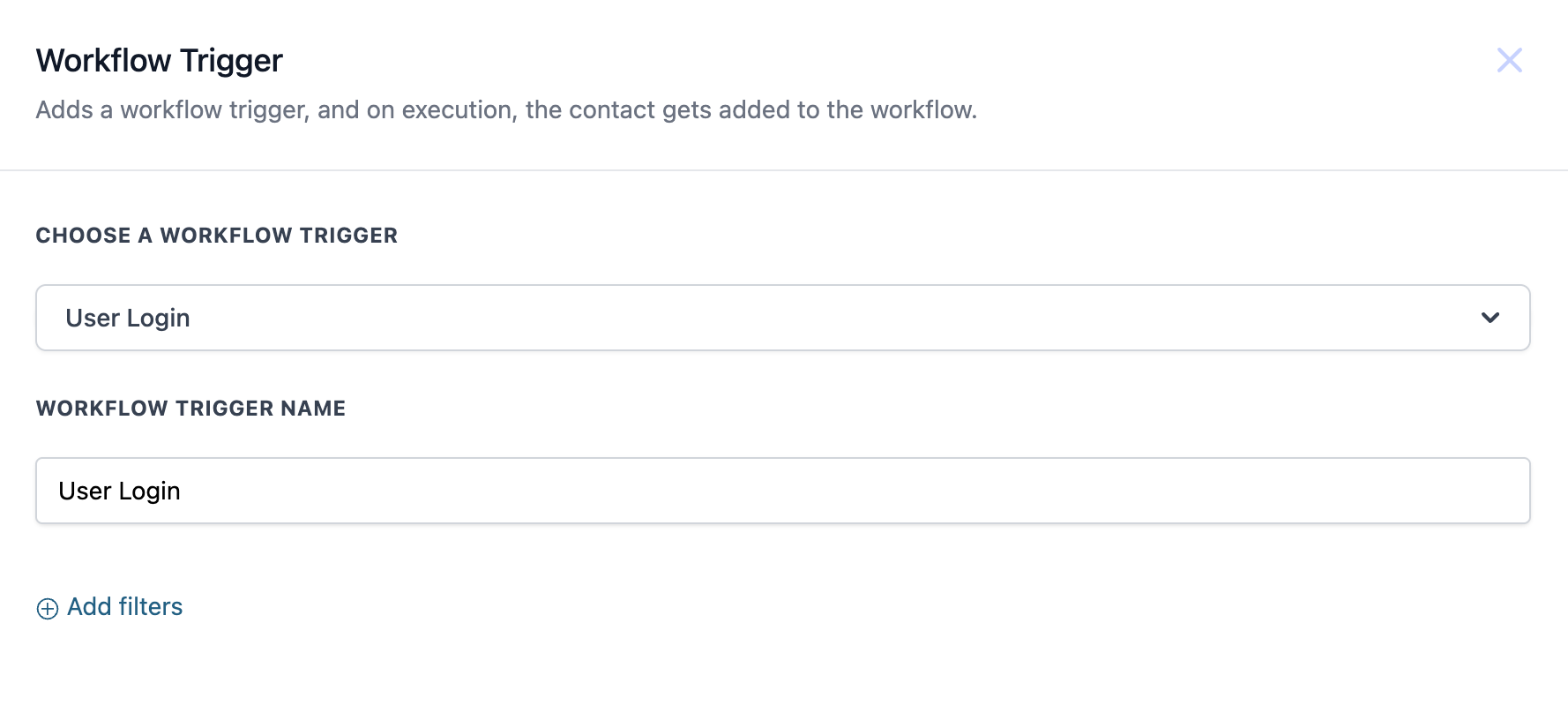
The trigger watches for a sign in event in the Legacy Portal. When a user opens their account, the platform fires the trigger and runs any attached workflow actions. You give the trigger a friendly name in the Workflow Trigger Name field, which is required. Optional filters let you narrow the conditions, such as limiting to certain user groups. Once saved, the workflow executes each time the login event occurs.
03How businesses use the user login trigger
- Online course platform. Create a workflow that begins with the User Login trigger. Add an action to send a "welcome back" email whenever a student signs in. This keeps learners engaged without manual effort.
- Fitness membership site. Set up the trigger to detect a member’s login after a period of inactivity. Follow it with an action that delivers a special class offer, prompting the member to return.
- Membership site activity tracking. Use the trigger to start a workflow that records each login event, allowing you to monitor login frequency and identify inactive members for follow up.
04How to set up and use the user login trigger in HighLevel
Set up user login trigger
- Add a new trigger of type User Login to the desired workflow.
- Enter a clear identifier in the Workflow Trigger Name field.
- (Optional) Attach any filters to limit when the trigger should fire.
- Save the workflow to activate the trigger.
05What it looks like in HighLevel
06Settings that matter
- Workflow Trigger Name. Identifies the trigger within the workflow and is required for the system to recognize the login event.
07Things to know before you rely on it
- The trigger works only with the Legacy Portal version of HighLevel.
- Workflow Trigger Name must be provided; otherwise the trigger cannot be saved.
- Filters are optional and can be omitted if no additional conditions are needed.
08How it connects to the rest of HighLevel
- Learn about the Offer Access Granted trigger Offer Access Granted trigger
- Set up a Category Completed trigger for course progress Category Completed trigger
- Read the fundamentals of HighLevel workflow automation Workflow basics
Michael's take

Michael ReimerFounder of CRM Pros, HighLevel Commander and Certified Admin
When a login occurs, you can send a welcome back email or a special offer, providing real time engagement without building a custom notification system.
Get More InformationOpens on HighLevelPublished November 2, 2026 · Updated November 17, 2026