
01Who this is for
- Membership site owners who need to welcome new members as soon as they receive a membership offer.
- Ecommerce retailers that want to alert sales reps when a buyer is granted a limited time discount.
- Subscription SaaS businesses aiming to suggest upgrades after a client accesses a basic plan.
02Offer access granted triggers, explained
The trigger monitors the platform for the moment an offer is assigned to a contact. Once the assignment occurs, the workflow linked to the trigger runs. You can attach any actions supported by HighLevel, such as sending emails, creating internal notifications, or updating fields. The trigger is set up inside the workflow editor under the trigger selection menu.
03How businesses use Offer Access Granted trigger
- Membership site. Create a workflow that uses the Offer Access Granted trigger filtered to the membership offer. When a new member receives access, the workflow sends a welcome email with login details and onboarding links.
- Ecommerce store. Add the trigger filtered to a discount offer and include an internal notification action. The sales team receives an alert each time a shopper is granted the discount, prompting a follow up.
- SaaS provider. Configure the trigger for the basic subscription offer and attach an email action that contains upgrade suggestions. Contacts who gain basic access automatically receive information about premium plans.
04How to set up and use Offer Access Granted trigger in HighLevel
Set up Offer Access Granted trigger
- Open the workflow or automation settings, then start a new workflow or pick an existing one.
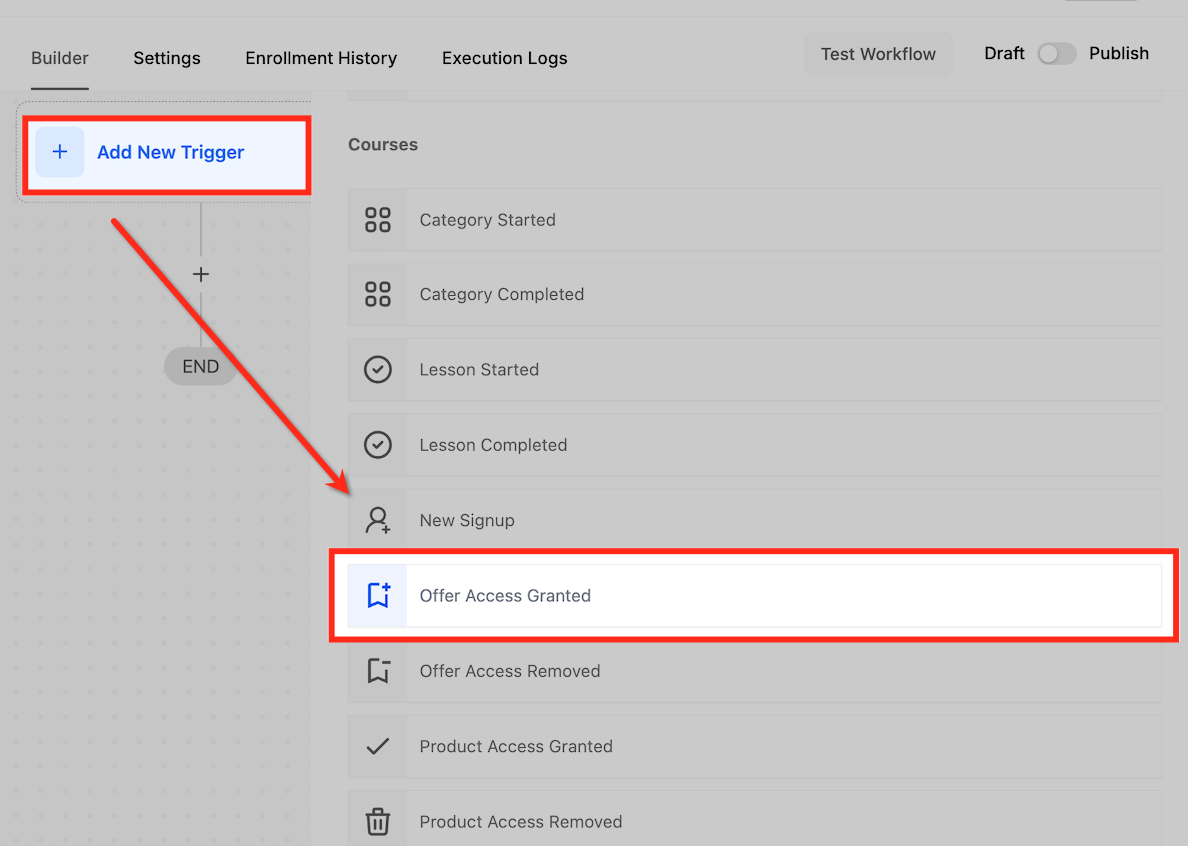
- Click the “+ Add New Trigger” option.
- Choose “Offer Access Granted” from the list of triggers.
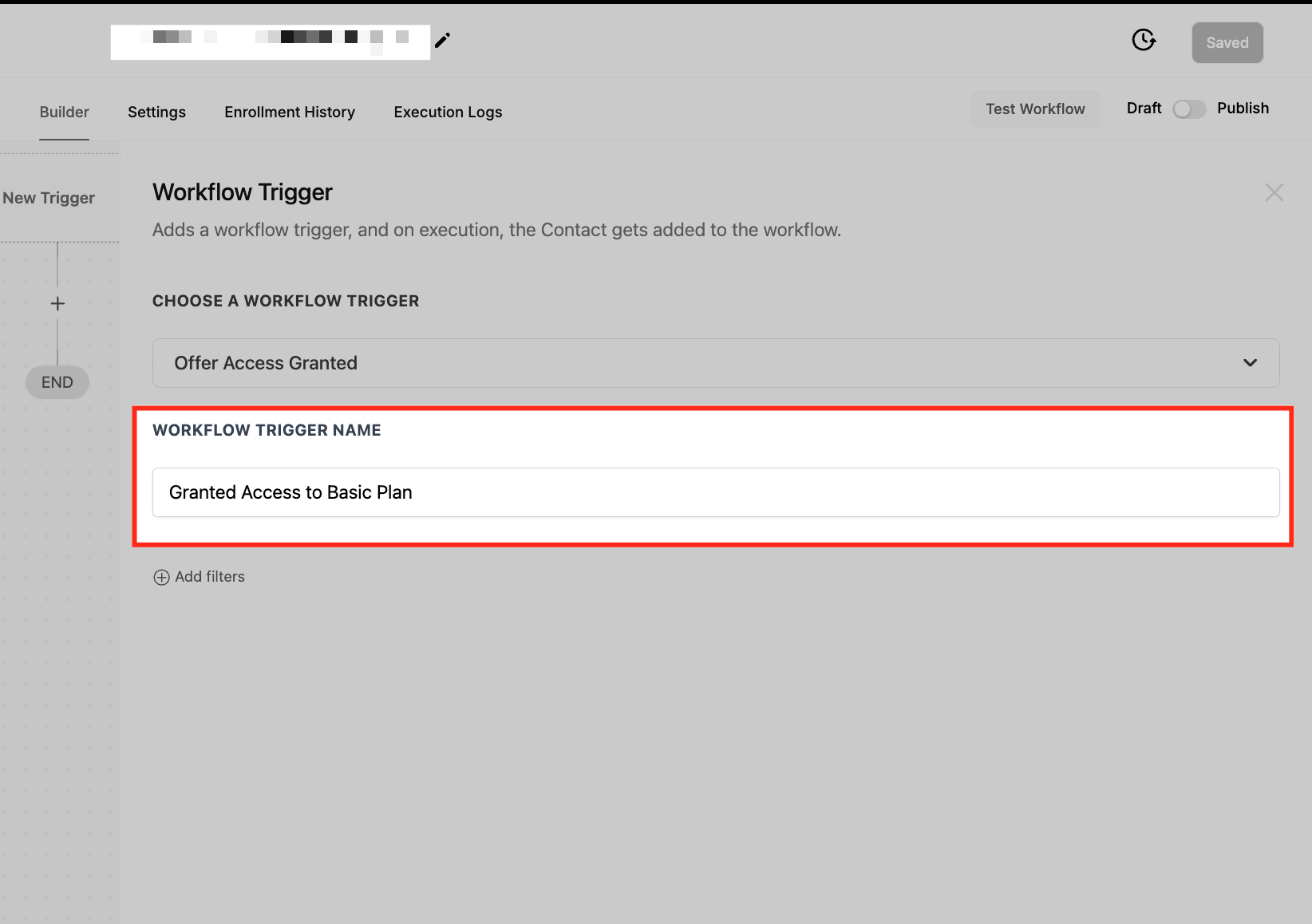
- Enter a descriptive name for the trigger, for example “15% Discount Access Granted.”
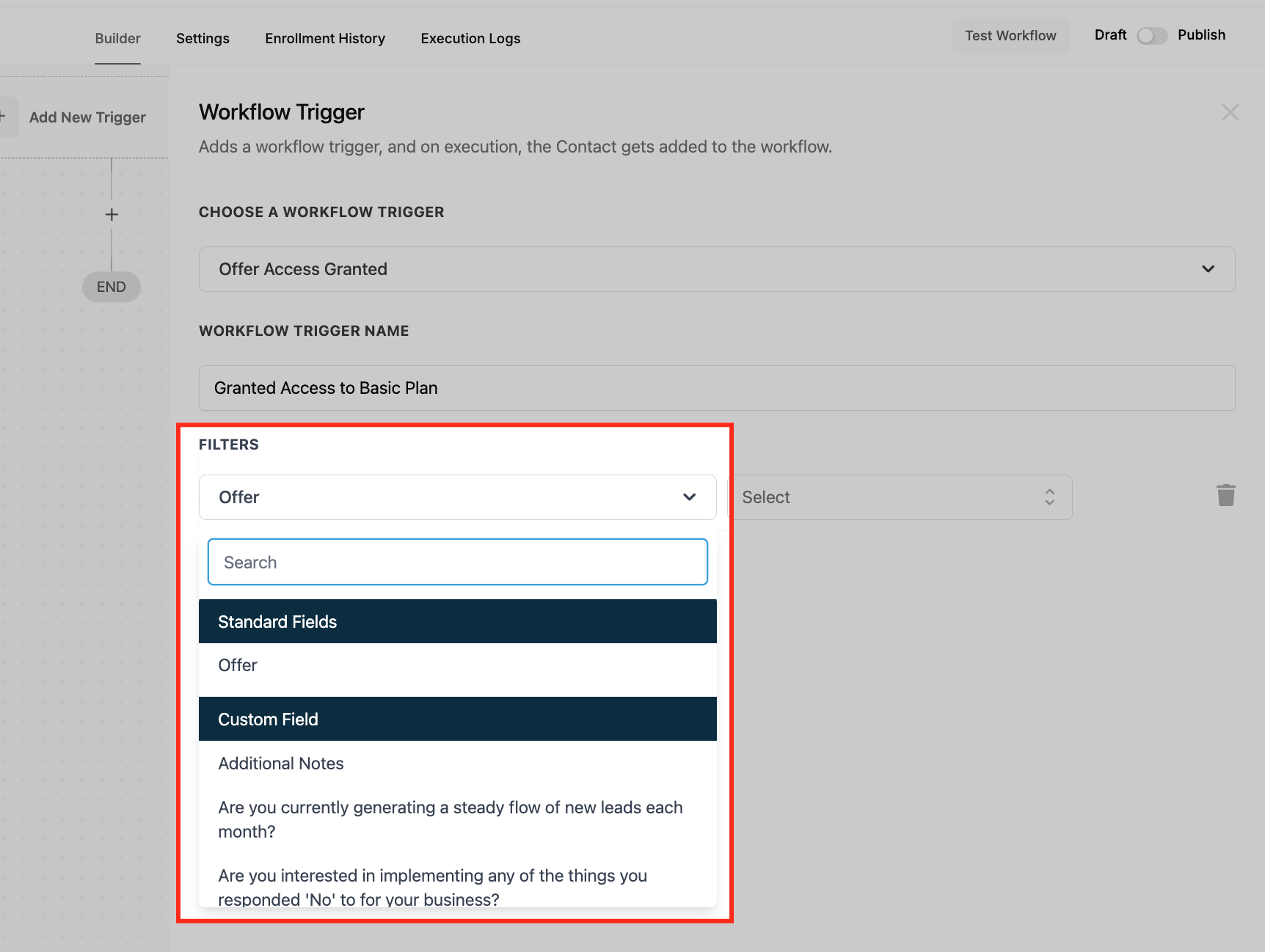
- Add a filter and locate the Offer field.
- Select the specific offer that should activate the workflow.
- Save the trigger by clicking the appropriate button.
- Test the workflow with sample data to confirm it works, then enable the Publish toggle.
05What it looks like in HighLevel
06Settings that matter
- Offer. Specifies which particular offer must be granted to a contact before the workflow starts.
07Things to know before you rely on it
- The article does not list any specific limits or beta notes for this trigger.
08How it connects to the rest of HighLevel
- Workflow basics and guide Workflow basics
- Category Completed trigger setup Category Completed trigger
- Inbound webhook trigger guide Inbound webhook trigger
Michael's take

Getting the right communication out the moment a customer unlocks an offer solves the bottleneck of manual follow up. The first thing I would lock in is the filter that points the trigger to the exact offer you care about, so you never fire the workflow for the wrong product.
From there, I’d add a simple welcome email or internal notification and run a quick test. Once the message lands where it should, flip the Publish toggle and let the automation keep the experience smooth.