
01Who this is for
- Founders who rely on Gmail for communication benefit from automatic contact syncing, reducing duplicate records.
- Sales teams can trigger follow up actions the moment a new Google contact or group appears, ensuring timely outreach.
- Marketing managers gain a single source of truth for leads, as form submissions right away populate Google Contacts.
02Google Contacts integration, explained
The integration provides two way automation between HighLevel and Google Contacts. Triggers such as New Contact or New Group watch Google for changes and start a workflow in HighLevel. Actions let the workflow create, update, find, or group contacts inside Google.
Polling runs every five minutes, so new contacts or groups are detected shortly after they appear. Once the integration is authorized, fields can be mapped directly in the workflow builder, and custom values from triggers become available to actions.
The feature lives in the workflow builder. Users search for Google Contacts triggers or actions, connect their Google account through Settings > Integrations, then add the desired steps to any workflow.
03How businesses use Google Contacts integration
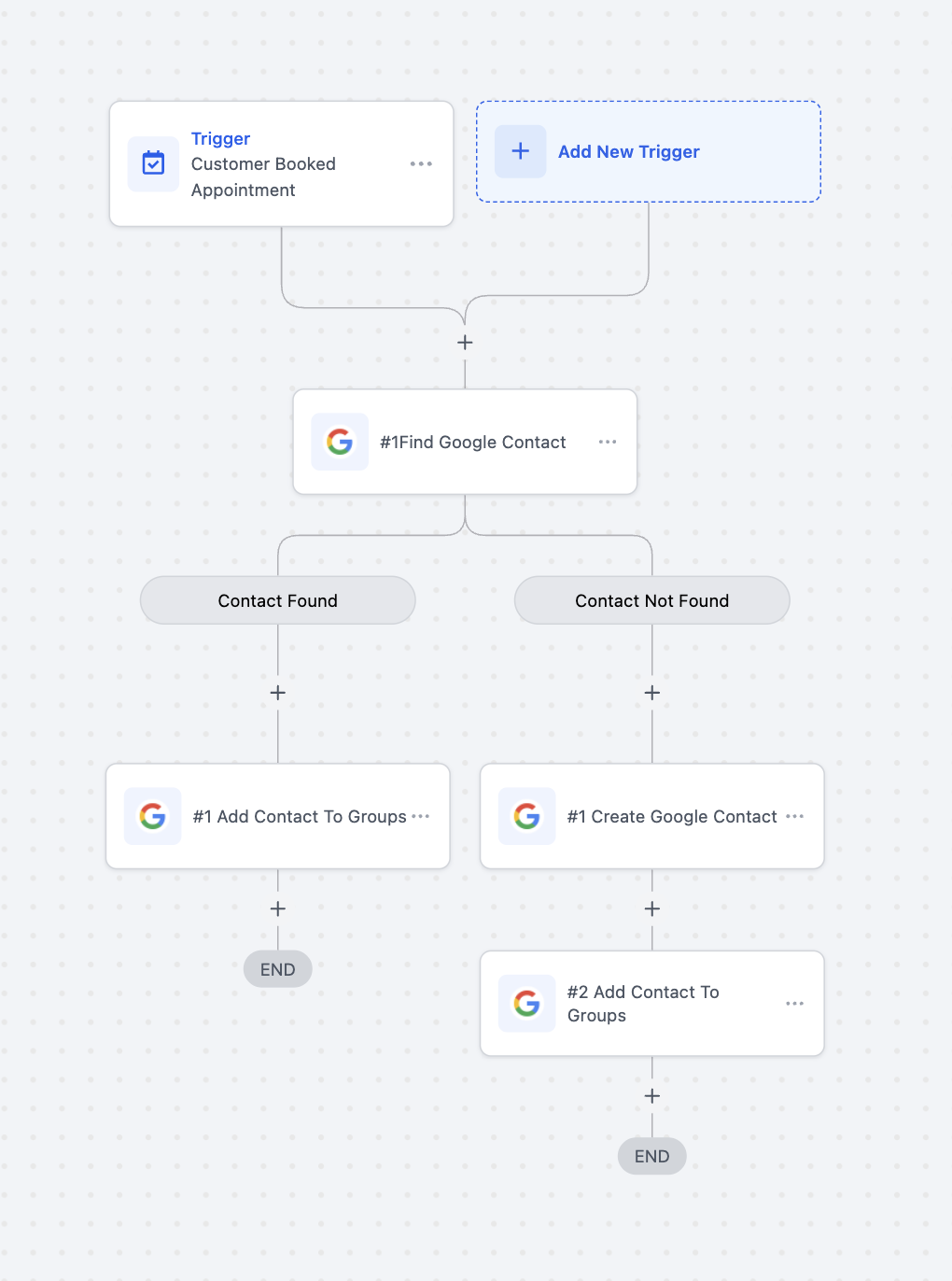
- Appointment booking. When a client books an appointment, the Appointment Booked trigger runs. The workflow uses Find or Create Contact to ensure the client exists in Google Contacts, then adds them to a relevant Google group with Add Contact to Groups.
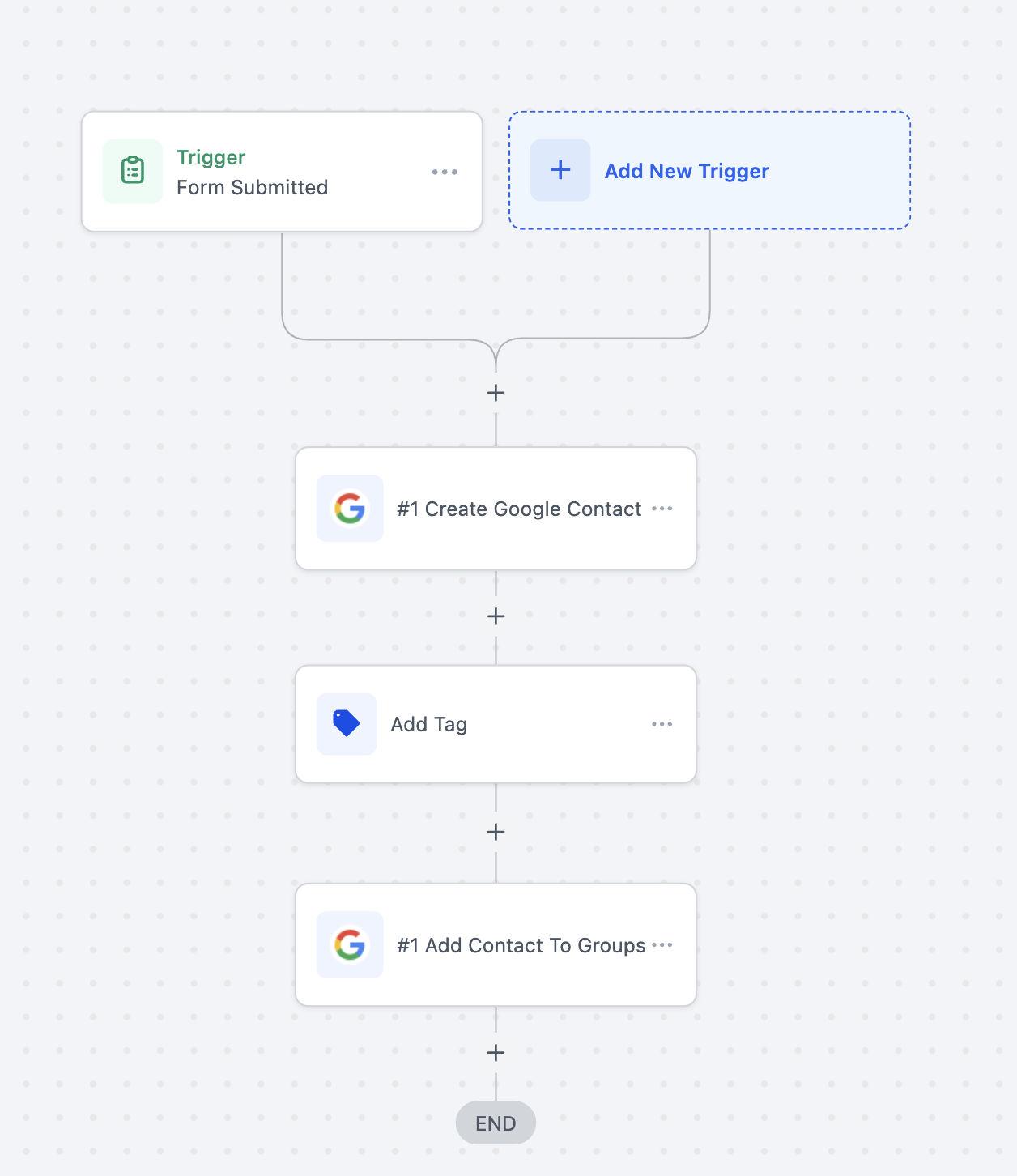
- Form submissions. A Form Submitted trigger captures lead data from a website form. The workflow runs Find or Create Contact and then Update Contact for any resubmissions, keeping Google Contacts current.
- Notion records. When a new item is added to a Notion database, the Notion, New Database Item trigger fires. The workflow creates a Google Contact and places it in a designated group via Add Contact to Groups.
04The numbers and rules that matter
- Polling occurs every 5 minutes.
05Before you start
- A HighLevel account with workflow access.
- A Google account that includes Google Contacts.
06How to set up and use Google Contacts integration in HighLevel
Set up Google Contacts in a workflow
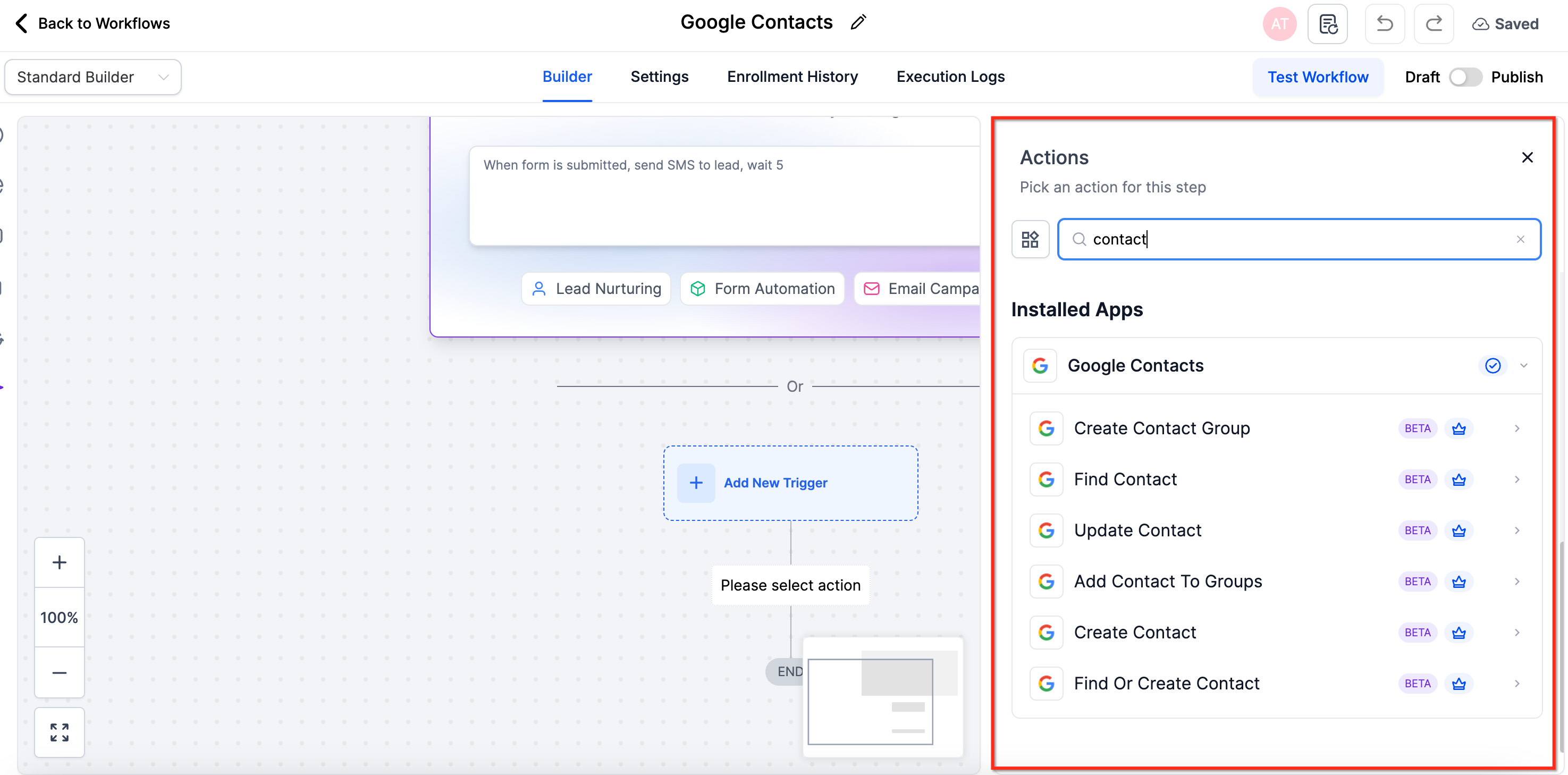
- In the workflow builder, type a Google Contacts trigger or action such as “Find Contact” or “Create Contact” in the search bar.
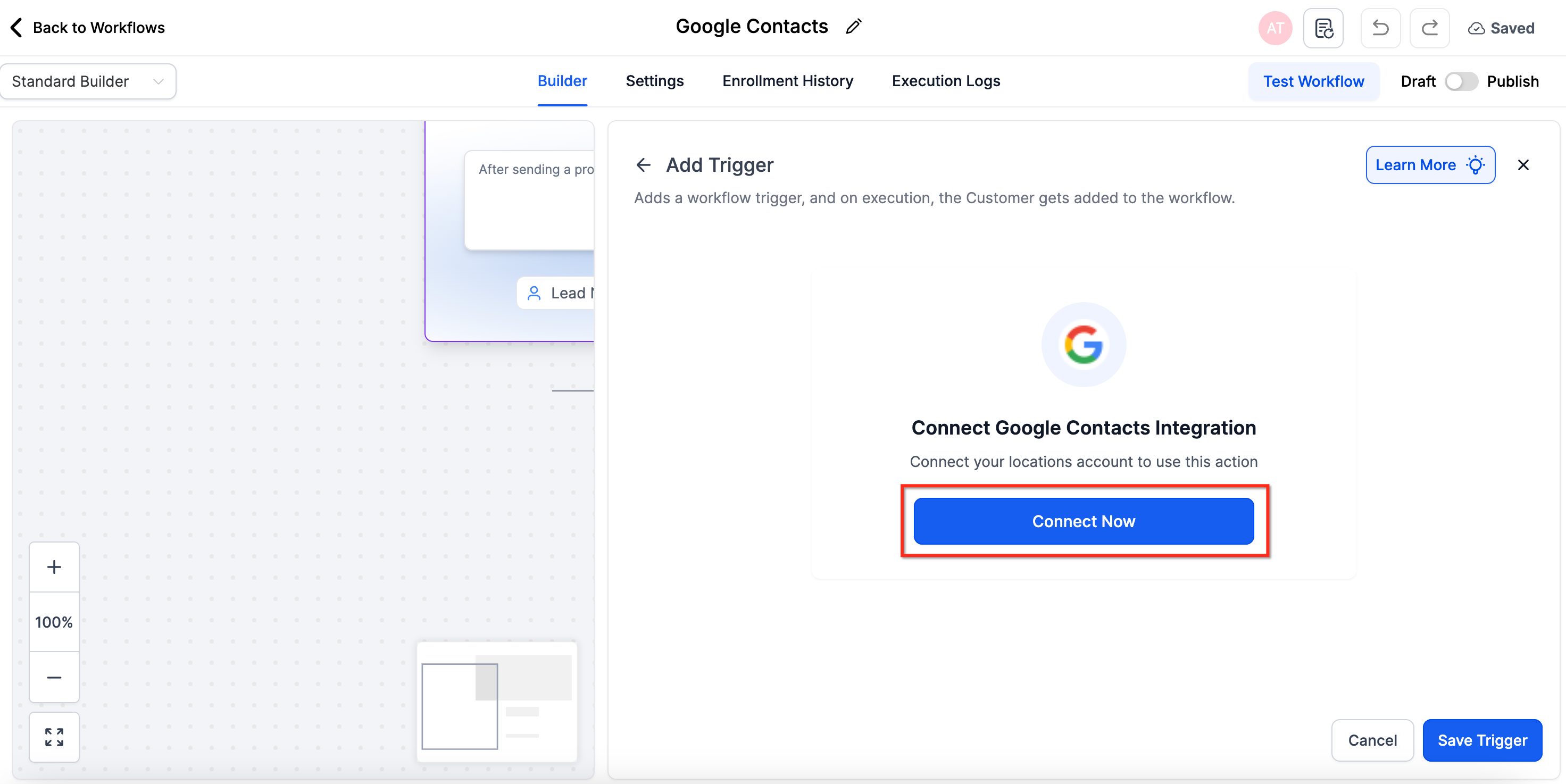
- If the integration is not yet linked, click Connect Now and sign in with the desired Google account.
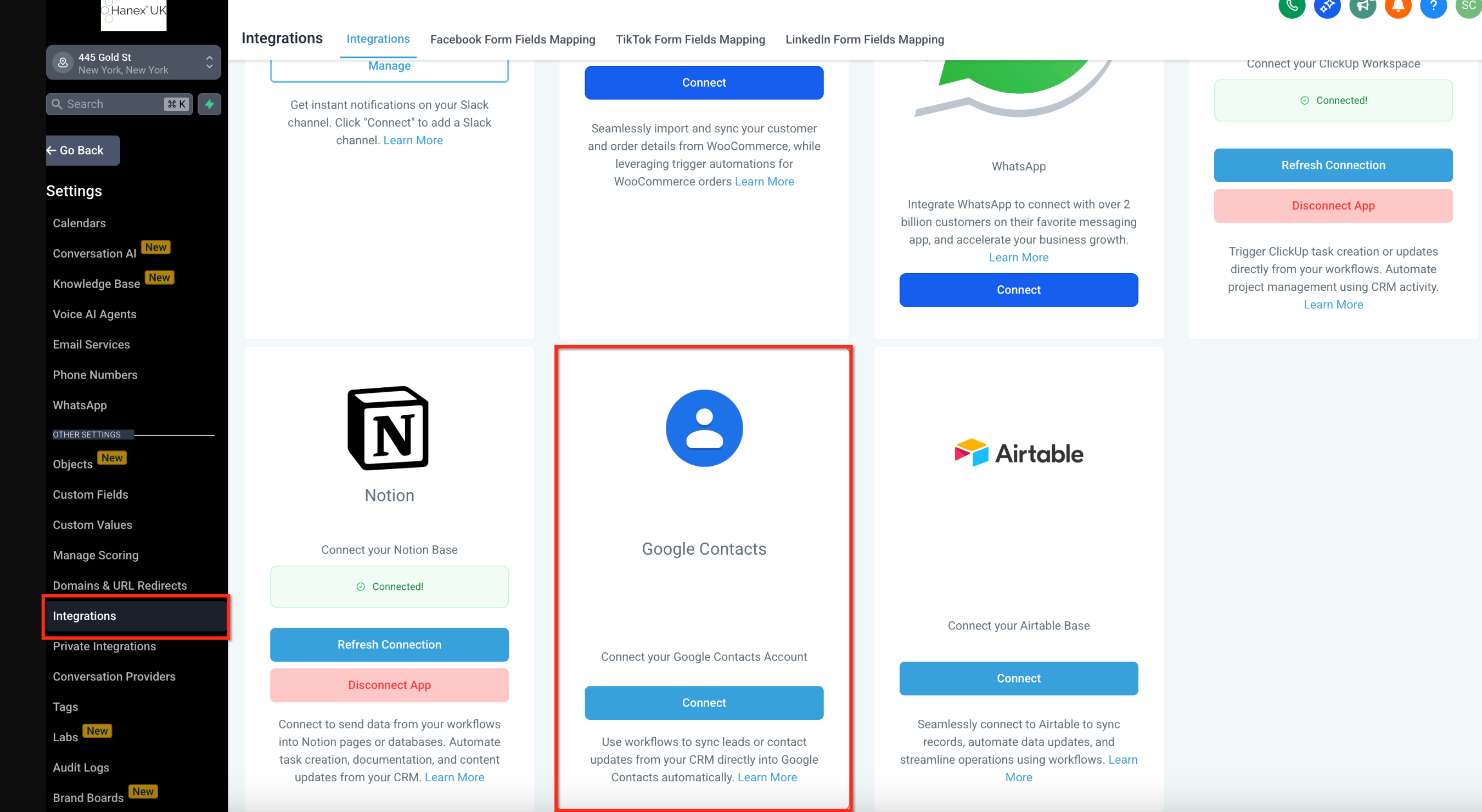
- Alternatively, navigate to Settings > Integrations, locate Google Contacts, and grant permission.
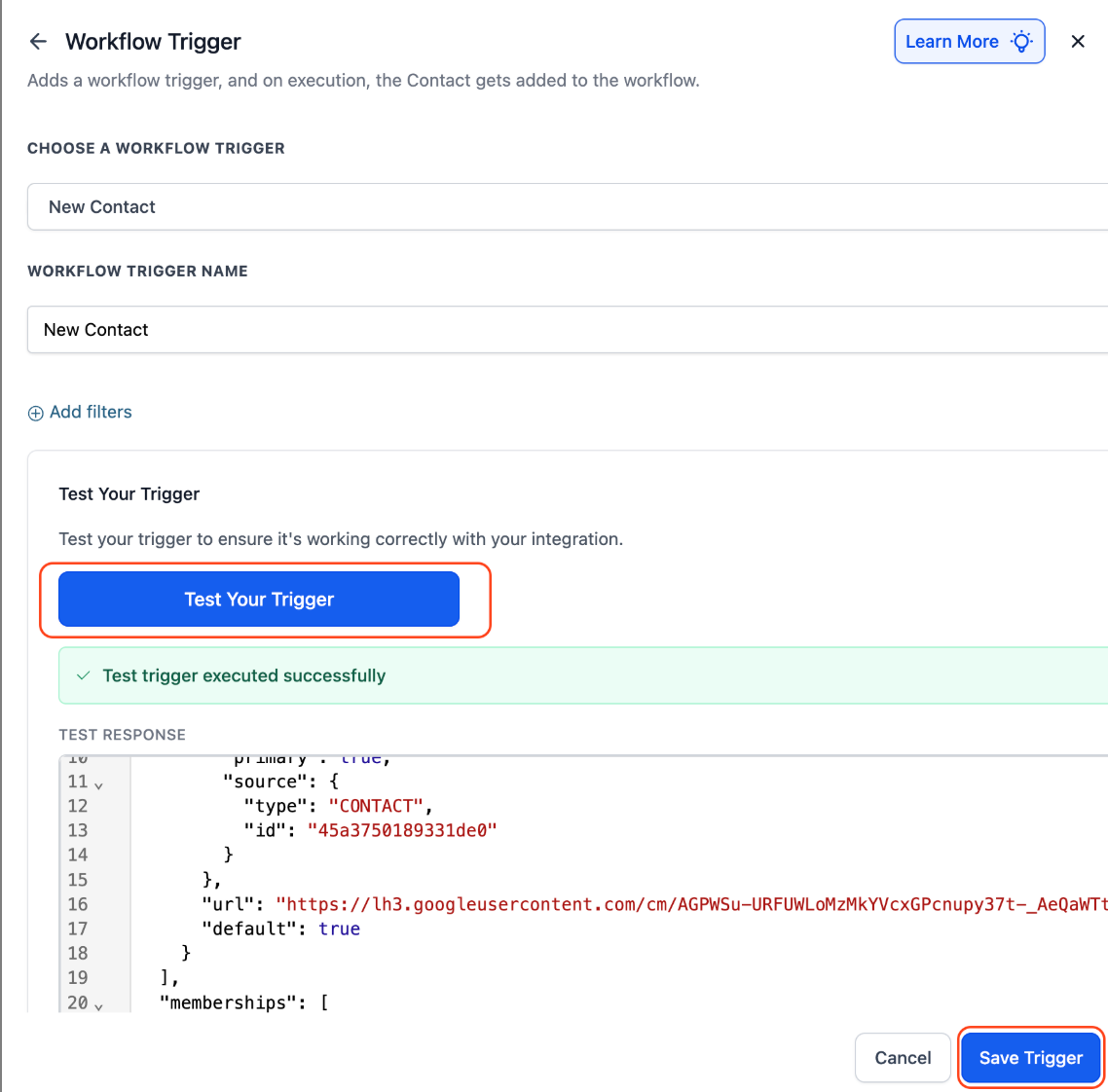
- Select a trigger like New Contact or New Group, give the trigger a descriptive name, and save.
- Press Test Trigger to fetch sample data, allowing the workflow to reference custom values.
07What it looks like in HighLevel
08Settings that matter
- Google Contacts. Enables HighLevel to communicate with a Google address book, unlocking triggers and actions for contact management.
09Things to know before you rely on it
- Polling occurs every 5 minutes, providing near real time detection of new contacts or groups.
- The native integration removes the need for third party zap or webhook solutions.
10How it connects to the rest of HighLevel
- Learn the basics of workflow automation in HighLevel. Workflow basics
- Step by step guide for creating triggers, filters, and actions. Workflow creation
- Information on workflow pricing tiers and feature access. Pricing tiers
Michael's take

The polling cycle runs every five minutes, so you have to give it that window to pick up new contacts or groups. Planning around that timing prevents missed triggers and the feeling that the system is broken.
If I were setting this up, I would start with a simple "Form Submitted" workflow that creates or updates a Google Contact. That gives a clear view of the data flow and lets you verify the connection before adding more complex steps like group assignments or Notion triggers.