
01Who this is for
- Founders who design automated lead capture flows benefit from instant AI explanations that reduce setup mistakes.
- Marketing teams building email or SMS campaigns gain on demand details for each action, keeping projects moving quickly.
- Small business owners creating appointment reminders can see validation rules and examples directly while configuring triggers.
02Learn more using AI, explained
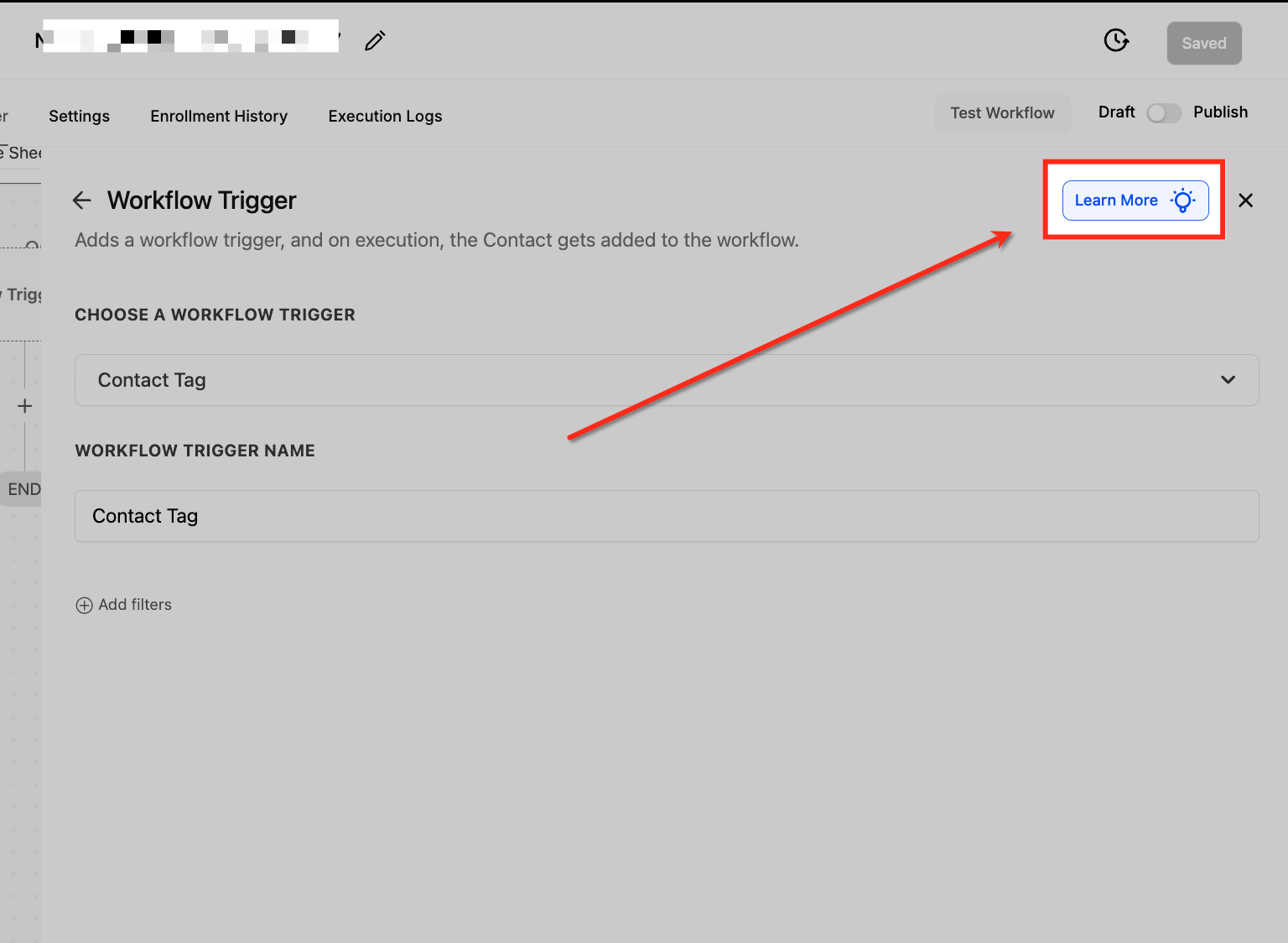
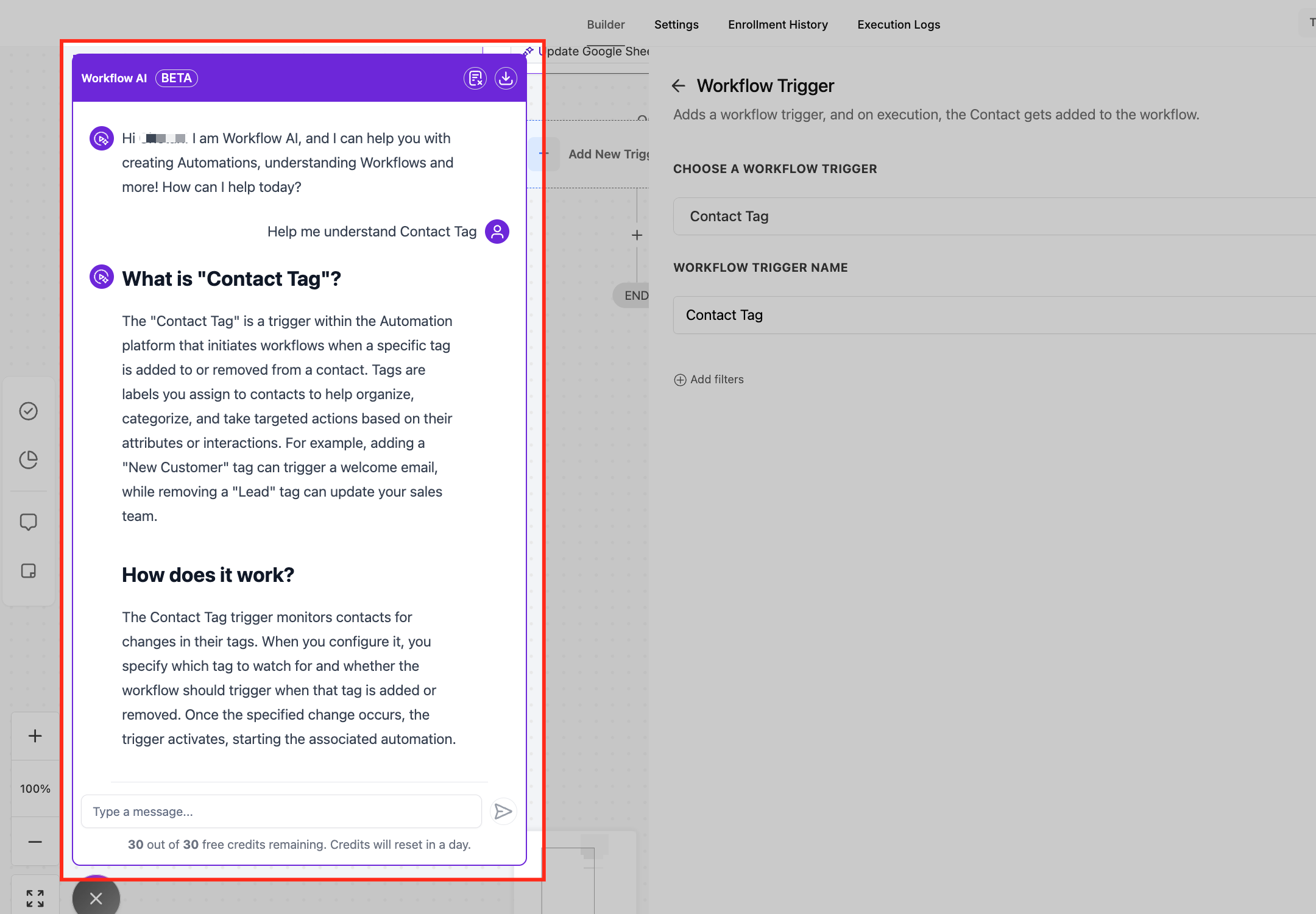
Learn More Using AI appears as a blue button with a bulb icon on the top right of any standard trigger or action configuration panel. When pressed, it launches the Workflow AI Assistant sidebar on the left side of the builder interface. The sidebar displays tailored information about the selected component, including step by step setup instructions, validation constraints and real world use cases. Users can type follow up questions to receive additional clarification in real time.
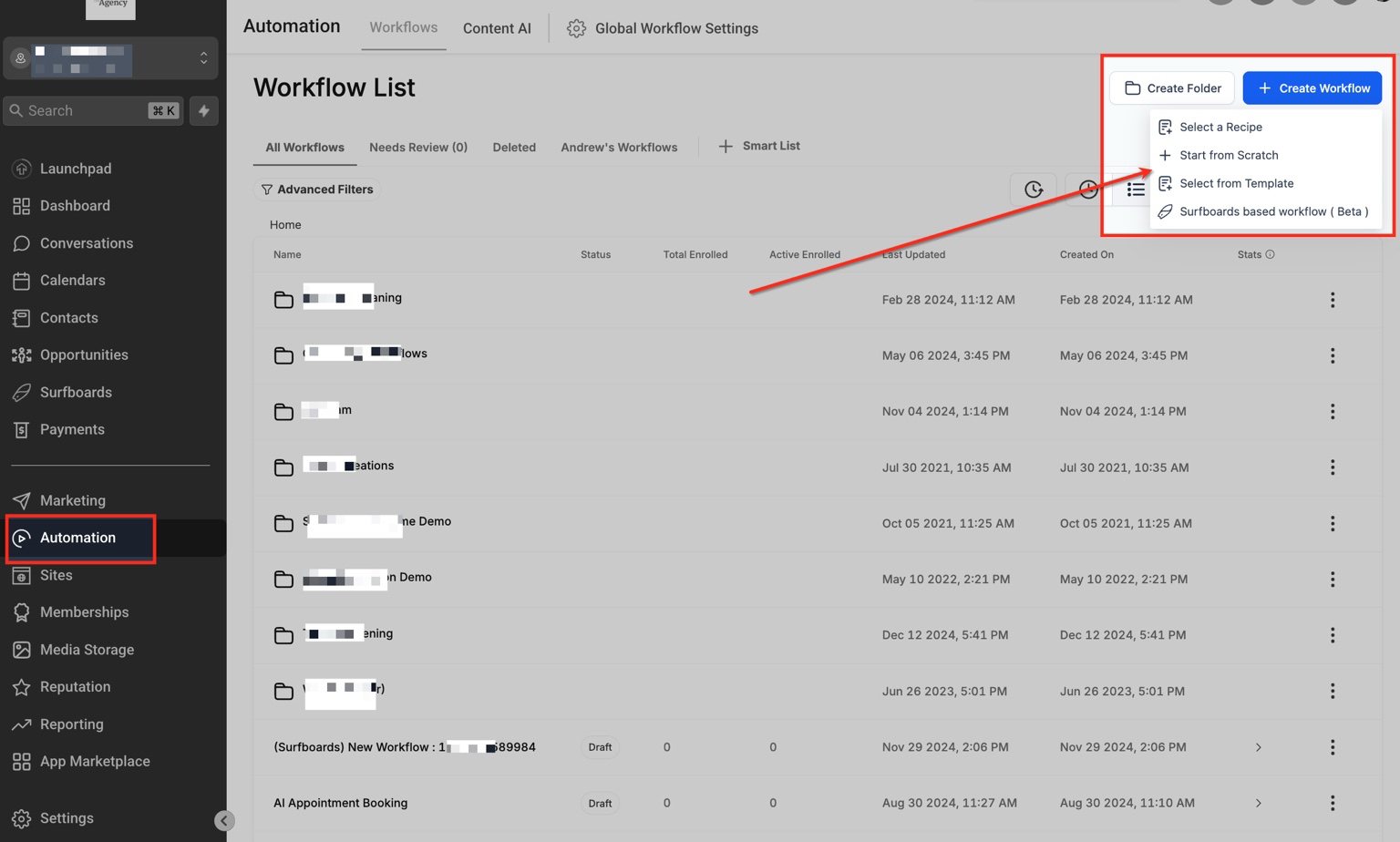
The feature works within the Workflow Builder, which is accessed through Automation > Workflows. It applies to all standard triggers and actions but does not support marketplace provided items. The AI assistance is provided at no extra cost to any HighLevel user.
03How businesses use learn more using AI
- Coaching business. When setting up a trigger for a new client tag, the coach clicks the Learn More button to view how the tag works and see an example of a follow up email. The AI Assistant explains required fields and validation, helping the coach configure the trigger accurately.
- Dental practice. The practice creates a workflow to send appointment reminders. By selecting the reminder action and pressing Learn More, the staff receives step by step directions on configuring the message template and timing, avoiding missed reminders.
- Ecommerce store. The store adds a purchase triggered workflow. Using the Learn More button on the trigger panel, the owner learns about supported data fields and sees a sample flow for order confirmation, ensuring correct data mapping.
04How to set up and use learn more using AI in HighLevel
Activate Learn More Using AI
- Open the Automation menu and choose Workflows.
- Click the + Create Workflow button in the top right corner.
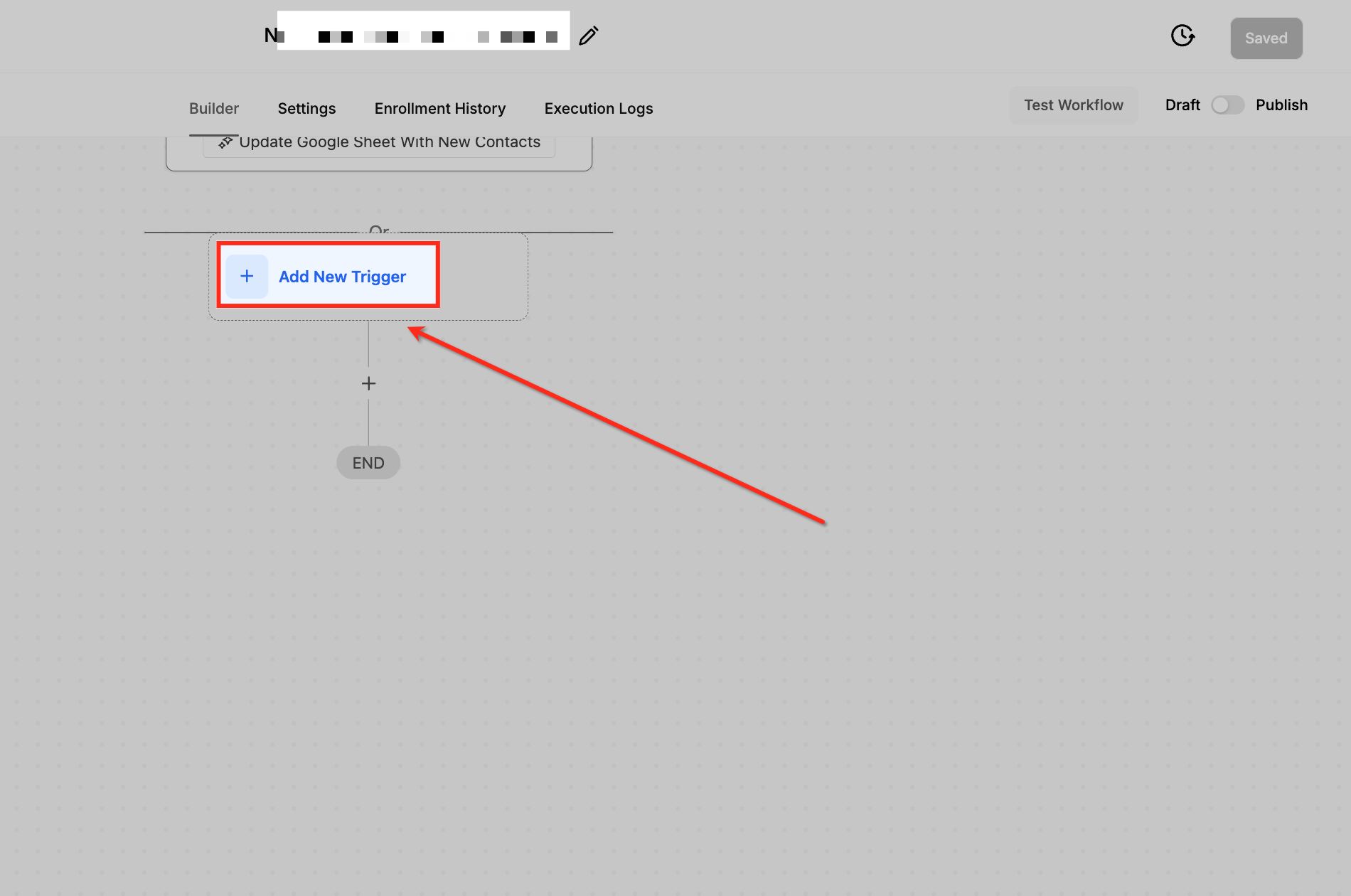
- Select + Add New Trigger to open a trigger configuration panel.
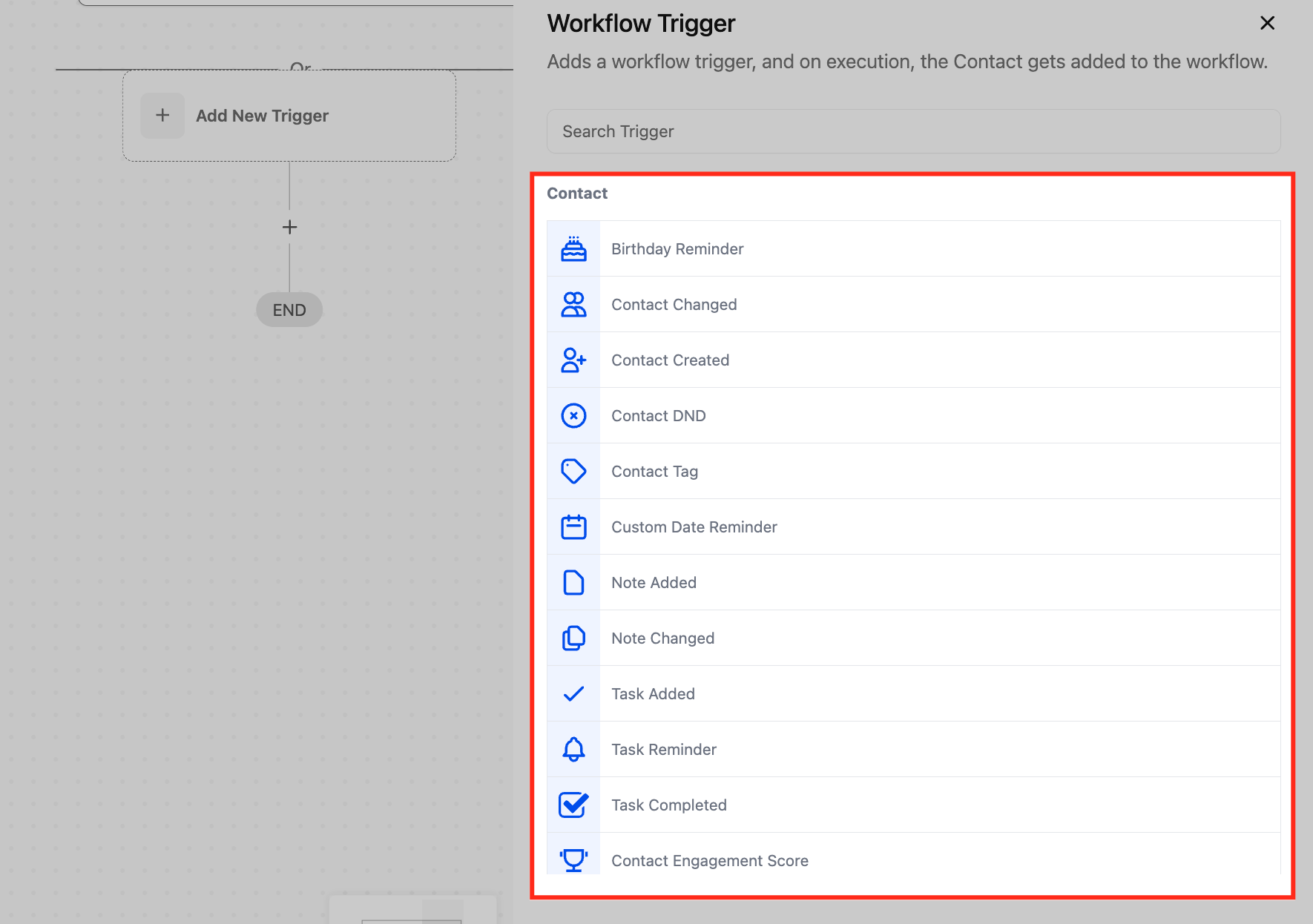
- Pick any trigger type, such as Contact Tag, from the list.
- Click the blue Learn More button with the bulb icon in the panel’s upper right corner.
- Read the contextual guidance that appears in the AI Assistant sidebar on the left.
05What it looks like in HighLevel
06Things to know before you rely on it
- The feature works with all standard triggers and actions but does not support marketplace triggers or actions.
- Learn More Using AI is provided free of charge to every HighLevel user.
07How it connects to the rest of HighLevel
- Overview of workflow automation basics Workflow basics
- Create and edit automations with the AI Builder AI Builder guide
- Start a 30 day trial of HighLevel Free trial
Michael's take

When a team spends hours hunting docs or guessing how a trigger works, Learn More Using AI provides instant, in context answers that help you build faster and reduce misconfigurations.
If you already have a strong workflow Knowledge Base and rarely need on the fly help, the feature adds little value. For very simple automations where you never stray from familiar components, you may not notice a time savings.