
01Who this is for
- Sales teams that use separate dialer software and need call records in HighLevel for unified client tracking.
- Support groups that answer inbound calls from a third party phone system and want those interactions logged automatically.
- Marketing agencies managing multiple client accounts and requiring a single source of truth for all call activity.
02Log external calls, explained
The Log External Call action accepts data sent from an inbound webhook and creates a call entry linked to a contact. It stores fields such as direction, date, parties, call status, and optionally an audio attachment.
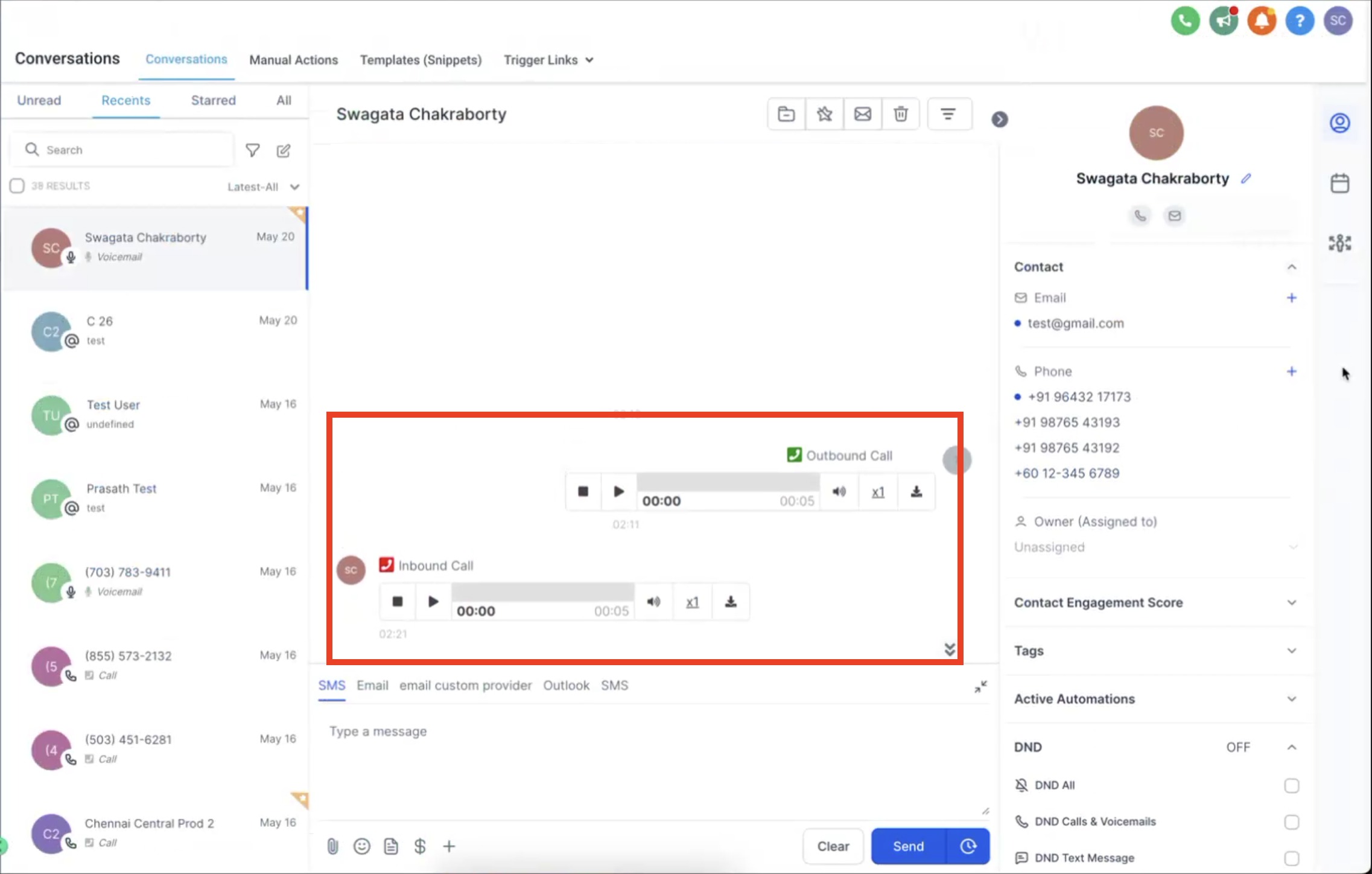
When the workflow runs, the action writes the call information to the contact’s record. The entry appears in the Conversations section, where team members can view the details and any attached recording.
This action is used together with the Inbound Webhook Trigger, which supplies the call data. The trigger provides a URL that external calling systems call whenever a call occurs.
03How businesses use log external calls
- Dental practice. The practice connects its third party appointment reminder service to the inbound webhook URL. Each reminder call triggers the Log External Call action, attaching the call record to the patient’s contact for future reference.
- Real estate agency. Agents use an external VOIP system for property showings. When a call is made, the system posts to the webhook, and the Log External Call action stores the call details on the prospect’s contact record.
- Online tutoring company. The tutoring platform logs each session call made through its own video call provider by sending data to the webhook. The Log External Call action captures the session call in HighLevel, linking it to the student’s profile.
04Before you start
- The Inbound Webhook Trigger must be set up and a webhook URL obtained.
05How to set up and use log external calls in HighLevel
Set up inbound webhook trigger
- Create an Inbound Webhook Trigger in HighLevel to generate a webhook URL.
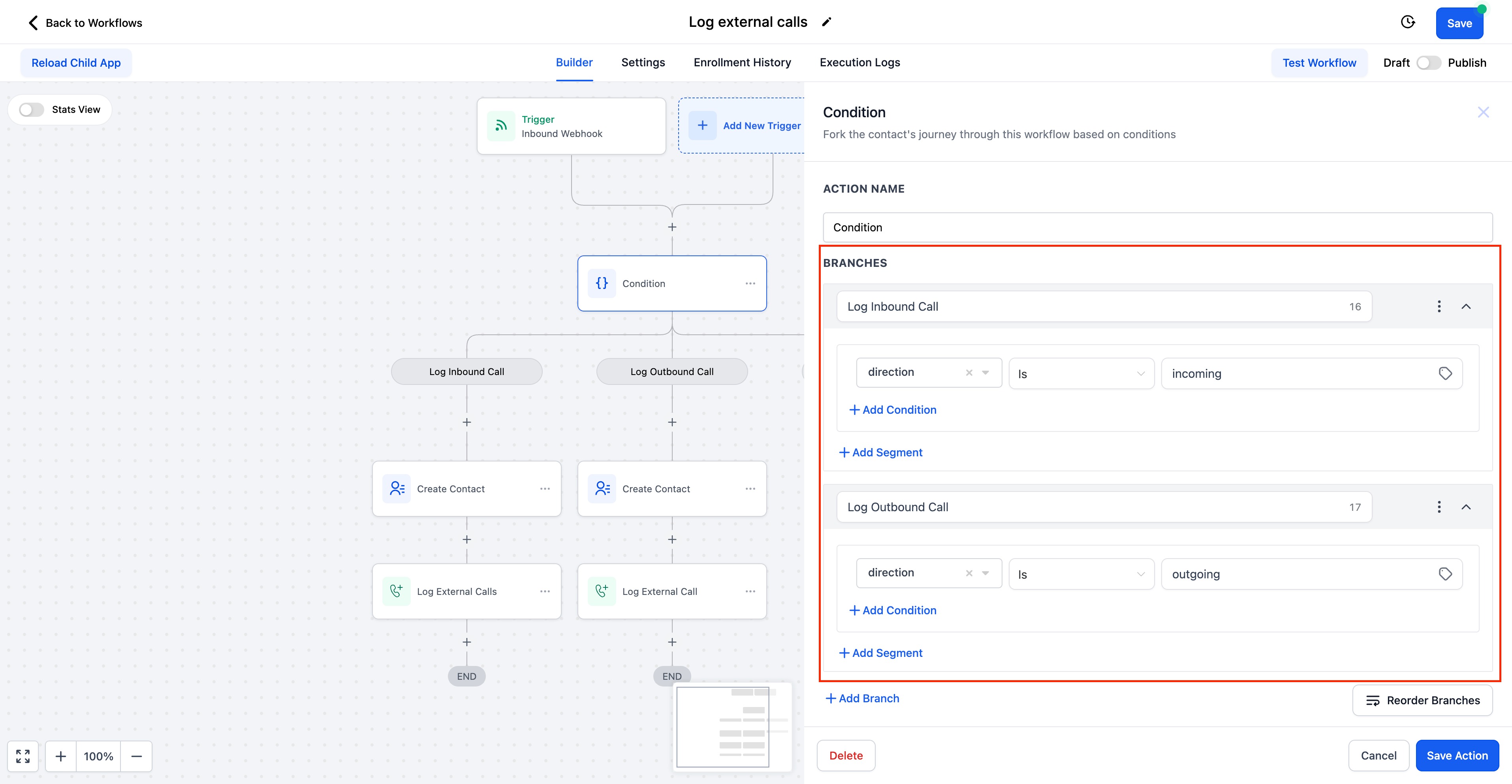
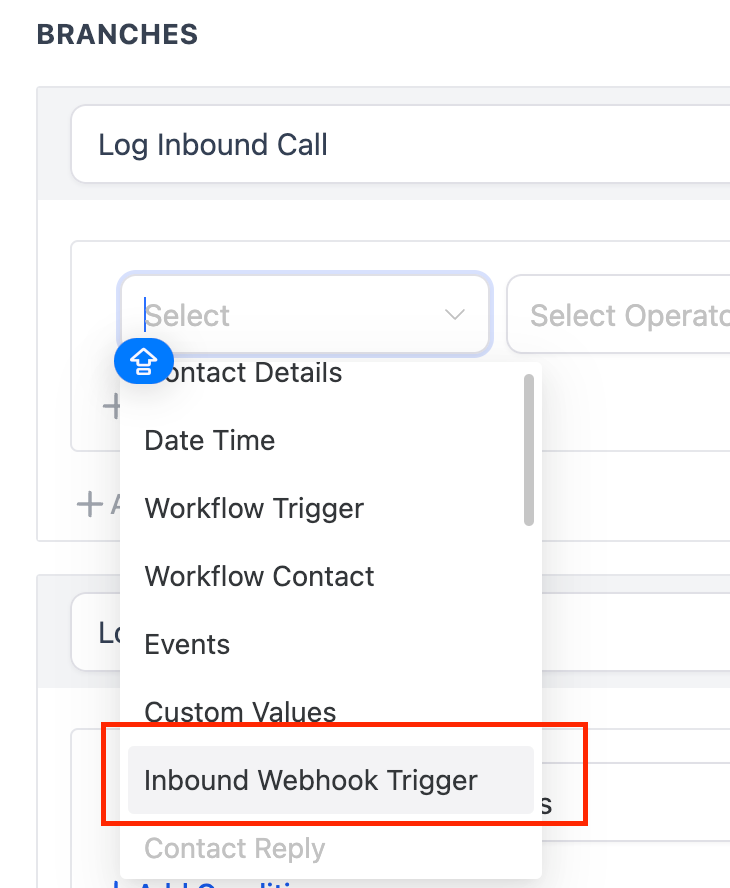
- Add an If/Else branch that uses the direction field to separate inbound and outbound flows.
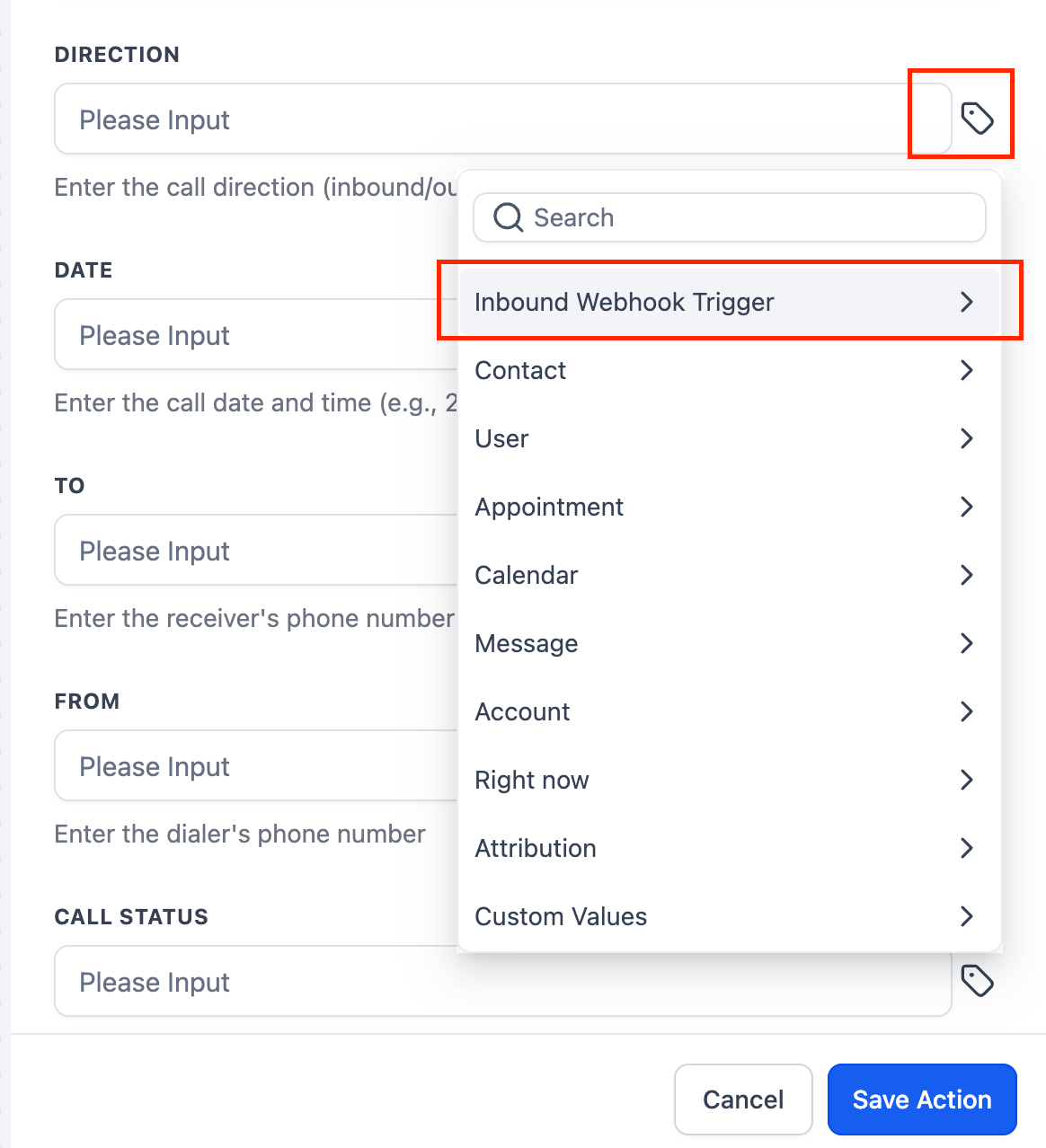
- Note that the direction field is available from the Inbound Webhook Trigger options.
- Create two separate branches: one for inbound calls and one for outbound calls.
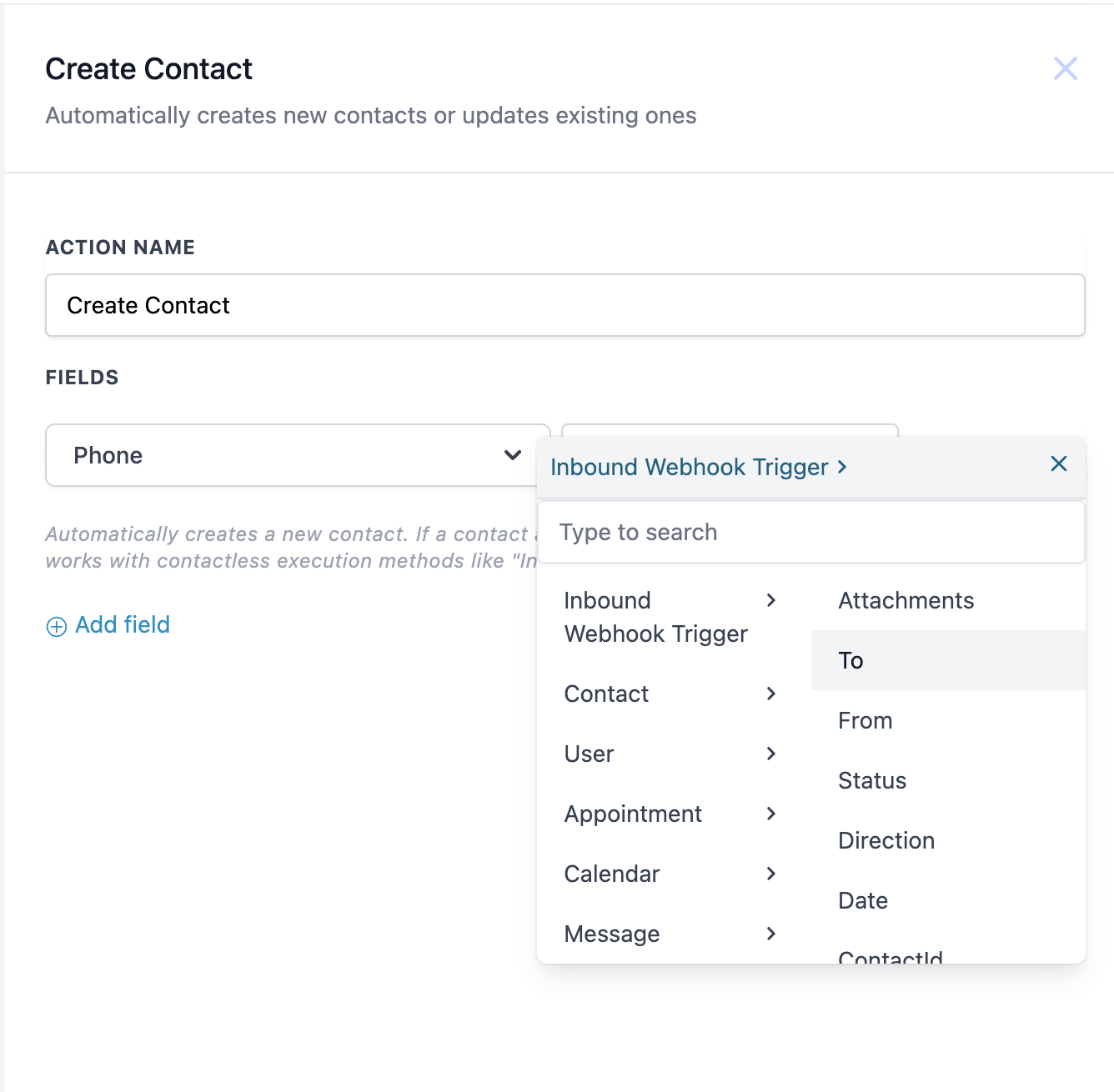
- Add a Create Contact action and map the Phone field to the From Number for inbound calls and to the To Number for outbound calls.
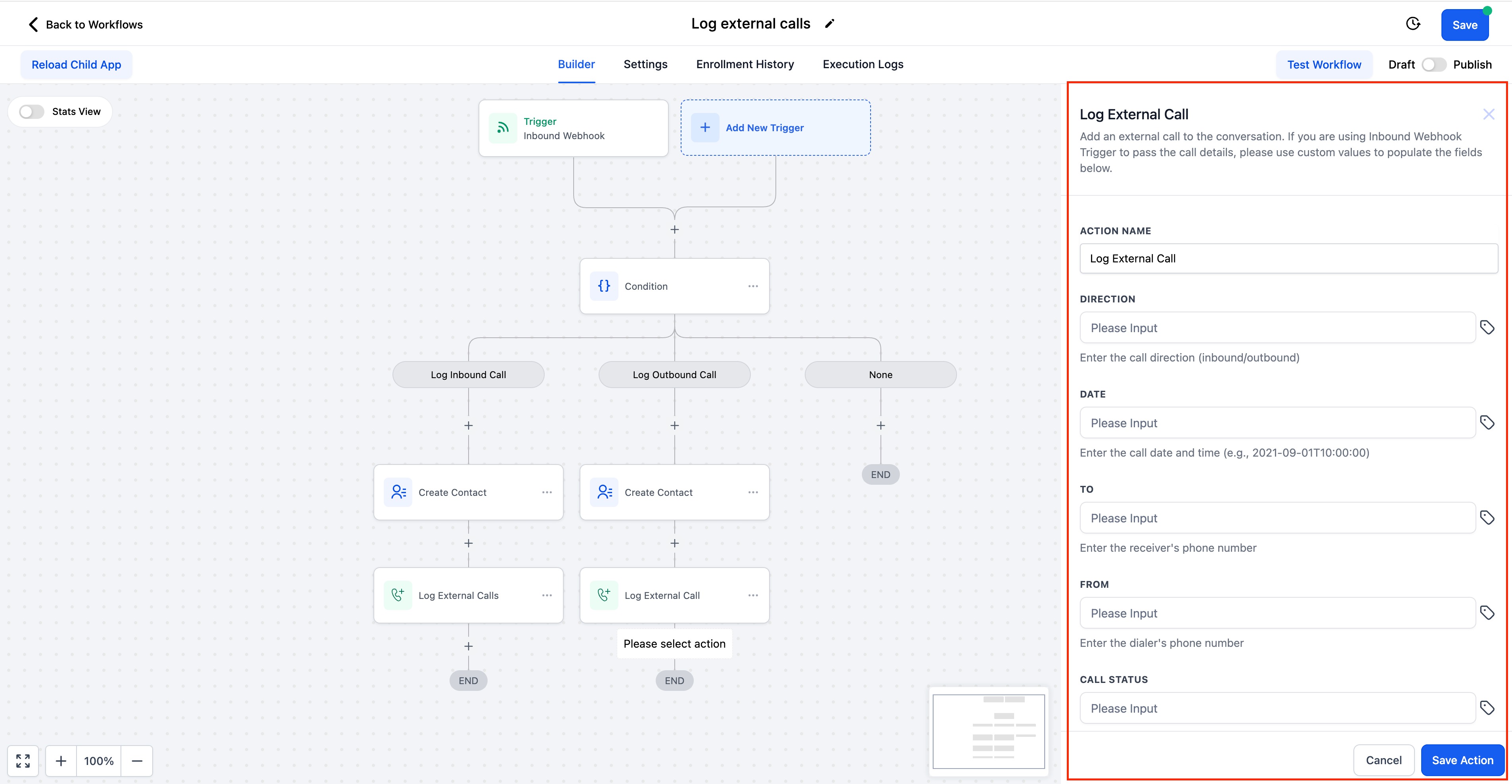
- Insert the Log External Call action into each branch.
- For each required field (Direction, Date, To, From, Call Status, Attachment) select the custom values icon and choose the corresponding value from the Inbound Webhook Trigger.
- Publish the workflow so that external call data will be logged in HighLevel.
06What it looks like in HighLevel
07Settings that matter
- Direction field. Indicates whether the call was inbound or outbound and is used in the If/Else branch to route the workflow.
08How it connects to the rest of HighLevel
- Set up the inbound webhook trigger needed for this action. Inbound webhook guide
- Add contact tags after logging a call to categorize interactions. Add Contact Tag
- Review HighLevel pricing to ensure your plan includes workflow automation. Pricing
Michael's take

Michael ReimerFounder of CRM Pros, HighLevel Commander and Certified Admin
Don't forget to map the correct phone fields for inbound versus outbound flows.
Get More InformationOpens on HighLevelPublished November 2, 2026 · Updated November 16, 2026