
01Who this is for
- Support teams that need to reply quickly within a customer’s 24 hour service window to avoid template restrictions.
- Marketing managers who want to reengage customers after the window closes using approved template messages.
- Small business owners handling appointment follow ups who can send free form follow up messages while the window is open.
02WhatsApp customer service window checks, explained
The WhatsApp Customer Service Window Check action inspects the status of a 24 hour service window that starts when a contact messages your business. If the window is still active, the workflow can send unlimited free form messages without extra charges, up to the first 1,000 service conversations each month.
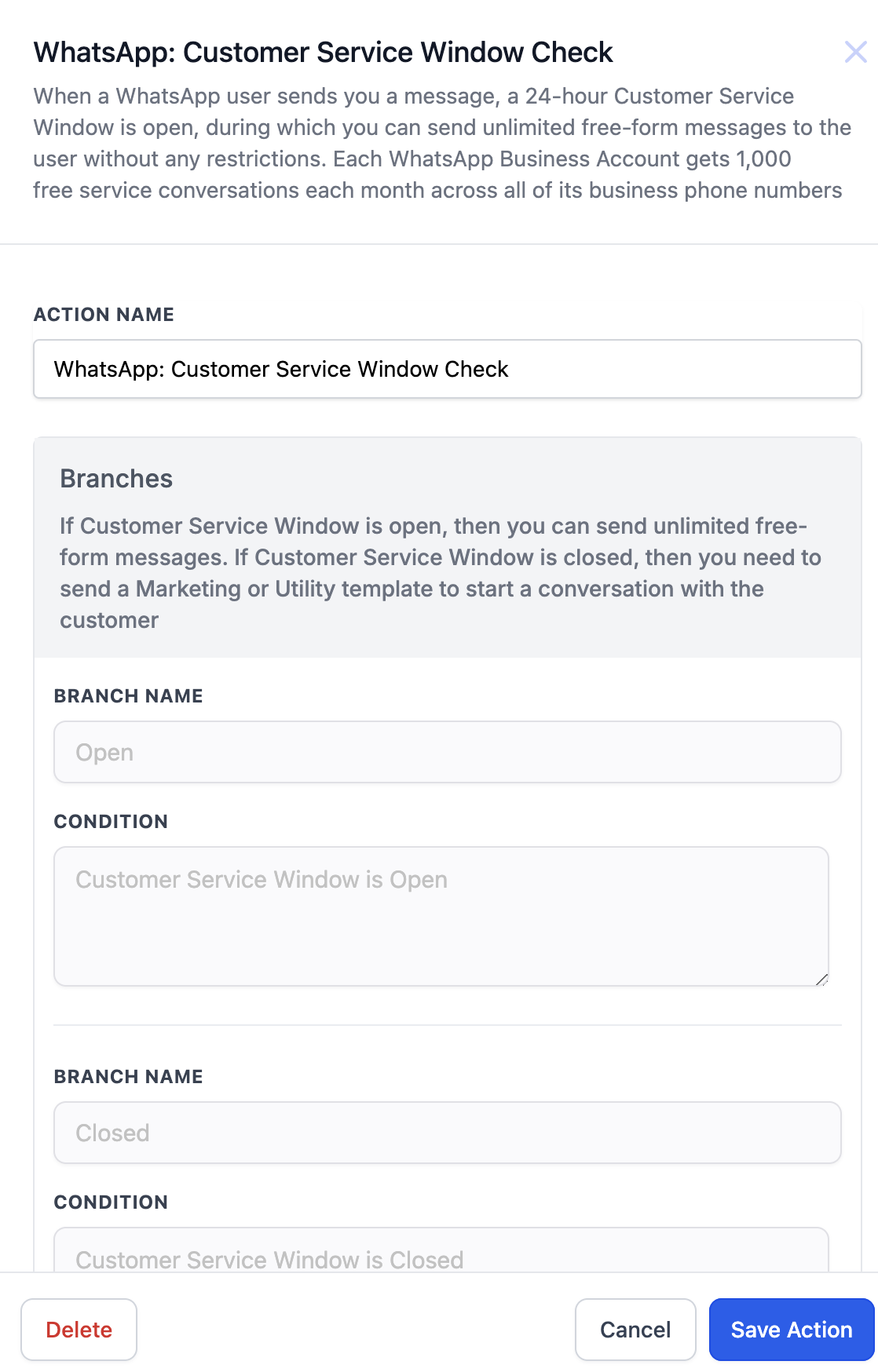
If the window has expired, the action forces the workflow to use only pre approved WhatsApp templates for any outbound message. The action appears as a selectable step inside the HighLevel workflow builder and automatically creates two branches labeled Open and Closed for further configuration.
03How businesses use WhatsApp customer service window check
- Dental practice. After a patient books an appointment, the practice adds the WhatsApp Customer Service Window Check to the workflow. If the patient replies within 24 hours, the Open branch sends a free form message to confirm details. If the window has closed, the Closed branch sends a pre approved reminder template.
- Ecommerce store. When an order is placed, the store triggers the WhatsApp Customer Service Window Check. While the order confirmation window is open, the Open branch sends a free form thank you note. Once the window ends, the Closed branch sends a pre approved shipping update template.
- Fitness studio. The studio creates a workflow that runs after a class booking. The WhatsApp Customer Service Window Check determines if the member has responded. If the window is open, the Open branch sends a free form message asking about equipment needs. If closed, the Closed branch sends a pre approved class reminder template.
04The numbers and rules that matter
- Customer service window lasts 24 hours.
- First 1,000 service conversations each month are free.
- Free Entry Point Conversation lasts 72 hours.
05Before you start
- WhatsApp must be enabled on the HighLevel subaccount.
- An approved WhatsApp template is required if you plan to send business initiated messages.
06How to set up and use WhatsApp customer service window check in HighLevel
Set up WhatsApp Customer Service Window Check
- Confirm WhatsApp is active on the HighLevel subaccount and that an approved template exists for business initiated messages.
- Go to Automations > Workflows > Create Workflow > Start from Scratch.
- Add the WhatsApp: Customer Service Window Check action, which creates Open and Closed branches.
- In the Open branch, add a WhatsApp Send Message action and select None - Free Form Message.
- In the Closed branch, add a WhatsApp Send Message action and choose an approved Marketing/Utility Template.
07What it looks like in HighLevel
08Settings that matter
- None - Free Form Message. Controls the ability to send unlimited free form messages while the 24 hour service window is open.
- Approved Marketing/Utility Template. Specifies which pre approved template will be used when the service window is closed.
09Things to know before you rely on it
- The free tier allows the first 1,000 service conversations per month at no extra cost (per HighLevel's help center, checked November 2026).
- A customer service window lasts exactly 24 hours from the last inbound message.
- When the window is closed, only pre approved templates can start a new conversation.
10How it connects to the rest of HighLevel
- Learn the basics of building workflows in HighLevel. Workflow basics
- Step by step guide to creating triggers, filters, and actions in a HighLevel workflow. Workflow creation guide
- Review HighLevel pricing and plan options that include workflow features. Pricing page
Michael's take

The check action lets you know exactly when you can use a free form chat versus when you need to fall back to a preapproved template.
When building a workflow, I’d place the window check right after the trigger and let the open branch handle personalized follow ups; if the window is closed, I’d switch to a template.