
01Who this is for
- Businesses that need to send timely text messages to contacts as part of an automated workflow.
- Teams that want to reduce appointment no shows or keep customers informed about orders through SMS.
02Send SMS actions, explained
The Send SMS action is a workflow step that delivers a text message to a contact when the workflow reaches it. You place the action after any trigger or condition, allowing you to send messages based on dates, statuses, or wait periods.
Inside the workflow editor you can write custom copy, insert dynamic placeholders such as the contact’s first name, and optionally add a URL that links to maps, tickets, or other resources. A test phone number field lets you preview the message before the workflow goes live.
03How businesses use send SMS action
- Dental practice. Create a workflow that sends a reminder SMS 24 hours before a scheduled cleaning, using the patient’s first name and appointment time. Add a second reminder one hour prior if needed.
- Fitness studio. Set up a promotional campaign workflow that texts members a special class offer, inserting the member’s name and a link to the class schedule hosted online.
- Ecommerce store. Add a workflow step that notifies customers when their order ships, including a tracking URL in the SMS and personalizing with the buyer’s first name.
04How to set up and use send SMS action in HighLevel
Configure the Send SMS action
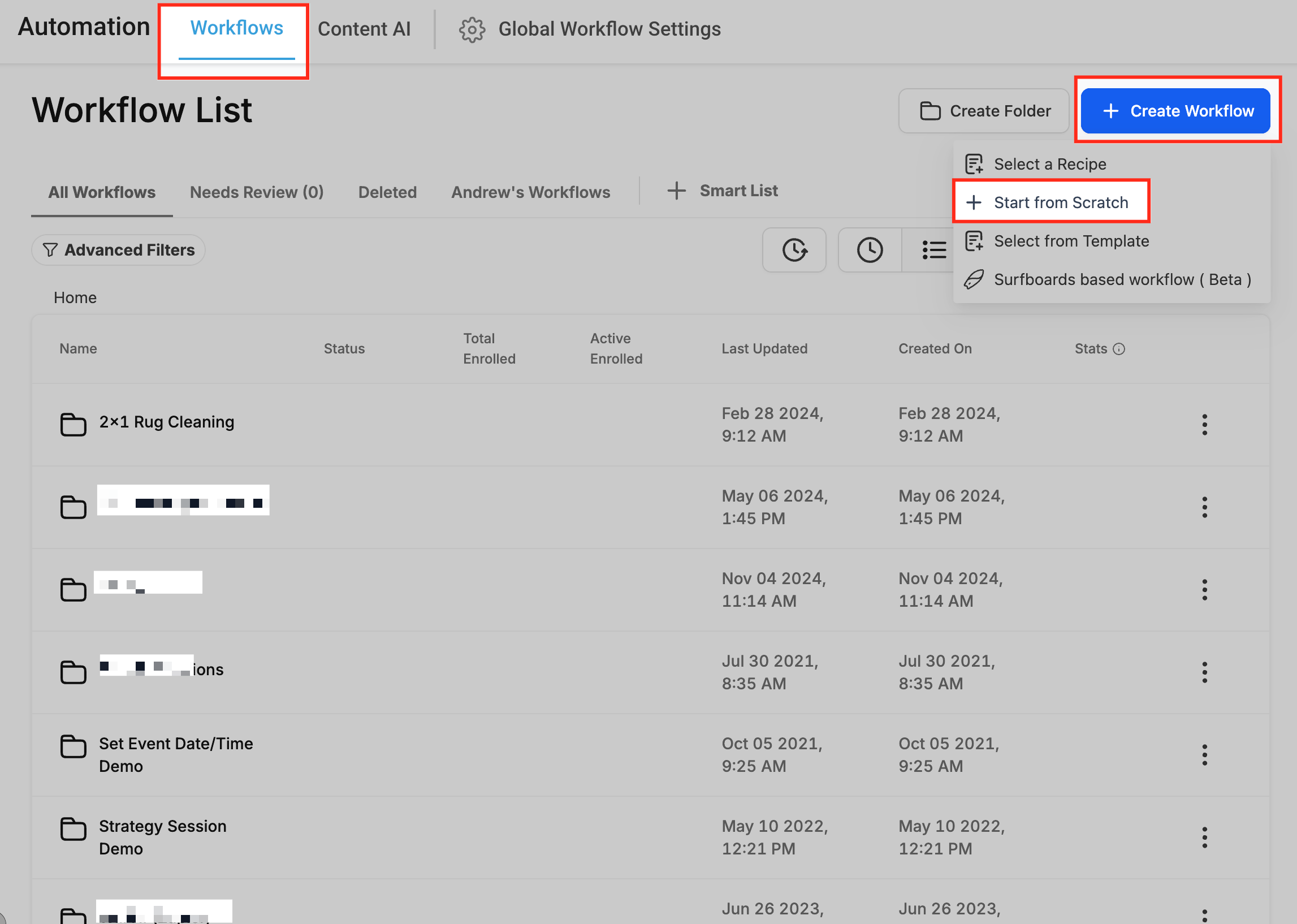
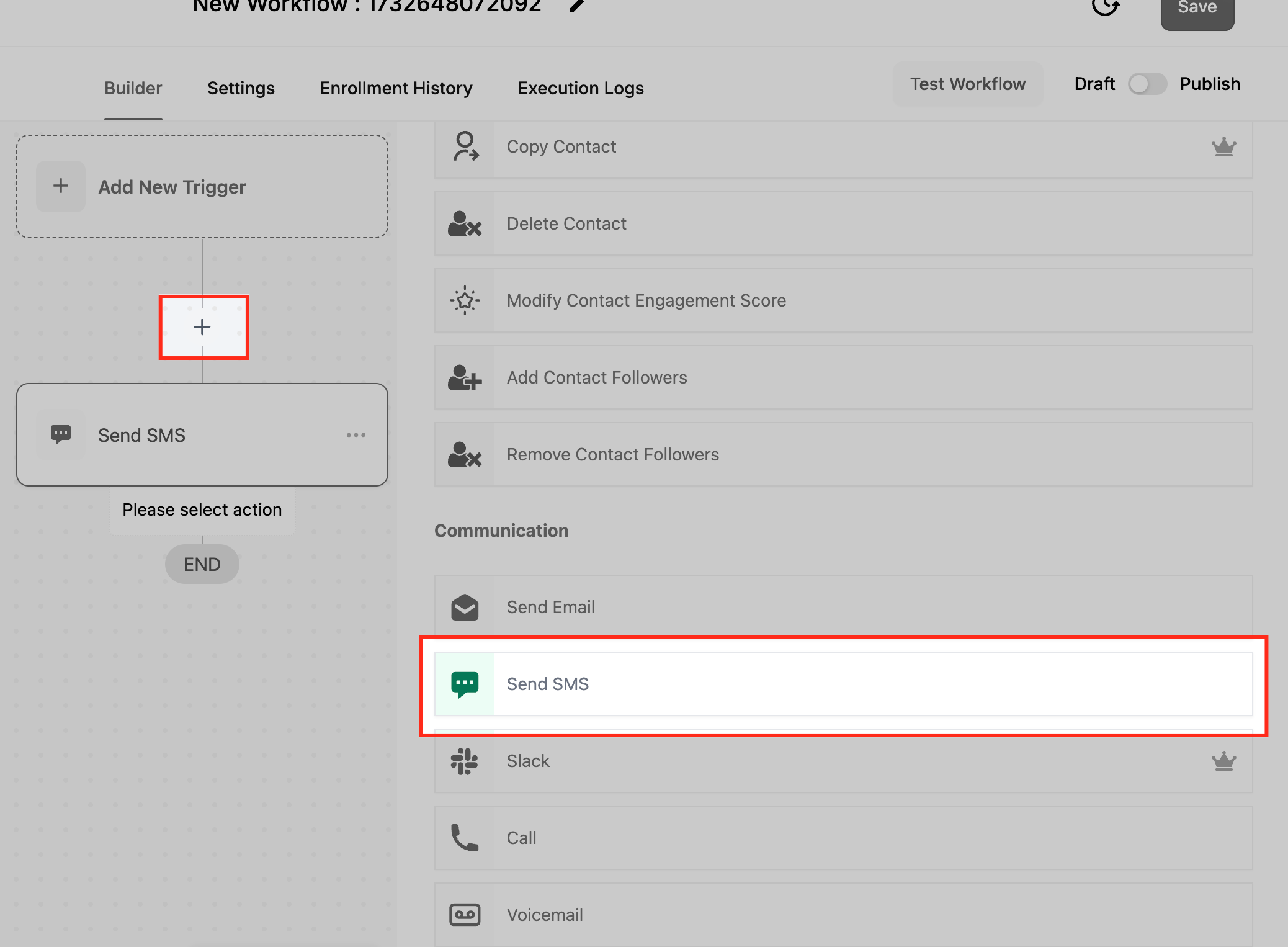
- Open the workflow editor, create or choose a workflow, then drag the Send SMS action to the desired spot after a trigger or condition.
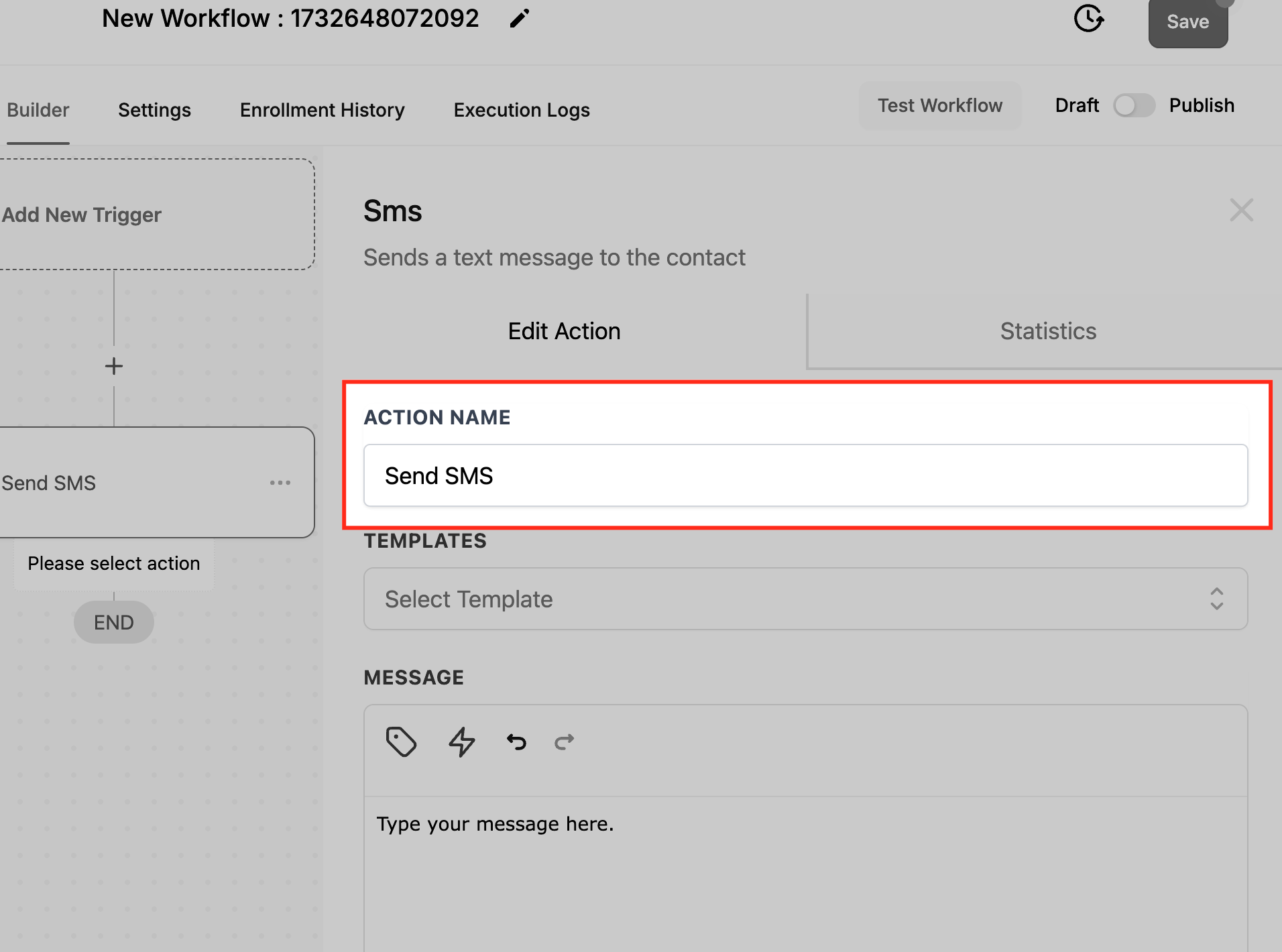
- Give the action a clear name, such as Appointment Reminder SMS, to identify it in the workflow.
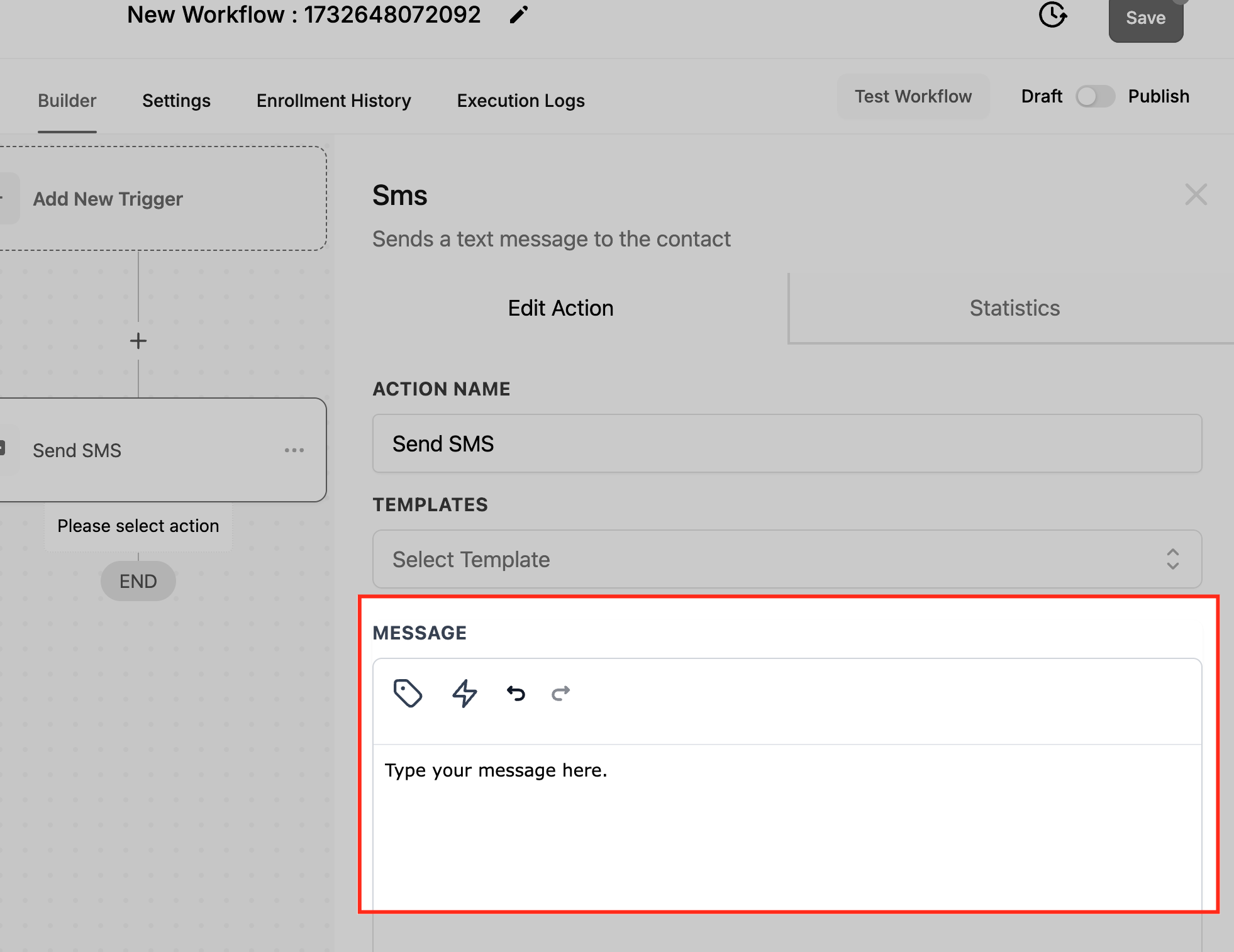
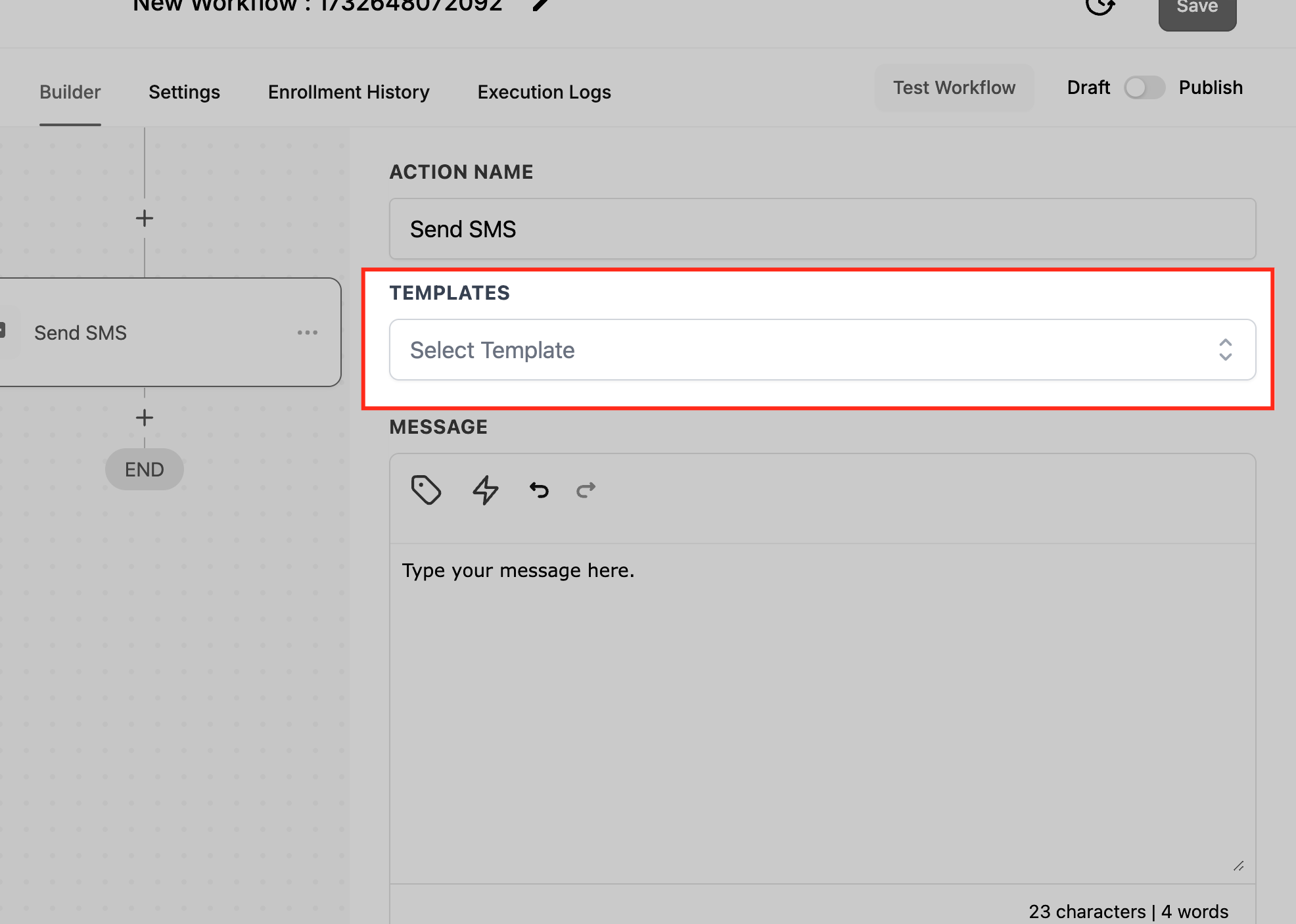
- Write the SMS text, using dynamic fields like {{contact.first_name}} for personalization, or pick a ready made template.
- Optionally add a URL that points to a map, ticket, or other online resource.
- Check the country flag next to the Test Phone Number field; it defaults to the subaccount’s country.
- Click the flag and search by country name or dialing code to change the country if needed.
- Enter a phone number in local format for the selected country and click Send test SMS to preview the message.
- Save the workflow and run a test with sample data to verify the SMS dispatches as expected.
05What it looks like in HighLevel
06Settings that matter
- Message. Defines the text content that will be sent and can include dynamic fields for personalization.
- Templates. Provides pre designed message layouts that can be selected to speed up composition.
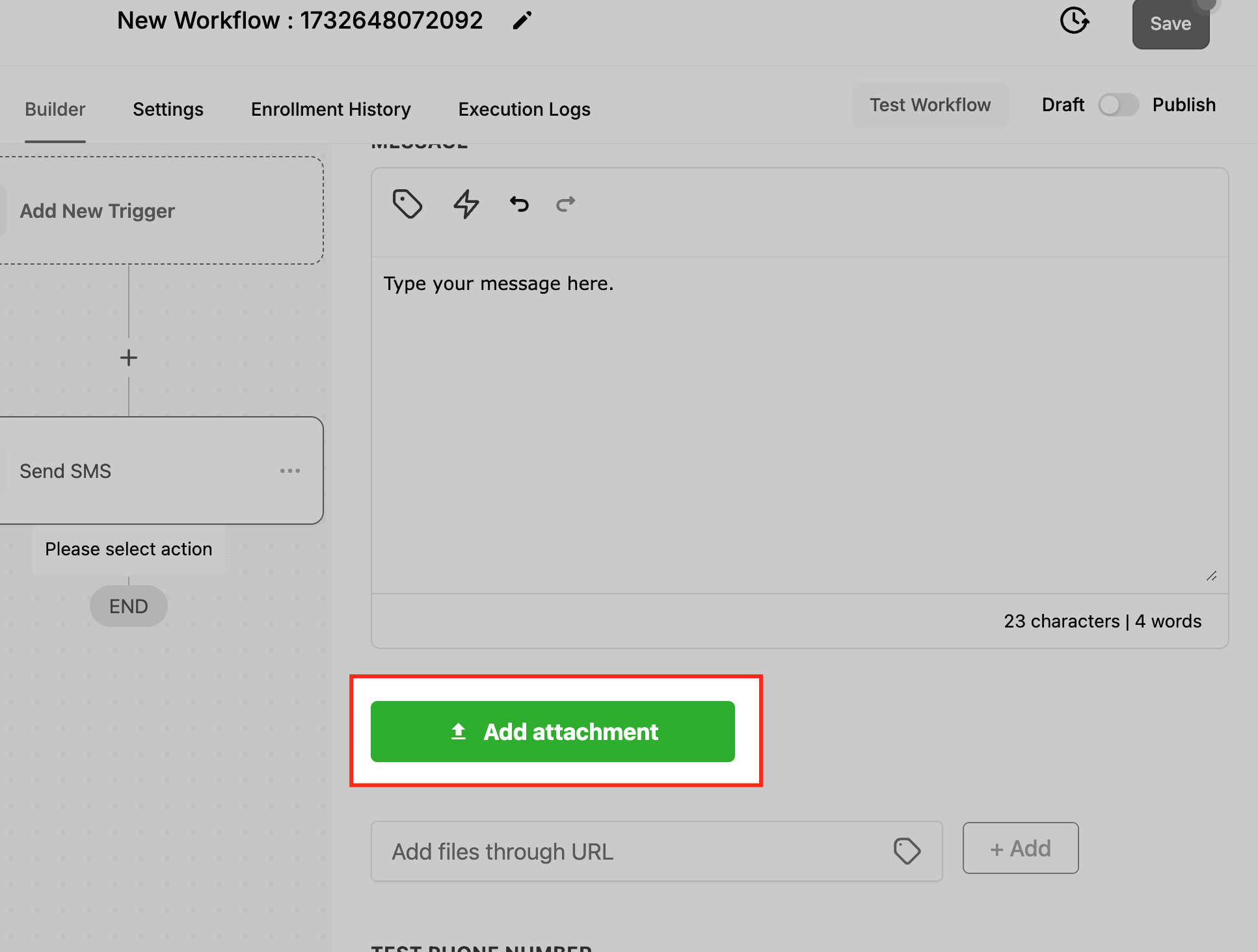
- Attachments (optional). Allows a URL to be added to the SMS, giving recipients a link to external files or resources.
- Test Phone Number field. Enables you to input a number and send a test message before the workflow is activated.
- Country flag. Sets the default country used for formatting the test phone number; it can be changed by clicking the flag.
07Things to know before you rely on it
- SMS messages cannot contain direct file attachments; only URL links are supported.
- The test phone number uses the subaccount’s default country unless you change the flag.
08How it connects to the rest of HighLevel
- Combine SMS alerts with internal notifications to keep staff aware of upcoming appointments. Internal Notification
- Add a Send Email action alongside SMS to provide both text and email reminders. Send Email
- Use the Call action in the same workflow to follow up with a voice call after an SMS reminder. Call Action
Michael's take

The first setting I would get right is the Test Phone Number field. Making sure the country code and format match what my contacts actually receive avoids delivery failures.
Once the test number is solid, I would build a simple reminder workflow and watch the messages go out. A quick check of personalized fields confirms the messages feel personal.