
01Who this is for
- Sales managers who need instant alerts when new leads are captured, so they can assign follow up tasks promptly.
- Support supervisors who want real time updates on ticket status changes to keep their team aligned.
02Internal notifications, explained
Internal Notifications live inside the workflow builder. When a workflow condition is met, the action creates a message and sends it through the selected channel to the chosen internal recipients. The action can target individual users, specific roles, or whole teams, and each channel has its own set of fields for sender information, recipients, and message content.
The notification can appear as an email, an in app bell icon alert, an SMS, or a WhatsApp message. For email, you can add a subject, template, attachments, CC/BCC and dynamic tags. In app alerts let you set a title, message, redirect page, and recipient type. SMS and WhatsApp support templates, custom text, attachments, and test sending.
If the workflow runs without a contact, simple in app or message only notifications still work, but any content that references contact fields will not populate correctly.
03How businesses use internal notifications
- Real estate brokerage. The brokerage creates a workflow that fires when a new property lead enters the system. An Internal Notification with the Email type is configured to send the lead details to all agents. The email uses dynamic tags for the property address and price, and includes an attachment with the listing brochure.
- Dental practice. When a patient books an appointment, the practice’s workflow sends an In App Notification to the front desk team. The notification includes a title, a brief message, and a redirect page that opens the appointment record, allowing staff to prepare for the visit.
- IT support firm. A ticket escalation workflow triggers an SMS Internal Notification to the on call technician role. The SMS uses a template, adds a short message with the ticket ID, and attaches a PDF with troubleshooting steps. A test number can be used to verify content before activation.
04The numbers and rules that matter
- Rate limiting: By default, each user can receive up to 500 notifications (email, SMS, or in app) every 5 minutes.
- Attachments in Email, SMS, or WhatsApp notifications count toward your account’s file storage and, depending on the channel, may also contribute to message size limits.
05Before you start
- Phone numbers, email addresses, and WhatsApp integration must be correctly configured for the intended recipients.
- The workflow must target internal users; contacts or external clients cannot receive Internal Notifications.
06How to set up and use internal notifications in HighLevel
Set up internal notification
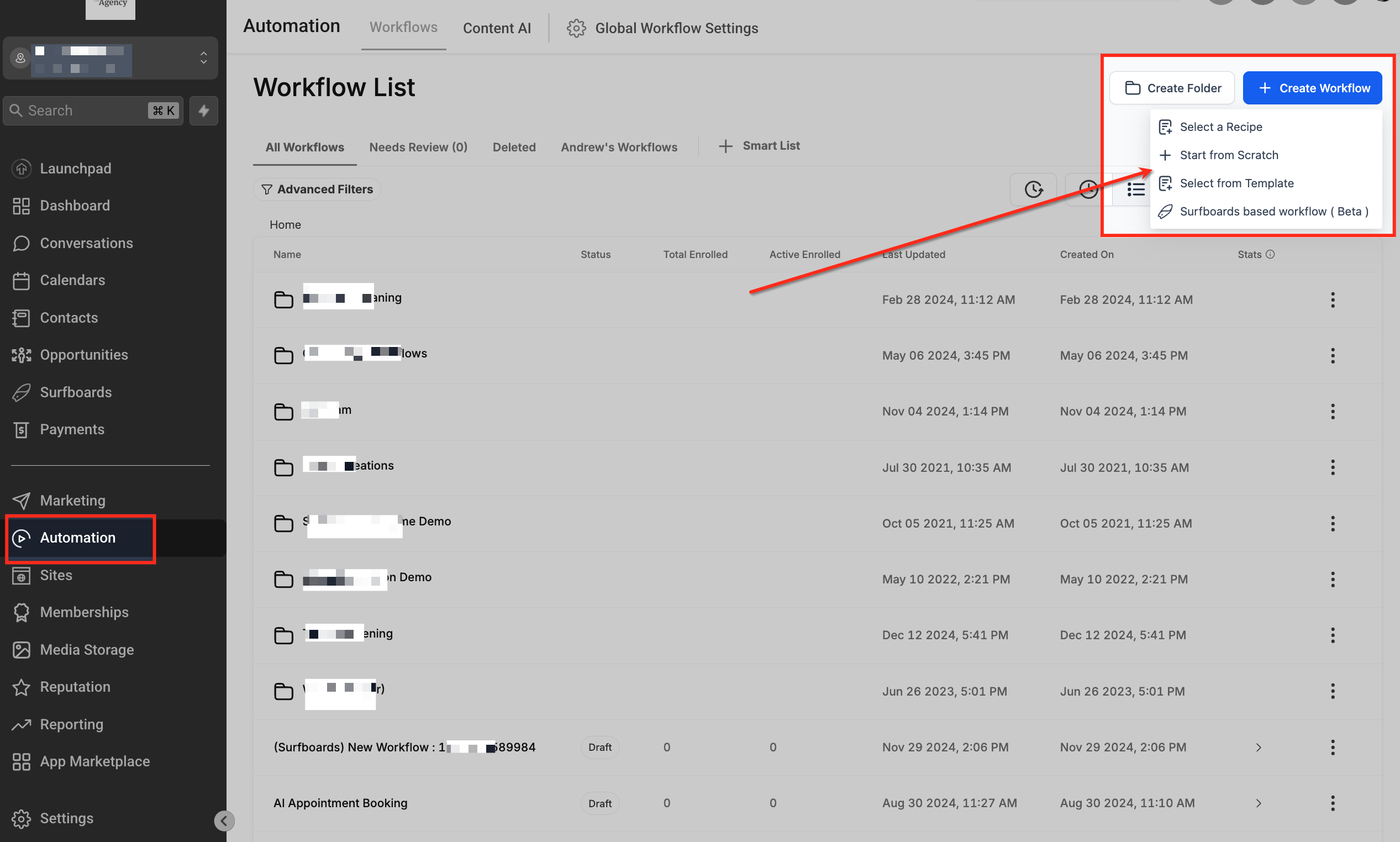
- Open the Automation tab in the left hand menu.
- Click the + Create Workflow button at the top right and choose a starting option.
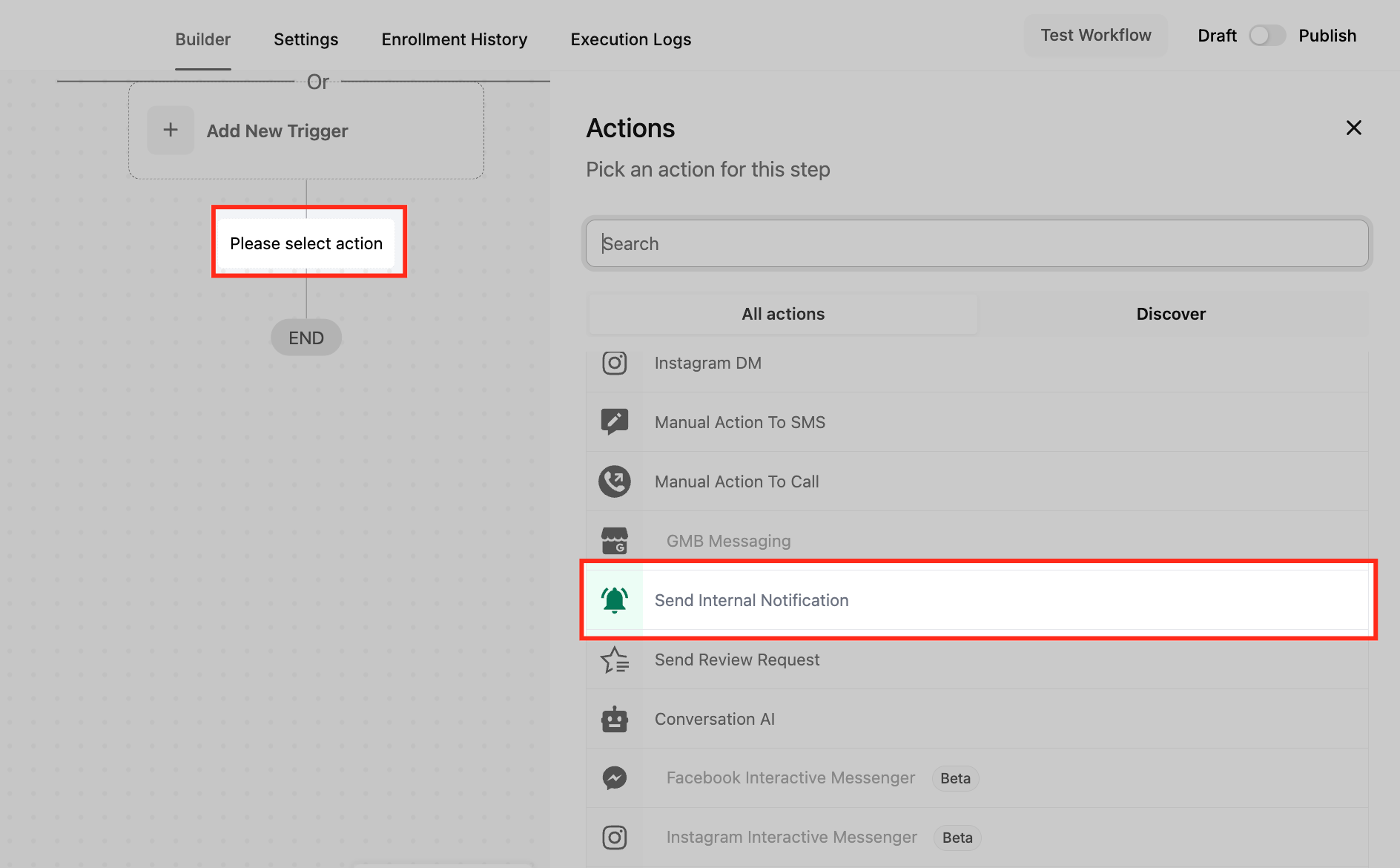
- In the workflow canvas, press the + button to add a new step.
- Scroll through the action list and select Send Internal Notification.
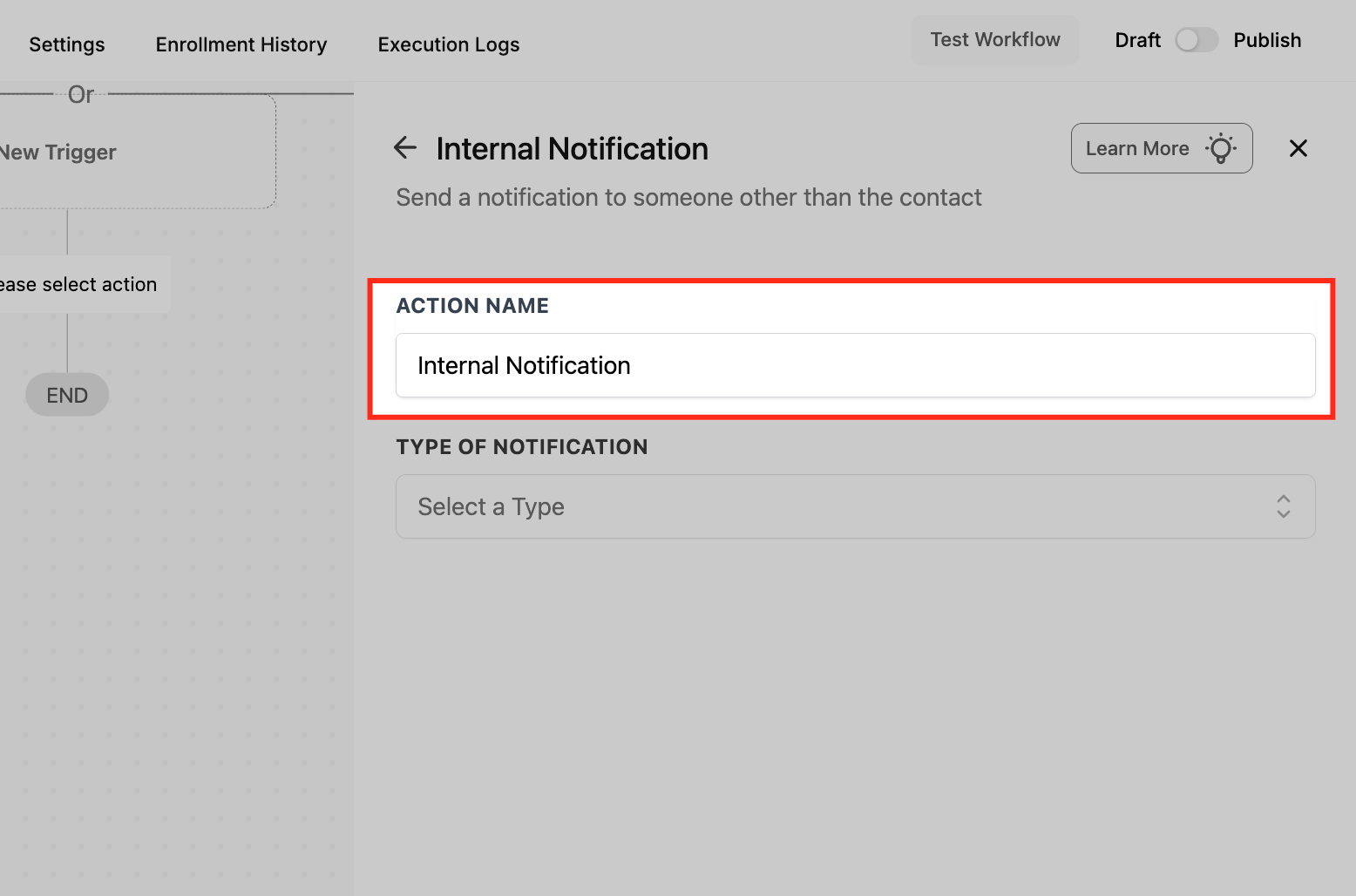
- Enter a clear Action Name for the notification step.
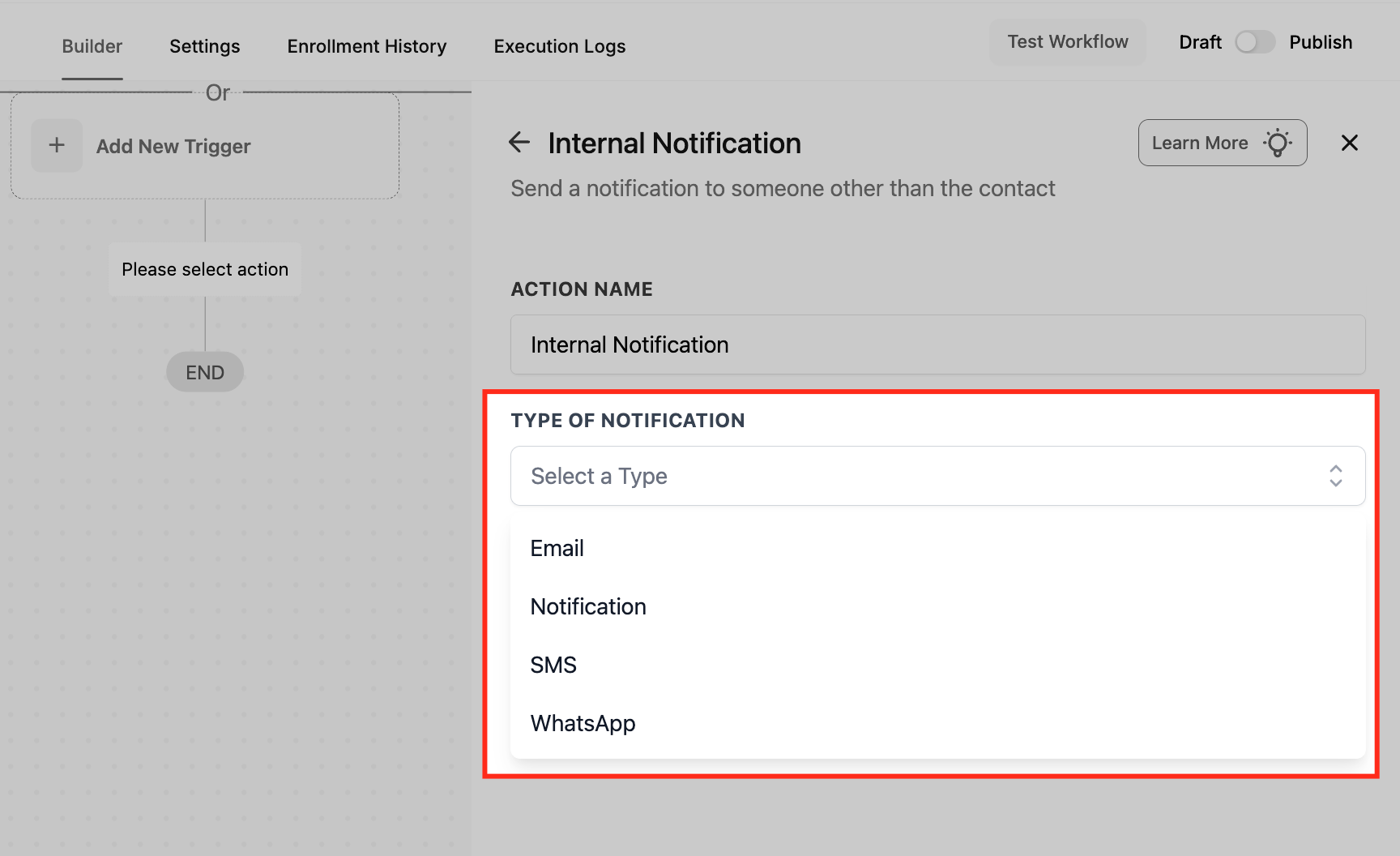
- Choose the notification channel (Email, In App, SMS, or WhatsApp) from the dropdown menu.
- Provide the required fields for the chosen channel, such as sender details, recipient type, message content, and any attachments.
- Save the action and activate the workflow.
07What it looks like in HighLevel
08Settings that matter
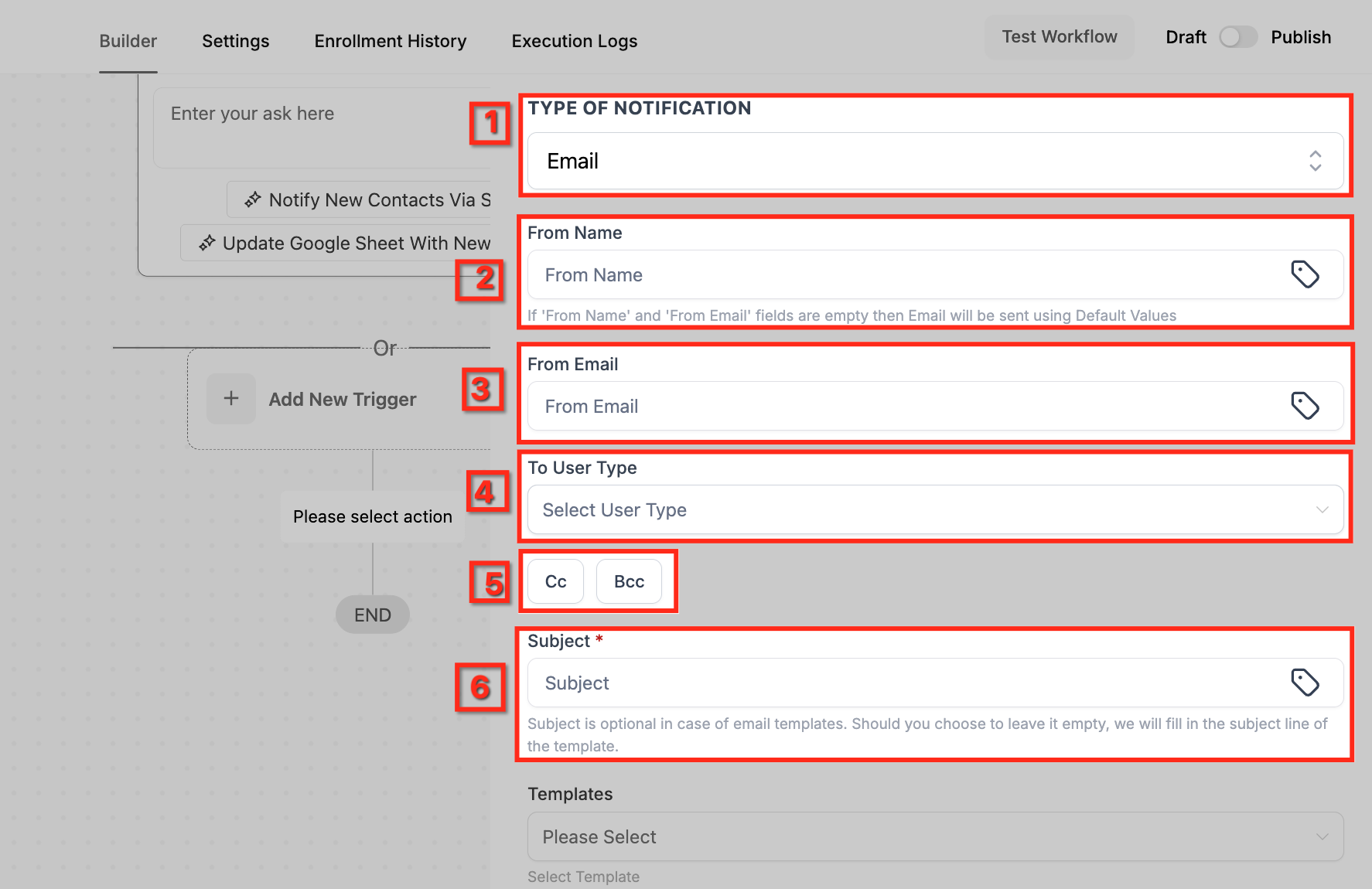
- From Name. Sets the display name shown as the sender in Email notifications.
- From Email. Defines the email address used as the sender; defaults apply if left blank.
- To User Type. Selects which internal users (admins, assigned users, roles, or teams) receive the notification.
- CC/BCC. Adds extra email recipients; each entry creates a separate email and counts toward usage.
- Subject. Specifies the email subject line; can be left empty when using a template that defines it.
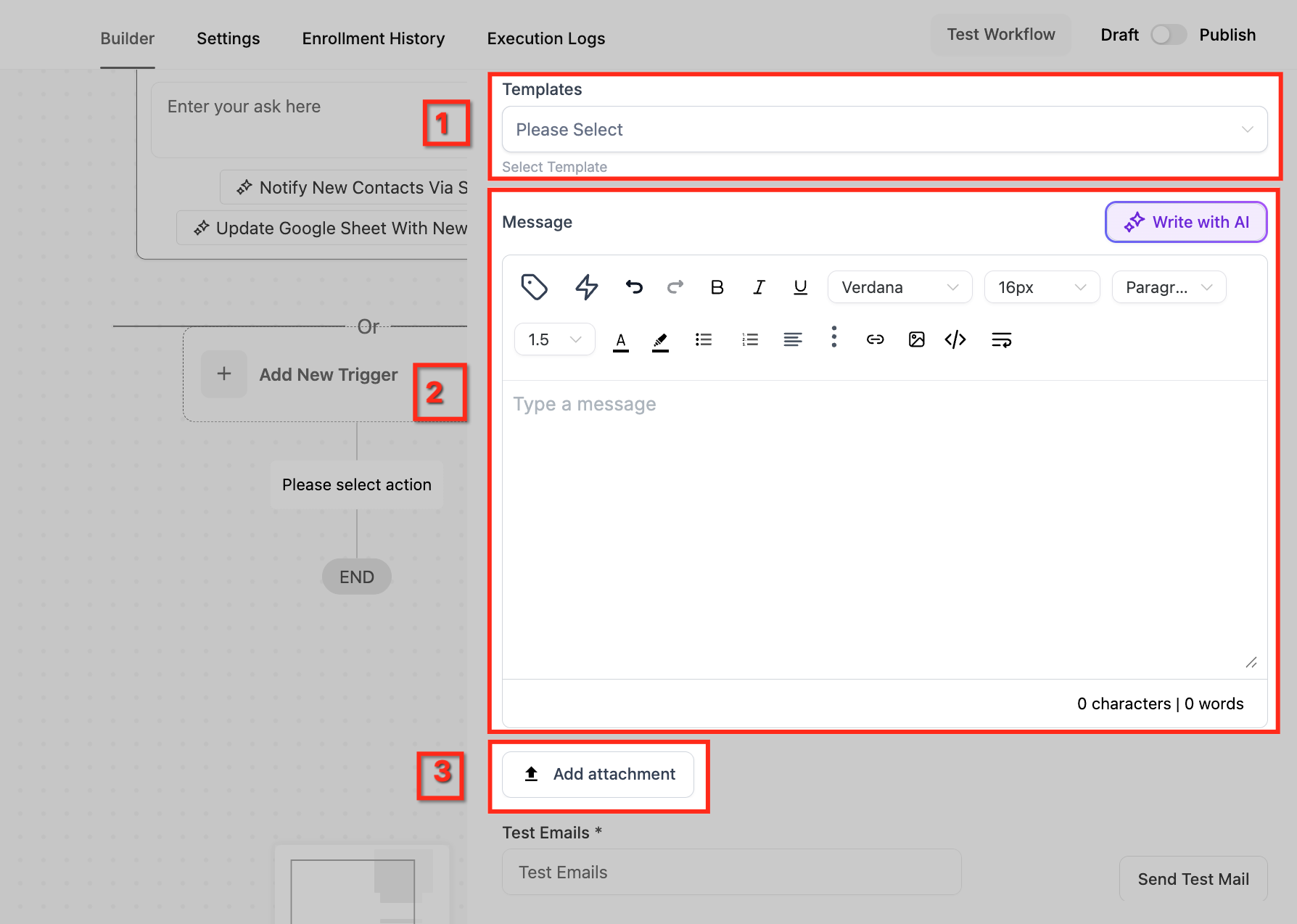
- Templates. Chooses a pre built email, SMS, or WhatsApp template to speed up message creation.
- Message. Contains the main body of the notification; supports formatting, dynamic tags, and AI generated content.
- Add Attachment. Attaches files to Email, SMS, or WhatsApp messages; attached files count toward storage limits.
- Type of Notification. Selects the channel (Email, In App, SMS, or WhatsApp) for the internal alert.
- Title. Sets the heading shown in In App notifications.
- Redirect Page. Defines the page users are taken to when they click an In App notification.
09Things to know before you rely on it
- Each user can receive up to 500 notifications (email, SMS, or in app) within any 5 minute window.
- CC/BCC fields are only available for Email notifications; each extra recipient adds to email usage.
- Internal Notifications are limited to team members inside HighLevel; they cannot be sent to external contacts.
- Attachments increase storage usage and may be subject to channel specific size restrictions.
10If something goes wrong
- The workflow shows the Internal Notification as executed but the user did not receive it.. Check if the user’s profile is marked as DND (Do Not Disturb). Turn DND off and on again in the user’s contact record, then retest the workflow.
- The selected channel (SMS, Email, or WhatsApp) is not configured for the recipient.. Verify that the recipient has a valid phone number for SMS, a proper email address for Email, or an active WhatsApp integration. If missing, the notification for that channel will fail but the workflow will continue.
11How it connects to the rest of HighLevel
- Configure email content with the Send Email workflow action. Send Email action
- Add phone based alerts using the Call workflow action. Call action
- Review the basics of building workflows in HighLevel. Workflow basics
Michael's take

Teams often miss critical updates when they rely on manual emails or separate chat apps. Internal notifications solve that by pushing alerts straight to the channel each team member prefers, whether it’s email, SMS or the in app bell. The first thing I would get right is the Notification Type selection, making sure the channel matches how quickly the team needs to act.
If I were setting this up, I’d double check that every user has a valid phone number or WhatsApp link before enabling SMS or WhatsApp alerts. A quick test of each channel saves you from surprise delivery failures later on.