
01Who this is for
- Social media managers benefit because the action automates replies to Instagram inquiries, saving manual effort.
- Small business owners who run Instagram ads gain a way to follow up leads right away through a workflow.
- Customer support teams use the action to ensure timely responses within Instagram’s messaging limits.
02Instagram DM workflow actions, explained
The Instagram DM workflow action lets you send a direct message from a HighLevel workflow to a contact who has messaged your linked Instagram business account. You can choose an existing template, write a new message, add custom values, and attach files or URLs. The action appears in the workflow builder under Automations > Workflows.
When the action runs, HighLevel attempts to deliver the message as a direct message. Delivery succeeds only if the contact has sent your business a direct message within the previous 24 hours. If that window is not open, the message will not be delivered.
The action lives alongside other workflow actions such as Send Email or Call. You can combine it with triggers like Customer Replied or Instagram comment triggers, but you must respect the 24 hour rule or use the Instagram Interactive Messenger action for comment based replies.
03How businesses use Instagram DM workflow action
- Real estate agency. The agency creates a workflow that triggers when a prospect replies via Instagram DM. It selects a template that includes property details and attaches a PDF brochure. The direct message is sent automatically, keeping the prospect engaged.
- Fitness studio. The studio sets up a workflow that fires on a Customer Replied trigger. The message field contains a personalized class schedule using the client’s name via custom values. The studio can add a link to the booking page with the file URL option.
- Ecommerce store. The store builds a workflow that activates after a purchase inquiry DM. It writes a message that includes the order number using a custom value and adds a tracking link through the file URL capability. The direct message reaches the buyer without manual steps.
04The numbers and rules that matter
- Message can only be sent if the contact sent a DM within the previous 24 hours.
- A comment on a post does not open the 24 hour DM window.
05Before you start
- A connected Instagram business account must be linked to HighLevel.
- You need a workflow trigger that fits the intended interaction.
06How to set up and use Instagram DM workflow action in HighLevel
Set up Instagram DM action
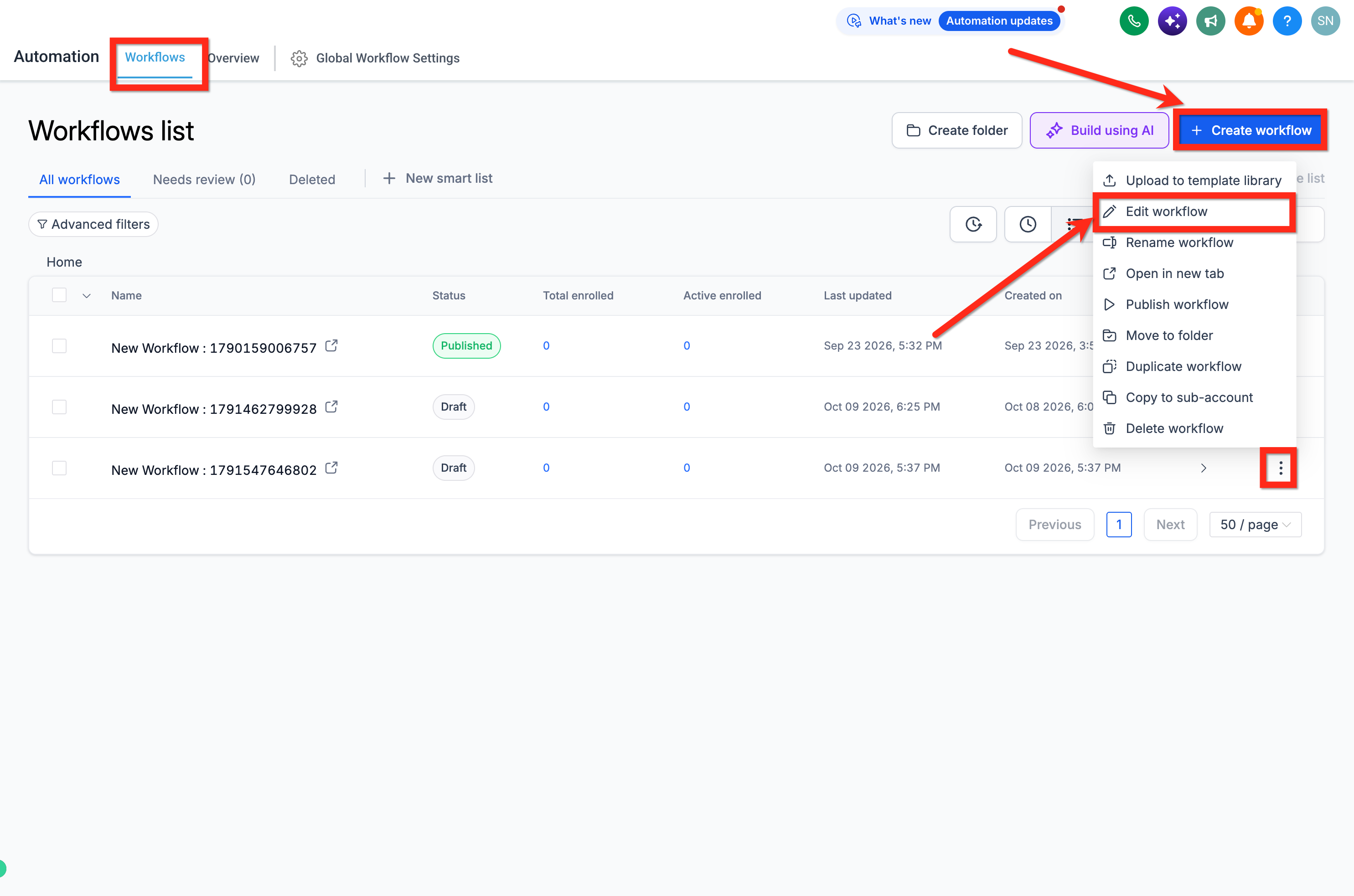
- Navigate to Automations > Workflows.
- Click Create Workflow to start a new workflow.
- Open the workflow in the Workflow Builder.
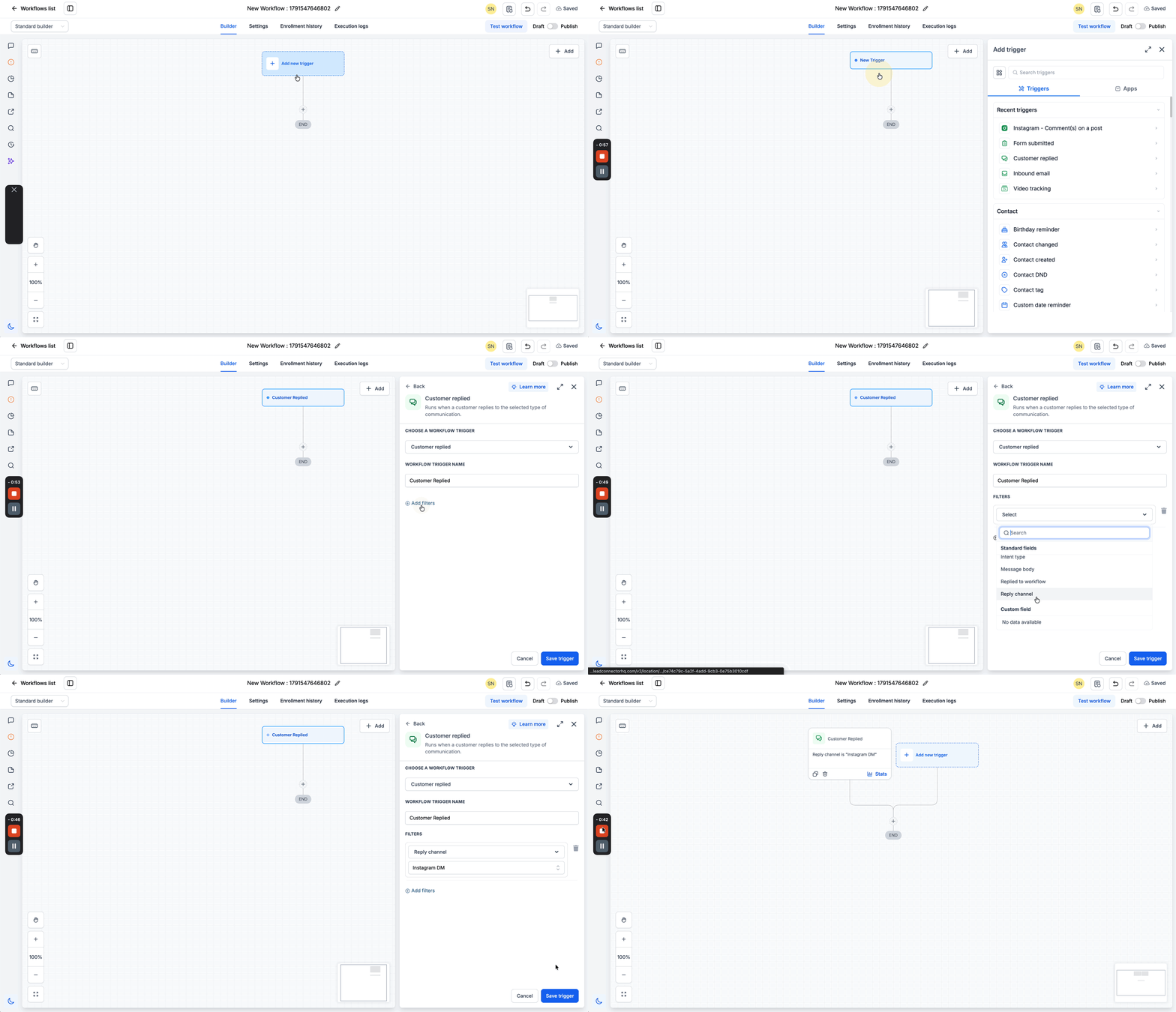
- Click + Add New Trigger.
- Search for Customer Replied and select it.
- Click + Add Filters, choose Reply Channel, and set it to Instagram DM.
- Click Save Trigger.
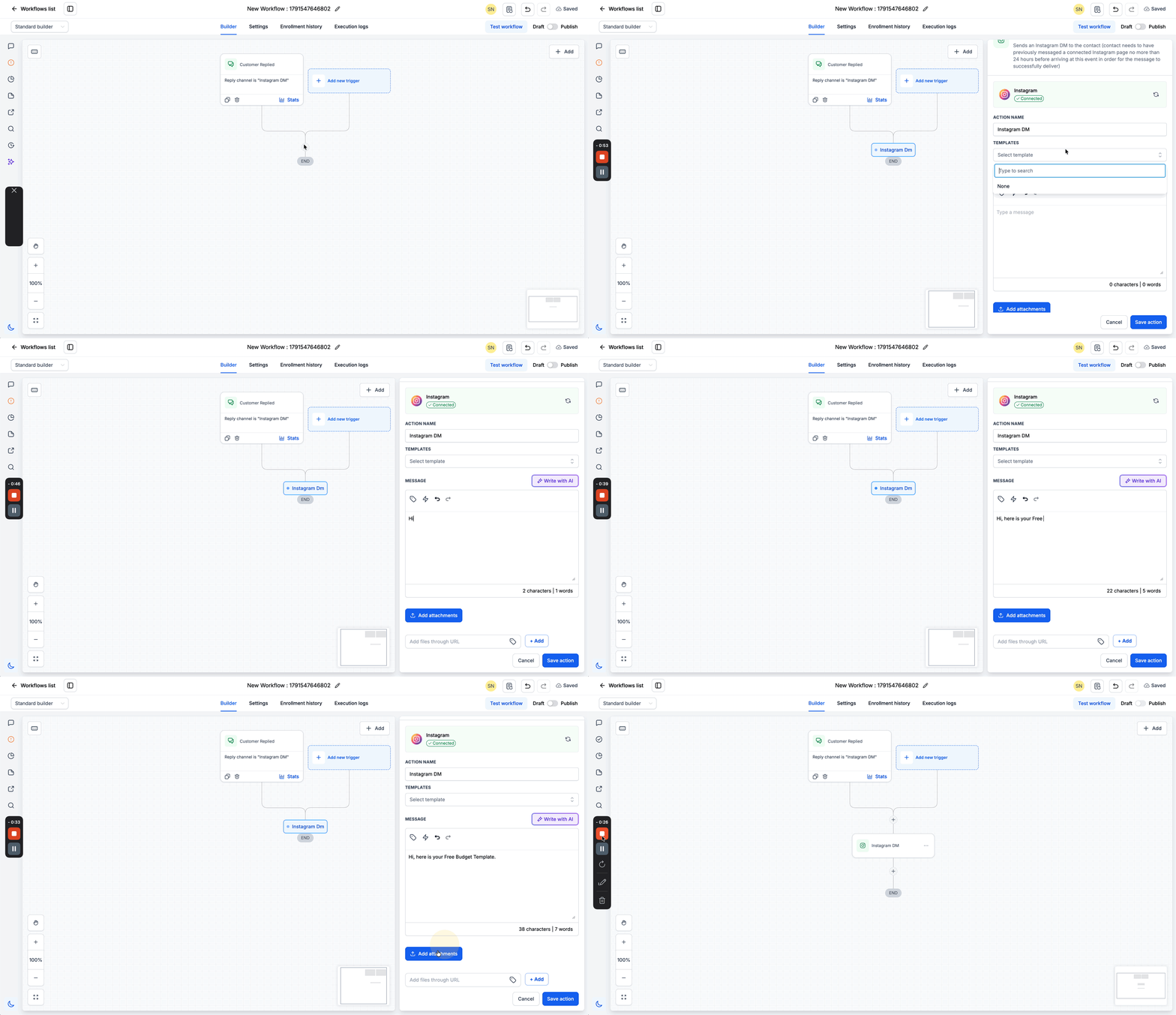
- Click the + icon below the trigger to add an action.
- Search for Instagram DM and select it.
- Enter an Action Name for the step.
- Type the Message and insert any Custom Values or Trigger Links needed.
- Click Save Action.
07What it looks like in HighLevel
08Settings that matter
- Action Name. Identifies the Instagram DM step inside the workflow.
- Templates. Lets you pick a pre written message to reuse across workflows.
- Message. Contains the text that will be sent; it can include custom values for personalization.
- Add Attachment. Allows you to upload a file or choose one from Media Storage to include in the direct message.
- Add Files Through URL. Enables you to attach a file that is hosted online by providing its URL.
09Things to know before you rely on it
- The action can only send a message to contacts who have messaged your Instagram business account in the past 24 hours.
- Commenting on a post does not open the 24 hour direct message window for this action.
- When used with an Instagram Comment trigger, the action replies to the comment via DM only if the contact has a recent comment; otherwise it attempts a standard DM, which still requires the 24 hour window.
- For comment based private replies, HighLevel recommends using the Instagram Interactive Messenger action instead.
- Important: A contact commenting on an Instagram post does not automatically establish the 24 hour direct messaging window required for a standard Instagram DM.
10If something goes wrong
- The Instagram DM workflow runs but the message is not delivered.. Confirm the contact has sent a direct message to your Instagram account within the last 24 hours, verify the Instagram account is correctly connected, and review the workflow execution details.
11How it connects to the rest of HighLevel
- Learn about the Instagram Interactive Messenger workflow action as an alternative. Instagram Interactive Messenger
- See how to send SMS messages in workflows. Send SMS workflow action
- Review HighLevel pricing and plan options. Pricing
Michael's take

Businesses that get frequent Instagram inquiries often drown in repetitive replies. The first thing to get right is confirming the contact has messaged you within the last 24 hours, because that rule determines whether a DM will actually land.
Once the window is clear, I would focus on building a clean template with Custom Values for each client’s name and booking link. Test the flow with a real DM from your own account before turning it on for all contacts.