
01Who this is for
- Marketing managers at small agencies can automate lead capture from Instagram comments, freeing their team from manual replies.
- Coaches who run webinars can use quick replies to qualify prospects right away after a DM inquiry.
- Ecommerce owners can attach product guides and add buttons that drive customers to checkout pages directly from Instagram.
02Instagram interactive messenger, explained
The action sits among the Communication actions in the workflow builder. Once an Instagram specific trigger fires, the step sends a direct message that can contain text, custom variables, attachments, and interactive elements.
Interactive elements are either persistent buttons that remain visible after a click, or temporary quick replies that disappear once selected. Each option automatically creates a new branch in the workflow, allowing further actions like tagging, follow up messages, or moving a contact through a pipeline.
A wait period follows the message, giving the contact time to interact. If no response arrives, the contact follows a default timeout path, ensuring the conversation does not stall.
03How businesses use Instagram interactive messenger
- Real estate agency. After a prospect comments on a property post, the workflow sends a private DM with a button linking to a virtual tour. Selecting the button opens a branch that schedules a showing request.
- Fitness studio. When a follower sends a DM asking about class times, the studio replies with quick replies for "Morning", "Evening" and "Weekend" options. Each reply routes the contact to a follow up message confirming availability.
- Online coach. A coach posts a free resource teaser. A comment triggers a DM that includes an attachment of the checklist and a button to book a strategy call, directing the user to the booking workflow.
04The numbers and rules that matter
- Default Wait Step is 1 minute.
- Instagram follows Meta’s 24 hour messaging rule for automated DMs.
05Before you start
- Add an Instagram Comment on Post or Customer Reply (Instagram) trigger to the workflow.
- Ensure the Instagram account is linked to HighLevel so the platform can send DMs.
06How to set up and use Instagram interactive messenger in HighLevel
Configure Instagram interactive messenger action
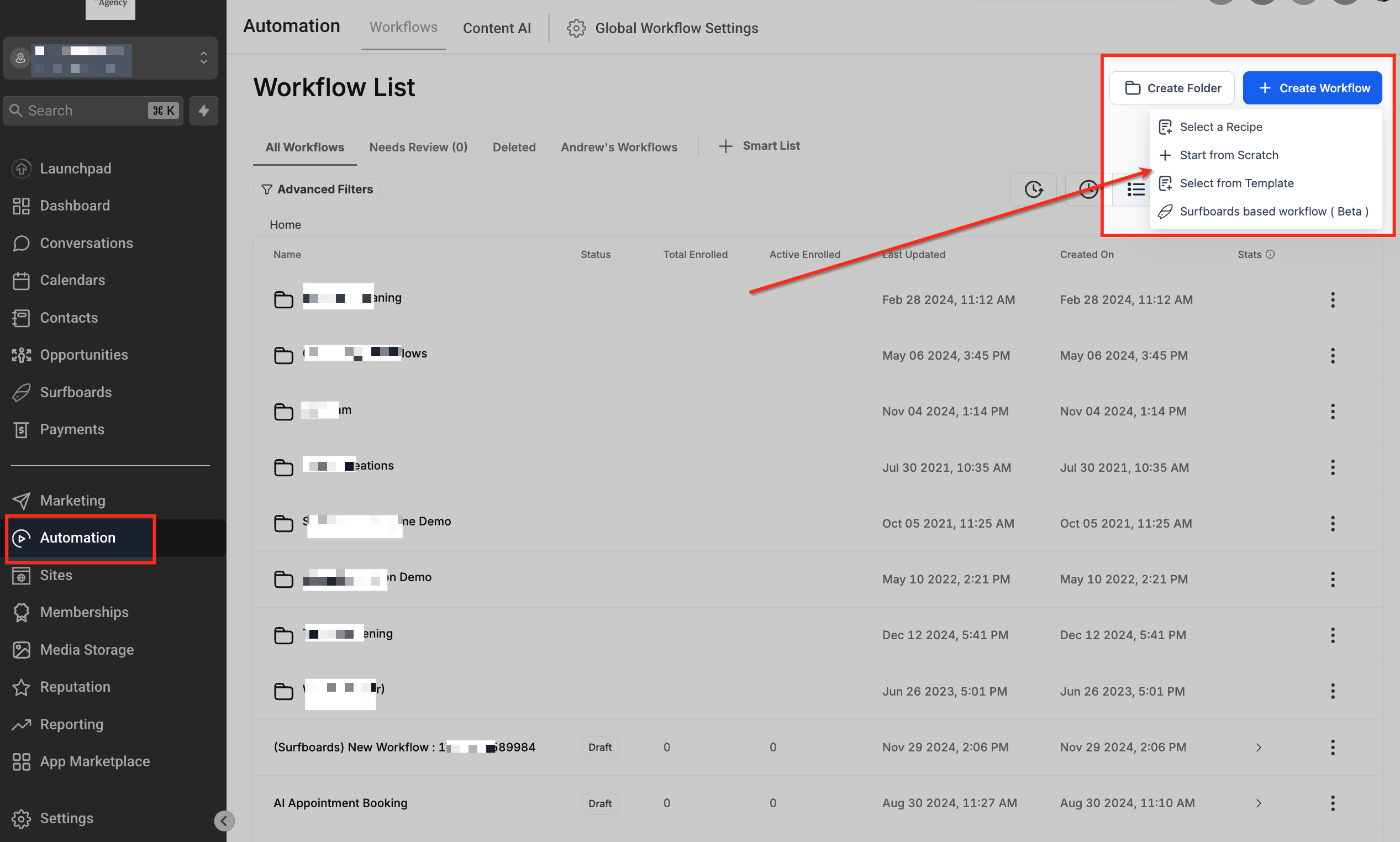
- Navigate to Automation > Workflows and start a new workflow or edit an existing one.
- Click the plus sign to add a trigger and select either Instagram Comment on Post or Customer Reply (Instagram).
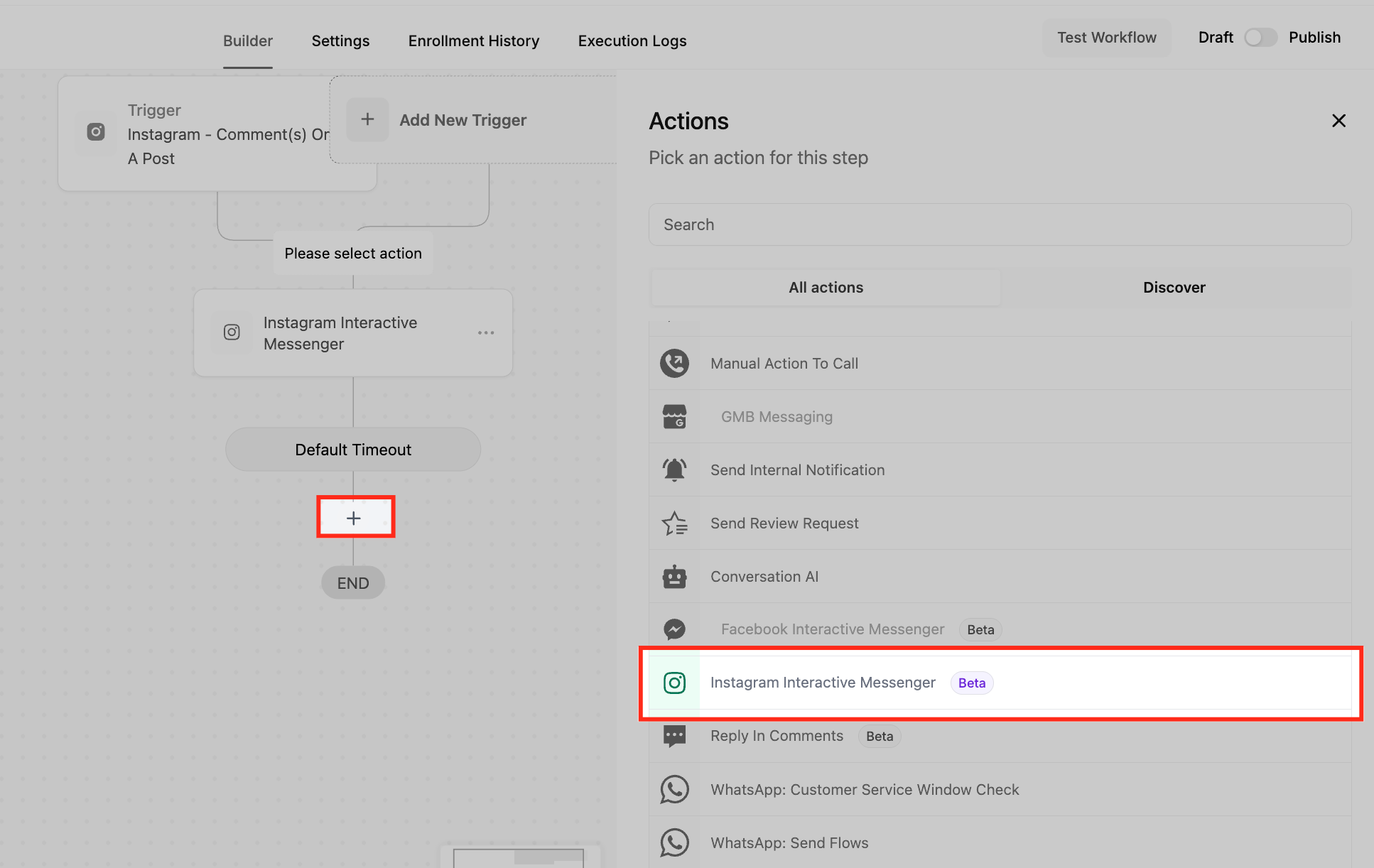
- On the canvas, click the plus icon where the message should go and choose Actions > Communication > Instagram Interactive Messenger.
- Enter a clear label in the Action Name field so the step is easy to locate later.
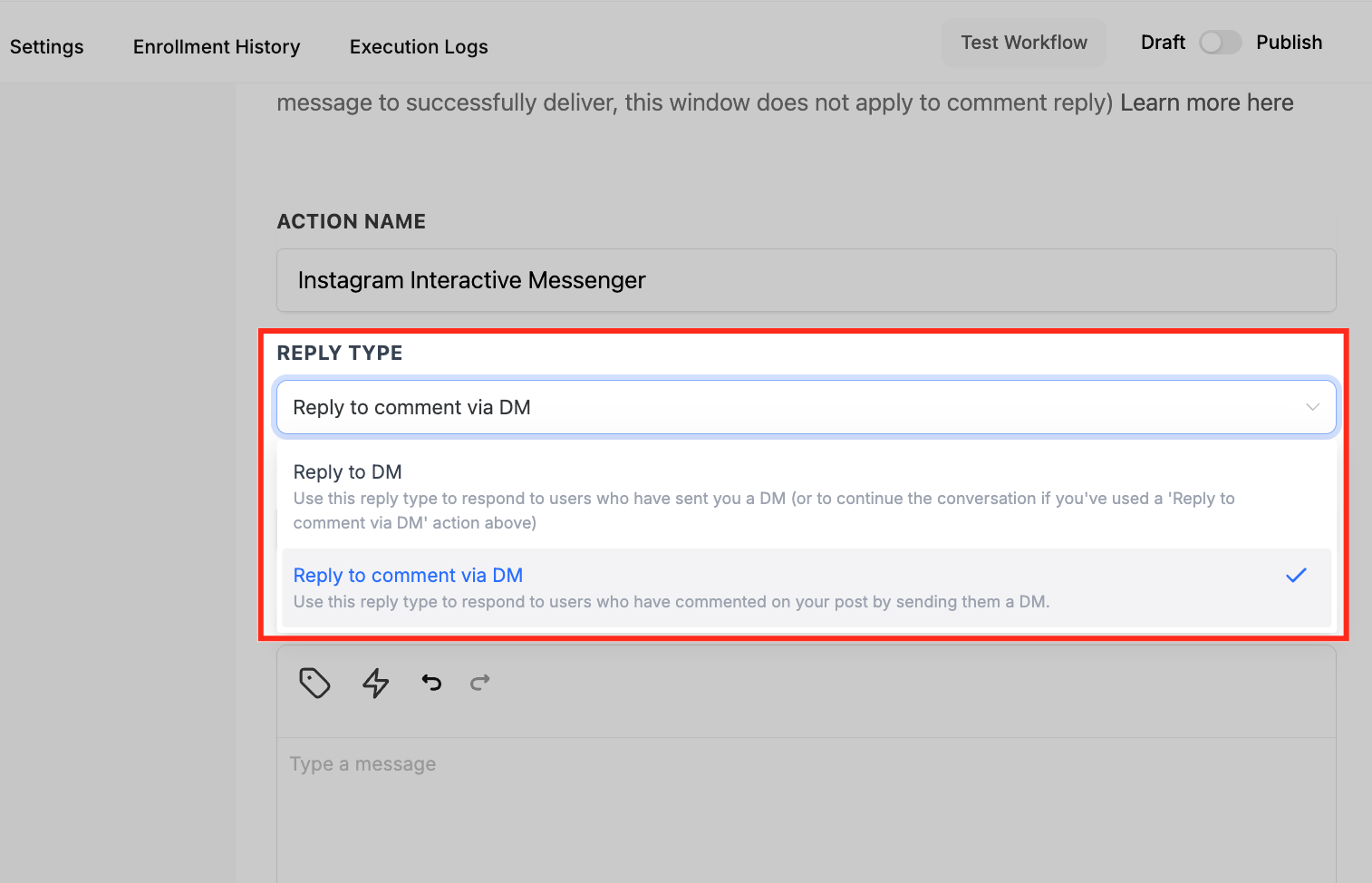
- Select the appropriate Reply Type, either reply to a comment via DM or reply directly to an incoming DM.
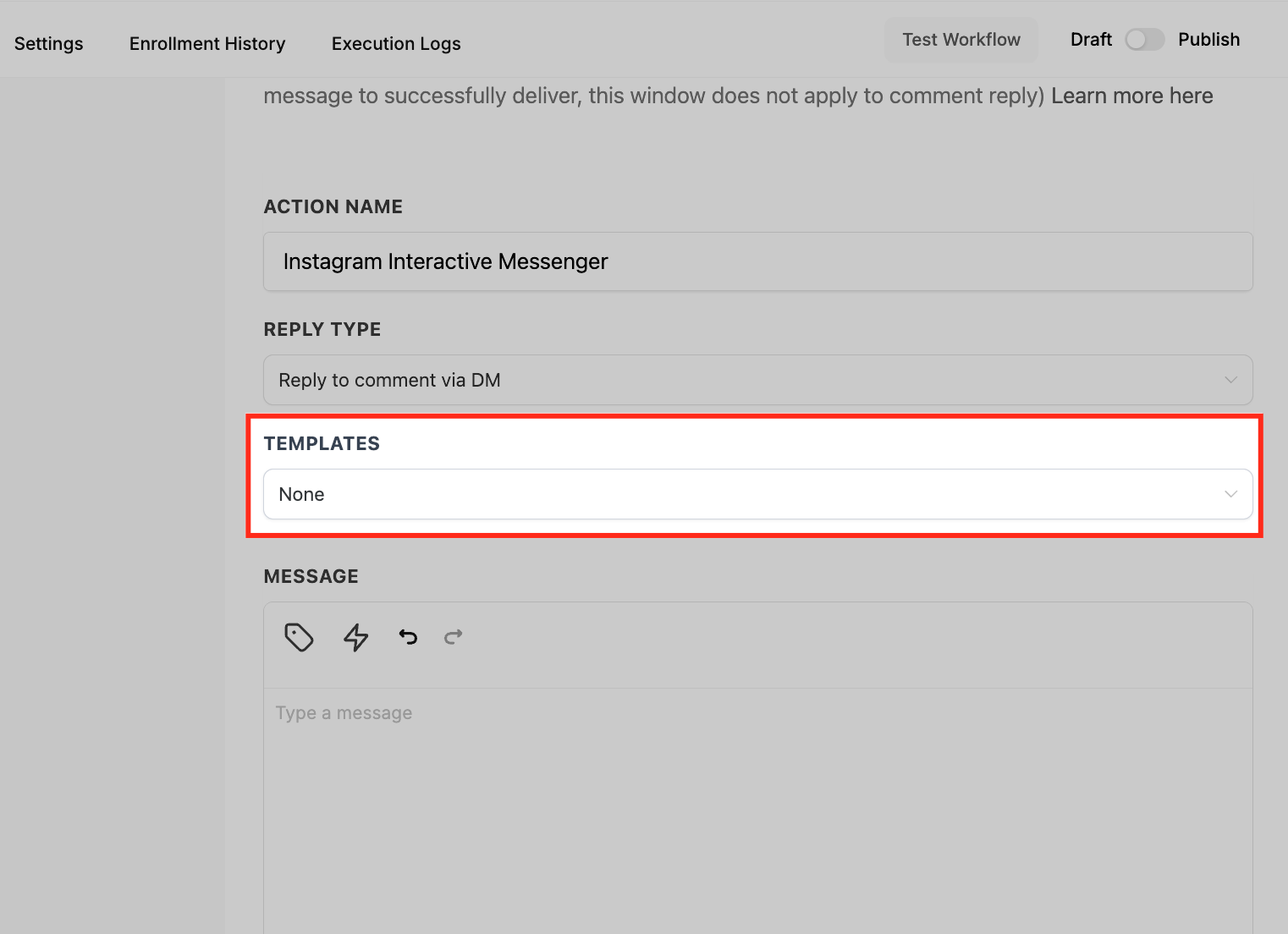
- If you have pre written copy, open Marketing > Snippets and pick a template to insert.
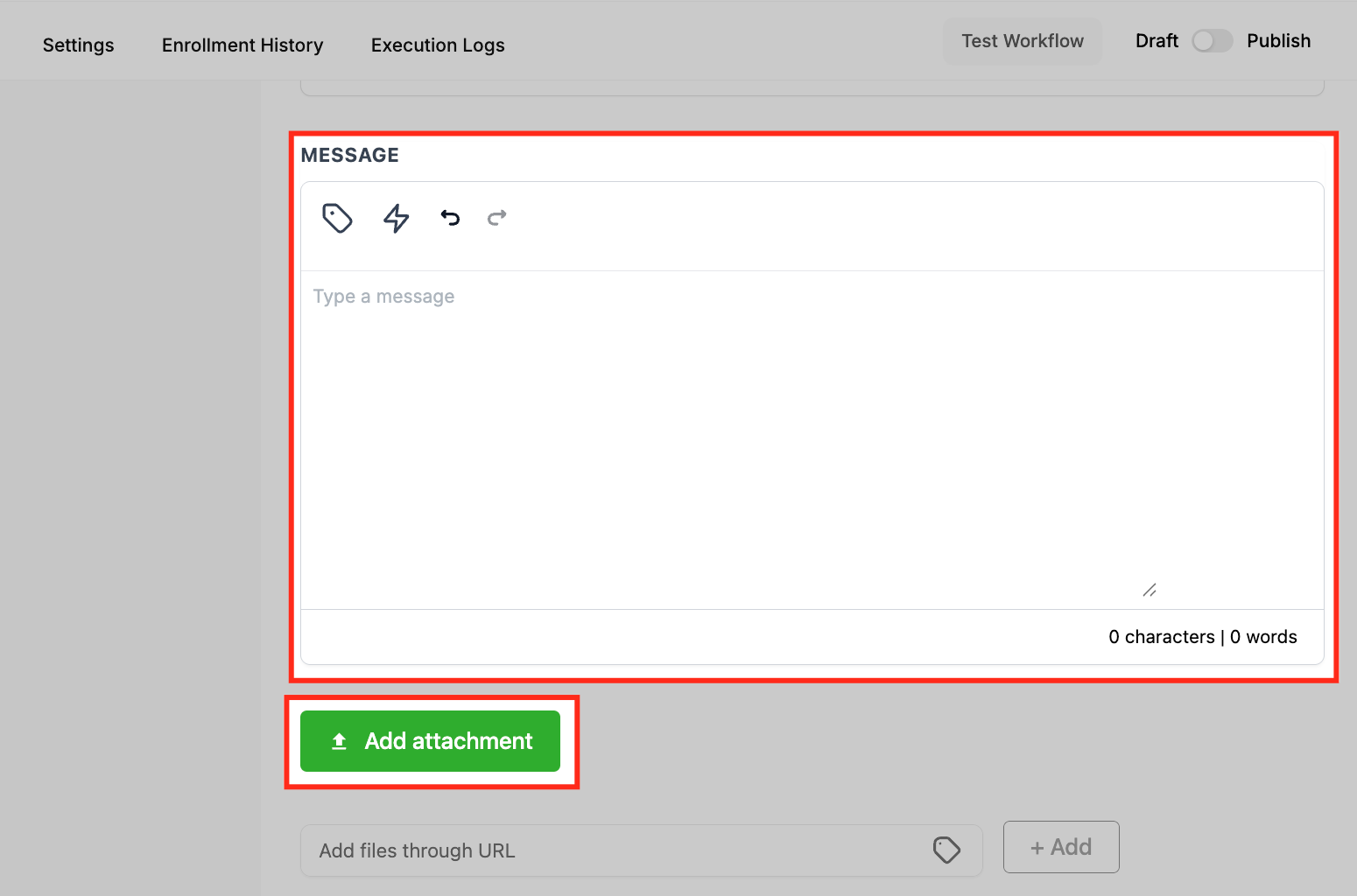
- Write the direct message content in the Message Body area, adding Custom Values and Trigger Links as needed.
- Use Add Attachment to upload a file or provide a URL for a hosted asset; remember Quick Replies cannot be added in the same message.
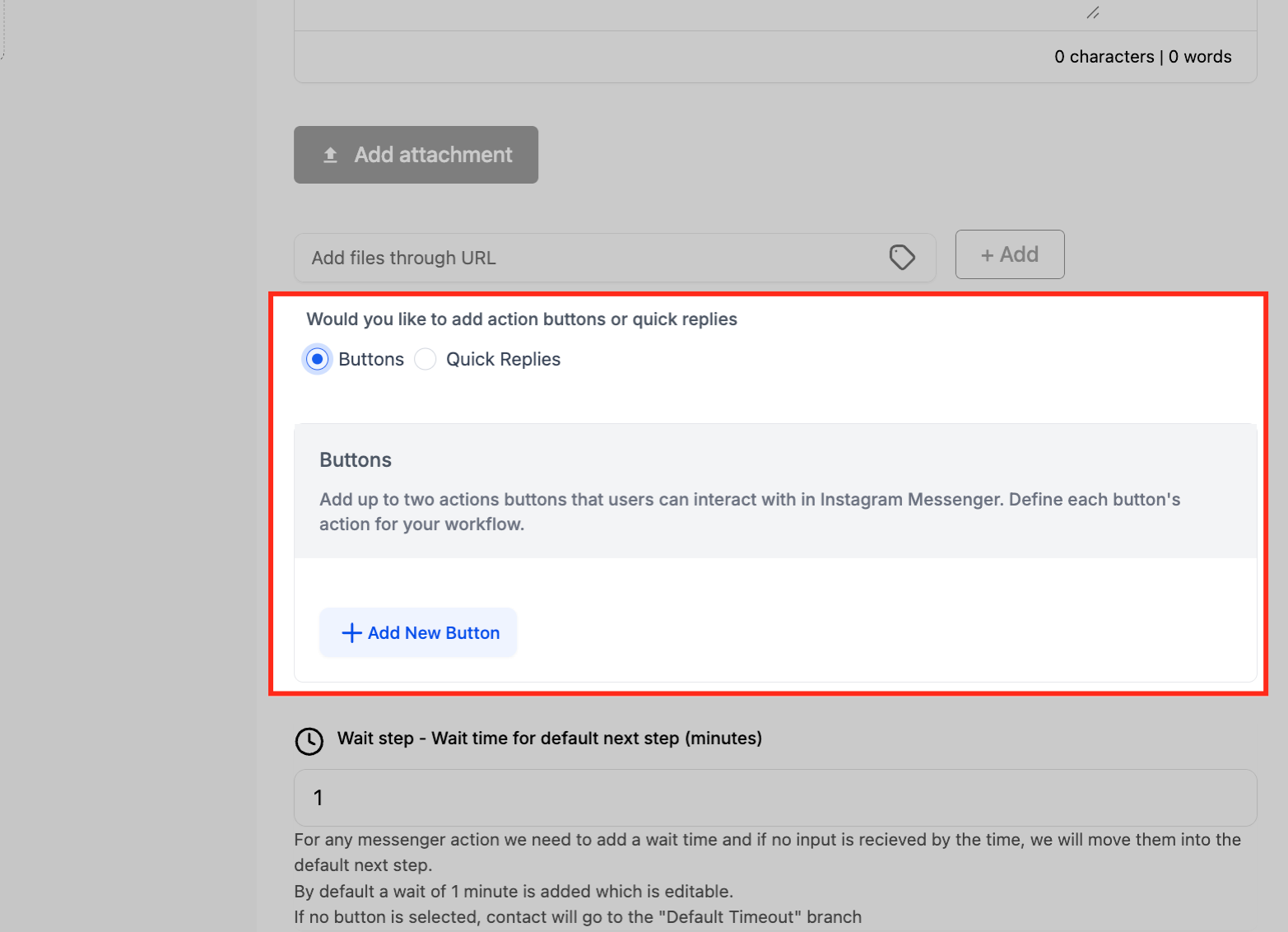
- Choose either Buttons or Quick Replies, configure their labels and actions, and attach them to the message.
- Each interactive option automatically creates a new branch; inside each branch add any further actions such as tags or follow up messages.
- Adjust the Wait Step duration; by default it is set to 1 minute, and define what should happen in the Default Timeout branch if the user does not respond.
07What it looks like in HighLevel
08Settings that matter
- Reply Type. Determines whether the automated DM replies to a public comment or to a private direct message.
- Action Name. Provides a readable identifier for the step, helping users locate it in complex workflows.
- Wait Step. Sets how long the system pauses for a user to interact with buttons or quick replies before moving to the timeout path.
09Things to know before you rely on it
- Meta limits automated DMs to within 24 hours of the last user interaction.
- Quick Replies cannot be included in a message that also contains an attachment.
- The Instagram Interactive Messenger action is unavailable unless the workflow uses an Instagram specific trigger.
10If something goes wrong
- The Instagram Interactive Messenger action appears greyed out.. Add an Instagram Comment on Post or Customer Reply (Instagram) trigger to the workflow so the action becomes selectable.
11How it connects to the rest of HighLevel
- Learn how to set up the Instagram DM action in a workflow. Configure Instagram DM action
- Get an overview of workflow basics before adding this action. Workflow basics
- Review plan options that include workflow automation. HighLevel pricing
Michael's take

I think the Instagram Interactive Messenger action is a handy tool for automating Instagram conversations within workflows.