
01Who this is for
- Marketing managers who run bulk email or SMS campaigns and need to avoid sending spikes that could hit provider limits.
- Operations teams that handle large lead imports and want to protect server performance while contacts enter a funnel.
- Customer support supervisors who assign tasks in batches to keep agents from being overloaded at once.
02Drip workflow actions, explained
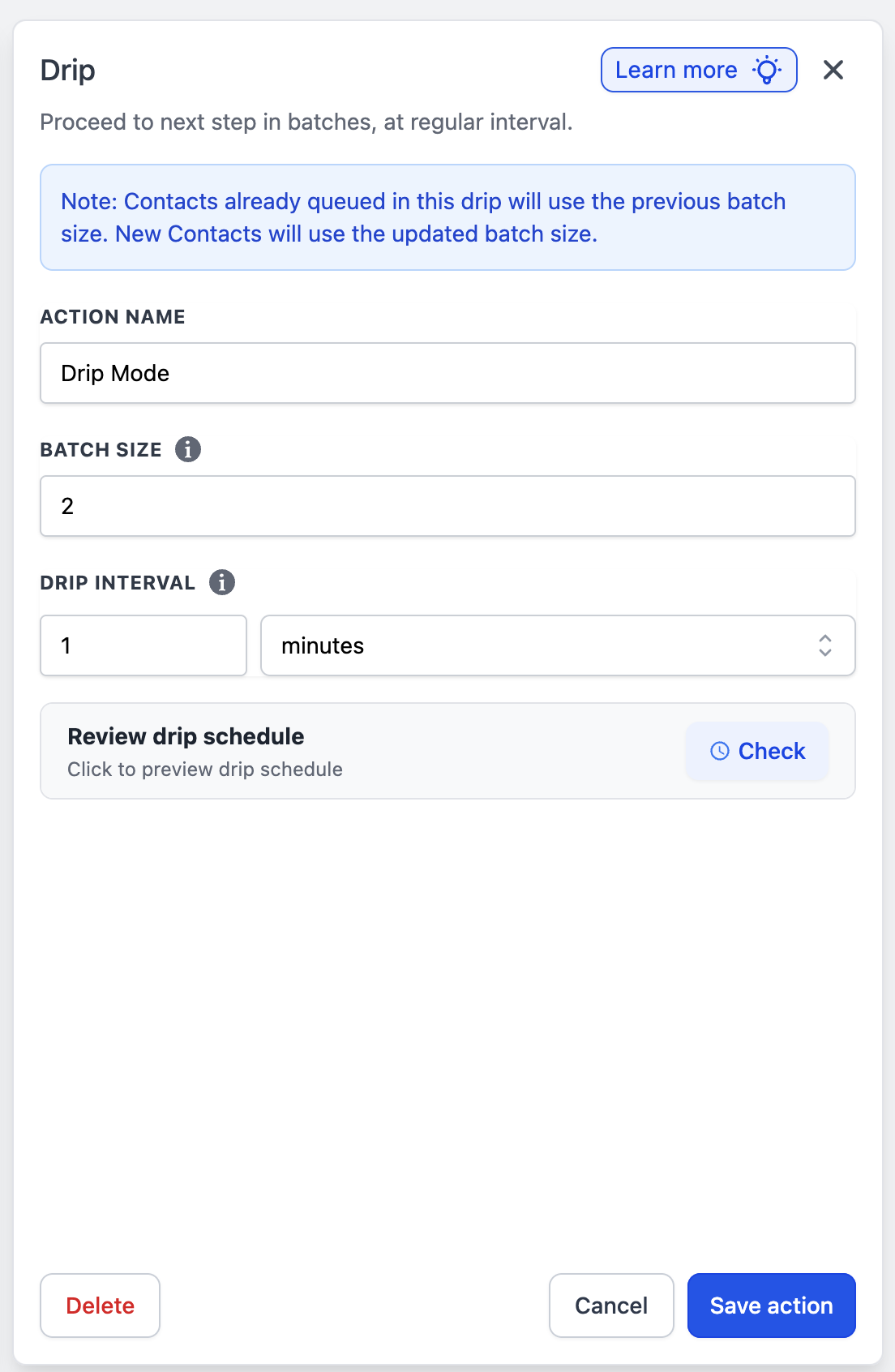
The Drip action sits inside a HighLevel workflow and releases contacts in groups rather than all at once. You decide how many contacts move forward each time (batch size) and how often a new batch starts (drip interval). The action works with any downstream step, such as sending emails, SMS messages, or creating tasks.
When you first add the action, a live preview shows the projected schedule for up to ten batches. If a Workflow Time Window is active, the preview warns you that some batches may shift to the next available slot. While the workflow is in Draft mode, any contacts waiting in the drip are paused, and they resume when the workflow is published again.
Statistics are available via an icon on the action. The view displays the number of contacts waiting, the next batch details, and a full batch schedule table. A warning appears if you change batch size or interval after contacts are already queued, indicating that existing contacts keep the older settings.
03How businesses use the drip workflow action
- Real estate agency. The agency adds a Drip action before a bulk email blast to new property listings. By setting a batch size of 200 and a 30 minute interval, the emails are sent gradually, staying within the provider’s rate limits and avoiding spam filters.
- Fitness studio. The studio creates a workflow that assigns new trial members to onboarding tasks. A Drip action with a batch size of 50 and a daily interval spreads task creation over the week, keeping staff workload even.
- Ecommerce store. The store uses a Drip action before a promotional SMS campaign. Configuring a batch size of 500 and a 15 minute interval ensures messages are sent in manageable groups, preserving carrier limits.
04The numbers and rules that matter
- Batch size can be set between 1 and 10,000.
- Drip interval can be minutes (1, 60), hours (1, 24), or days (1 to 7).
- Schedule preview shows up to 10 batches.
05How to set up and use the drip workflow action in HighLevel
Configure Drip action
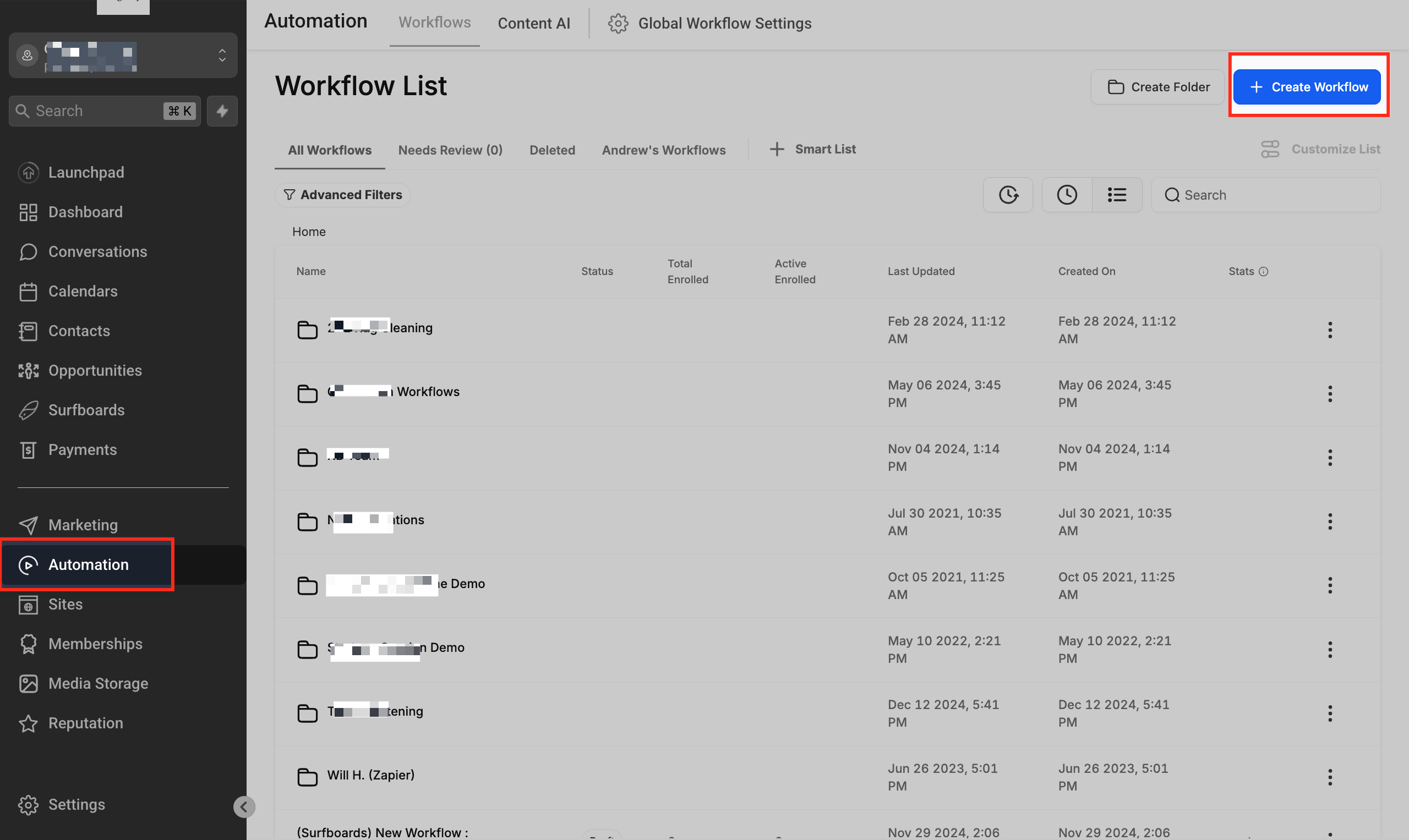
- Log in, open Automation > Workflows, and start a new workflow or edit an existing one.
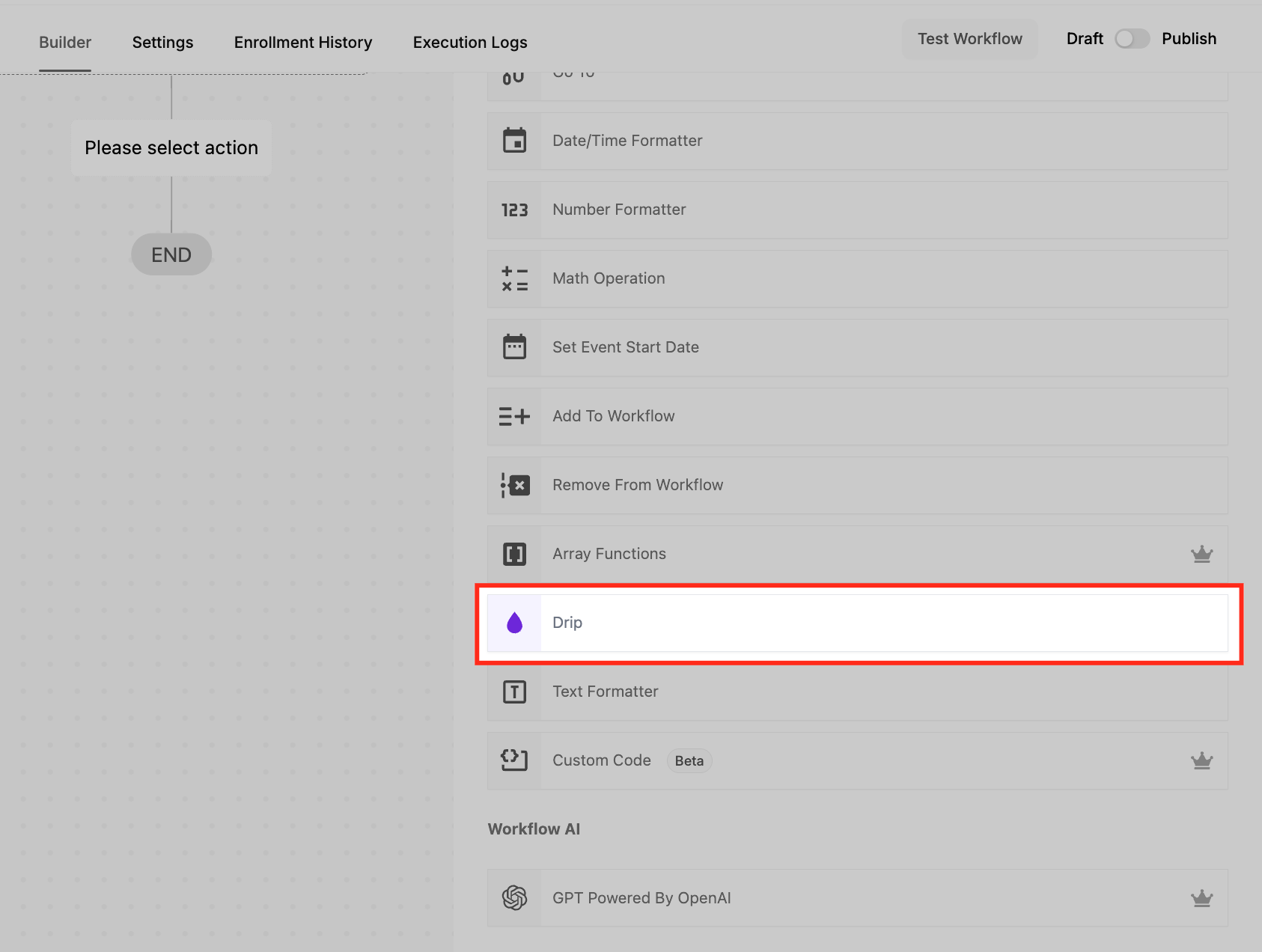
- Click the plus icon, search for ‘Drip’ in the action list, and select it.
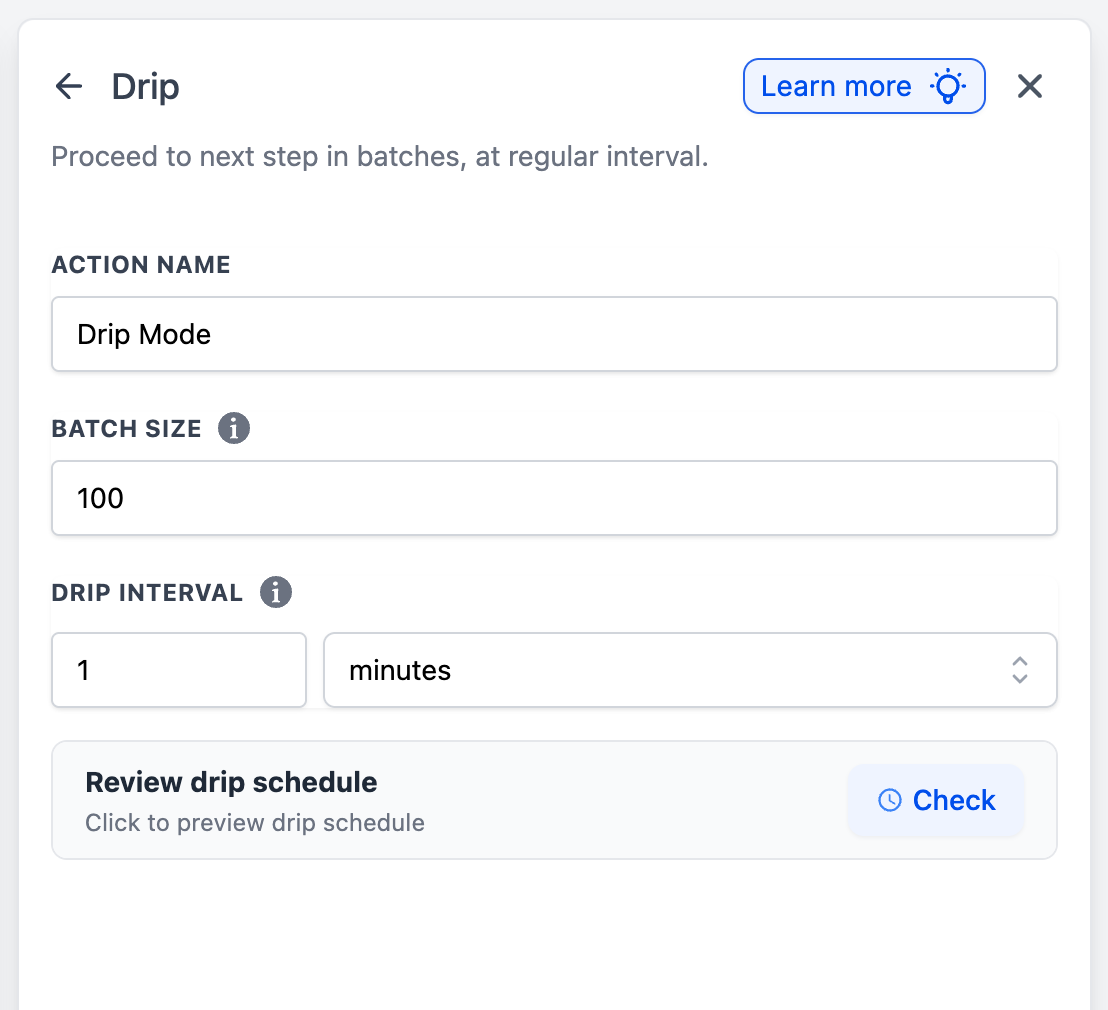
- Enter a clear name for the Drip action to identify it in the workflow.
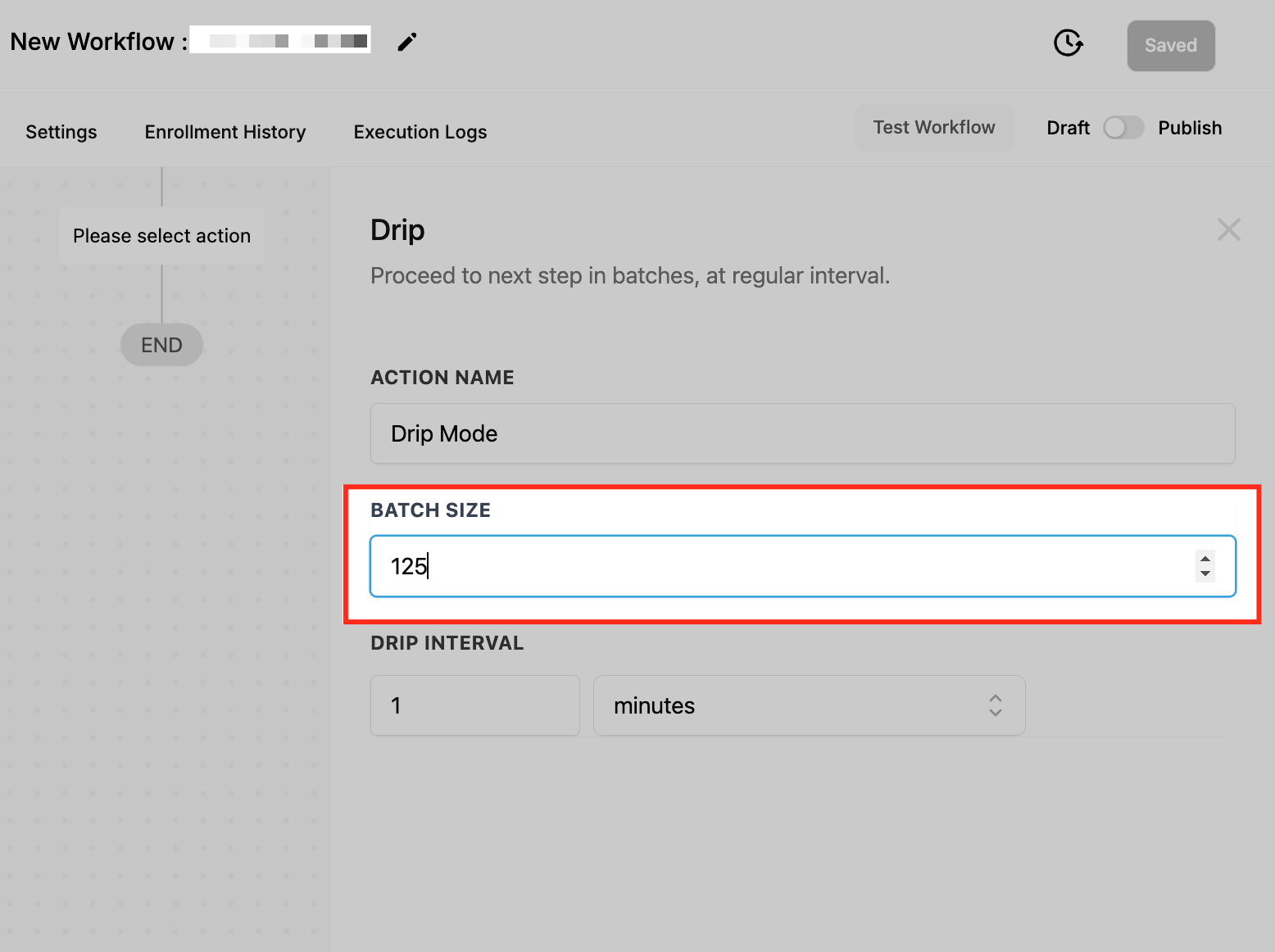
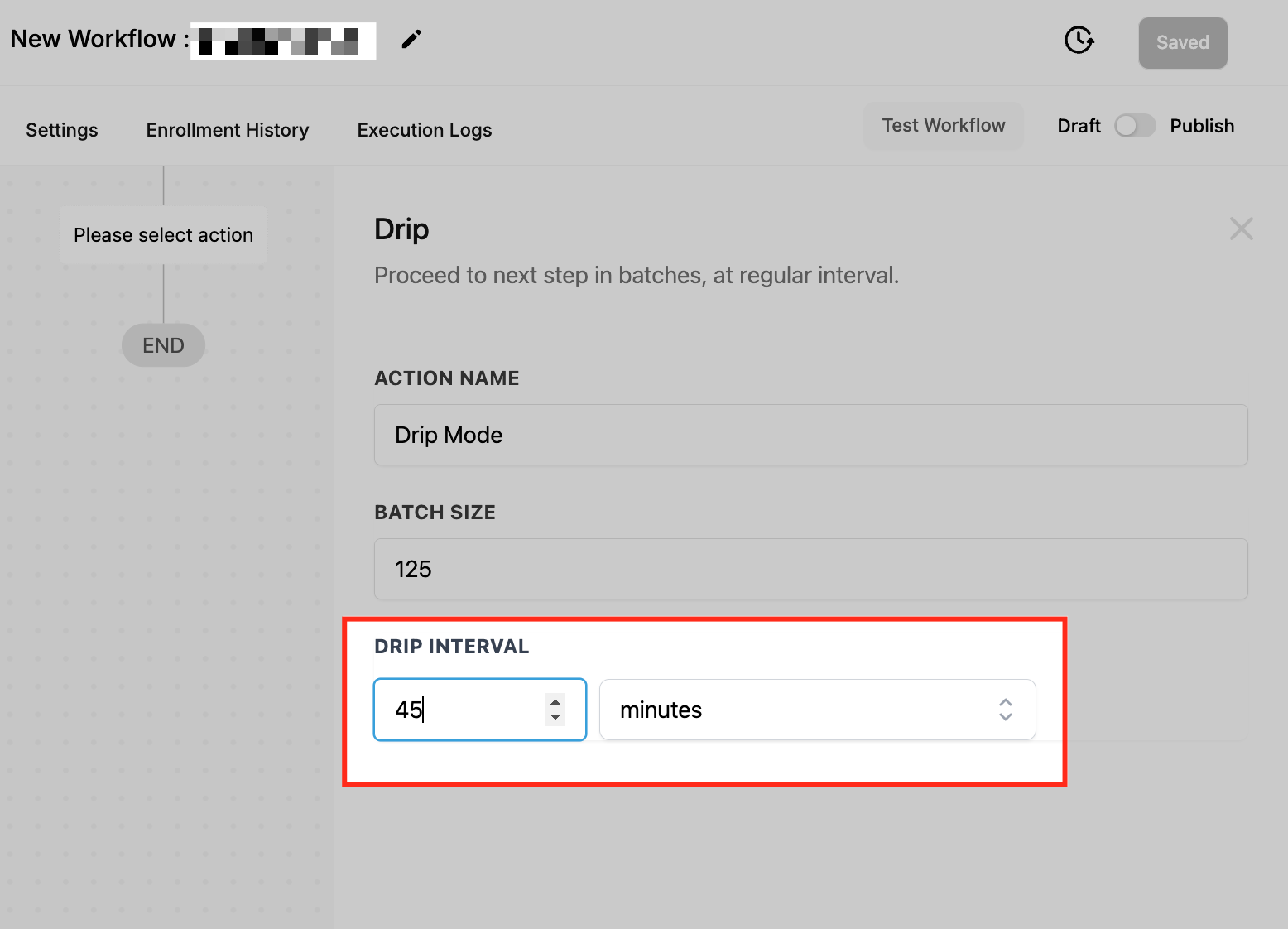
- Set the batch size, choosing any number from 1 to 10,000 for contacts per batch.
- Choose the drip interval, selecting minutes (1 to 60), hours (1 to 24), or days (1 to 7).
- If you modify the batch size or interval on a published workflow that already has contacts queued, note that an informational warning will appear stating existing contacts will keep the previous settings.
- Click Save, then Publish the workflow to activate the drip timing.
- Review the live schedule preview that shows up to ten batches and their projected send times; the preview is hidden when editing a Drip action that already contains contacts.
- When the workflow moves to Draft, contacts waiting in the drip are automatically paused until the workflow is published again.
06What it looks like in HighLevel
07Settings that matter
- Batch Size. Controls how many contacts move to the next step each time the drip runs.
- Drip Interval. Determines the time gap between each batch, selectable in minutes, hours, or days.
08Things to know before you rely on it
- Batch size can be set between 1 and 10,000 contacts.
- Drip interval options are 1 to 60 minutes, 1 to 24 hours, or 1 to 7 days.
- The schedule preview displays a maximum of ten batches.
- Changing batch size or interval only affects contacts that enter the drip after the change; existing contacts keep the previous settings.
- When a workflow moves to Draft, all contacts in the drip pause until the workflow is published again.
09How it connects to the rest of HighLevel
- Set up email sending inside a workflow Send Email action
- Add SMS messaging to a workflow Send SMS action
- Learn the basics of building workflows in HighLevel Workflow basics
Michael's take

In my experience, the Drip workflow action helps spread the load and protects deliverability.
Avoid setting a batch size so large that it defeats the purpose of pacing.