
01Who this is for
- Sales managers benefit because the action alerts the responsible rep right away when a lead hits a key trigger.
- Customer support teams use it to ensure timely outreach after a support ticket is opened.
- Appointment coordinators gain a quick way to remind staff of upcoming bookings via live calls.
02Call workflow actions, explained
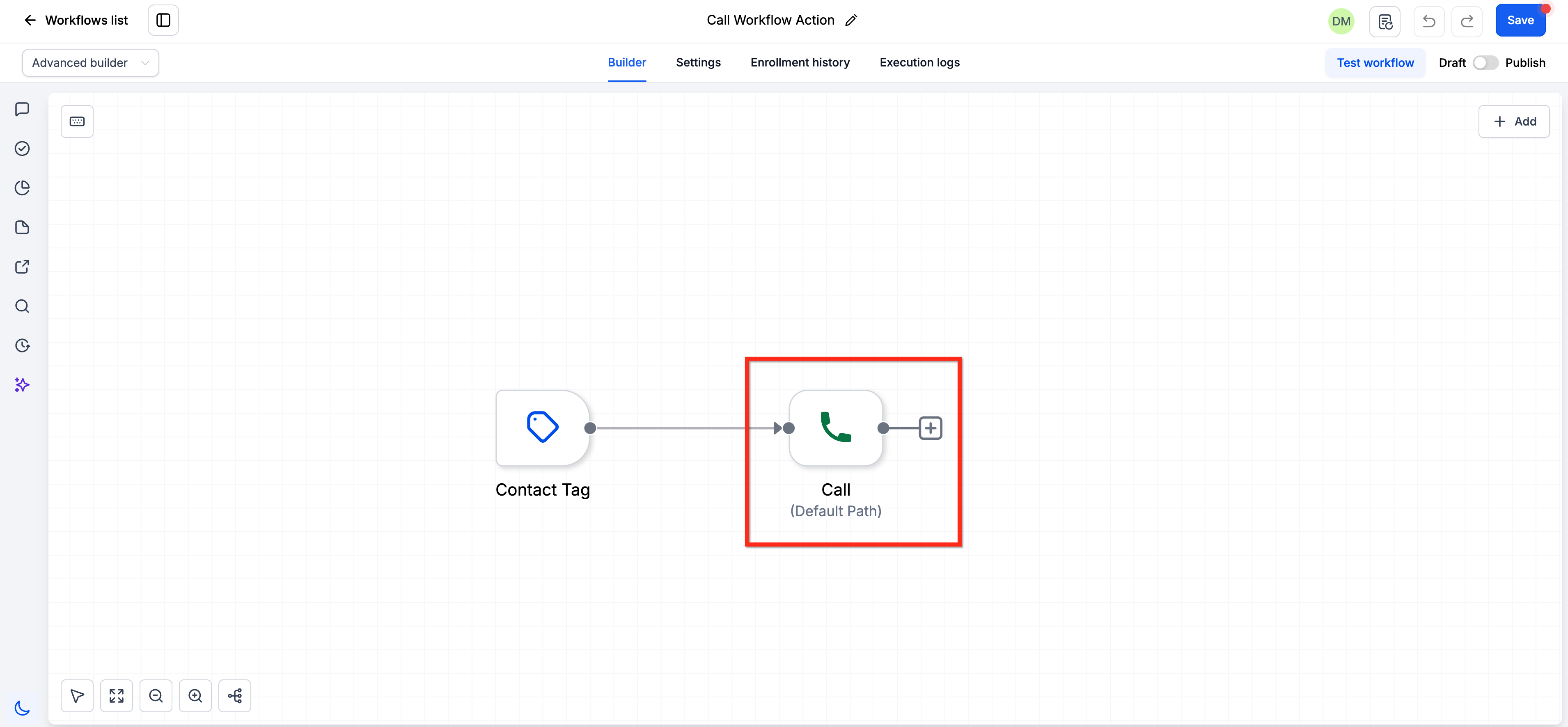
The Call action lives in the workflow builder. When a contact reaches this step, HighLevel calls the assigned user; if the contact has no owner, it dials the company phone number set in Settings > Company tab > Company Phone. After the internal recipient answers, a text to speech whisper plays, optionally awaiting a key press before HighLevel calls the contact and bridges the two calls.
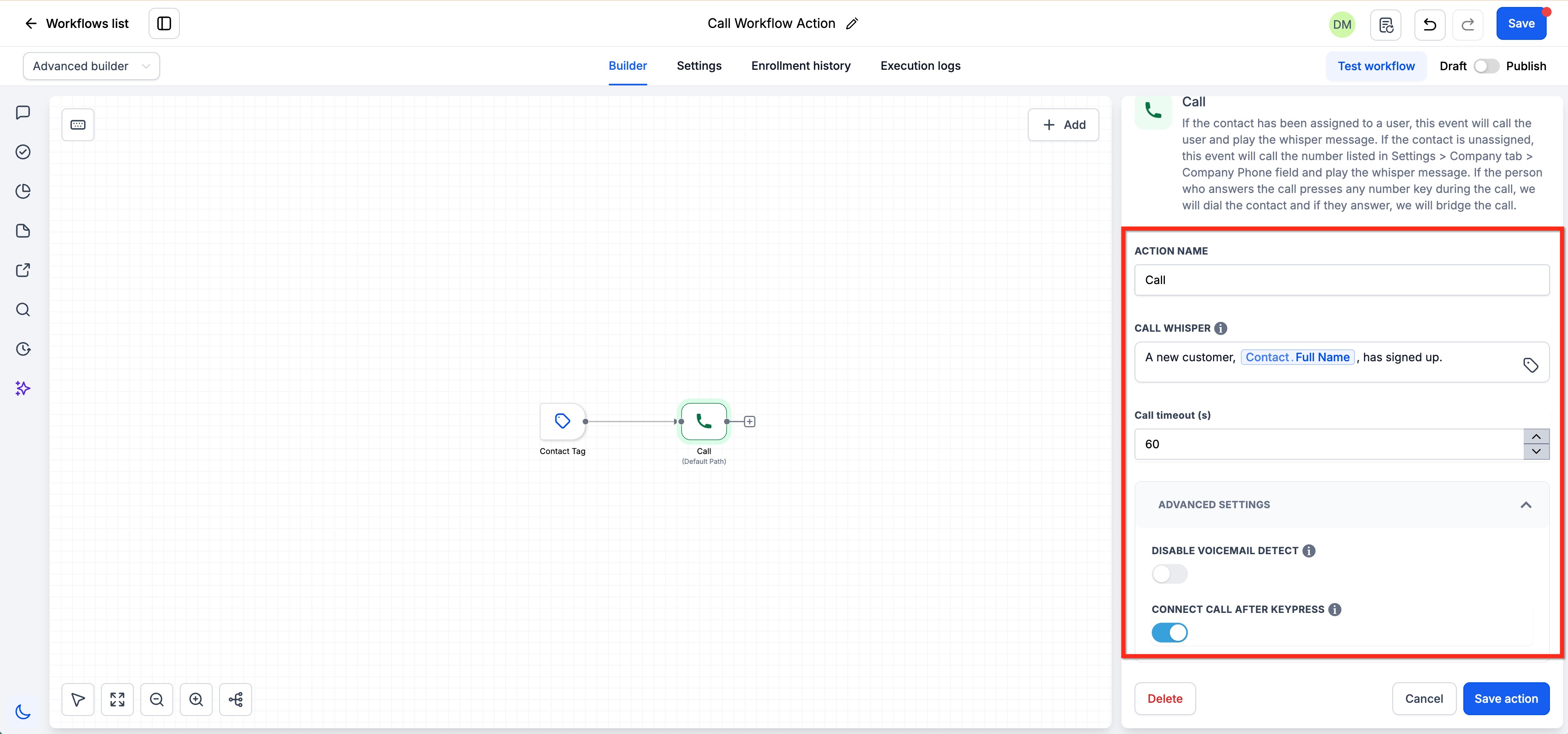
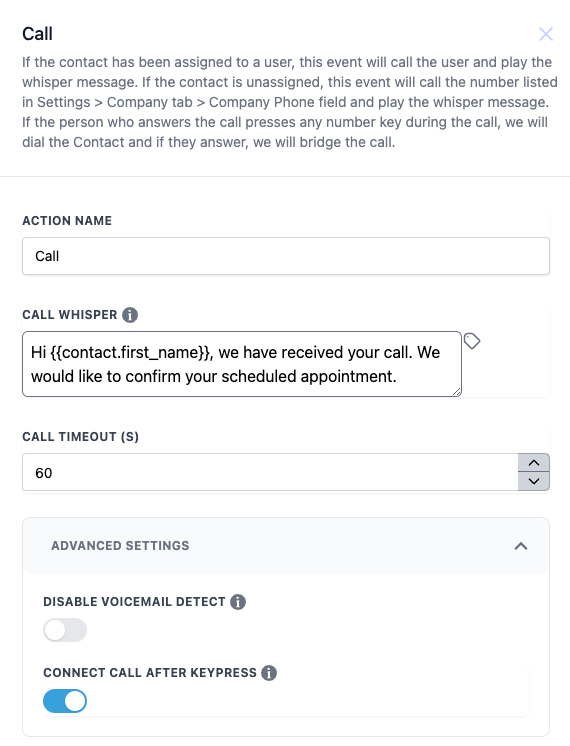
Configurable fields include an action name, a whisper message that can use custom values and repeats up to three times, a call timeout in seconds, and options to disable voicemail detection or require a key press to confirm a live answer.
03How businesses use the Call workflow action
- Real estate agency. Agents set the Call action to alert the assigned broker when a new property inquiry is submitted. The whisper tells the broker the buyer's name and property interest before the broker talks to the client.
- Dental practice. When a patient books an appointment, the workflow triggers a call to the front desk staff. The whisper includes the patient's name and appointment time, and staff confirm by pressing a key before the patient is called.
- Online coaching service. After a prospect fills a discovery form, the workflow initiates a call to the coach. A personalized whisper mentions the prospect’s name and the service they requested, then the coach connects directly with the prospect.
04The numbers and rules that matter
- Whisper message uses Text to Speech (TTS) billed at $0.00084 per 100 characters (per HighLevel's help center, checked November 2026).
- Whisper can play up to three times.
05How to set up and use the Call workflow action in HighLevel
Configure call workflow action
- Add the Call action by selecting it from the workflow action list.
- Enter a descriptive name for the step.
- Write the whisper message that will play before the call connects, using custom values if needed.
- Set the call timeout in seconds for how long HighLevel should try to reach the party.
- Configure advanced options such as disabling voicemail detection or requiring a key press to continue.
- Save the action to apply all settings.
06What it looks like in HighLevel
07Settings that matter
- Action Name. Defines a label for this specific call step, making it easy to identify in the workflow.
- Call Whisper. The spoken message played to the internal recipient; it can include dynamic fields and repeats up to three times.
- Call Timeout (s). Sets the maximum duration, in seconds, that HighLevel will try to reach the party before stopping.
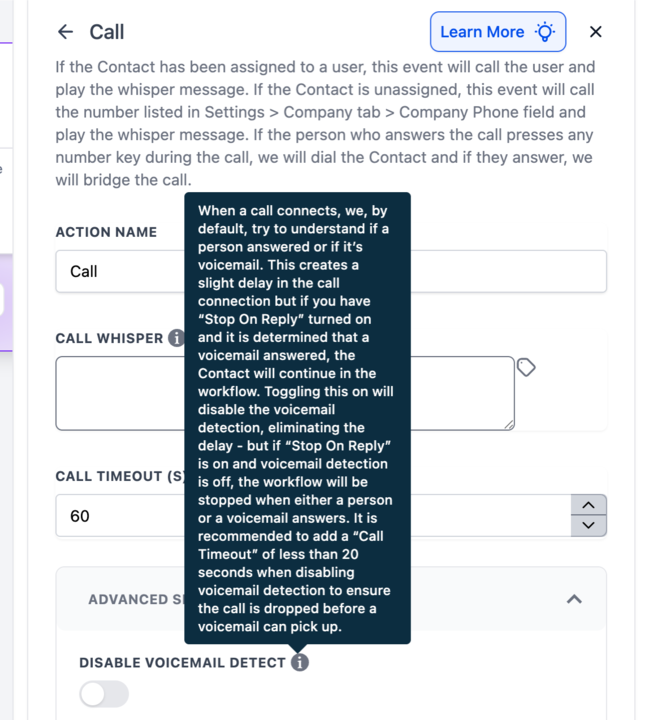
- Disable Voicemail Detect. When turned on, the system skips voicemail detection, which can speed up calls but may treat voicemail as a normal answer.
- Connect Call After Keypress. If enabled, the call proceeds to the contact only after the internal recipient presses a number key.
08Things to know before you rely on it
- The whisper message uses text to speech and is billed at $0.00084 per 100 characters (per HighLevel's help center, checked November 2026).
- If a contact lacks an owner, the first call uses the company phone number defined in Settings > Company tab > Company Phone.
- Voicemail detection is enabled by default and adds a brief delay before the call is considered answered.
- The whisper can repeat a maximum of three times before the call proceeds.
09How it connects to the rest of HighLevel
- Set up a manual call action for scenarios that require a human initiated dial. Manual Call action
- Add SMS notifications to complement call outreach for multi channel follow up. Send SMS action
- Create email alerts that work together with call actions for broader communication. Send Email action
Michael's take

When a lead needs an immediate human touch, the Call workflow action solves the bottleneck of manual dialing and ensures the right teammate is on the line with the right context. The first thing I would get right is the whisper message. A clear, concise prompt that tells the recipient who they’re about to speak with and why.
Once the whisper is solid, I’d test the routing for both assigned and unassigned contacts, making sure the company phone number is correctly set in Settings > Company. That way the automation works every time, no matter how the lead is staged.