
01Who this is for
- Founders who need accurate contact records for personalized messaging.
- Marketing teams that segment contacts based on field updates.
- Customer support managers who want to clear outdated custom data automatically.
02Update contact field, explained
The Update Contact Field action is part of the workflow builder. When a workflow reaches this step, it can either write a new value to a chosen contact field or, for custom fields only, remove the stored value. All changes are logged in the Execution Logs for audit purposes.
The action appears after you add it to a workflow canvas. You choose an Action Type, either Update field data or Clear field data, which determines the configuration fields you see. In Update mode you can enter a static value or switch to Dynamic Value to pull data from previous steps or existing contact fields. Clear mode empties selected custom fields, which may affect Smart Lists and downstream logic.
03How businesses use update contact field
- Dental practice. A dental office adds the action to a post appointment workflow. After confirming a visit, the workflow writes the appointment type into a custom field using a Dynamic Value, keeping each patient’s record current.
- Online retailer. An ecommerce store clears a custom “Last cart abandoned” field once a purchase is completed. The Clear field data option empties the field, preventing the contact from re entering abandonment campaigns.
- Fitness studio. A studio updates a member’s “Preferred class” field based on a survey response captured earlier in the workflow. Dynamic Values pull the survey answer and write it directly to the contact record.
04The numbers and rules that matter
- Dynamic Values are supported for Numeric, Select / Dropdown, and Monetary field types.
05Before you start
- All standard or custom fields you plan to update must already exist in the contact record.
06How to set up and use update contact field in HighLevel
Add update contact field action
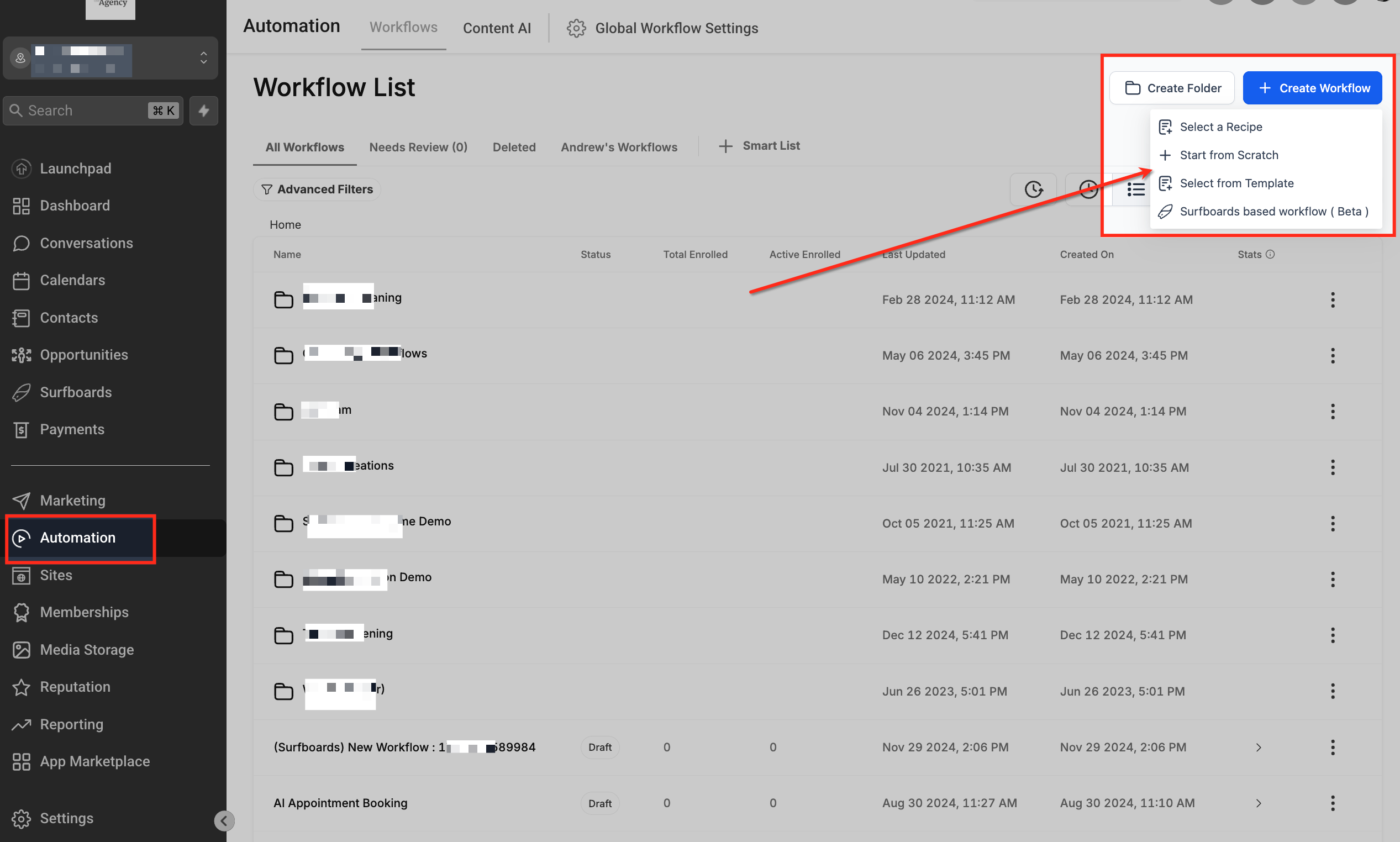
- Go to Automation > Workflows.
- Open an existing workflow or start a new one.
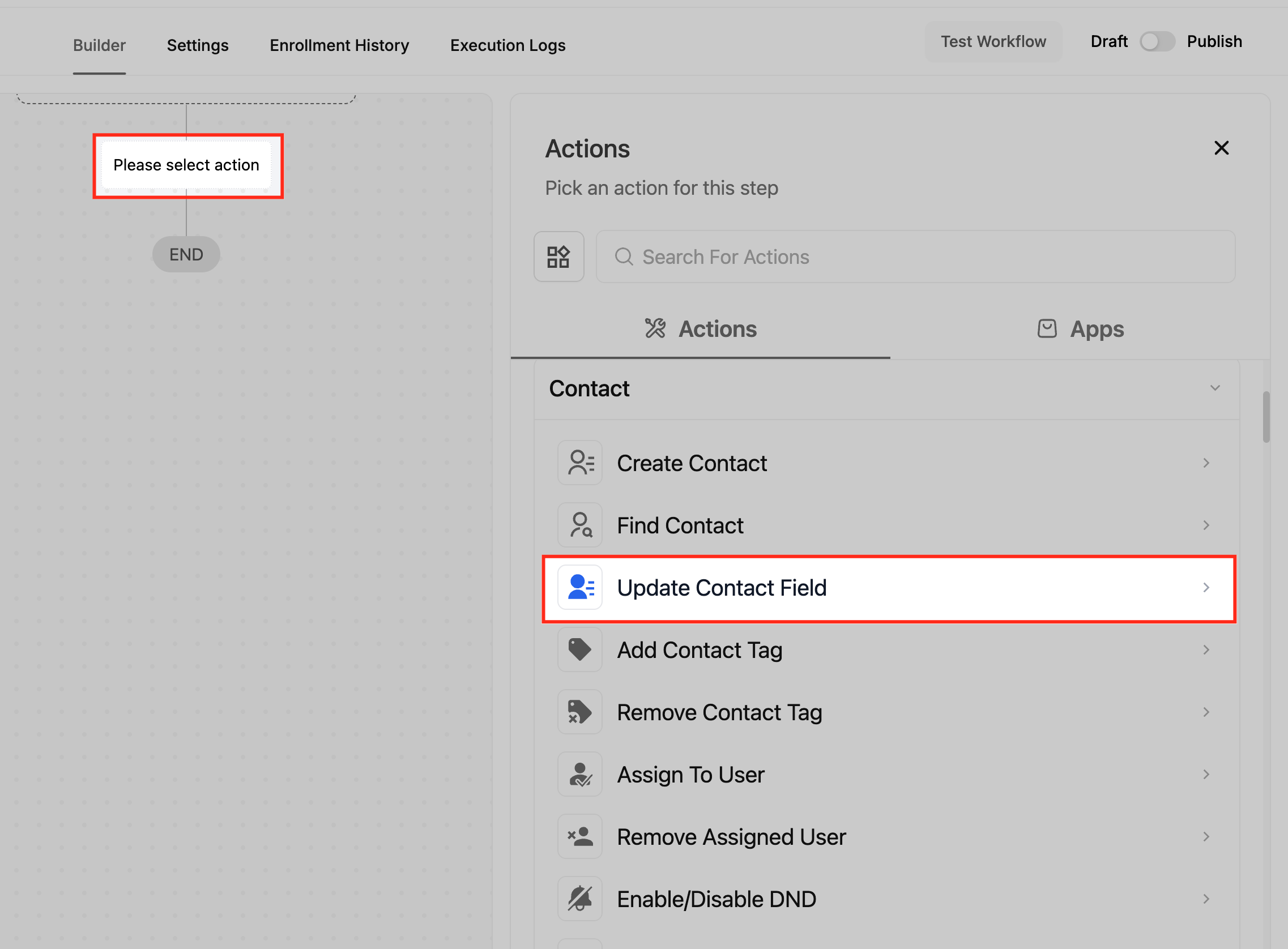
- Click the plus icon at the desired point in the canvas.
- Select Update Contact Field from the Actions panel.
Configure update field data
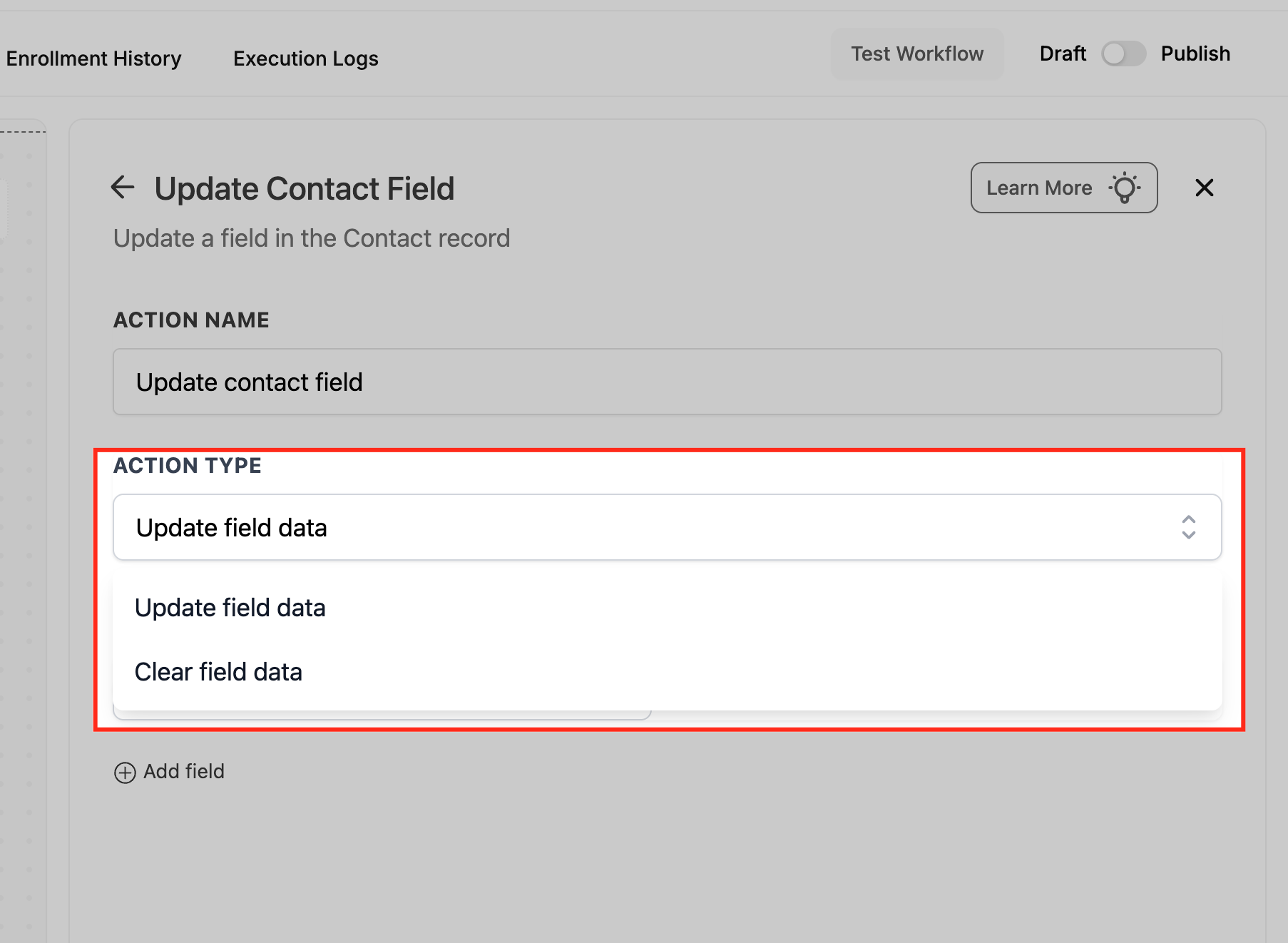
- Set Action Type to Update field data.
- Choose the target contact field.
- Enter a static value or switch the mode to Dynamic Value.
- If using a Dynamic Value, select a source such as an earlier workflow step output or a stored contact field.
- Make sure the value matches the field type requirements.
- Save and publish the workflow.
Configure clear field data
- Set Action Type to Clear field data.
- Select one or more custom fields to clear.
- Remember that clearing values can affect Smart Lists, filters, and workflow conditions; review dependencies before publishing.
- Save and publish the workflow.
Update multiple fields in one action
- In the Update Contact Field action, click Add field to add additional field rows.
- Configure each field as needed.
07What it looks like in HighLevel
08Settings that matter
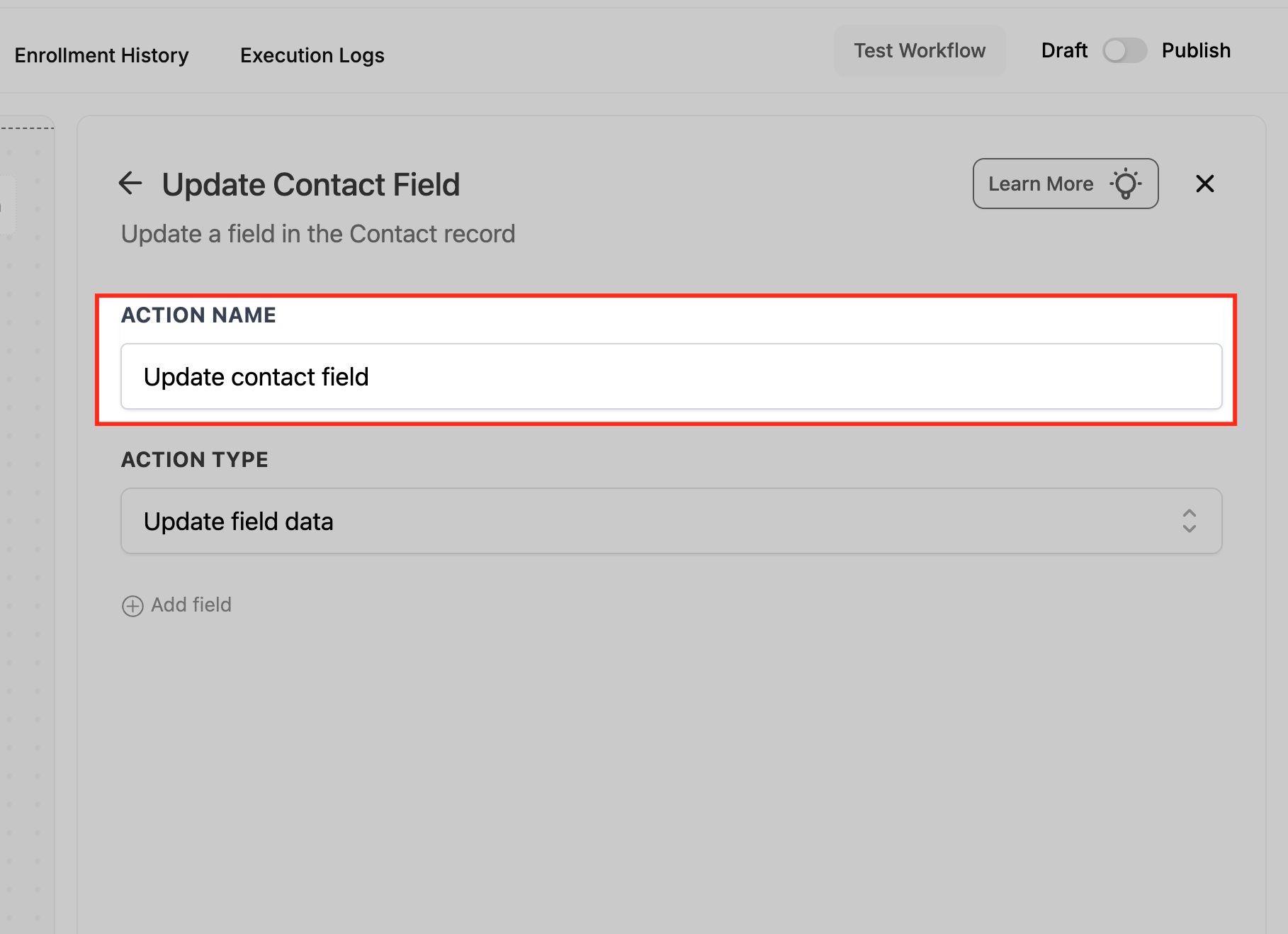
- Action Name. Provides a readable label for the action on the workflow canvas and in Execution Logs.
- Action Type. Determines whether the action writes a new value (Update field data) or removes an existing value (Clear field data).
- Dynamic Value. Allows the value for a field to be sourced from earlier workflow steps or existing contact fields at runtime.
09Things to know before you rely on it
- Dynamic Values work only with numeric, select dropdown, and monetary field types.
- Select dropdown fields do not require option IDs when updated via this action.
- Clear field data is limited to custom contact fields; standard fields cannot be cleared.
- The action cannot create new contact fields; only existing fields can be updated.
10If something goes wrong
- Update fails validation because the value format does not match the field type.. Check the field’s required format, adjust the value accordingly, and review the Execution Logs for details.
11How it connects to the rest of HighLevel
- Get started creating a workflow in HighLevel Workflow basics
- Control contact field timing and conditions in workflow settings Workflow settings
- Learn about workflow pricing tiers and plan eligibility Workflow pricing
Michael's take

People often think they have to type every value into the workflow, which quickly turns the process into a maintenance nightmare. Instead, I lean on Dynamic Values so the data flows straight from the step that generates it, keeping everything current without extra mapping.
If I were setting this up, I’d first map the key data points I need to capture, then replace any static entries with Dynamic Values. I’d run a few contacts through the workflow, watch the Execution Logs, and make sure no validation errors appear before I go live.