
01Who this is for
- Sales managers who need to keep their pipeline free of stale deals, ensuring reports reflect current prospects.
- Marketing teams that automate lead nurturing and want to remove opportunities once a campaign ends.
- Customer success directors who archive closed or cancelled contracts to maintain accurate opportunity counts.
02Remove opportunity actions, explained
The Remove Opportunity action is a workflow step that deletes an opportunity linked to a contact. It works inside the HighLevel automation builder and can be added after any trigger or previous action. The action offers two selection modes: delete every opportunity the contact holds in the chosen pipeline, or delete only the opportunity that caused the workflow to run or was identified by an earlier step.
When the action runs, the platform removes the selected opportunity record. Each deleted opportunity can be restored within a two months window, but restoration must be done one at a time. The action does not affect other contact data or pipeline stages.
You find this action under Automations > Workflows. After opening or creating a workflow, add a new action, then pick "Remove Opportunity" from the list. Configure the option you need, save, and the workflow will handle the deletion whenever it reaches that step.
03How businesses use remove opportunity action
- Real estate agency. The agency creates a workflow that runs when a property listing expires. Using the Remove Opportunity action, it deletes the stale listing opportunity for the client, keeping the agent's pipeline focused on active listings.
- Dental practice. After a patient cancels a treatment plan, the practice triggers a workflow that removes the associated opportunity. This ensures the practice's sales funnel reflects only ongoing treatment opportunities.
- Online coaching business. When a coaching program enrollment is marked as completed, a workflow runs that removes the enrollment opportunity, preventing completed clients from appearing in future prospect reports.
04The numbers and rules that matter
- Once removed, an opportunity can be recovered within 2 months, but only individually, not in bulk.
05How to set up and use remove opportunity action in HighLevel
Create or edit a workflow
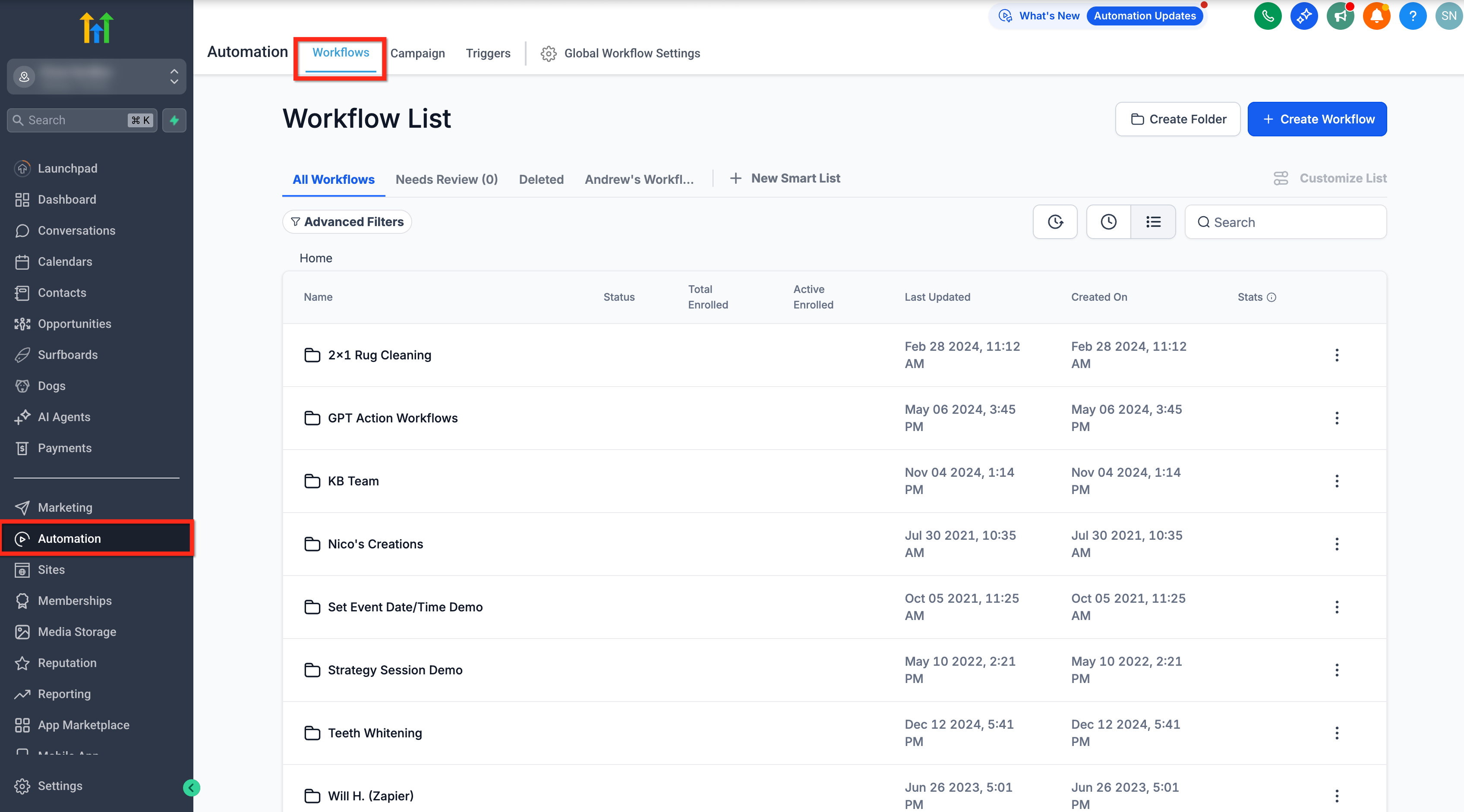
- Open Automations from the main navigation.
- Select Workflows.
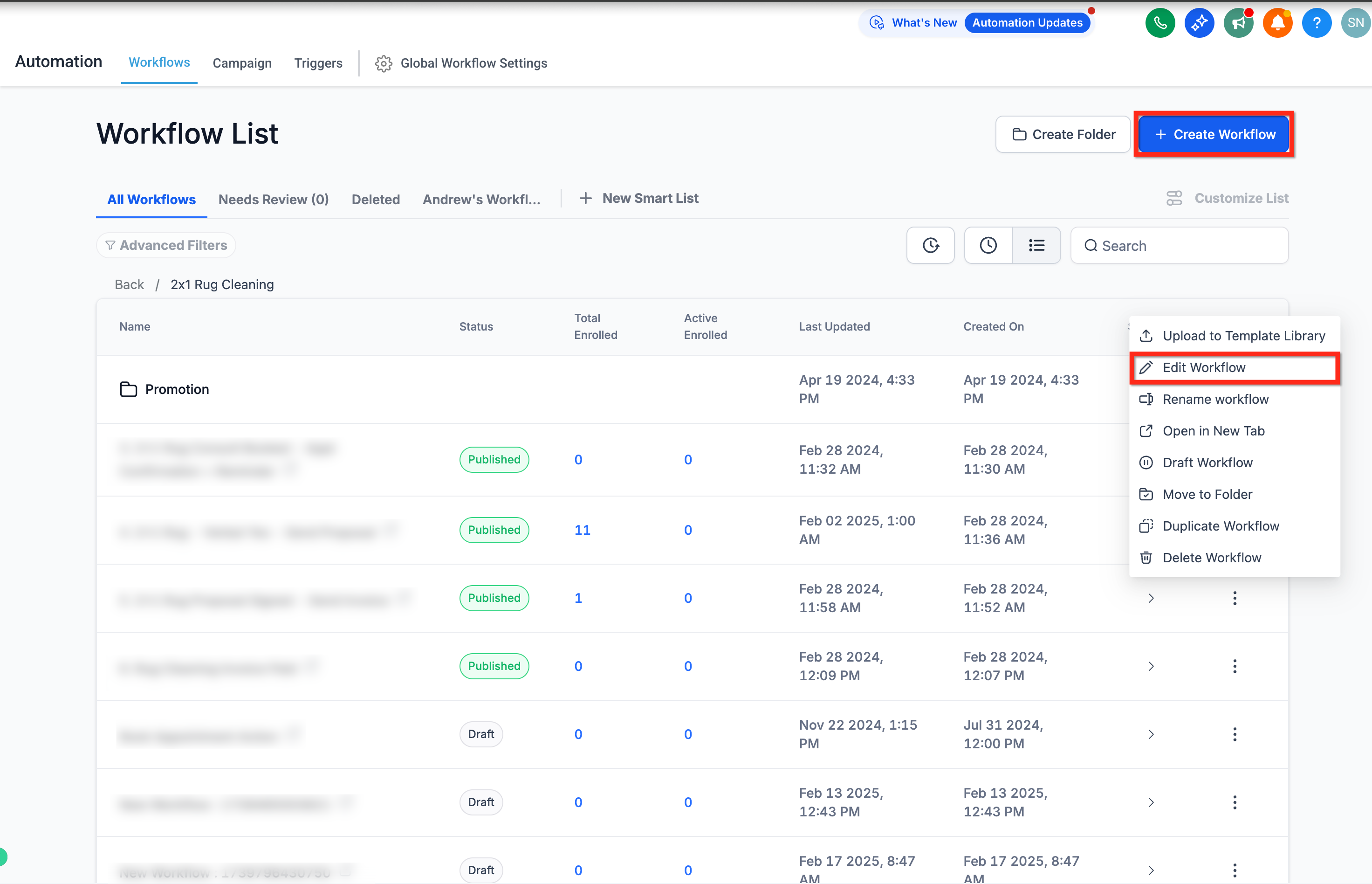
- Click the + Create Workflow button to start a new workflow, or locate an existing workflow and click the three dots beside it.
- Click Edit Workflow from the menu to modify the selected workflow.
Add remove opportunity action
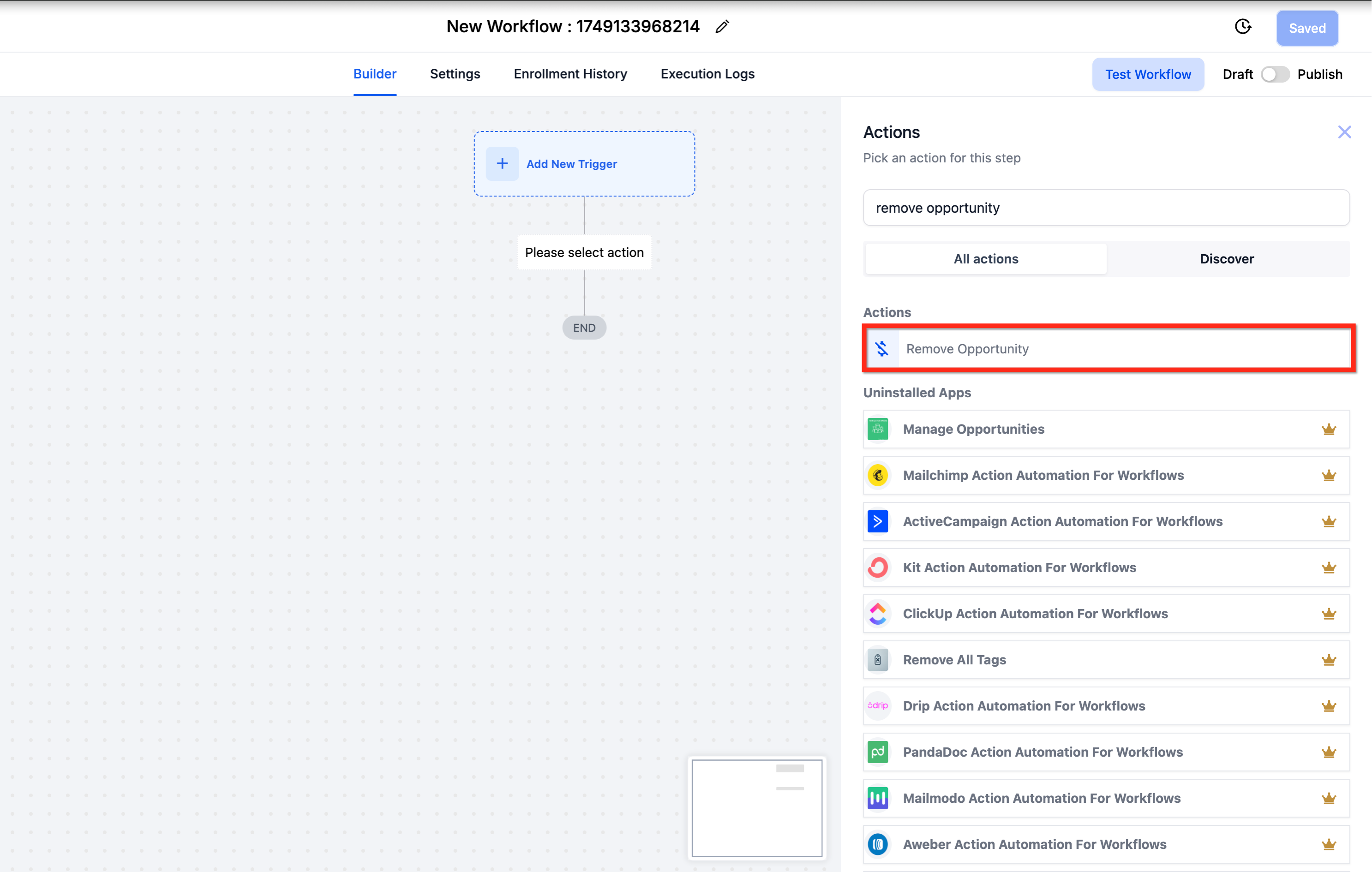
- Add a new Action block inside the workflow canvas.
- From the action picker, select Remove Opportunity.
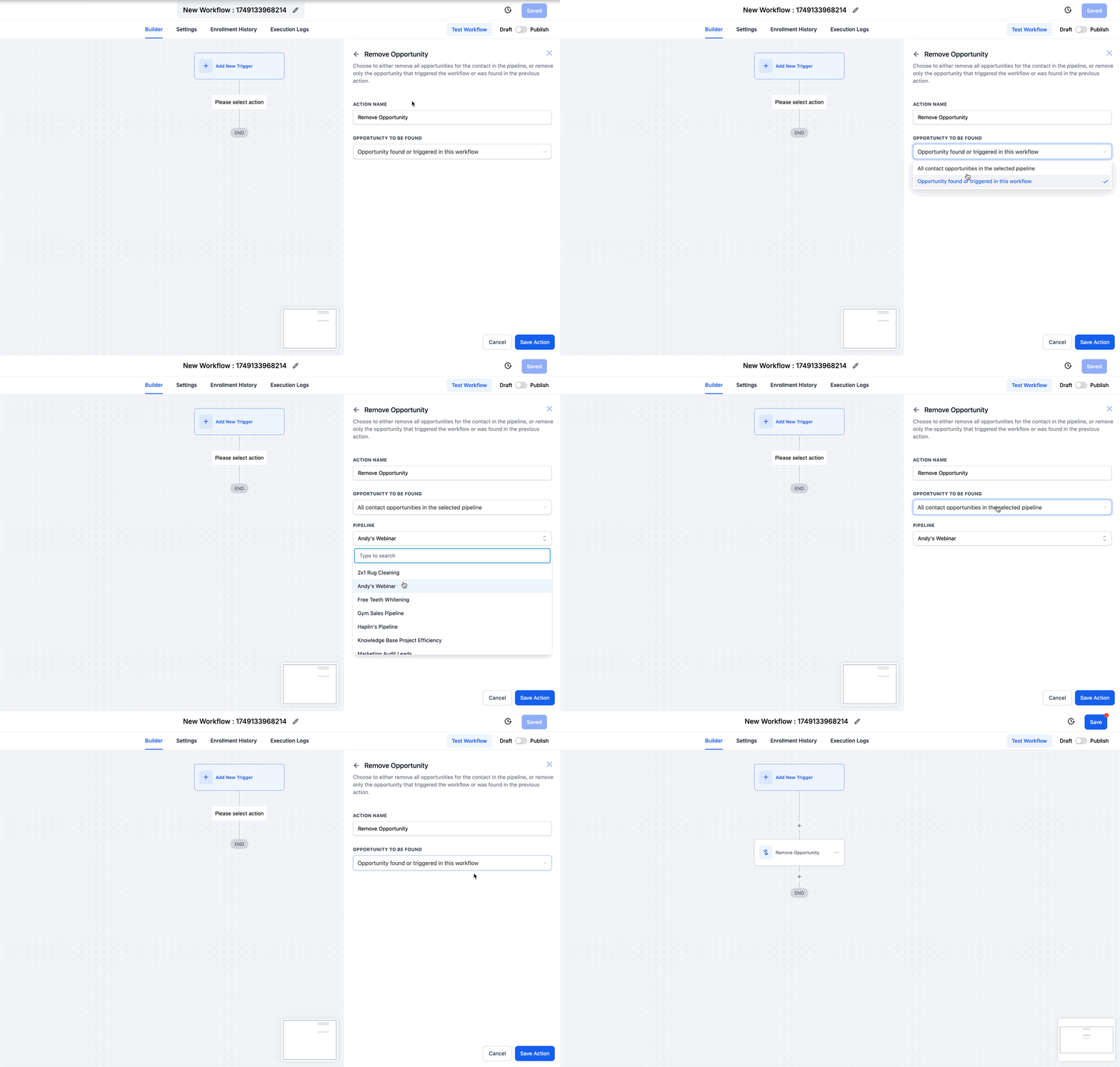
- Pick the option to Remove all opportunities for the contact in the pipeline, or choose to Remove only the opportunity that triggered the workflow or was found in the previous action.
- Confirm your selection.
- Click Save Action to store the configuration.
06What it looks like in HighLevel
07Settings that matter
- Remove all opportunities for the contact in the pipeline. Deletes every opportunity linked to the contact within the selected pipeline when the action runs.
- Remove only the opportunity that triggered the workflow or was found in the previous action. Deletes just the single opportunity that caused the workflow to start or was identified by an earlier workflow step.
08Things to know before you rely on it
- A removed opportunity can be recovered within two months, but recovery must be performed individually, not in bulk.
- Use the action carefully because deletion removes the opportunity from the pipeline permanently after the recovery window.
09How it connects to the rest of HighLevel
- Create Opportunity workflow action Create Opportunity
- Update Opportunity action details Update Opportunity
- Remove Owner from Opportunity action Remove Owner
Michael's take

People often think the Remove Opportunity action is a bulk delete tool they can roll out without thinking.
In reality, once an opportunity is removed it can only be recovered one by one, and only for two months.
I would set up a simple test workflow, choose the ‘remove only the triggering opportunity’ option, and watch the recovery window.