
01Who this is for
- Sales managers can ensure every opportunity has a responsible user without manual steps.
- Customer success teams can keep contact and opportunity owners aligned as accounts move through pipelines.
02Add Owner to Opportunity, explained
The Add Owner to Opportunity action lets a workflow set a specific user as the owner of an opportunity. When the action runs, the chosen user replaces any existing owner unless the toggle to apply only to unassigned opportunities is turned on. If the platform is set to sync contact and opportunity owners, the contact’s owner updates at the same time.
The action only works when an opportunity is already present in the workflow context, either because the workflow was triggered by an opportunity or a previous Find Opportunity step located one. If no opportunity is found, the step is skipped. When multiple opportunities are returned by a Find step, only the opportunity selected by that step (earliest or latest) is updated.
03How businesses use add owner to opportunity
- Real estate agency. A workflow can locate a property listing opportunity and use Add Owner to Opportunity to assign the listing to the appropriate agent. The agent becomes the owner of the opportunity and, if sync is enabled, also gains ownership of the related client contact.
- SaaS startup. When a trial conversion meets a value threshold, a Find Opportunity step identifies the matching deal. The Add Owner to Opportunity action then assigns the senior account manager as the owner, ensuring the deal is handed off for upsell work.
- Recruitment firm. A workflow identifies a high priority candidate opportunity and adds the recruiting lead as the owner. This automatically updates the candidate’s contact owner if the platform is set to keep owners in sync.
04Before you start
- An opportunity must be present in the workflow context, either from the trigger or a prior Find Opportunity step.
- If you want contact ownership to change together with the opportunity, ensure the sync option is enabled in Opportunity Settings.
05How to set up and use add owner to opportunity in HighLevel
Set up Add Owner to Opportunity action
- Open the workflow builder where you want to add the action.
- Select the Add Owner to Opportunity action from the list of available actions.
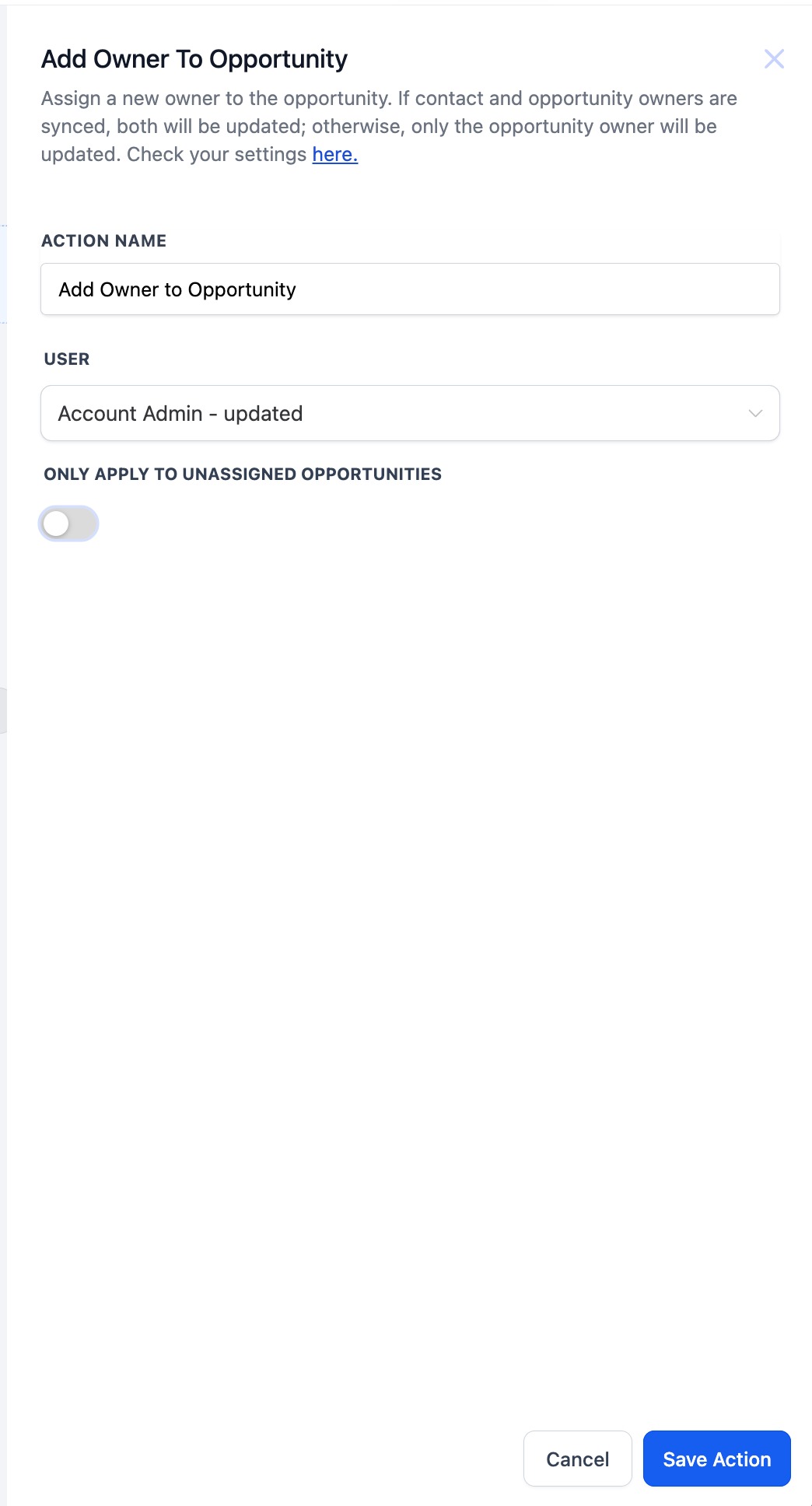
- Enter a unique Action Name to identify the step within the workflow.
- Choose the User that should become the new opportunity owner from the dropdown.
- Toggle Only Apply to Unassigned Opportunities on or off according to your rule.
- Save the action configuration.
- Verify that a Find Opportunity step or a trigger provides an opportunity in context.
Verify sync settings (optional)
- Navigate to Opportunity Settings.
- Confirm that the option to sync contact and opportunity owners is enabled if you want the contact owner to update automatically.
06What it looks like in HighLevel
07Settings that matter
- Action Name. Provides a label to distinguish this step inside the workflow.
- User. Specifies which platform user will be set as the opportunity’s owner.
- Only Apply to Unassigned Opportunities. When enabled, the action runs only if the opportunity currently has no owner; otherwise it overwrites any existing owner.
08Things to know before you rely on it
- If no opportunity is present in the workflow context, the action does nothing.
- When multiple opportunities are returned by a Find step, only the single opportunity selected by that step is updated.
- Overriding an owner replaces the current owner even if another user is already assigned.
09How it connects to the rest of HighLevel
- Create an opportunity before assigning an owner Create Opportunity action
- Locate the opportunity to assign using the Find Opportunity action Find Opportunity action
- Remove an owner from an opportunity if needed Remove Owner action
Michael's take

Adding an owner automatically feels like a small convenience that can become a real shift for a sales team that stops hunting for the right rep.
A boutique B2B consultancy that assigns every new high value prospect to its senior partner will find this action fits perfectly. The contact’s owner updates too if sync is enabled.