
01Who this is for
- Sales managers can keep deal stages aligned with automated triggers, reducing manual record updates.
- Founders of small businesses can ensure that opportunity values reflect real time engagement without extra effort.
- Marketing directors can move contacts into the right pipeline based on campaign actions, keeping data consistent.
02Update opportunity actions, explained
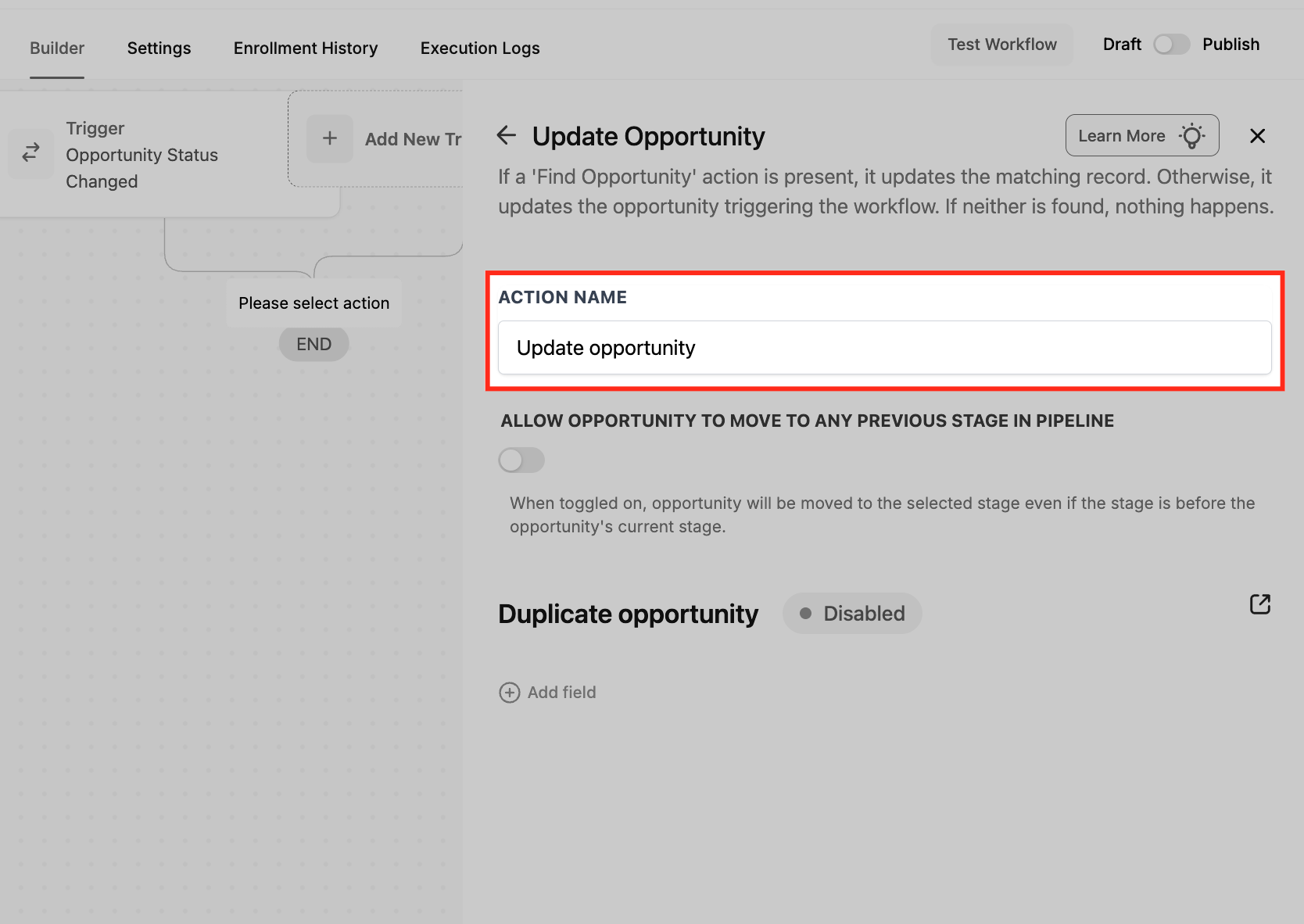
The Update Opportunity action edits an existing opportunity record inside the platform. It can change the pipeline, stage, name, value, source and status based on dynamic inputs such as merge fields. The action lives in the Opportunity section of the workflow builder actions list. When the workflow runs, the specified fields are overwritten on the opportunity that is already in context.
If the workflow does not have an opportunity in context, the step is skipped. Backward stage movement is blocked by default; enabling a toggle allows it. The Duplicate Opportunity toggle is present but does not create a new record.
03How businesses use the update opportunity action
- Real estate brokerage. When a lead completes a property tour form, the broker’s workflow updates the opportunity to the “Showing Completed” stage and sets the expected commission value using the lead’s budget field.
- SaaS startup. A trial to pay workflow changes the opportunity’s pipeline to “Closed Won” and updates the contract amount with the quoted price stored on the contact record.
- Coaching business. After a prospect books a discovery call, the workflow moves the opportunity to the “Discovery Call” stage and records the source as the webinar that generated the lead.
04Before you start
- The workflow must include an opportunity context, either by using an opportunity based trigger or by adding a Find Opportunity step before the update.
05How to set up and use the update opportunity action in HighLevel
Add update opportunity action
- Click the plus icon under the trigger and select Update Opportunity from the Opportunity actions list.
- Enter a descriptive label in the Action Name field.
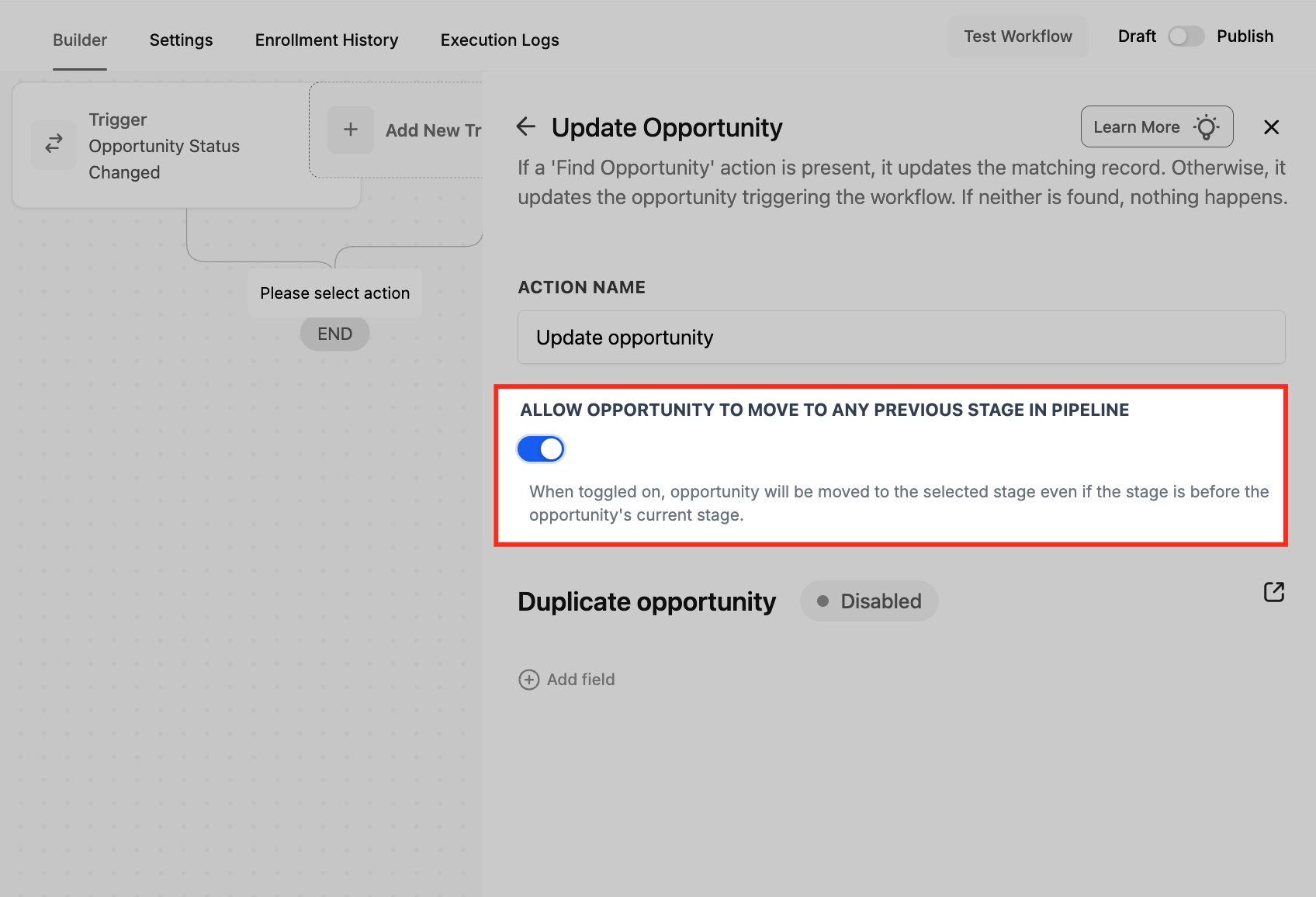
- Turn on the “Allow Opportunity to Move to Any Previous Stage” toggle if backward movement is needed.
- Observe the Duplicate Opportunity toggle, noting it does not create a new record.
- Press the Add field button to open the list of updatable opportunity fields.
- Choose the desired pipeline from the Pipeline filter dropdown.
- Pick the target stage within that pipeline.
- Set the opportunity’s status (Open, Won, Lost, etc.).
- Fill in the Opportunity Source and Opportunity Value fields as needed.
- Click Save Action to store the configuration.
06What it looks like in HighLevel
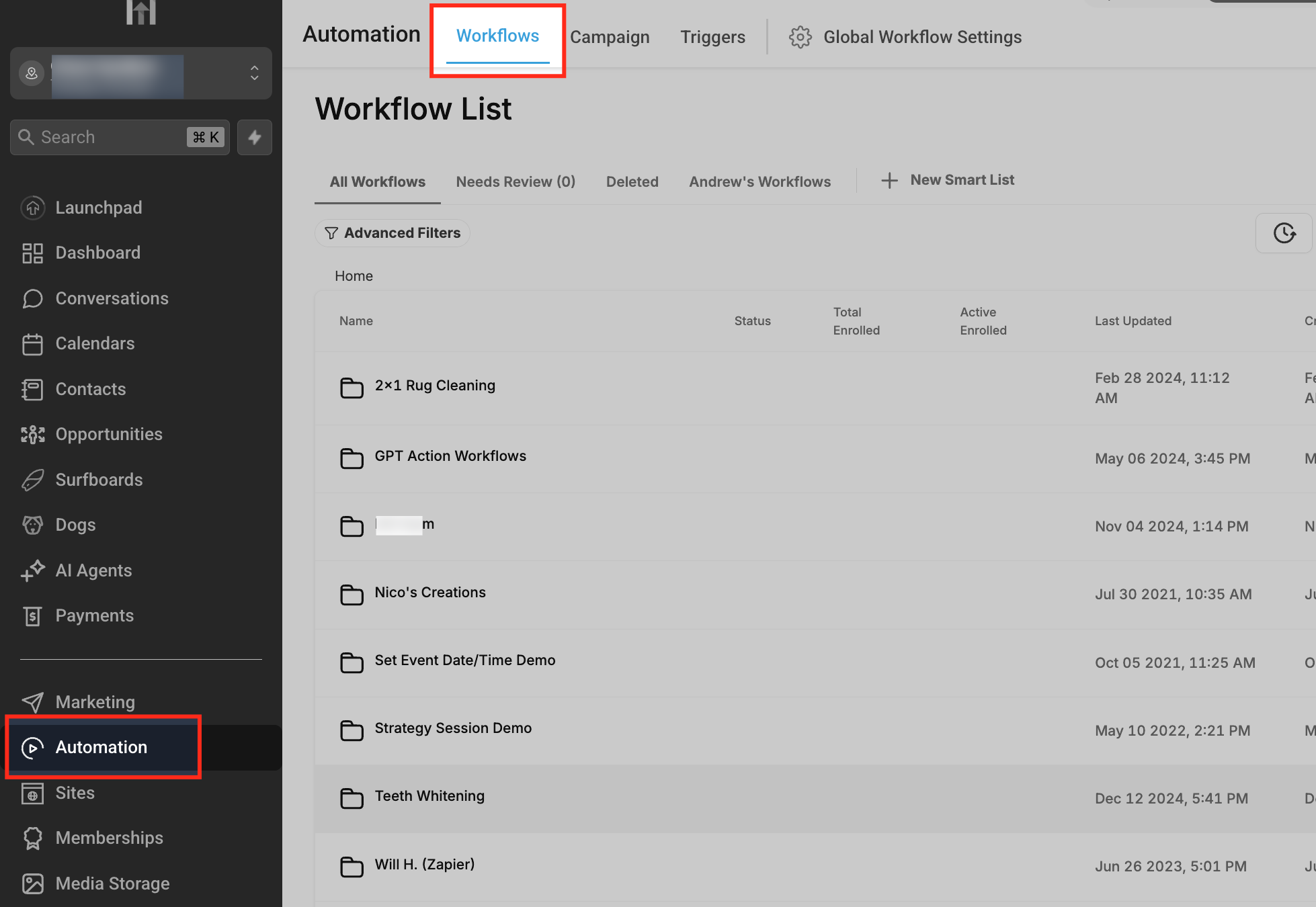
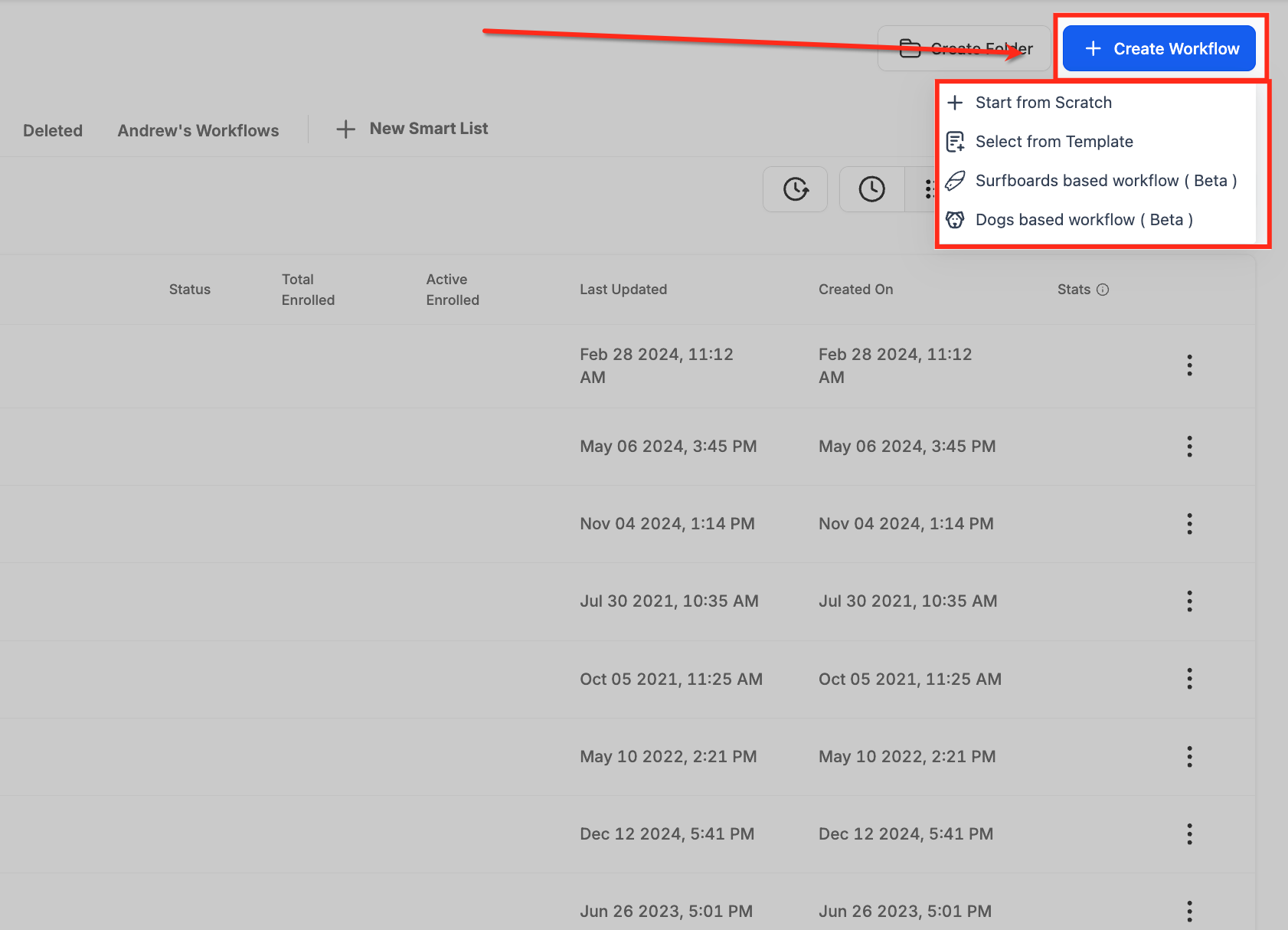
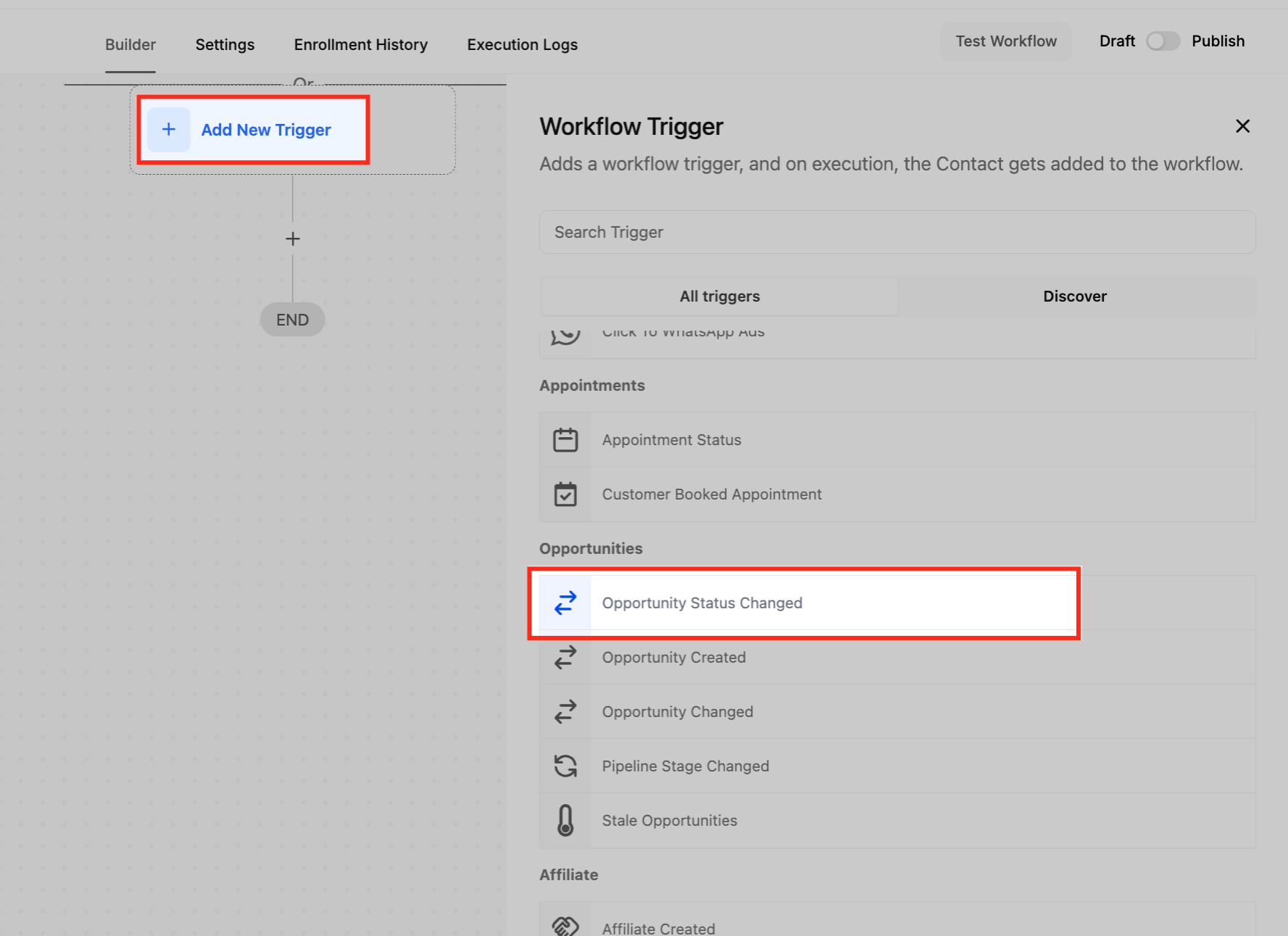
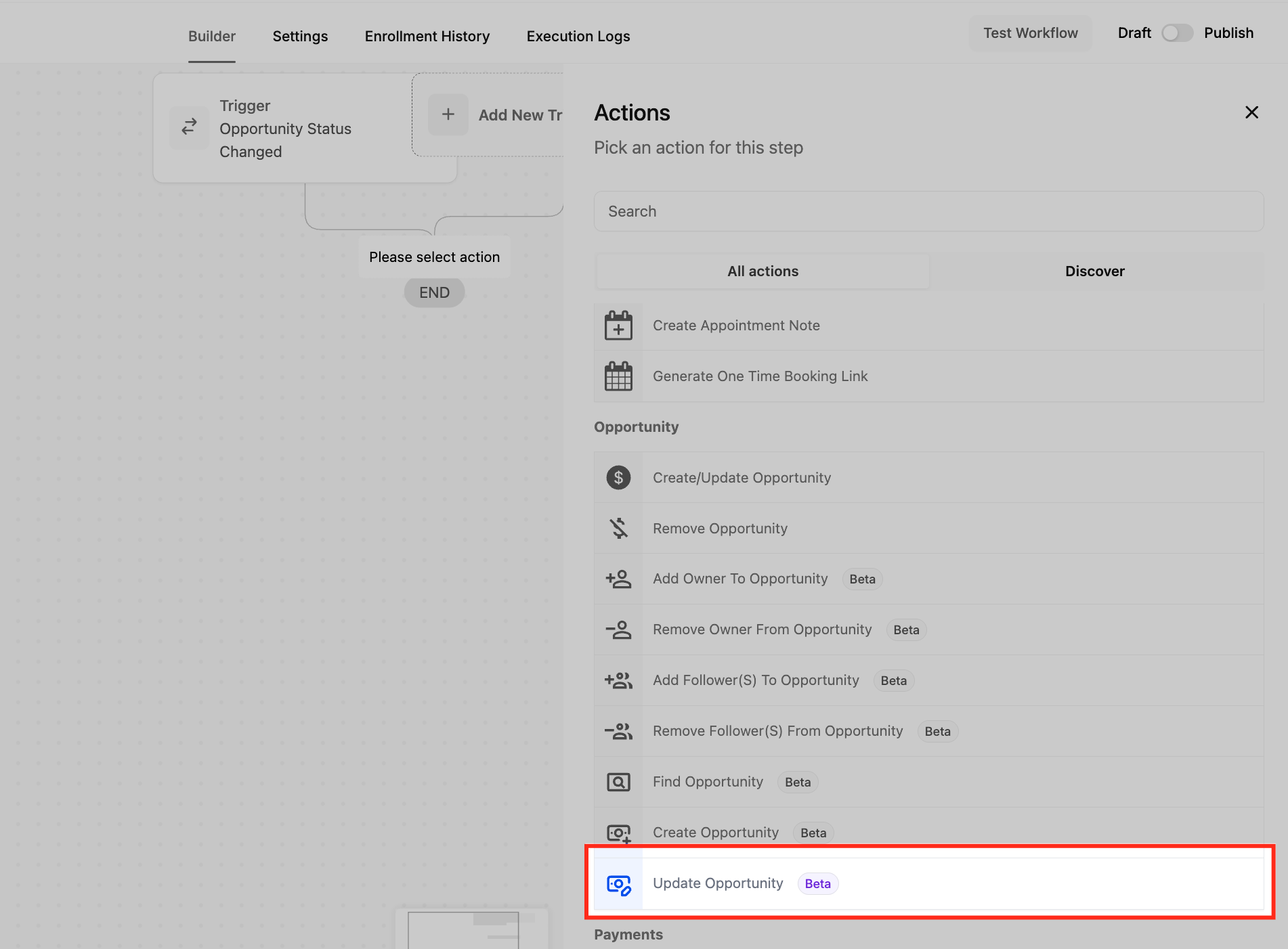
07Settings that matter
- Allow Opportunity to Move to Any Previous Stage. Controls whether the opportunity can be moved back to an earlier stage in the pipeline.
- Duplicate Opportunity. A toggle that appears in the action but does not generate a new opportunity record.
- Allow Multiple Opportunities per Contact. Found in Business Profile settings; permits the same contact to hold more than one opportunity, useful for renewals.
08Things to know before you rely on it
- By default, opportunities can only move forward or stay in the same stage; backward movement requires the toggle to be enabled.
- Enabling the Duplicate Opportunity toggle does not create a new opportunity; it only updates the existing one.
- If the workflow lacks an opportunity reference, the Update Opportunity step is skipped.
- The action cannot change the owner of an opportunity; a separate Assign User or Update Contact action is required.
09If something goes wrong
- No opportunity exists in the workflow when the step runs. Ensure the workflow uses an opportunity based trigger or add a Find Opportunity action earlier to locate the correct record.
10How it connects to the rest of HighLevel
- Use Find Opportunity to locate a deal before updating it Find Opportunity
- Create a new deal with the Create Opportunity action Create Opportunity
- Assign an owner using the Add Owner to Opportunity action Add Owner
Michael's take

If I were setting this up, I’d start with a trigger that already knows the deal. Like a status change. So the Update Opportunity step has the right context right away. I’d also flip the backward movement toggle only when my process allows deals to revert, and I’d double check that the Duplicate Opportunity toggle isn’t misleading anyone about new records being created.