
01Who this is for
- Sales teams can locate prior deals for a lead before creating a new record, ensuring data consistency.
- Marketing agencies can verify if a contact already has an open opportunity before launching a new campaign.
- Customer support groups can check for existing opportunities tied to a ticket to provide context when responding.
02Find Opportunity actions, explained
The Find Opportunity action scans the opportunity records attached to the contact that triggered a workflow. It applies all specified filters together, using AND logic, so every condition must be true for a record to qualify. When several records meet the criteria, the action returns only one, either the earliest created or the most recent, based on the chosen setting.
The returned opportunity becomes the reference point for any later opportunity related actions in the same workflow. If the action cannot locate a matching record, the workflow follows a separate branch labeled “Opportunity Not Found,” allowing you to add alternative steps such as creating a new opportunity.
03How businesses use Find Opportunity
- Real estate brokerage. The brokerage adds a Find Opportunity step after a lead submits an inquiry. Filters match the lead's email address within the Opportunity Name field and a status of Open. If a matching opportunity exists, the workflow proceeds to update its details; otherwise it creates a new listing opportunity.
- Dental practice. After a patient fills out a new patient form, the practice uses Find Opportunity to see if a pending treatment plan opportunity already exists for that patient’s contact. Filters check the patient’s ID and a status of Pending. The workflow updates the existing plan or creates a new one accordingly.
- Ecommerce store. When a shopper abandons a cart, the store runs Find Opportunity to locate any existing sales opportunity tied to the shopper’s email. Filters include the email address in the Opportunity Name and a status of Open. If found, the workflow adds a follow up task; if not, it initiates a new opportunity for outreach.
04The numbers and rules that matter
- No limit to the number of filters.
05Before you start
- If the workflow trigger does not include a contact (for example, an inbound webhook), you must map filter fields to the webhook parameters before the Find Opportunity action can locate a record.
06How to set up and use Find Opportunity in HighLevel
Locate an existing opportunity within a workflow
- Open the workflow where you need to search for an opportunity.
- Add a Find Opportunity action to the workflow canvas.
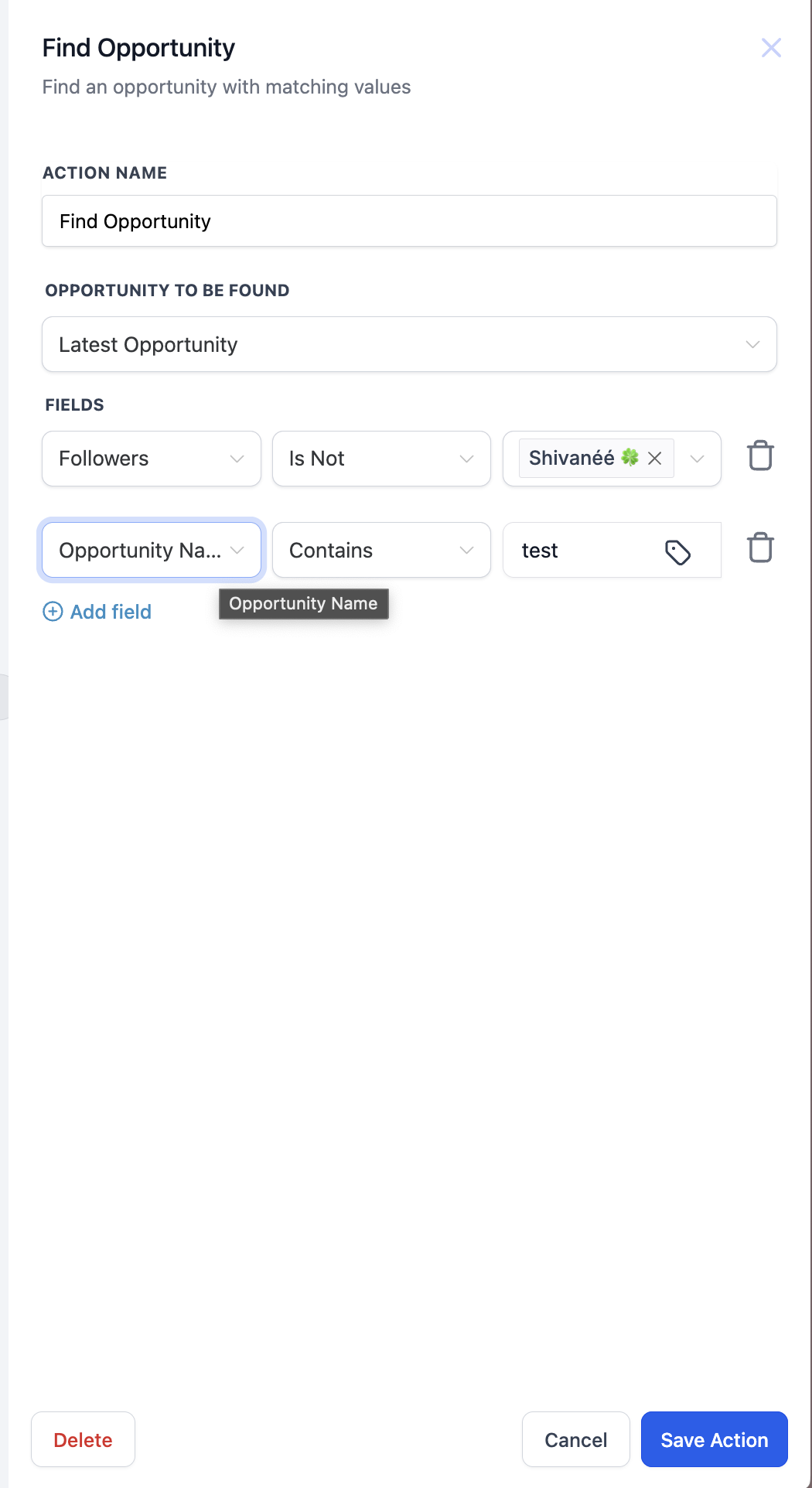
- Enter a custom label in the Action Name field to identify the step.
- Select either Earliest or Latest in the Opportunity to be Found option.
- Create one or more filters that the opportunity must satisfy.
- If the workflow lacks a contact, map the filter fields to the inbound webhook parameters.
- Save the action and connect the Opportunity Found and Opportunity Not Found branches as needed.
07What it looks like in HighLevel
08Settings that matter
- Action Name. A label you assign to recognize this Find Opportunity step inside the workflow.
- Opportunity to be Found. Chooses whether the action returns the earliest created or the latest created opportunity that meets the filter criteria.
- Filters. Conditions that narrow the search; all filters are combined with AND logic and can reference any standard or custom opportunity field.
09Things to know before you rely on it
- All filter conditions must be true because the action uses AND logic.
- There is no set limit to the number of filters you can add.
- Only a single opportunity is returned, even when multiple records match; the returned record follows the Earliest or Latest setting.
- When no contact exists in the workflow, filters must be linked to inbound webhook parameters; otherwise the action cannot find an opportunity.
10How it connects to the rest of HighLevel
- Create a new opportunity if none is found Create Opportunity action
- Update an existing opportunity after it is located Update Opportunity action
- Add an owner to the opportunity once it is identified Add Owner to Opportunity
Michael's take

Running a workflow that depends on an existing opportunity can backfire if the trigger doesn’t include a contact. When that happens, the Find Opportunity step simply can’t locate anything and the flow falls into the not found path, which may not be what you expect.
When it works, you can update an existing deal or create a new one, keeping your pipeline organized.