
01Who this is for
- Founders who manage multiple related contacts can keep communications clean by removing linked contacts when a status changes.
- Small businesses using custom objects can automatically unenroll associated records, such as dealers, when the primary record meets a condition.
02Remove associated records from workflow, explained
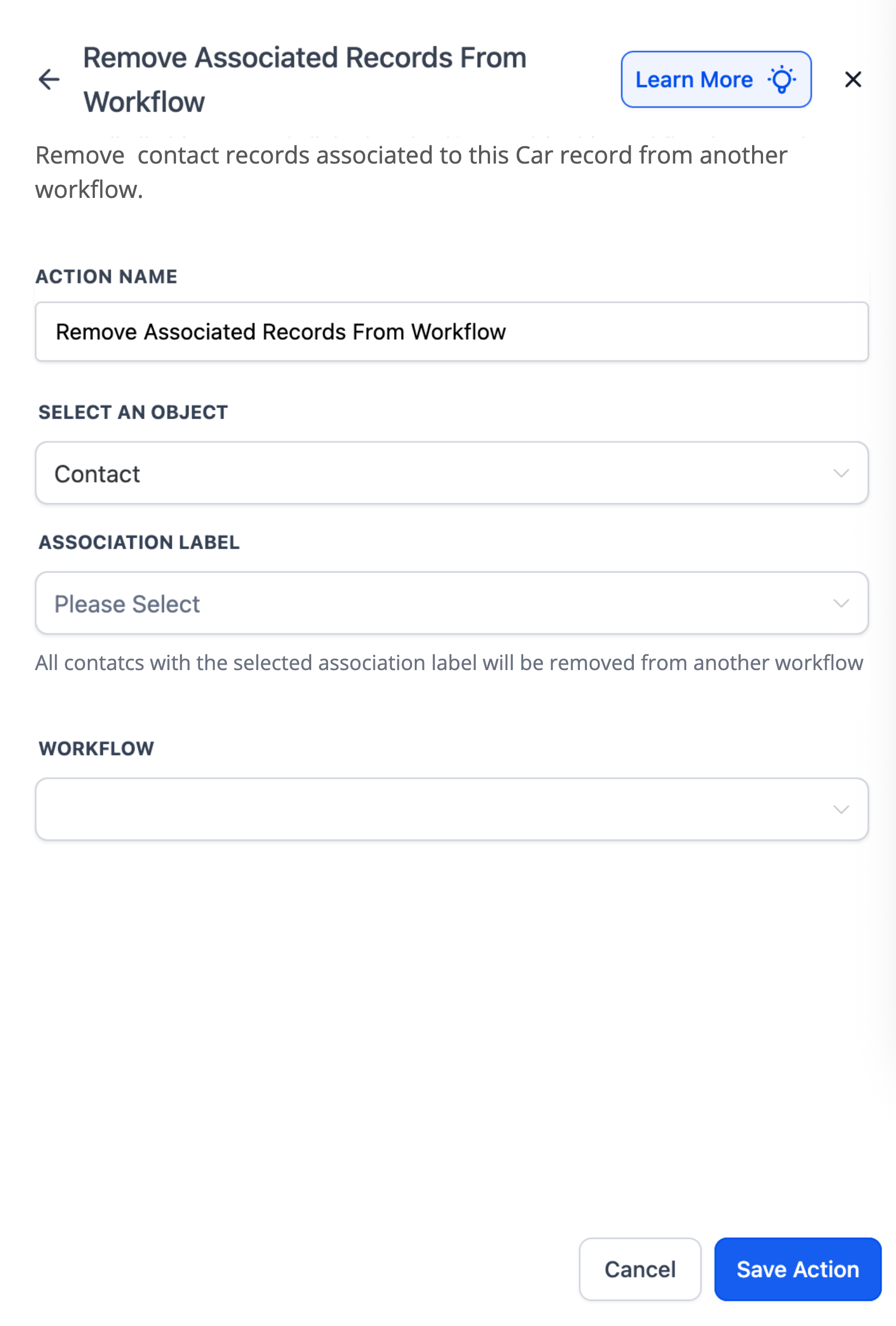
The action searches for records that are associated with the record that triggered the workflow. You choose the type of records to target, the association label that defines the relationship, and the workflow from which those records should be removed. The removal happens as soon as the action runs.
You can add the Remove Associated Records from Workflow action to any contact based, company based, or custom object based workflow. It appears alongside other workflow actions in the builder. The action only works when an association label exists between the trigger record and the records you want to remove.
If no associated records match the selected label, the action does nothing. To add the records back later, use the Add Associated Records to Workflow action or create a separate automation.
03How businesses use remove associated records from workflow
- Car dealership. When a car record is marked as Sold, the workflow selects the Dealer object, chooses the Assigned Dealer label, and removes those dealer records from the Dealer Notification workflow.
- School administration. When a student contact graduates, the workflow picks the Contact object, uses the Parent Child label, and removes the parent contacts from the Semester Start Notification workflow.
- Agency managing client companies. When a company’s status changes to Inactive, the workflow selects the Contact object and removes all associated contacts from the Active Clients Communication workflow.
04The numbers and rules that matter
- Available in all workflow types, Contact based, Company based, and Custom Object based.
05Before you start
- Custom objects (or contacts/companies) must exist in the subaccount.
- An association label linking the trigger record to the target records must be created.
06How to set up and use remove associated records from workflow in HighLevel
Set up remove associated records action
- Open the workflow builder and add a new action.
- Choose the action named Remove Associated Records From Workflow.
- Select the object type whose records you want to remove.
- Pick the required association label that identifies the related records.
- Select the workflow from which the associated records will be removed.
- Save the action to finish the setup.
07What it looks like in HighLevel
08Settings that matter
- Select object. Specifies the type of associated records (e.g., Contacts, Dealers, Properties) to be removed.
- Association Label (required). Defines which associated records qualify for removal based on the label connecting them to the trigger record.
- Workflow. Identifies the workflow that the matching associated records will be taken out of.
09Things to know before you rely on it
- At least one matching association by the selected label must exist; otherwise, no records are removed.
- Removals happen immediately; to re enroll records later, use the Add Associated Records to Workflow action.
- The association label does not apply to company to contact associations.
10How it connects to the rest of HighLevel
- HighLevel workflow automation basics and setup guide Workflow basics
- How to add associated records to a HighLevel workflow Add associated records
- Understanding HighLevel Workflow Pro Plan pricing tiers Pricing tiers
Michael's take

Wondering if you really need a way to pull related records out of a workflow when a status changes? The Remove Associated Records from Workflow action lets you cleanly unenroll contacts, companies, or Custom Objects that are linked by a specific label, so your communications stay relevant.
I would set it up on a simple trigger. Like a student graduating. And watch the parents drop out of the semester start notifications. It’s a straightforward way to keep your lists tidy without building extra automations.