
01Who this is for
- Founders who manage multiple related entities can keep communications coordinated by enrolling linked records together.
- Marketing agencies that handle company and contact relationships can ensure contacts receive the same campaign steps as their parent company.
- Educational institutions that store student and parent contacts can automatically add parents to notification workflows when a student triggers an event.
02Add associated records to workflow, explained
The Add Associated Records to Workflow action is a workflow step available in contact based, company based, and custom object based workflows. When the workflow runs, the action examines the record that triggered the workflow, finds other records attached to it through a defined association label, and adds those records to a second workflow.
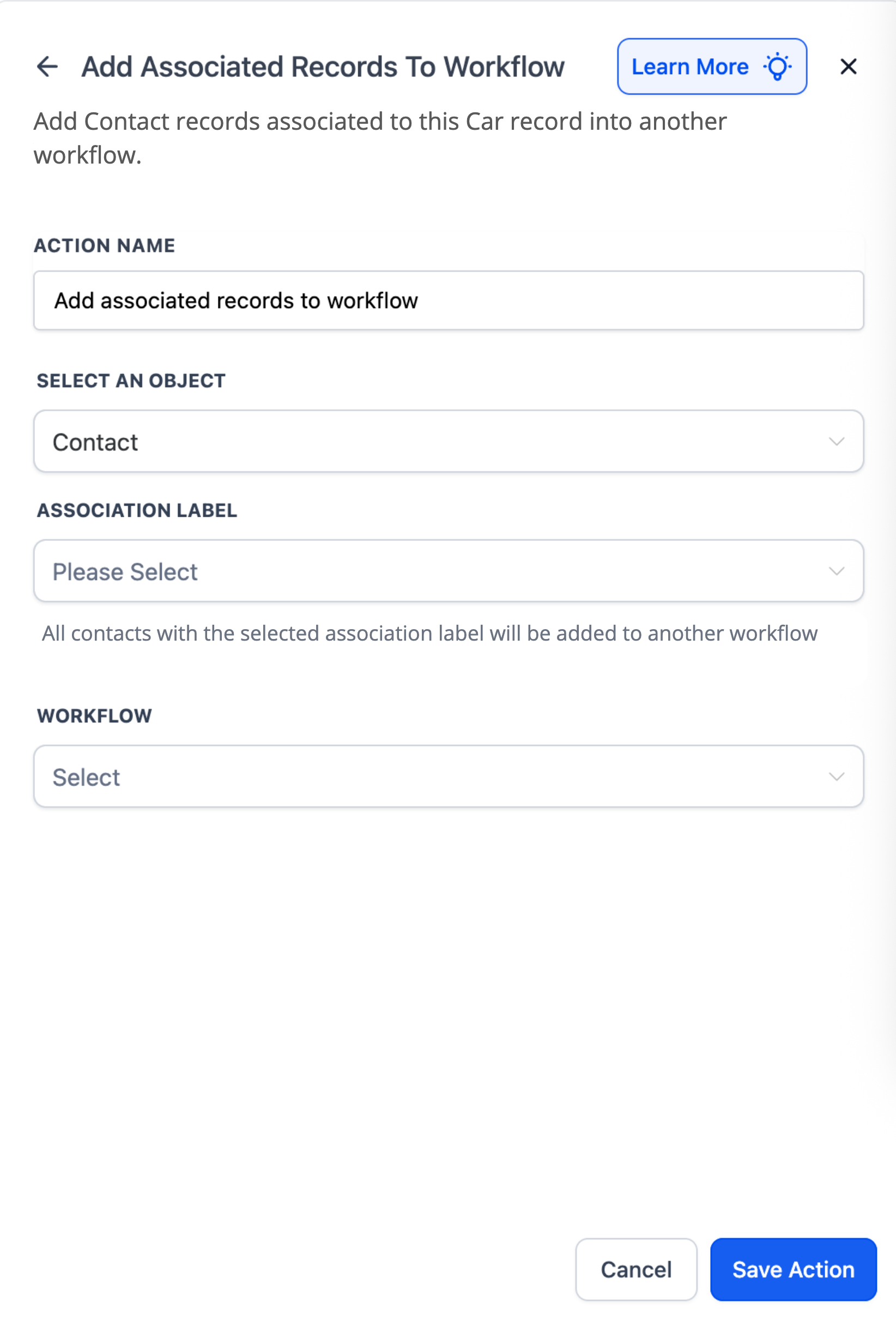
The action presents three fields. First, you choose the type of record to add, Contact, Company, or a Custom Object. Second, you select the association label that determines which related records are pulled in; this dropdown is required and does not apply to company contact links. Third, you pick the target workflow that will receive the associated records. Once configured, each matching record is enrolled in the selected workflow automatically.
03How businesses use add associated records to workflow
- Automotive dealership. Create a custom object for Cars and associate each Car with a Dealer using an Assigned Dealer label. In a Car workflow, add the Add Associated Records to Workflow action, select Dealer as the object, choose the Assigned Dealer label, and point to a Dealer Notification workflow. Each dealer linked to a car that reaches Ready for Sale is automatically enrolled.
- University communications. Maintain Contact records for students and their parents, linked by a Parent Child label. In a Student Contact workflow that starts each semester, add the action, pick Contact (Parent) as the object, select the Parent Child label, and choose the Semester Start Notification workflow. All parent contacts are added to receive semester updates.
- Marketing agency client management. Use Company records for clients and associate their staff as Contacts. When a Company is marked VIP, add the action in the Company workflow, set the object to Contact, note that the Association Label dropdown is not used for company contact links, and select a VIP Communication workflow. All contacts linked to the VIP company are enrolled automatically.
04Before you start
- Custom objects (or contacts) must already exist in the subaccount.
- An association label connecting the trigger record to the records you want to add must be defined.
05How to set up and use add associated records to workflow in HighLevel
Enroll associated records in another workflow
- Select the object type for the records you want to add.
- Choose the association label that defines which related records to include.
- Select the workflow that will receive the associated records.
06What it looks like in HighLevel
07Settings that matter
- Select an Object. Specifies the type of record, Contact, Company, or a Custom Object, that will be added to the target workflow.
- Association Label. A required dropdown that determines which records linked to the trigger are selected; it does not apply to company contact relationships.
- Workflow. Identifies the workflow where the chosen associated records will be enrolled.
08Things to know before you rely on it
- The action works in contact based, company based, and custom object based workflows.
- The Association Label cannot be used for company contact relationships.
- An association label must already exist between the trigger record and the records to be added.
09How it connects to the rest of HighLevel
- Learn about linking records with the Associate records workflow action Associate records action
- See how to remove associated records from a workflow Remove associated records
- Find object records and companies in HighLevel workflows Find records in workflows
Michael's take

This action feels like a small convenience that can become a real shift for teams that already use related records. It lets you move from sending a single alert to broadcasting the same message to everyone tied to a deal, a student, or a client without building separate automations.
A university that contacts both students and their guardians will appreciate it. When the semester starts, a single workflow can add all parent contacts to a notification flow, keeping families in the loop with minimal setup.