
01Who this is for
- Automation engineers who design webhook driven workflows, because they need deterministic record lookups.
- Small business owners using custom objects to track assets, to update those assets automatically when external data arrives.
- Companies that manage multiple client companies, to locate the correct company record from lead gen form data.
02Find object records, explained
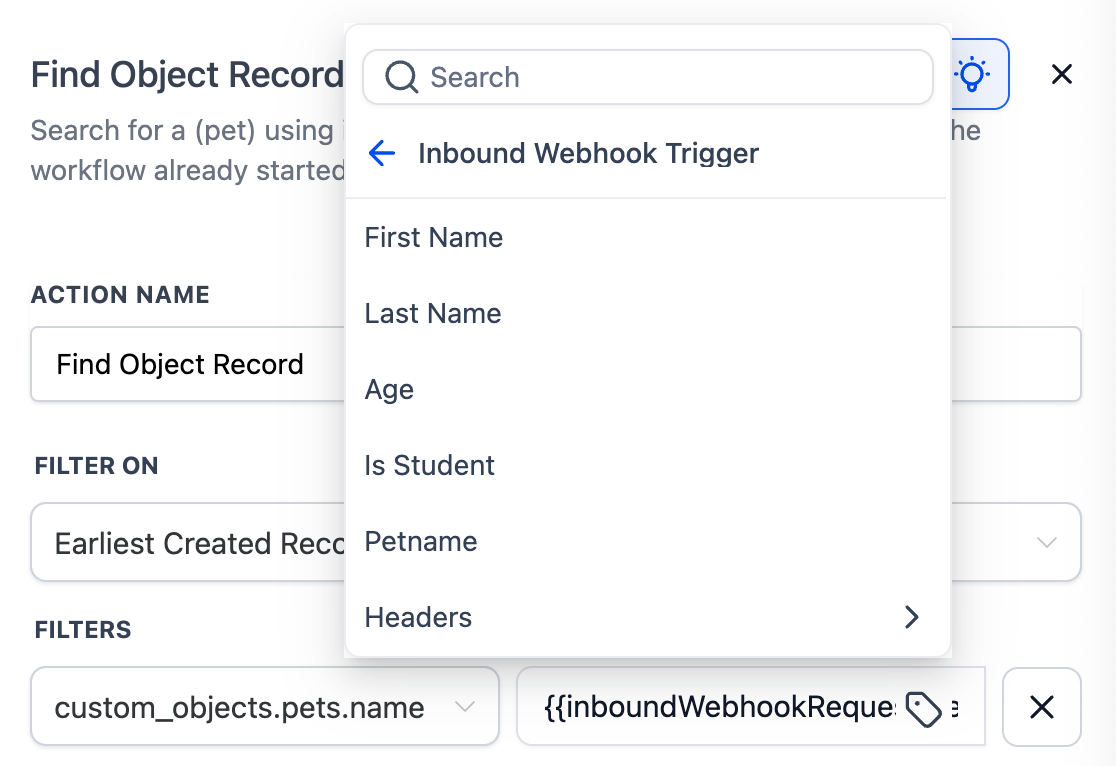
These actions live inside a HighLevel workflow and only appear when the workflow already contains an Inbound Webhook trigger. The action reads values from the webhook payload and compares them to fields on a custom object or a company record.
You configure filters that use AND logic, choose a tie breaker (Earliest Created or Latest Created) for situations where several records match, and then decide what the workflow should do when a record is found or not found. If the workflow itself was started by the same object type, the action is automatically skipped.
The matched record becomes the current record for any following actions such as Update, Associate, or Clear, allowing the rest of the workflow to operate on that specific record.
03How businesses use find object records
- Pet boarding service. When a webhook posts a pet name, the business maps the petname field to the Pet object’s "Pet Name" filter. The workflow then finds the earliest created pet record with that name and proceeds to update its status or creates a new pet record if none is found.
- Subscription billing platform. A billing webhook sends a subscription reference. The platform adds a filter that maps the webhook field to the Subscription object's "External Reference" and optionally adds a status filter. The Find Object Record action selects the latest created active subscription and updates its details.
- Lead generation agency. A lead gen form webhook includes a company domain. The agency configures a Find Company action with a filter that maps the domain field to the Company object's "Domain". The workflow locates the most recent matching company and enrolls it in an onboarding workflow, or creates a new company record if none exists.
04Before you start
- An Inbound Webhook trigger must already be present in the workflow.
05How to set up and use find object records in HighLevel
Set up find object record action
- Open the workflow that contains the inbound webhook trigger.
- Add a new action immediately after the trigger.
- Select the "Find Object Record" or "Find Company" action, depending on the workflow type.
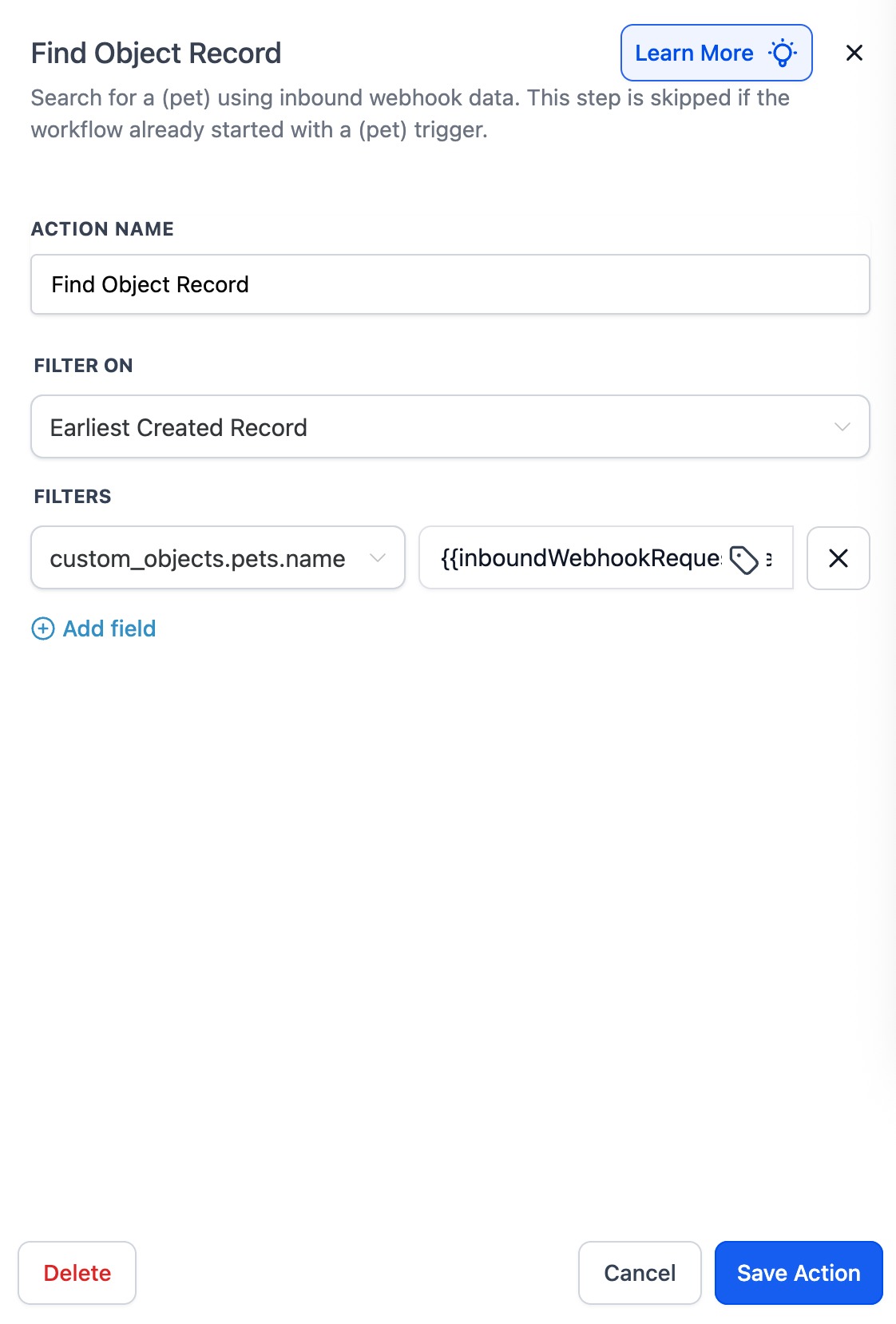
- Define filters by mapping webhook payload fields to object or company fields, using AND logic.
- Choose a tie breaker option: Earliest Created Record or Latest Created Record.
- If the workflow starts with the same object type as the trigger, note that this step will be skipped automatically.
- Save the action and test the workflow with a sample webhook payload.
06What it looks like in HighLevel
07Settings that matter
- Filter On (tie breaker). Determines which single record to keep when multiple records satisfy the filters, by selecting either the earliest or the latest created record.
- Filters. Sets the field to field comparisons that must all be true for a record to match; each filter pairs a custom object or company field with a value from the webhook payload or a fixed value.
08Things to know before you rely on it
- The action appears only when the workflow includes an Inbound Webhook trigger; otherwise it is unavailable.
- If the workflow starts with the same object type as the trigger (for example, a "Car created" workflow), the action is automatically skipped.
- Using non unique identifiers can lead to ambiguous matches; unique fields such as Record ID, External ID, or Domain are recommended for reliable results.
09How it connects to the rest of HighLevel
- Learn how to add an Inbound Webhook trigger to a workflow Inbound webhook guide
- Overview of workflow triggers, filters, and actions Workflow basics
- See all workflow capabilities available in HighLevel All workflows features
Michael's take

The biggest trap with Find Object Record is assuming it will always return the right item.
If the webhook sends ambiguous or poorly formatted data, the filter may return an unexpected record.
Ensure the webhook sends clean, typed values and consider adding extra filters for deterministic results.