
01Who this is for
- Founders who need to keep relationships up to date without manual effort, because the action creates links automatically.
- Operations managers in firms that use multiple object types, as it supports Contacts, Companies, Opportunities and Custom Objects.
02Associate records workflow action, explained
The Associate Records workflow action searches for records that meet defined field based criteria and creates associations between the enrolling record and the matches. It works inside any Contact, Company or Custom Object workflow and runs each time the workflow enrolls a record.
You configure filters, choose whether to link to the earliest, latest, or all matching records, and apply an association label that categorizes the new relationship. The label is attached to the trigger record, and paired labels are applied to the associated record when applicable.
03How businesses use the Associate Records workflow action
- Real estate agency. When a new buyer Contact enrolls, the workflow uses the buyer’s preferred city and property type to find matching Property records. It then creates associations with all matching properties and tags the buyer with a "Potential Buyer" label.
- Contact to Company linking. When a Contact is added, the workflow can match the Contact’s industry field to Company records and associate each Contact with the earliest matching Company, applying a "Client" association label.
- Opportunity to Custom Object connection. When an Opportunity is created, the workflow can filter Custom Object records by status and region, associate the Opportunity with the latest matching custom record, and assign a "Potential Partner" label.
04The numbers and rules that matter
- Supported objects: Contacts, Companies, Opportunities, Custom Objects.
- Operators include equals, is, is not empty, contains, greater than, etc.
05Before you start
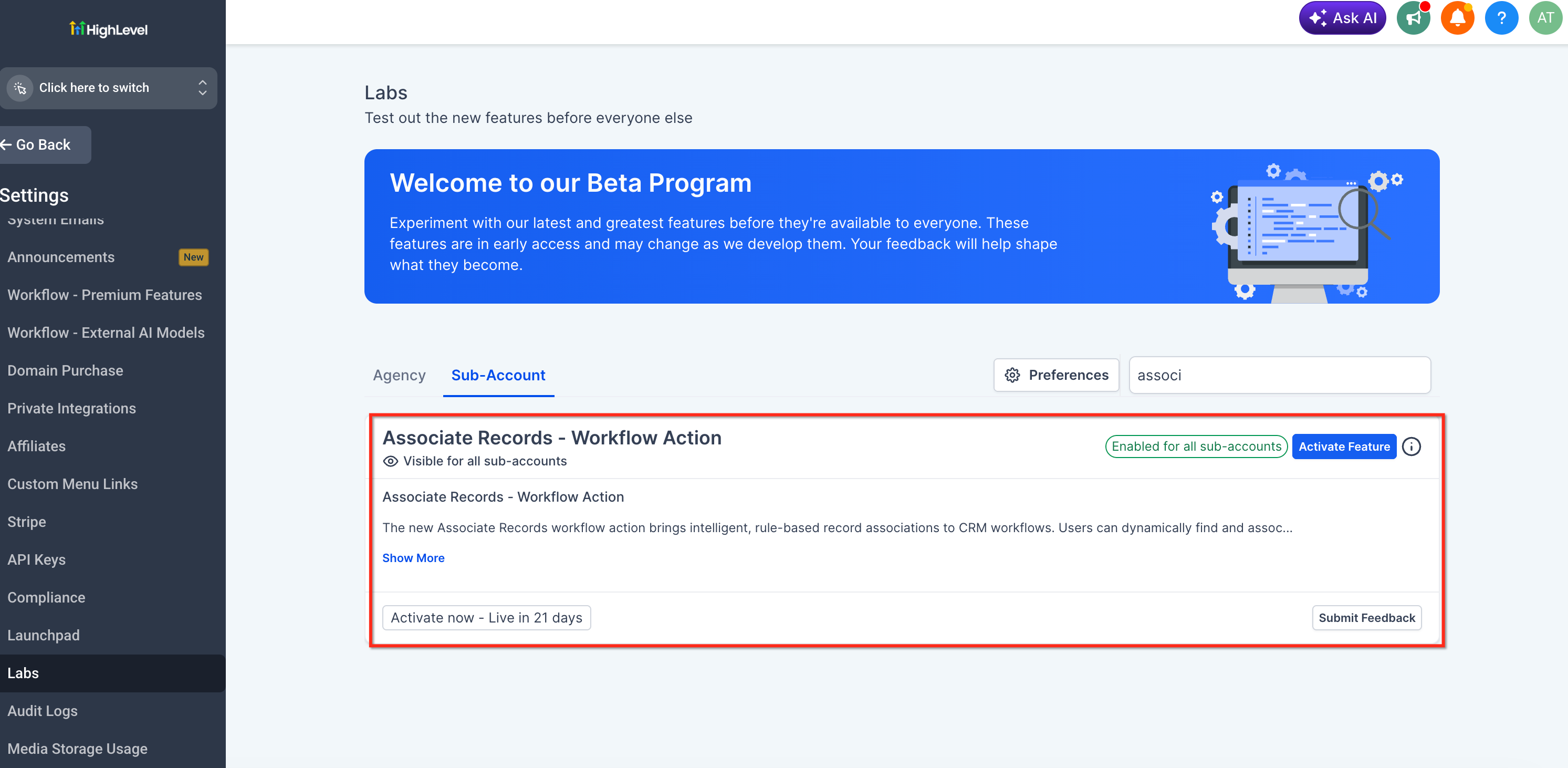
- Enable the Associate Records - Workflow Action feature in Settings > Labs.
- Ensure that object associations and appropriate association labels are set up in the Associations settings for the subaccount.
06How to set up and use the Associate Records workflow action in HighLevel
Set up the Associate Records workflow action
- Enable the Associate Records workflow action in Labs via Settings > Labs.
- Open an existing workflow or create a new Contact, Company, or Custom Object workflow.
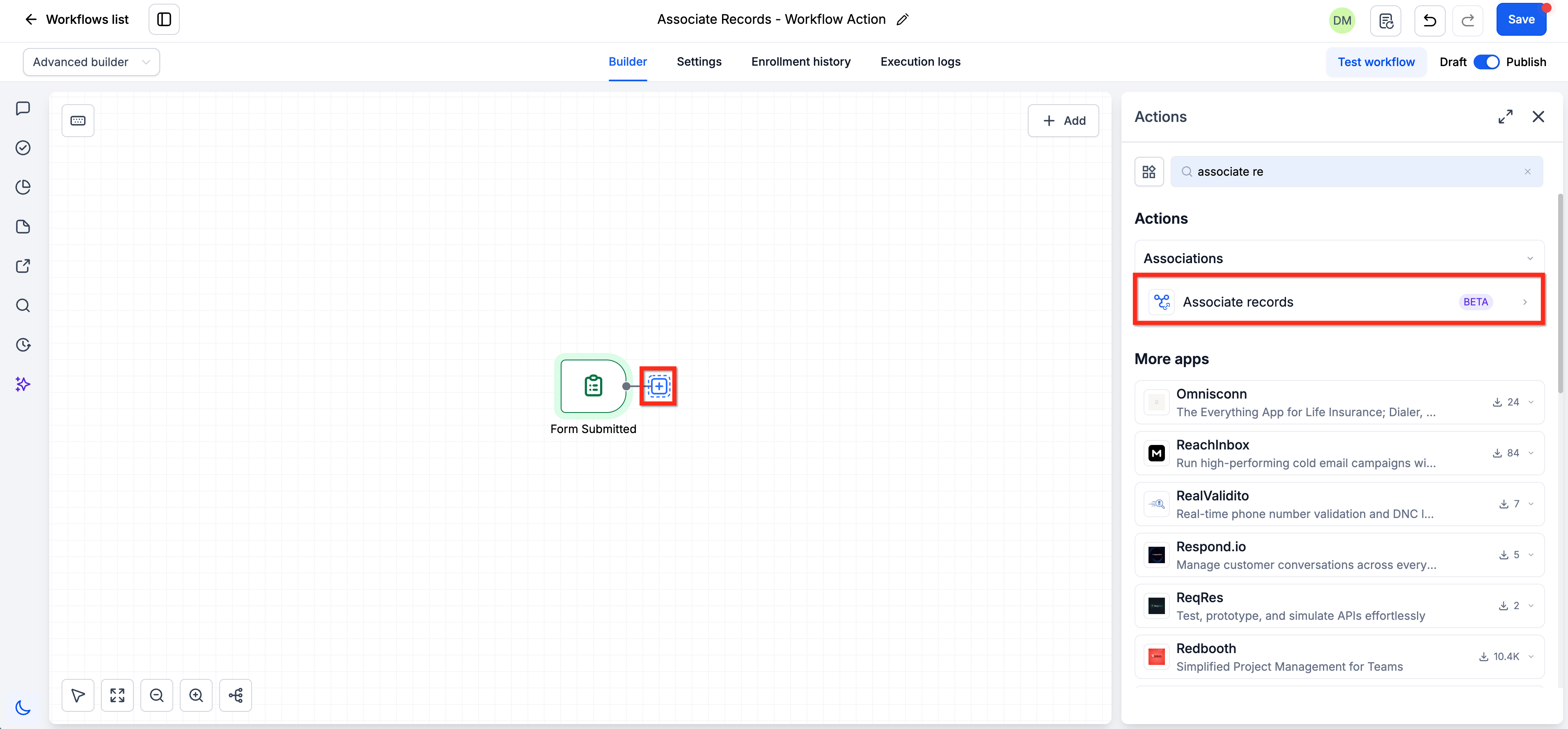
- Add a new action by clicking the + icon and selecting Associate Records under the Associations category.
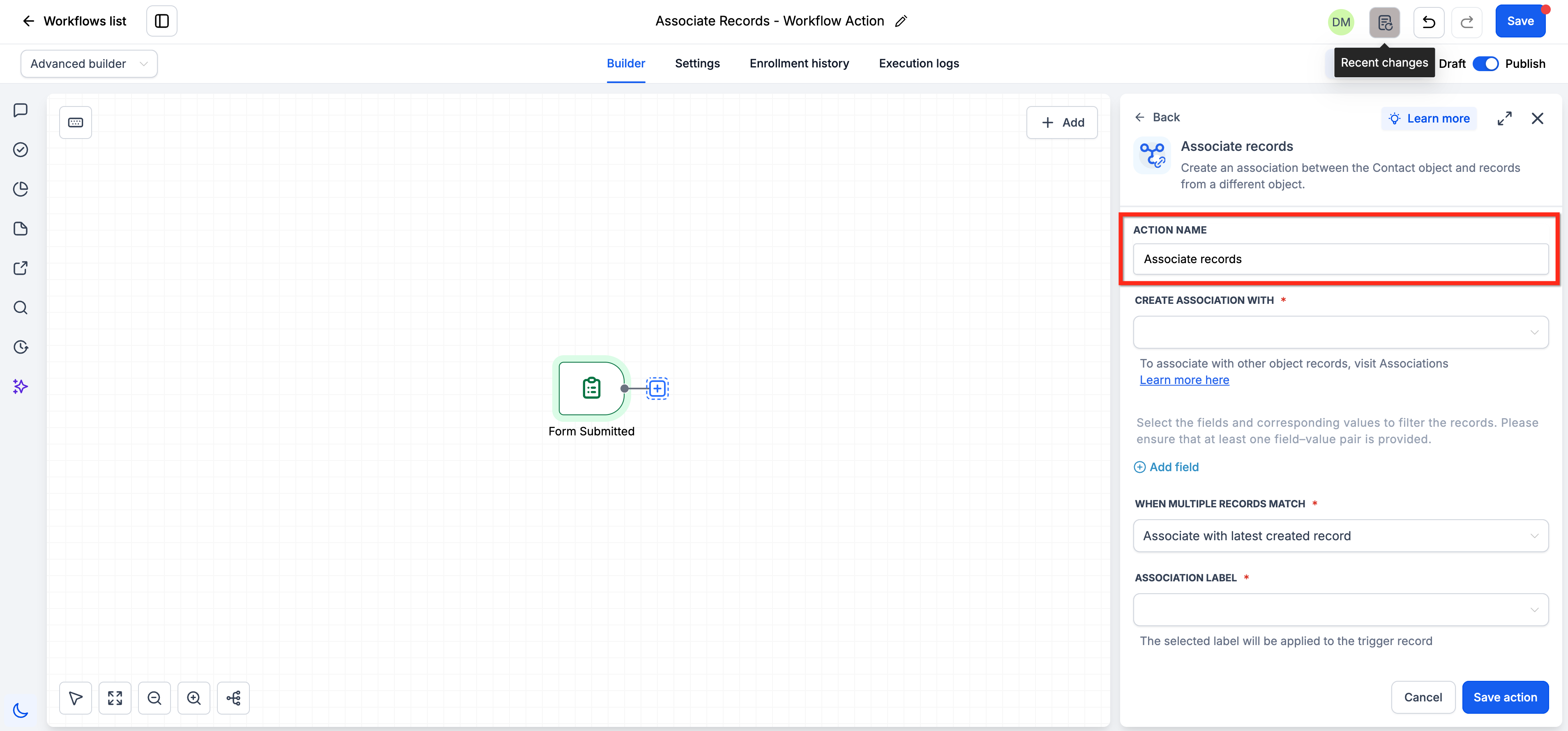
- Optionally rename the action in the ACTION NAME field.
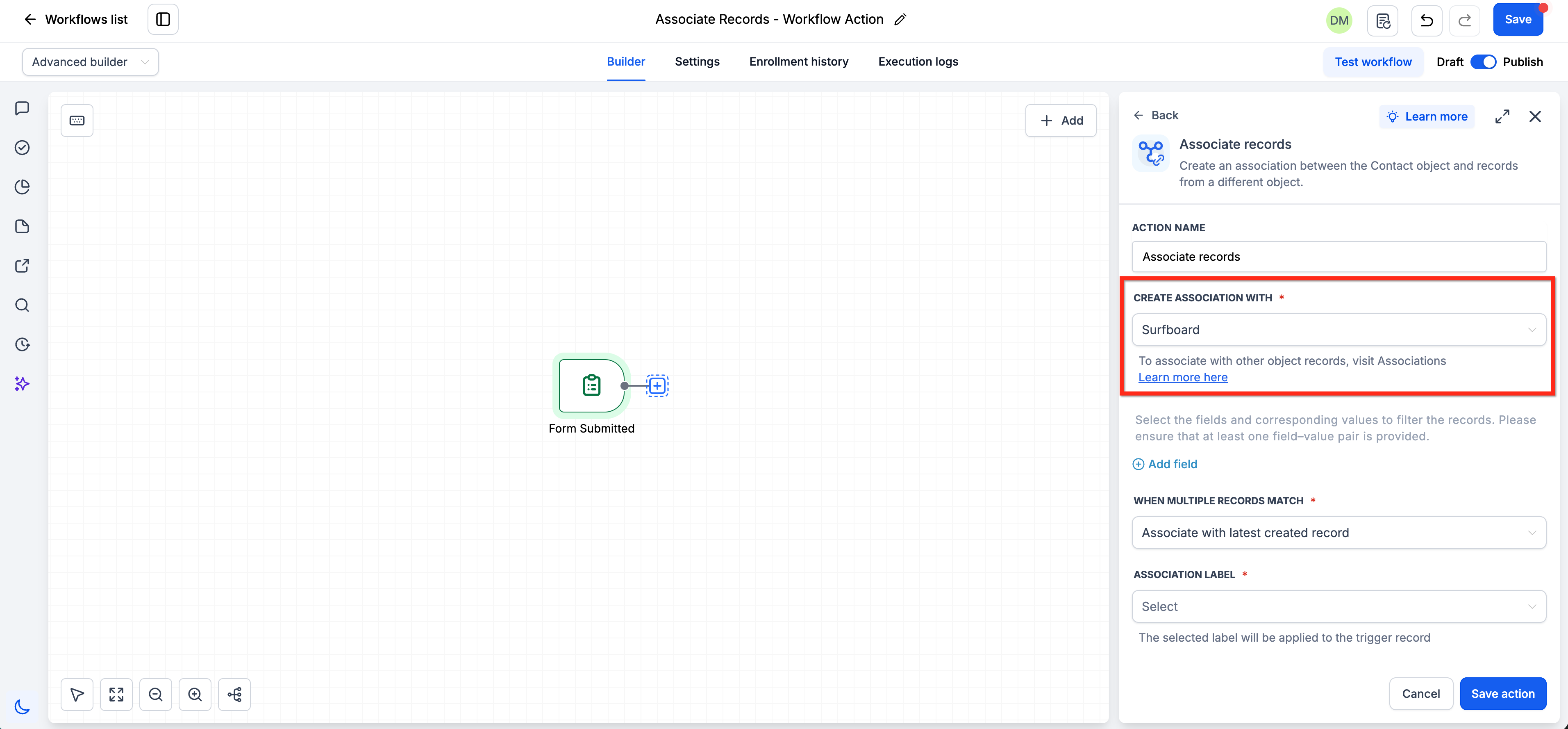
- Choose the object type to associate with under CREATE ASSOCIATION WITH.
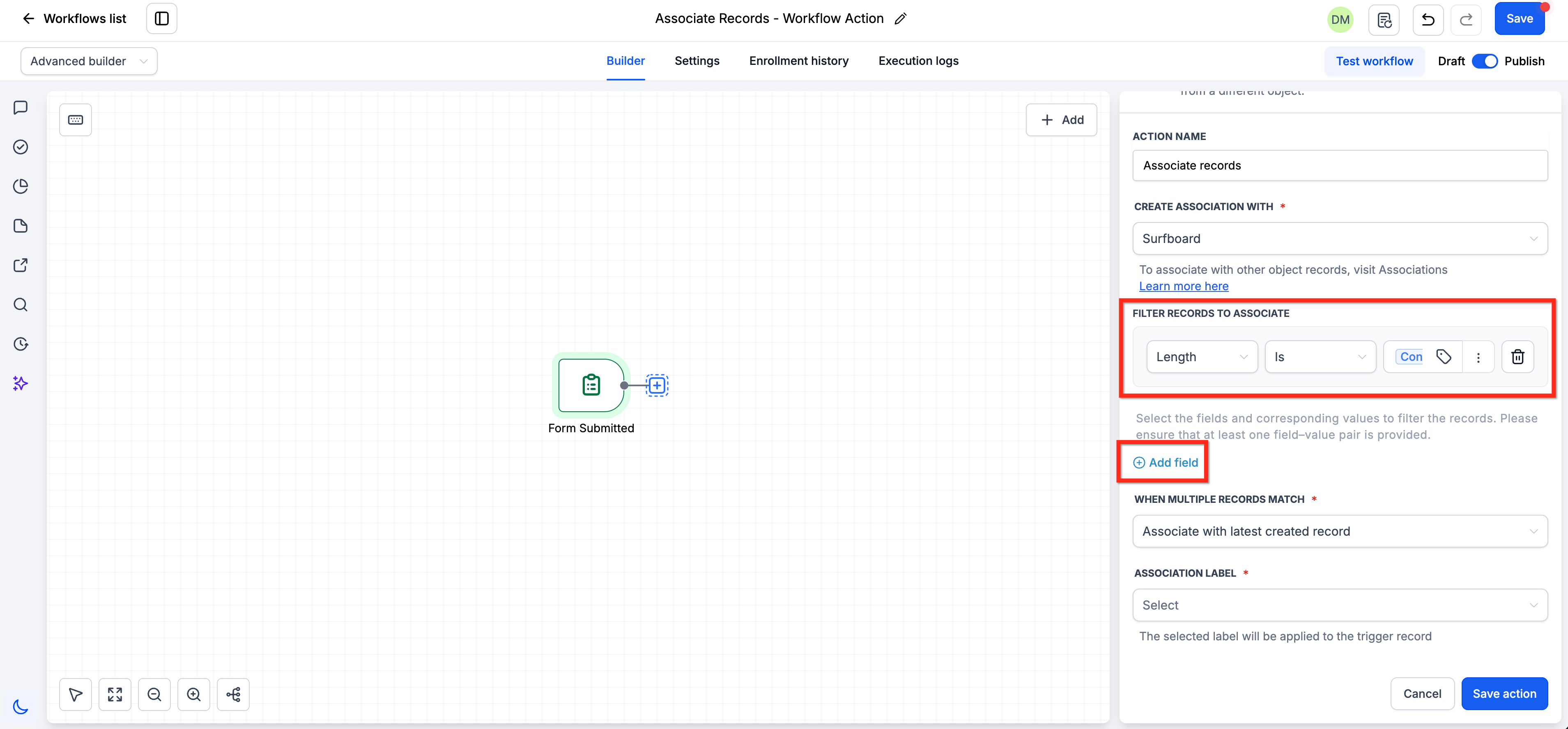
- Define one or more field based filters under FILTER RECORDS TO ASSOCIATE, adding each filter row with field, operator and a fixed value or merge field.
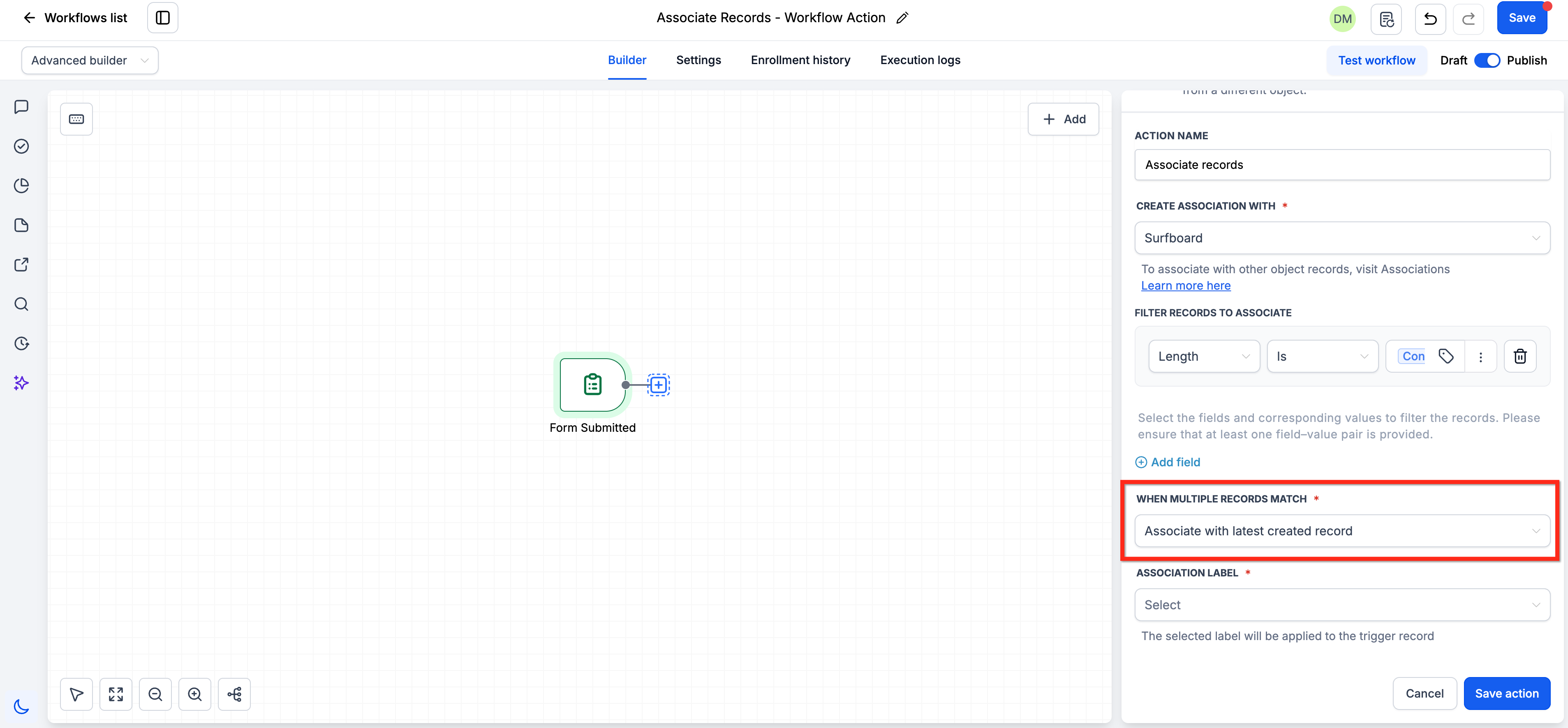
- Select the desired matching strategy under WHEN MULTIPLE RECORDS MATCH.
- Pick an association label from the ASSOCIATION LABEL dropdown.
- Save the action, then publish the workflow to activate the automation.
- View created associations by navigating to Contacts > Associations after the workflow runs.
07What it looks like in HighLevel
08Settings that matter
- Associate Records - Workflow Action. Turns on the beta Associate Records action for the subaccount.
- ACTION NAME. Sets a custom name for the action to describe the association being created.
- CREATE ASSOCIATION WITH. Specifies the target object type whose records will be linked to the enrolling record.
- FILTER RECORDS TO ASSOCIATE. Defines field based conditions that records must meet to be considered for association.
- WHEN MULTIPLE RECORDS MATCH. Determines whether to link to the earliest, latest, or all matching records.
- ASSOCIATION LABEL. Selects a label that categorizes the relationship and is applied to the trigger record.
09Things to know before you rely on it
- The feature is in beta and may change based on user feedback.
- At least one field value pair must be provided in FILTER RECORDS TO ASSOCIATE.
- Only AND logic is supported for multiple filters; OR logic is not available.
- An association label is required for every configuration.
- The action does not update existing associations if the enrolled record changes after the workflow runs.
10How it connects to the rest of HighLevel
- Guide to custom object and company based workflow actions Custom object workflow actions
- How to add associated records to a HighLevel workflow Add associated records
- Getting started with HighLevel workflow creation Workflow creation guide
Michael's take

Keeping buyer leads linked to the right property listings can become a massive manual chore for a real estate team. The first thing I would lock in is the filter that pulls the buyer’s preferences from merge fields. Get that accurate and the rest of the automation falls into place.
Once the filter is solid, I would run a quick test with a single contact to confirm the correct properties are attached and the right label appears. That gives confidence before rolling the workflow out to the whole roster.