
01Who this is for
- Founders who run marketing automation need dynamic content without manual drafting, so they can keep outreach personalized.
- Sales teams can generate follow up emails on the fly, reducing the time spent writing each message.
- Customer support managers can automate summarizing chat histories for quicker internal reviews.
02OpenRouter generate response, explained
The Generate Response workflow action lets a HighLevel workflow call an AI model via OpenRouter. Users choose a model, set a System Prompt that shapes the AI’s tone, and write a Prompt that describes the specific task. When the step runs, the prompt and any workflow variables are sent to the selected model, and the returned text is saved as an output variable.
The action appears in the workflow builder under the Apps tab after OpenRouter is installed. It can be placed anywhere in a workflow, and its output can feed into Send SMS, Send Email, internal notes, CRM field updates, or conditional logic. The integration must be connected first so the platform can authenticate with OpenRouter using the user’s API key.
03How businesses use openRouter generate response
- Digital marketing agency. The agency creates a workflow that pulls a client’s first name and recent activity into a Prompt, selects a creative writing model, and generates a personalized email copy. The generated text is then sent via the Send Email action.
- Real estate brokerage. Agents set a System Prompt that mimics a helpful property advisor, then use a Prompt to summarize a buyer’s preferences from contact fields. The response is stored as a variable and added to a Follow Up Note for the agent.
- Technical support firm. Support staff configure a workflow that includes the Generate Response action with a Prompt to draft a concise summary of a ticket’s chat log. The summary variable is added to an internal ticket update action.
04Before you start
- OpenRouter integration must be connected with a valid API key.
- User must have access to Settings > Integrations to add the OpenRouter connection.
05How to set up and use openRouter generate response in HighLevel
Connect OpenRouter integration
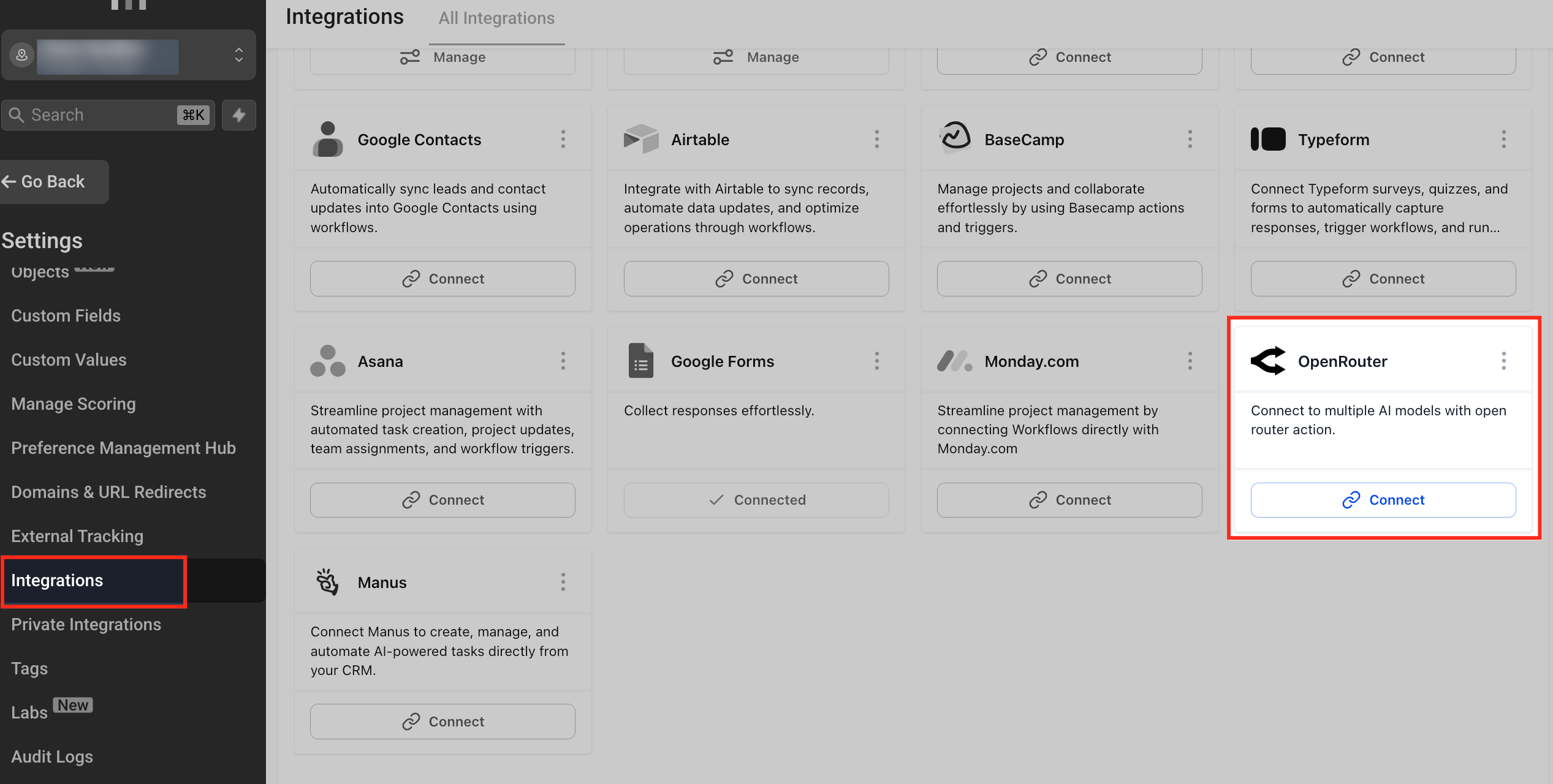
- Open Settings in the platform.
- Select Integrations from the menu.
- Find OpenRouter in the list of available integrations.
- Click the Connect button for OpenRouter.
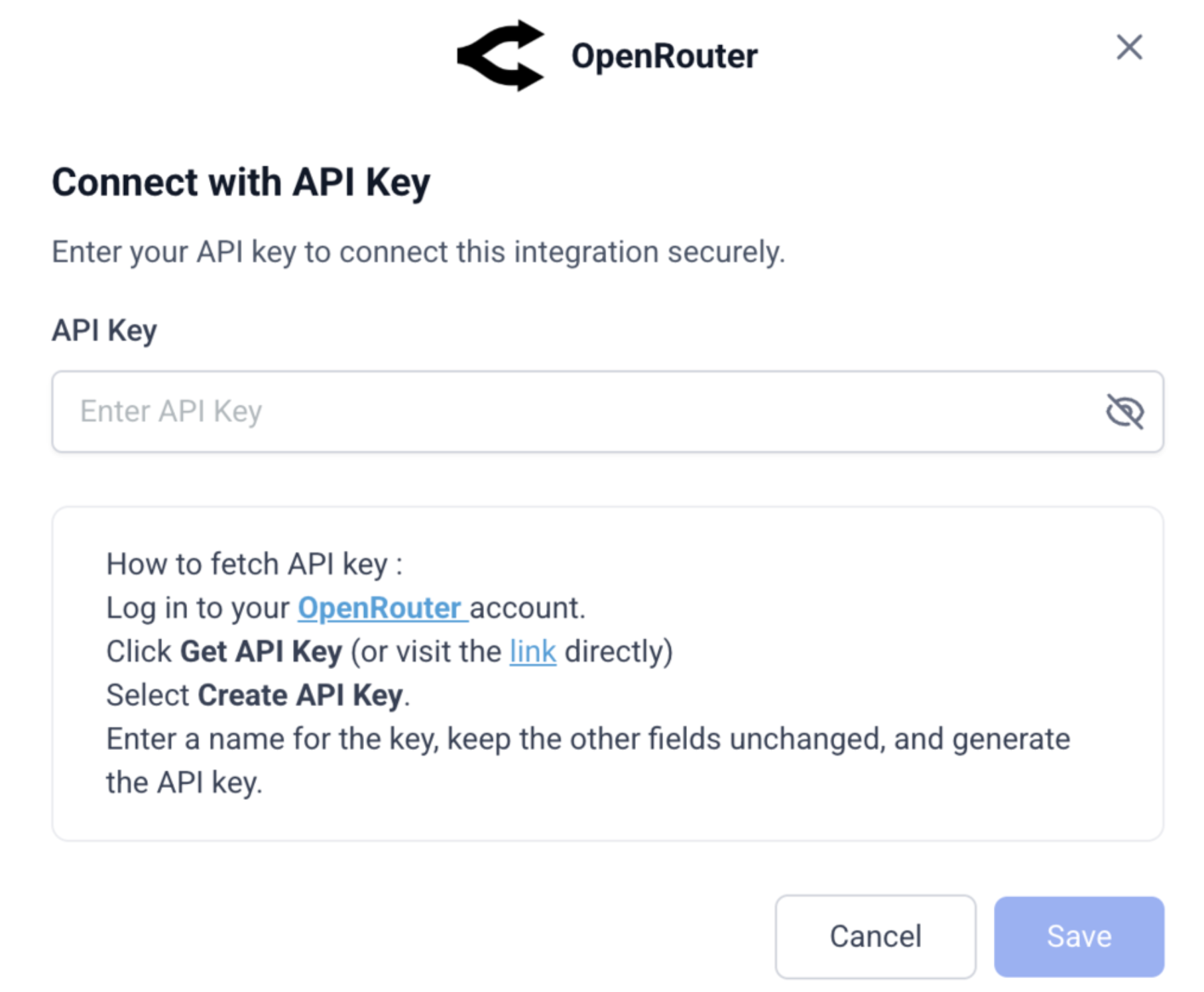
- Enter the OpenRouter API key in the field provided.
- Press Save to finish the integration.
Add Generate Response action to a workflow
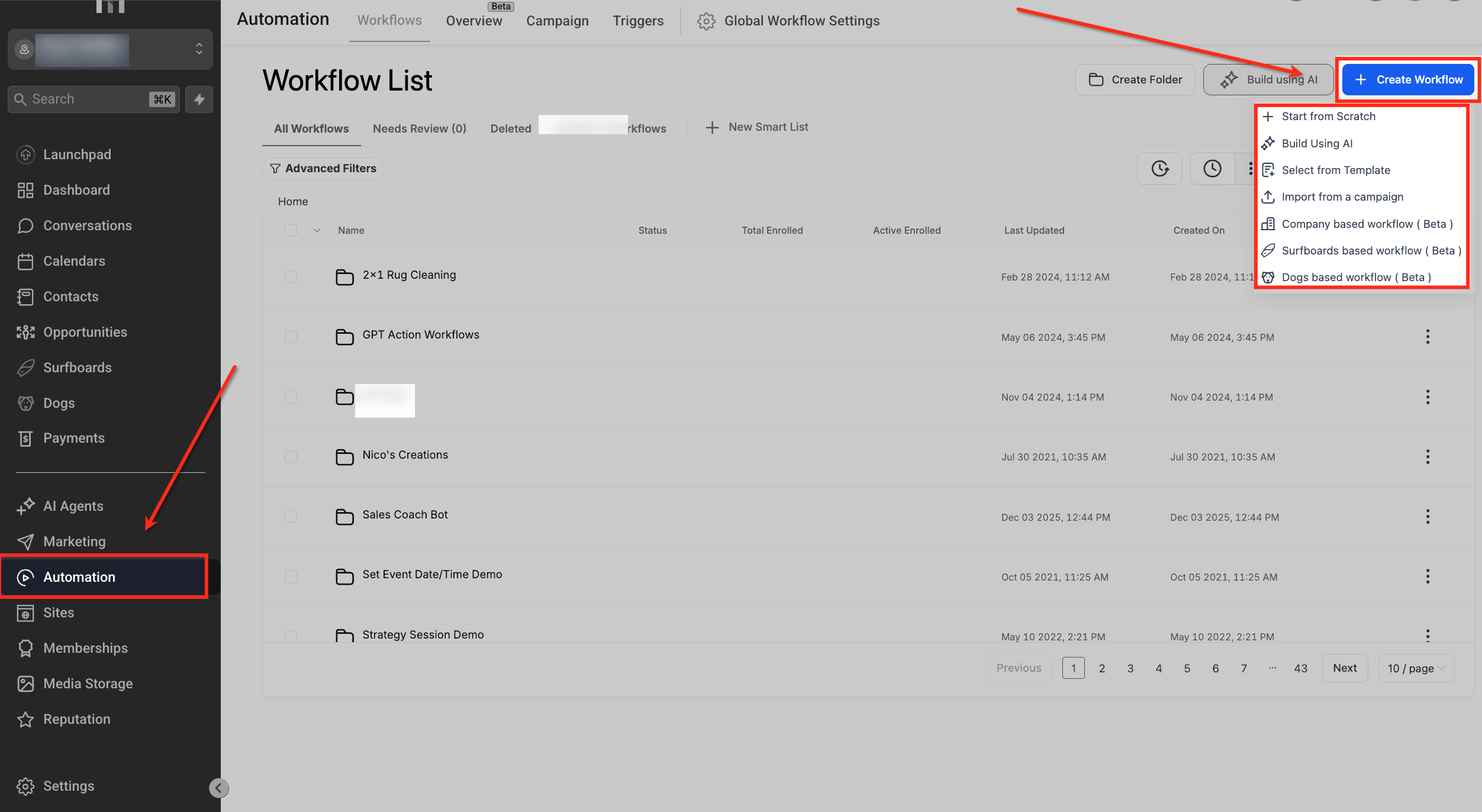
- Navigate to Automation > Workflows.
- Open an existing workflow or create a new one.
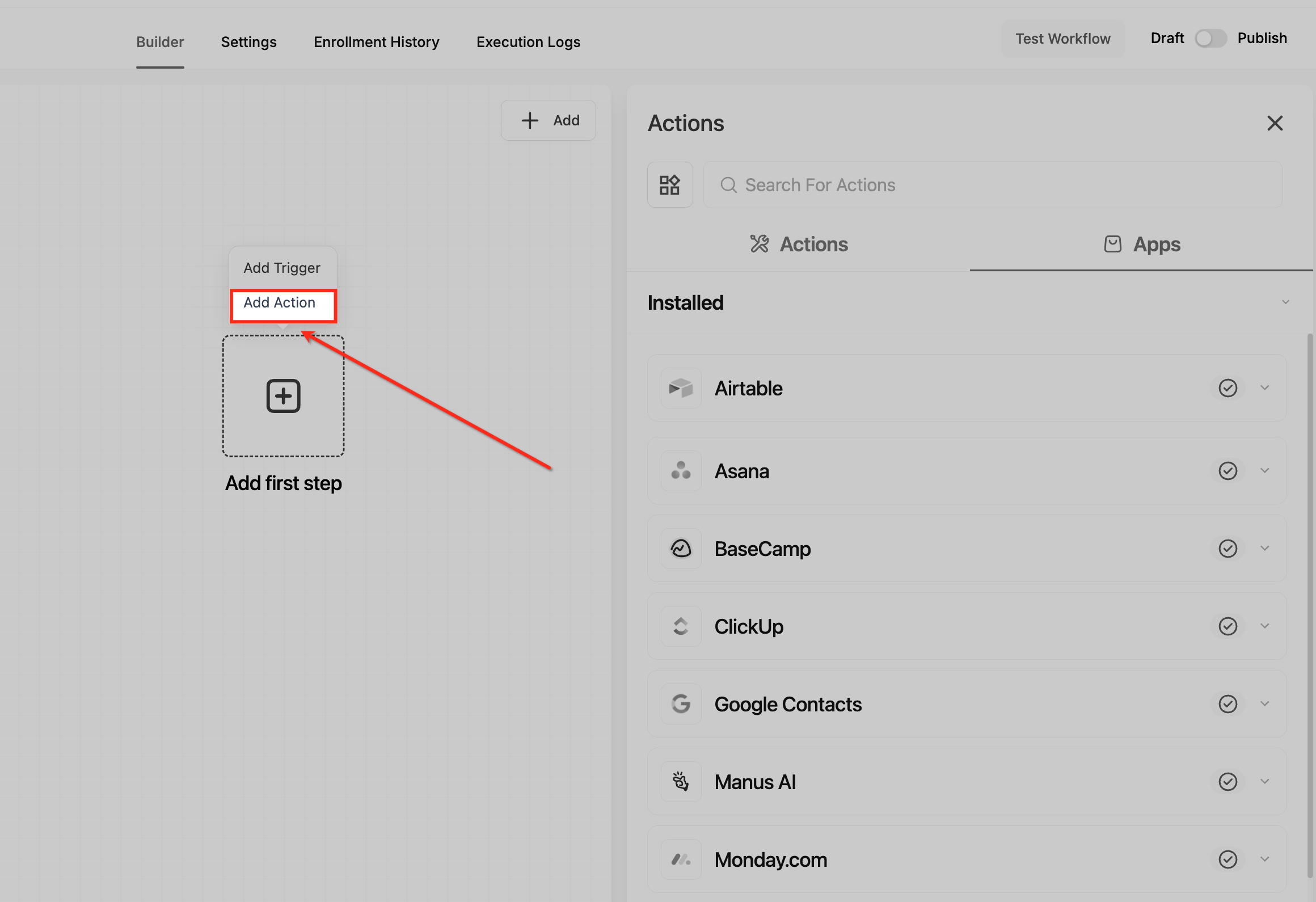
- Click Add in the workflow builder to insert a new step.
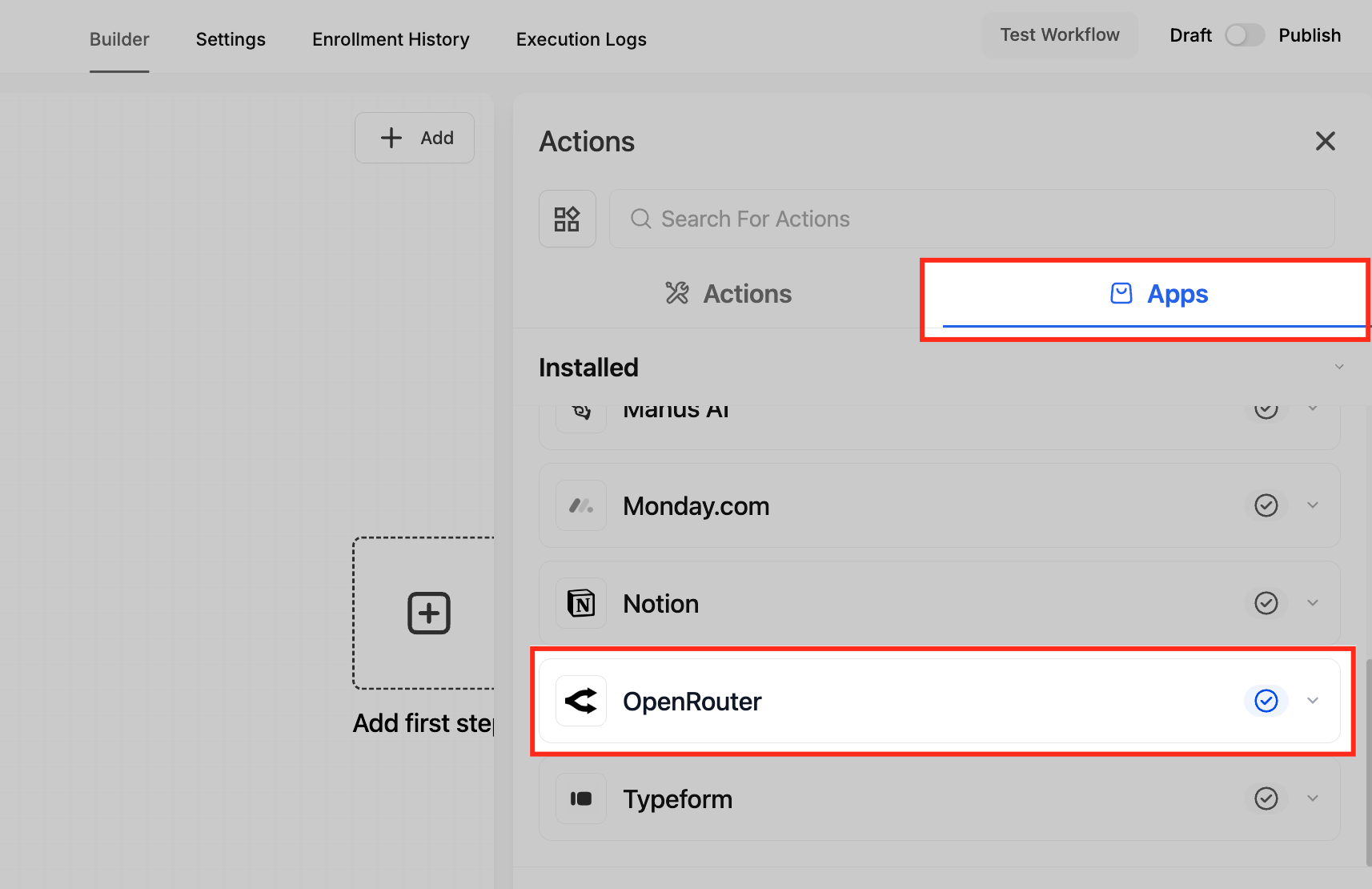
- In the Actions panel, choose the Apps tab.
- Scroll through the apps list and locate OpenRouter.
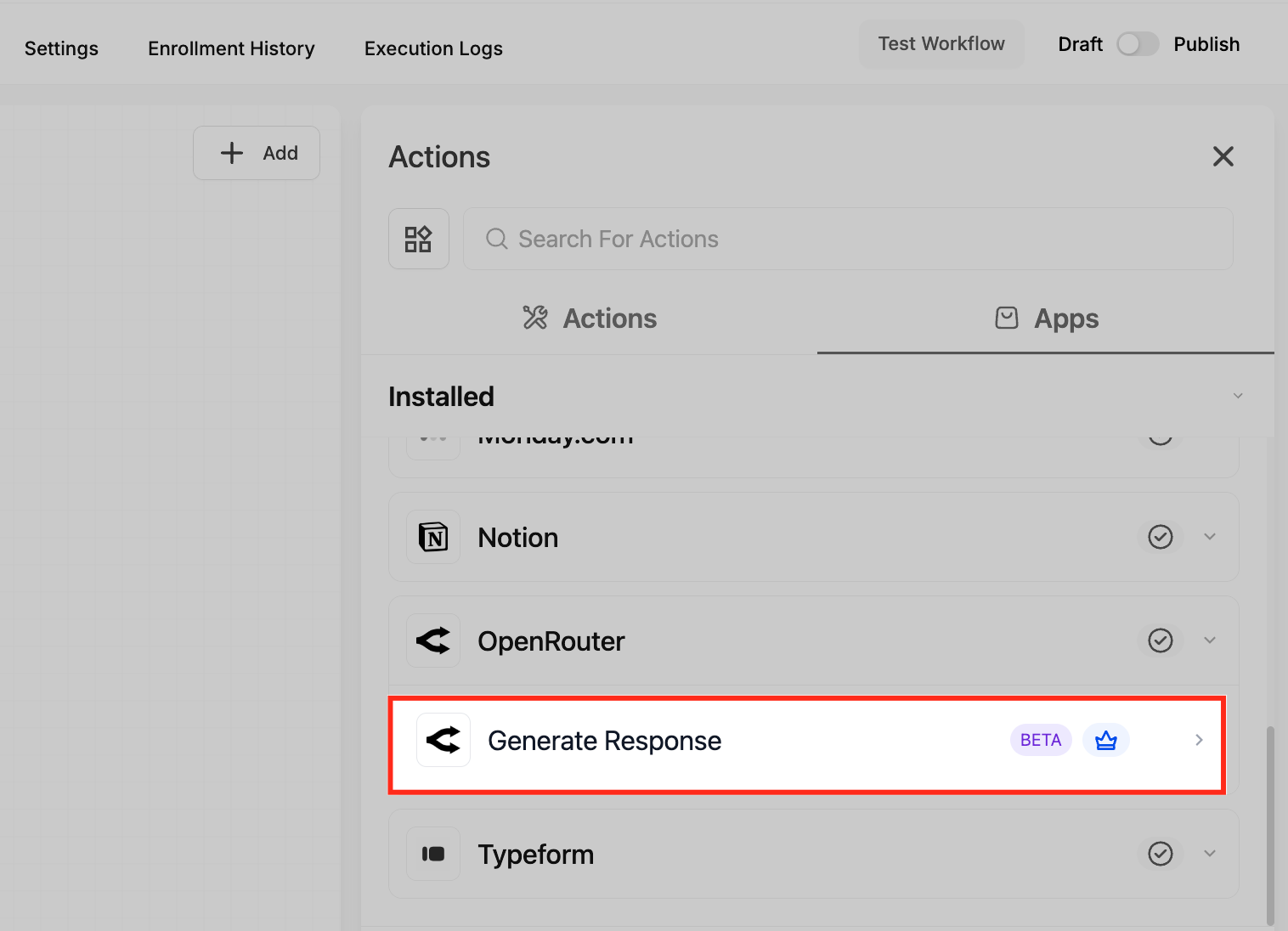
- Click OpenRouter to reveal its actions.
- Select Generate Response from the options.
- Enter a custom Action Name to identify the step.
- Fill in the System Prompt field to set the AI’s role or tone.
- Enter the Prompt field with the specific task, using workflow variables as needed.
- Choose the desired AI model from the Model dropdown.
- Test the action by clicking Test Action and reviewing the result, then click Save Action.
06What it looks like in HighLevel
07Settings that matter
- Action Name. Provides a custom label for the step so it can be recognized among multiple AI actions.
- System Prompt. Defines the AI’s personality, tone, or rules that stay consistent across all requests.
- Prompt. Specifies the exact task or question for the AI, and can include workflow variables for personalization.
- Model. Selects which OpenRouter AI model will process the prompt, affecting speed, reasoning ability, creativity, and cost.
08Things to know before you rely on it
- If the AI model fails or returns an error, the workflow continues according to the existing automation logic.
- Model capabilities such as speed, reasoning depth, creativity, and cost vary; choose the model that matches the automation need.
09If something goes wrong
- AI model fails to generate a response. Test the action with representative prompts before activating the workflow and adjust the System Prompt or Prompt if needed.
10How it connects to the rest of HighLevel
- Explore other conversation AI workflow actions in HighLevel Conversation AI actions
- Learn how to generate custom code with AI in workflows AI custom code
- Get started creating workflows and adding triggers Workflow basics
Michael's take

OpenRouter generate response feels like a small convenience that can become a real shift when you let the AI write routine copy for you. It produces a consistent tone and lets the team focus on higher value activities.
For a boutique real estate agency, the action can draft personalized property follow ups right after a lead downloads a brochure, using the contact’s name and property details. That tailored message can keep prospects engaged without manual typing.