
01Who this is for
- Customer support managers, need a quick way to close automated call flows while leaving a polite goodbye.
- Marketing teams running outbound campaigns, can end a recorded survey with a final thank you message.
- Service providers with on hold IVR, want to terminate calls cleanly after delivering required information.
02IVR end call actions, explained
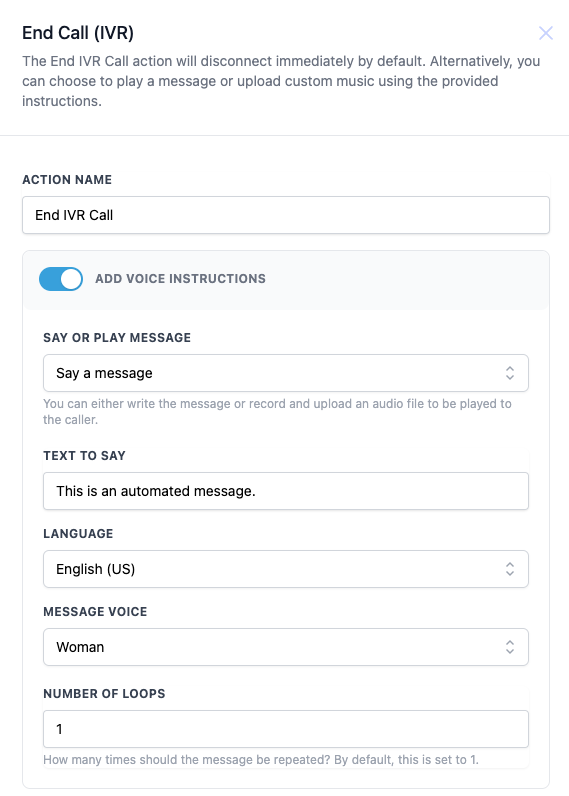
The End Call action belongs to the IVR group of workflow actions. When triggered, it terminates the current call. If the voice instruction toggle is turned on, the platform will first play either a spoken text or an uploaded audio clip, then cut the line.
The spoken option uses the platform’s text to speech engine. You can type the message, pick a language, select a male or female voice, and set how many repetitions are heard. The audio play option requires you to upload a file that will be streamed before the disconnect.
This action is accessed when building a workflow. It appears in the list of IVR actions alongside Say/Play and Gather Input actions. Once placed, you configure its fields in the right hand pane.
03How businesses use IVR end call
- Dental practice. Add the End Call step at the end of an appointment reminder IVR. Enable voice instructions, type a short reminder, choose an English voice, and set one loop so callers hear the message before the call ends.
- Ecommerce retailer. In a post purchase survey IVR, insert the End Call action after the last question. Enable a thank you audio file, upload the recording, and the system will play it then disconnect.
- Property management firm. Create an after hours hotline IVR that ends with an immediate hang up. Disable voice instructions so the call drops as soon as the caller reaches the final menu.
04The numbers and rules that matter
- Number of Loops default is 1.
05How to set up and use IVR end call in HighLevel
Configure the IVR End Call action with optional final message
- Enter a descriptive name for the action in the Action Name field.
- Toggle Add Voice Instructions on if a final message should be heard before hanging up.
- Choose between Say a message or Play audio file in the Say or Play Message dropdown.
- If Say a message is selected, type the desired spoken text in the Text to Say field.
- Select the appropriate language for the text to speech output.
- Pick Man or Woman for the Message Voice option.
- Set the Number of Loops value; the default is 1.
06What it looks like in HighLevel
07Settings that matter
- Action Name. Identifies the step inside the workflow.
- Add Voice Instructions. Controls whether a final message is played before the call ends.
- Say or Play Message. Determines if the final output is generated from text to speech or an uploaded audio file.
- Text to Say. The exact wording that the platform will convert to speech.
- Language. Specifies the language used for the text to speech voice.
- Message Voice. Selects the gender of the synthetic voice for spoken messages.
- Number of Loops. How many times the final message repeats before termination; default is one.
08Things to know before you rely on it
- If Add Voice Instructions is turned off, the call ends immediately without any audio.
- The Number of Loops field defaults to 1 if left unchanged.
09How it connects to the rest of HighLevel
- Learn how to play or speak a message in an IVR flow. IVR Say/Play
- See how to collect keypad input before ending a call. IVR Gather Input
- Get an overview of building workflows with triggers, filters, and actions. Workflow basics
Michael's take

The IVR End Call action is a straightforward way to close a phone interaction.