
01Who this is for
- Call center managers need a way to direct callers to the right department without a live agent.
- Small business owners using the HighLevel phone system can automate menu options for inbound calls.
- Healthcare clinic administrators can let patients choose appointment types or reach a nurse line through keypresses.
02IVR gather input on call, explained
Gather Input On Call is an IVR action inside the HighLevel workflow builder. It plays a spoken or recorded prompt and waits for the caller to press a digit. The platform listens for DTMF signals and can stop listening after a timeout, a set number of digits, or when a key is pressed.
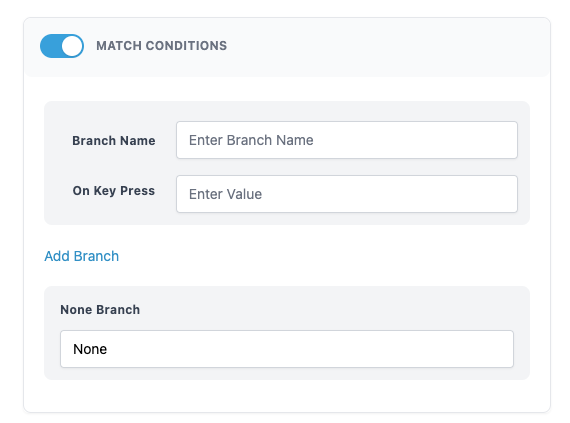
The action lives among other workflow actions such as Say/Play, End Call, and Record Voicemail. After the input is collected, you define match conditions that create separate branches for each digit value. Those branches can lead to further actions like routing, playing another message, or ending the call.
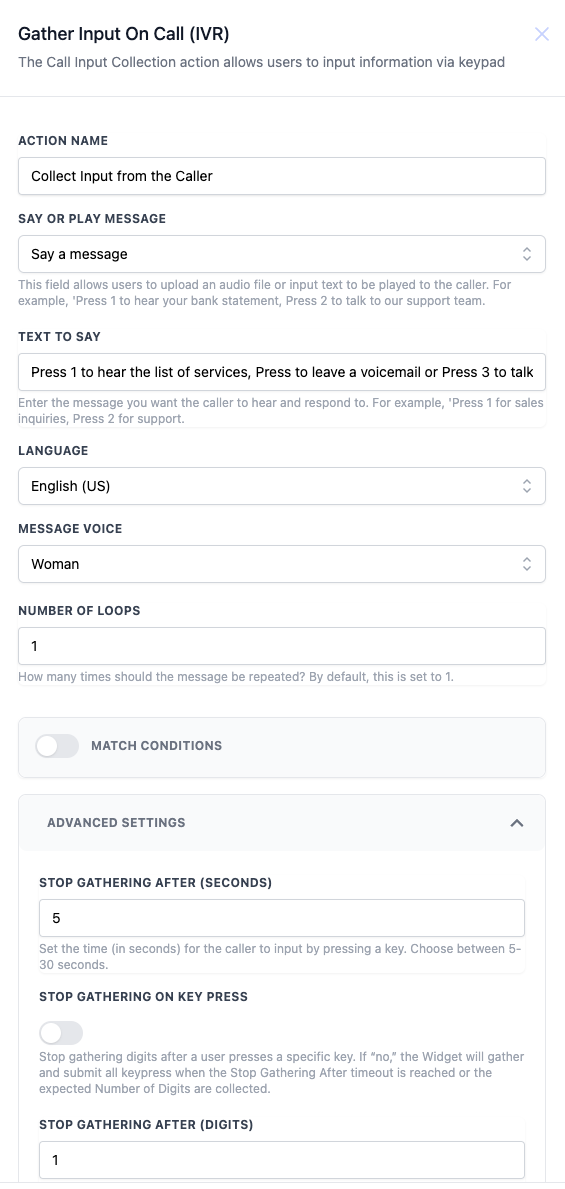
All configuration options appear in the action’s settings panel. You choose the prompt type, language, voice gender, number of repetitions, and advanced timeout rules before setting up the digit branches.
03How businesses use IVR gather input on call
- Real estate office. The office creates a greeting that says “Press 1 to speak with an agent, Press 2 to schedule a showing.” The workflow captures the digit and routes the call to the appropriate team member or calendar booking step.
- Dental practice. A dentist’s clinic plays a message prompting patients to press 1 for new patient intake, 2 for existing appointments, or 3 to leave a voicemail. Each selection triggers a different workflow branch that either schedules an appointment or records a voicemail.
- Ecommerce store. The store uses a prompt that asks callers to press 1 for order status, 2 for returns, or 3 to speak with support. The gathered input directs the call to the relevant support queue or an automated status lookup.
04How to set up and use IVR gather input on call in HighLevel
Configure Gather Input On Call action
- Enter a descriptive Action Name for the IVR step.
- Select either Say a message or Play a pre recorded audio file.
- If you chose Say a message, type the Text to Say that will be spoken to the caller.
- Choose the Language for the text to speech output.
- Select Message Voice as Man or Woman.
- Set Number of Loops to determine how many times the prompt repeats.
- In Advanced Settings, set Stop Gathering After (Seconds) to define the timeout period.
- Optionally, set Stop Gathering After (Digits) to limit the number of digits collected.
- Optionally, enable Stop Gathering on Key Press to end input collection as soon as a key is pressed.
- Define Match Conditions to create branches for each expected digit value.
05What it looks like in HighLevel
06Settings that matter
- Action Name. Provides a label for the IVR gathering step.
- Say or Play Message. Chooses between a spoken text to speech prompt or an uploaded audio file.
- Text to Say. Specifies the exact words that will be spoken when the Say option is selected.
- Language. Determines the language used for the text to speech voice.
- Message Voice. Selects a male or female voice for the spoken prompt.
- Number of Loops. Controls how many times the prompt repeats before moving on.
- Stop Gathering After (Seconds). Sets the timeout length after which the system stops listening for input.
- Stop Gathering After (Digits). Specifies the maximum number of digits to collect before ending input gathering.
- Stop Gathering on Key Press. When enabled, ends input collection immediately after any key is pressed.
- Match Conditions. Defines branches that trigger based on the caller’s digit selection.
07Things to know before you rely on it
- Stop Gathering After (Digits) and Stop Gathering on Key Press are optional settings.
- Match Conditions must be defined for each expected digit to create functional branches.
08How it connects to the rest of HighLevel
- Configure the IVR Say/Play action for prompts IVR Say/Play
- Set up the IVR End Call action for call termination IVR End Call
- Add a Record Voicemail action after a digit branch Record Voicemail
Michael's take

The IVR Gather Input on Call feature feels like a small convenience that can shift a call flow from manual routing to an automated menu.