
01Who this is for
- Call center managers, need consistent greetings and instructions for callers.
- Healthcare clinics, can guide patients to the appropriate department without a live agent.
- Ecommerce retailers, can deliver order status or promotional messages automatically.
02IVR Say/Play, explained
The Say/Play action is part of an IVR workflow. It delivers a spoken message to the caller either by converting supplied text into speech or by playing a pre recorded audio file. The action can be used for greetings, instructions, or any other information you want callers to hear.
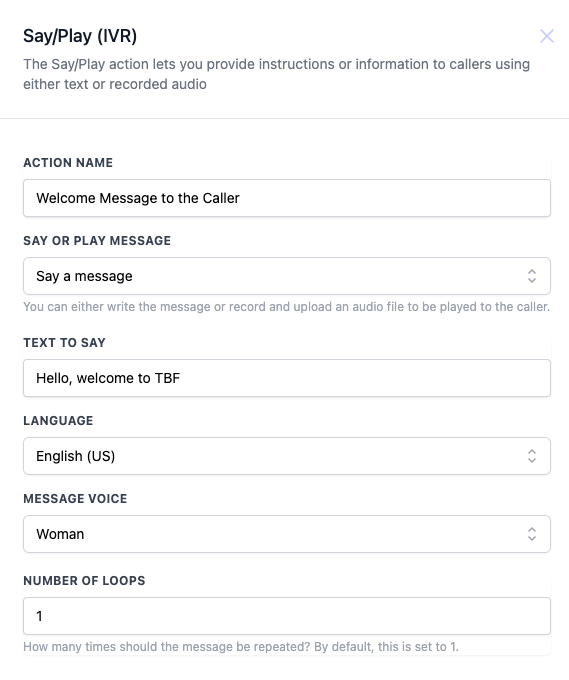
When configuring the action you choose between text to speech and audio playback. For text to speech you type the message, select the language (English only), pick a male or female voice and optionally set how many times the message repeats. For audio playback you upload a compatible file such as MP3 and can also set the loop count.
The action lives inside the workflow editor. After adding a new action, select the "Say/Play" option from the list of IVR actions and then fill out the fields described above.
03How businesses use IVR Say/Play
- Dental practice. Create a Say/Play action that reads appointment reminders using text to speech. Set the language to English, choose a female voice and loop the message once. This message plays before routing the call to the office.
- Real estate agency. Upload a short audio clip that welcomes callers and explains office hours. Select the Play a message option, upload an MP3 file, set loops to one and attach the action to the inbound call workflow.
- Tech support company. Use the Say a message option to read basic troubleshooting steps. Enter the step text, choose a male voice, keep the default loop count and place the action before offering live support.
04The numbers and rules that matter
- Default Number of Loops is 1.
- Prerecorded audio must be in a compatible format such as MP3.
05How to set up and use IVR Say/Play in HighLevel
Configure an IVR Say/Play message
- Select "Say or Play Message" and choose either "Say a message" or "Play a message".
- If "Say a message" is chosen, enter the text you want spoken.
- If "Play a message" is chosen, upload the audio file that callers will hear.
- Provide the text in the "Text to Say" field when using the text to speech option.
- Choose the "Language" for the spoken text (English only).
- Select the "Message Voice" (male or female).
- Enter a value for "Number of Loops" to define how many times the message repeats (default is one).
- Ensure the uploaded audio file is in a compatible format such as MP3.
- Save the action to apply the configuration.
06What it looks like in HighLevel
07Settings that matter
- Say or Play Message. Determines whether the caller hears a text to speech message or an uploaded audio file.
- Text to Say. The exact wording that will be converted to speech when the text to speech option is selected.
- Language. Specifies the language in which the text to speech message is spoken; only English is available.
- Message Voice. Chooses the gender of the voice for the text to speech output, male or female.
- Number of Loops. Sets how many times the message repeats; default is one repeat if left blank.
08Things to know before you rely on it
- Only English is supported for the language setting.
- The Number of Loops field is optional; if omitted, the message plays once.
- Uploaded audio files must be in a compatible format such as MP3.
09How it connects to the rest of HighLevel
- How to end a call in an IVR workflow IVR End Call
- Collect caller input after playing a message IVR Gather Input
- Set up local presence dialing alongside IVR Local Presence Dialing
Michael's take

Do I really need a voice prompt for every call? If callers have to navigate a menu, a short spoken prompt can help guide them. The IVR Say/Play action lets you set that up by typing a message or uploading a recording.
I’d start by creating a simple welcome greeting. Test the loop count and voice to make sure it sounds clear before you roll it out to all callers.