
01Who this is for
- Marketing managers can automate content generation for campaigns and reuse the output in emails or ads.
- Sales leaders can qualify leads by having an agent analyze contact data and return a score for routing.
- Operations teams can create summaries of interactions and attach them to records for internal handoff.
02Invoke Agent Studio Agent, explained
The action runs a selected Agent Studio agent at a specific point in a workflow. When the workflow reaches this step, the agent executes in the background, processes the supplied message and variables, and sends back a response.
The response becomes a custom value that later actions can reference. The action lives in the workflow builder under the Agent Studio category. It requires the agent to be published to Production and built with the Workflows trigger so the workflow can pass inputs correctly.
03How businesses use Invoke Agent Studio Agent
- Real estate agency. The agency adds the action after a lead form submission. It sends the lead’s notes to an agent that creates a property match summary. The summary is saved and inserted into a follow up email.
- Online coaching business. After a client books a session, the workflow calls an agent to generate a personalized preparation guide. The guide is stored as a custom field and sent via SMS to the client.
- IT service provider. When a ticket is closed, the workflow invokes an agent to write a brief resolution summary. The summary is saved to the ticket record and posted to a webhook for reporting.
04The numbers and rules that matter
- Agents must respond within 60 seconds.
05Before you start
- An active AI Employee add on with access to Agent Studio must be in place.
- The agent must be published to Production; draft or staging versions are not selectable.
- You need permission to edit workflows and AI agents in the current subaccount.
- The agent should be built with the Workflows trigger to accept inputs from the workflow.
06How to set up and use Invoke Agent Studio Agent in HighLevel
Build the agent in Agent Studio
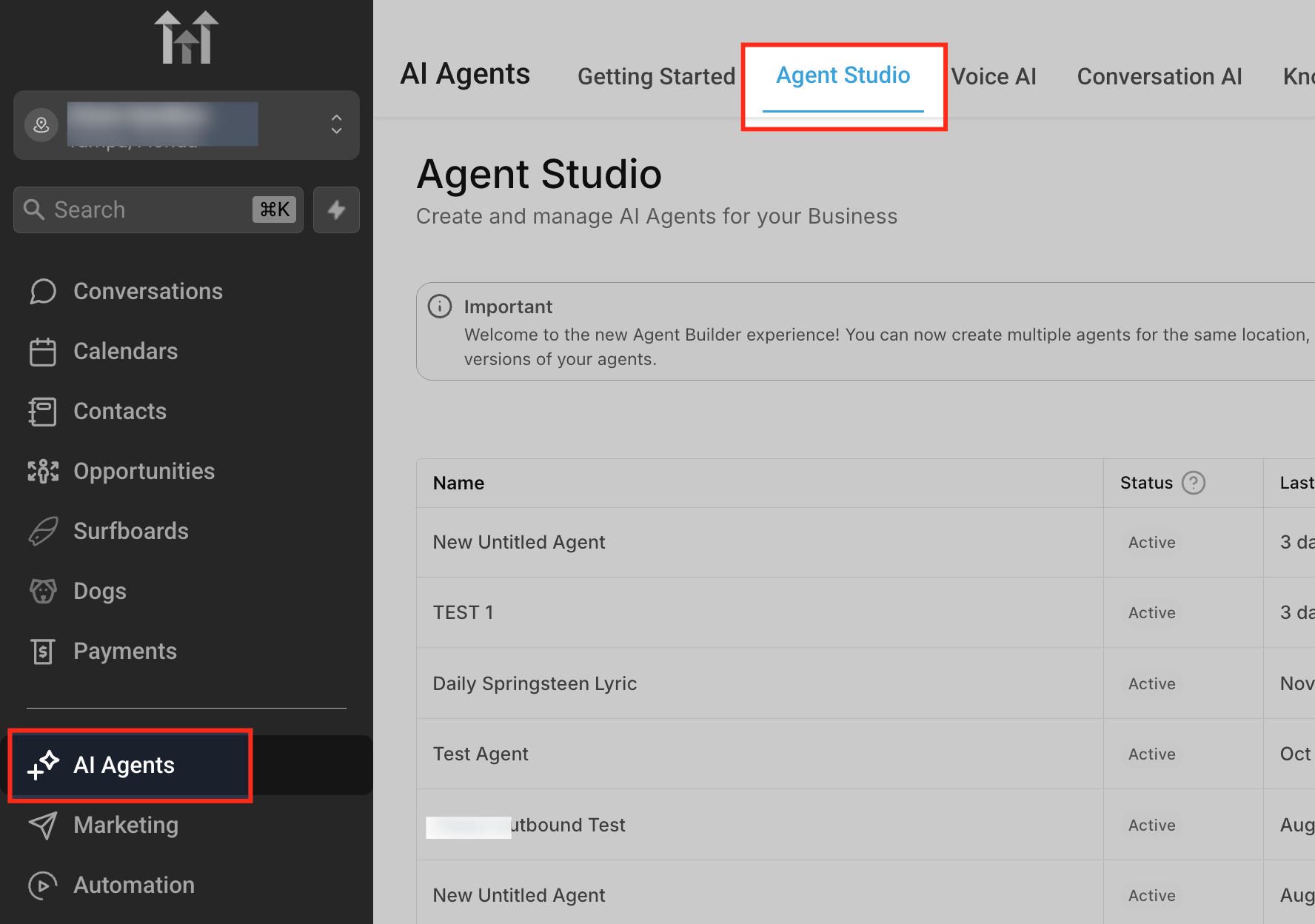
- Open Agent Studio from the navigation menu.
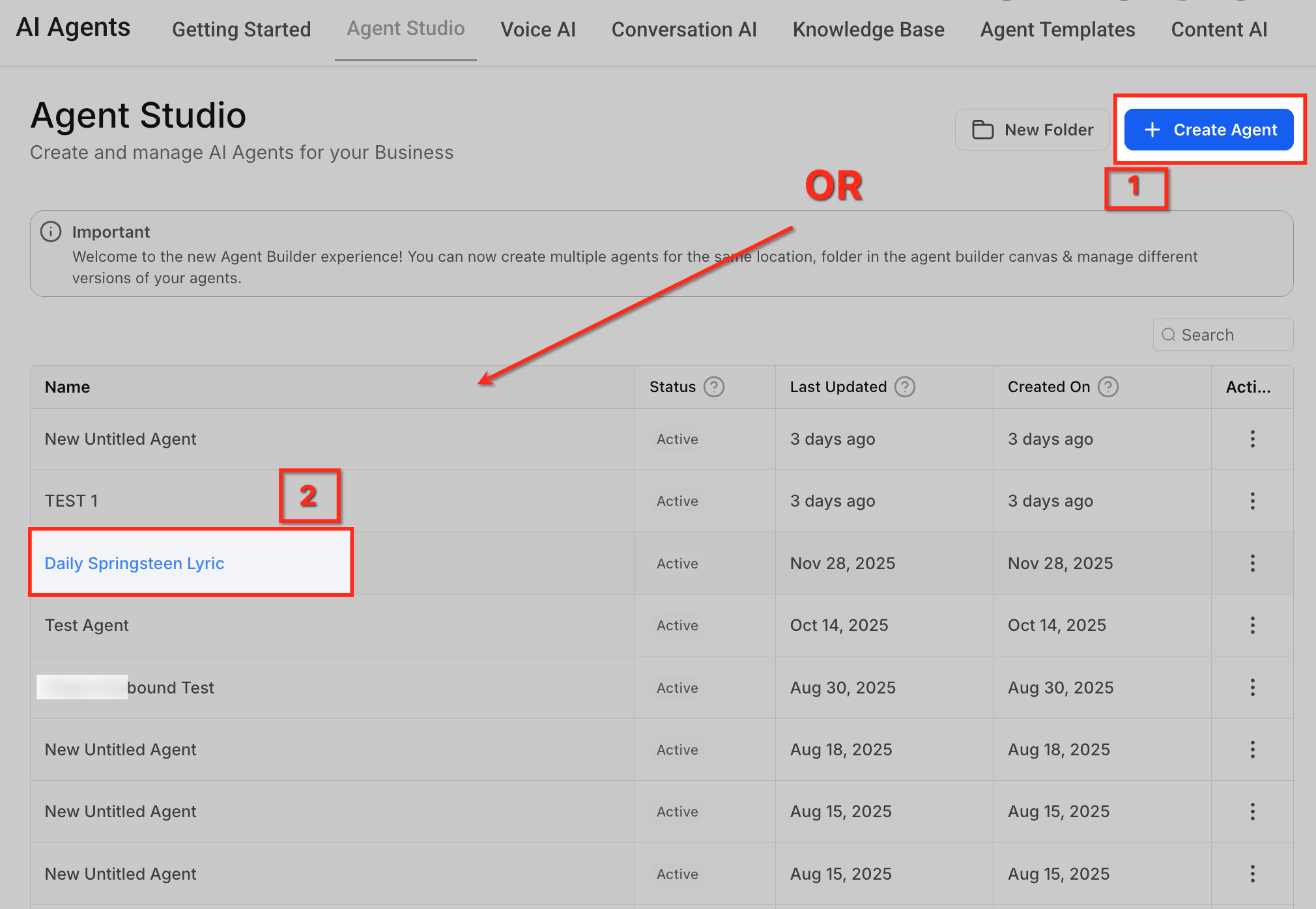
- Click Create Agent or select an existing one to edit.
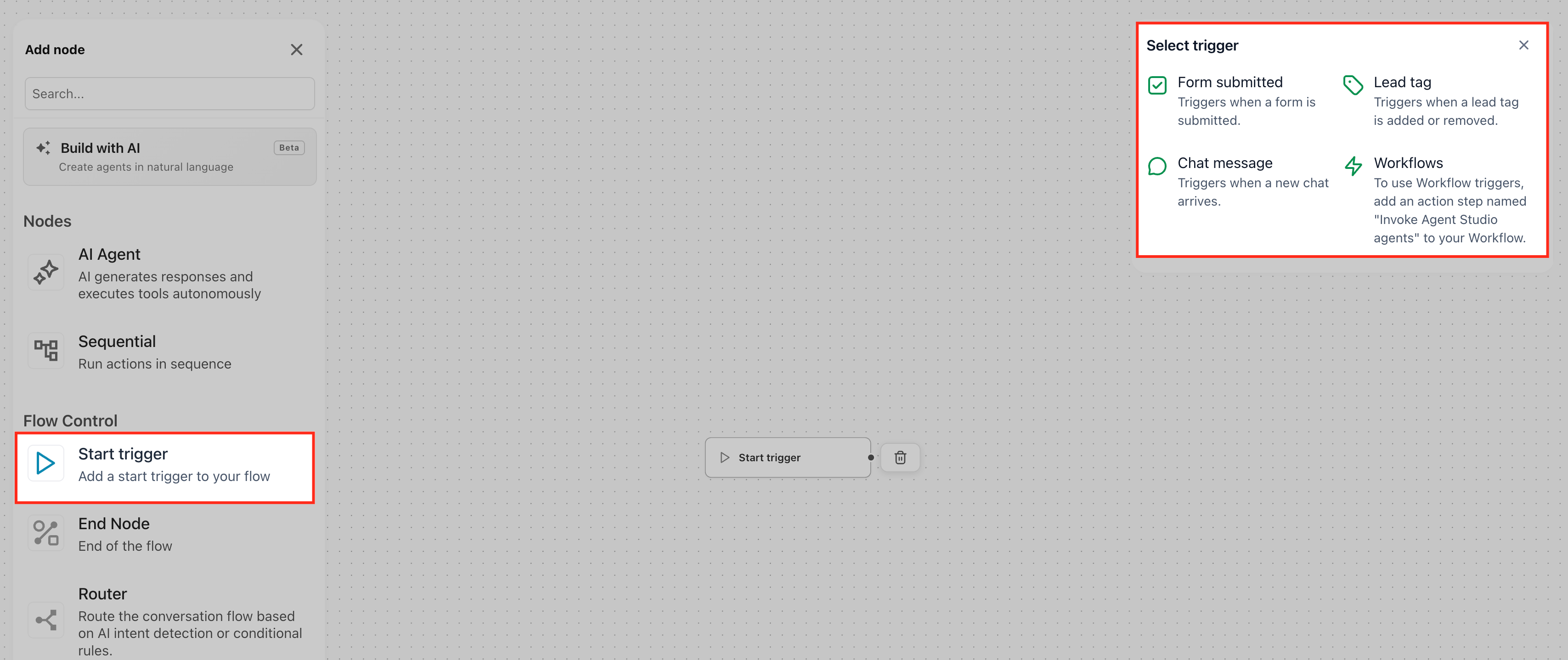
- In the trigger selection panel, choose Workflows as the start type.
- Define the agent’s instructions, required tools, and input variables.
- Test the agent, verify the output format, and Publish it to Production.
Add the Invoke Agent Studio Agent action to a workflow
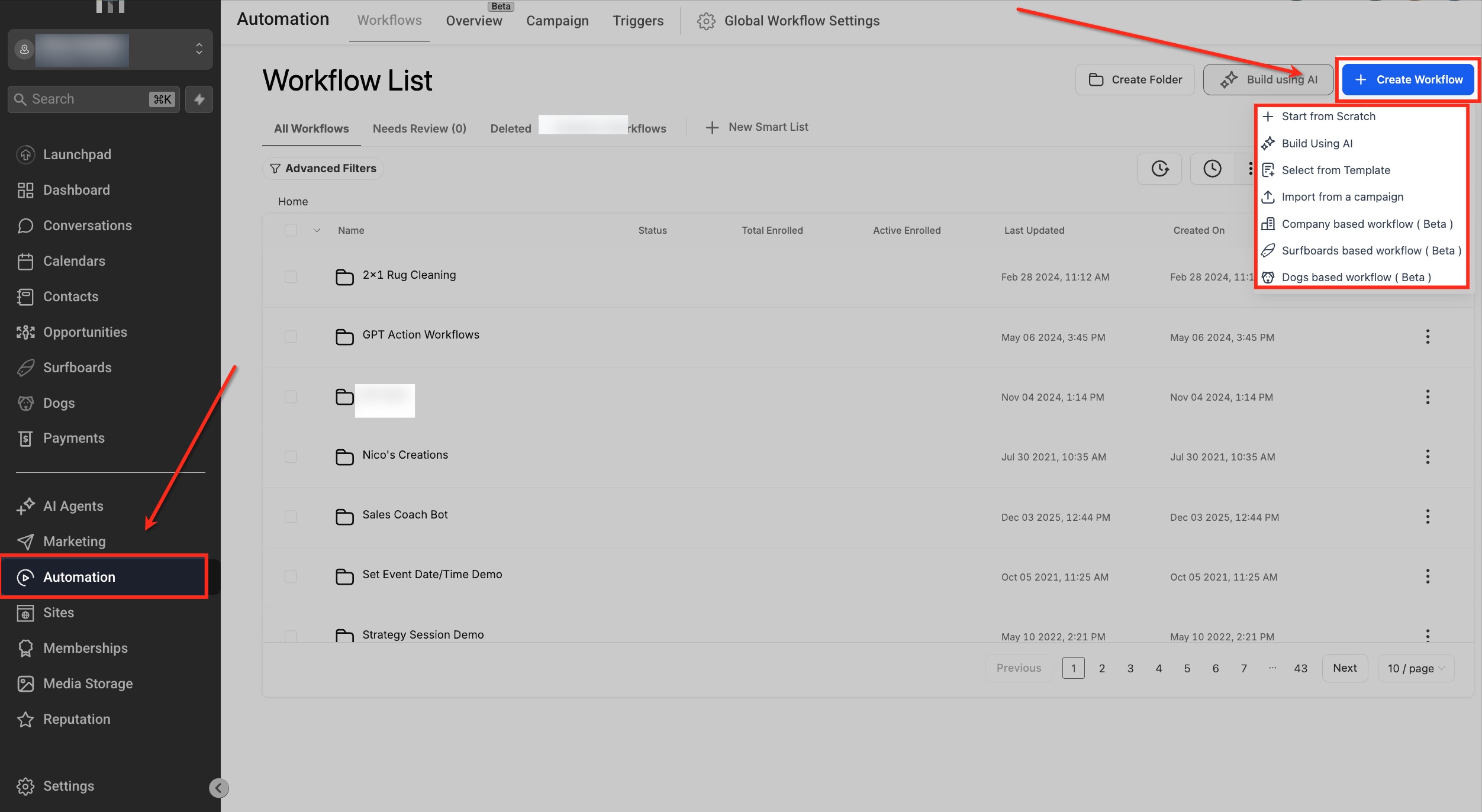
- Go to Automation > Workflows in HighLevel.
- Open an existing workflow or create a new one.
- Click the + Add Action button.
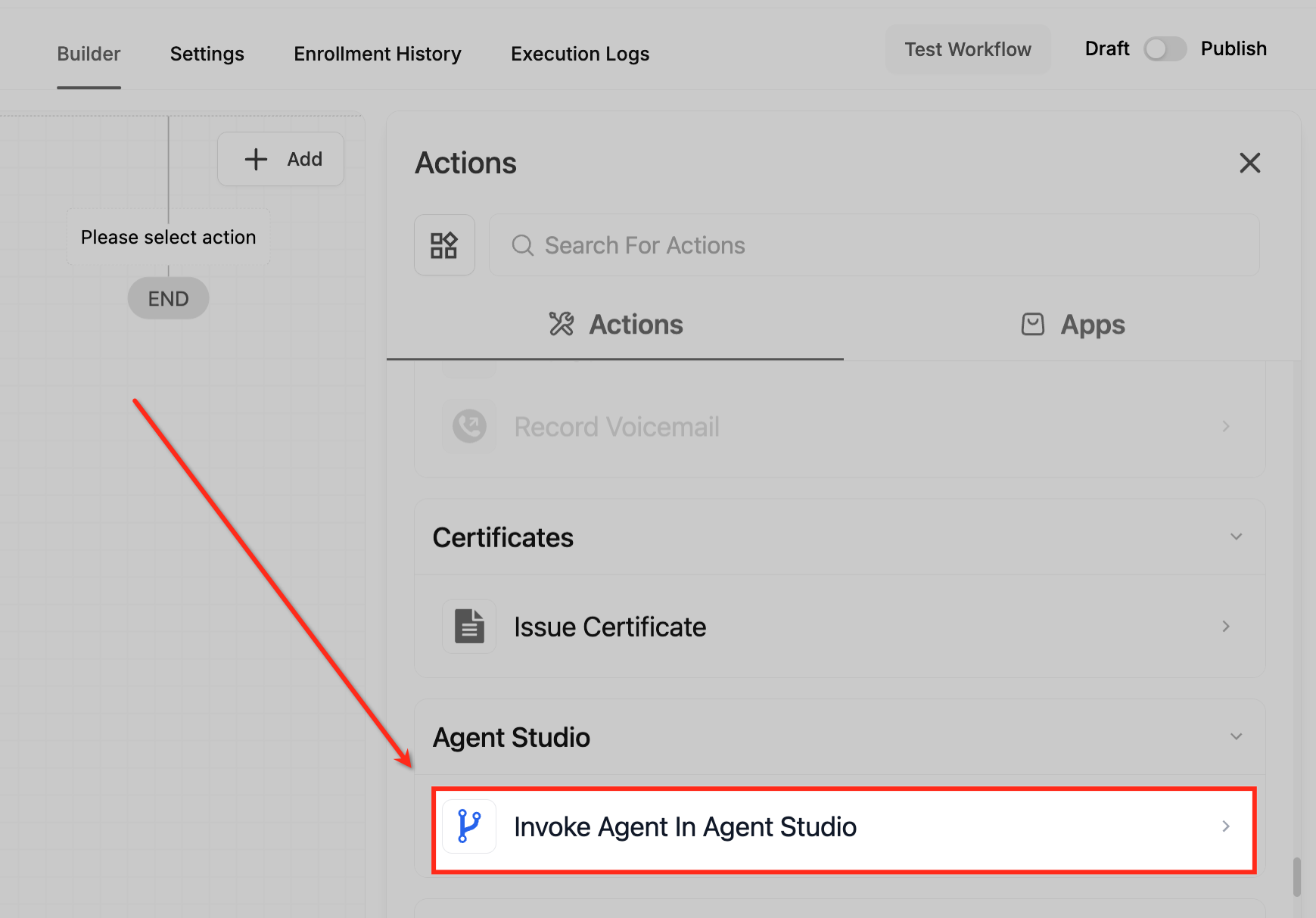
- Find the Agent Studio section and select Invoke Agent Studio Agent.
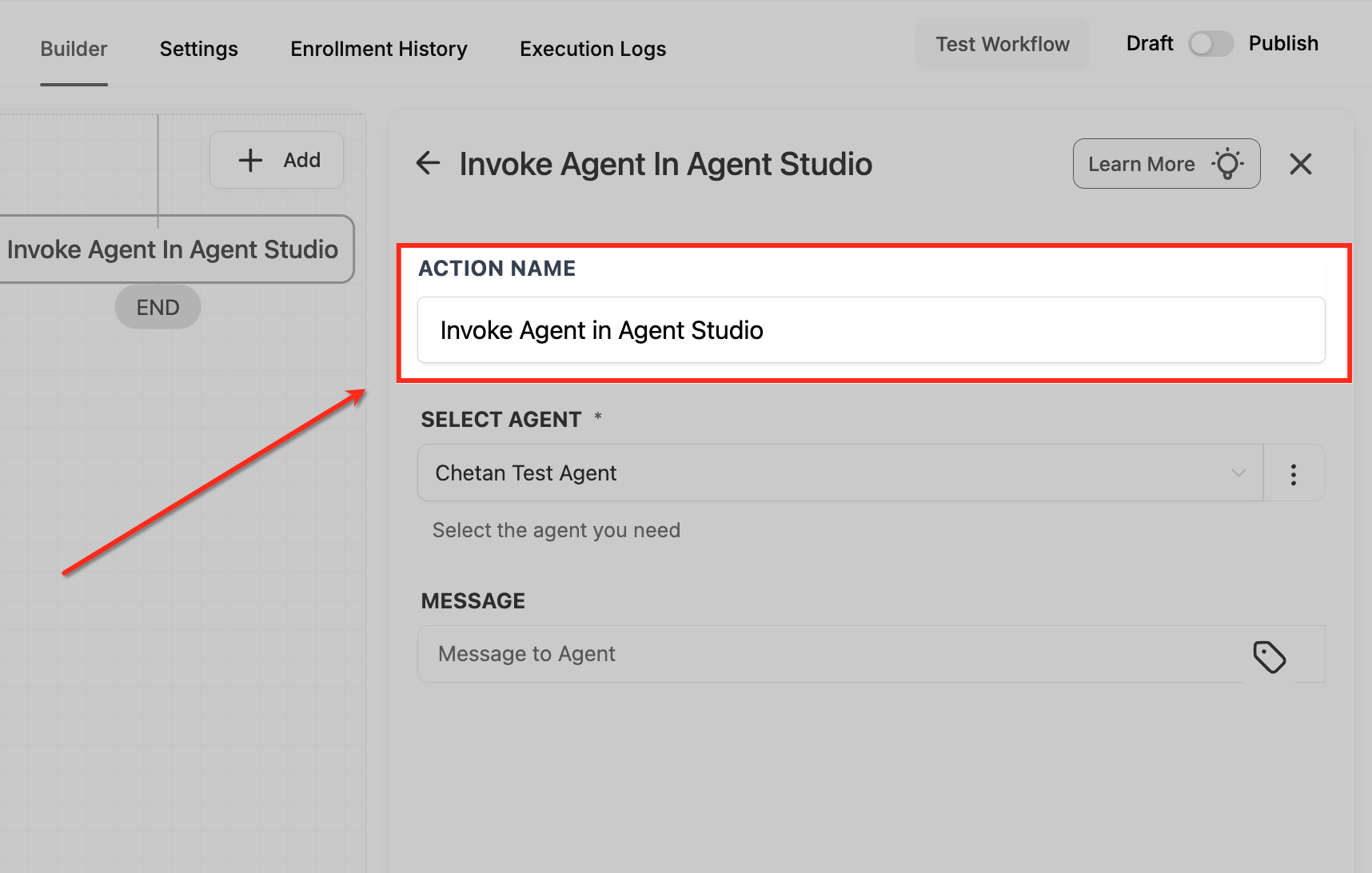
- Enter a clear Action Name for the step.
- Choose the Production agent from the Select Agent dropdown.
- If the agent does not appear, confirm its Production status, trigger type, and refresh the builder.
- Optionally fill the Message field with instructions, using merge fields as needed.
- Map each required input variable to workflow data or static text.
- Select Store Output As if you want to keep the full response, then click Save Action.
07What it looks like in HighLevel
08Settings that matter
- Agent. Specifies which Production agent the workflow will run.
- Message. Provides free text instructions for the agent; merge fields can add dynamic context.
- Input Variables. Maps workflow values or static text to the named inputs required by the agent.
- Store Output As. Saves the entire agent response as a custom value for use in later steps.
09Things to know before you rely on it
- Only agents that are published to Production appear in the selector; draft or staging versions are hidden.
- Required input variables must be mapped; missing inputs cause the action to fail.
- Agents must return a response within 60 seconds or the action will time out.
- Running an agent consumes the same AI credits as running it directly in Agent Studio; there is no extra workflow surcharge.
10If something goes wrong
- Agent does not appear in the dropdown. Confirm the agent is published to Production, built with the Workflows trigger, belongs to the current subaccount, and refresh the builder.
- Action fails because required inputs are missing. Review the Input Variables mapping and ensure every required variable defined in the agent is supplied.
- Agent errors out during execution. Check the workflow execution log for the error details and handle failures with additional workflow logic if needed.
11How it connects to the rest of HighLevel
- Explore other AI driven workflow actions that can be combined with Invoke Agent Studio Agent. Conversation AI workflow actions
- Review the basics of building automations in HighLevel to place the agent action correctly. Workflow automation basics
- Check plan requirements for the AI Employee add on that provides access to Agent Studio. Pricing and plans
Michael's take

When a lead comes in, you often have to enrich the record, write a summary or decide how to route it. Doing that manually slows your team and can miss details. The first thing I would get right is the Message field so the agent receives clear, concise instructions and any needed merge fields.
Getting the message right ensures the AI knows exactly what to do, which makes the downstream steps reliable. After that I would run a quick test in Agent Studio to confirm the output format before wiring it into the workflow.