
01Who this is for
- Founders who operate several regional subaccounts and need the same lead information available everywhere.
- Marketing managers managing tag based segmentation across multiple client accounts.
- Support teams that require contact details to be mirrored in separate service accounts.
02Copy contact to subaccount, explained
The Copy Contact workflow action creates a replica of a chosen contact in a different HighLevel account. You decide which account receives the copy and whether tags, custom fields, or existing records are also transferred. The action runs only when triggered by another workflow event. File attachments are not moved with the contact; if the original record is later removed, any file references in the copy may become inaccessible.
03How businesses use copy contact to subaccount
- Real estate brokerage. When a new buyer lead is entered in the main office, the workflow tags the lead as "Buyer" and copies it to each regional office account. The copy includes all custom fields such as preferred neighborhoods and the office specific tags.
- Dental practice chain. A patient added at the headquarters is automatically duplicated to each clinic’s account. The clinic can add its own location tag while preserving the patient’s health history custom fields.
- IT managed services firm. When a support ticket contact is created, the workflow copies the contact to the appropriate service team subaccount, optionally updating the record if it already exists, ensuring that each team works with the latest client information.
04How to set up and use copy contact to subaccount in HighLevel
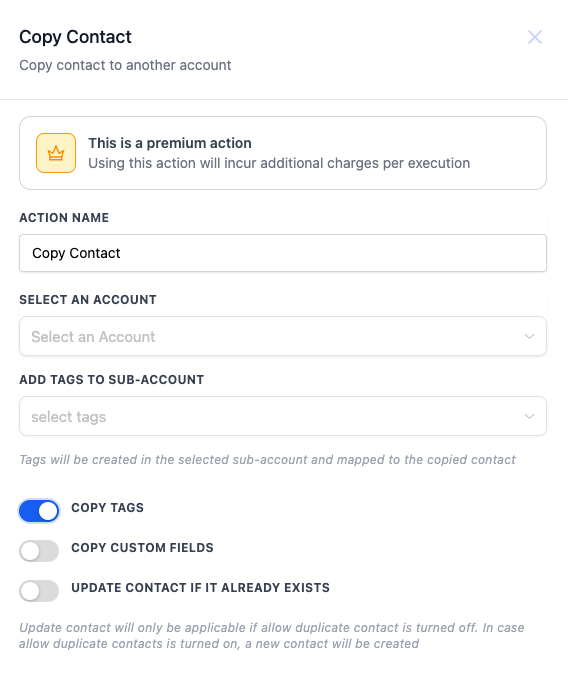
Configure the Copy Contact action
- Select the destination account where the contact should be duplicated; this field must be filled.
- Add any tags you want to attach to the copied contact in the target account.
- Toggle the option to copy all tags from the original contact if desired.
- Turn on the option to copy custom field values from the original record.
- Enable the setting that updates an existing contact in the target account instead of creating a duplicate.
05What it looks like in HighLevel
06Settings that matter
- Select an Account. Specifies the target HighLevel account that will receive the copied contact. Required for the action to run.
- Add Tags to Subaccount. Allows you to assign additional tags to the new contact in the destination account.
- Copy Tags. If turned on, all tags from the original contact are copied over to the new record.
- Copy Custom Fields. When enabled, custom field data from the source contact is included in the copy.
- Update Contact if it Already Exists. Updates the existing contact in the target account instead of creating a duplicate when a matching record is found.
07Things to know before you rely on it
- The action is a premium feature and adds a charge each time it executes.
- File attachments are not transferred; copied contacts may show references to files that remain in the source account.
- If the original contact is deleted, any file references in the copied contact become inaccessible. Do not delete the original contact if its files contain important information.
08How it connects to the rest of HighLevel
- How to configure the Create Contact action in HighLevel Create Contact guide
- Workflow Action: Add Contact Tag Add Tag action
- HighLevel workflow automation: basics and set up guide Workflow basics
Michael's take

Michael ReimerFounder of CRM Pros, HighLevel Commander and Certified Admin
Copy Contact to subaccount is a niche convenience that only pays off for multiaccount setups.
Skip it if you don’t need to mirror contacts across separate accounts.
Get More InformationOpens on HighLevelPublished November 2, 2026 · Updated November 16, 2026