
01Who this is for
- Automation specialists who need to transform order line item data for downstream actions.
- Marketing teams that want to extract specific customer attributes from form submissions.
- Developers building low code solutions that require basic calculations on numeric lists.
02Array formatter, explained
Array Formatter is a group of workflow actions that operate on arrays, simple lists of objects or numbers. The actions can locate a single item, filter many items, pick an entry by its position, reshape data, or perform math functions such as sum or average.
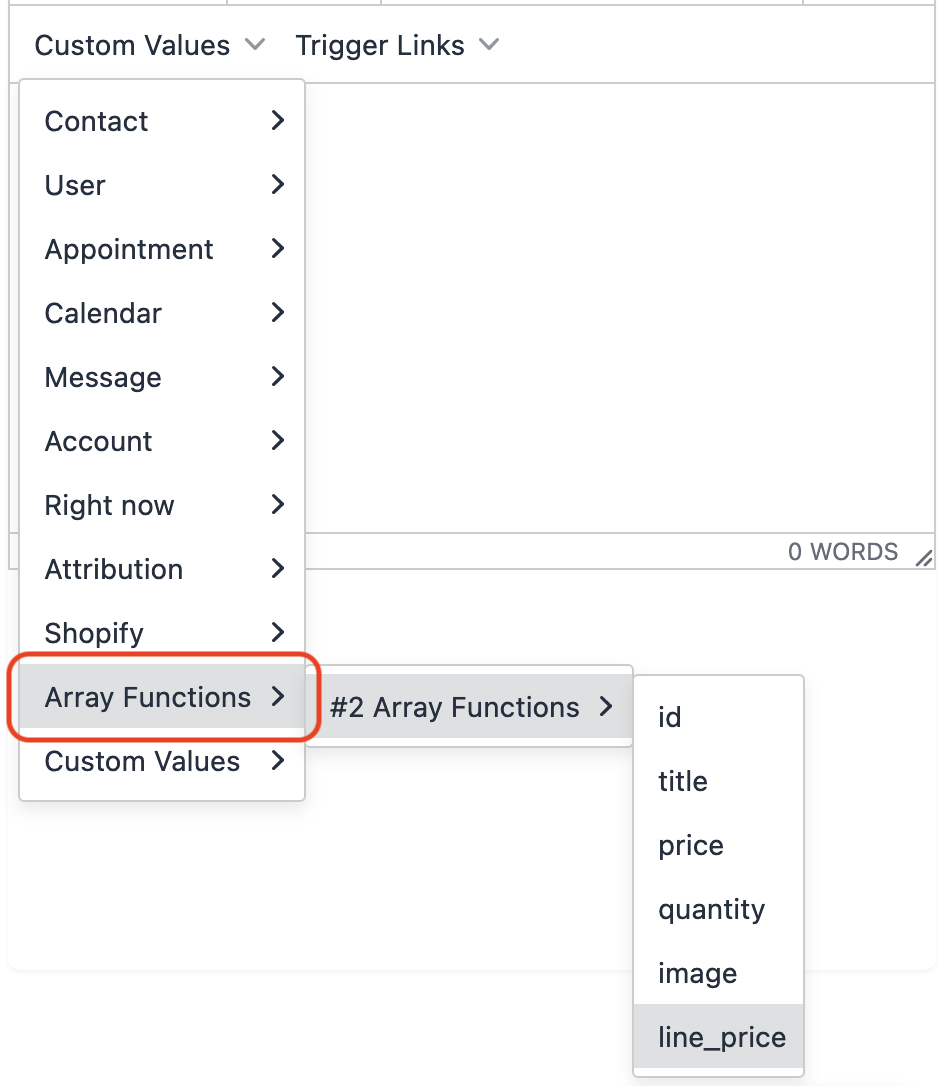
The feature appears under the Array Function option when adding a new action in the workflow builder. After you select a function type, you provide the source array and any keys, values, or criteria required. When the workflow runs, the action creates a variable that holds the result, which can be referenced by later steps.
03How businesses use array formatter
- Ecommerce store. Select the Find function to pull a specific product from a Shopify order’s line items, then pass the product details to a custom webhook for fulfillment.
- Fitness studio. Use the Filter function to keep only class registrations that match a chosen location, then feed the filtered list into an email builder to send location specific reminders.
- Event management company. Apply the Math function’s Sum option to add up ticket prices from a registration array, storing the total for later use in an invoice email.
04The numbers and rules that matter
- Array Formatter is now free to use as a standard workflow execution billed at $0 (per HighLevel's help center, checked November 2026).
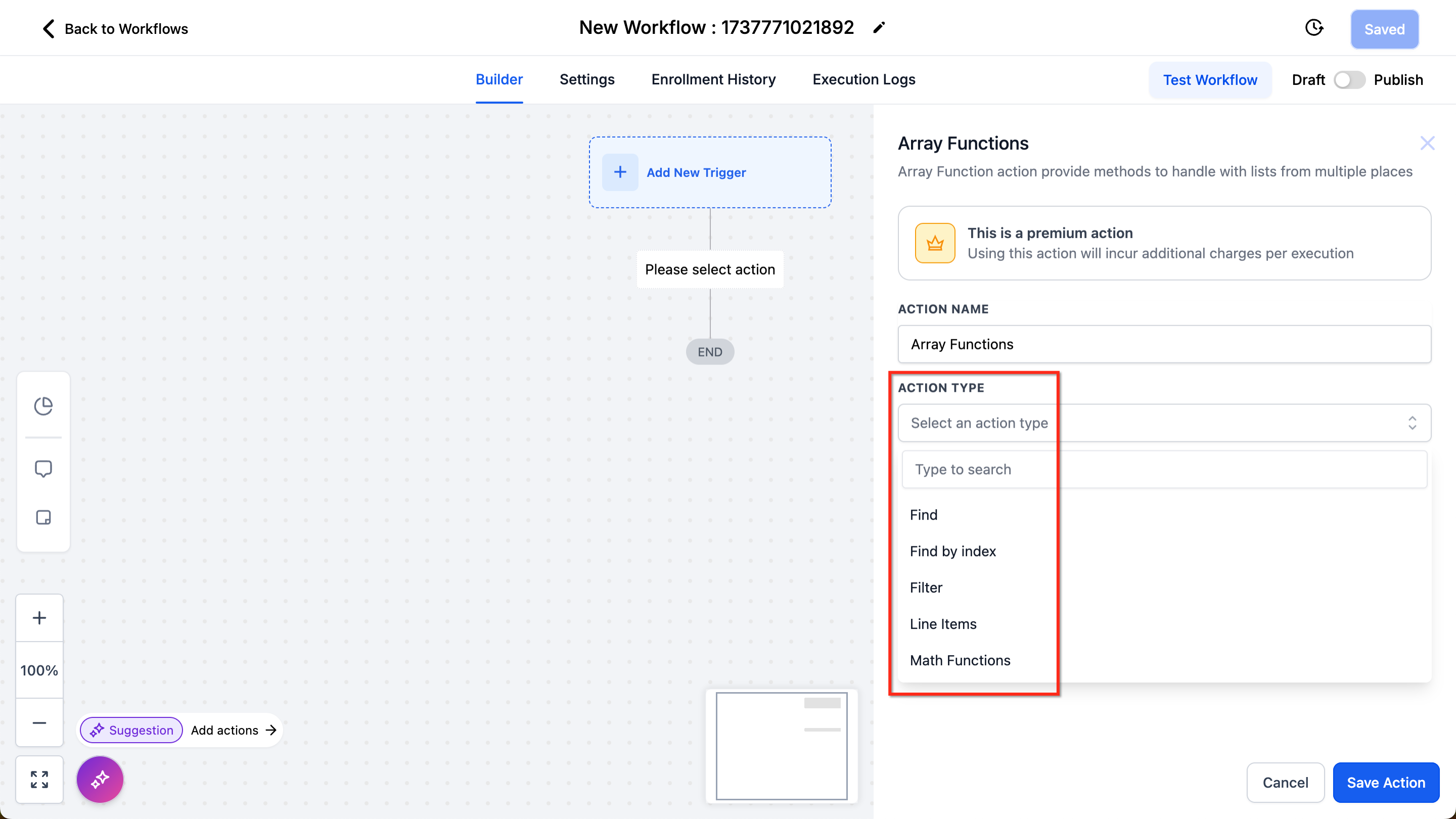
- Available function types: Find, Filter, Find by Index, Line Items, Math.
05Before you start
- Ensure the workflow includes a trigger that provides an array, such as a Shopify order, an inbound webhook, or a custom webhook response.
06How to set up and use array formatter in HighLevel
Set up array formatter
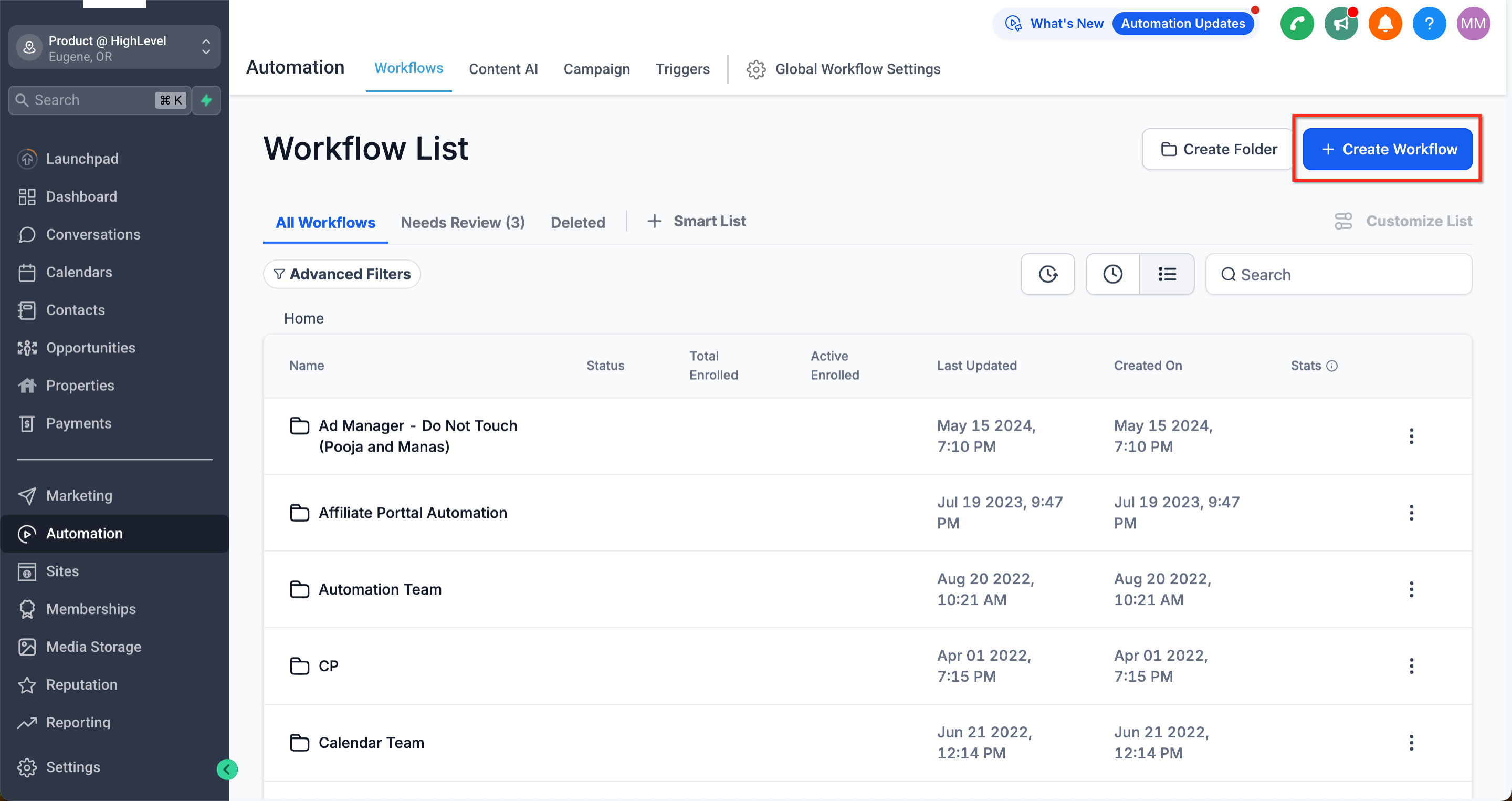
- Open the Automation tab and create a new workflow or edit an existing one.
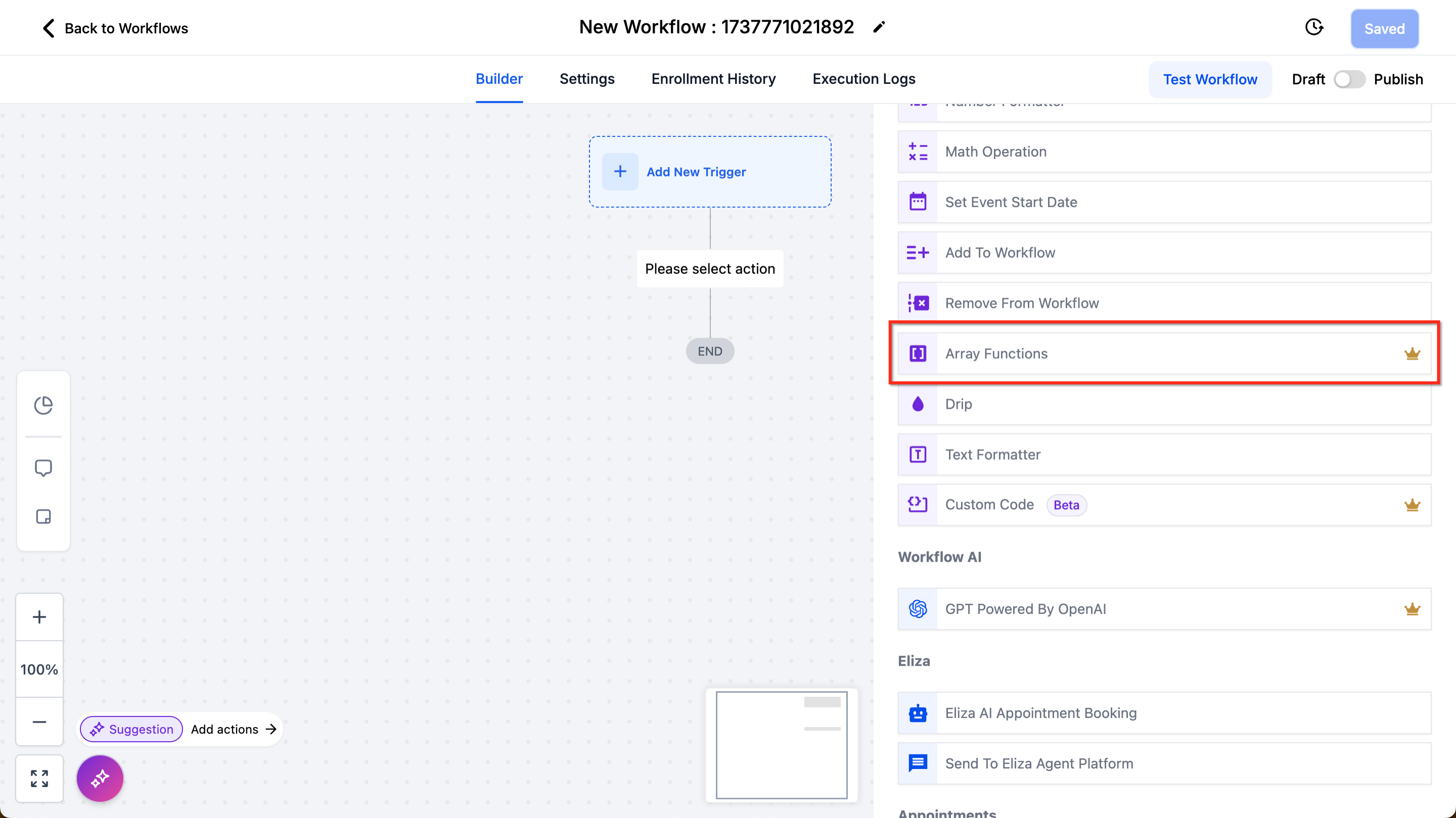
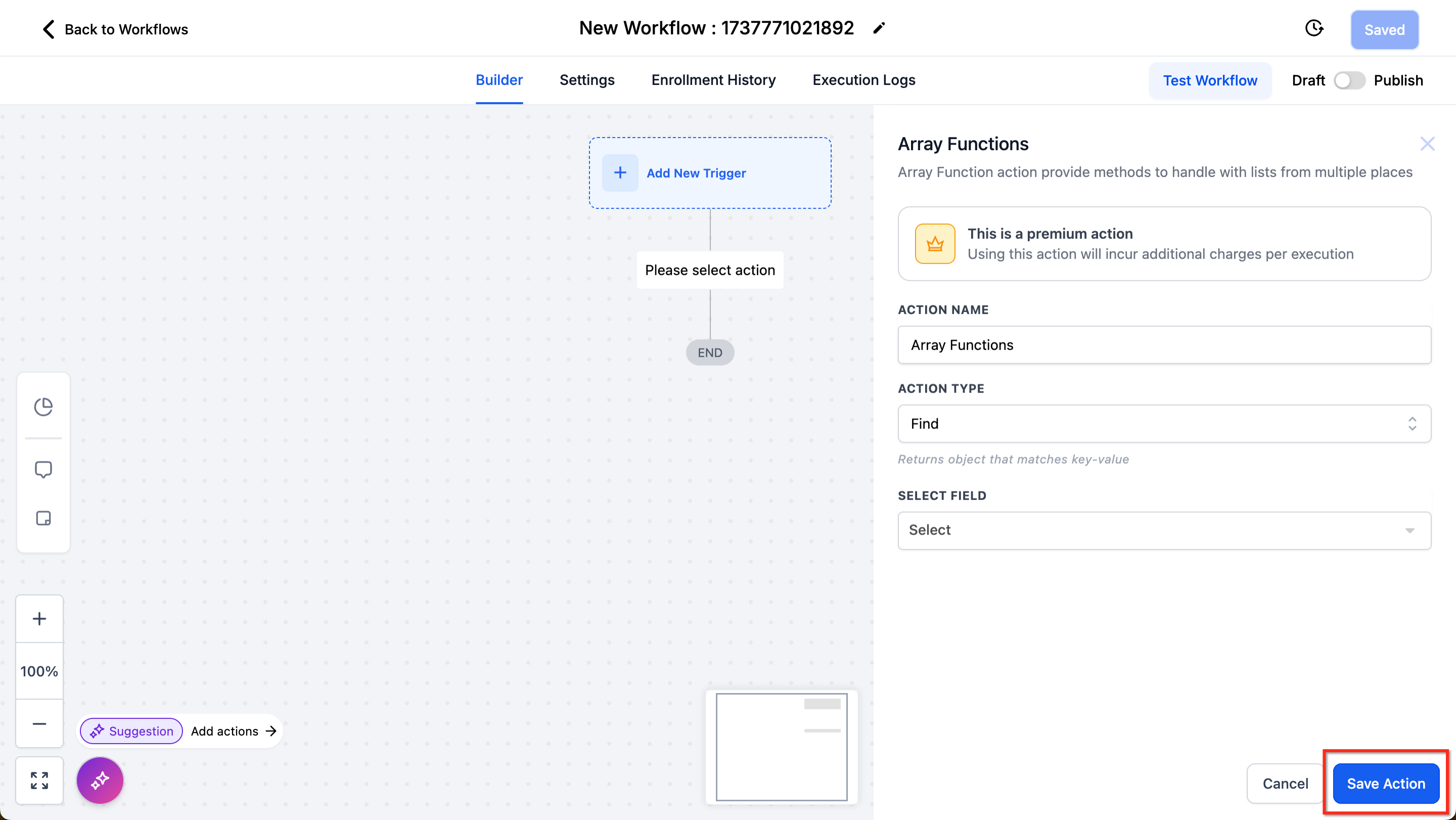
- Click Add Action and choose Array Function from the list of actions.
- Pick the required function type, Find, Filter, Find by Index, Line Items, or Math.
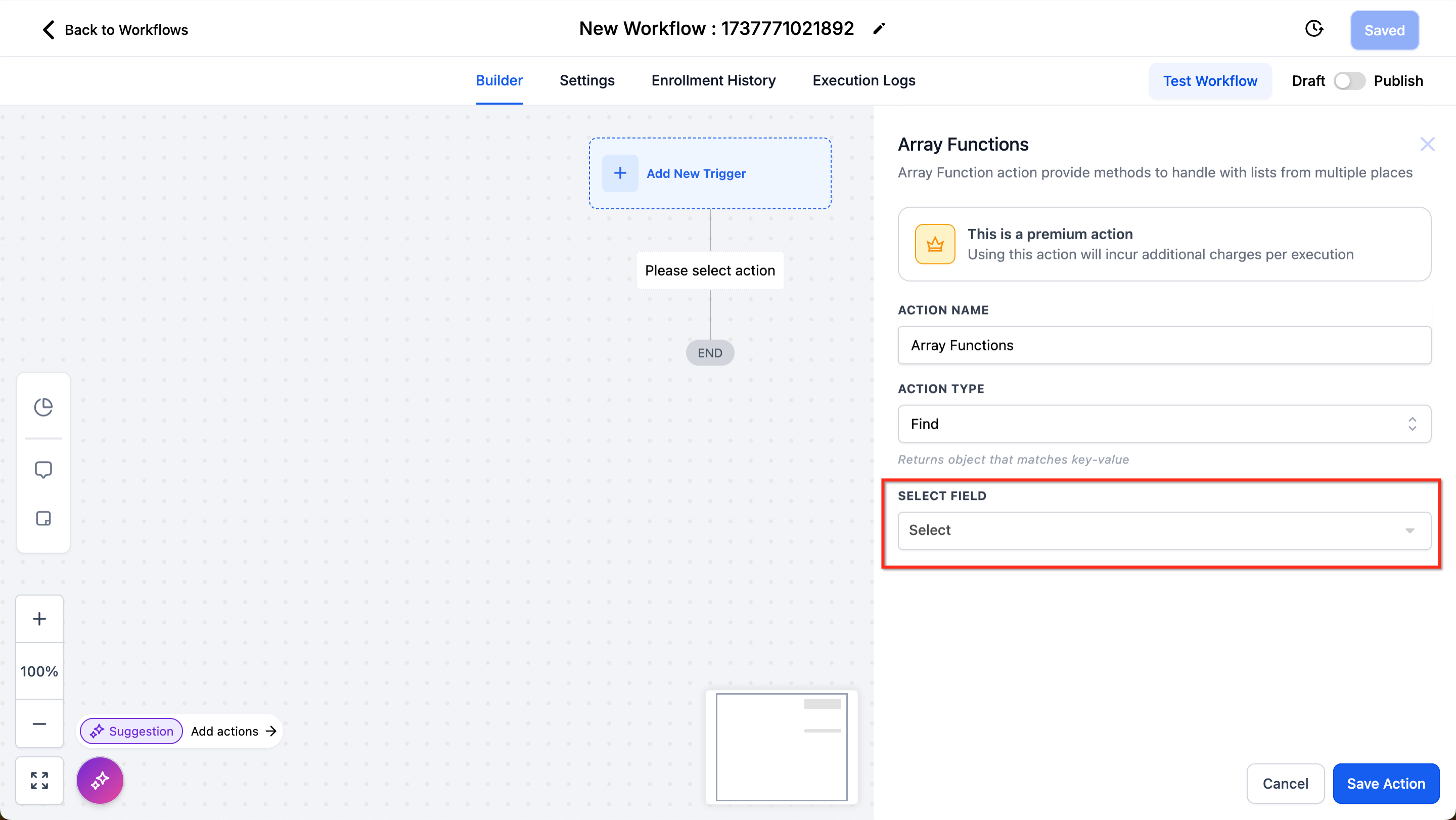
- Enter the source array and define the keys, values, or criteria needed for the selected function.
- Save the workflow and run a test to confirm the action returns the expected result.
- Reference the generated variable in subsequent workflow actions as needed.
07What it looks like in HighLevel
08Settings that matter
- Find. Searches an array for the first object that matches a specified key value pair and returns that object.
- Filter. Returns all objects in an array that meet the defined key value conditions.
- Find by Index. Retrieves the item located at a given zero based position within the array.
- Line Items. Reconstructs an incoming array into a new key value structure suitable for other actions.
- Math. Performs calculations such as Sum, Min, Max, Average, or Count on numeric arrays.
09Things to know before you rely on it
- Array Formatter is now free and no longer counts as a premium workflow action; it is billed at $0 (per HighLevel's help center, checked November 2026).
- The functions only handle one dimensional (flat) arrays; nested arrays are not supported.
- Available source arrays come from Shopify triggers, inbound webhook triggers, and custom webhook response data.
10If something goes wrong
- Array Function returns no result or unexpected data. Verify the input array and criteria, then use the Test Workflow feature to view the action’s output.
- Error when processing an array. Ensure the array is flat; nested structures must be flattened before using Array Formatter.
11How it connects to the rest of HighLevel
- Learn how to set up the Wait action in a HighLevel workflow Wait action
- See how to configure an If/Else action for conditional branching If/Else action
- Get an overview of workflow triggers, filters, and actions Workflow basics
Michael's take

When you need to pull a specific piece of data out of a list of orders or calculate a total without leaving HighLevel, Array Formatter solves that problem. The first thing I would get right is choosing the correct function type. Whether it’s Find, Filter, or Math. So the output matches the variable you need downstream.
Once the function is set, I would run a quick test in the Workflow Builder to confirm the variable holds the expected value. That simple check prevents surprises later when the automation runs for real.