
01Who this is for
- Marketing managers can automate webinar reminders and post event follow ups, keeping attendees informed.
- Customer success teams can schedule renewal notices or birthday offers without manual tracking.
- Event coordinators can align communications for conferences or trainings by setting a single event date.
02Set event start dates, explained
The Set Event Start Date action is a workflow step that stores a chosen date and time as a reference point. After this step, you can add Wait for Event/Appointment Time actions that delay the next steps until a defined interval before or after the stored date.
The action appears in the workflow builder alongside other actions. You select a date source, either a custom date field, a specific date/time, or a specific day, enter the date in an accepted format, and save the step. The platform then uses the account’s time zone for calculations, regardless of contact time zones.
03How businesses use set event start dates
- Webinar organizer. Add the Set Event Start Date action with the webinar date, then insert Wait steps for one week, one day and one hour before the event to send reminder emails. After the webinar, add another Wait step to send a thank you message.
- Subscription service. Create a custom field that holds each customer's renewal date. Use the Set Event Start Date action to read that field, then add Wait steps to send reminders a month, a week and a day before renewal.
- Birthday promotion retailer. Store each client’s birthday in a custom date field. Set the Event Start Date to that field, then configure a Wait step that triggers a birthday greeting and discount coupon on the day of the birthday.
04How to set up and use set event start dates in HighLevel
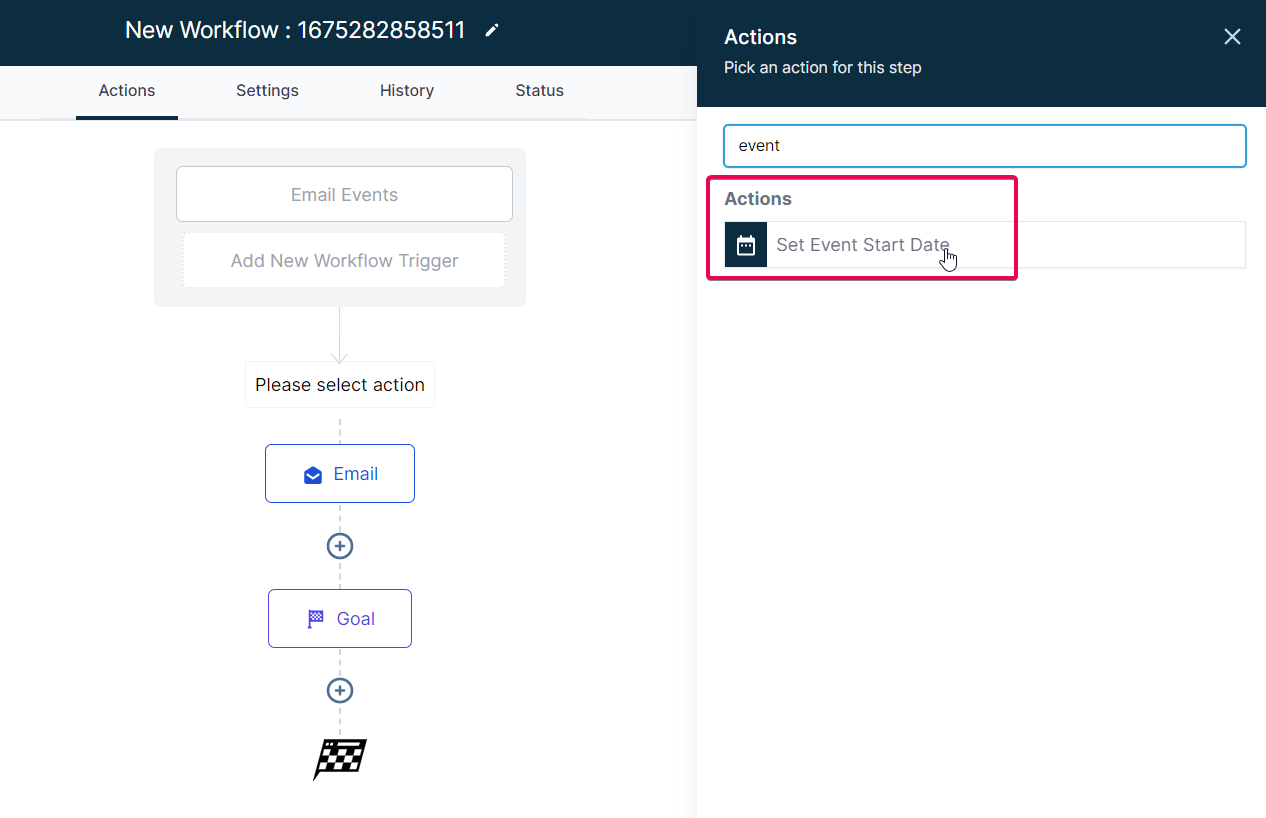
Add the Event Start Date/Time Action to Your Workflow
- Navigate to the specific workflow you want to modify.
- Add the "Set Event Start Date/Time" action.
- Prepare to customize the action.
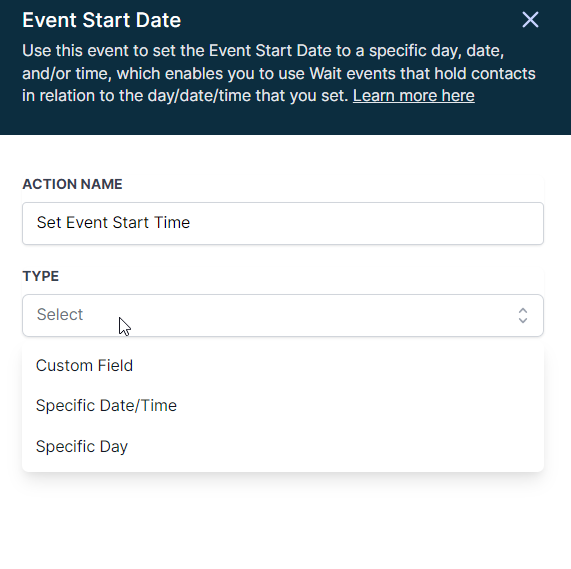
Customize the Event Start Date/Time
- Select the type of date source you want, Custom Field, Specific Date/Time, or Specific Day.
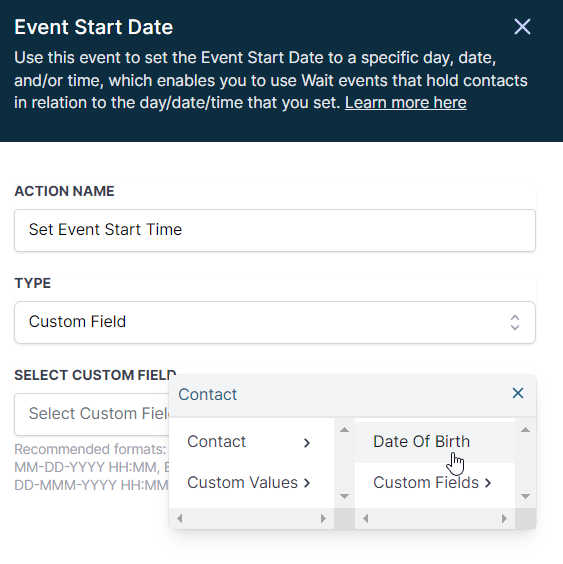
- If you choose Custom Field, pick a pre created custom date field that contains the event date.
- Enter the exact date and time using an accepted format such as MM DD YYYY HH:MM or DD MMM YYYY HH:MM.
- Save the action to add it to the workflow.
Add a Wait for Event/Appointment Time Action
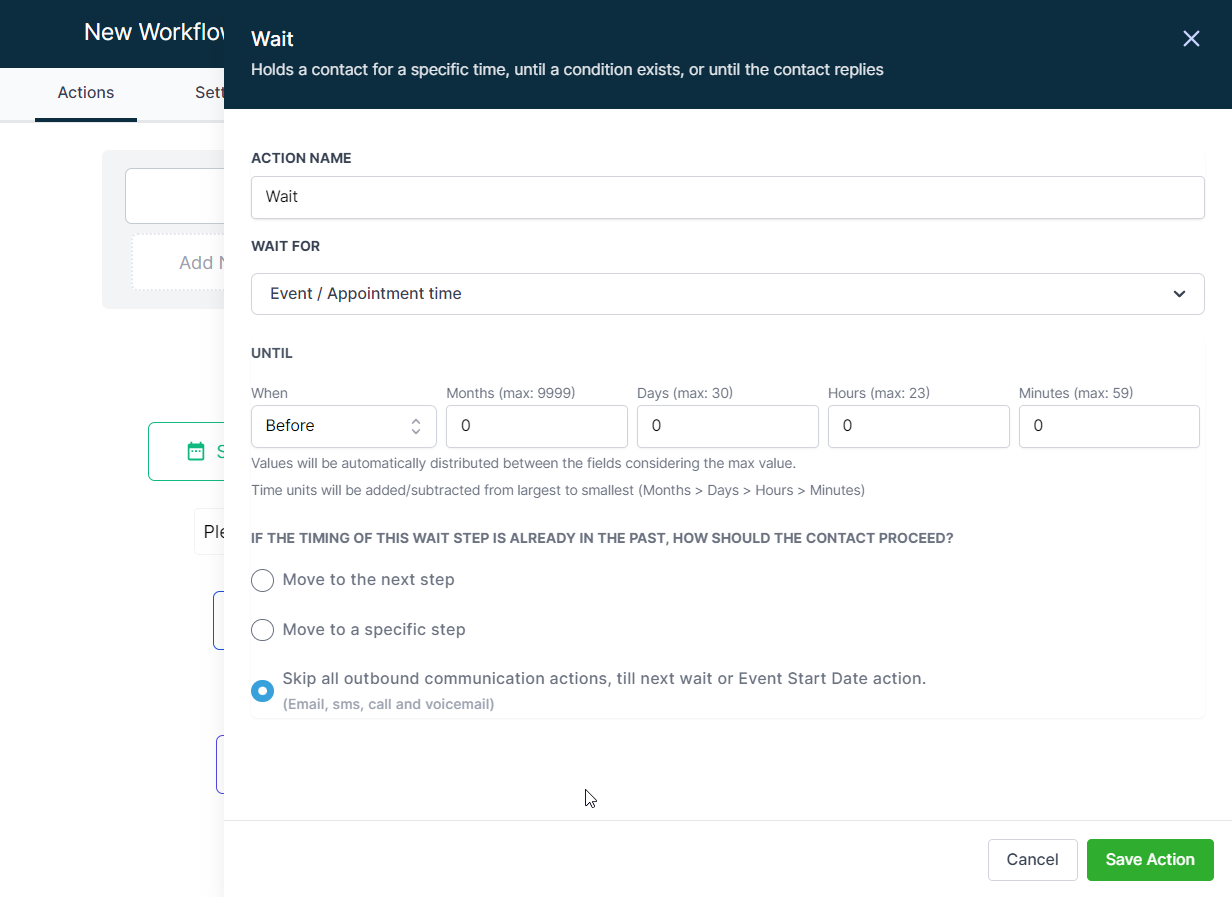
- Insert a "Wait for Event/Appointment Time" action after the Set Event Start Date step.
- Set the action to wait until a certain number of days/hours/minutes before or after the event start date/time.
- Choose how the workflow should behave if the calculated wait time is already in the past (e.g., move to the next step, move to a specific step, or skip outbound communications until the next wait or start date action).
- Save the wait action to confirm your changes.
05What it looks like in HighLevel
06Settings that matter
- Type. Determines whether the event date comes from a custom field, a specific date and time, or a specific day.
- Date format. Specifies the accepted patterns for entering the date and time, for example MM DD YYYY HH:MM or DD MMM YYYY HH:MM.
- Event / Appointment Time. Links the wait action to the date set in the Set Event Start Date step.
- UNTIL - When. Sets the exact period, months, days, hours, minutes, to wait relative to the event.
- IF THE TIMING OF THIS WAIT STEP IS ALREADY IN THE PAST, HOW SHOULD THE CONTACT PROCEED?. Controls whether the workflow skips the wait, jumps to a specific step, or skips outbound communications until the next wait or start date action.
07Things to know before you rely on it
- The action always uses the account’s time zone, even if the workflow respects contact time zones.
- If a time value exceeds the maximum for a unit, it is automatically converted to larger units (for example, 60 minutes becomes 1 hour).
- Recurring events can be handled by looping the workflow with a Go To action, but the action itself does not automatically repeat.
08How it connects to the rest of HighLevel
- Set up a wait step that pauses until an event time. Wait action guide
- Use an If/Else action to branch workflow paths based on dates. If/Else action
- Add contacts to a workflow based on custom date fields. Add to Workflow
Michael's take

When you need to automate a series of reminders or follow ups around a fixed date, the Set Event Start Date action can simplify the process by letting the workflow handle timing.
If your process rarely depends on precise dates or you already send manual reminders, adding this action may add complexity without clear benefit.