
01Who this is for
- Founders who need to route leads differently based on engagement metrics, because the action can split contacts in real time.
- Marketing teams that want to personalize follow up sequences without creating duplicate steps, using dynamic values to reference earlier workflow results.
- Sales operations that must separate contacts by company attributes such as region or account name, leveraging the new company field support.
02If/Else workflow action, explained
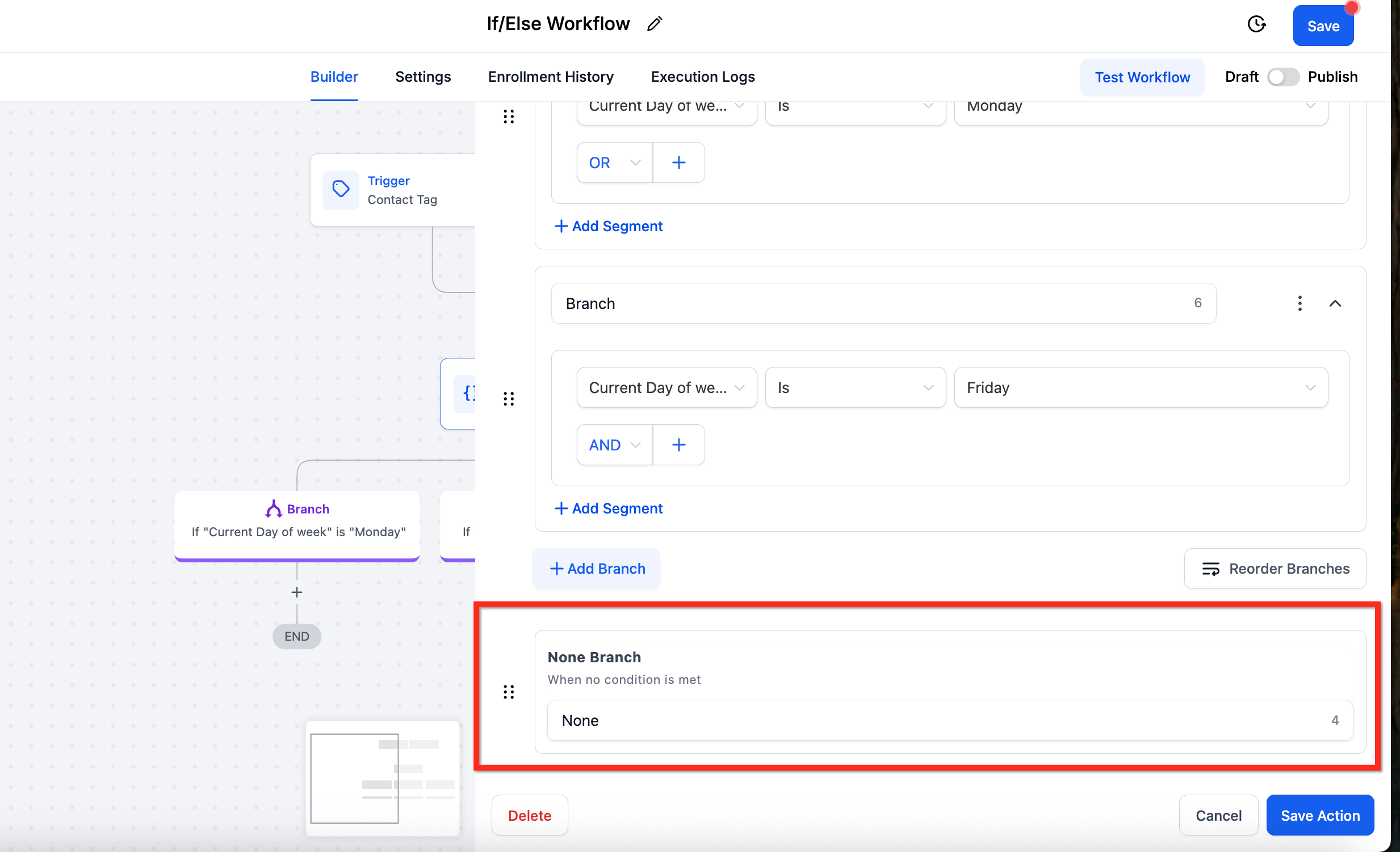
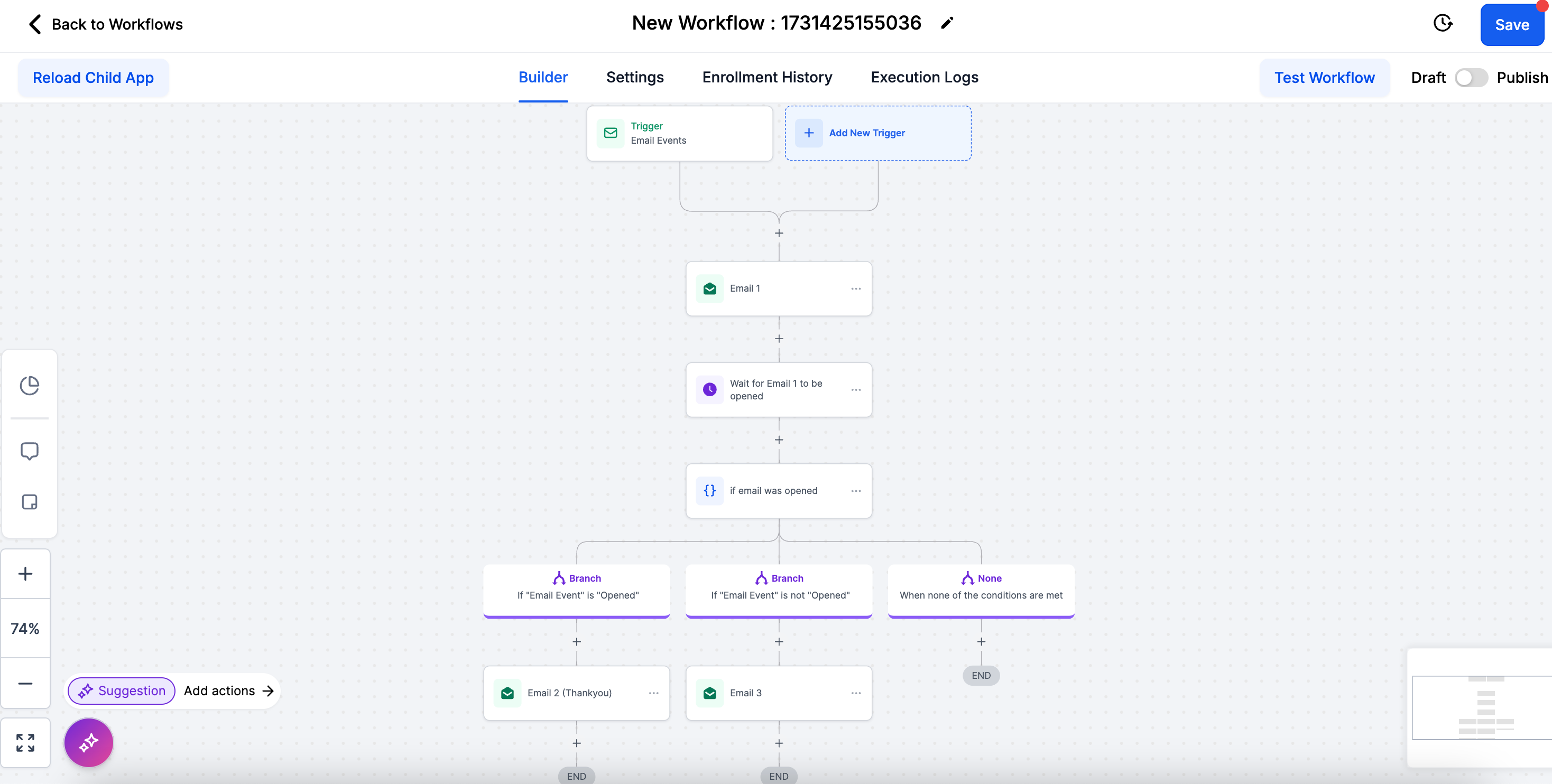
The If/Else action examines a chosen field for each contact and decides which branch to follow. Each branch contains its own set of actions, allowing the workflow to continue along a path that matches the condition. An automatic "None" branch runs when no condition is satisfied and cannot be removed.
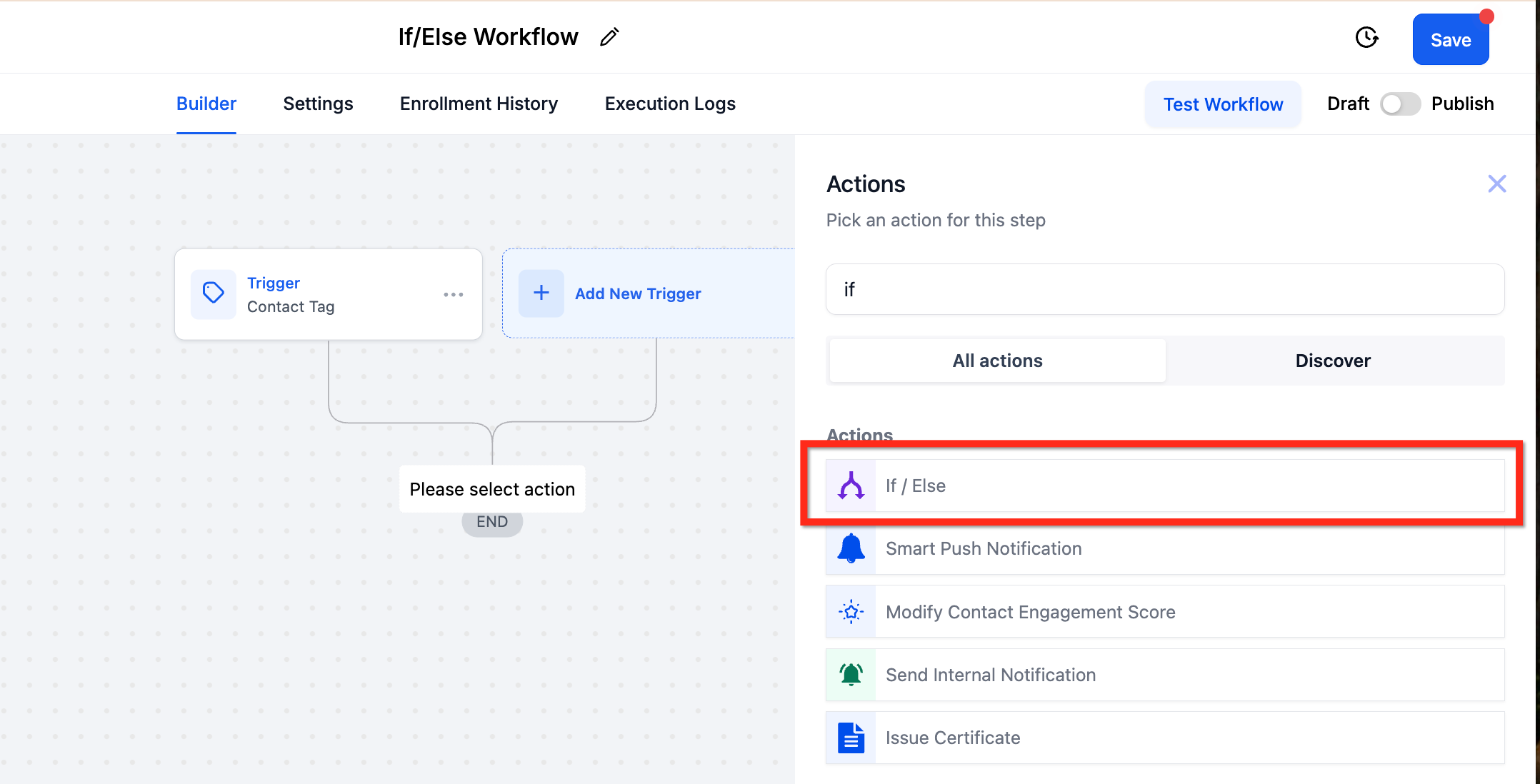
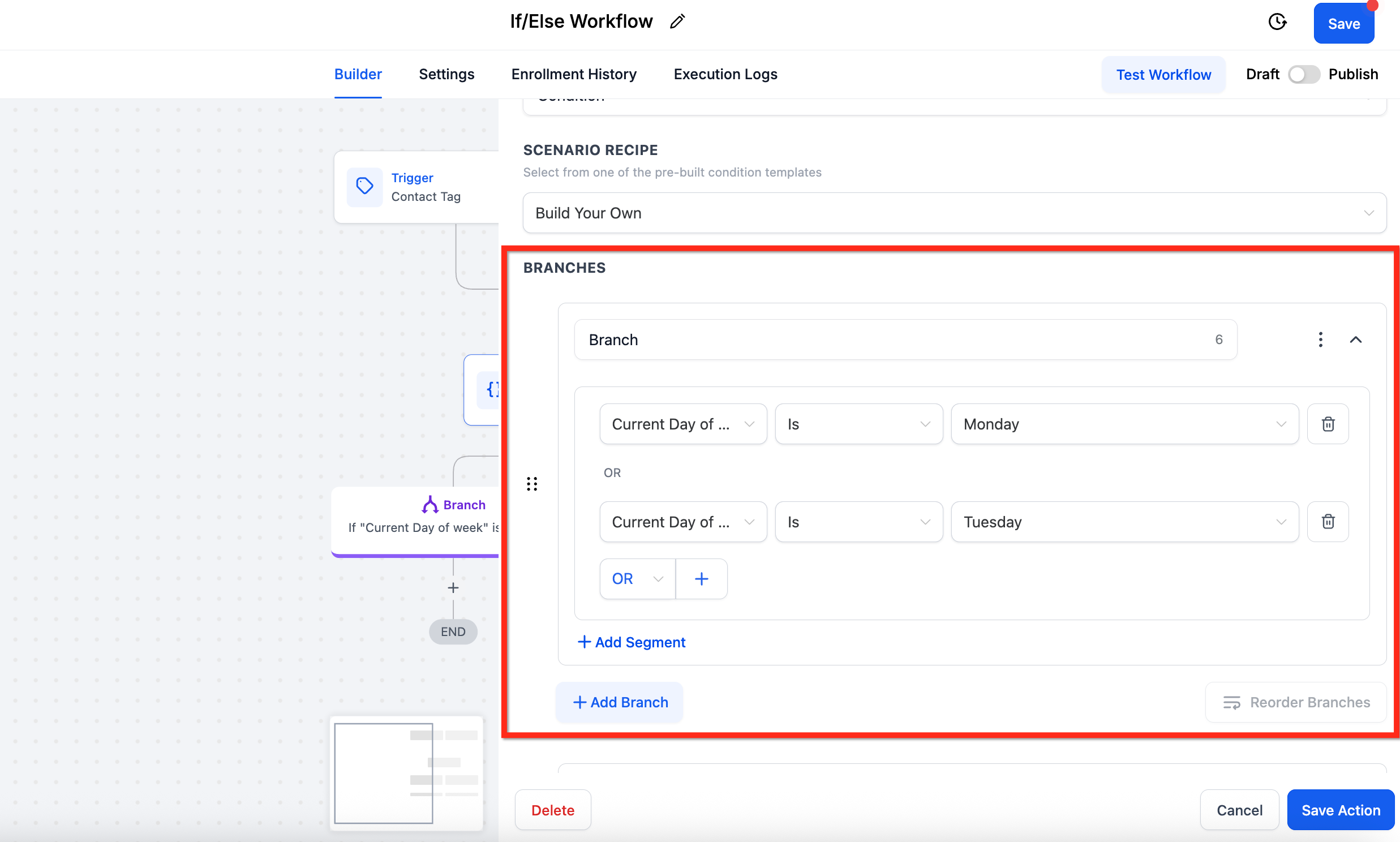
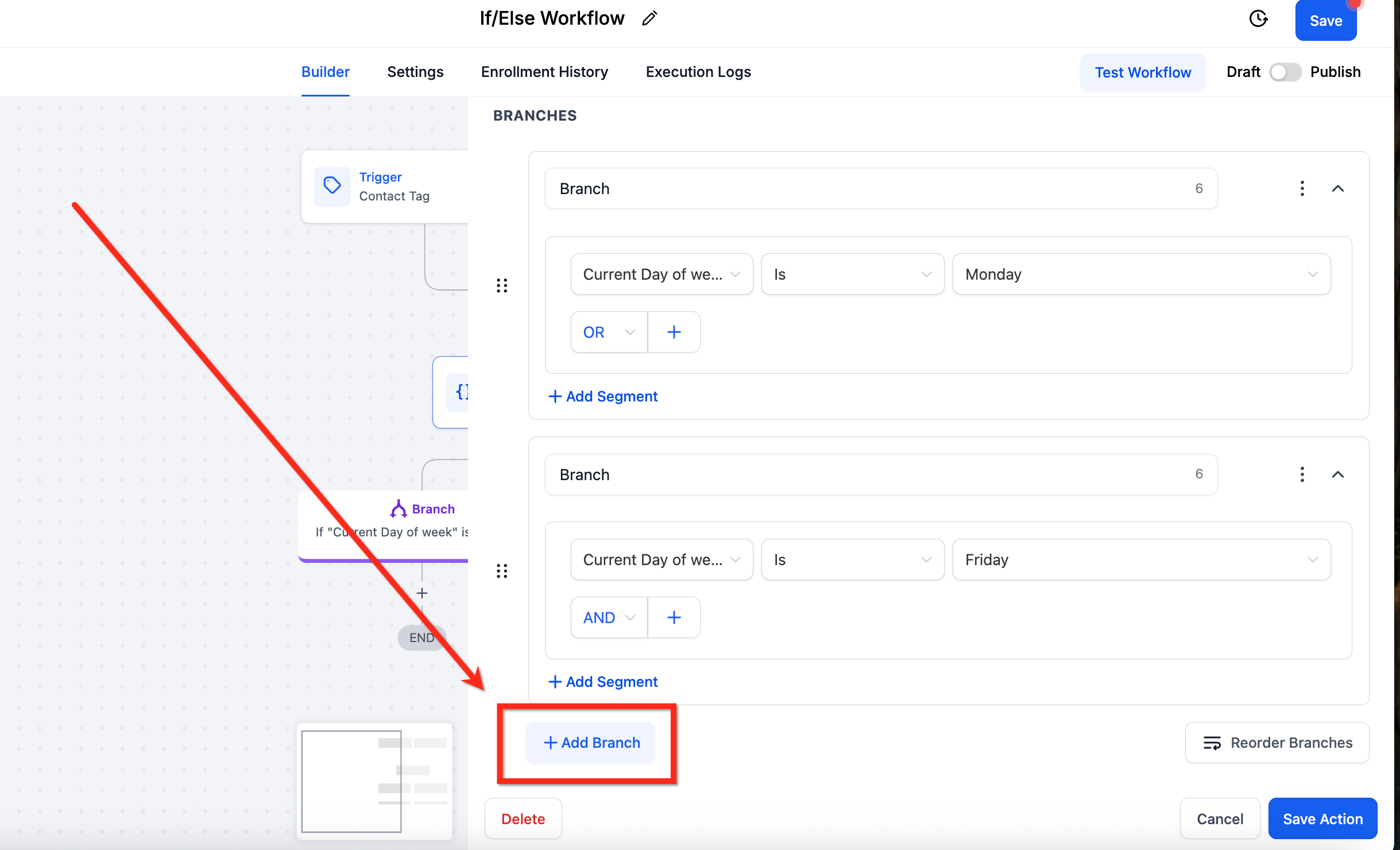
The action lives in the workflow builder. After opening a workflow, you add the action via the plus icon, select If/Else, and then define logic. You can build conditions manually or start from a pre made recipe. Multiple branches can be added, and each condition group can combine rules with AND or OR. Dynamic Values may be used on the right hand side to pull live data from earlier steps or stored fields.
Supported field types for dynamic comparison include numeric scores, dates, select/dropdown options (using option IDs), and monetary amounts. Company fields appear alongside contact fields but only resolve when a contact is linked to a company.
03How businesses use if/Else workflow action
- Marketing agency. The agency adds an If/Else step after an email send action. It selects the email open event as the field and compares it to a dynamic value that records the open timestamp. Contacts that opened receive a thank you offer, while others are sent a reminder email.
- Real estate brokerage. The brokerage configures the first branch to check a custom field for property price range, using a dynamic value from a prior valuation step. Leads matching the high price range are routed to a premium follow up path, while the else branch sends a standard brochure.
- Software SaaS business. The SaaS team sets the condition to compare the Contact Engagement Score, a numeric field, against a dynamic threshold calculated earlier. Contacts with scores above the threshold move to a high priority nurture sequence; the none branch adds them to a general onboarding flow.
04The numbers and rules that matter
- Dynamic Values are supported for Numeric, Date, Select / Dropdown (requires option IDs), and Monetary condition types.
- New workflow fields include Contact Engagement Score, Contact > Attribution Medium ID, Note created by (Name), Task ID.
05How to set up and use if/Else workflow action in HighLevel
Add the If/Else action
- Open the desired workflow in the builder.
- Click the plus (+) icon to insert a new step.
- Choose "If / Else" from the list of available actions.
Configure the first branch
- Select the field you want the workflow to evaluate.
- Pick the appropriate operator for the comparison.
- Enter the static value or placeholder for the condition.
- Click the "Add Segment" button to add another rule if needed.
- Choose AND or OR to define how multiple rules are combined.
Configure the None (Else) branch
- Locate the automatically created "None" branch.
- Rename the branch if a more descriptive label is helpful.
- Add any fallback actions you want contacts to follow when no condition matches.
Use dynamic values in conditions
- Add an If/Else action to the workflow as described earlier.
- In the right hand input, switch the value type to "Dynamic Value".
- Select a source such as an earlier step output or a stored field.
- Choose the appropriate operator for the dynamic value type.
- Save the workflow and publish it to activate the dynamic comparison.
06What it looks like in HighLevel
07Settings that matter
- Action Name. The label that identifies this If/Else step within the workflow.
- Condition. Defines the rule used to decide which branch a contact follows.
- Branches. The separate workflow paths created by the If/Else decision point.
- Segments. Groups of conditions combined with AND or OR logic; optional for more complex rules.
- Dynamic Value. A value type that pulls live data from earlier steps or stored fields for comparison.
08Things to know before you rely on it
- Select or dropdown fields require option IDs rather than display names when used with Dynamic Values.
- Company fields only resolve if the contact is linked to a company; otherwise the value is blank.
- The None branch is mandatory, cannot be deleted, and does not accept conditions.
- Dynamic Values are only supported for numeric, date, select/dropdown (using IDs), and monetary field types.
09How it connects to the rest of HighLevel
- Add a wait period before the If/Else step to control evaluation timing. Using the wait action
- Send contacts to a different workflow after an If/Else decision. Add to Workflow action
- Adjust event start dates based on branch outcomes for appointment scheduling. Set Event Start Date
Michael's take

The ability to pull dynamic values from earlier actions means you can compare a proposal amount or engagement score without hard coding anything, keeping the workflow clean and adaptable.
If your process rarely needs to split contacts based on data, or you only have a handful of static rules, the extra setup of branches and dynamic values may not add enough value to justify the time spent. In those cases a simple linear workflow or a basic Update Contact Field action might be sufficient.