
01Who this is for
- Marketing managers can test multiple email or SMS versions by dividing contacts into equal or custom percentages.
- Sales directors use it to allocate leads among team members based on capacity, ensuring a balanced workload.
- Customer support leaders can route incoming tickets to different support groups without manual assignment.
02Split actions, explained
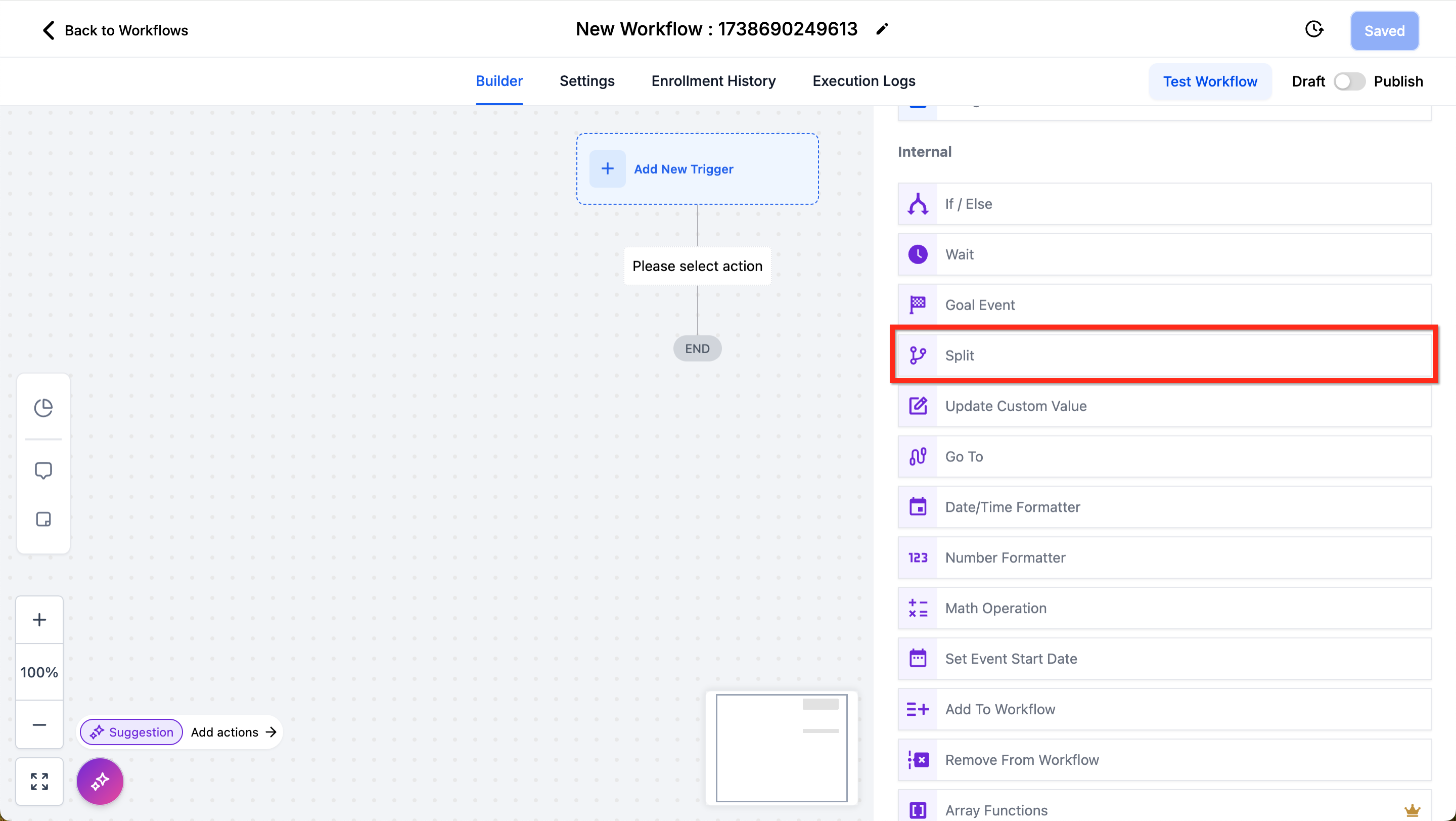
The Split Action is a workflow step that randomly distributes contacts into separate paths. You choose a random split, then set percentage weights for each path. The action appears in the workflow builder under Internal > Split.
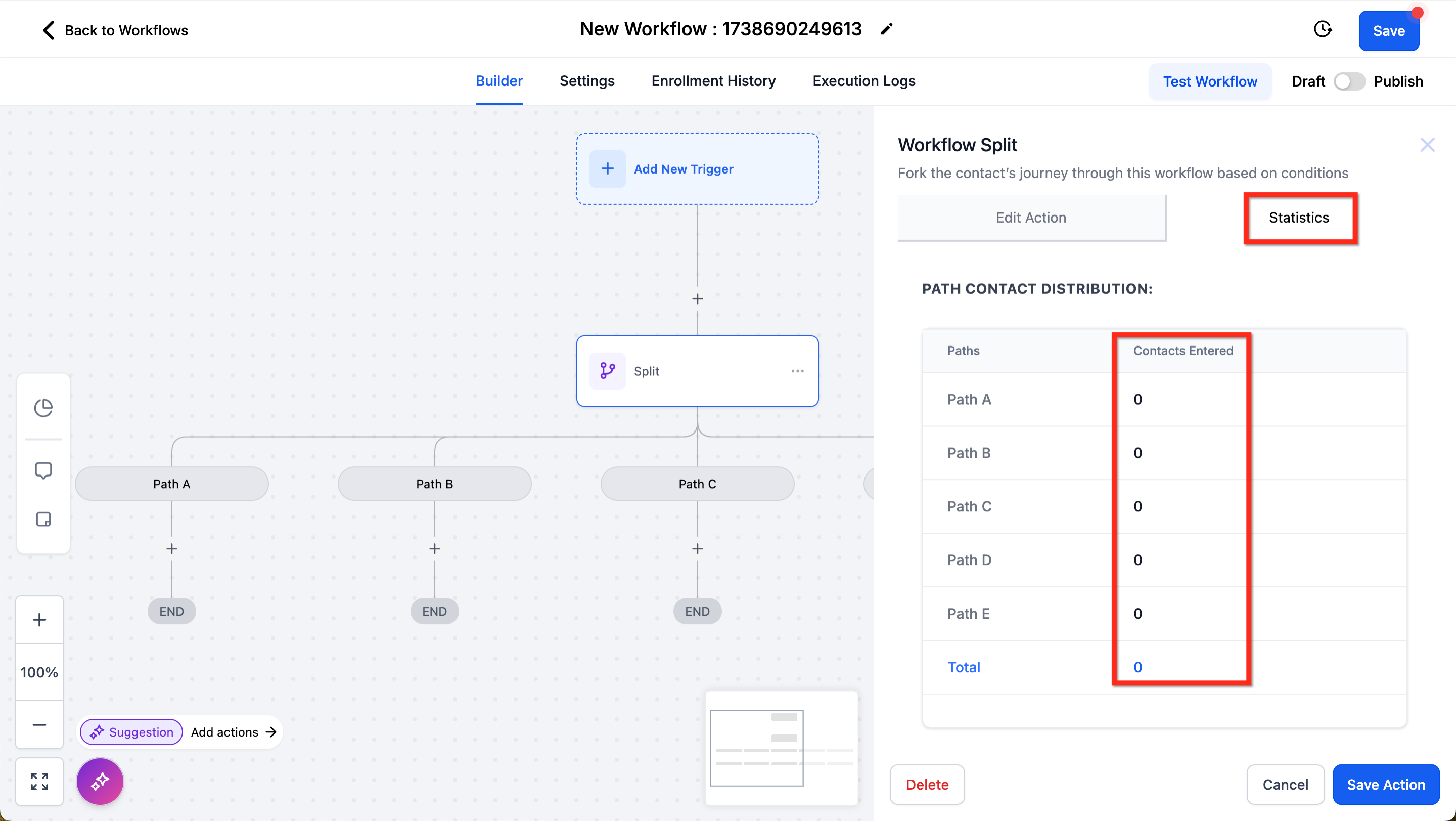
When a contact reaches the Split Action, the platform calculates the path based on the defined percentages. Once a path is chosen, the contact stays on that path for the remainder of the workflow, even if the contact re enters the split later. Statistics for each path are displayed on the action’s Statistics tab, showing the number of contacts that have travelled each route.
03How businesses use split action
- Ecommerce retailer. Create two paths, each receiving 50% of shoppers, to test different promotional email copy. In the workflow builder, add the Split Action, set the percentages, and connect each path to its respective email send step.
- SaaS startup. Set up three paths with 60%, 30%, and 10% weight to route new trial sign ups to onboarding sequences, sales outreach, or a nurture track. Adjust the path percentages in the Split Action and link each path to the appropriate follow up actions.
- Real estate agency. Use a 0% path for a new marketing experiment while keeping the existing 100% path for all leads. Add the Split Action, configure one path at 0% and the other at 100%, then attach the standard lead qualification steps to the active path.
04The numbers and rules that matter
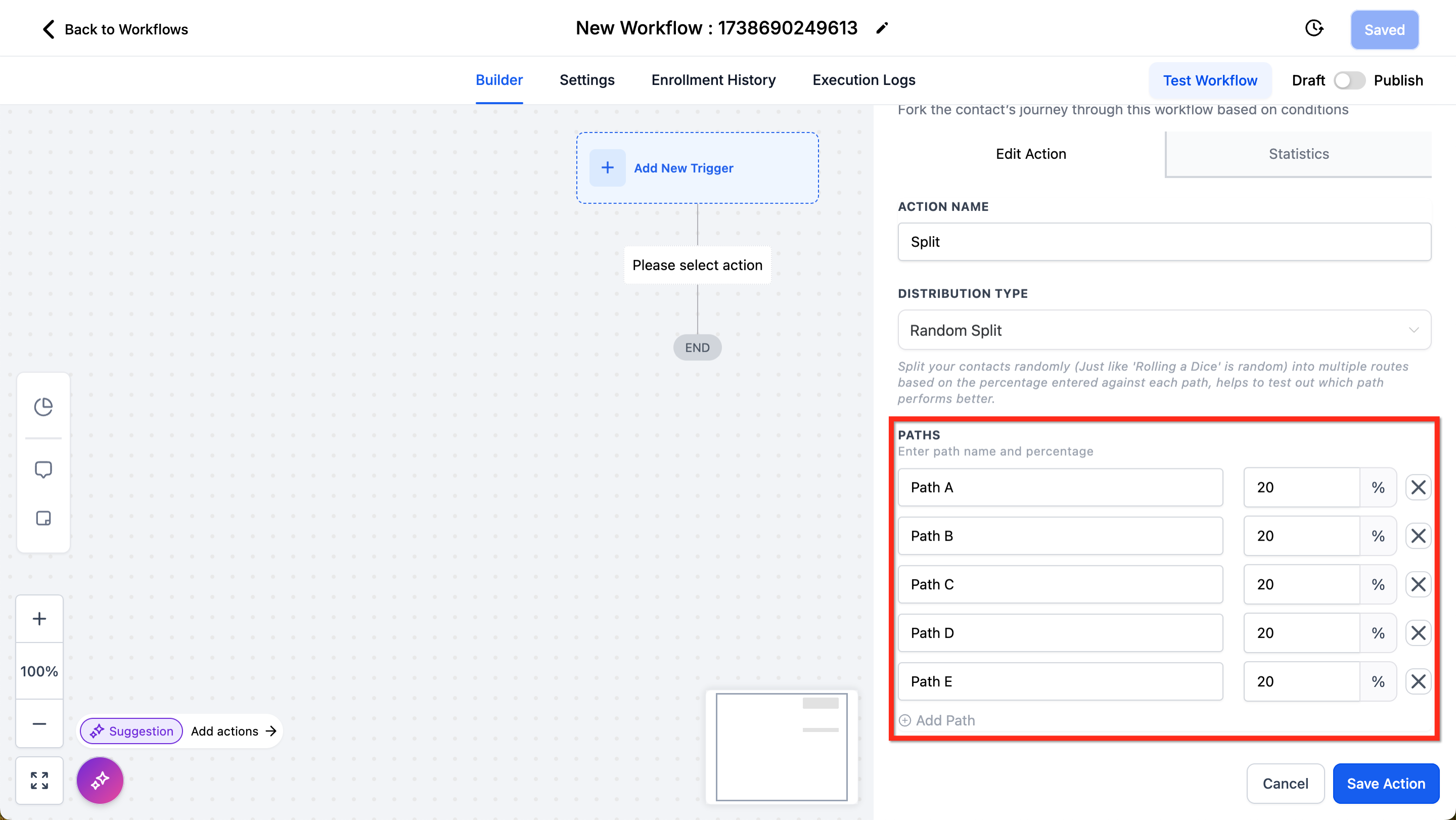
- Up to 5 separate paths per Split Action.
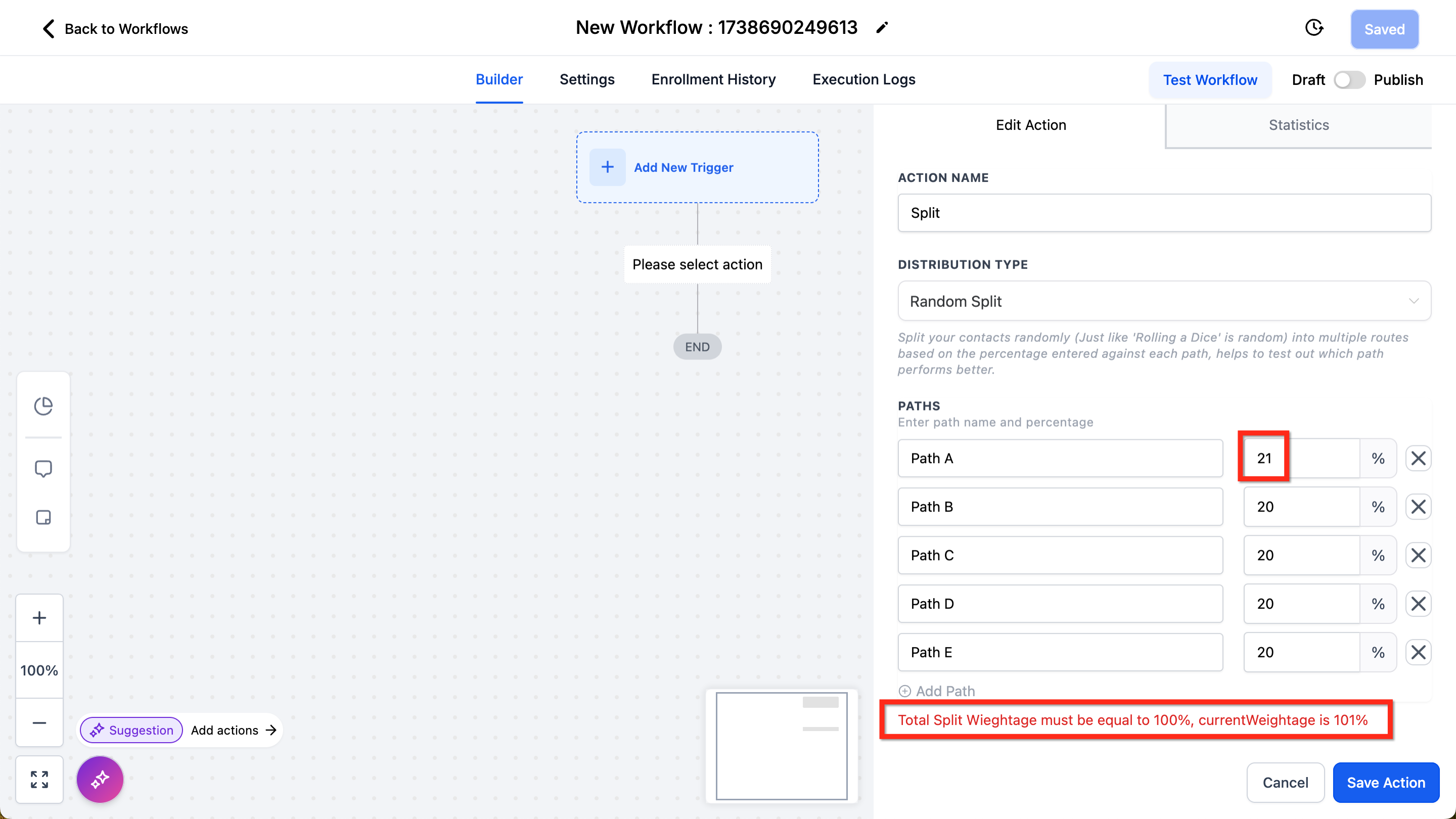
- Path percentages must add up to 100%.
- A 0% weight path is allowed if total remains 100%.
05How to set up and use split action in HighLevel
Add and configure split action
- Open the workflow builder, click the plus icon to add a new action, and select Internal > Split.
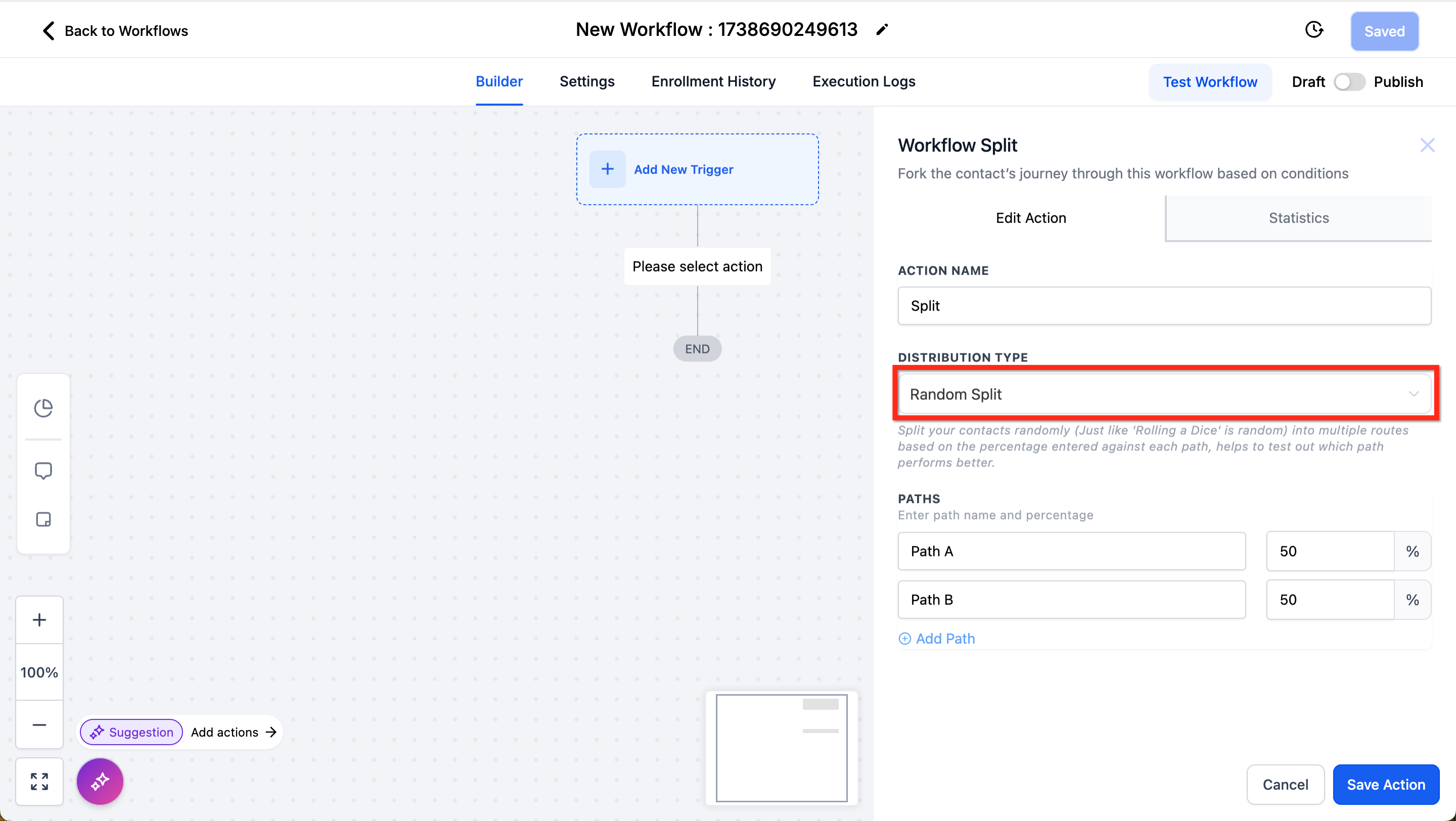
- In the action settings, choose "Random Split" from the Distribution Type dropdown.
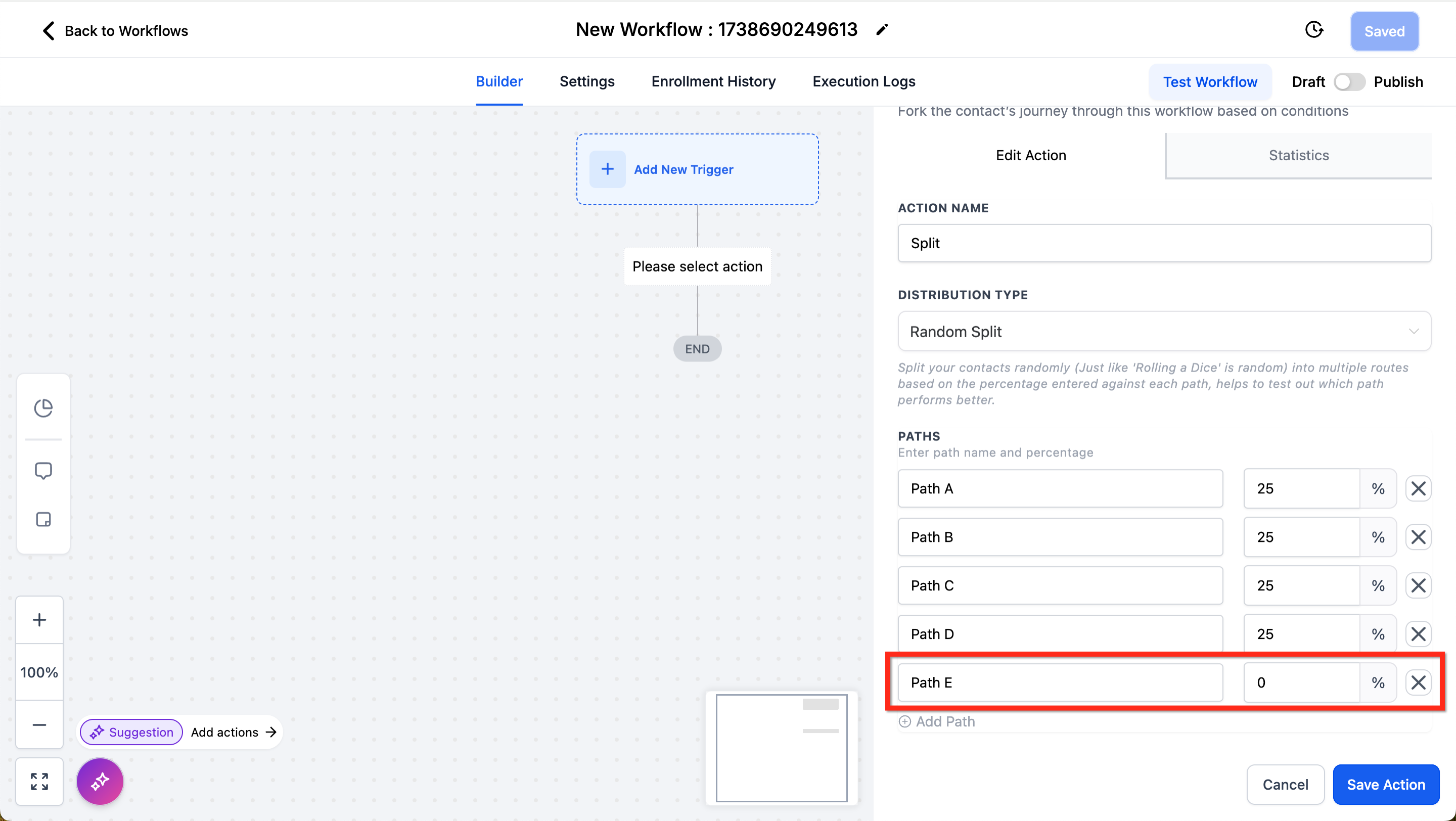
- In the Paths area, add or remove up to five paths, rename each path, and assign a percentage weight to each.
- Make sure the sum of all path percentages equals 100%; adjust values if the system shows an error.
- Optionally set one or more paths to 0% weight, which will prevent contacts from being sent down those routes while keeping the total at 100%.
- Switch to the Statistics tab to review how many contacts have traveled down each path.
06What it looks like in HighLevel
07Settings that matter
- Distribution Type. Selects the method for assigning contacts; only the Random Split option is available.
- Path weightage. Specifies the percentage of contacts that will follow each path; all weights must total 100%.
08Things to know before you rely on it
- You can create a maximum of five separate paths within a single Split Action.
- The sum of all path percentages must be exactly 100%; otherwise the action cannot be saved.
- A path may be assigned a 0% weight, which means no contacts will travel that route as long as the total remains 100%.
- The Split Action uses only random distribution; criteria based splits require the If/Else action.
09If something goes wrong
- Percentages do not add up to 100% and the action cannot be saved.. Adjust the path weightages until the total equals 100%, then save the action.
- A contact re enters the workflow but follows a different path.. Understand that once a contact is assigned to a path, it remains on that same path for future entries.
10How it connects to the rest of HighLevel
- Use If/Else action for criteria based routing If/Else action
- Add contacts to other workflows after a split Add to Workflow
- View overall workflow pricing and plan details Pricing
Michael's take

Michael ReimerFounder of CRM Pros, HighLevel Commander and Certified Admin
Avoid assuming a contact will be rerandomized if it enters the split again; it will always follow the same path.
Get More InformationOpens on HighLevelPublished November 2, 2026 · Updated November 16, 2026