
01Who this is for
- Email marketers who need to stop contacts from receiving repeat campaign emails.
- Ecommerce owners who want to exclude buyers from post purchase nurture sequences.
- Service providers who wish to remove clients from onboarding flows after they sign a contract.
02Remove from workflow actions, explained
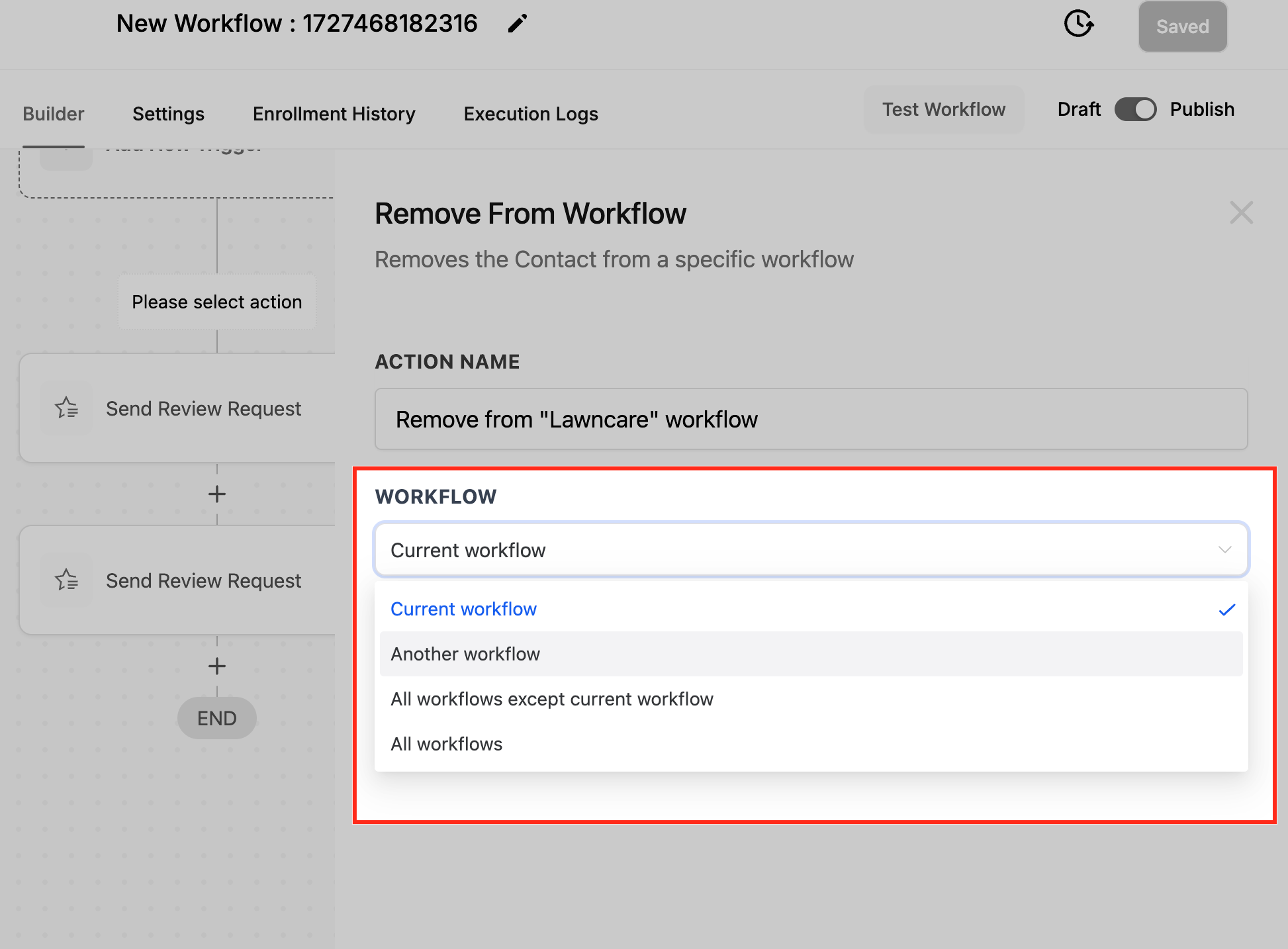
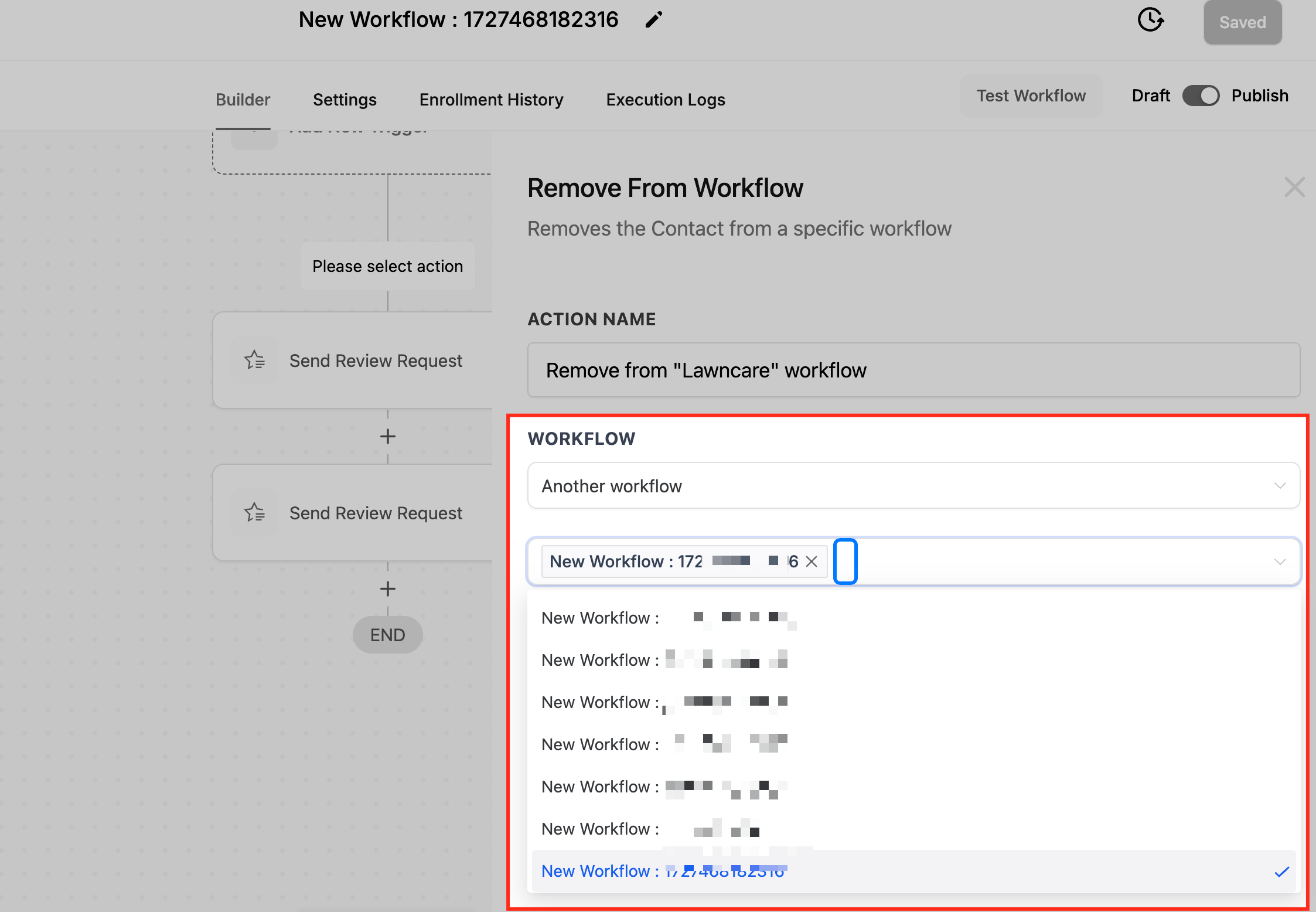
The action sits inside the workflow editor. When the workflow reaches this step, HighLevel removes the contact from the workflow you specify. You can choose the current workflow, another single workflow, all workflows except the current one, or every active workflow.
The removal happens right away and does not send any notice to the contact. Once removed, the contact cannot be added back automatically; you must enroll them manually if needed. This action is useful for keeping contact paths clean and preventing redundant messaging.
03How businesses use remove from workflow
- Ecommerce store. Set a trigger for a purchase completion. Add the Remove from Workflow action and select the post purchase email campaign workflow. The buyer is taken out of that campaign, so they stop receiving promotional emails.
- Fitness studio. Create a trigger for a membership renewal. Insert the remove action and choose the trial welcome workflow. When a member renews, they are removed from the trial series and no longer get introductory messages.
- Consulting agency. Use a trigger for contract signing. Add the remove action and point to the onboarding sequence workflow. After signing, the client exits the onboarding flow and avoids duplicate onboarding steps.
04How to set up and use remove from workflow in HighLevel
Set up remove from workflow action
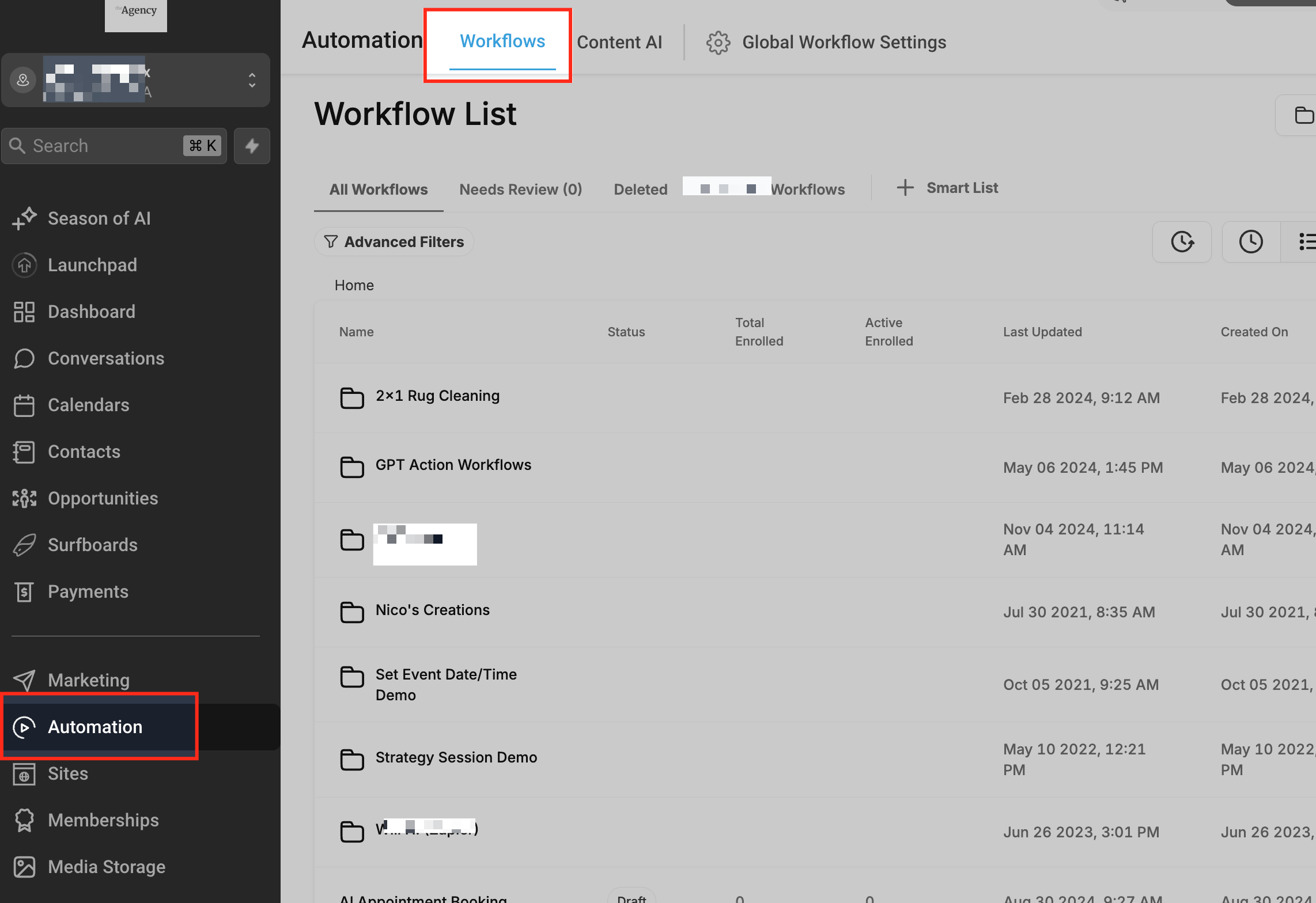
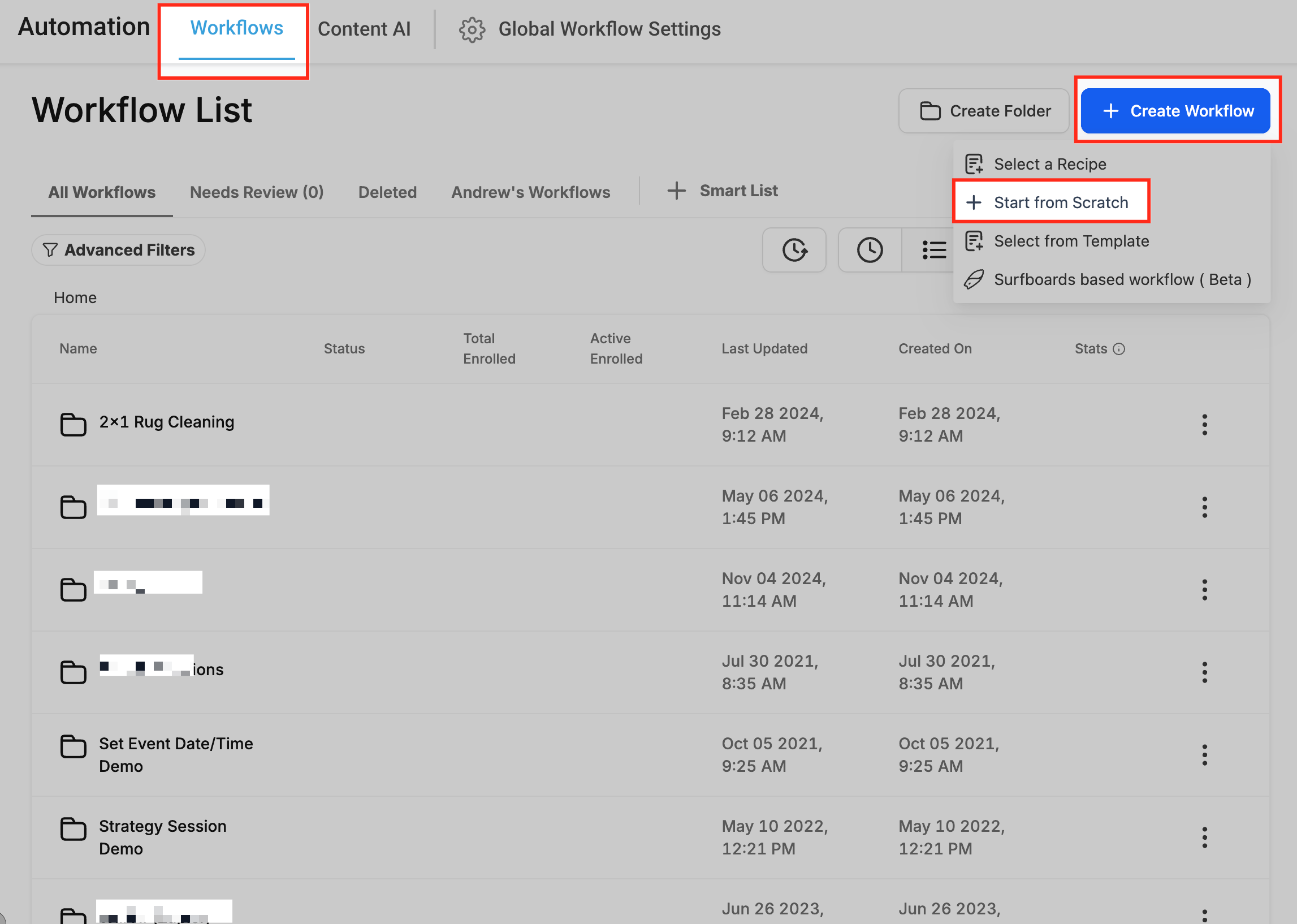
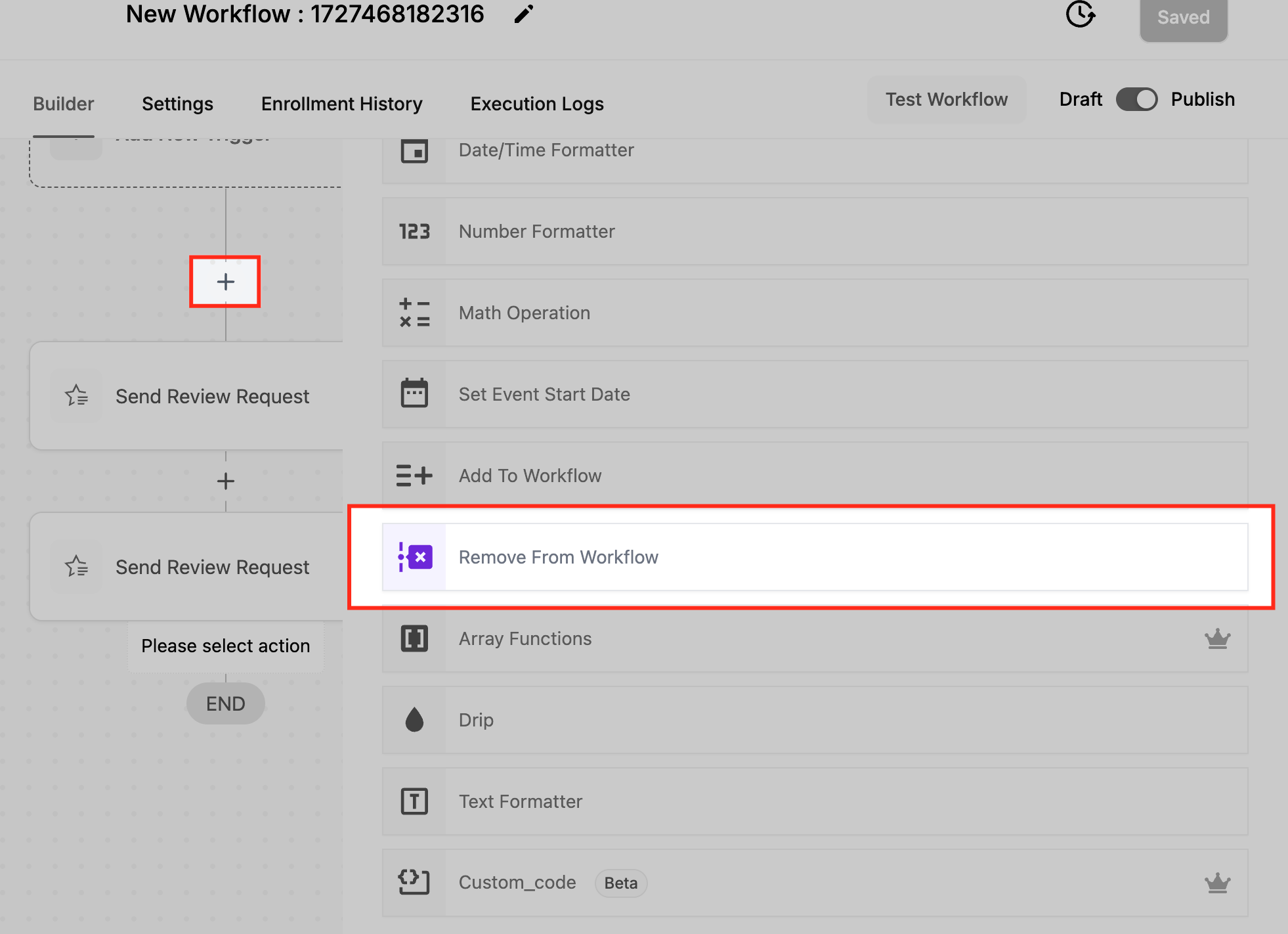
- Open the workflow editor and add a new action.
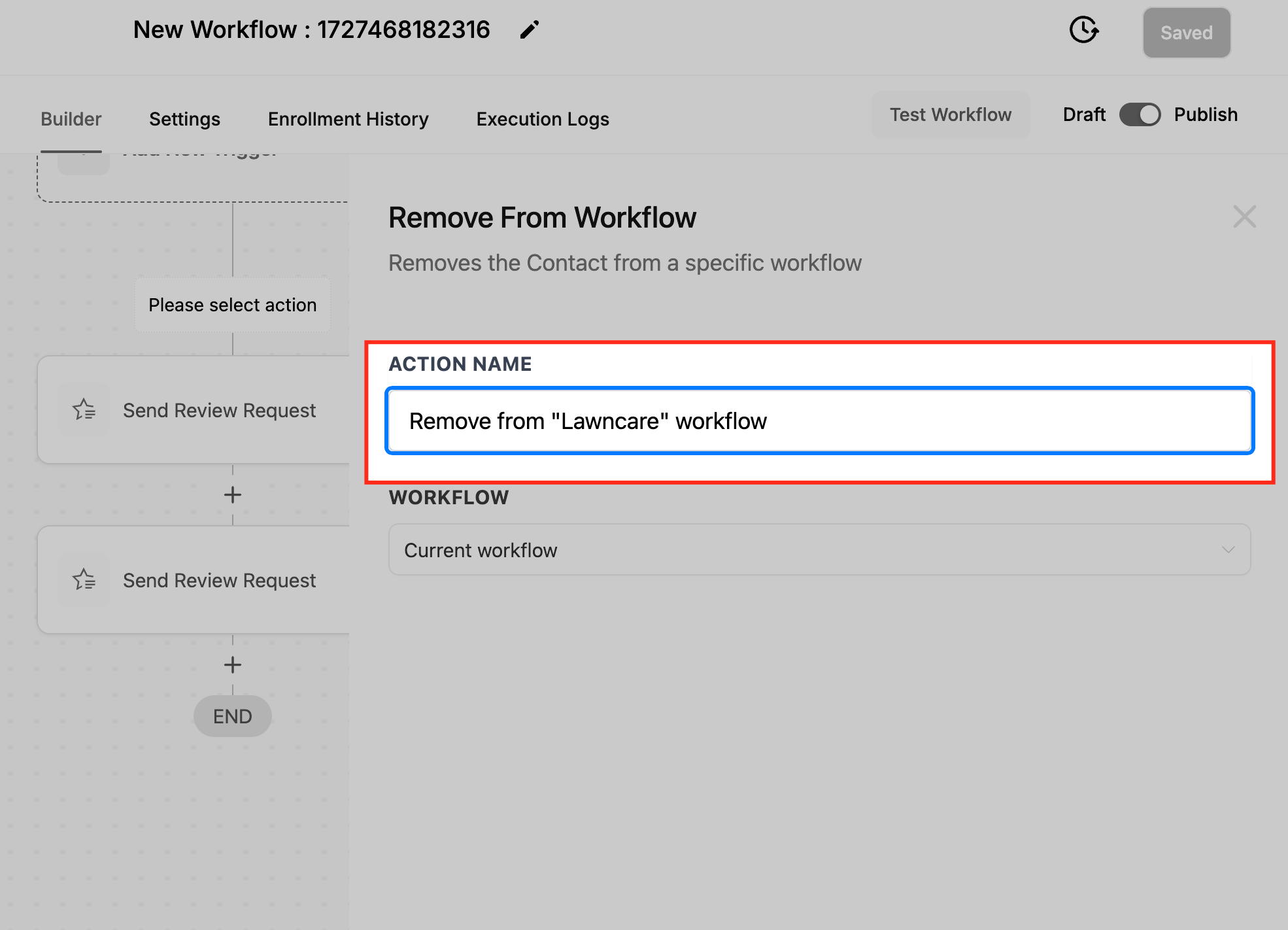
- From the dropdown, select the workflow you want the contact removed from.
- Save the action and test the workflow by triggering it with a sample contact.
- When ready, turn on the publish toggle to activate the workflow.
05What it looks like in HighLevel
06Settings that matter
- Workflow Selection. Determines whether you remove the contact from the current workflow, another specific workflow, all except the current one, or all active workflows.
- Specified Workflow. Identifies the exact workflow that the contact will be removed from when you choose another specific workflow.
07Things to know before you rely on it
- The action cannot be undone automatically; you must manually re enroll the contact if needed.
- Contacts do not receive a notification when they are removed from a workflow.
08How it connects to the rest of HighLevel
- Add to Workflow action Add to Workflow
- If/Else action guide If/Else
- Wait action setup Wait action
Michael's take

“How do I stop my customers from getting the same email twice after they buy?” That’s a common worry when you run multiple campaigns. The Remove from Workflow action lets you pull a contact out of any automation the moment they hit a trigger, so they only see what’s relevant to them.
I’d add the action right after the purchase trigger, point it at the marketing campaign workflow, and run a quick test with a dummy contact. If the test shows the contact no longer appears in the campaign, you’re good to go.