
01Who this is for
- Marketing managers can embed automatically created videos into campaigns without leaving the platform.
- Sales teams can send personalized video messages that pull contact data directly into the content.
- Content creators can streamline short form video production by letting the workflow generate clips from prompts.
02AI video generation, explained
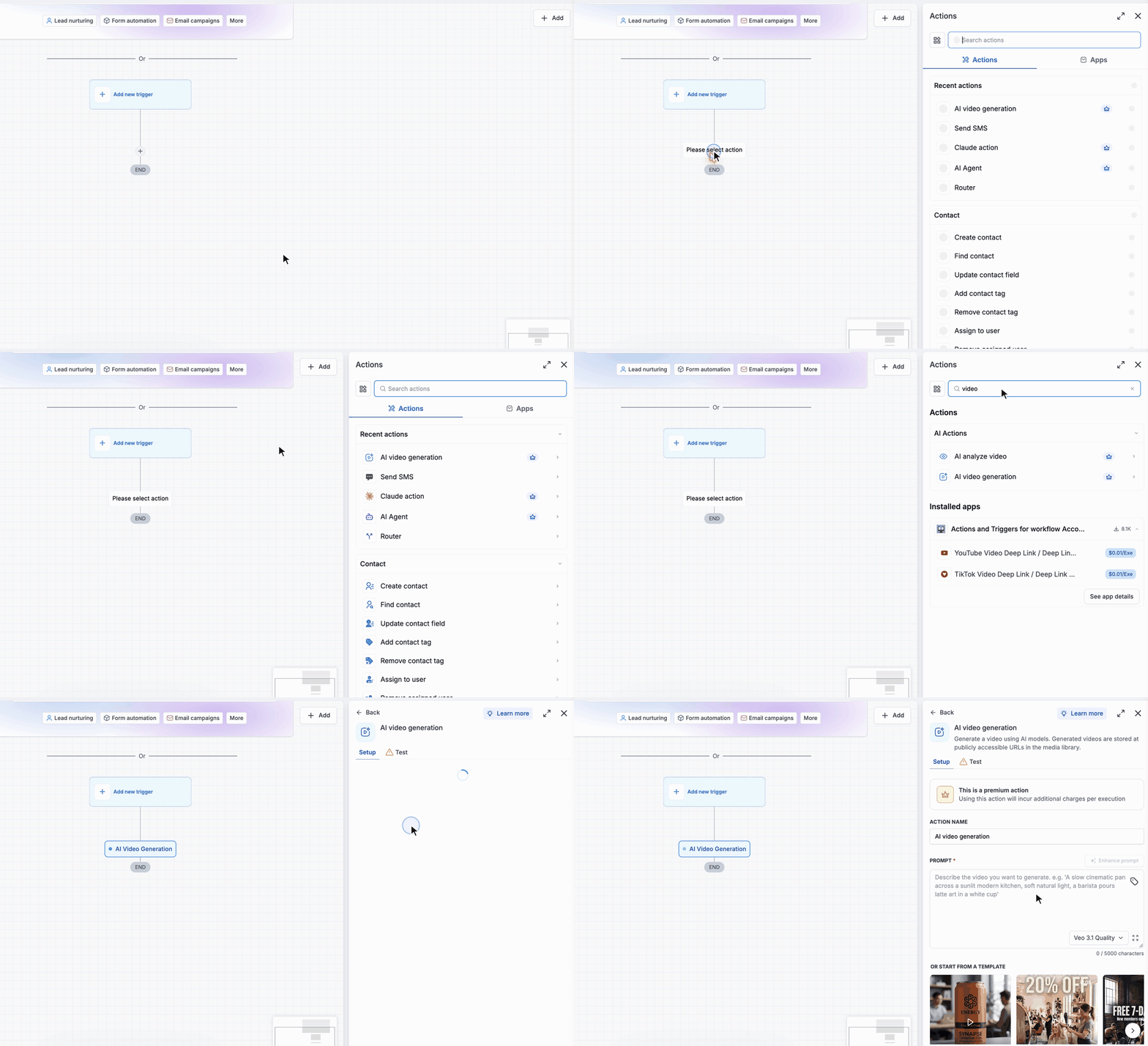
The AI Video Generation action lives inside the workflow builder under the AI Actions category. When triggered, it sends the supplied prompt and any reference images to Google’s Veo 3.1 models, which return a video file. The video is stored in the Media Library and a public link is returned as an output variable.
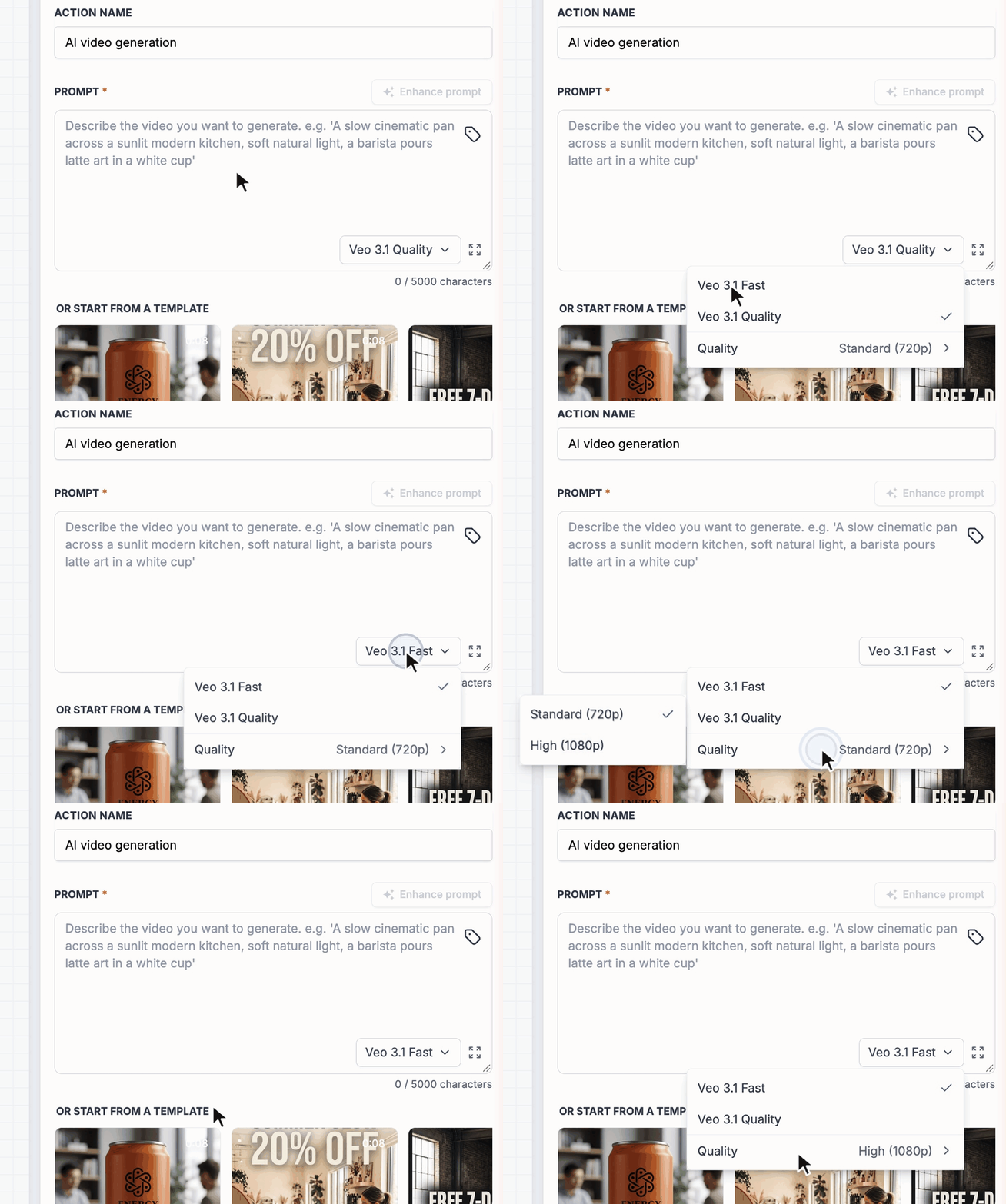
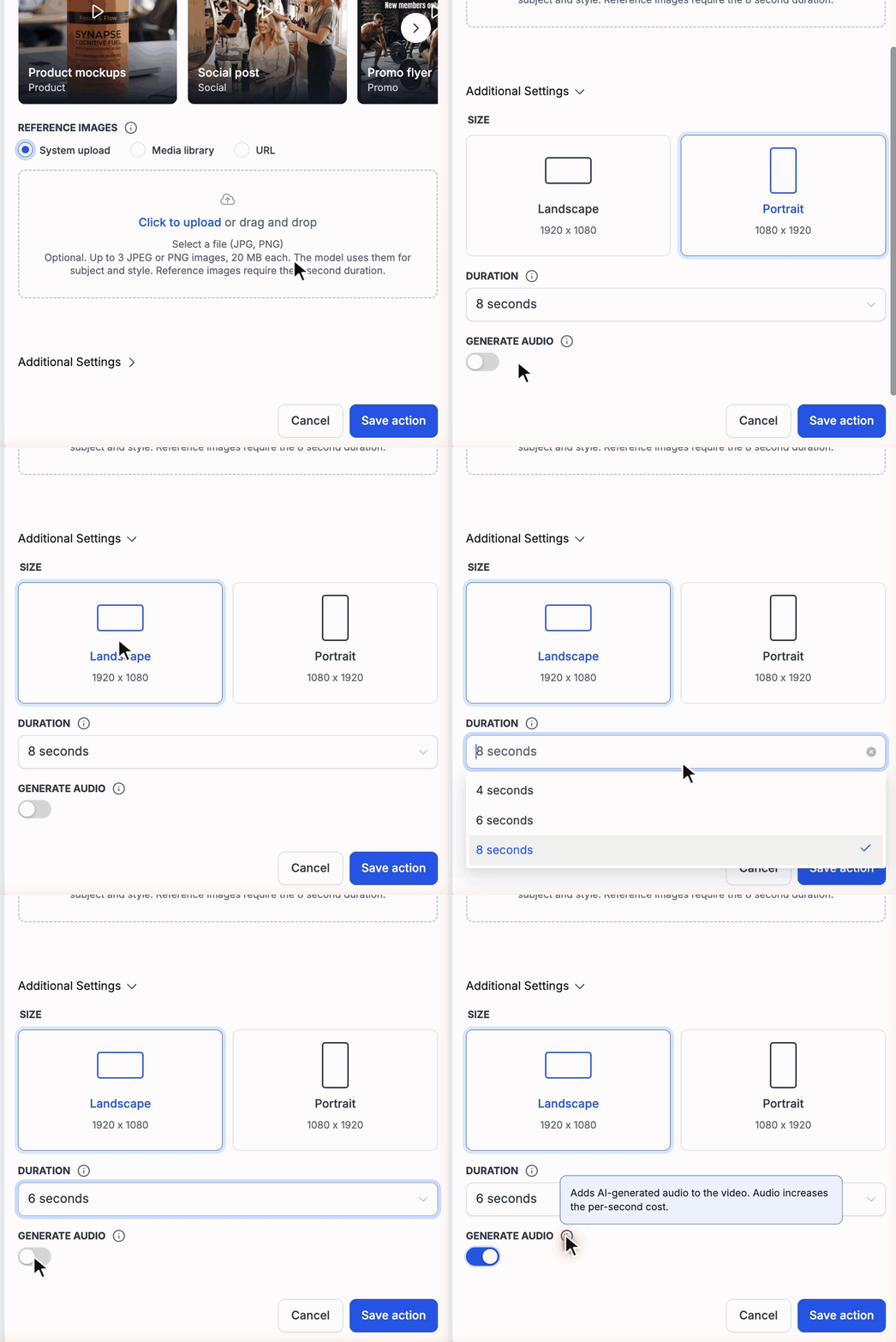
You can choose between two model options, Veo 3.1 Quality for detailed clips or Veo 3.1 Fast for quicker results, and set the resolution (Standard 720p or High 1080p). Additional Settings let you define landscape or portrait orientation, select a duration of 4, 6, or 8 seconds, and turn AI generated audio on or off. Each execution, including test runs, incurs a charge based on the selected options.
03How businesses use AI video generation
- Real estate agency. The agency creates a short video for each property by entering a prompt that describes the home and uploading a few interior photos. The workflow generates an 8 second video and saves the public URL, which is then placed into the property’s email blast.
- Fitness studio. The studio builds a workflow that uses a class name and schedule as custom values in the prompt, generates a 6 second promotional clip, and adds it to a reminder SMS sent to members.
- Ecommerce store. The store sets up a workflow that pulls product titles and prices into the video prompt, optionally adds a product image, and inserts the resulting video URL into a post purchase thank you email.
04The numbers and rules that matter
- Two Veo 3.1 models: Veo 3.1 Quality, Veo 3.1 Fast.
- Resolution options: Standard (720p) and High (1080p).
- Default model: Veo 3.1 Quality with Standard resolution.
- Prompt field limit: 5,000 characters.
- Reference images: Up to three JPEG or PNG, each up to 20 MB.
- Adding reference images locks duration to 8 seconds.
- Size options: Landscape (1920 × 1080) or Portrait (1080 × 1920).
- Duration options: 4, 6, or 8 seconds.
- Default settings: Landscape, 8 seconds, Generate Audio disabled.
05How to set up and use AI video generation in HighLevel
Set up AI video generation in a workflow
- Open Automation > Workflows and create or edit a workflow.
- Click the plus icon and select AI Video Generation from the AI Actions list.
- Choose Veo 3.1 Quality or Veo 3.1 Fast and pick the desired resolution.
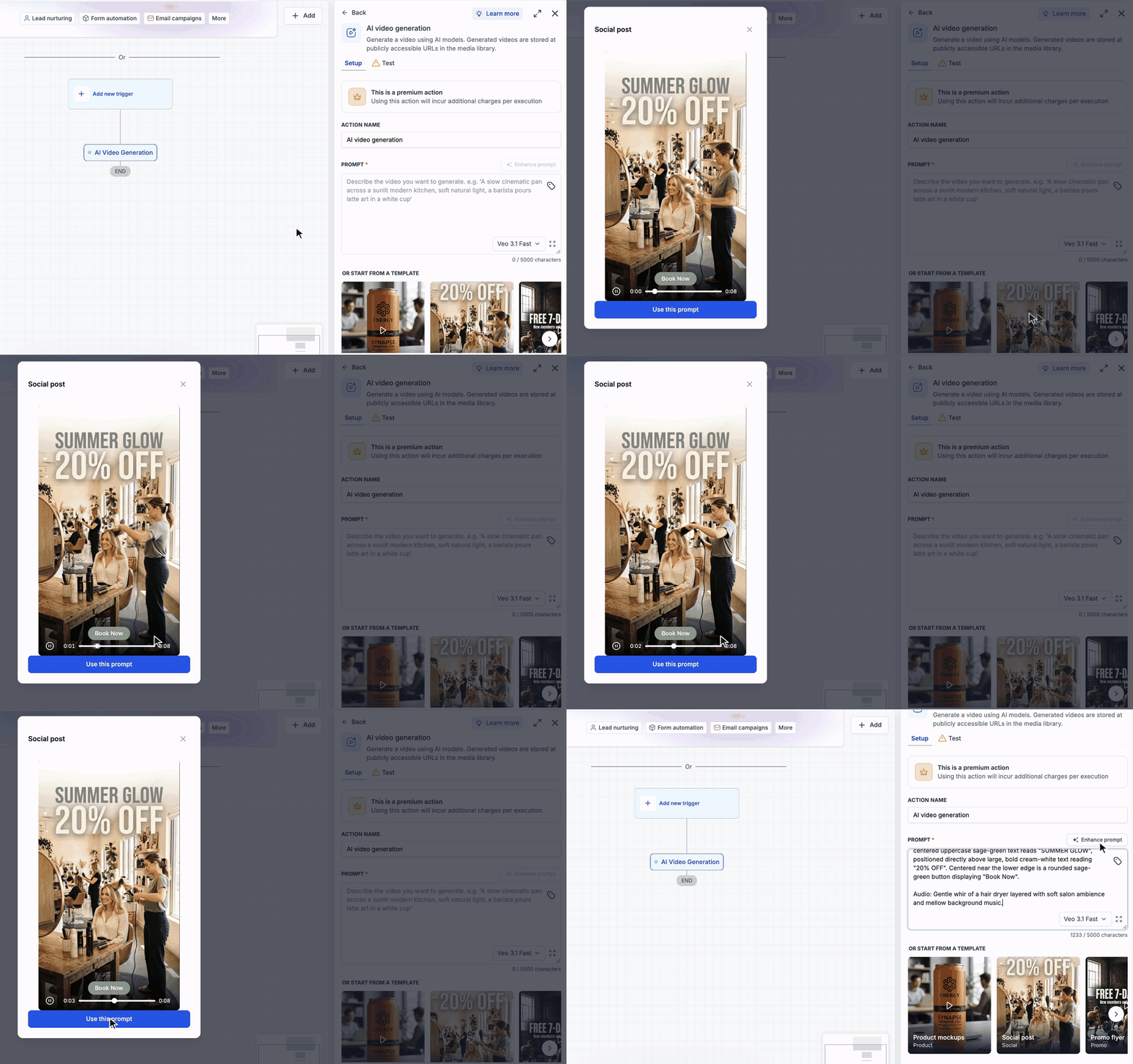
- Enter a video prompt, optionally enhance it or apply a ready made template.
- Add up to three reference images via upload, Media Library selection, or image URL.
- Open Additional Settings and configure Size, Duration, and the Generate Audio option.
- Save the action.
- Note: AI Video Generation is a premium action. Each execution, including testing, is billed according to the chosen model, quality, duration, and audio settings.
- Go to the Test tab, choose a test contact, and run the action to verify output.
- Add a following workflow step and insert the Video URL using the custom value picker.
06What it looks like in HighLevel
07Settings that matter
- Model. Selects which Veo 3.1 model processes the prompt, Quality for detailed output or Fast for quicker generation.
- Resolution. Determines video pixel density; Standard yields 720p, High yields 1080p.
- Size. Sets the video aspect orientation to Landscape (1920 × 1080) or Portrait (1080 × 1920).
- Duration. Controls the length of the clip, offering 4, 6, or 8 second options.
- Generate Audio. When turned on, AI generated background music or ambience is added, increasing per second cost.
08Things to know before you rely on it
- Prompt text may be up to 5,000 characters.
- You can attach a maximum of three reference images, each no larger than 20 MB.
- Adding reference images automatically fixes the video duration at 8 seconds.
- Generated video URLs are public; anyone with the link can view the file.
- The action is premium; every execution, including tests, is billed according to model, quality, duration, and audio settings.
09How it connects to the rest of HighLevel
- Learn how to add actions in a workflow Workflow basics
- Explore other AI actions available in HighLevel All workflows features
- Check pricing for premium workflow actions Pricing plans
- Start a free 30 day trial to test AI video generation 30 day trial
Michael's take

Wondering if you really need AI video generation in your automations? The feature drops video creation straight into your workflow, so you don’t have to juggle external editors or download files. It’s handy when you want a quick, personalized clip for an email or a social post without leaving HighLevel.
Give it a spin on a single contact first. Use a simple prompt with a custom value like the contact’s first name, run the test, and check the public URL that appears in the Media Library. That will show you the cost impact and the visual style before you roll it out to a full campaign.