
01Who this is for
- Marketing managers can produce on brand social graphics without hiring a designer.
- Sales teams can generate product mockups right away for client proposals.
- Customer support agents can send visual explanations directly in chat conversations.
02AI image generation actions, explained
The AI Image Generation action appears under AI Actions in the workflow builder. It accepts a prompt, optional reference images, and several settings that influence the visual output. When the workflow runs, the selected AI model creates an image, saves it to Media Storage and provides a public URL.
The action returns three custom values: the image URL, the storage path, and the file name. These variables can be used by any following action, such as email, SMS, or webhook steps. All generated assets are automatically organized in the Media Library for later reuse.
This premium action adds an extra charge per execution, so each generated picture contributes to your usage cost based on model, quality, size, and any added brand context.
03How businesses use AI image generation action
- Product mockups. When a new product description arrives via webhook, the workflow runs the AI Image Generation action with the description inserted into the prompt. The generated mockup image URL is then attached to an email sent to the vendor for quick visual review.
- Personalized campaign visuals. A contact tag triggers the action. The workflow builds a prompt that includes the contact’s segment data and optionally a reference image, then sends the generated image URL in an email or MMS to personalize the campaign.
- On demand images from conversations. When a customer asks for a visual in a chat, the workflow uses the customer's message as the prompt, generates an image, and returns the image URL via SMS/MMS in the same conversation thread.
04The numbers and rules that matter
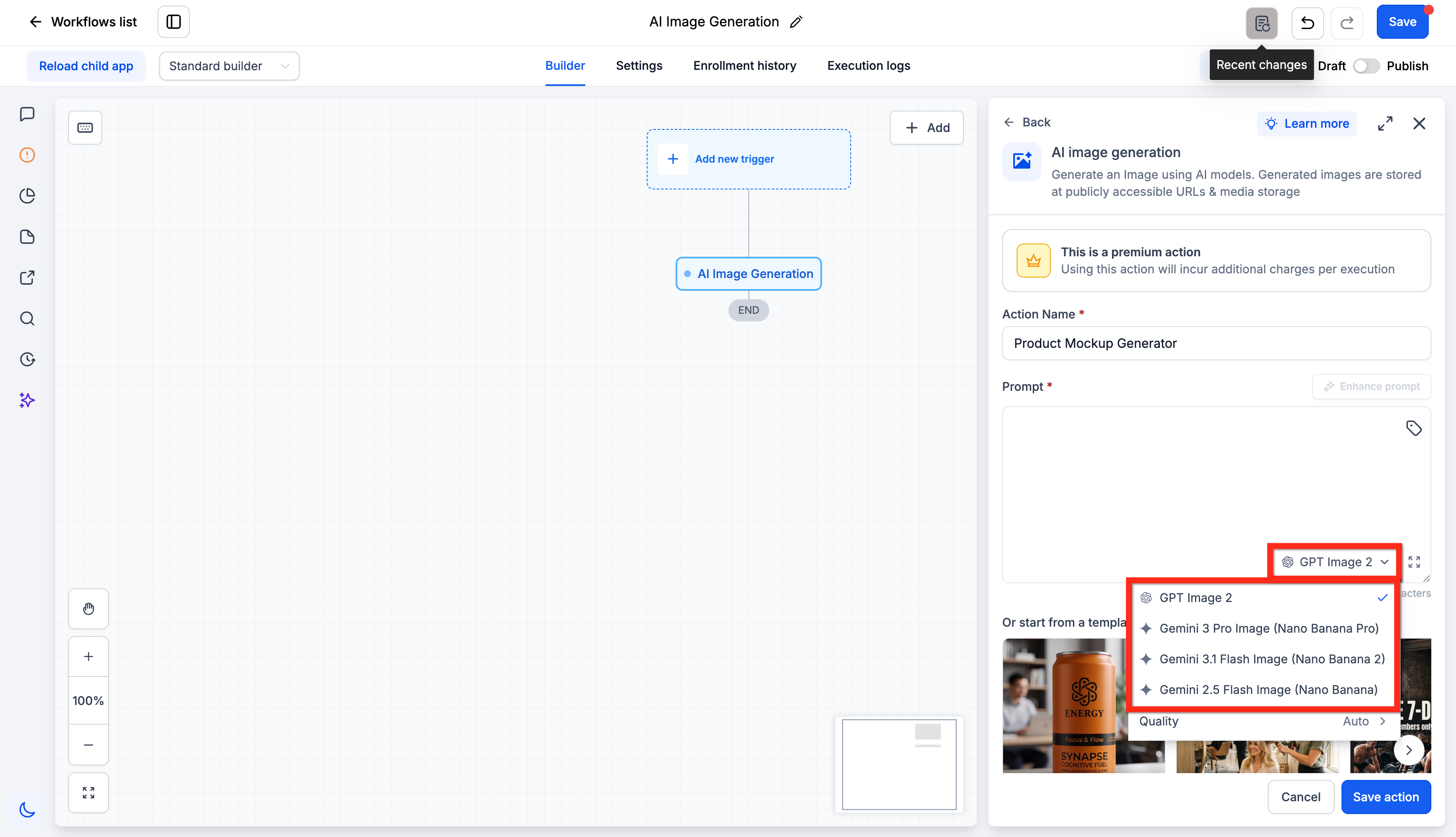
- Models available: GPT Image 2, GPT Image 2.5 Flare, GPT Image 2.5 Sunburst, Gemini 3 Pro Image (Nano Banana Pro), Gemini 3.1 Flash Image (Nano Banana 2), Gemini 2.5 Flash Image (Nano Banana).
- Reference images: Up to five per action.
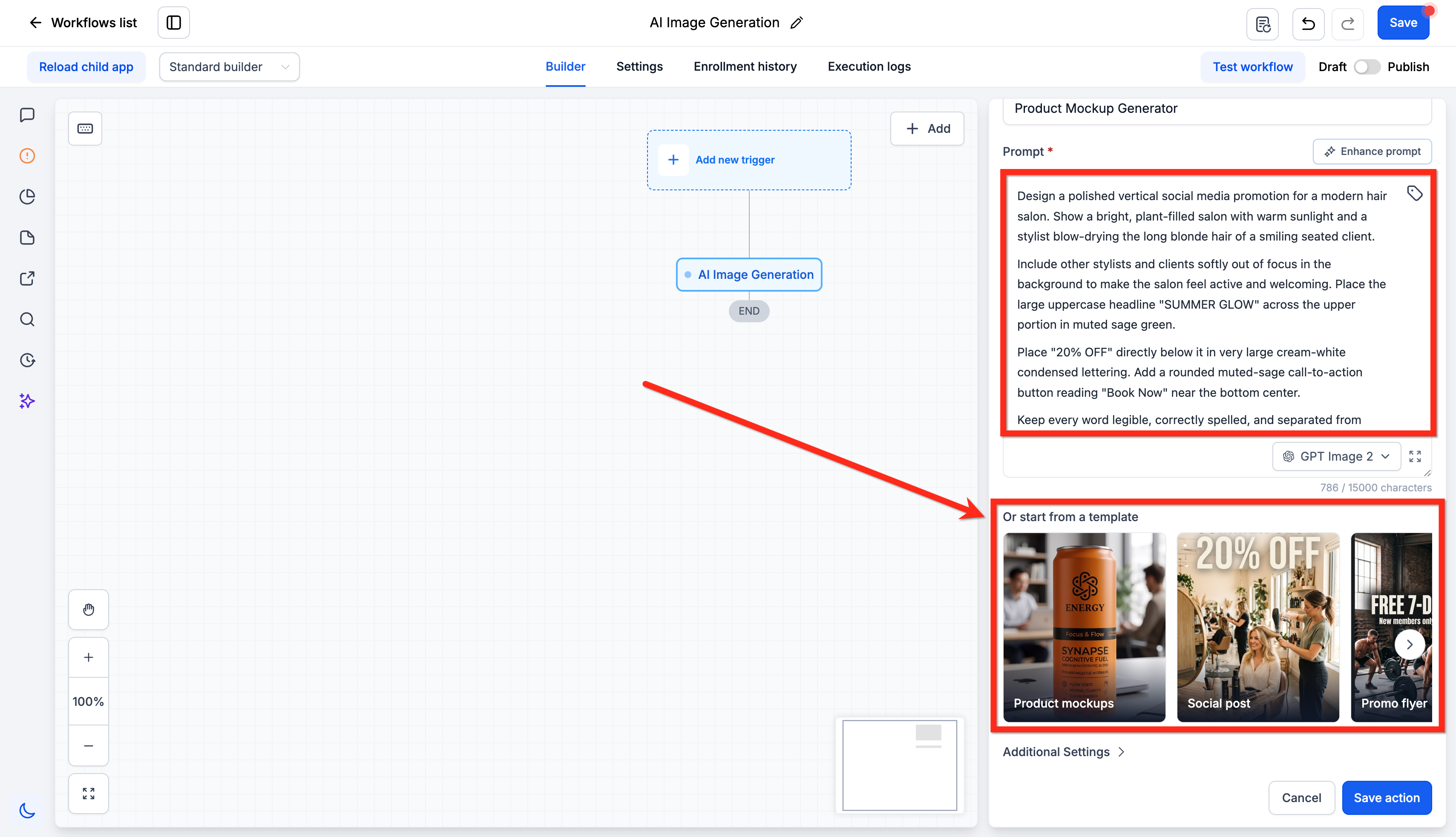
- Four templates are available: Product Mockups, Social Post, Promo Flyer, Lifestyle.
- Additional Settings include Size, Background, Output Format, Design Kit, Brand Voice.
- Cost per image median: $0.0388 (3.88¢) (per HighLevel's help center, checked November 2026).
- Cost per image average: $0.0499 (4.99¢) (per HighLevel's help center, checked November 2026).
- The action is a premium action and incurs additional charges per execution.
05Before you start
- Configure a Design Kit in your account before selecting it in the action.
- Set up Brand Voice details in your account before using the Brand Voice option.
06How to set up and use AI image generation action in HighLevel
Configure the AI Image Generation action
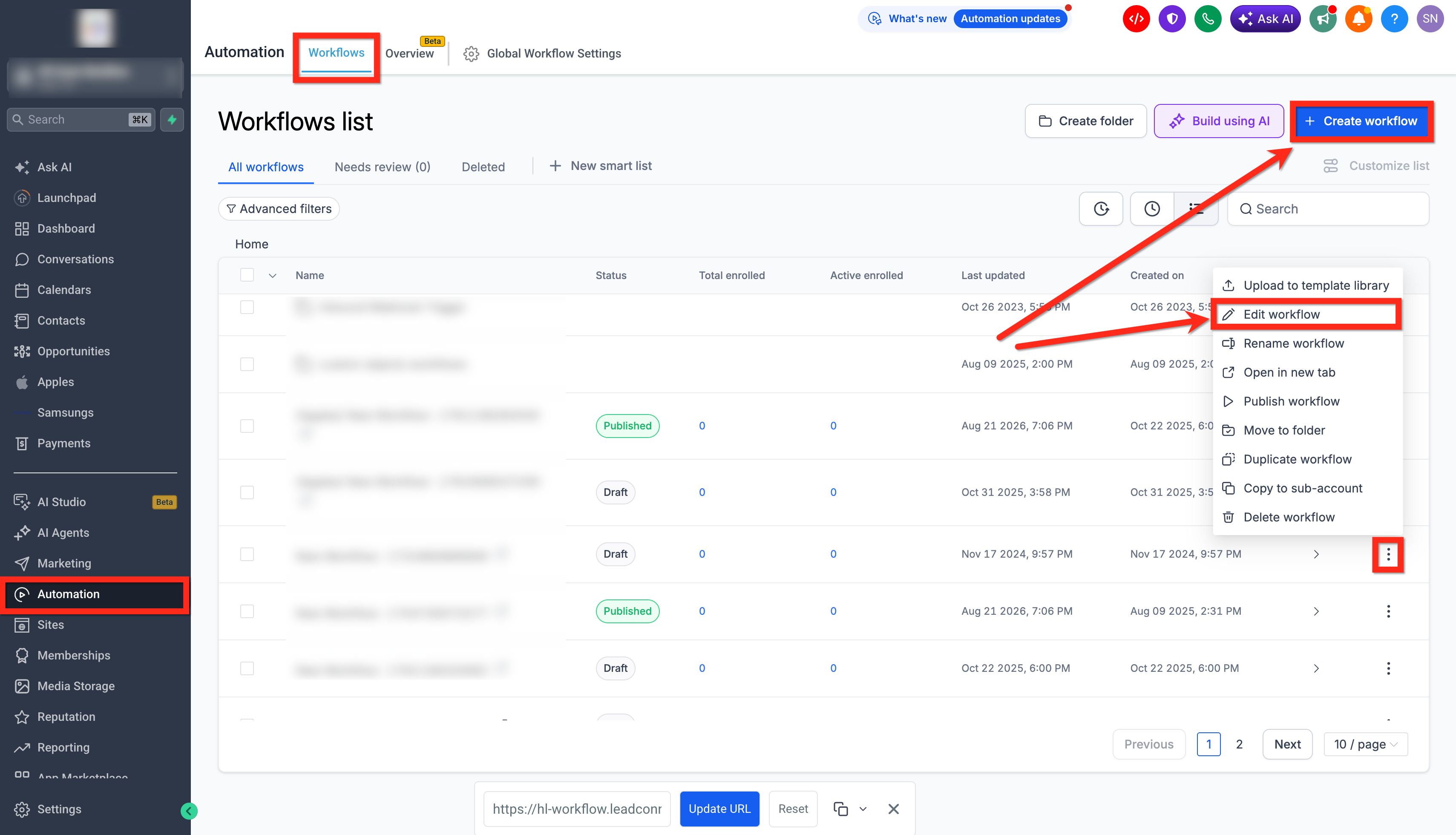
- Open Automation > Workflows.
- Create a new workflow or edit an existing one.
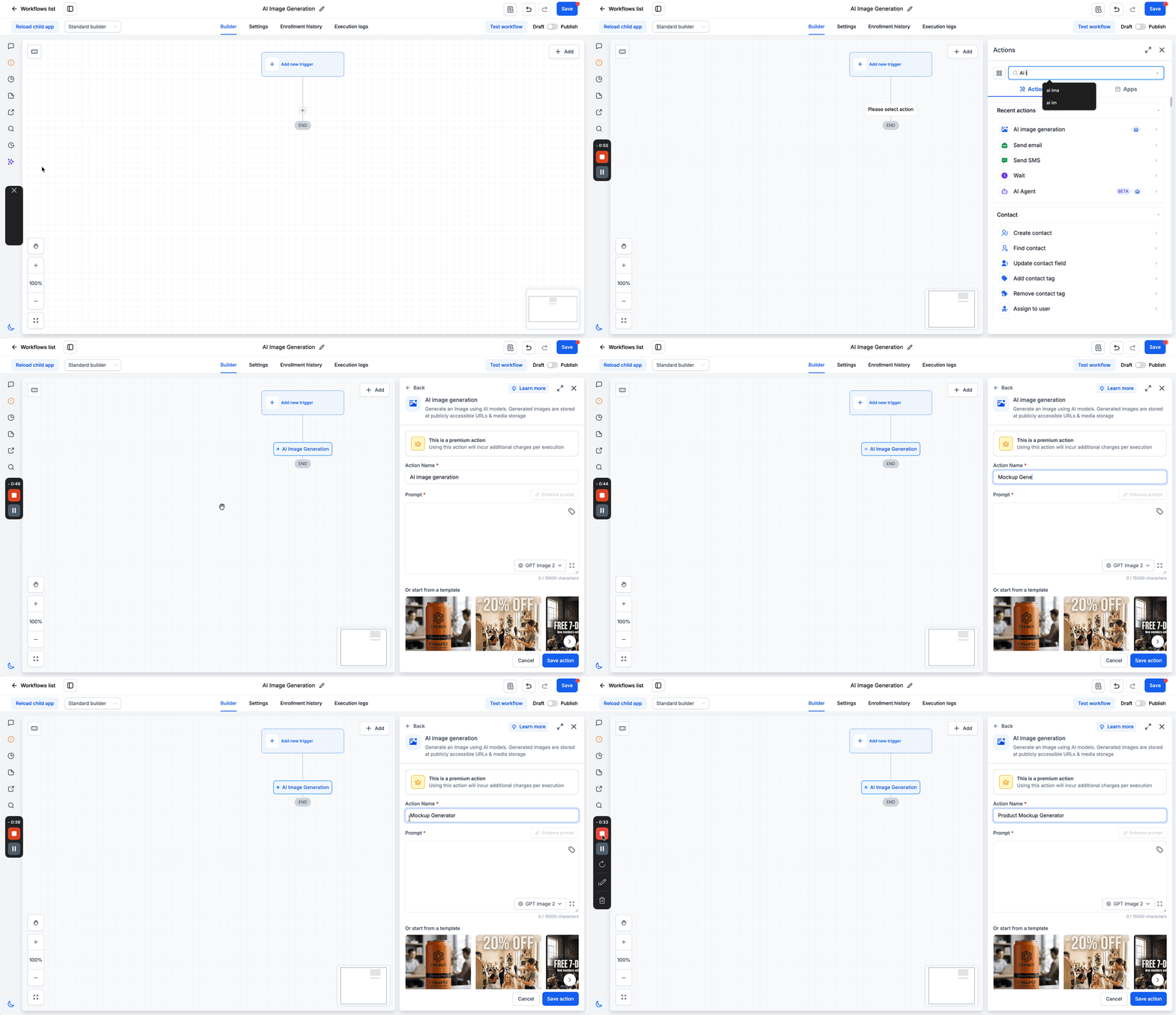
- Click the + icon, locate AI Image Generation under AI Actions, and add it.
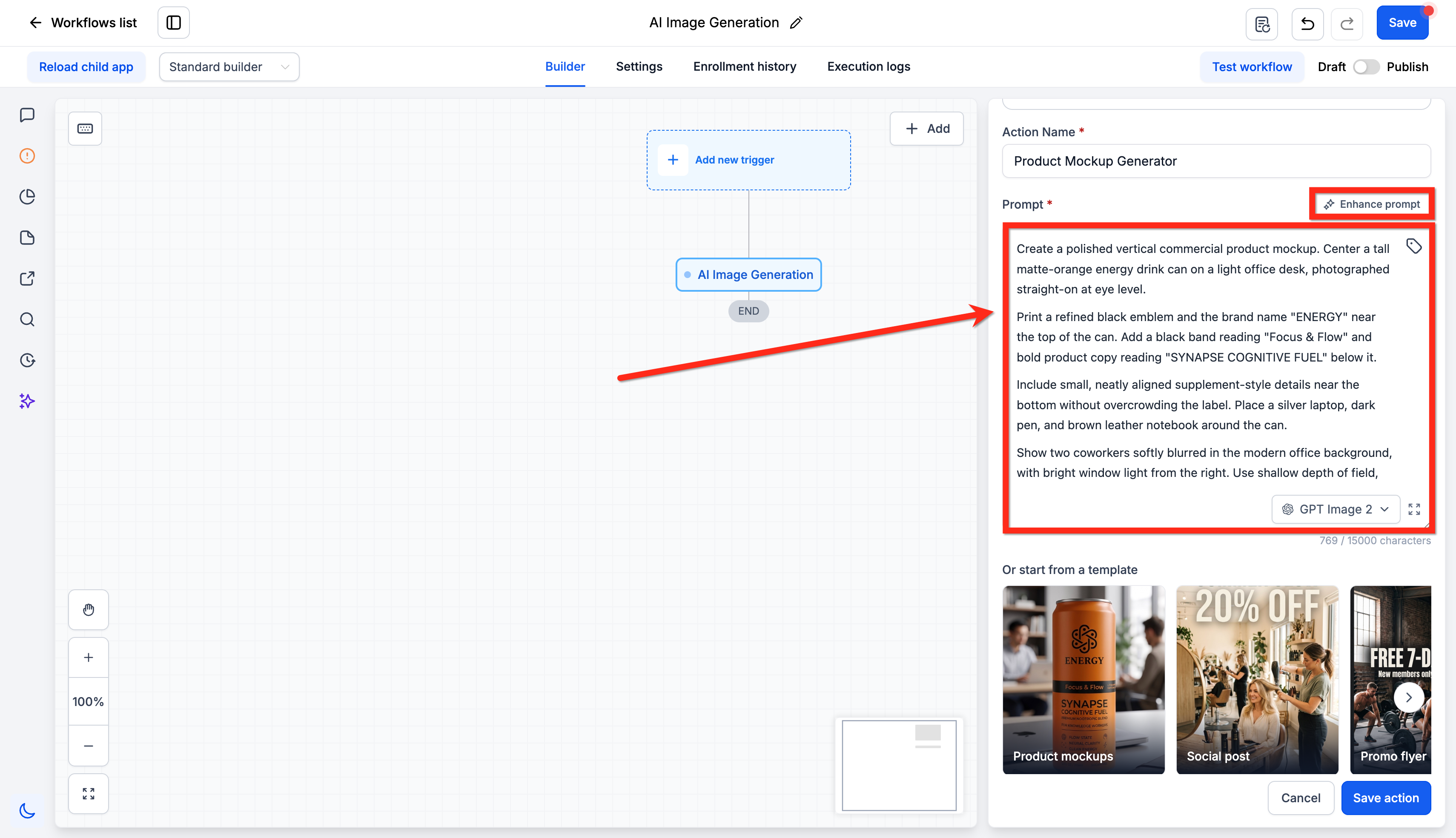
- Enter a clear, descriptive name for the action.
- Choose the desired AI model from the available list.
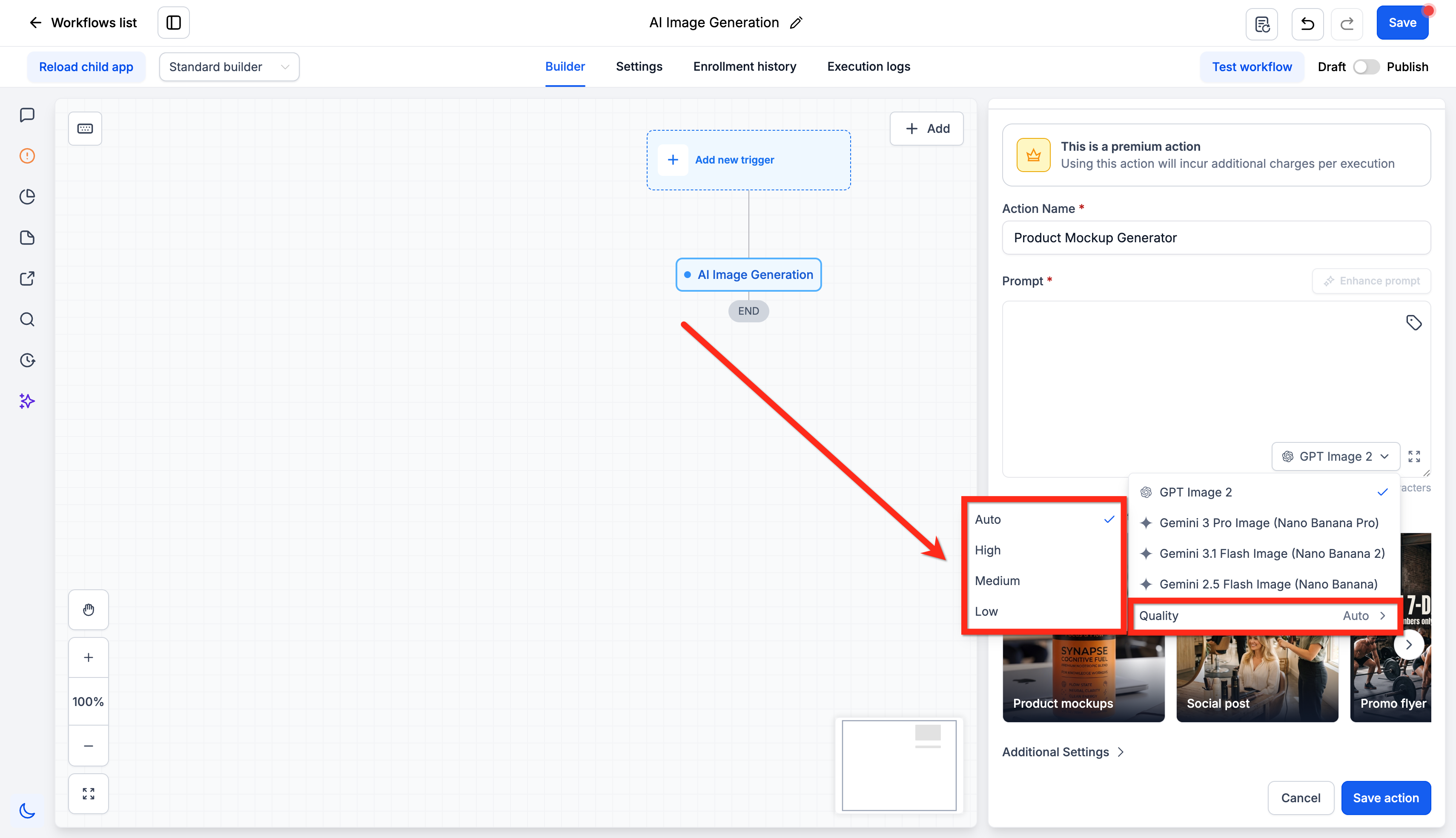
- Select the image quality (Auto, High, Medium, or Low).
- Type a detailed prompt or insert custom values from contacts or previous actions.
- Press Enhance Prompt to expand and refine the description if desired.
- Optionally pick a template to pre fill the prompt field.
- Optionally add up to five reference images via system upload, media library, or URL.
- Optionally adjust additional settings (size, background, output format, Design Kit, Brand Voice).
- Save the action.
07What it looks like in HighLevel
08Settings that matter
- Action Name. A custom label that identifies the step in the workflow and appears in execution logs.
- Model. Selects which AI image model will generate the picture, influencing style and capabilities.
- Quality. Controls the level of detail of the output; options are Auto, High, Medium, and Low.
- Prompt. The text description that tells the model what to create; supports custom values for dynamic content.
- Templates. Pre written prompts for common image types that can be edited after being loaded.
- Reference images. Up to five optional images supplied to the model as visual context, added via upload, media library, or URL.
- Additional Settings. Optional controls for image size, background type, file format, and application of Design Kit or Brand Voice.
09Things to know before you rely on it
- This is a premium action that adds a charge for each execution.
- You can attach a maximum of five reference images per action.
- Quality can only be set to Auto, High, Medium, or Low.
- Model choices are limited to the list provided in the action.
- Estimated cost per image ranges from $0.0388 to $0.0499 (per HighLevel's help center, checked November 2026).
- Design Kit and Brand Voice options appear only after they have been configured in the account.
10How it connects to the rest of HighLevel
- Learn how to add a GPT action in a workflow. GPT action guide
- Understand pricing for workflow premium actions. Workflow pricing tiers
- See how to configure AI intent detection for smarter automations. AI intent detection
Michael's take

I find that being specific in the prompt. Describing subject, style, lighting and composition. Generally produces better results. I start by writing a detailed prompt or using a template, then click Enhance Prompt to let the AI add missing details. From there I’d attach a reference image if I need exact brand elements, set the size and background to match the destination, and finally test the workflow on a few contacts before scaling it up.