
01Who this is for
- Founders who receive lead notifications via email and need to auto create contacts without manual entry.
- Small businesses that process order confirmation emails and want to pull order details into opportunities.
02AI Email Parser, explained
The AI Email Parser is a premium workflow action that analyzes the email that triggered the workflow. It can read the latest message body, the full thread, or a custom value you provide. The action returns each field you define as a custom value inside the workflow.
Parsed values are not saved automatically. They become available through the custom value picker for any later action, such as updating a contact or creating an opportunity. Use the action after an Inbound Email trigger so the email content is available for parsing.
The action lives under AI Actions in the workflow builder. It requires the Inbound Email trigger to be present and incurs an extra charge each time it runs.
03How businesses use AI Email Parser
- Real estate agency. Create a workflow that watches the agency’s lead mailbox. The AI Email Parser extracts the prospect’s name, email, phone and message. Map those values to an Update Contact Field action to add the new lead to the system.
- Ecommerce store. Set up an inbound email trigger for order notification emails. Use the parser to pull order number, product name, and total amount. Feed those values into a Create Opportunity action to track new sales.
- Medical clinic. Monitor the appointments inbox. The parser pulls patient name, preferred date, and reason for visit. The extracted data is passed to a Send SMS action to confirm the appointment with the patient.
04The numbers and rules that matter
- AI Email Parser is a premium workflow action and incurs additional charges per execution.
05Before you start
- Identify the mailbox or email flow that will start the workflow.
- Decide which pieces of information need to be extracted from the email.
- Determine where the extracted values will be stored or used after parsing.
- An Inbound Email trigger must be added to the workflow.
06How to set up and use AI Email Parser in HighLevel
Set up AI Email Parser workflow
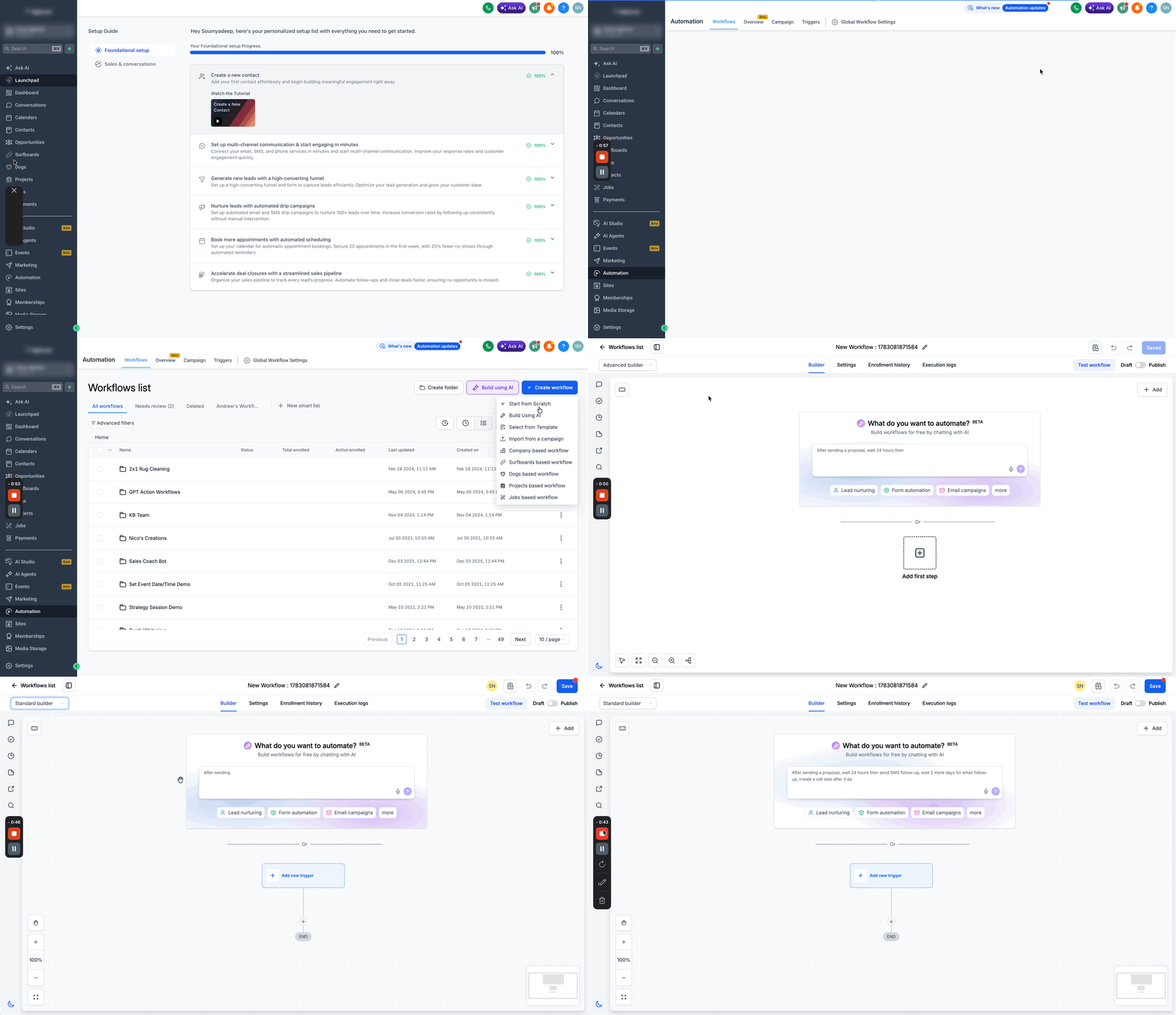
- Go to Automation > Workflows.
- Click + Create Workflow.
- Choose Start from Scratch.
- Select Standard Builder or Advanced Builder.
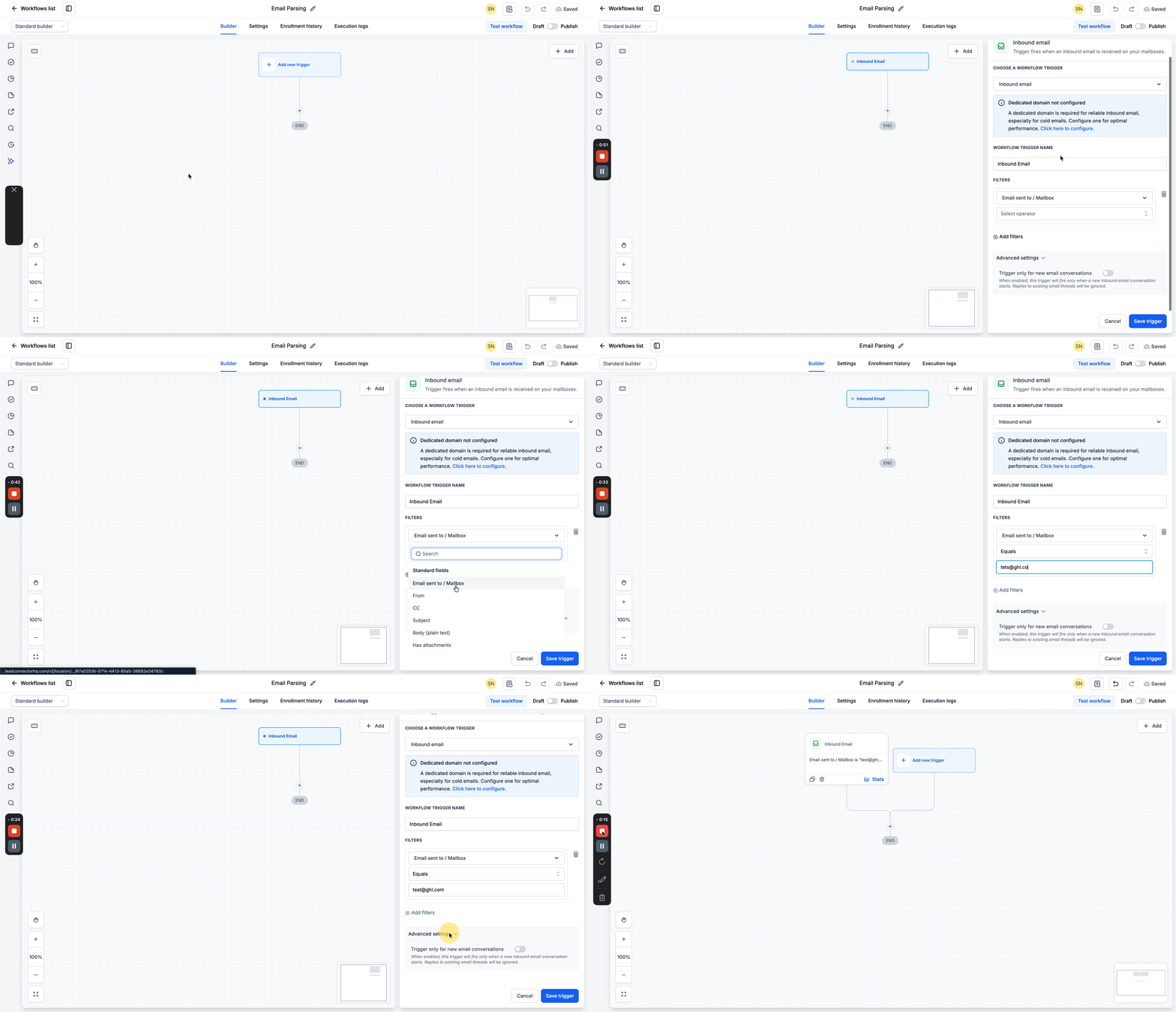
- Click + Add New Trigger.
- Select Inbound Email.
- Configure the trigger based on the mailbox or email pattern you want to monitor.
- Add filter criteria such as Email Sent To Mailbox, Email Sent From, Subject, Body Plain Text, or Has Attachments.
- In Advanced Settings, set whether the workflow runs only for a new email conversation.
- Enable Trigger Only for New Email Conversations.
- Click Save Trigger.
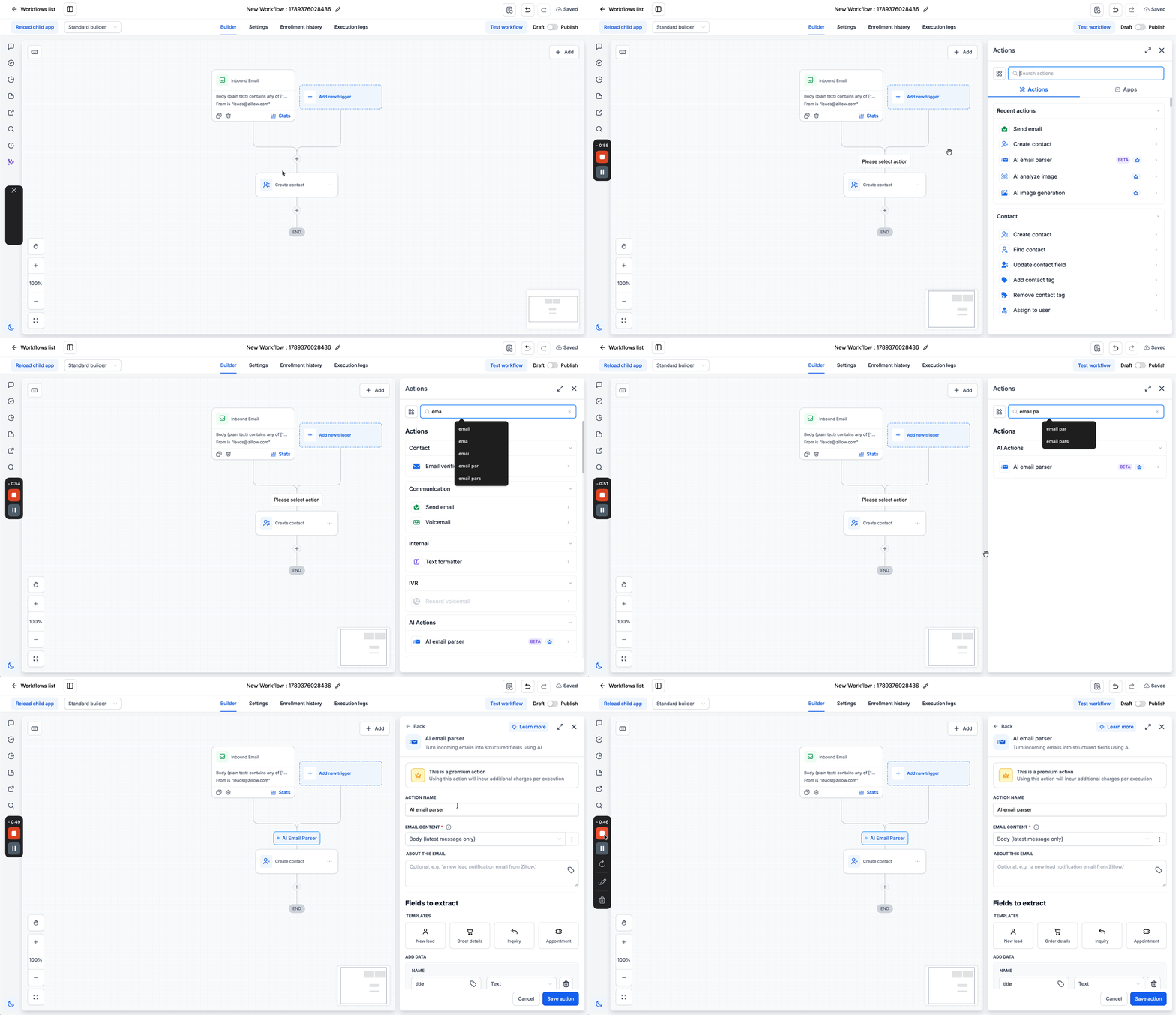
- Click the + icon below the trigger.
- Search for Email Parser.
- Select Email Parser under AI Actions.
- Enter or update the Action Name if needed.
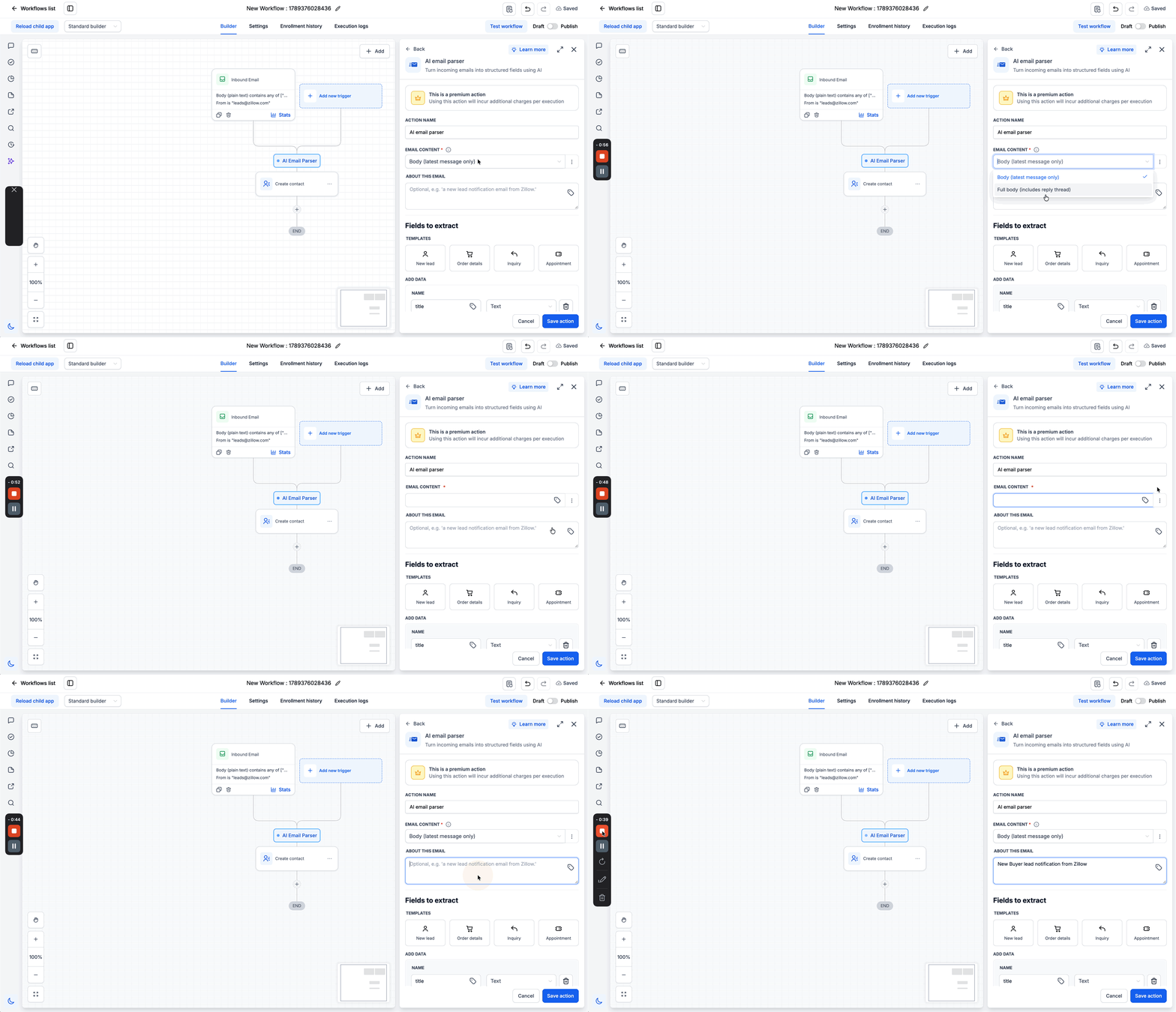
- Under Email Content, choose Body, Full Body, or Custom Value as the content to parse.
- Fill the About This Email field with a short description of the email type.
- Under Fields to Extract, select a pre built template such as New Lead or add custom fields.
- Define each field’s name, data type, and short description.
- Click Save Action.
- Add a downstream action (for example Update Contact Field, Create Opportunity, or Send SMS) and map the extracted values using the custom value picker.
- Remember that the AI Email Parser does not permanently store the extracted values; they are available only inside the workflow.
- Optionally add follow up actions such as Send Email, Send SMS, Internal Notification, or trigger another workflow to complete the automation.
07What it looks like in HighLevel
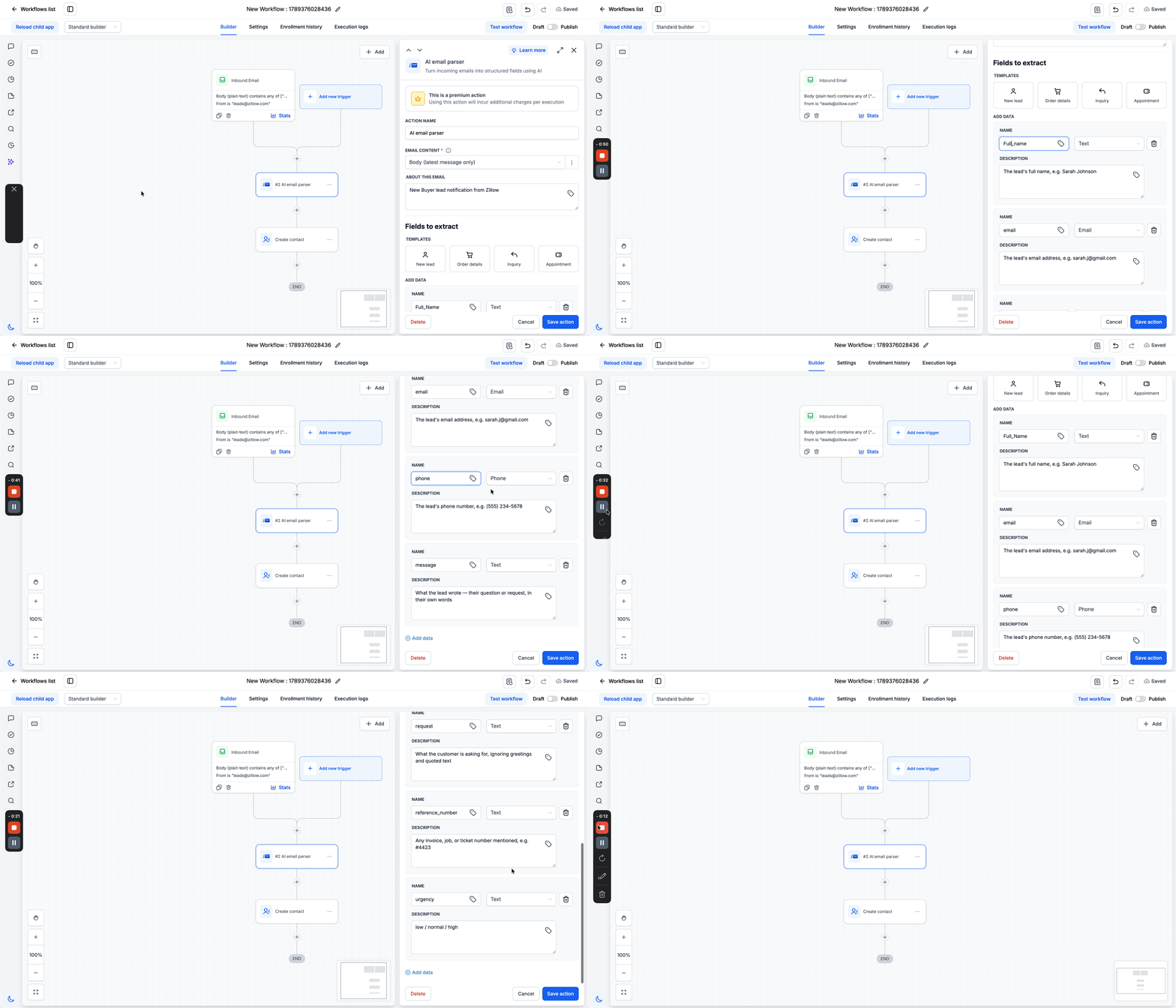
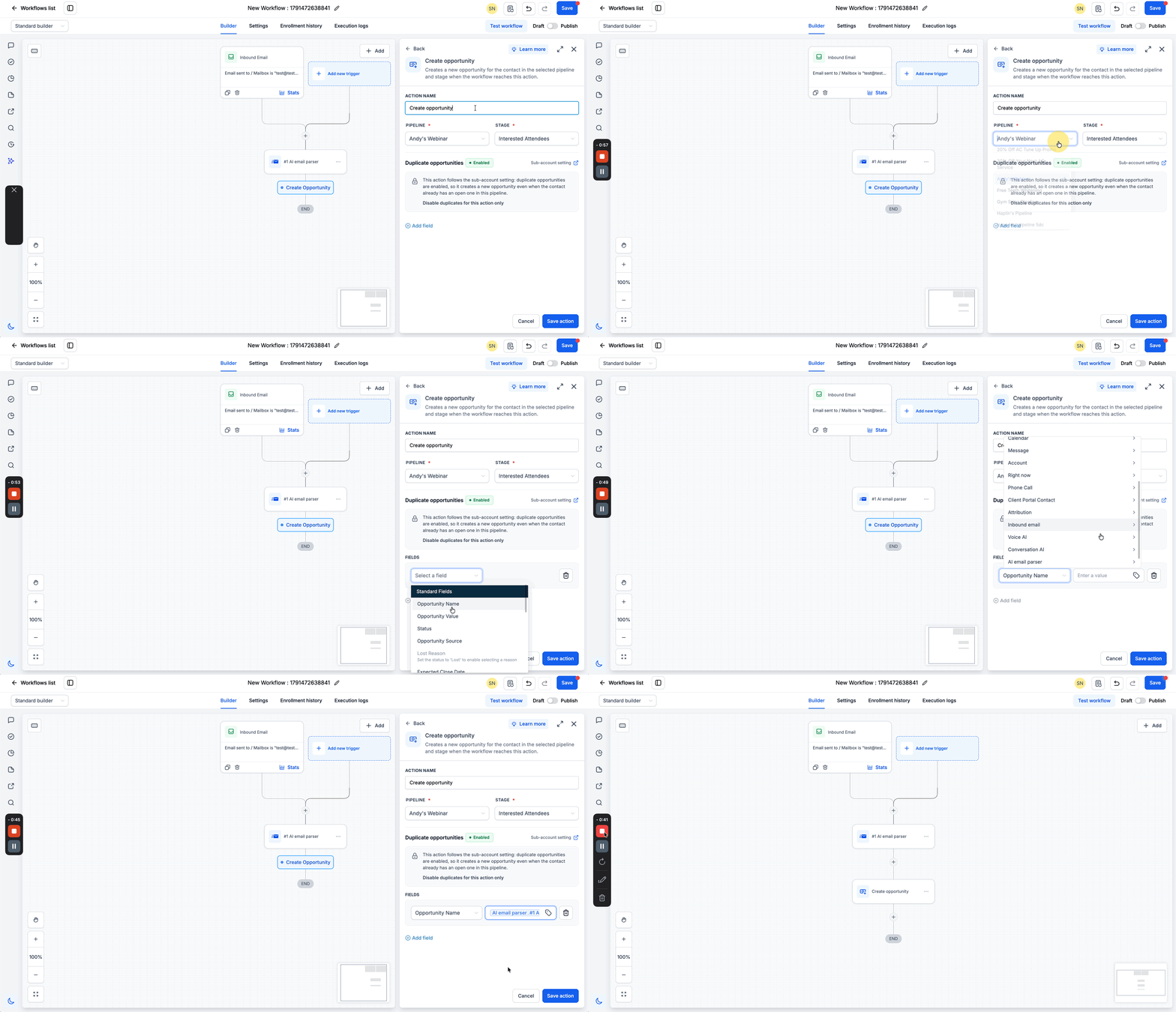
08Settings that matter
- Email Content. Controls which part of the email the AI reads, the latest body, the full thread, or a custom value you provide.
- About This Email. Provides a brief description of the email type so the AI has context for extraction.
- Fields to Extract. Defines the data fields the parser should return, including their data type and description.
- Trigger Only for New Email Conversations. When enabled, the workflow ignores replies in an existing thread and runs only on the first message.
- Action Name. A label you can set to identify the Email Parser action within the workflow.
09Things to know before you rely on it
- The AI Email Parser is a premium workflow action and adds an extra charge for each execution.
- It requires an Inbound Email trigger to supply the email content.
- The action does not permanently store extracted values; they are only available inside the workflow.
10How it connects to the rest of HighLevel
- Learn how to set up the AI Extract Data action, a more general data extraction tool. AI Extract Data
- Explore the AI Decision Maker action for routing parsed data to different paths. AI Decision Maker
- Read about configuring GPT actions within HighLevel workflows. GPT Action
Michael's take

Getting useful data out of the flood of lead emails is a common headache. The first thing I would get right is the description you give the AI in the About This Email field. Keep it short, specific and focused on the email type so the parser knows exactly what to look for.
From there, map the parsed values into a contact or opportunity right away. That gives you a concrete record to work with and proves the parser is pulling the right pieces before you build out more complex follow up actions.