
01Who this is for
- Marketing agencies can automatically extract key points from client video briefs, cutting down on manual review.
- Online educators can generate transcripts and timestamps from lesson recordings to enrich course material.
- Customer support teams can summarize product demo videos, making it easier to share insights with clients.
02AI Analyze Video, explained
The AI Analyze Video action passes a video URL to Google Gemini, which analyzes the visual and audio content and returns a plain text response. You can ask for a summary, a transcription, a list of objects, or timestamps of important moments.
Two Gemini models are available: Gemini 3.8 Flash (default) and Gemini 3.5 Flash Lite. The action only accepts public video URLs, such as YouTube links or direct file URLs in formats like MP4 or MOV. The response is delivered in a field called Response and may include Markdown unless you request plain text.
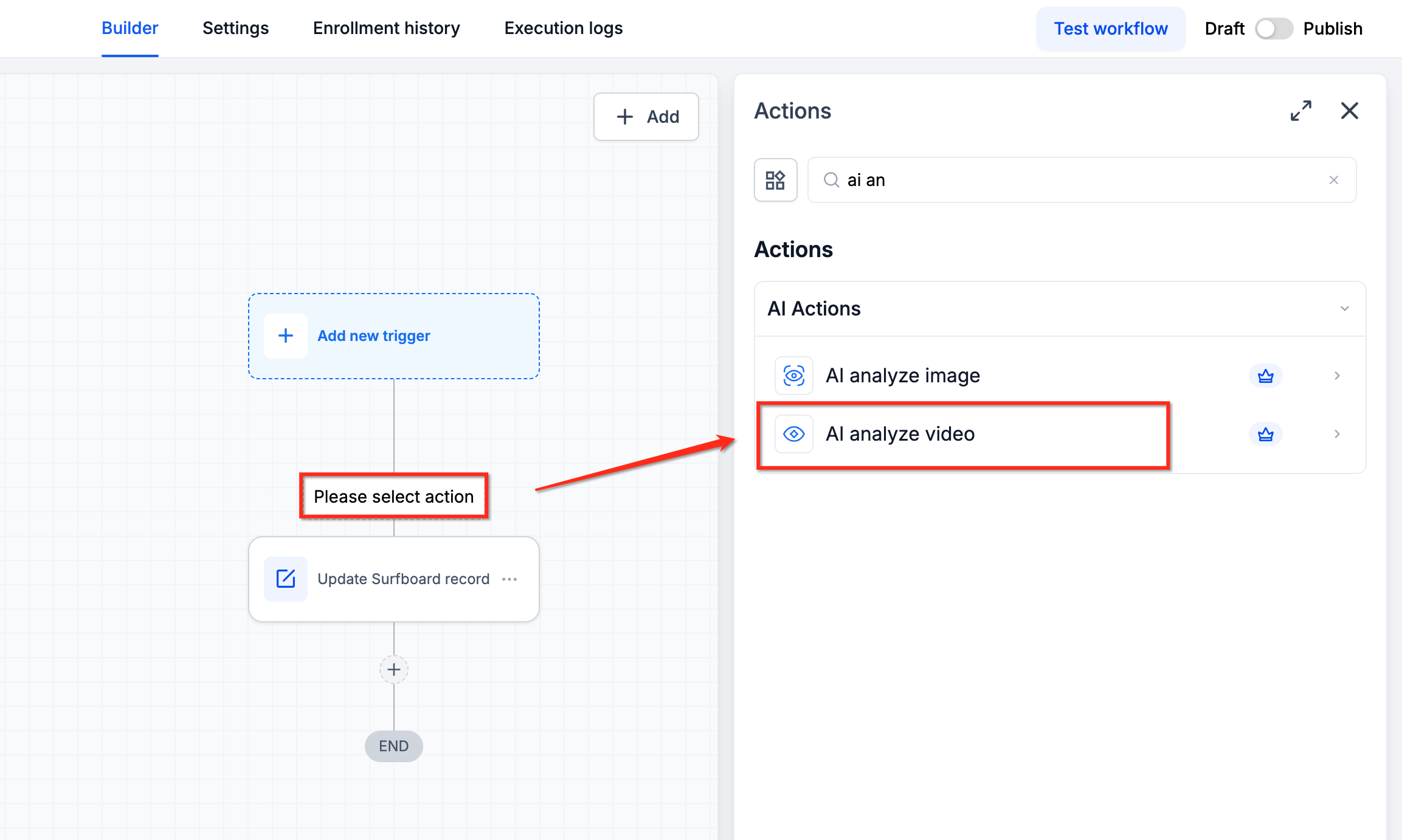
This action lives inside the workflow builder under Automation > Workflows. When you add a new step, choose AI Actions and select AI analyze video to configure the model, video URL, and analysis prompt.
03How businesses use AI Analyze Video
- Real estate agency. The agency adds the AI Analyze Video action to a workflow that processes property tour videos. It prompts Gemini to list the rooms shown and summarize key features, then stores the response in a contact field for the listing email.
- Ecommerce brand. The brand creates a workflow that runs after a product demo video is generated. The action transcribes the spoken content and extracts timestamps for each feature, allowing the brand to send a follow up email with highlighted sections.
- Event organizer. The organizer sets up a workflow that analyzes recorded keynote videos. The prompt asks for important moments and their timestamps, which the workflow then uses to build a highlight reel schedule automatically.
04The numbers and rules that matter
- Model options: Gemini 3.8 Flash (default), Gemini 3.5 Flash Lite.
- Supported video sources: YouTube (standard watch links, youtu.be, Shorts), direct video files (MP4, MOV, WebM, MPEG, FLV, WMV, 3GP), dynamic URLs from forms, webhooks, previous actions.
05Before you start
- A publicly accessible video URL that does not require authentication.
- Access to a workflow where AI Actions can be added.
06How to set up and use AI Analyze Video in HighLevel
Set up AI Analyze Video action
- Navigate to Automation > Workflows.
- Open an existing workflow or create a new one.
- Click the + icon to add an action.
- Select AI Actions and choose AI analyze video.
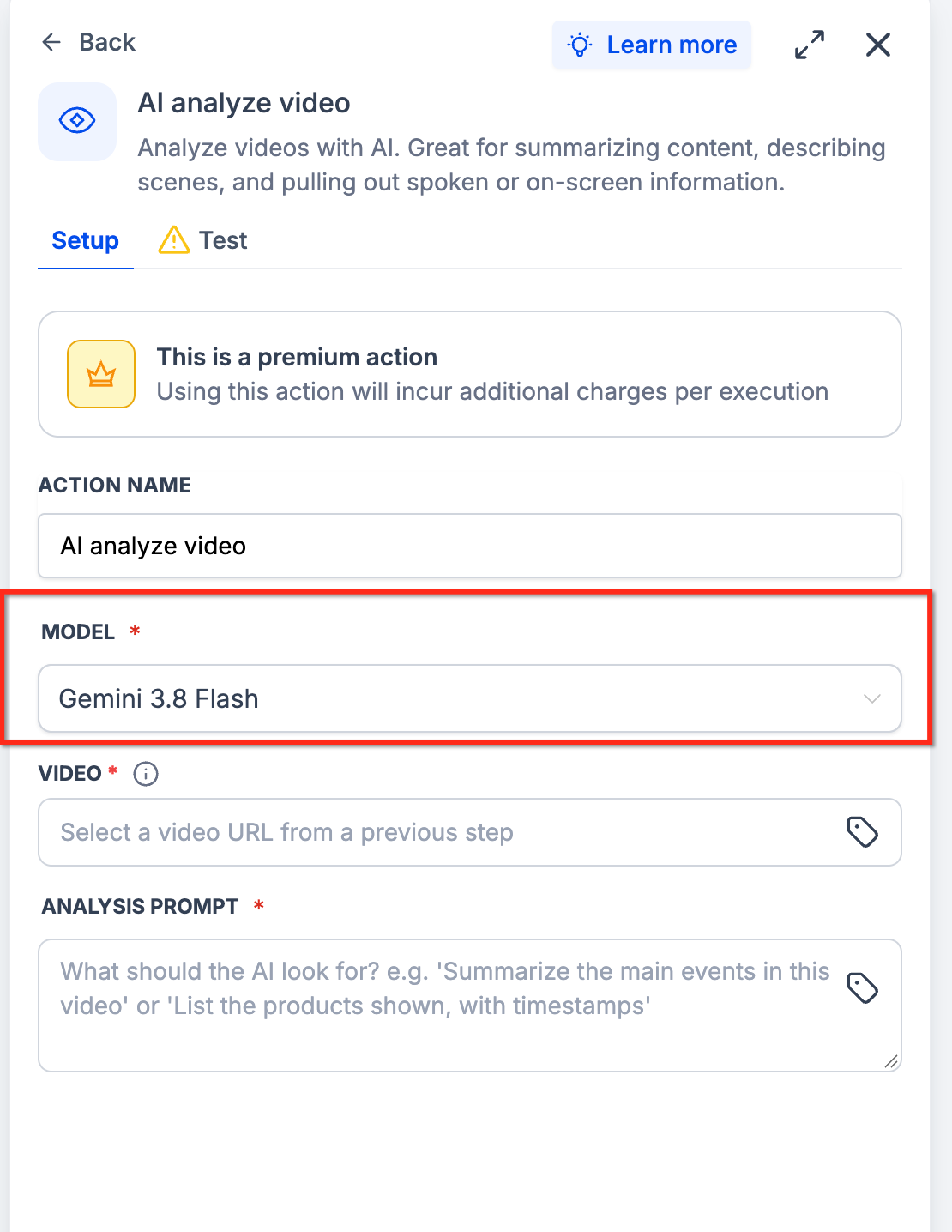
- Pick the desired model from the Model dropdown.
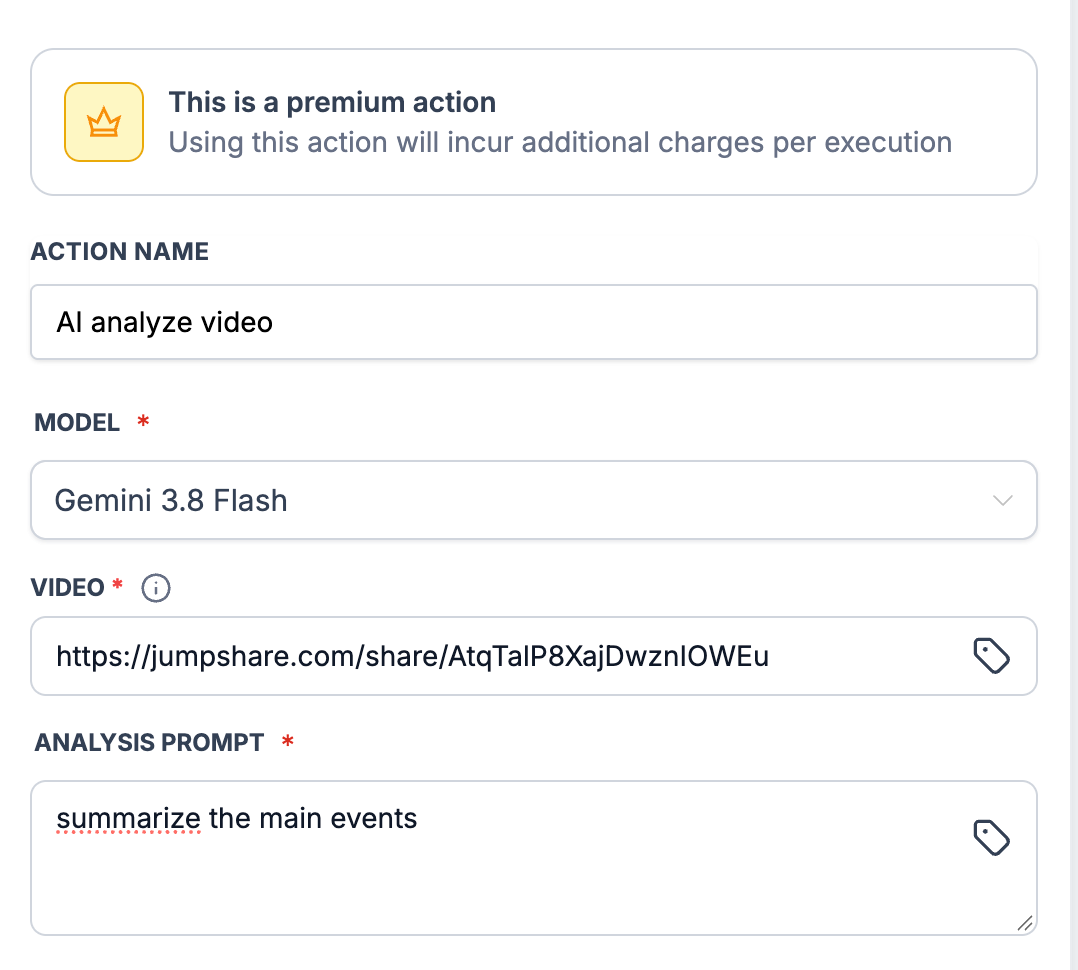
- Enter a public video URL in the Video field or insert a custom value.
- Write the analysis prompt describing what Gemini should extract.
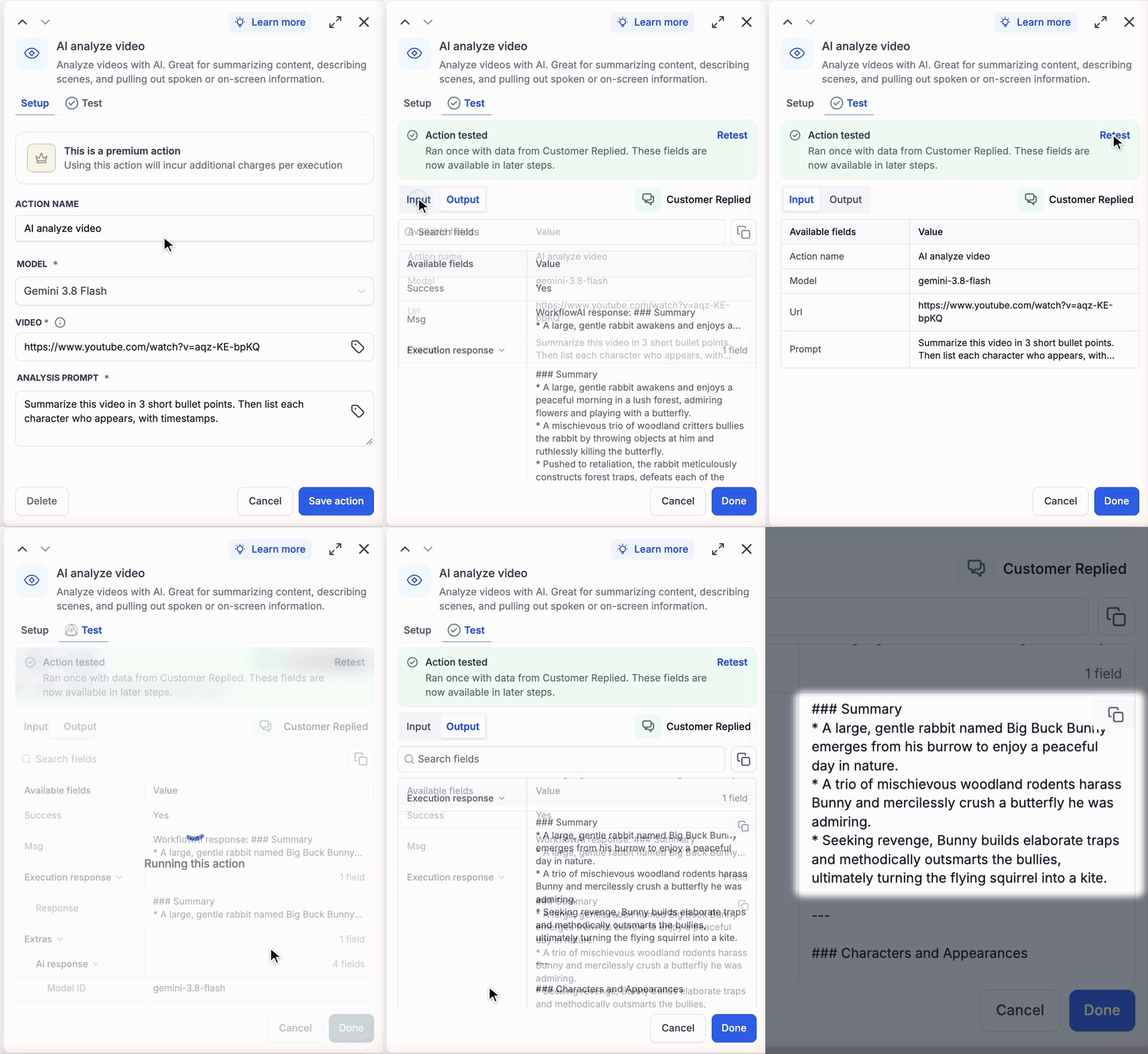
- Open the Test tab to review input values.
- Click Test Action to run the analysis.
- Note: running the test incurs a charge.
- Check the generated Response under Output and adjust the prompt if needed.
- Click Save action, add a subsequent step that uses the Response, then save and publish the workflow.
07What it looks like in HighLevel
08Settings that matter
- Model. Chooses which Google Gemini model processes the video; options are Gemini 3.8 Flash (default) and Gemini 3.5 Flash Lite.
- Video. Specifies the public video URL that Gemini will analyze; can be a static link or a dynamic value from earlier workflow steps.
09Things to know before you rely on it
- Each execution incurs additional charges based on the selected model, video length, and response size.
- Video URLs must be publicly reachable; Vimeo and TikTok links are not supported.
- Large videos may take longer to process and can time out.
- Gemini may return Markdown formatting; request plain text in the prompt to avoid it.
- Responses can contain errors; verify important information before using it for critical decisions.
10If something goes wrong
- Video URL blocked. Use a public YouTube or direct video file URL.
- Invalid or inaccessible URL. Confirm the video opens without authentication.
- Processing timeout. Retry the action or use a smaller video.
- Inaccurate response. Verify the URL and refine the prompt.
- Unwanted Markdown formatting. Request plain text in the analysis prompt.
11How it connects to the rest of HighLevel
- Configure other AI actions such as GPT or Summarize for complementary tasks. GPT action
- Learn how to set up the AI Summarize action for text workflows. AI Summarize
- Get an overview of workflow triggers, filters, and actions to place AI Analyze Video in the right context. Workflow basics
Michael's take

If your videos are private, short, or you rarely need the insights they contain, you may prefer a simpler transcription method.